
Appointments, classes and equipment hire
Three booking types, ticked under Settings → Configuration → Reservation type (or Custom Features → All bookings → Settings), saved per location:
| Classes | Appointments | Equipment hire | |
|---|---|---|---|
| Who sets the time | You schedule a session on the calendar | The customer picks a start time from the times you make available | The customer picks a start time and a length |
| What the customer books | A spot in that session | A service, usually with one of your staff | An item, no staff |
| Where you set it up | Schedule | Appointments page | Equipment → item → Standalone hire |
| Typical for | Group classes, courses | Treatments, consultations, 1:1 sessions | Courts, bikes, rooms |
Ticking more than one type needs the All bookings custom feature. An appointment service is a class that has been opened for appointments — the same class can still be scheduled as a normal class.
Your services, and where everything is set up
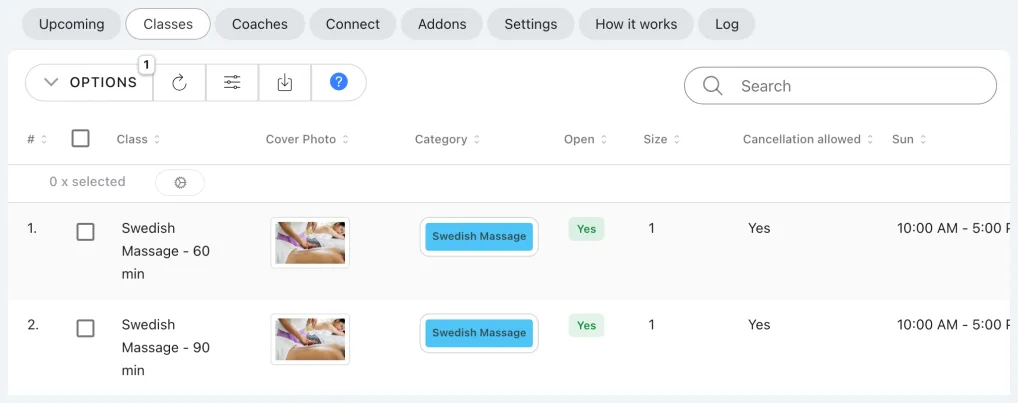
A typical setup — each service is a class opened for appointments:
| Service | Length | Class size | Time frame | Buffers | Delivered by |
|---|---|---|---|---|---|
| Treatment — 60 min | 60 min | 1 | 30 min | 10 before · 15 after | Any connected staff member |
| Extended treatment — 90 min | 90 min | 1 | 30 min | 10 · 15 | Senior staff only |
| Consultation | 30 min | 1 | 15 min | 0 · 5 | Any |
| Step | Where | Guide |
|---|---|---|
| Turn on Appointments | Settings → Configuration → Reservation type | What's an appointment service |
| Create the service | Admin → Classes → New, then Appointments → Classes → open for appointments | Create a new appointment service |
| Connect staff | Appointments → Connect | Connect classes to appointment services |
| Hours, time frame, buffers | Service editor → Appointment - Settings; each instructor → Working hours and Special dates | Set instructor weekly availability |
| Add-ons (optional) | Appointments → Addons | How Appointment Add-ons Work |
| Booking flow | Appointments → Settings | Configure the appointment booking flow |
The admin AI assistant can create services, connect instructors, change working hours, list free slots and book a customer for you — ask it in plain language.
How available times are calculated
When a customer opens a date, the start times are built like this:
| Rule | What it does |
|---|---|
| Service hours ∩ instructor hours | Only the overlap between the service's Working Hours and the chosen instructor's Working Hours (or that day's Special dates) counts. With no instructor chosen, a time is offered when any connected instructor is free. |
| Time frame | The overlap is sliced into candidate start times every Time frame minutes. |
| Duration and buffers | Each candidate must fit the service length plus Buffer time - Open before and Buffer time - Close after; duration add-ons lengthen the block. |
| Existing commitments | Times that collide with the instructor's appointments, scheduled classes or an equipment hold are removed, as are classroom conflicts in Strict mode and times past the Daily class or Daily time limit. |
| Closures and cut-offs | Business closures, Special dates with no hours, dates beyond the booking window and times inside the reservation cut-off are never offered. |
Worked example — Treatment (60 min, buffers 10/15, time frame 30) on a Tuesday:
| Step | Result |
|---|---|
| Service hours 09:00–18:00 ∩ staff member Tue 10:00–16:00 | 10:00–16:00 |
| Sliced every 30 min | 10:00, 10:30, … 15:30 |
| Must fit 10 + 60 + 15 = 85 min | Last possible start 14:30 |
| Existing 12:00 appointment (held 11:50–13:15) | 11:00, 11:30, 12:00, 12:30, 13:00 removed |
| Offered | 10:00, 10:30, 13:30, 14:00, 14:30 |
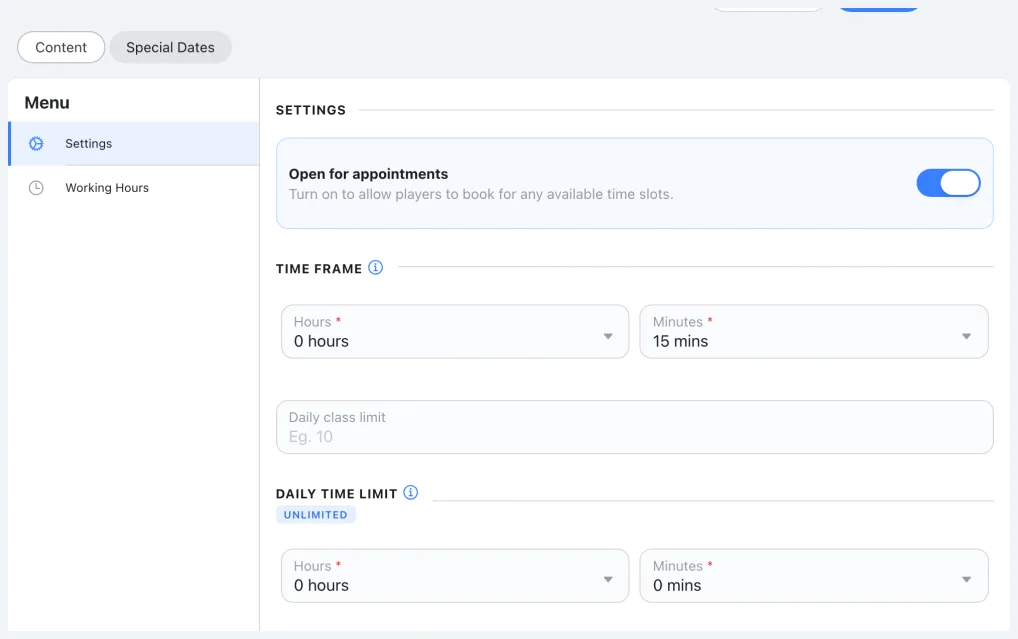
Equipment hire runs the same engine without an instructor: only the time frame, buffer, commitment and closure rules apply, with the length chosen by the customer.
Which booking steps to turn on
On Appointments → Settings → Booking flow each step (Classes, Instructors, Date) can be disabled, optional or required, and dragged into order. Date is always required.
| Step | Enabled | Required | Why |
|---|---|---|---|
| Classes (service) | Yes | Yes | Customers choose the treatment first. |
| Instructors (staff) | Yes | No | Regulars pick their person; new customers skip it and get whoever is free. |
| Date | Yes | Yes | Always. |
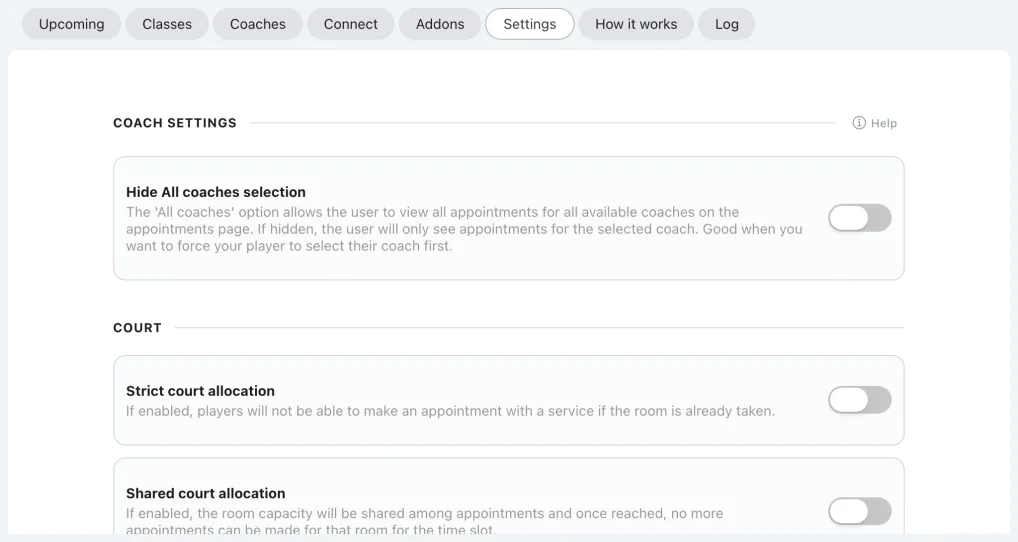
Required steps must come first: marking a later step required makes the earlier ones required too.
What the customer does
| Step | What they see |
|---|---|
| 1 · Service | Your services with length and price; they tap Treatment — 60 min. |
| 2 · Staff | Connected staff, or Anyone to skip. |
| 3 · Date and time | A calendar; greyed days are closed or fully booked. Tapping a day shows the offered start times. |
| 4 · Summary | Attendee, pass or payment, any add-ons; a short hold keeps the time while they review. Confirm. |
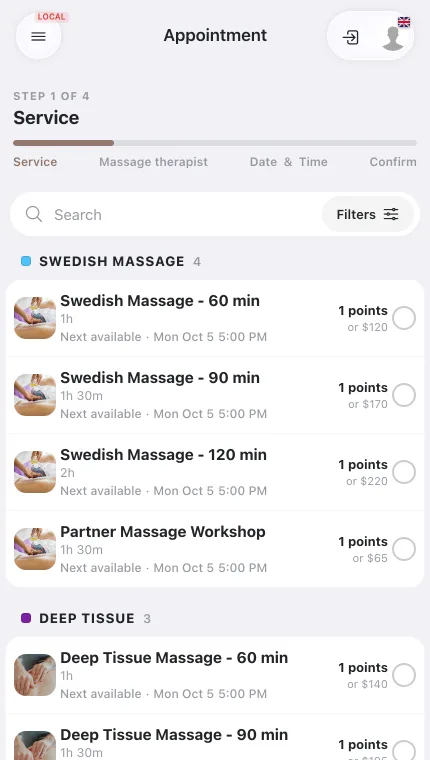
Add-ons are not a separate step: they are ticked on the booking summary before confirming, and a Single (Required) add-on group must be answered first.
Confirming creates the reservation, or adds it to checkout when payment is due. Full walkthrough: How customers book an appointment from start to finish.
Where bookings appear
| Place | What you see |
|---|---|
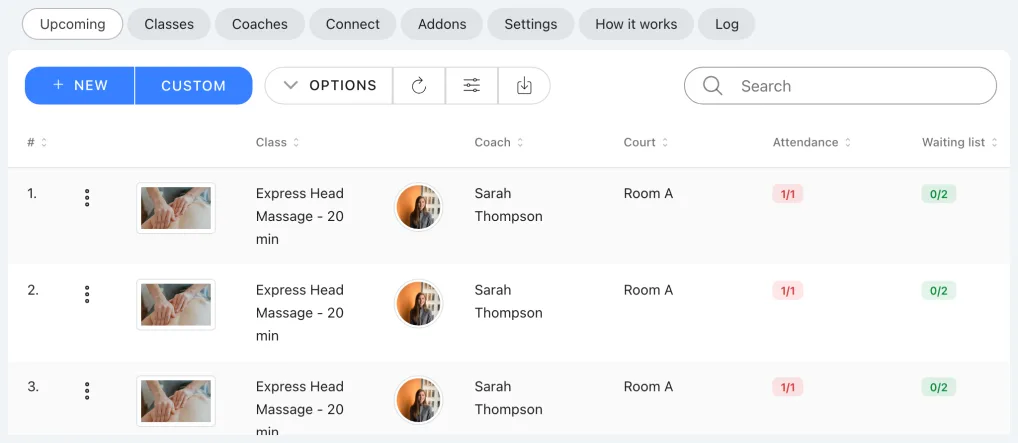
| Appointments → Upcoming | The default tab. Filter by Class, Instructor and Date range; tap a row for the attendees. New books a customer yourself; Custom books a one-off time outside the generated slots. |
| Calendar | On the instructor's day next to scheduled classes, so it blocks the same time for class scheduling. |
| Appointments → Log | The change history for appointments. |
| Customer side | Under the customer's upcoming bookings, with the cancellation rules set on the class. |
Where to go next
- What's an appointment service and when to use one
- Create a new appointment service
- Connect classes to appointment services
- Set instructor weekly availability and Block specific time slots
- How Appointment Add-ons Work
- Configure the appointment booking flow
- How customers book an appointment from start to finish
- Per-location Appointment settings
