
The journey at a glance
Customers open Appointments from the side menu or app launcher and move through six screens in this default order.
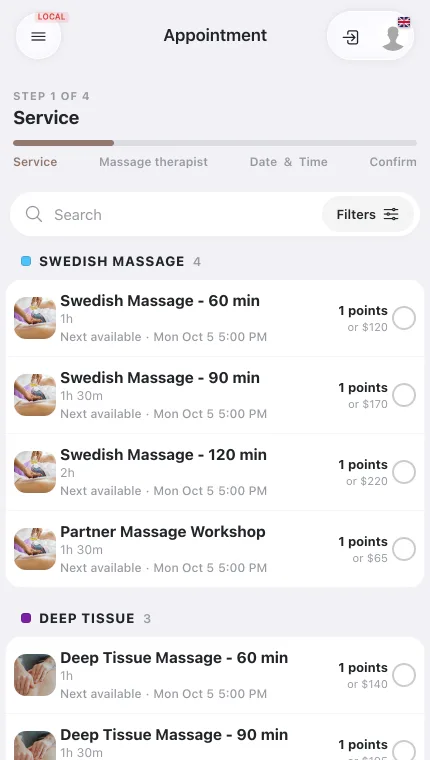
| Step | What they see | What they do |
|---|---|---|
| 1 · Service | The services with duration and price. If attendee count is the only choice, a short panel shows name, duration, price and a Number of attendees selector. | Tap a service, pick the number of attendees, tap Continue. |
| 2 · Instructor | The instructors connected to the service. | Pick one. |
| 3 · Date | A calendar. Dates beyond the booking window are greyed out; dates with no complete free slot show no times. | Pick a date. The refresh button beside the date navigation reloads times without clearing those already shown. |
| 4 · Time | The offered start times. If bookings close a set time before each appointment, a blue note reads Booking closes before start: X. | Pick a time. |
| 5 · Summary | The booked services with the total next to Review booking (hidden when the total is $0). | Check the list, tap Review booking. |
| 6 · Confirmation | The held time with attendee, pass, equipment and add-on choices and the payment line. | Confirm, or add the booking to checkout. It then appears in their upcoming bookings. |
Details worth knowing per step
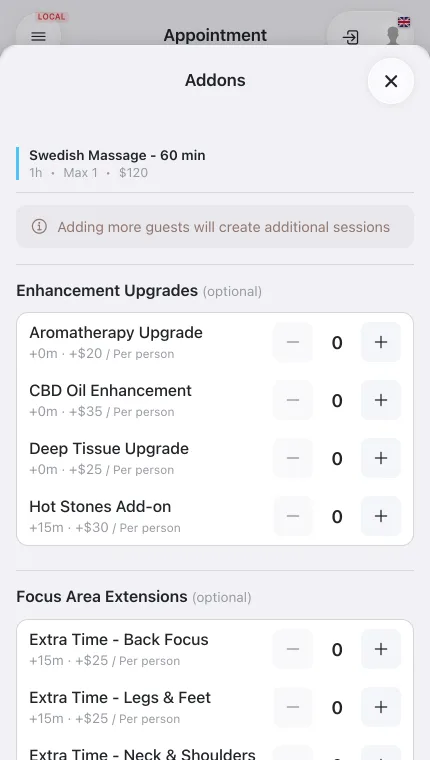
- Service — more attendees than one session can hold triggers a notice that additional sessions will be created. Add-ons are not chosen here.
- Time — a fixed Booking quantity is already included in each slot; customers cannot choose a smaller quantity. When Booking quantity is larger than Class Size, a time is shown only when enough instructors are simultaneously free for every generated schedule.
- Summary — when expanded, Review booking stays at the bottom of the screen. With one service booked, the bar shows its photo, name and total duration. Edit appears only when the service has add-ons or additional services to change. Picking another date or time reopens a closed summary.
- Confirmation — the flow places a short hold on the time. Direct items, add-on groups and add-on classes are all chosen here: a Single (Required) group must be answered before the confirm button enables, duration add-ons lengthen the hold and must still fit the free window, and Per Person add-ons multiply by the number of attendees.
- Payment line — when nothing is due now it reads No payment required, or Add-ons due now when paid add-ons are included, with the note Pay at the business.
How prices are shown in the summary
Every price in the summary (each service, each date of a repeat booking, each booking, add-ons, the total) uses the first line that applies, so customers never see a misleading $0.
| Shown as | When |
|---|---|
| Points, e.g. 2 points or $100 | The service costs pass points; a money price, if any, is shown beside them. |
| Money price, e.g. $100 | The service has a money price only. |
| Pass only | The service can only be booked with a pass. |
| Free | There is nothing to pay. |
In the cart each booking shows Attendees: N, and the unit price × quantity line is hidden when the unit price is $0.
Variations by configuration
The order and number of steps follow the booking flow settings and the service's payment rules.
| Configuration | What changes for the customer |
|---|---|
| Booking flow starts with the instructor | The order becomes Instructor → Service → Date. |
| Services step disabled | The customer goes from the selected or default instructor straight to the date. |
| Older appointment screen | Keeps its one-place flow and does not expand Booking quantity. The New Appointments flow supports fixed packages, including packages that need more than one simultaneous instructor. |
| Pass-only service, customer has no pass, Buy a pass while booking allows appointments (Appointments only, or Calendar classes and appointments) | The slot is held and the required pass is offered on the confirmation step, so pass and appointment are paid in one checkout. |
| Pass-only service, customer has no pass, Buy a pass while booking does not allow appointments | Instead of a failure message the customer sees the passes the service accepts, buys one, then returns to the time slot to book. |
Buy a pass while booking lives under Settings → Payment settings and can be set per location.
