Plan your day
Get the full picture before the first class.
@OmceanBooking Show today's classes with their times, locations, instructors, bookings and waitlists.
Bring the day’s schedule and attendance numbers into one conversation.
Read only
OmceanBooking in ChatGPT
Connect OmceanBooking to ChatGPT. Explore your schedule, understand booking trends and make supported updates with your approval, right in the conversation.
For business owners and staff with an OmceanBooking account.
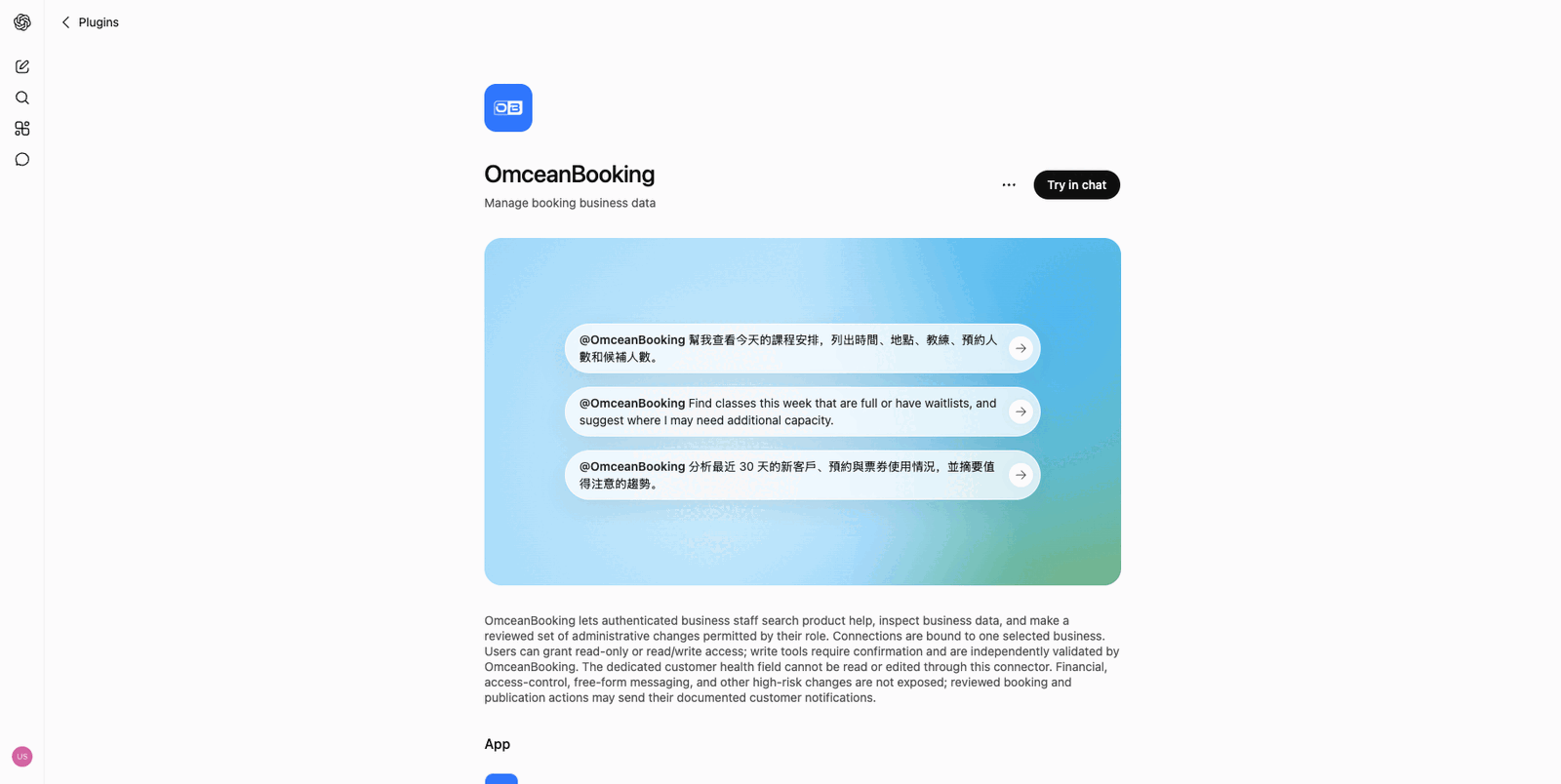
Ask in English or Traditional Chinese. Include the dates, location or class you mean, then keep the conversation going.
Plan your day
@OmceanBooking Show today's classes with their times, locations, instructors, bookings and waitlists.
Bring the day’s schedule and attendance numbers into one conversation.
Spot demand
@OmceanBooking Find classes this week that are full or have waitlists, and suggest where I may need more capacity.
Use your booking data to explore where demand is outgrowing the timetable.
Understand your business
@OmceanBooking Summarize new customers, bookings and pass usage from the last 30 days.
Review the patterns, then ask follow-up questions about what stands out.
Make an update
@OmceanBooking Change the capacity of Friday's 7pm class to 12.
Requires change access and the relevant staff permission. Review the exact class and proposed change before confirming.
Use a ChatGPT account with access to plugins and an OmceanBooking login with an active staff role.

Open the listing, choose “Try in chat”, then select “Sign in with OmceanBooking”.
Sign in with Google, LINE, or email and password. Select one business and choose “Read only” or “Read and make changes”.
Return to ChatGPT and mention @OmceanBooking. Ask your first question with the dates, location or records you need.
Choose how ChatGPT can help. Every connection stays within your selected business and existing staff role.
Look up information, explore reports and search OmceanBooking help. This access cannot create, update or delete records.
Allow supported admin updates. ChatGPT asks you to confirm the proposed action, and your staff permissions still apply.
Changes made through the connection are identified as ChatGPT in OmceanBooking’s activity log, so your team can see where an update came from.
This integration is for business owners and staff. Connecting requires an active staff role in the selected OmceanBooking business. Customer booking conversations on your website and LINE are separate OmceanBooking features.
Each connected account is bound to one business. Connect each business separately and check which account you are using before asking a question or approving a change.
The connector does not expose financial balance or payment changes, staff access changes, free-form customer messages or subscription cancellation. The dedicated customer health field is also unavailable. Available tools depend on your role, booking modules and selected access level.
Yes. In ChatGPT, open Settings → Plugins → OmceanBooking to review connected accounts or disconnect. Disconnecting prevents future access; it does not undo changes you already approved.
Check that plugins are available for your ChatGPT account or workspace. Sign in with an OmceanBooking account that has an active staff role, select the correct business and review your access level. Your account admin can help check role permissions.
Connect your account, choose your access and start with a question about today.
New to OmceanBooking? Talk to our team