
Where to enable
Go to Admin → Appointments → Settings. With the Multiple Locations custom feature on, a toggle appears at the top of the settings area: Do you want to have settings per location? Turning it on lets you manage appointment settings separately for each location and reveals a per-branch editor below; turning it off applies one setup to all locations.
Pick the branch to configure with the location selector in the admin header. The booking types themselves (Classes, Appointments, Equipment hire under Settings → Configuration → Reservation type) are also saved per selected location, so one branch can run appointments while another runs classes only.
All Locations hides the editable fields until you choose a specific branch.
Per-branch booking rules
Within each branch you can tailor the appointment experience:
| Rule | What it does |
|---|---|
| Booking flow | Order and visibility of the booking steps — see Configure the appointment booking flow. |
| Instructor visibility | Whether customers see instructor names and photos when picking a slot, or book a generic time and have the system assign someone. |
| Show when full | Whether fully-booked slots stay visible greyed out or are hidden entirely. |
For example, a downtown branch can run a fast no-instructor-choice flow while a smaller studio lets customers pick a favourite coach.
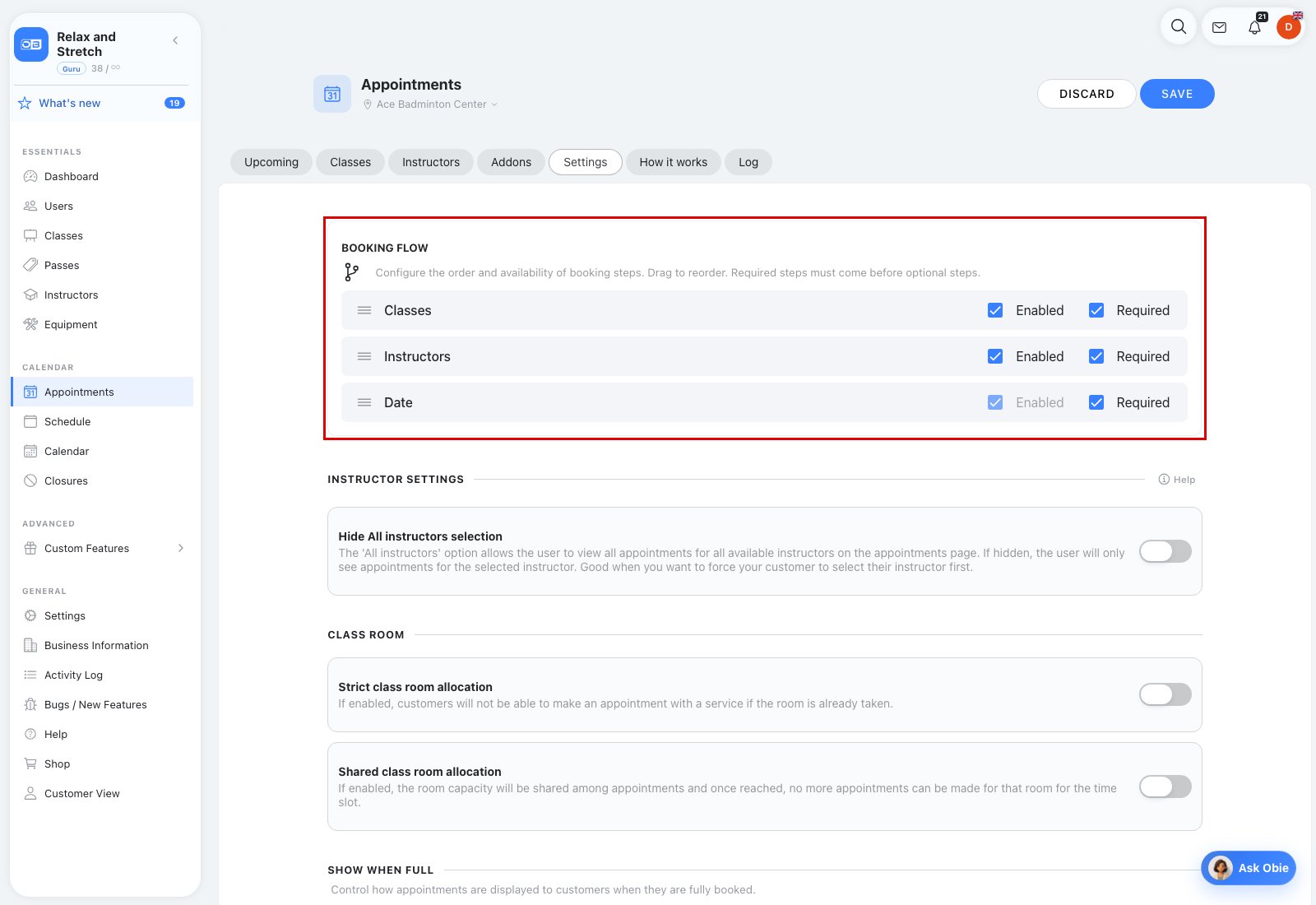
Classroom modes per branch
Each branch can run its own classroom assignment mode:
| Mode | What it does | Use it when |
|---|---|---|
| Strict | Every appointment must be tied to a classroom; overlapping bookings in the same room are blocked. | A multi-floor flagship that must enforce room allocation. |
| Shared | Classrooms exist, but several appointments can share a room at the same time. | Open studios, co-working layouts or a satellite studio with a single open space. |
The mode is read from the branch's own row, so each location can keep a different one.
