
What is LINE Bot?
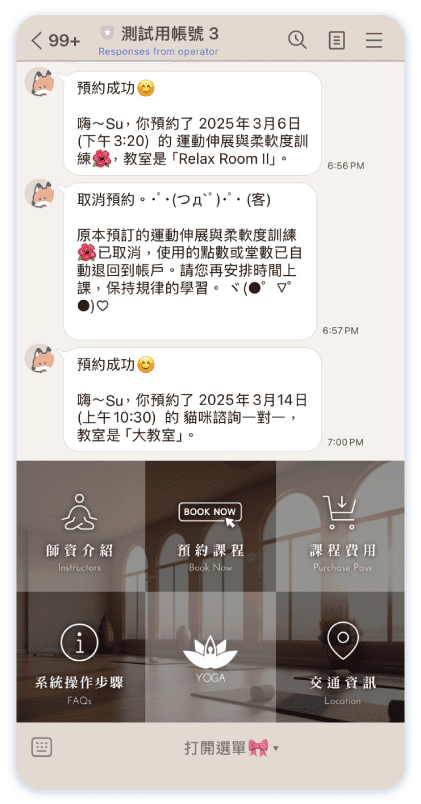
The LINE Bot / Notifications custom feature connects your LINE Official Account to Omcean Booking. Customers can browse services, book, view their own reservations and passes after signing in, and receive the notifications you enable. Typed messages can use either the classic keyword bot or the AI Chatbot.
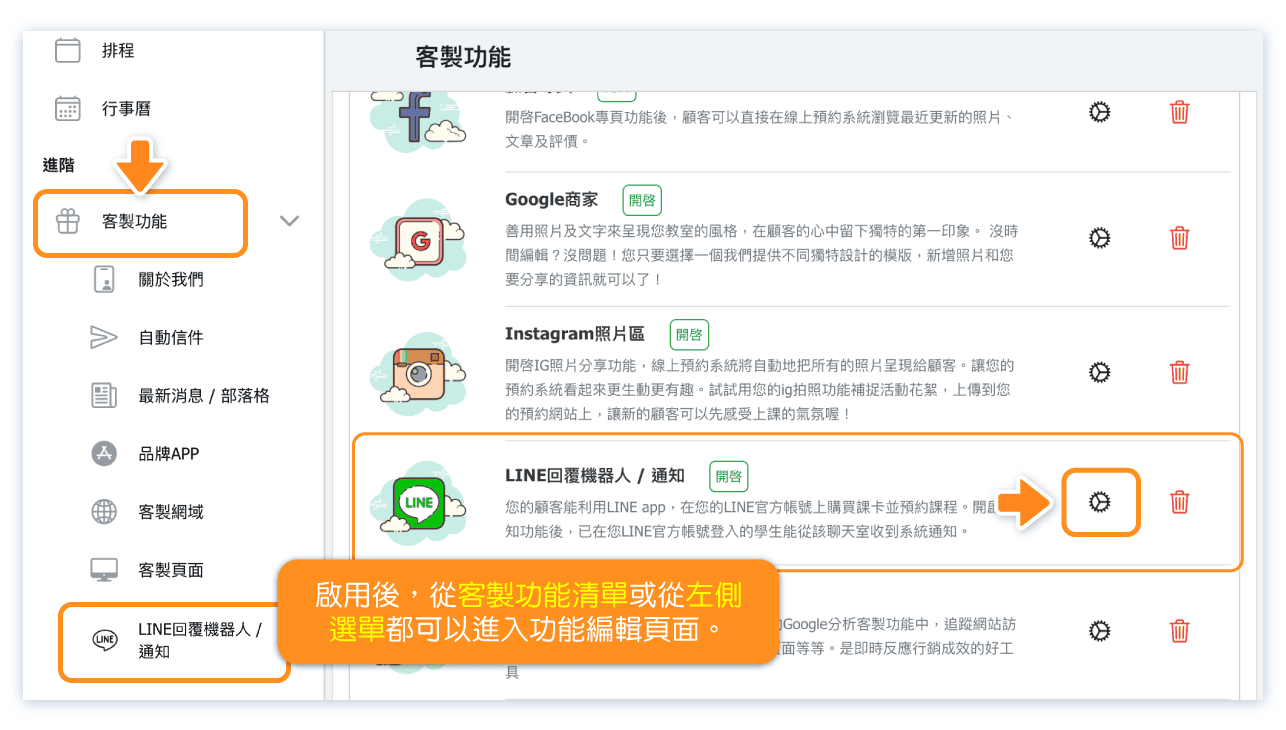
Turn on "LINE Bot/Notifications" Feature.
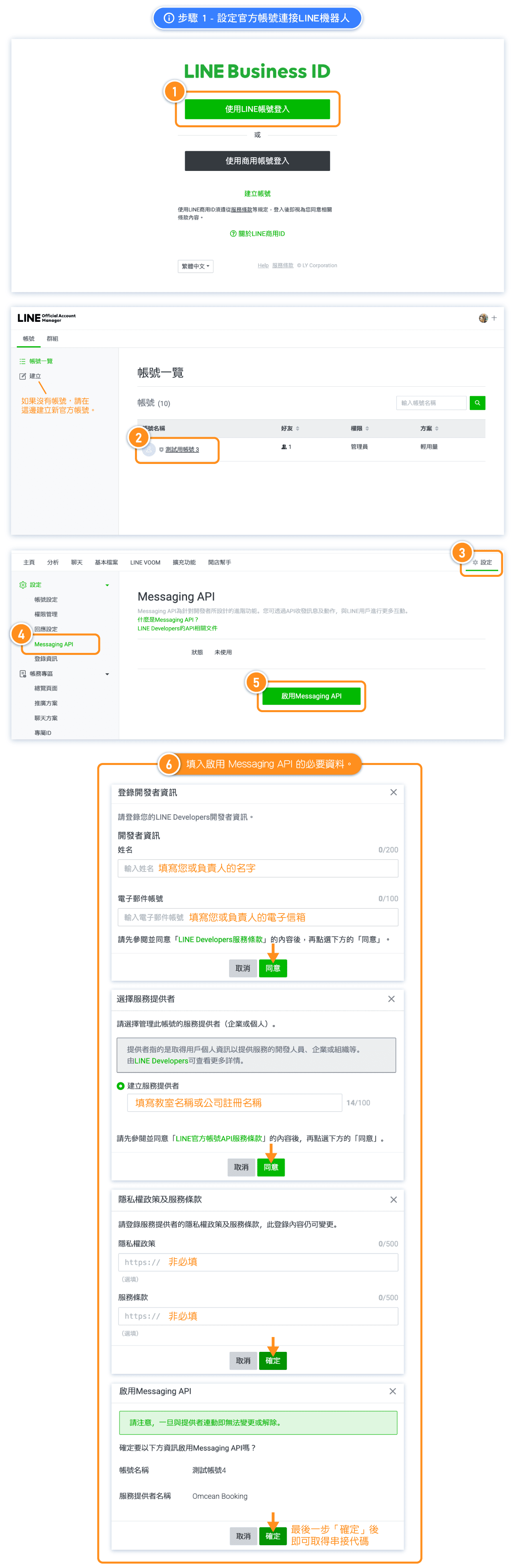
Step 1 - Set up LINE Official Account to Connect LINE Bot
First, change the LINE official account settings to allow integration with the system's LINE bot and copy Channel ID and Channel secret and paste it in the booking system.
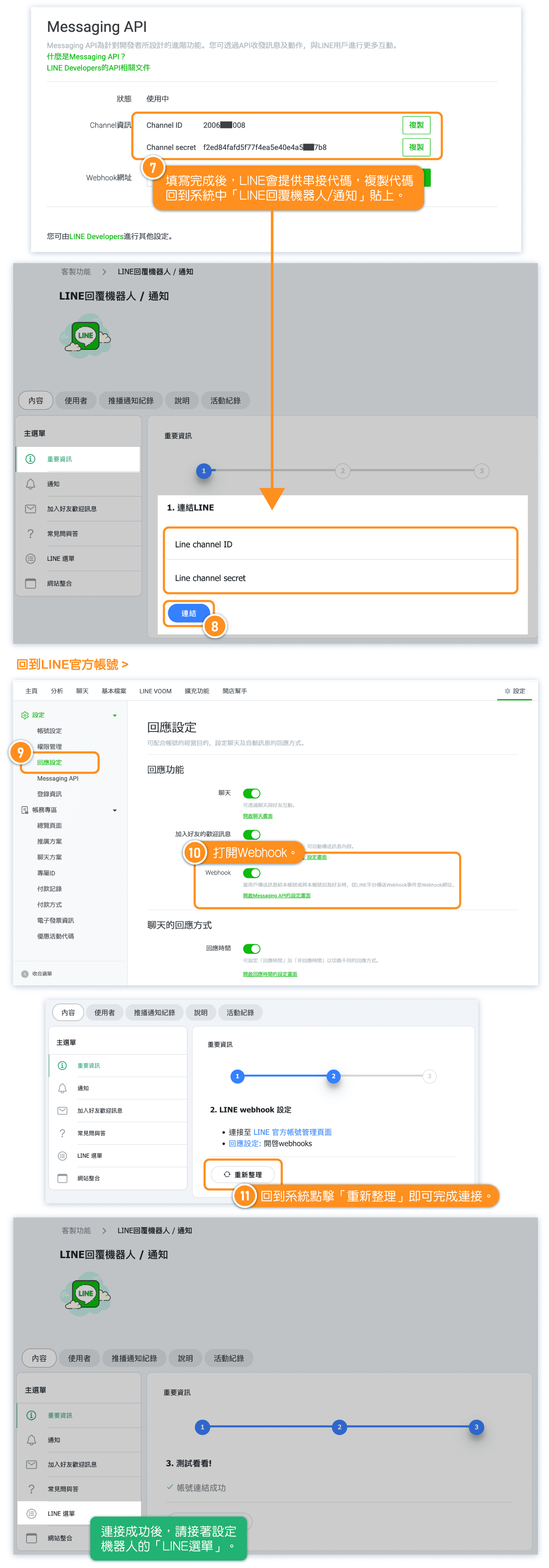
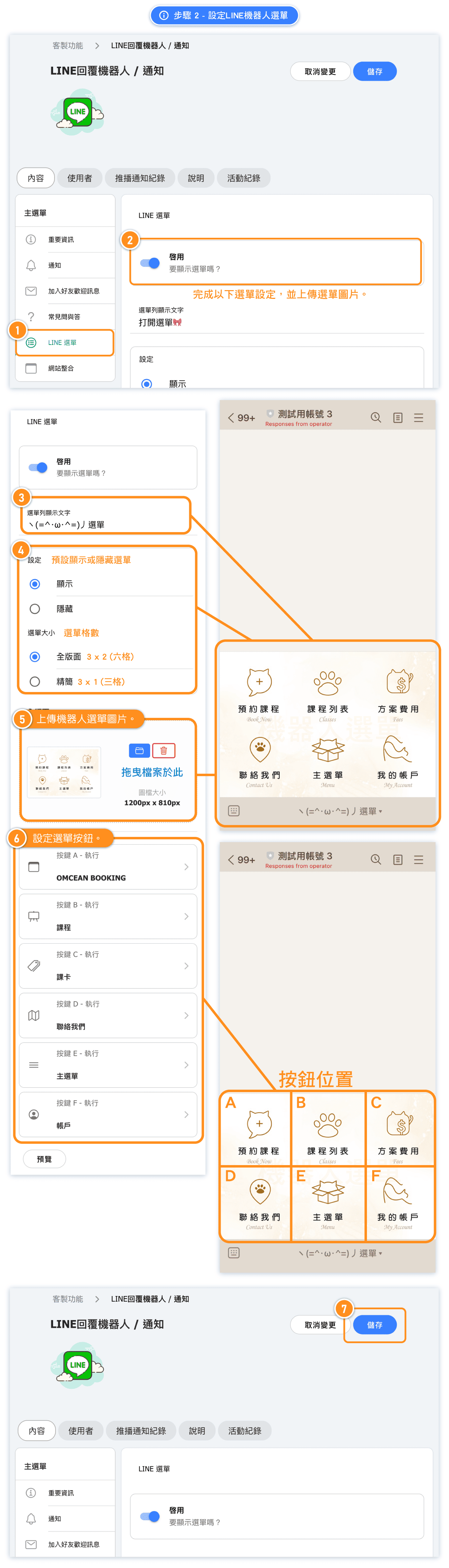
Step 2 - Set up LINE Richmenu.
Once the integration is complete, set up the bot menu by uploading the designed menu to the system, configuring the button functions, and saving the settings.
If you want to use the "LINE Notifications" feature, the menu must be set up in the system!
One of the buttons should be set as "Menu." This way, when users tap "Menu," they will see the login button. By logging in and connecting their personal LINE account to the LINE bot, they will start receiving notifications from the LINE bot.
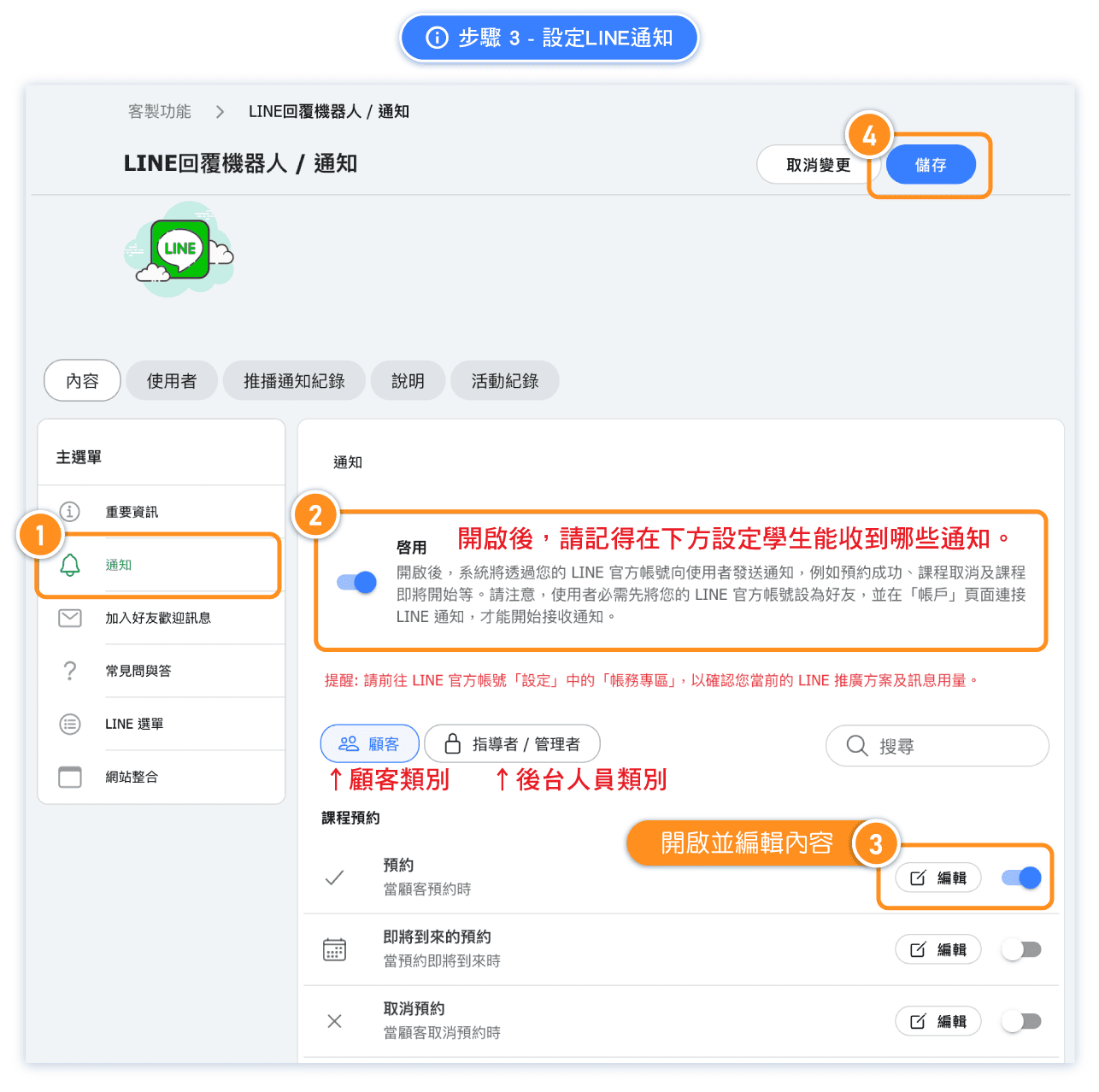
Step 3 - Turn on LINE Notifications (LINE Messaging API)
If you want to receive notifications from the LINE official account, enable notification settings, select the notifications you want to receive, and save.
Reminder: The total number of notifications you can send to customers each month is determined by your LINE plan. Please visit the "Activity and Billing" page in your LINE Official Account settings to check your current plan and message usage.
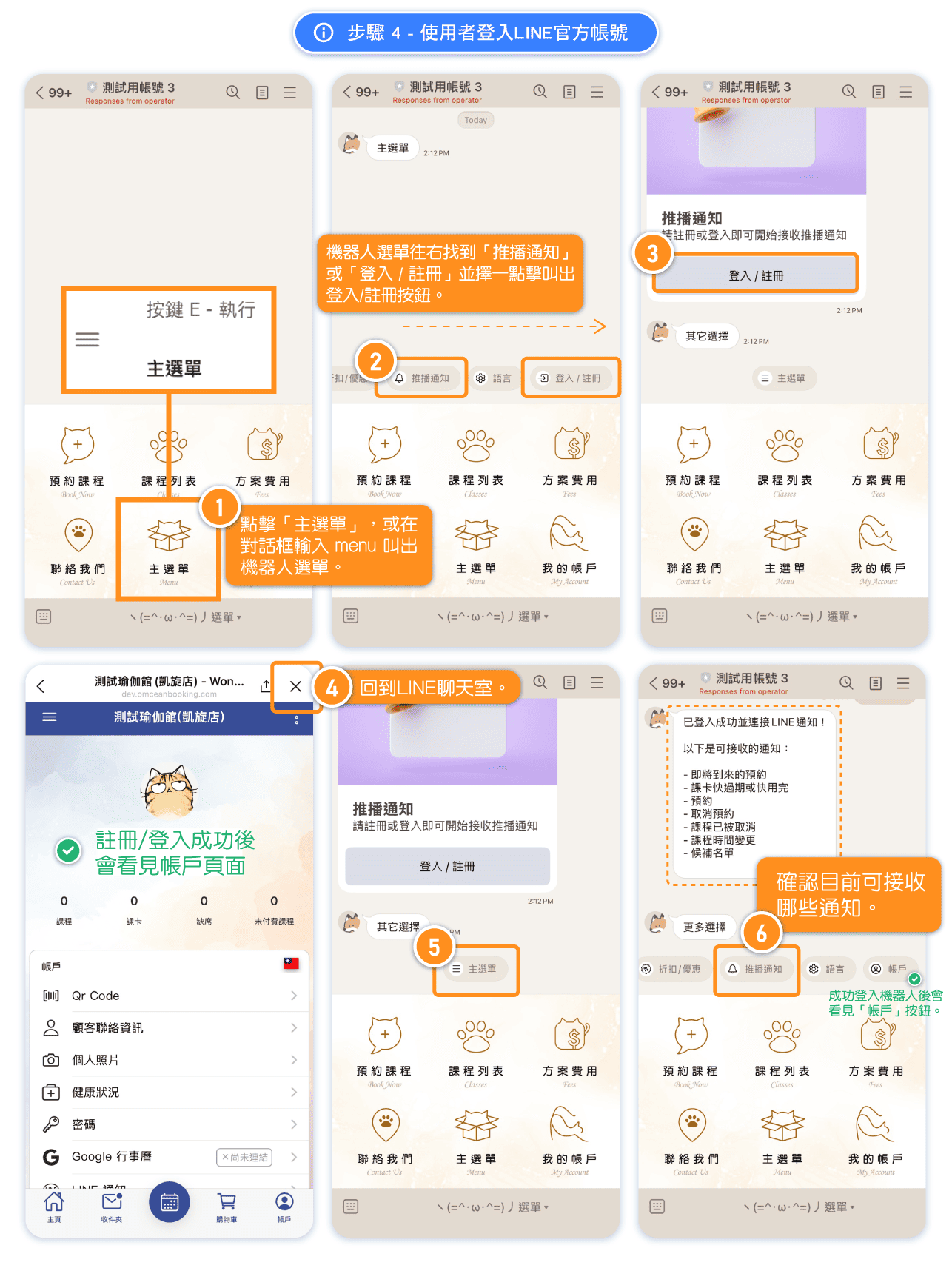
Step 4 - User Connects to LINE Notifications
Reminder: To receive notifications, admins, instructors, or customers simply need to connect their LINE profile to their account. When they tap the Login / Register button in the LINE chat, a lightweight Connect your account sheet now opens directly inside LINE instead of redirecting them to a separate login page.
- The sheet shows the customer's LINE name (and profile photo) with a single Continue as [name] button.
- Tapping Continue links the LINE profile to an existing account, or automatically creates a new account if the customer does not have one yet.
- After connecting, the customer is returned straight to the LINE conversation so they can carry on with their previous request, and their personal LINE notifications begin.
Messages a customer might see:
- This connection link is invalid or has expired — return to the chat and tap Login / Register again to get a fresh link.
- This LINE chat is already connected to a different account — this chat has already been linked to another account.
- That customer account is already connected to a different LINE profile — the matching account is already linked to another LINE profile.
- We found more than one matching account — please contact the business for help.
Note: only the generic Login / Register buttons use this in-chat sheet. The pass purchase and class reservation buttons still open the existing full login page so they can continue to their specific destination.
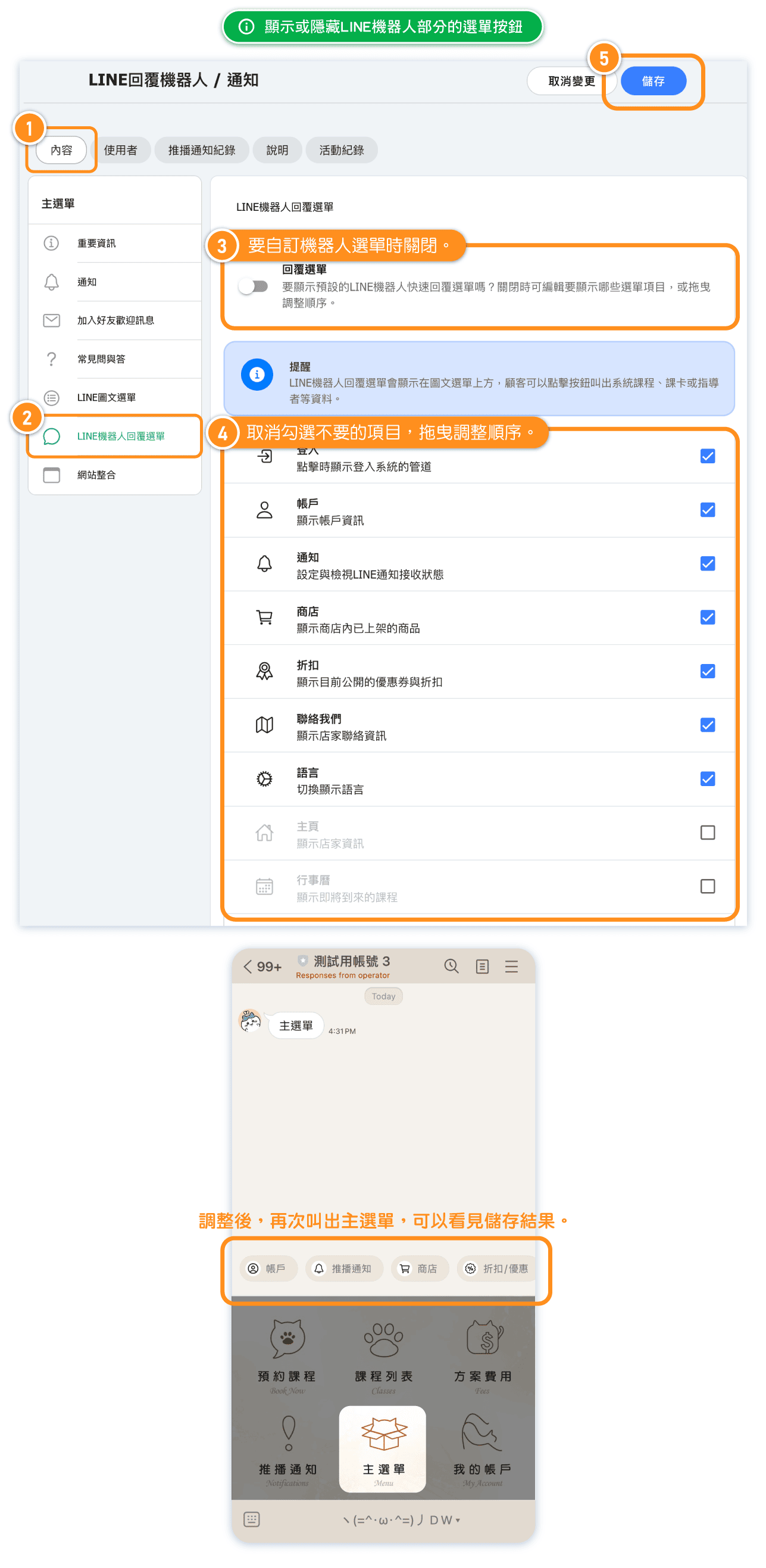
FAQ: How do I show/hide certain LINE Bot menu buttons?
You can go to "Line quick replies" to hide specific menu items in the LINE Bot. You can also drag and adjust the order of the items.
FAQ: How can I check if a customer is connected to the LINE Bot?
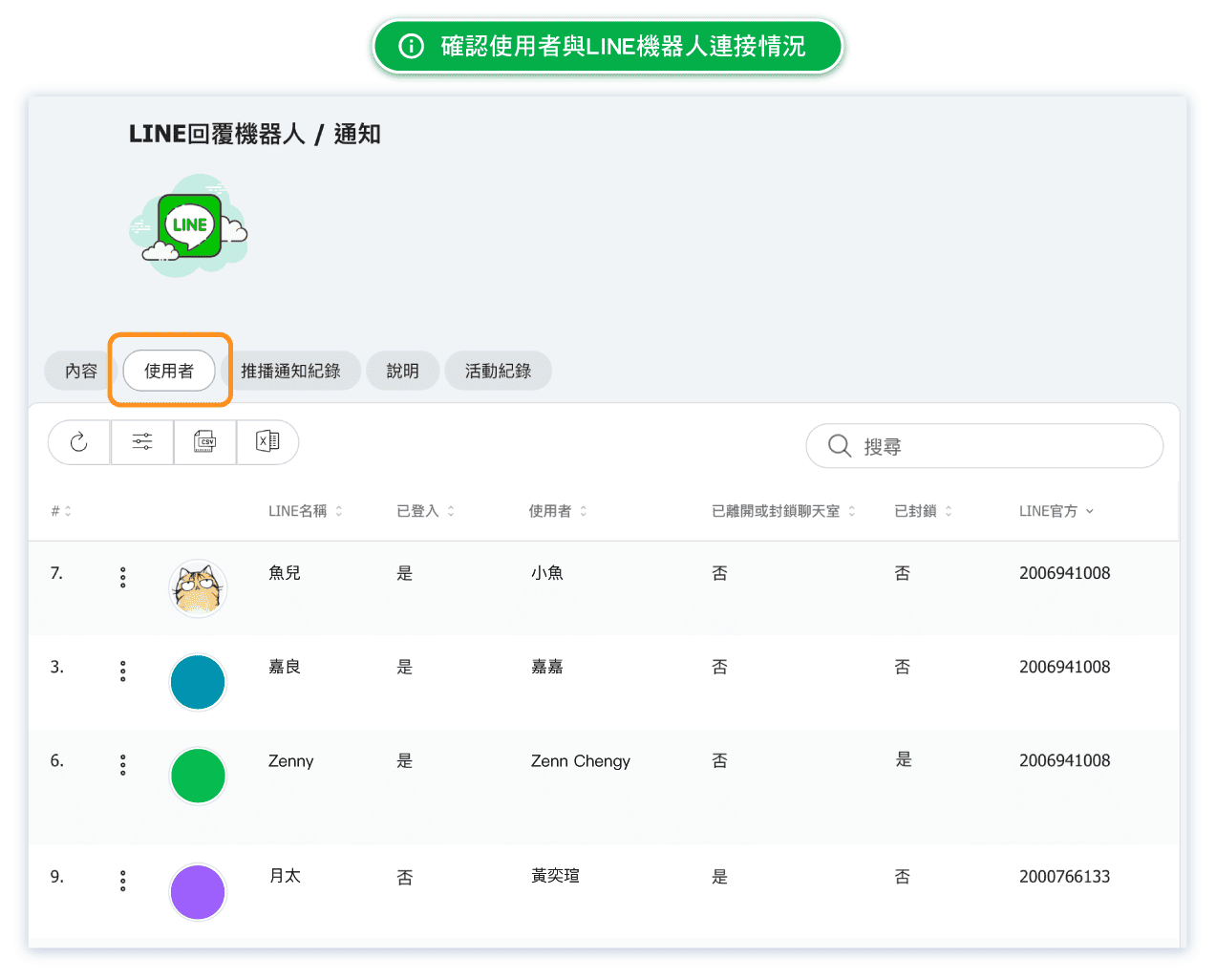
On the Users tab in the 'Line Bot / Notifications' page, you can see all registered users. The column that used to be called Logged in is now called Connected. It shows Yes when that LINE follower has a linked LINE sign-in — in other words, the follower and a customer account are genuinely connected — rather than simply indicating that a customer record was found. The LINE official field displays the Channel ID of the connected LINE Official Messaging API. Together these confirm the customer is successfully connected to the LINE Bot and its notifications.
FAQ: Can I tell if a customer has blocked me?
Yes. On the "User" tab, find the user who you want to check and look at the "Left chat" field. If it shows "Yes", the user has blocked your LINE Official Account chat.

FAQ: Can I prevent the system from sending LINE notifications to certain customers?
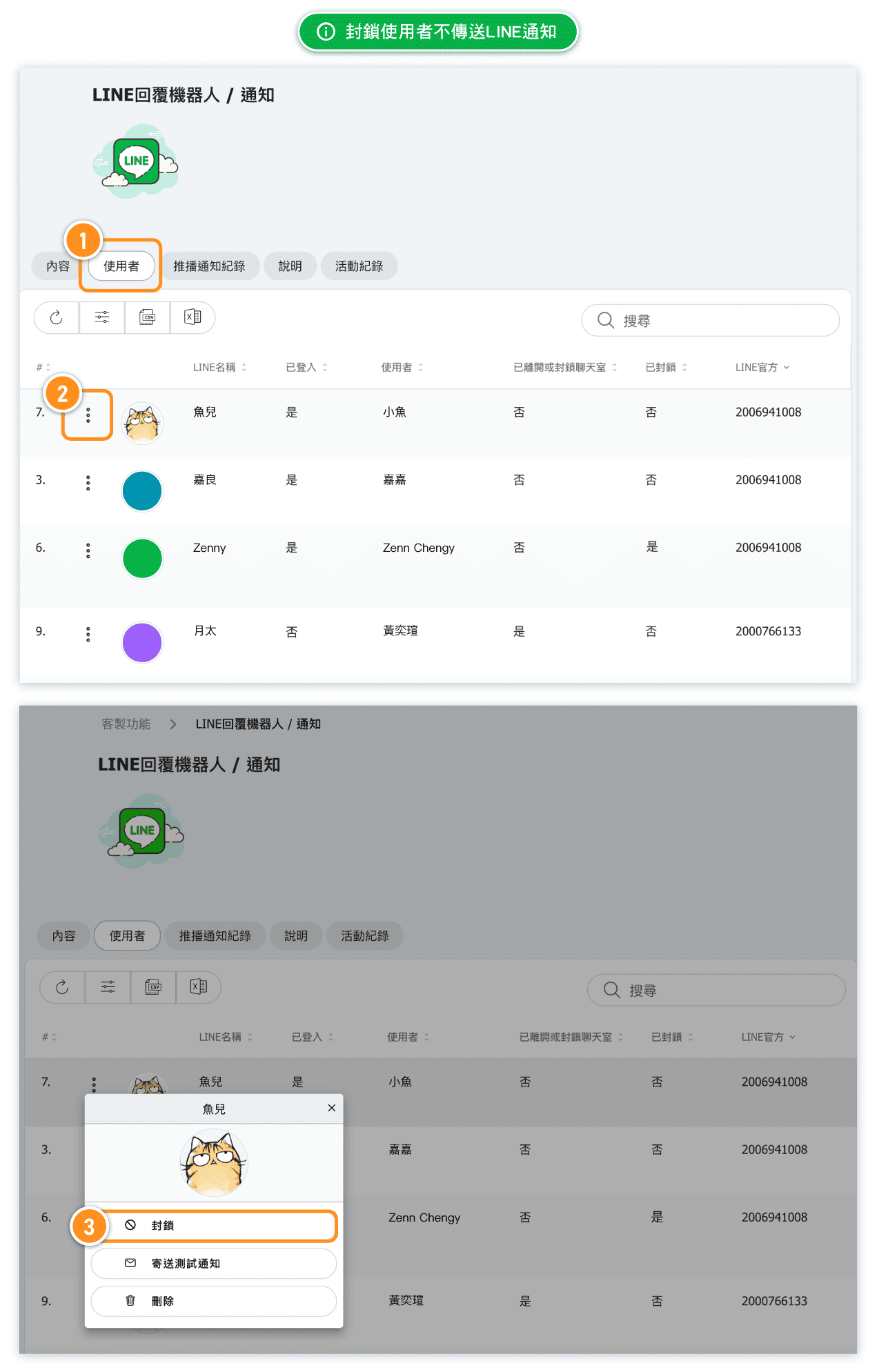
Yes. Find the user on the "User" tab, click the three-dot icon on the left, and select "Block". The system will no longer send LINE notifications to that customer.
FAQ: What happens if a customer blocks the chat or I block them in the system?
The customer will no longer receive system notifications via LINE, but actions like logging in and booking will remain unaffected.Need Help for LINE Richmenu?
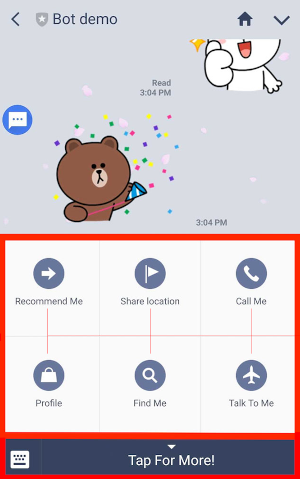
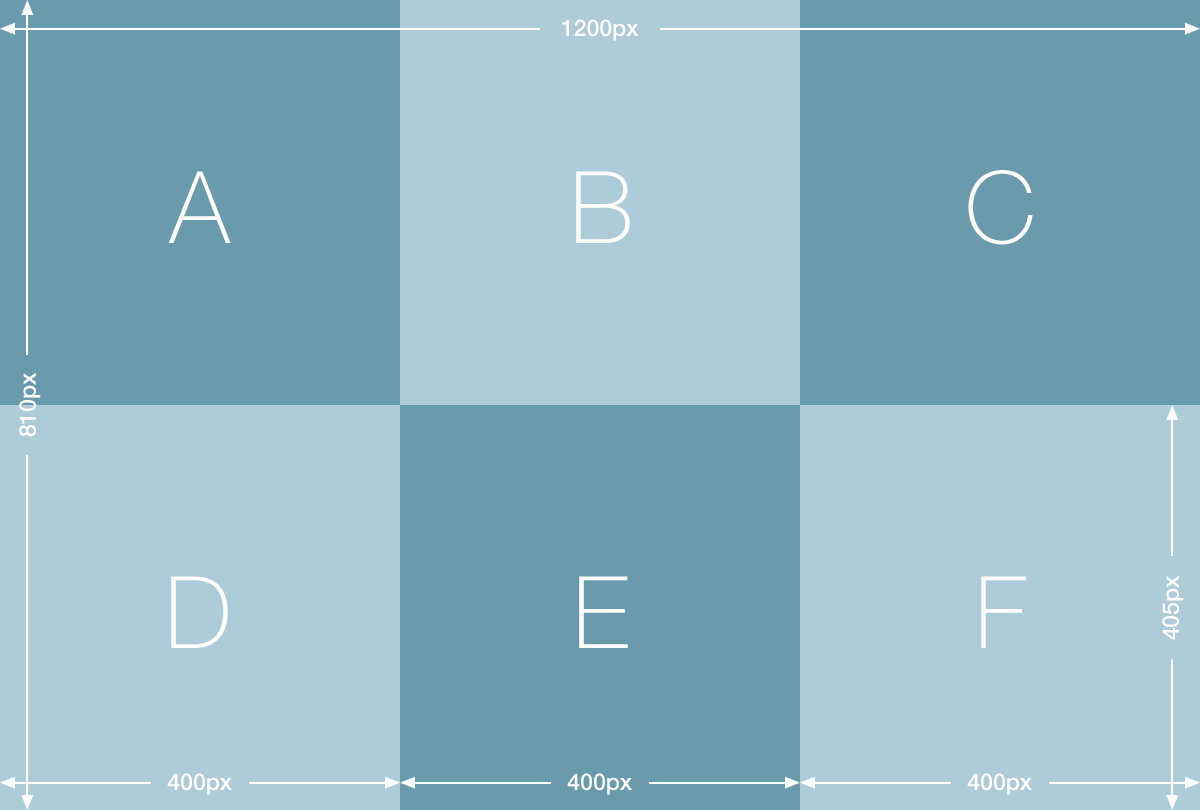
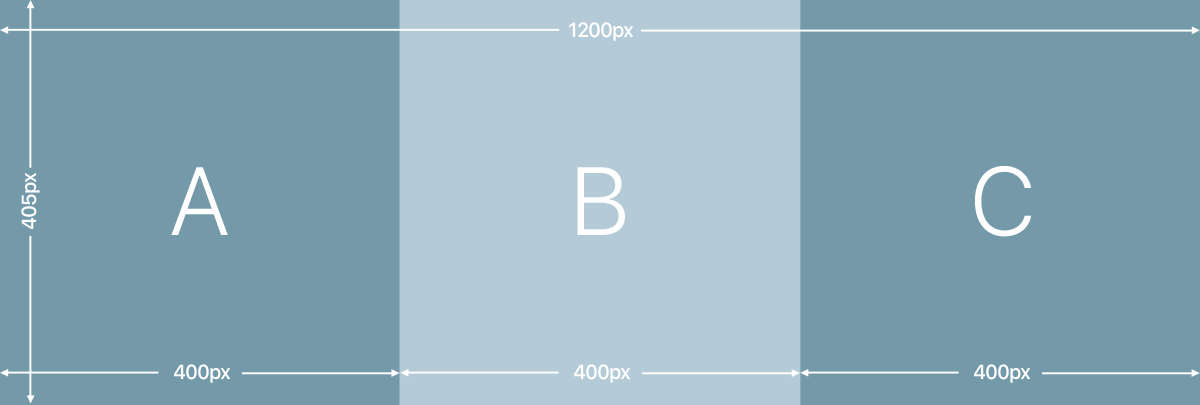
The rich menu is a customizable menu that is displayed on the chat screen to help users interact with your LINE Official Account.
Large
Compact
FAQ: How is LINE Bot Chat Quota Calculated?
LINE message allowances and billing depend on your LINE Official Account plan and may change. Broadcasts and proactive push messages may be counted differently from replies to a customer message.
Open Activity and Billing in your LINE Official Account settings to check the current allowance, usage, and pricing for your account. Refer to LINE's current documentation before planning a campaign or large notification send.
Auto replies and AI powered
Go to Admin → Custom Features → LINE Bot / Notifications → Content → Auto replies.
- Auto replies off — no AI reply, classic keyword reply, rich-menu postback response, or automatic follow greeting is sent. Use this when your team will answer manually. Login, sign-up and logout still work. If a customer types or taps login, register or logout, that account action is still carried out and answered, so customers can connect or disconnect their account themselves while your team replies to everything else in person. A logout while auto replies are off sends a plain Logged out successfully confirmation with no menu buttons.
- Auto replies on + AI powered off — typed messages use the classic keyword bot. The LINE Bot greeting, Bot FAQ's, and LINE quick replies settings apply.
- Auto replies on + AI powered on — typed messages and supported photos go to the AI Chatbot. Its name, avatar, personality, greeting, Q&A, Knowledge, and human contact are managed on the separate AI Chatbot page.
The LINE AI reply mode can also be switched on from Admin → Custom Features → AI Chatbot → Settings, which keeps every chatbot control in one place. Either way, it can only be turned on while the LINE Bot / Notifications custom feature is enabled, and the AI Chatbot custom feature must be enabled too. Rich-menu button actions and other postbacks continue to use their normal LINE Bot flows.
AI Q&A vs the classic Bot FAQ
These settings serve different reply modes:
- AI Chatbot → Training → Q&A stores individual customer questions and preferred answers for the AI to use naturally in conversation.
- LINE Bot → Bot FAQ's is one classic message sent when a customer selects the FAQ menu item. It is used only when Auto replies is on and AI powered is off.
- AI Chatbot → Training → Knowledge stores broader background such as directions, house rules, policies, and service explanations. Live schedules, availability, prices, and passes always come from Omcean Booking instead.
What happens to a LINE conversation when a customer logs in or out
A LINE conversation belongs to the account the customer is signed in as at that moment.
- Logging in — the chat the customer had before signing in is carried over, so they do not have to repeat what they were asking about.
- Logging out, or having their account removed — the conversation starts fresh. Nothing from the signed-in conversation is carried forward, so whoever uses that LINE profile next never sees the previous person's details.
If a chat loses access to an account part way through — for example the customer logs out or is unlinked while a reply is being prepared — the chat now recovers by itself, starts a clean conversation for whoever is signed in, and answers the customer's message instead of showing an error.
FAQ: Can I link a LINE follower to a customer record myself?
Yes. On the Users tab of LINE Bot / Notifications, open the three-dot menu on the row. The menu shows Connect when that follower has no linked LINE sign-in, or Disconnect when they do, above the existing Block/Unblock, Send Test Message and Delete actions.
Choosing Connect closes the menu and opens a customer picker window where you search for and choose one customer. Pick the customer and the link is made; close the window without choosing anyone and nothing changes. The list then reloads so the row shows the authoritative result.
The customer must have signed in with LINE at least once before they can be connected, because the link is made through the LINE identity stored on their customer record. If that customer has never used LINE login, the connection is refused and you will need to ask them to sign in with LINE first.
Once connected, the row shows the customer's name and profile photo, so you can confirm you linked the right person, and Connected shows Yes. Disconnecting removes only the link between the LINE follower and the customer record — neither one is deleted, and Connected simply returns to No.

