
Knowledge is now a collection, not one field
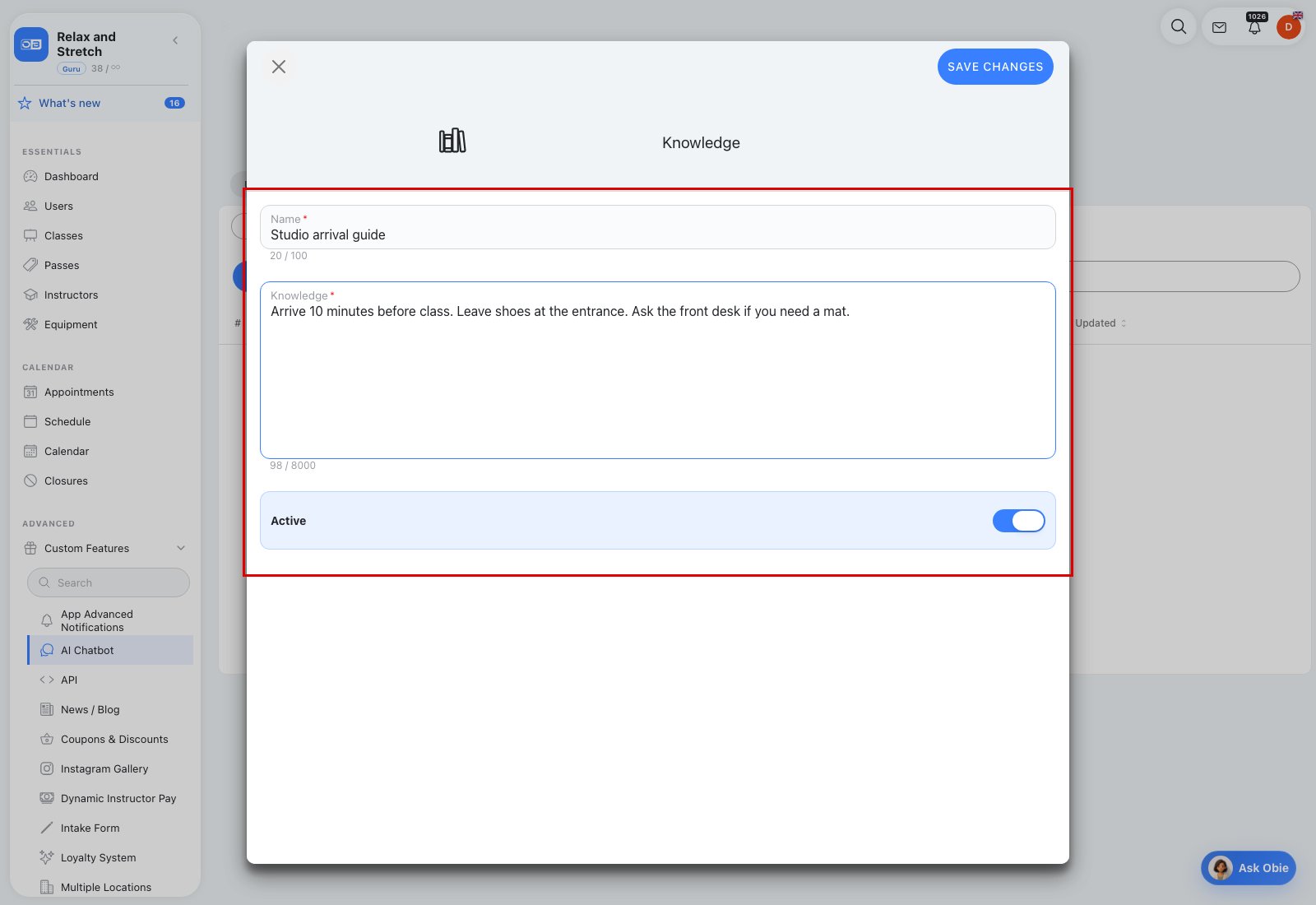
Knowledge supplies background that can support many different answers. Instead of putting everything into one long field, create a separate named entry for each subject—for example Getting here, Studio rules, Membership policy, or Contacting the team.
Named entries are easier to find, update, turn off, and test without disturbing unrelated information.
Add and manage Knowledge
- Go to Admin → Custom Features → AI Chatbot → Training → Knowledge.
- Select New.
- Enter a clear Name in up to 100 characters.
- Enter the Knowledge text in up to 8,000 characters.
- Leave Active on when the chatbot should use it, then save.
The table shows Name, Knowledge, Active, and Updated. Select a row to edit it or use its menu to delete it. An inactive entry remains available to admins but is left out of customer answers. A business can keep up to 50 non-deleted Knowledge entries.
Keep Knowledge useful and current
- Use one subject per entry and a name your staff can recognize.
- Write stable facts and policy explanations in plain language.
- Turn an entry off while reviewing an outdated policy.
- Do not duplicate schedules, availability, prices, passes, or customer records; those are read live.
Knowledge is background, while Q&A is the better place for a specific preferred answer. Test both together in Evaluation.
