
When to hand a conversation to your team
Human handoff pauses AI replies for one LINE contact, so your team can handle their conversation without the AI answering ordinary messages at the same time. Other contacts can continue using the AI.
A customer can ask the AI to speak to a person. When the AI hands the conversation over, the customer receives your Handoff acknowledgement followed by instructions for resuming AI. Staff can also pause a contact themselves from the Users tab.
Reply to the customer in LINE Official Account Manager. Pausing AI does not send a staff reply or guarantee that someone is available immediately. Before replying manually, check that the contact shows AI paused; do not assume that sending a staff message pauses the AI.
Set the handoff duration and customer messages
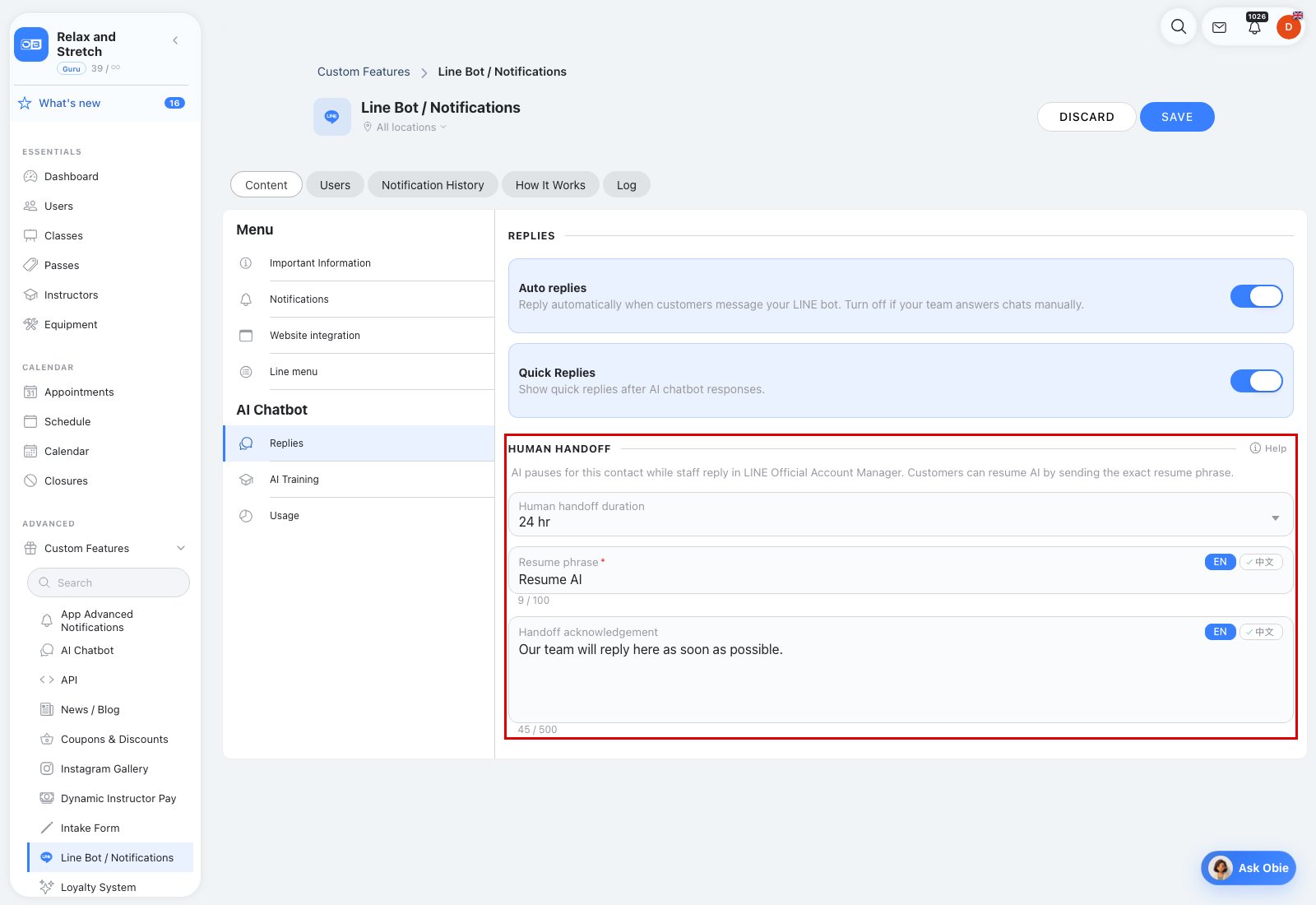
- Open Custom features → LINE Bot / Notifications → Content → AI Chatbot → Replies.
- Enable Auto replies to show the Human handoff settings.
- Choose Human handoff duration: Until resumed, 1 hr, 4 hr or 24 hr. Until resumed has no automatic end time; the other options count from when the contact is paused.
- Set the English and Chinese Resume phrase. Customers send this phrase as a complete message to resume AI. For example, use "Resume AI" and "恢復 AI".
- Write the English and Chinese Handoff acknowledgement, such as "Our team will reply here as soon as possible." The system adds the resume instructions automatically.
- Save your changes.
Use an acknowledgement that matches your team's availability. Avoid promising an immediate reply if staff may be away.
See paused contacts and take over manually
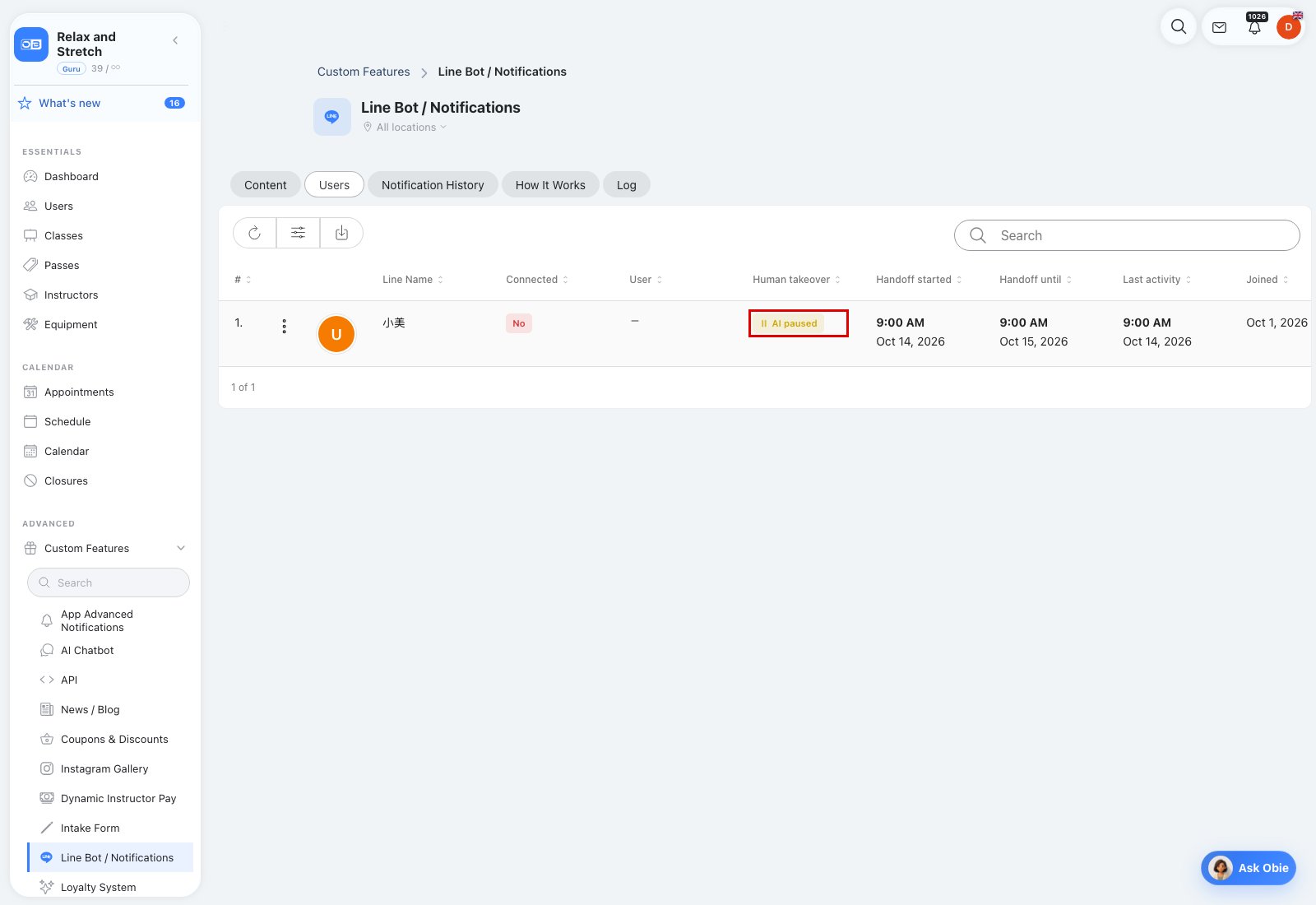
Open the LINE feature's Users tab. In Human takeover, an amber AI paused badge means AI replies are paused for that contact. A dash means no active human handoff; it does not guarantee AI is available if Auto replies is off or the monthly allowance has been used.
Handoff started shows when the pause began. Handoff until shows the scheduled end in your business's time. A contact paused Until resumed has no scheduled end time. Use Refresh to reload the current status, especially after a timed handoff expires.
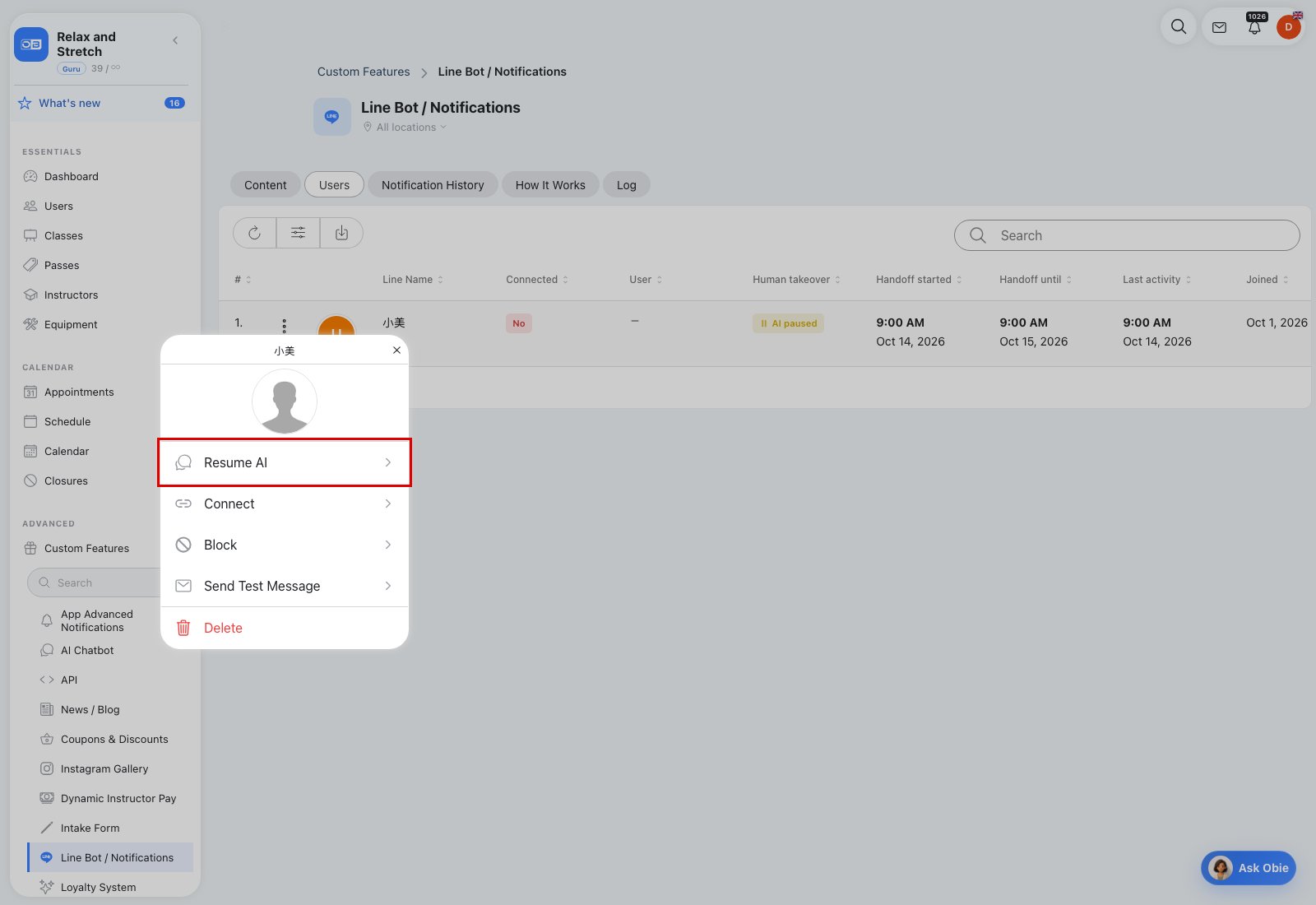
To take over yourself, open the contact's three-dot menu → Pause AI. This uses the configured handoff duration. Then reply in LINE Official Account Manager. When finished, use Resume AI from the same menu. The Users list reloads after either action.
Resume AI and troubleshoot a paused conversation
There are three ways to end a handoff:
- Staff: select Resume AI in the contact's three-dot menu.
- Customer: send either configured resume phrase as a complete text message. Matching ignores letter case and surrounding spaces. Adding other words will not match.
- Time: a 1 hr, 4 hr or 24 hr pause expires automatically. Until resumed remains paused until staff or the customer resumes it.
Auto replies must be enabled for a customer's resume phrase to work and for AI to answer normally again. Ending a handoff does not bypass monthly AI limits.
Missing controls? Save your settings under Content → AI Chatbot → Replies, then reopen Users. Older LINE configurations may still be in the previous reply mode until saved.
Need to stop replies to everyone? Turn off Auto replies. Human handoff is for individual conversations. LINE manual chat and read-receipt settings are separate, and handoff does not turn off booking notifications.

