
Choose who you are testing as
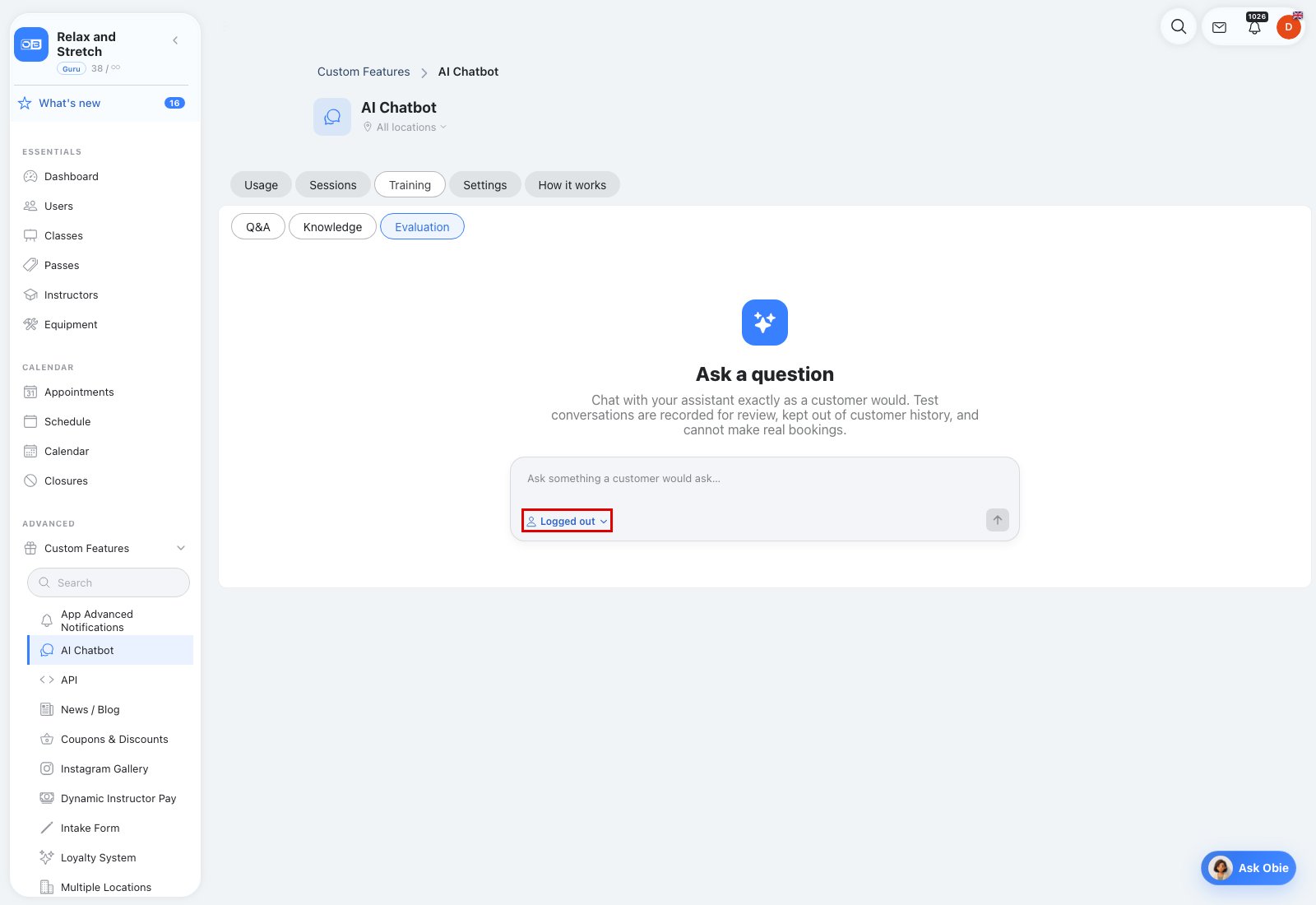
Open Admin → Custom Features → AI Chatbot → Training → Evaluation. The test starts as Logged out, which is best for public questions and the first-time visitor experience.
Use the customer picker in the message composer to select a customer when you need to test their own passes, reservations, waiting-list details, or other permitted account context. The selected customer's label appears directly in the composer.
What happens when the customer changes
Changing the selected customer starts a fresh AI context so the previous customer's history cannot influence the next answer. The transcript keeps the messages already visible and adds a dotted Customer changed divider showing the new selection.
That divider is display-only and is not sent to the AI. Ask a new question after the divider to test the newly selected customer. Use the trash action when you want to clear the whole visible conversation while keeping the current selection.
How test conversations are recorded
Evaluation uses the separate Customer testing audience. Messages are recorded so admins can review the exact test in Sessions, but they are excluded from the selected customer's real chatbot history. The sandbox has the customer's normal read context but cannot create bookings, cancel reservations, join waiting lists, take payment, or change customer data.
Use Copy to copy the visible conversation. Use thumbs down on an assistant message to choose a feedback reason and add notes; that feedback is stored with the recorded test message for later review.
