
When to use standalone hire
| Option | What it does | Use it when |
|---|---|---|
| Link to a class or appointment | The unit comes with the service the customer books. | The equipment supports something else you sell — a reformer in Pilates, a couch in a massage. |
| Standalone hire | The customer picks the item, a start time, a number of hire blocks and a quantity of units, and pays for exactly that. | The equipment is the product — a court without a coach, a bike for the afternoon. |
An item can do both; hires and class sessions share the same units.
Not the linking mode Direct — that only means the item is linked to classes directly rather than via a group.
Turn it on
The first two are checked against your business-wide booking type, not the location you are viewing.
| Prerequisite | Where to set it |
|---|---|
| Equipment hire is a booking type | Settings → Configuration → Reservation type, or the All bookings page |
| The All bookings custom feature is on (unless Equipment hire is your only booking type) | Custom Features → All bookings |
| The item has a Location — hire hours and the Hire page are per location | The item's own settings |
- Open Equipment → Items and open the item.
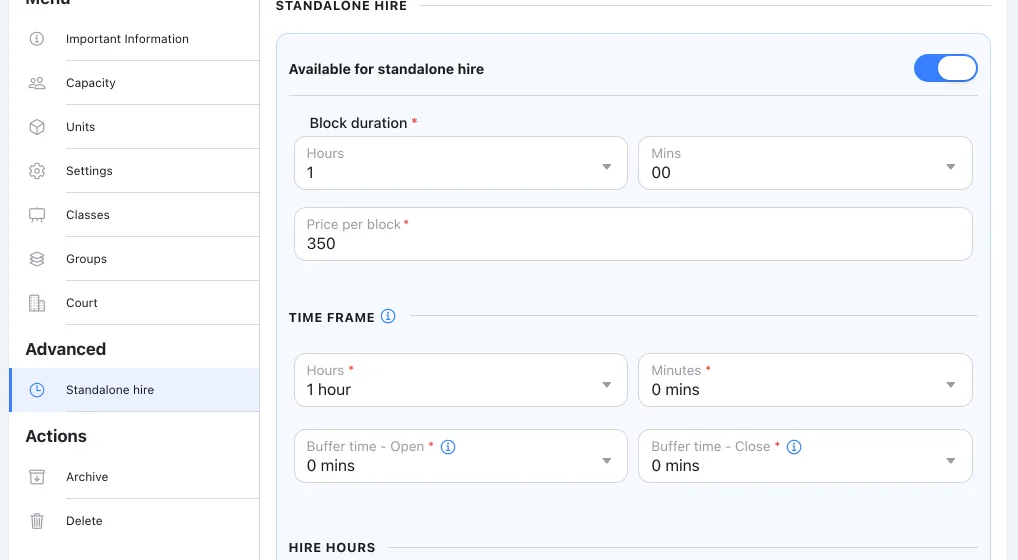
- Go to Advanced → Standalone hire.
- Turn on Available for standalone hire.
Hire capacity = the item's active units × capacity per unit.
Hire settings
| Field | What it means | Default / limits |
|---|---|---|
| Block duration | One hire block; customers hire whole blocks. | 60 minutes |
| Price per block | One block of one unit. The item's ordinary Price does not apply to hires. | 0 to 99,999,999.99 |
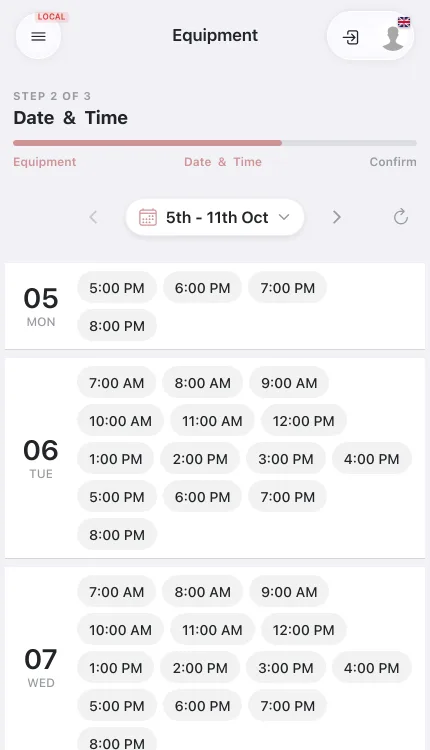
| Time frame | Spacing of start times — 30 minutes gives 09:00, 09:30, 10:00. | 15 minutes |
| Buffer time - Open / Buffer time - Close | Preparation before and clean-up after each hire. | 0, 5, 10, 15, 20 or 30 minutes |
| Hire hours | Tick each open day and enter its hours (several periods allowed; closing after opening; 24:00 permitted). Unticked days show Closed. | The location's opening hours on first setup; 09:00–17:00 weekdays, closed weekends, if none are usable |
Once saved, the item keeps its own Hire hours even if its location changes.
What customers see and pay
In the new booking experience, customers reach the Hire page from the home page Equipment section (up to six items plus View all), the "Choose equipment and a time" shortcut, Book → Equipment, or the side menu.
- Equipment — pick an item. Price shows as / hr for 60-minute blocks, otherwise the block length, such as / 30m. With nothing hireable: No equipment available.
- Date and time — a free start time, offered by Time frame within Hire hours; closed dates apply.
- Duration — extra hire blocks, shown as Additional time.
- Quantity — units; shown only when the item has more than one unit, capped at the units still free.
A plus button is disabled when the next block or unit is not free, buffers included.
Total = price per block × blocks × quantity. Three 60-minute blocks of City Bike at $150 for four bikes = $1,800.
A hire is never paid with a pass; the amount due follows the location's Payment at booking setting. Cart and confirmation show Quantity instead of attendees, and an Equipment label with no instructor.
Add your first hire item in the Welcome tour
Choosing Equipment hire as a booking type in the Welcome tour adds an Equipment step to What you offer, after Instructors. Choose Add equipment now, or I'll add this from the equipment page to skip.
| Field | Limits |
|---|---|
| Name | Up to 100 characters |
| How many do you have? | 1 to 50 |
| Duration (minutes) — one hire block | 5 to 1,440 |
| Price — for that block | — |
The item is hireable during the opening hours imported earlier in the tour, or Monday to Friday 09:00–17:00 if none were. Adjust everything later on its Standalone hire tab.
Troubleshooting
| Symptom | Likely cause | Fix |
|---|---|---|
| The tab shows an All bookings card instead of settings | Equipment hire is not a booking type, or All bookings is off. Nothing is saved meanwhile. | Enable opens Custom Features → All bookings; Learn more opens its help article. |
| The item will not save | Hire needs a location, an open day with valid hours, a block duration and time frame of at least 1 minute within one day, listed buffer values, and a price from 0 to 99,999,999.99. | Correct the field flagged under the settings. |
| Customers cannot pick the quantity they want | Maintenance or Disabled units are not hireable; Quantity stops at the units free for every block. | Check the item's Units pill and Equipment → Allocations. |
| Customers cannot see the Hire page | It exists only in the new booking experience, at locations that offer Equipment hire. | Check the location's booking types. |
A hire is an ordinary booking on the item's hidden hire service, so it appears in Equipment → Allocations and on the calendar like any appointment.

