
Where allocations show up
| Place | Shows |
|---|---|
| Equipment → Allocations | Every unit in use at the selected location — class sessions, appointment bookings and standalone hires. The tab the Equipment page opens on. |
| A class session's Equipment tab (open the session from the Calendar; the tab follows Attendees) | Only that session's equipment; no filters or paging. |
| The Equipment column in the attendee list | How many units each reservation holds. |
A standalone hire is an ordinary booking on the item's hidden hire service, so it appears in Allocations like any other row.
Reading the Allocations table
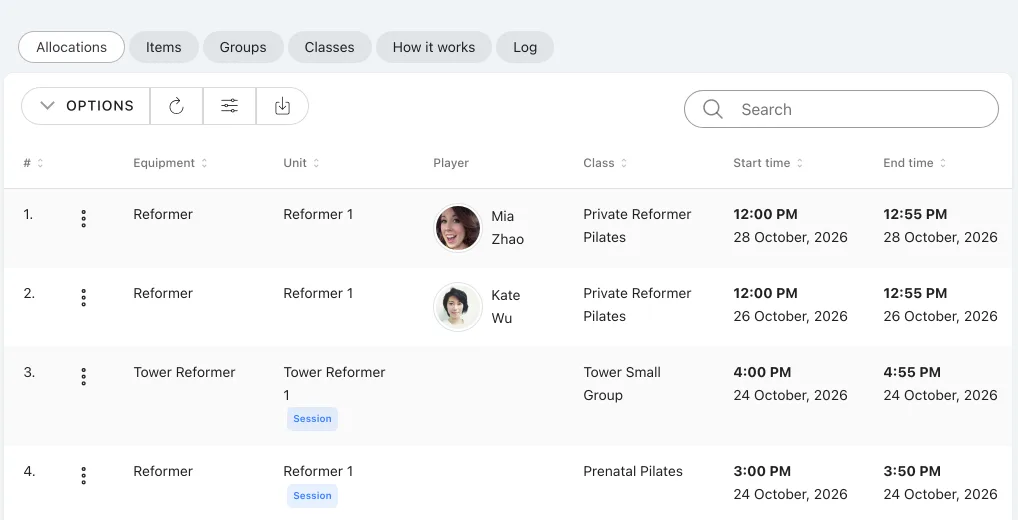
| Column | Shows |
|---|---|
| Equipment | The item |
| Unit | Name, or number such as #12 if unnamed; a Session badge when held for a whole class session |
| Customer | Profile photo and name, plus the family member's name when booked for one |
| Class | The class |
| Start time / End time | When the unit is held |
| Capacity used | Capacity this allocation takes |
- Filter by class, equipment item, customer or date range. The equipment filter lists all your items alphabetically; filters apply to every allocation, not only the rows loaded.
- Search by equipment, unit or class name in English or Chinese; sort by Equipment, Unit or Class.
- Load more fetches the next page, load all everything that matches; the count above the table covers every match. Changing a filter or refreshing restarts from the first page.
Session rows and Change unit
A Session badge marks a unit held for the whole class session rather than one customer's booking: assigned when the session is scheduled, shared by its attendees, with a Customer column that may list several people or none. It stays even if everyone cancels.
- Select the ellipsis at the start of the session row.
- Choose Change unit; the system lists the units free for that session's time.
- Pick one. The whole session moves, Unit changed is confirmed and the table reloads.
No free unit at this time means nothing changed — free a unit or move the session, then try again.
View calendar opens the session. On a session's own Equipment tab the ellipsis appears only on session rows and View calendar is not offered. Units a customer picked can also be changed after booking — see How Equipment Works When Customers Book.
When a resource stops being bookable
Bookable spots are always the smaller of the class size and the free equipment. When a class or service is unexpectedly full or unbookable:
| Symptom | Likely cause | Fix |
|---|---|---|
| Fewer places than the class size | Disabled or Maintenance units do not count — eight reformers with two in maintenance sell six. | Open the item's Units pill; set repaired units back to Active. |
| Full although units look unused | Overlapping sessions draw on the same units; an Exclusive unit held by one session is unavailable to the other, even with capacity left. | Filter Allocations by item and date; move a session or change its unit. |
| Equipment blocks a booking — or fails to | Only Required equipment blocks. A grouped item uses the group's setting (Uses group settings in the Items list); a class override never changes it. | Check Required/Optional on the item or its group. |
| Existing bookings unchanged after a link change | Changing class links recalculates upcoming sessions but never re-allocates equipment to existing bookings. | Review affected sessions in Allocations. To switch an item between Direct and Via group, remove its old links first. |
| Nobody knows what changed | An item, group or class link was edited. | Open the Log tab: Log - Equipment, Log - Equipment groups and Log - Equipment classes record what, by whom and when. |
Who can see the Equipment page
- The Equipment menu item (after Instructors, with a tools icon) exists only on the new booking experience, where customers choose and hire equipment.
- Staff need the Equipment permission, granted under Settings → Role & Permission Management.
- It may appear a moment after the menu loads, once your business details have loaded — wait a second before checking the permission.
Six tabs: Allocations, Items, Groups, Classes, How it works and Log.
Empty and error states
| Symptom | Likely cause | Fix |
|---|---|---|
| No equipment allocated | No bookings hold equipment at this location, or your filters exclude them all. | Clear the filters and widen the date range. |
| Unable to load equipment allocations | The details could not be loaded. | Select refresh; if it persists, check your connection and try again later. |
| No free unit at this time | Change unit found nothing free for that session's time. | Free a unit or move the session, then try again. |

