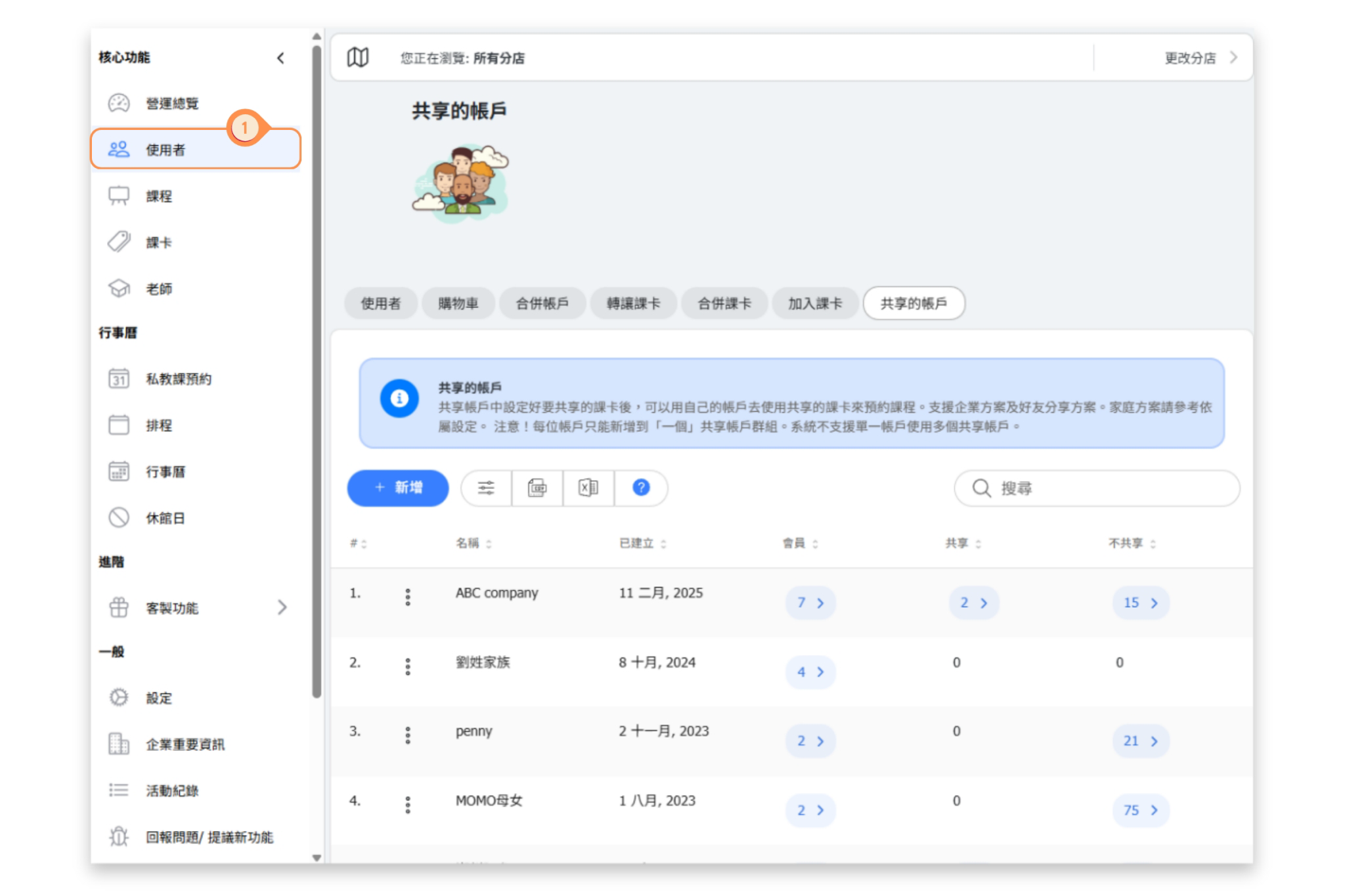
Shared Accounts
Shared accounts let customers keep separate logins and profiles while using eligible passes from the same group. Use them when friends, colleagues, or relatives need to share passes without merging customer records.
Each customer can belong to only one shared-account group. Use Customer dependents instead when you need to model a parent, child, guardian, or other dependent relationship.
Create or edit a group
Go to Users → Shared Accounts. Select New to create a group, enter its name, choose its members, and save. Select an existing row to review or replace that group's complete member list.
Add one customer from their user page
Open the customer under Users, select the Shared accounts tab, and choose Add. Search for an existing group and select it. Groups the customer already belongs to are disabled and marked Already selected. This action adds the customer to the existing group's complete member list; it does not create another group.
Review shared and excluded passes
From Users → Shared Accounts, use Members to inspect the people in a group. Shared and Excluded show which purchased passes participate in sharing when you have permission to view user passes.
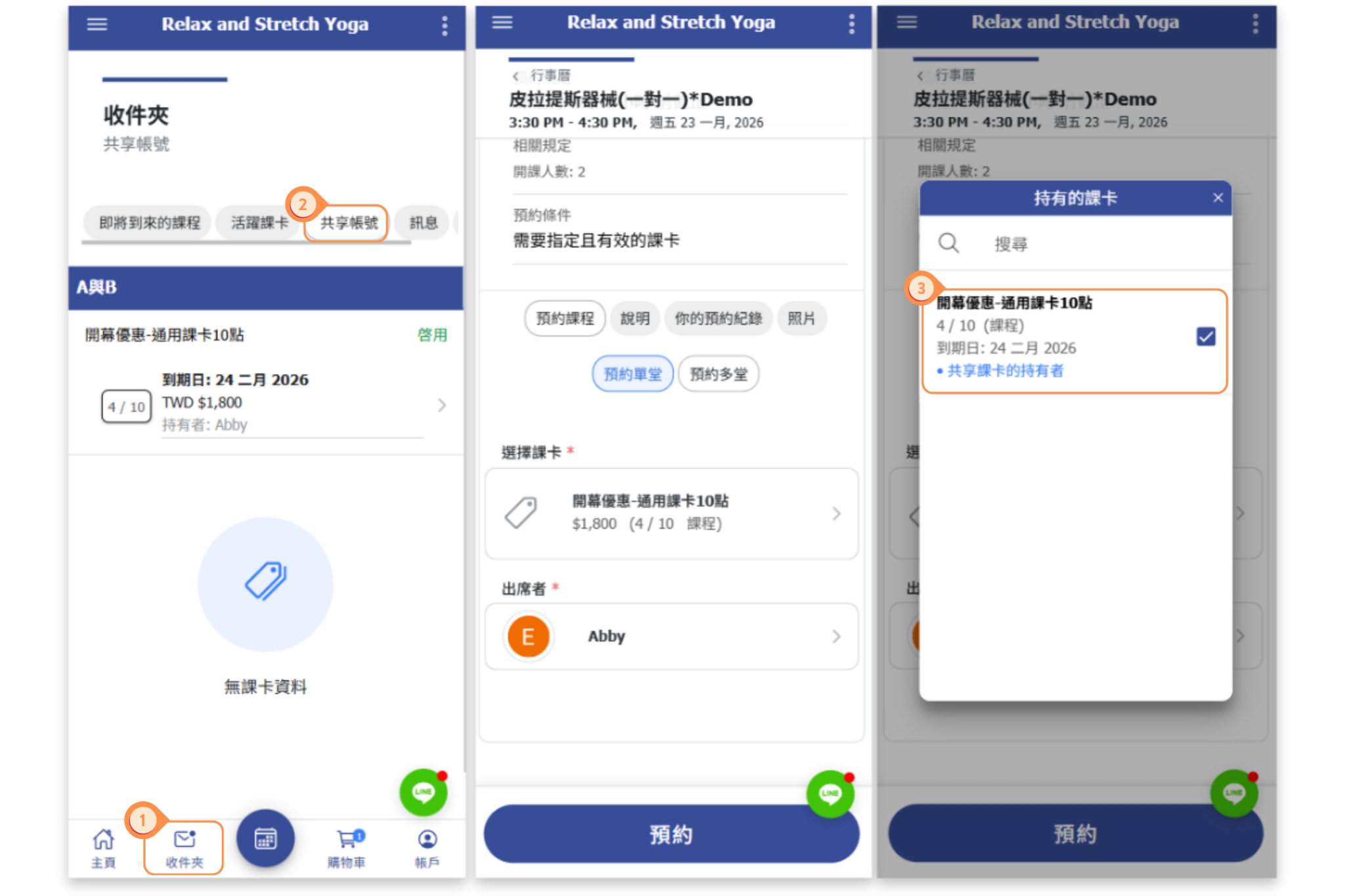
Customer access
Customers can review their shared-account information and eligible passes from Account → Shared accounts and use an eligible shared pass during booking.