
How to verify payment.
Online card payments: ECPay, NewebPay, PAYUNi and SunPay automatically process successful purchases after provider confirmation. PAYUNi and SunPay support one-off TWD purchases. The manual verification steps below apply to cash and transfers, not to marking an unconfirmed card transaction as paid.
Sales Process: Customer places an order -> Wait for customer payment -> Admin verifies payment
- Customer places an order: Customers check out through the shopping cart to purchase passes, selecting "cash" or "bank transfer."
- Waiting for customer payment: Admin checks the bank account to confirm receipt of payment or waits for the customer to pay in the studio.
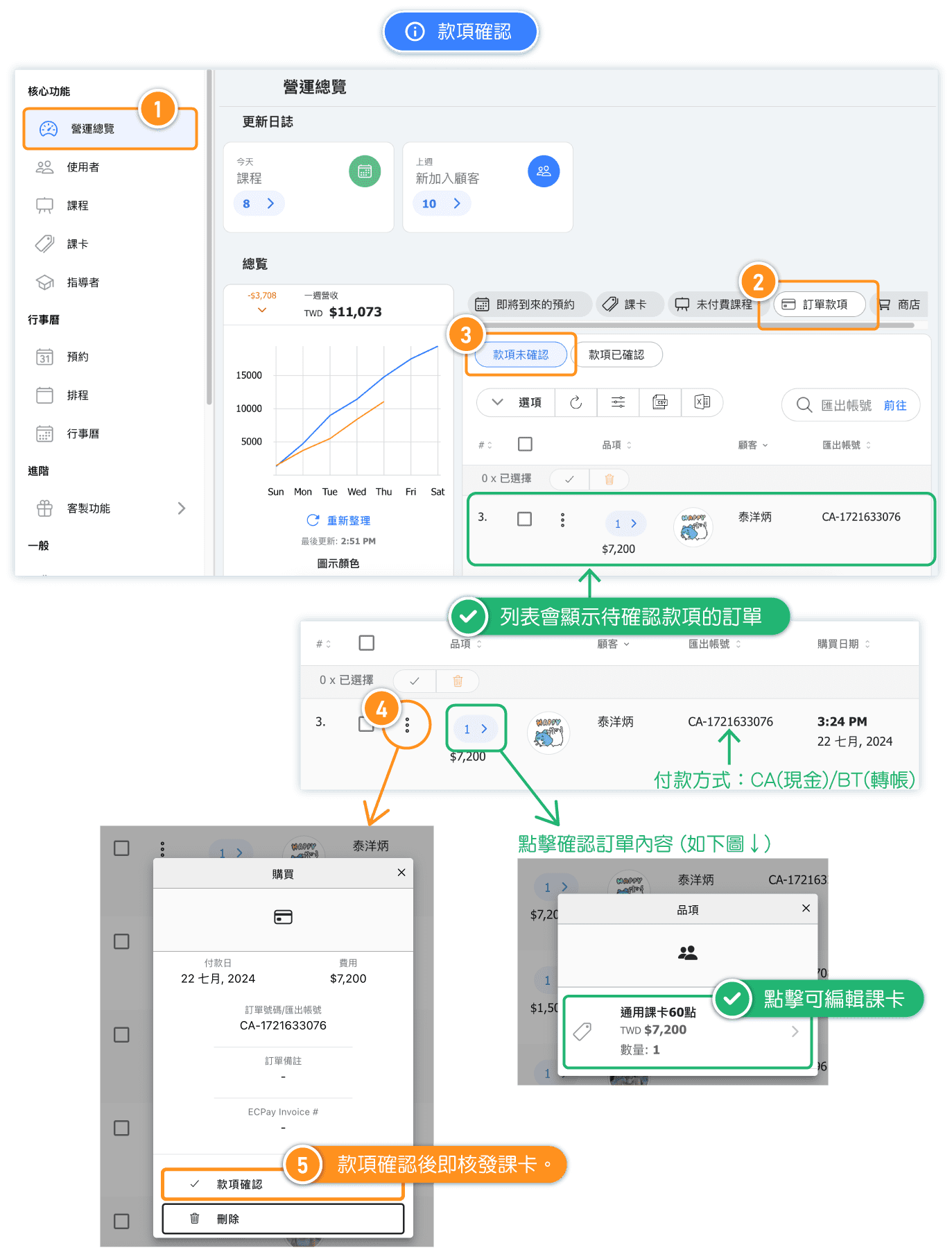
- Verify Payment: After confirming receipt of payment, Admin navigates to "Dashboard → Payments → Unverified Payments" and clicks "VERIFY PAYMENT" for the order. Once confirmed, the pass will be immediately issued to the customer for booking.
Matching a bank transfer to an order: each order has a Reference number, shown and searchable under "Dashboard → Payments" in both Unverified Payments and Confirmed Payments. When a reference contains -OB-, the part before -OB- is the system-generated order/payment reference. The five digits after -OB- are entered by the customer at checkout — the last five digits of their remitting account or transfer reference — so you can match the incoming transfer on your bank statement before verifying the payment. This suffix is not a business identifier or business number.
Related Articles:
- Quick Setup Tutorial - Customers get a pass
- FAQ: Why Passes Cannot Be Used
- How to set the pass activation date?
See Online Payment for the full provider list and setup details.