Introduction
Easily add passes to multiple user accounts in one go—saving you time and effort! ☺️
⚠️ Please note: The bulk add pass function does not update unpaid bookings automatically.
If a user has any unpaid bookings, the newly added pass will not be applied automatically. After finishing the bulk add, please go to the customer's account or Operations Overview > Unpaid Bookings to manually link the course card to the correct booking.
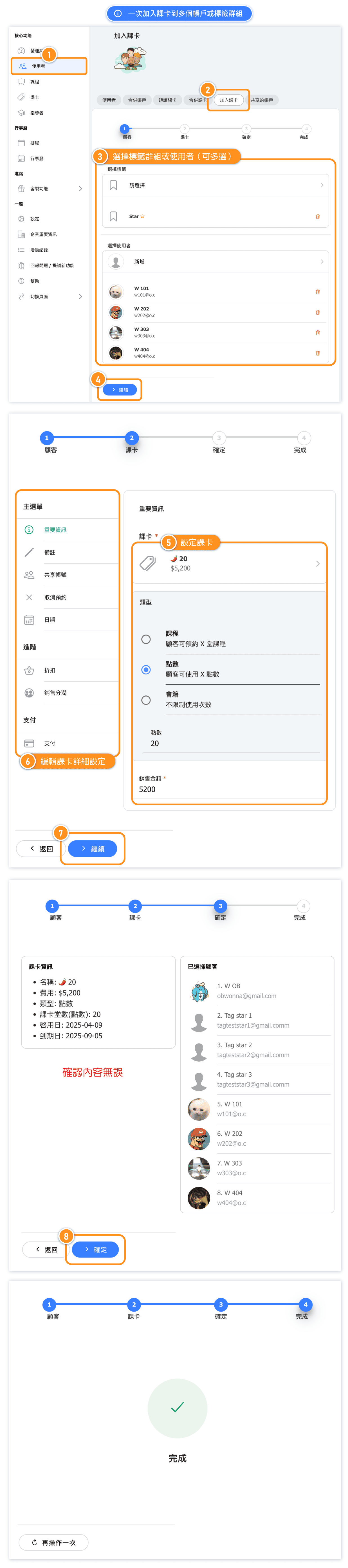
Add a pass to Multiple Accounts or Tag Groups at Once
[Instructions]
-
Click "Users" in the left sidebar.
-
Select the "Add Course Card" tab.
-
Choose the target users (multiple selections allowed).
-
Click "Continue."
-
Configure the course card.
-
Edit the course card details.
-
Click "Continue."
-
Click "Confirm."
Class package passes: Only book upcoming sessions
If the pass you select is a class package pass, an extra toggle appears while you edit the course card details: Only book upcoming sessions (Past package sessions will be skipped for this assignment.).
- The toggle is off by default, so the package books every session bound to the pass unless you turn it on.
- Turn it on to skip the sessions that have already taken place, so each customer is only booked into the classes still to come.
- Your choice applies to everyone in the batch.
- It is shown only when you are adding a new pass and only for class package passes — not when editing an existing pass, and not for other pass types.
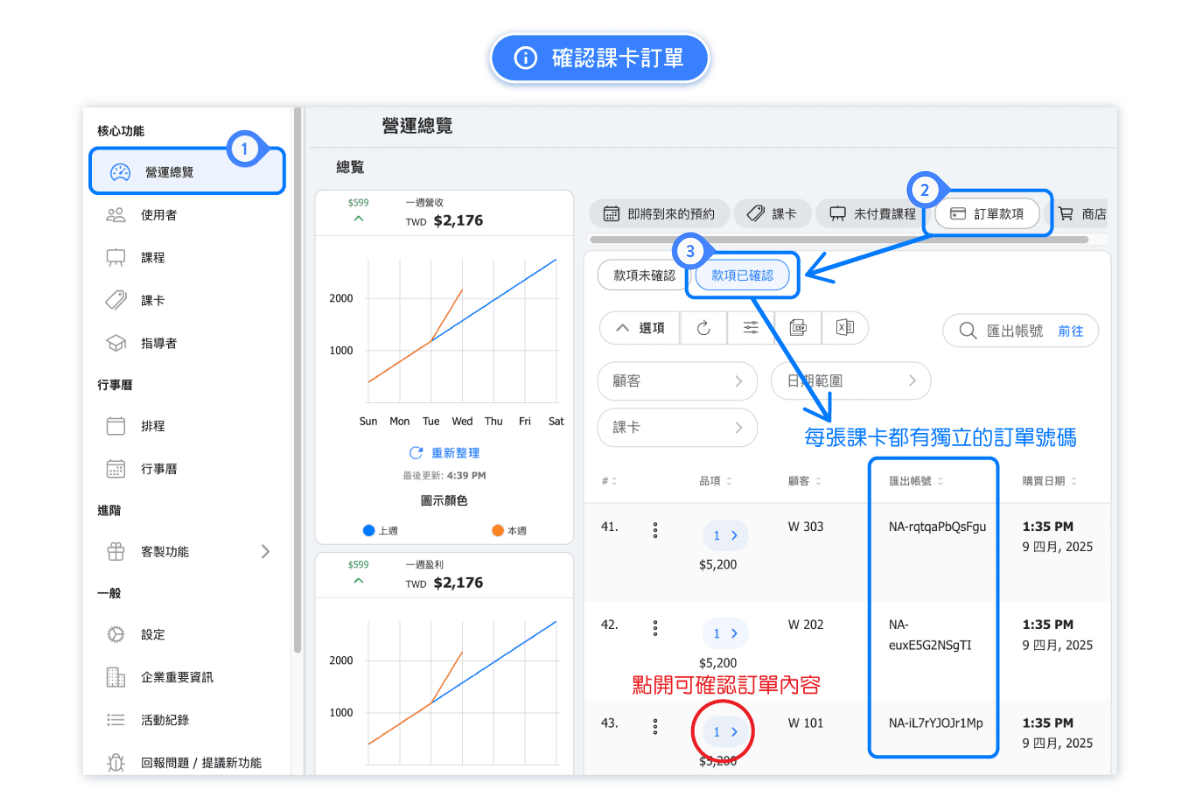
Check Pass Purchase Info
[Instructions]
-
Click "Operations Overview" in the left sidebar.
-
Select the "Order Payments" tab.
-
Click "Confirmed Payments" to view all confirmed orders.