Online Payment
Enable payment methods
- Go to Admin → Custom Features → Online Payment.
- Choose the payment method, enable it and enter the provider or account details.
- Save, then check the methods available at checkout for the correct location and currency.
Payment methods by country and currency
| Country / region | Payment methods |
|---|---|
| Taiwan · TWD | ECPay, NewebPay, PAYUNi (PayUni / 統一金流), SunPay (紅陽支付), LINE Pay, and ECPay ATM Virtual Account Transfer. |
| Hong Kong · HKD | PayMe and FPS (Faster Payment System) for local transfers; Stripe and PayPal for eligible merchant accounts. |
| International | Stripe and PayPal, subject to the merchant's registered country and supported currency. |
| All regions | Bank Transfer and Payment at Business (cash / pay in person), when enabled by the business. |
Choose a provider approved for your merchant account and business currency. Local transfers and online card payments have different confirmation steps.
Provider setup
| Method | Setup |
|---|---|
| LINE Pay | Taiwan / TWD. Enter the merchant/channel details and Channel Secret issued for your approved LINE Pay account. Contact OB support for the server IP required by LINE Pay's allowlist. |
| ECPay (綠界) | Taiwan / TWD. Enter Merchant ID, HashKey and HashIV. ECPay Invoice uses its own separately issued invoice credentials. |
| ECPay ATM Virtual Account Transfer | Taiwan / TWD. Uses the ECPay merchant credentials with ATM transfer enabled. Follow the ATM section below for allocation, expiry and payment confirmation. |
| NewebPay (藍新) | Taiwan / TWD. Enter Merchant ID, HashKey and HashIV from your NewebPay merchant account. |
| PAYUNi / PayUni (統一金流) | Taiwan / TWD, one-off credit card payments. Enter MerID (Merchant ID), HashKey and HashIV from PAYUNi. See the PAYUNi setup section below. |
| SunPay (紅陽支付) | Taiwan / TWD, one-off credit card payments. Enter Merchant ID, SHA2 key and RSA public key. These differ from ECPay/NewebPay HashKey and HashIV. See the SunPay setup section below. |
| Stripe | International / eligible merchant countries, including Hong Kong. OB offers Stripe for non-TWD currencies. Enter Publishable Key and Secret Key. Check Stripe's supported merchant countries; selecting a currency does not establish eligibility. |
| PayPal | International / eligible merchant accounts, including Hong Kong. Enter your merchant ID, account email and name. Merchant country and transaction restrictions apply; a Taiwan-registered account is not a domestic Taiwan payment option. |
| PayMe | Hong Kong / HKD. Enter the account name and phone number. Customers transfer externally and provide a reference for your staff to verify. |
| FPS (Faster Payment System) | Hong Kong / HKD in OB. Enter the account name and phone number or email. Customers transfer externally and provide a reference for your staff to verify. |
| Bank Transfer | Enter the account name, bank code / BSB and account number. Customers make the transfer through their bank, then enter the last five digits of their remitting account or transfer reference for verification. |
| Payment at Business | Cash / payment in person. Configure Verify Payment and Notification. If verification is disabled, customers can receive their pass before paying at the business, according to your settings. |
What customers see at checkout
At the payment step, each screen is named after the method itself:
- Bank Transfer, PayMe and FPS — the screen where the customer reads your account details and enters the transfer reference. For Bank Transfer the form asks for the last five digits of the remitting account or transfer reference; those five digits are stored after
-OB-in the order's reference number so your staff can match the incoming transfer before confirming the payment. They are not a business identifier. If a method has no dedicated screen of its own, the heading reads Payment Method. - ECPay and NewebPay — listed under their brand name with Credit/Debit Card as the description, for both one-off orders and recurring subscriptions.
- PAYUNi and SunPay provide one-off TWD card checkout.
Recurring subscriptions
Recurring subscription plans work with either ECPay or NewebPay. Once you have saved the merchant details for one of them, the Subscriptions page under Online Payment opens and you can create and manage recurring plans; you do not need ECPay specifically, and you do not need both. On an individual pass, the subscription settings appear once online purchase is turned on for that pass and at least one of the two providers is configured.
If a pass in the cart is linked to a pass waiver, the checkout note reads This pass requires you to sign a waiver before use., next to the View & sign waiver link.
On the booking confirmation, the row listing the extras attached to a booked class is labelled Classes.
PAYUNi and SunPay support one-off TWD credit card payments in OB. Recurring subscription passes use ECPay or NewebPay. PAYUNi and SunPay do not provide subscription billing, ATM/CVS, wallets, automatic refunds or electronic invoices through this OB integration.
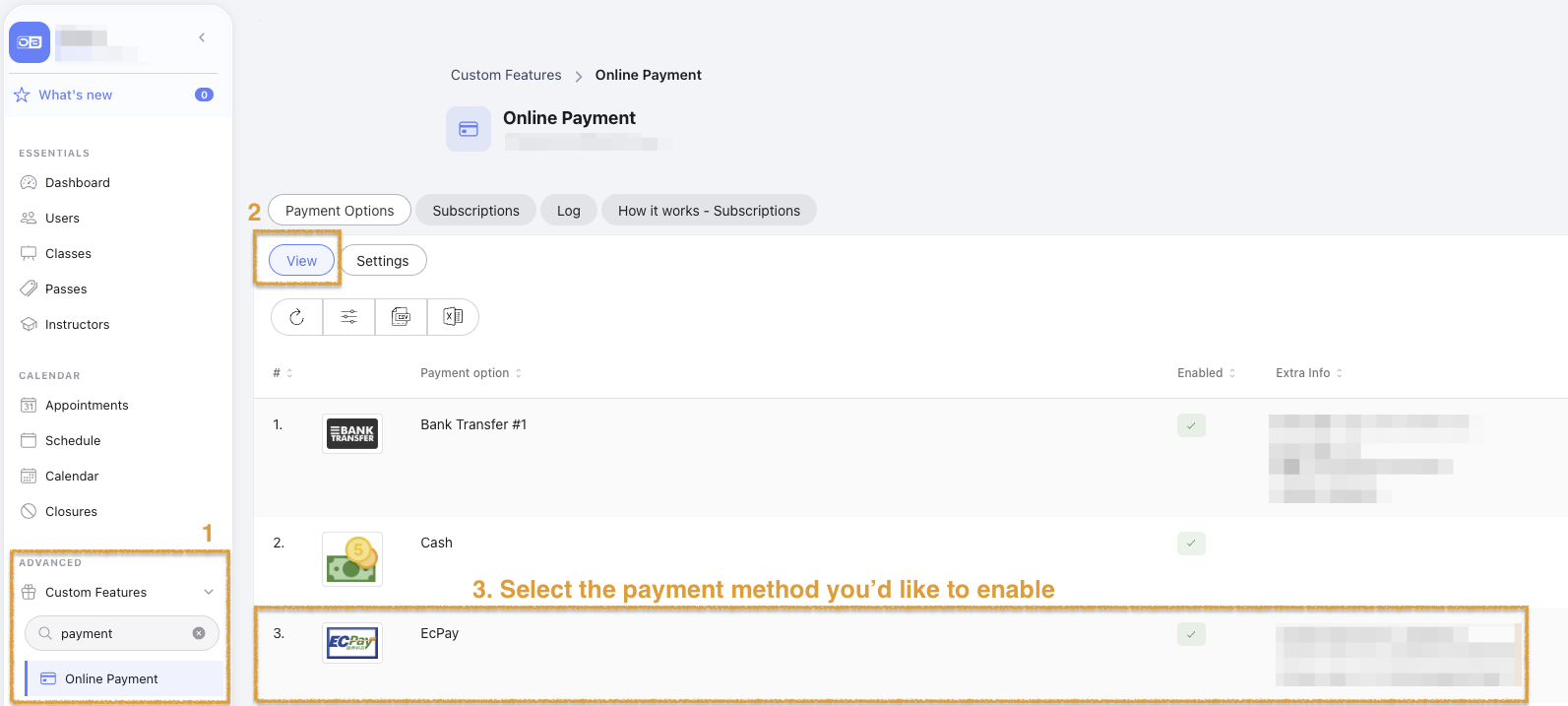
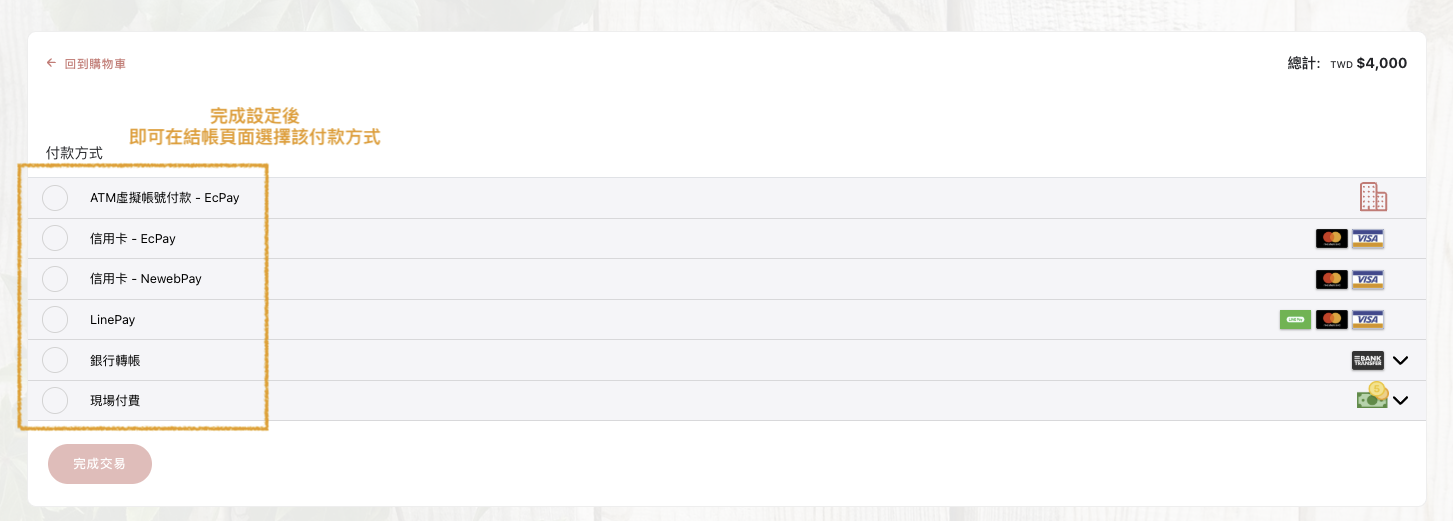
EcPay ATM Virtual Account Transfer
Overview
Once enabled, customers can choose to pay via ATM virtual account. EcPay
generates a dedicated virtual account number. Customers complete the
transfer within the specified period, and the system automatically
verifies receipt and updates order status.
Business Setup
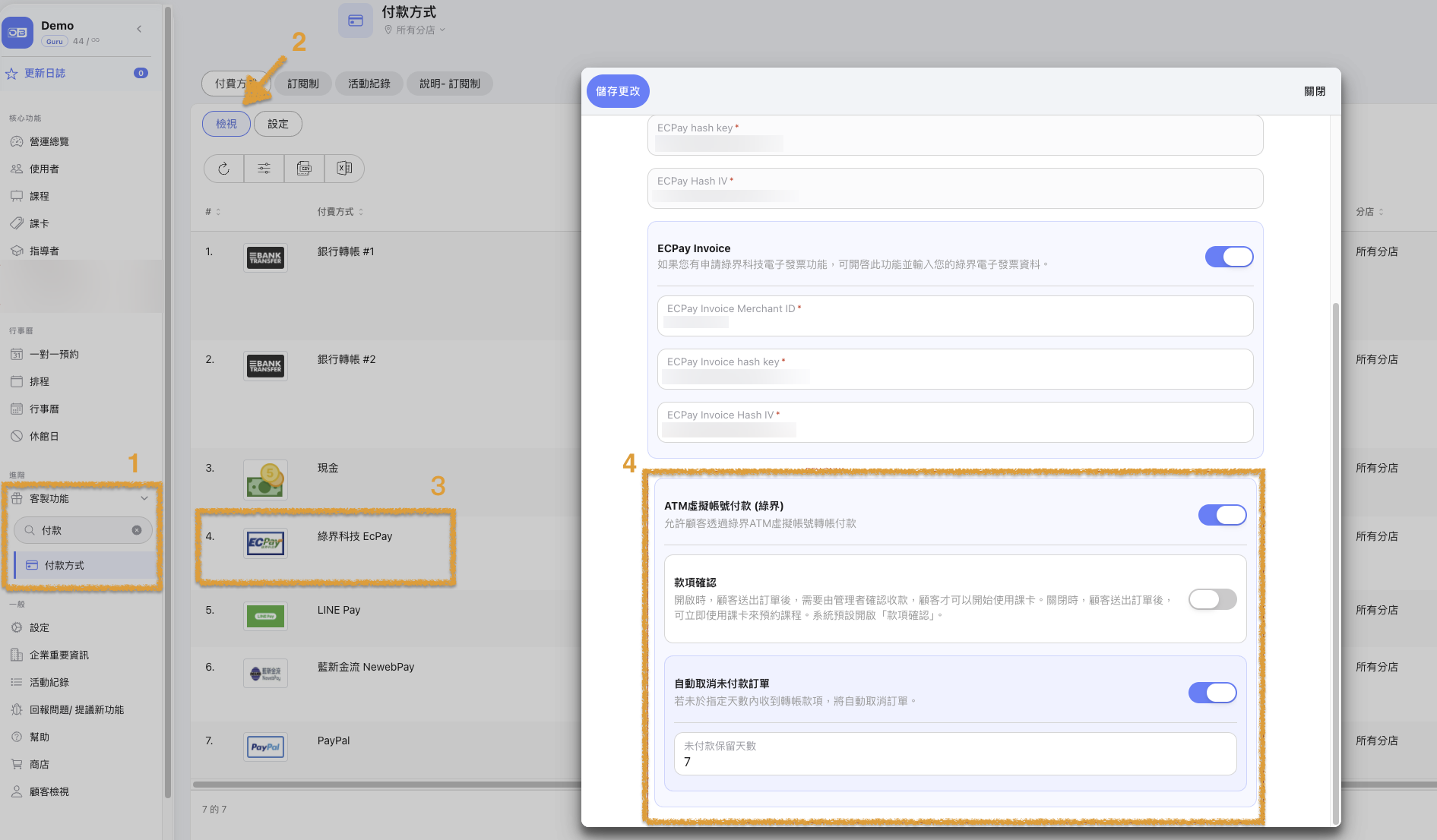
Step 1: Enable "EcPay ATM Virtual Bank Transfer"
- Advanced → Custom Features → Settings → Online Payment
- Find the EcPay section
- Enable "EcPay Virtual Bank Transfer"
- Save
Step 2: Configure "Auto-cancel unpaid order" (optional)
- Enable "Auto-cancel unpaid orders"
- Set "Days until cancelled" (recommended: 3-5 days)
- Save
💡 Once enabled, if a customer doesn't complete the transfer within the specified period, the system will automatically cancel the order.
Step 3: System Auto-Verifies and Updates Status After Checkout
- After the customer selects this payment method, they are automatically redirected to EcPay's payment page
Once the bank confirms the transfer, the system automatically verifies and updates the payment status, typically within 1-30 minutes. No manual action is required.
- Payment status can be viewed under Users → History → Pass History → Payment Status
Simulate Payment via EcPay Backend
We recommend verifying the flow in the test environment before going live.
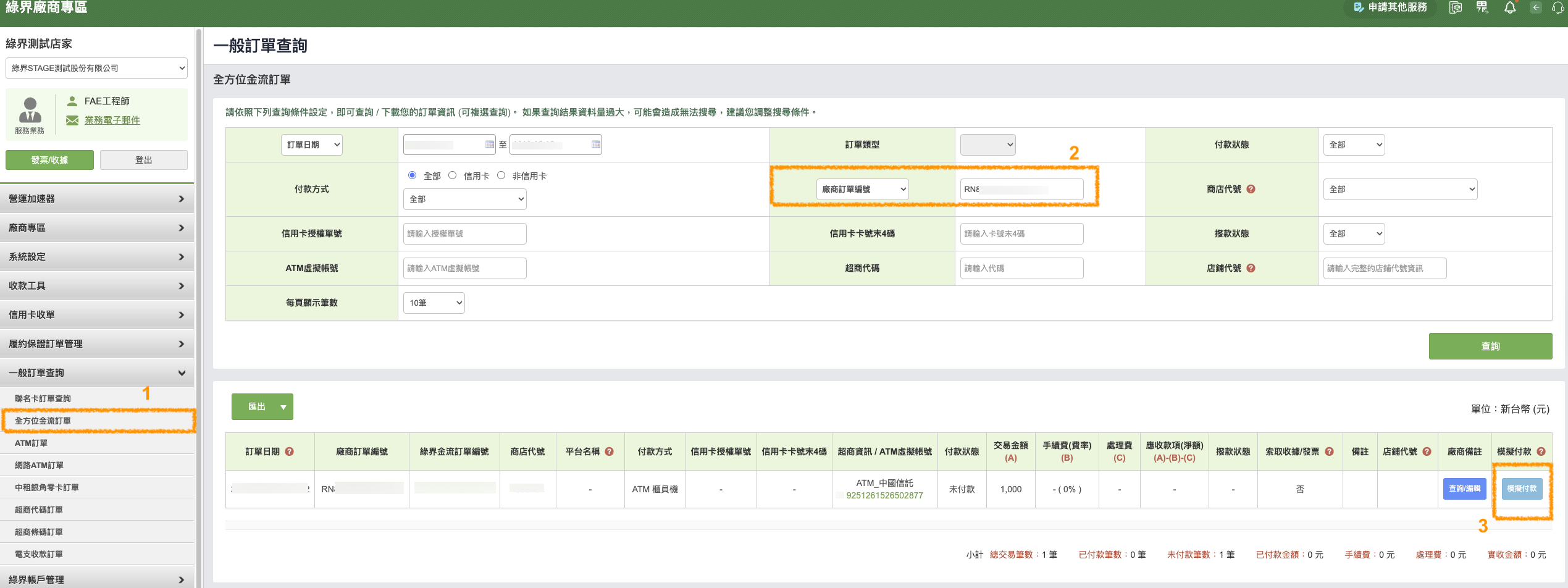
Step 1: Log in to EcPay Test Backend and Simulate Payment
Test environment URL: https://vendor-stage.ecpay.com.tw
On the "Two-Factor Authentication" page, enter verification code:
123456Go to EcPay backend → Search for your order using Reference No.
- In OB, go to Users → History → Pass History → Click the Pass you're testing → Log to find the order reference (format:
RNXXXXXXXXXXXX)
- In OB, go to Users → History → Pass History → Click the Pass you're testing → Log to find the order reference (format:
Locate the order → click "Simulate Payment" and confirm
Step 2: Verify OB Received the Callback
- Switch back to OB → go to the customer's page: Users → History → Pass History → Payment Status. The pass payment status should be updated to "Paid"
💡 The callback may take 1-2 minutes to arrive.
Frequently Asked Questions
Q. Customer has paid, but the order still shows "Unpaid"?
Possible reasons:
- The bank hasn't notified EcPay yet (typically within 1-30 minutes)
- Transfer amount doesn't match the order
- Customer transferred to the wrong account
💡 Please check the actual status on the EcPay backend.
Q. What happens if the order isn't paid before the deadline?
- With "Auto-cancel unpaid orders" enabled → System automatically cancels the order
- Without it enabled → Order remains "Unpaid" and requires manual handling
Q. Can customers get a refund after paying?
- Please follow the refund process on the EcPay backend, or contact EcPay customer service.
Change Currency
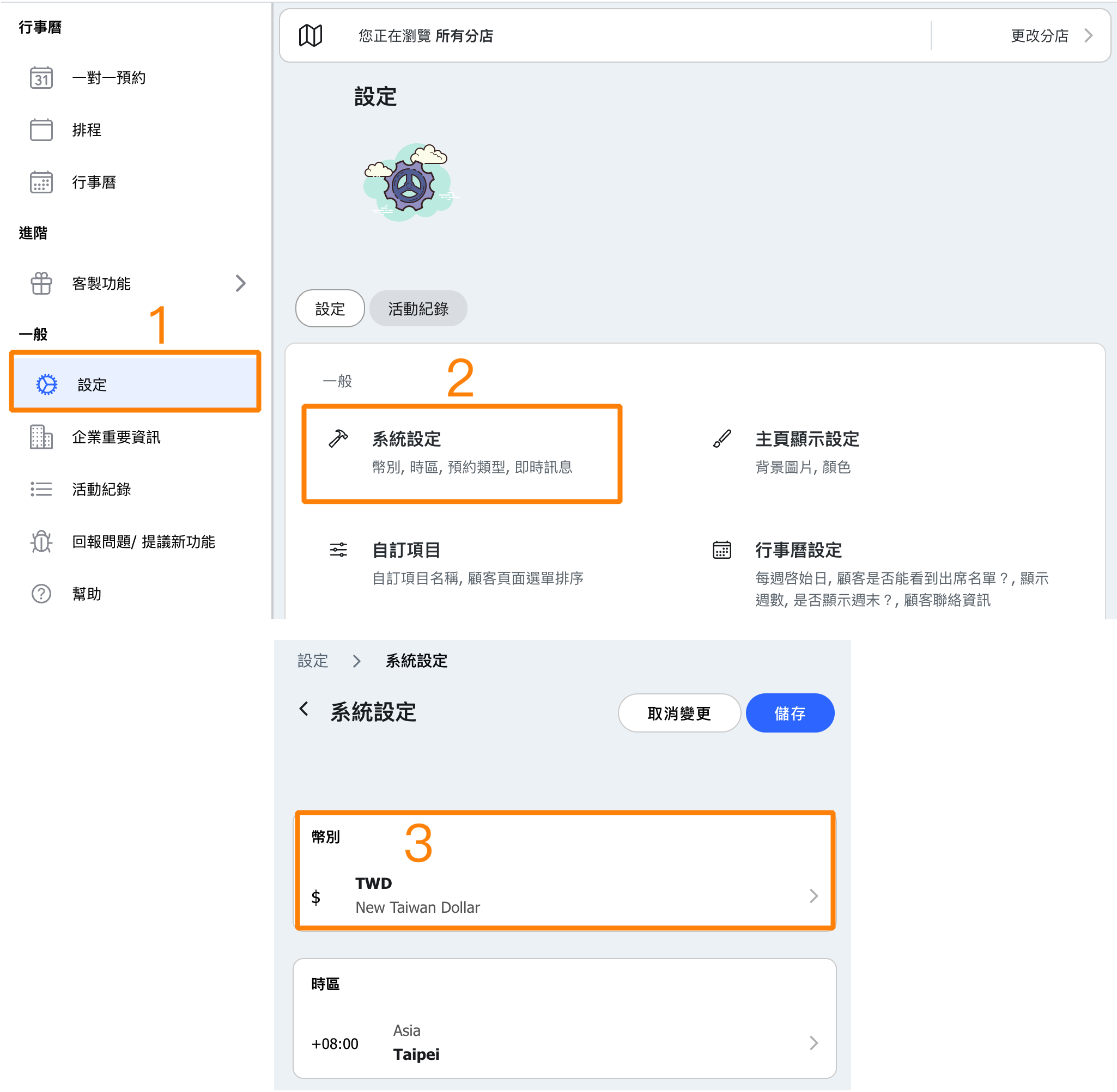
Set the business currency under Settings → Configuration → Currency. ECPay, NewebPay, PAYUNi and SunPay card payments use TWD. PayMe and FPS use HKD in OB; Stripe is offered for non-TWD currencies. Merchant-country eligibility still applies.
Set Up Payment Methods for Each Location
Can Studio A accept credit cards while Studio B takes cash only?
Yes! Locations can now set up their own payment methods independently, making accounting clearer.
With the new system, each location can configure its own payment channels. You decide how each location gets paid!
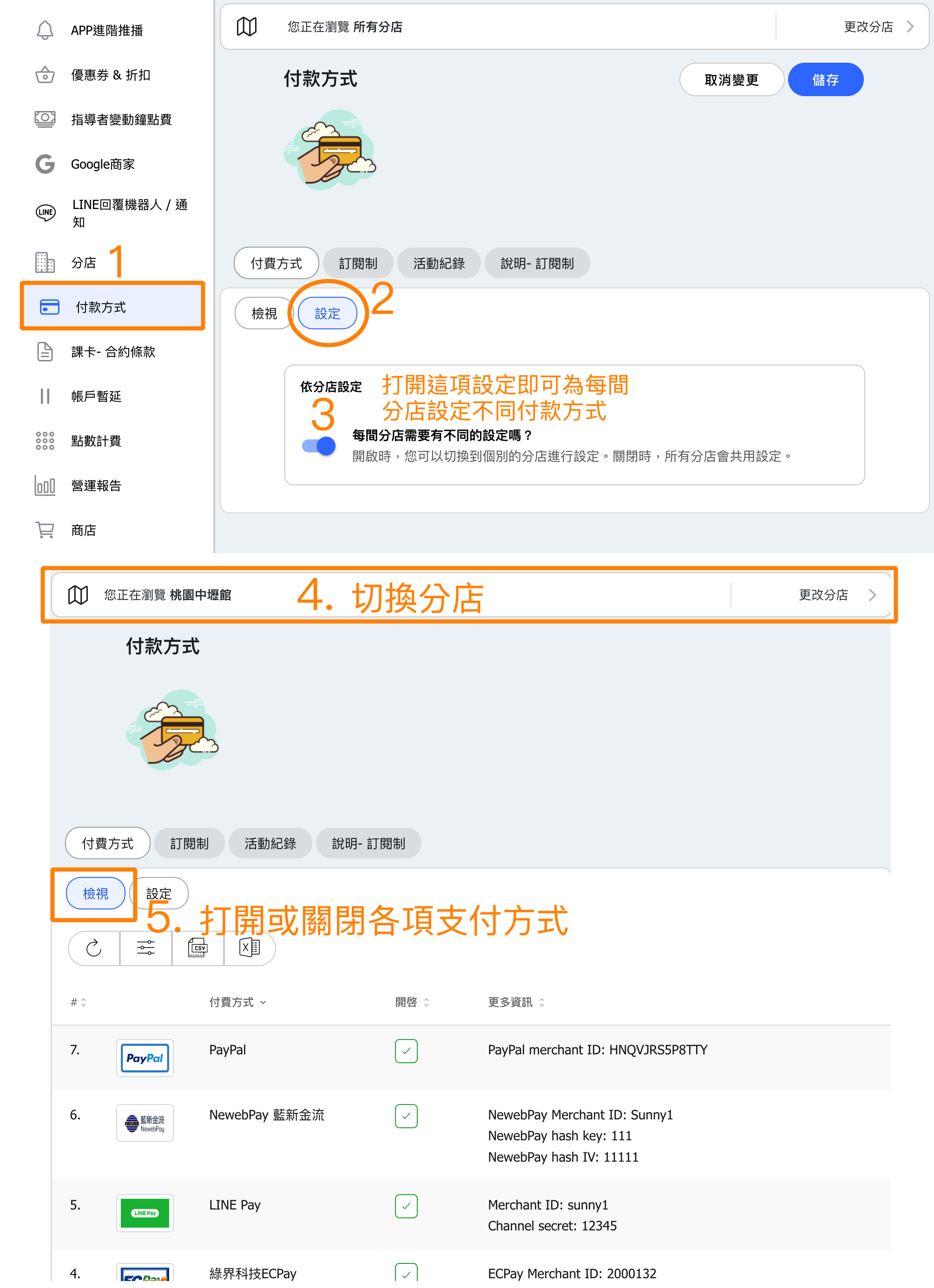
PAYUNi and SunPay follow the same per-location payment settings as ECPay and NewebPay. Each branch can use its own merchant credentials; shared mode uses the shared payment settings.
How do I check an ECPay, NewebPay, PAYUNi or SunPay payment?
ECPay, NewebPay, PAYUNi and SunPay send payment results to OB. For a successful card payment, OB updates the cart and processes the purchase after receiving the provider confirmation. Returning to the booking page alone is not proof of payment.
Find the OB purchase reference, amount and payment method, then compare it with the transaction in the matching merchant account:
- ECPay / 綠界 merchant portal
- NewebPay / 藍新 merchant portal
- PAYUNi / 統一金流 merchant portal
- SunPay / 紅陽支付 merchant portal
If the provider shows paid but OB still shows pending, record the reference, amount, time and location and contact OB support. Check the existing transaction before asking the customer to pay again. PAYUNi and SunPay refunds are handled through the provider; changing an OB payment status does not refund the card.
PAYUNi (PayUni / 統一金流): setup and payment support
PAYUNi, also written PayUni and called 統一金流, is a Taiwan payment provider supported by OB for one-off TWD credit card purchases.
- Apply for a merchant account at PAYUNi.
- Use the merchant's MerID (Merchant ID), HashKey and HashIV in PAYUNi payment settings. The HashKey is 32 bytes and the HashIV is 16 bytes.
- Save for the intended location, then check a payment and its resulting order.
PAYUNi notification and return URLs
OB automatically sends NotifyURL (payment notification), ReturnURL (payment-status page) and BackURL with each checkout request, including the correct business, location and order details. You do not need to copy SunPay's merchant-portal URLs into PAYUNi. The authenticated notification updates the purchase; the browser return displays its status.
Enter secrets only in payment settings, not in an Obie chat. Obie can explain which fields are needed without seeing their values.
PAYUNi and SunPay support one-off TWD credit card payments in OB. Recurring subscription passes use ECPay or NewebPay. PAYUNi and SunPay do not provide subscription billing, ATM/CVS, wallets, automatic refunds or electronic invoices through this OB integration.
SunPay (紅陽支付): setup and payment support
SunPay (紅陽支付) is a Taiwan payment provider supported by OB for one-off TWD credit card purchases.
- Apply through SunPay for a payment merchant account.
- Enter the Merchant ID, SHA2 key and RSA public key issued for the payment service. Keep the public key's BEGIN PUBLIC KEY and END PUBLIC KEY lines. These are not invoice credentials or ECPay-style HashKey/HashIV.
- In SunPay's merchant portal, open 開發者專區 → 商店URL設定 and save the two URLs below for your OB business.
- Use credentials and URLs for the same test or live environment, save for the intended location and verify a purchase.
SunPay callback URLs: what to enter
The company value is the business name in your OB booking URL. For example, if customers book at https://app.omceanbooking.com/mybusiness, use company=mybusiness. Replace mybusiness in both URLs with your own booking URL name.
交易通知接收網址 — transaction notification
SunPay POSTs the payment result to this URL. OB verifies it and updates the purchase. SunPay's manual also calls this field 交易結果通知網址.
https://api.omceanbooking.com/booking/php/sunpay/sunpay_reply.php?company=mybusiness交易完成轉導網址 — completion redirect
This returns the customer to OB's payment-status page after payment.
https://api.omceanbooking.com/booking/php/sunpay/sunpay_return.php?company=mybusinessAll locations in the same business use these URLs. OB gets the location from the shopping cart, so no location ID is needed. Save the appropriate SunPay merchant credentials in each location's payment settings, or use shared payment settings.
DEV testing example: company=demo
Use these URLs only when testing the demo business on OB's DEV environment. For a different DEV business, replace demo with its booking URL name.
交易通知接收網址
https://api-dev.omceanbooking.com/booking/php/sunpay/sunpay_reply.php?company=demo交易完成轉導網址
https://api-dev.omceanbooking.com/booking/php/sunpay/sunpay_return.php?company=demoAfter saving, complete a test purchase and confirm that OB shows it as paid. The notification updates the purchase; the redirect only displays its status. 貨態更新接收網址 (logistics updates) is unused for OB card payments. 返回商店首頁網址 (back to store) is optional and can be your OB booking homepage.
Do not paste merchant secrets into Obie chat. Obie can explain the required fields and help identify which provider and location to check.
PAYUNi and SunPay support one-off TWD credit card payments in OB. Recurring subscription passes use ECPay or NewebPay. PAYUNi and SunPay do not provide subscription billing, ATM/CVS, wallets, automatic refunds or electronic invoices through this OB integration.