Before you connect
You need a ChatGPT account that can use plugins and an OmceanBooking login with an active staff role for the business you want to connect. The connection never gives you extra OmceanBooking permissions: ChatGPT can only use tools allowed by your existing role, the selected business, and the access level you grant.
Each connected account is bound to one business. If you work with more than one business, connect each one separately and check the account you are using before you ask a question or approve a change.
Find and add OmceanBooking in ChatGPT
- Open ChatGPT and go to Plugins.
- Search for OmceanBooking and open its listing.
- Select Try in chat. When ChatGPT asks to add the plugin, select Sign in with OmceanBooking.
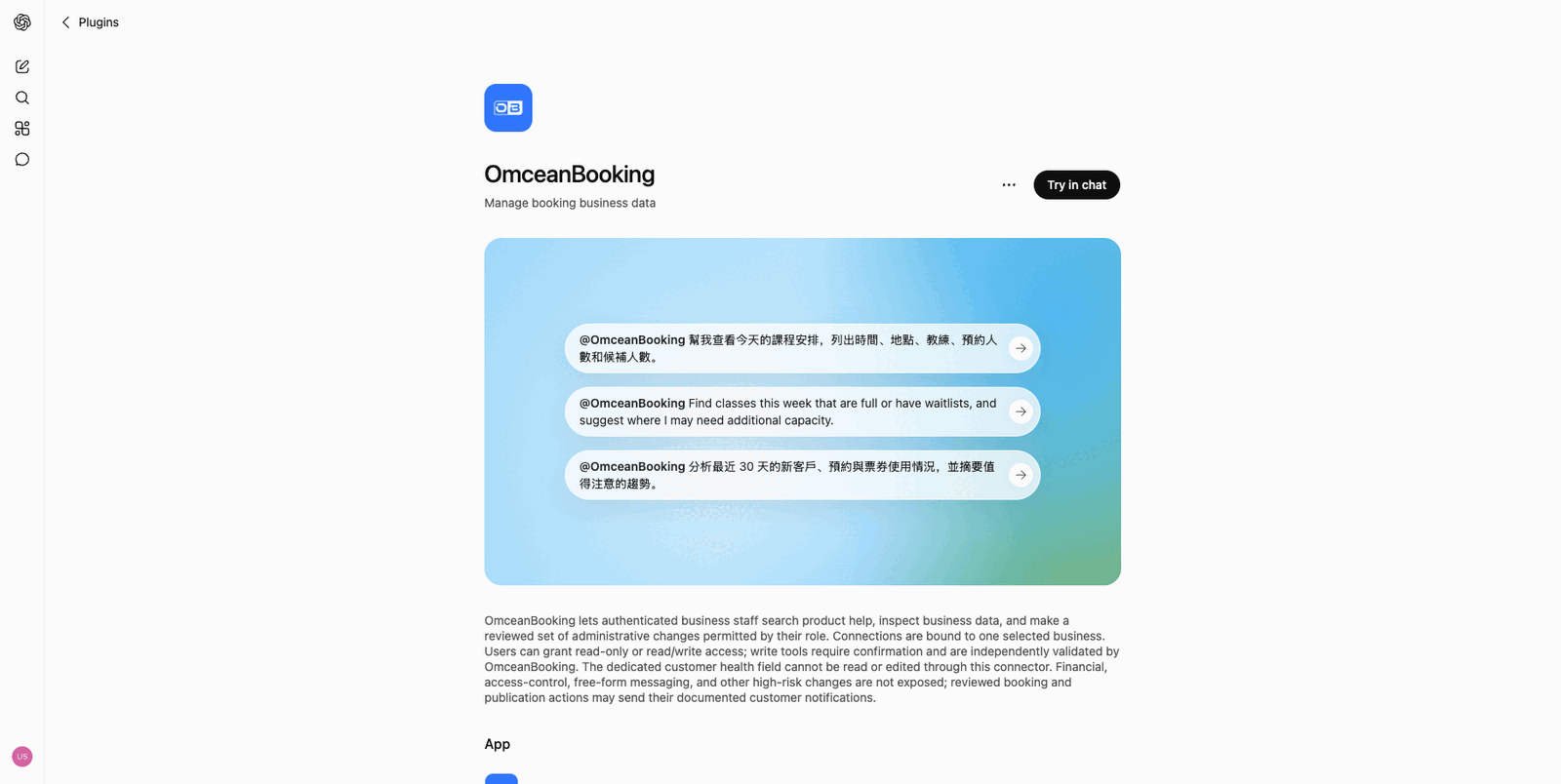
The OmceanBooking listing in ChatGPT includes example prompts in English and Traditional Chinese.
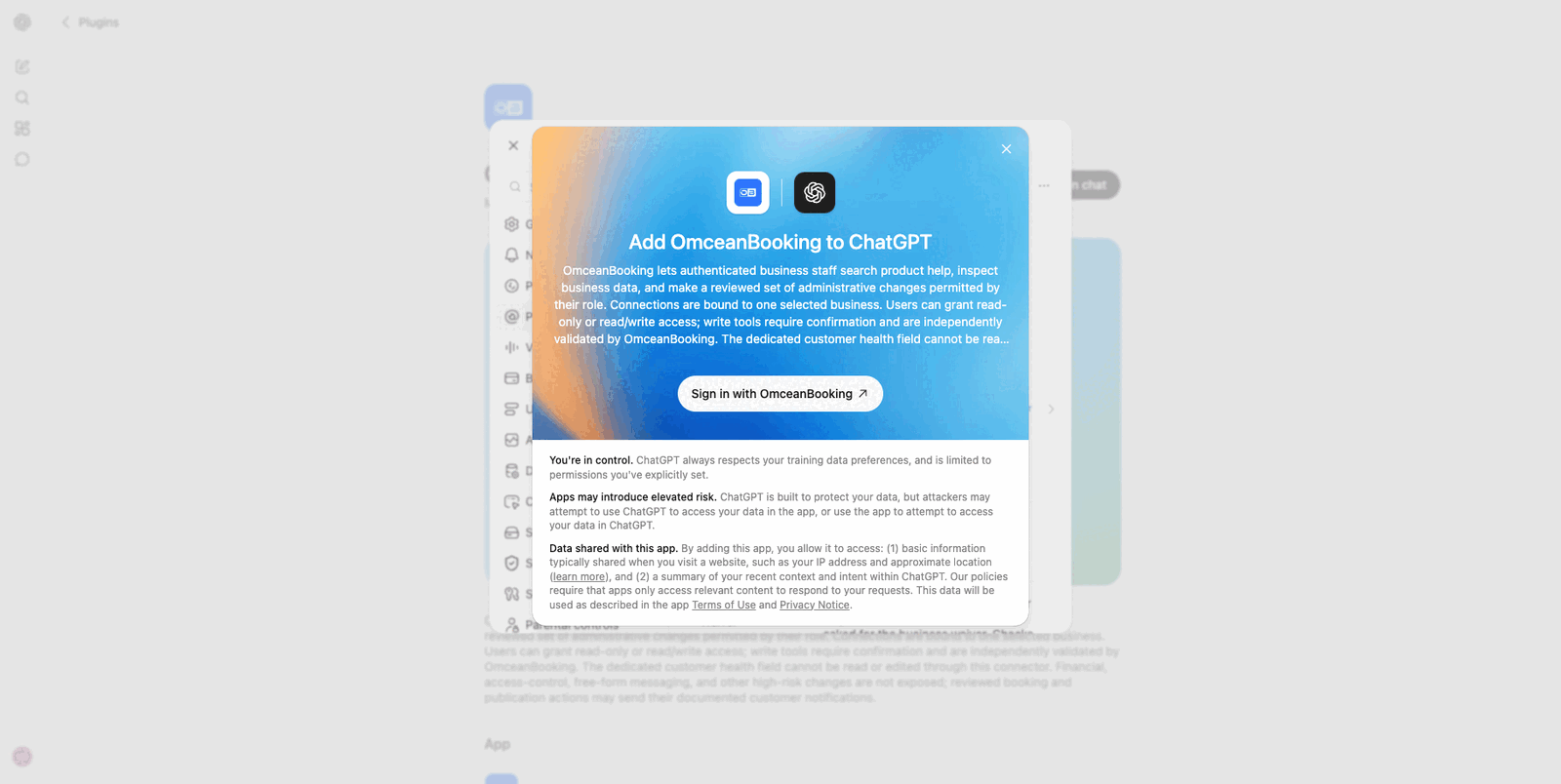
Sign in, choose a business, and set access
- On the OmceanBooking sign-in page, continue with Google, LINE, or your email and password.
- Select the business you want this ChatGPT connection to use. Only businesses where your login has an active staff role are available.
- Review the access choice before approving:
- Read only lets ChatGPT look up information but prevents every create, update, and delete action.
- Read and make changes makes supported write tools available. Your staff permissions still apply, and ChatGPT asks you to confirm before a change is made.
- Approve the connection to return to ChatGPT.
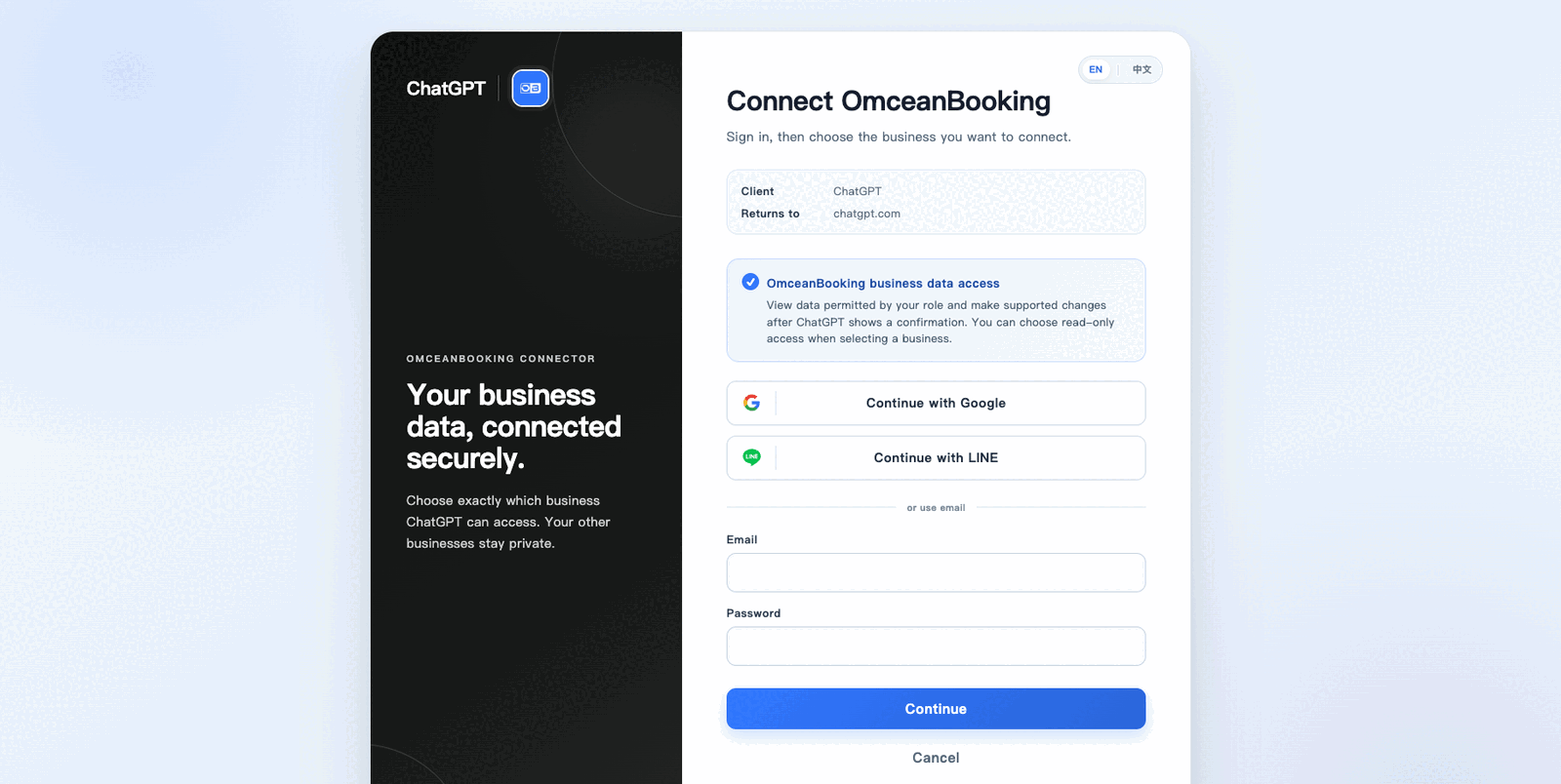
Keep access as narrow as you need. Choose read-only access when you only want answers and reports. Grant change access only when you also want ChatGPT to help with supported admin work.
Start using OmceanBooking in a chat
Start from Try in chat, or mention @OmceanBooking in a ChatGPT conversation. Describe what you need in ordinary language and include the dates, location, class, customer, or pass that identifies the right records.
Try prompts such as:
- @OmceanBooking Show today's classes with their times, locations, instructors, bookings, and waitlists.
- @OmceanBooking Find classes this week that are full or have waitlists, and suggest where I may need more capacity.
- @OmceanBooking Summarize new customers, bookings, and pass usage from the last 30 days.
- @OmceanBooking Change the capacity of Friday's 7pm class to 12. This requires change access, the relevant staff permission, and your confirmation.
You can also ask product questions. OmceanBooking can search its help content and explain supported workflows without changing business data.
Review every proposed change
Lookups normally run without an approval prompt. Before a supported write runs, ChatGPT shows the proposed action for confirmation. Check the selected business, names, dates, times, amounts, and exact change. If anything is wrong, cancel it and correct your request instead of approving it.
A connected ChatGPT account cannot bypass your OmceanBooking role. A tool is hidden or refused when your role, booking modules, selected access level, or the connector's safety rules do not allow it. High-risk operations such as financial balance or payment changes, staff access changes, free-form customer messages, and subscription cancellation are not available through the connector.
The dedicated customer health field also stays in the OmceanBooking admin and is not available to the ChatGPT connection.
Manage or troubleshoot the connection
In ChatGPT, open Settings → Plugins → OmceanBooking to review connected accounts and their permissions, connect another account, or use the account controls to disconnect. Disconnecting prevents future access but does not undo changes you already approved.
If OmceanBooking is unavailable or a request is refused:
- Confirm that plugins are available for your ChatGPT account or workspace.
- Reconnect and sign in with the OmceanBooking login that has an active staff role for the intended business.
- Check that you selected the correct business and granted the access level the request needs.
- Ask an OmceanBooking account admin to check your role permissions if a business record or tool is unavailable.
- For a failed change, read the result in ChatGPT and verify the record in OmceanBooking before trying again.