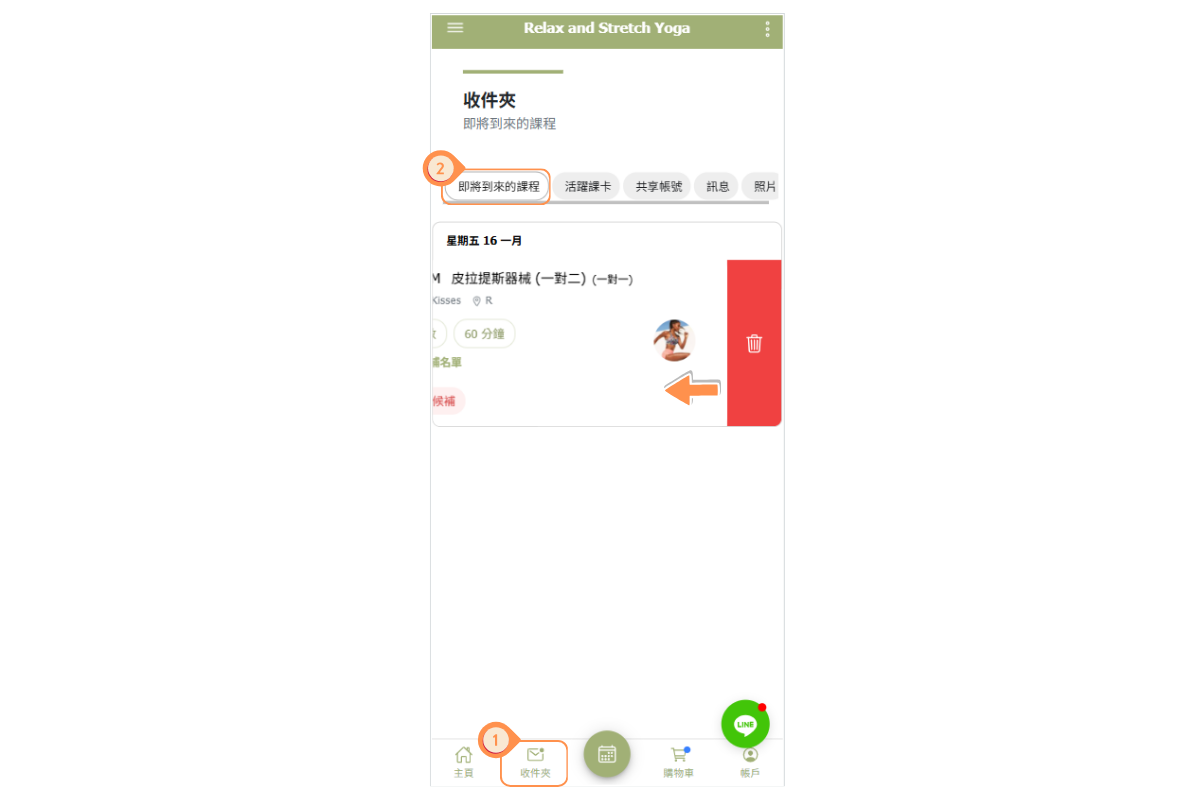
How do administrators check a class's waiting list?
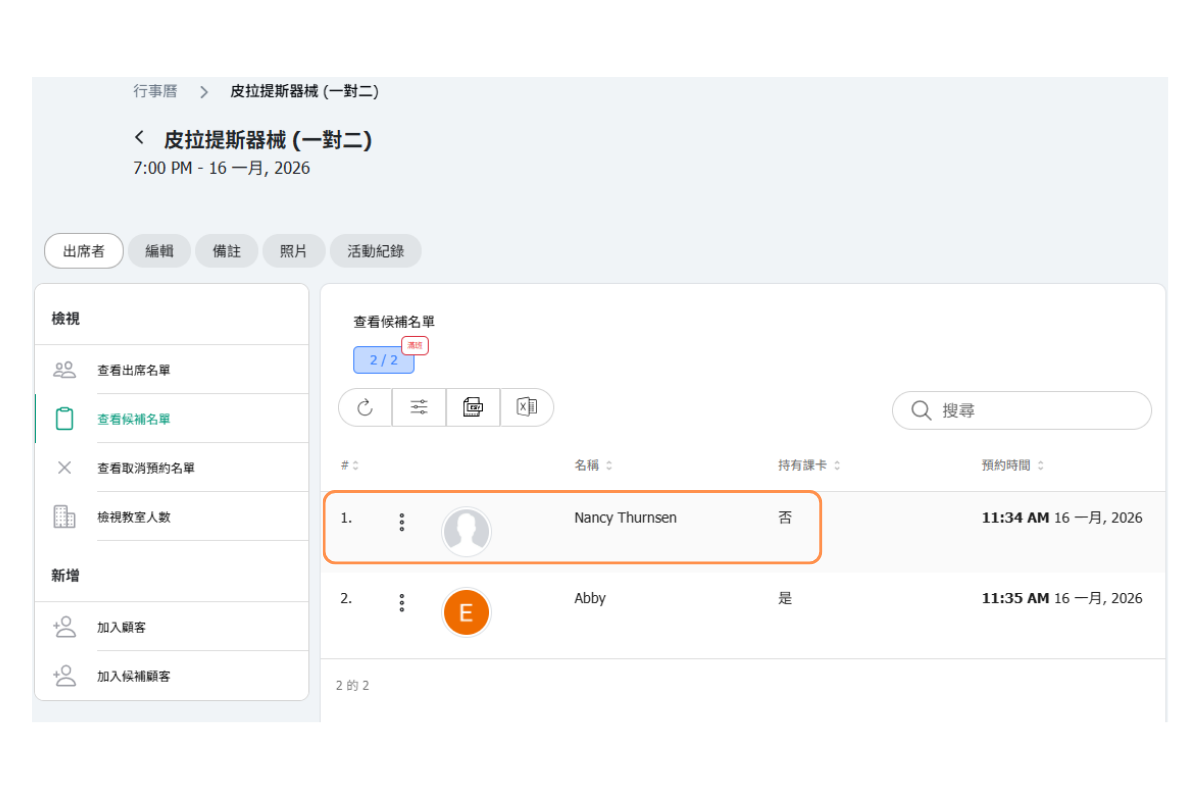
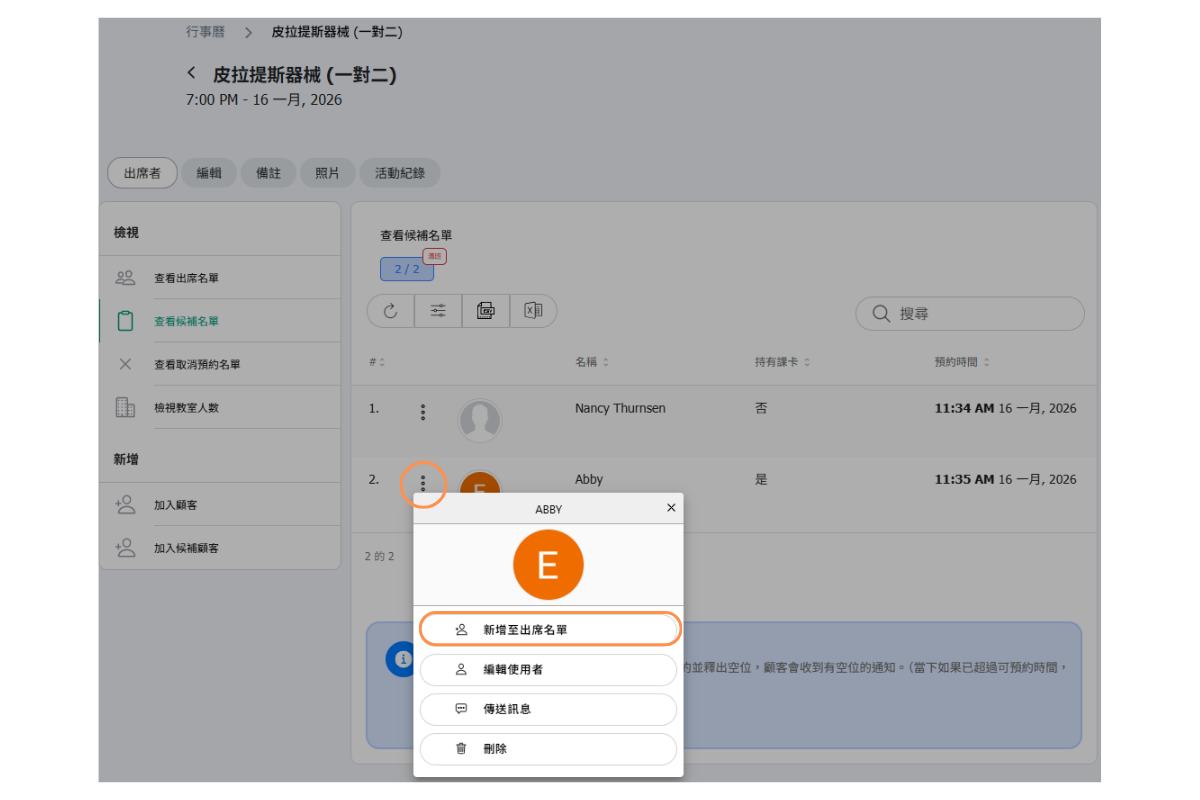
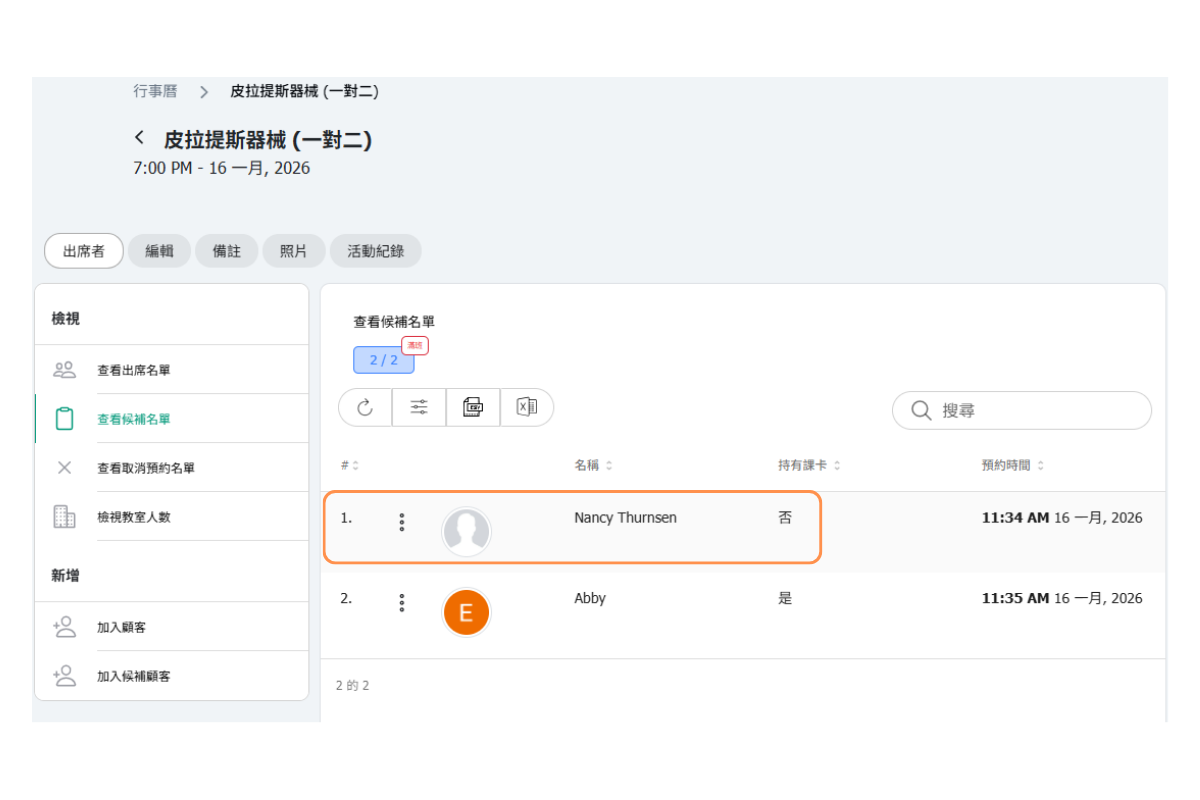
- Open Calendar.
- Select the class session you want to check.
- Open the Attendees tab.
- Select View waiting list.
The table shows everyone currently waiting in queue order. If the Waiting List feature is disabled for the business or for that class, the page shows that it is disabled instead.
AUTOMATIC RESERVATION: ON
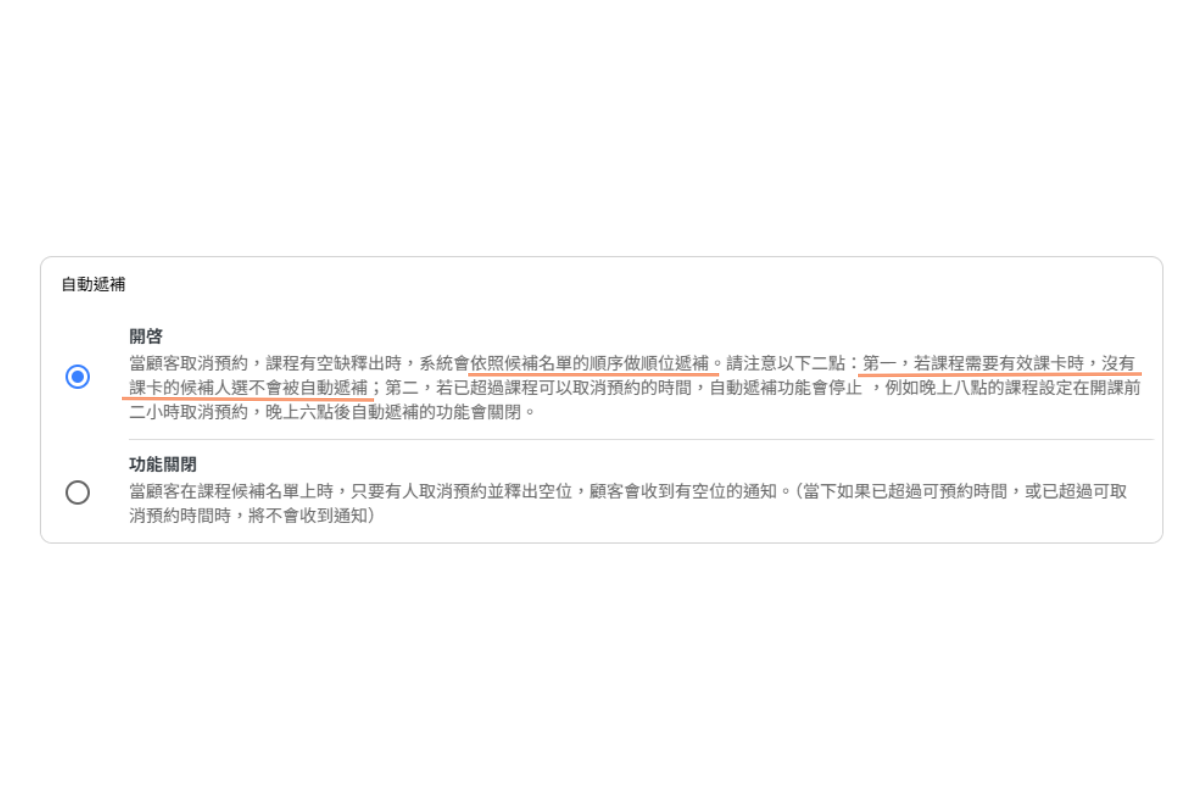
When enabled, when a spot opens up on the reservation list, customers on the waitlist will be automatically moved to the reservation list based on priority and will receive a "Class Reservation" notification.
* If the relevant push notifications are enabled, the system will send a notification to both customer and the administrators.
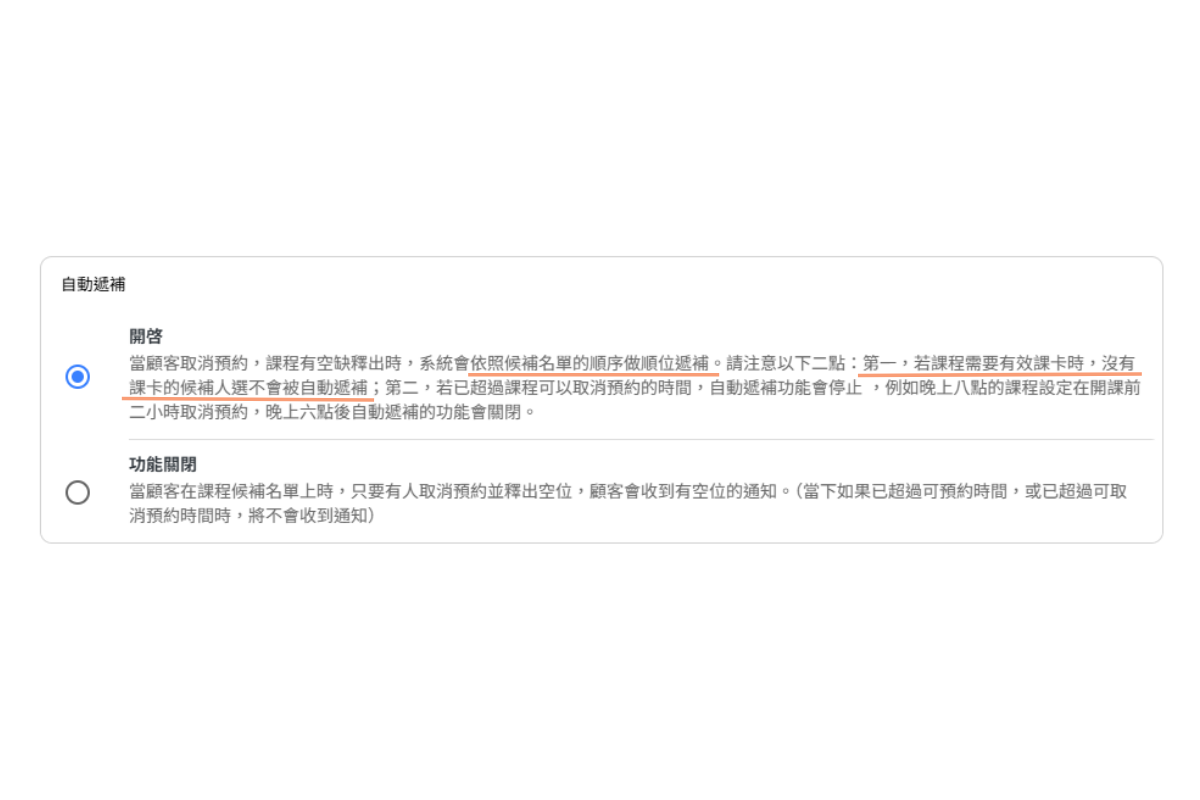
No course card available, replacement not allowed.
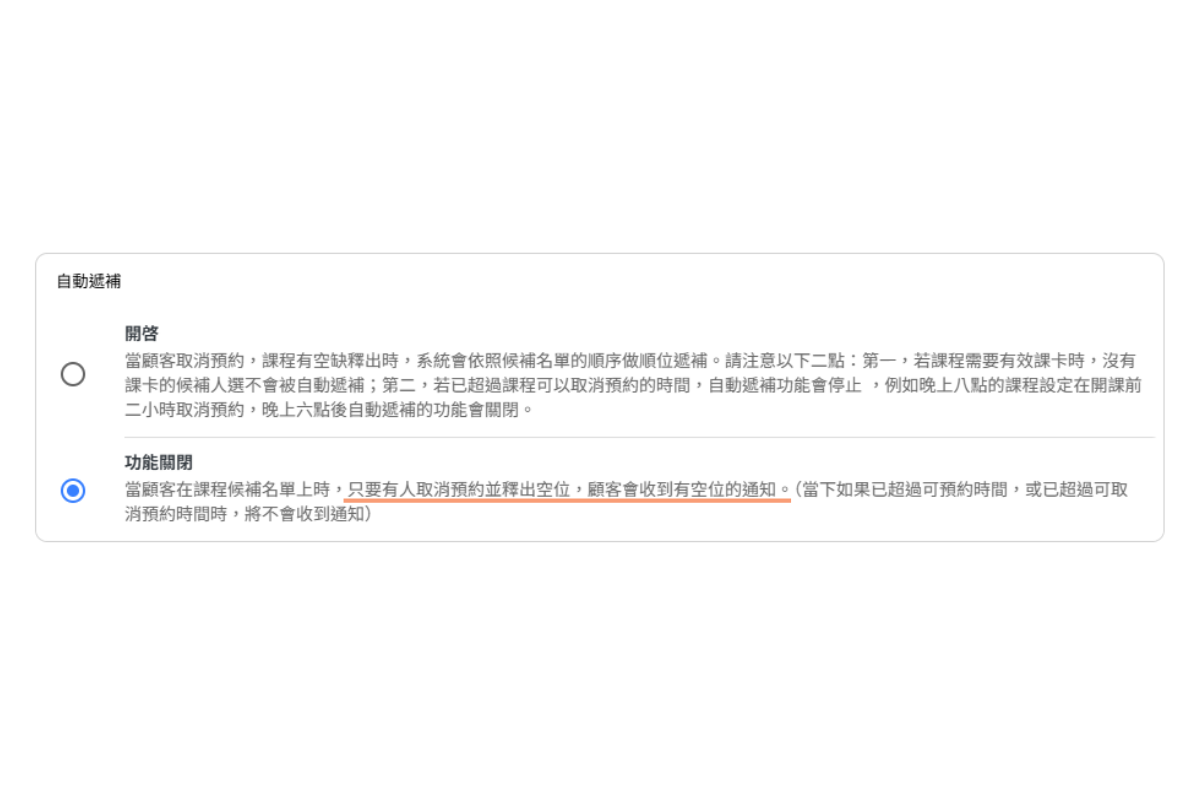
AUTOMATIC RESERVATION: OFF (Manually)
Customers on the waitlist will receive a "Waiting list" (spot opens up) notification and can decide whether to book the class.
* If the relevant push notifications are enabled, the system will send a notification to both customer and the administrators.
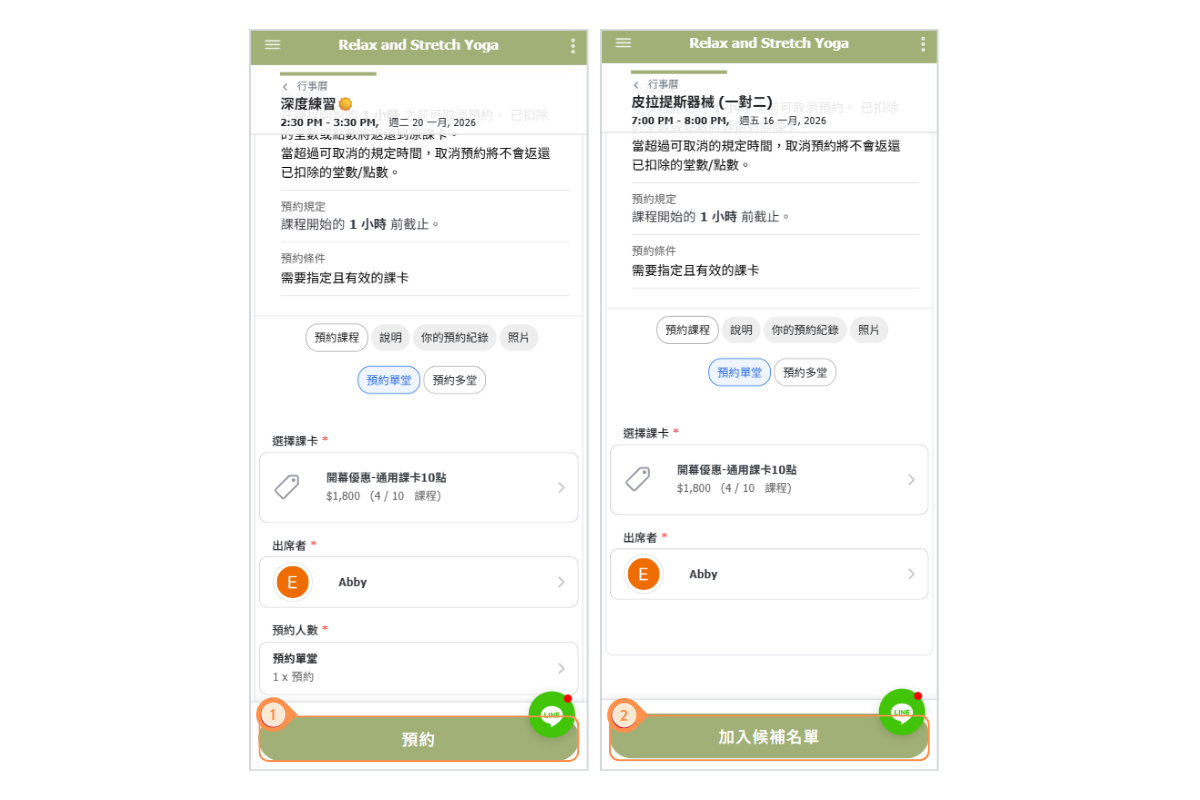
Schedule Module - Eaxmple of Customer Adds to Waiting List
- When there are available spots on the attendance list, display the "Reserve" button.
- When the attendance list is full but the waiting list has available spots, display the "Join Waiting List" button.
What does the yellow course label in the customer inbox mean?
On a customer reservation or waiting-list card, the yellow course label shows the course name followed by the session number / total sessions in that course. For example, 10/10 means lesson 10 of 10. It is not booked places / capacity, a course end date, a waiting-list position, or the customer's remaining pass visits. The course name identifies the scheduled course; it does not identify which pass that customer holds.
The separate waiting-list label shows the customer's queue position: #4 means fourth in line. Check the session's attendance list for booked places and capacity.
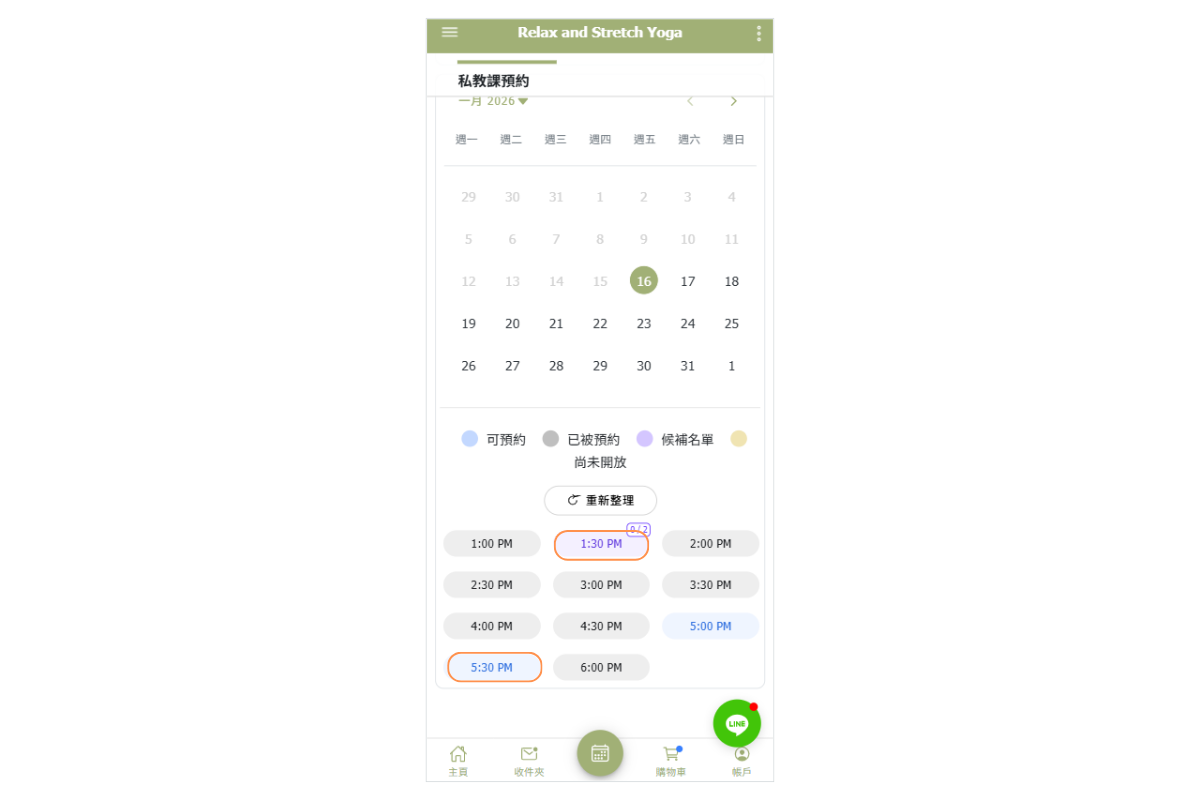
Appointment Module - Eaxmple of Customer Adds to Waiting List
When there are available spots on the attendance list, the time is displayed in blue.
When the attendance list is full but the waiting list has available spots, the time is displayed in purple.
FAQ: How can I set up certain classes to not allow a waitlist?
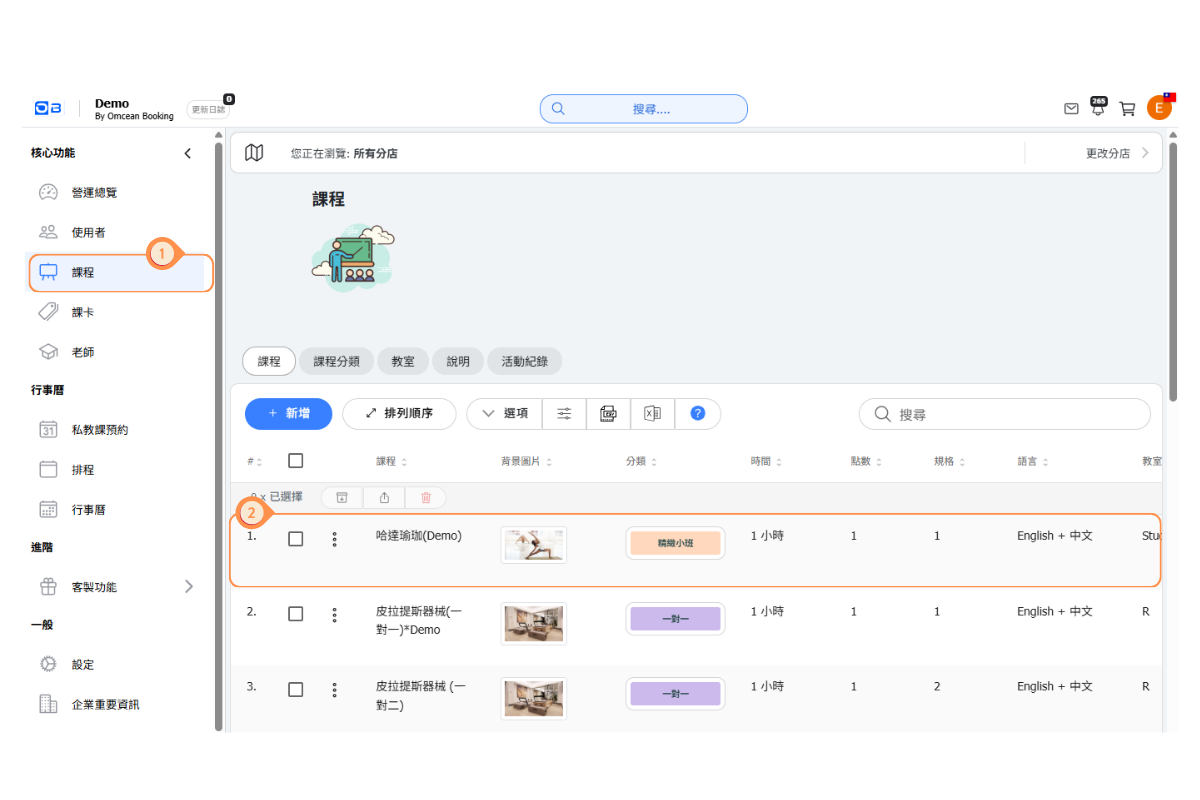
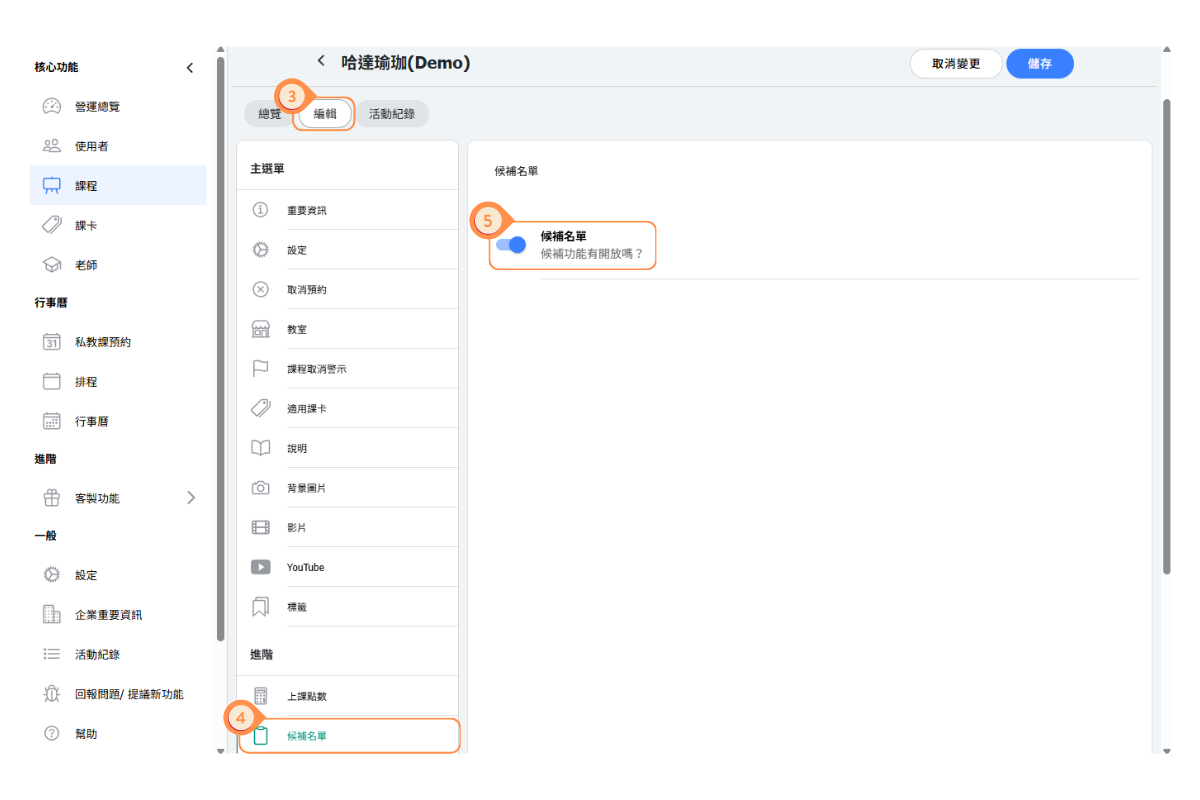
You can disable the waitlist feature on the setting of any one of class. Waitlist of this class will be disabled, and customers will not be able to join the waitlist.
[Instructions]
-
Click "Courses" on the left-side menu.
-
Select a course.
-
Click the "Edit" tab.
-
Click "Waiting List" on the left side.
-
Turn off the Waiting List toggle.
FAQ: If I enable automatic reservation for waitlist user, will customers who haven’t paid be added to the class?
The answer is NO. Automatic replacement will occur if the waitlisted customers have active pass.
However, if a customer does not complete the payment when spot opens up, they will not be added to the class.
FAQ: If I choose manual replacement, where should students go to book the class after receiving the vacancy notification?
With manual replacement, once customer on waiting list receiving the vacancy notification, they will need to go to calendar page and book the class after.FAQ: Can customers cancel their waitlisted booking?
Yes, customers can cancel their waitlisted booking in the same way they cancel a reservation. In the "Inbox," customers simply swipe right on the waitlisted reservation and then tap the trash can icon to cancel it.