
Overview of Report Permissions
Reports often contain sensitive business data such as revenue, instructor salaries, and sales figures.
With Report Permissions, businesses can now control which report tabs are visible and accessible to different roles, including instructors.
Key Benefits:
- Protect sensitive financial data from unauthorized access
- Customize report visibility for each role
Available Report Permission Controls:
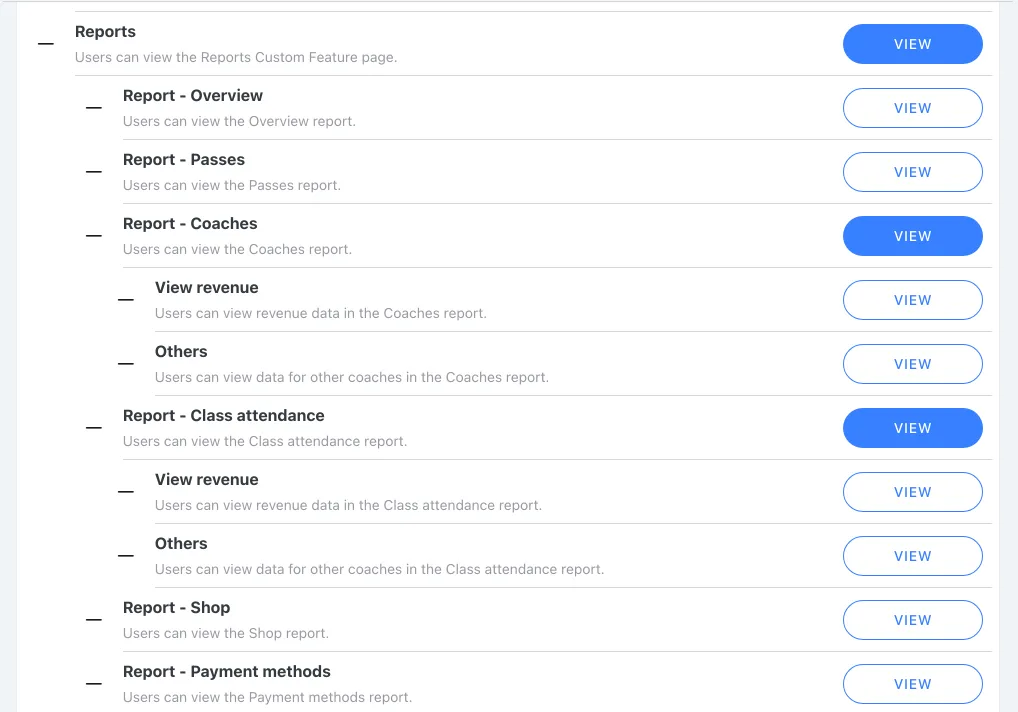
| Permission | Description |
| Reports | Master permission to access the Reports page |
| Report - Overview | Access to the Overview report tab |
| Report - Passes | Access to the Passes report tab |
| Report - Instructors | Access to the Instructors report tab |
| Report - Class Attendance | Access to the Class Attendance report tab |
| Report - Shop | Access to the Shop report tab |
| Report - Payment Methods | Access to the Payment Methods report tab |
Equipment uses Report - Overview View; Cancellations uses Report - Class attendance View. They are report tabs, not separate permission rows. Instructors and Class attendance also have separate Others and View revenue controls.
How to Configure Report Permissions
[Instructions]
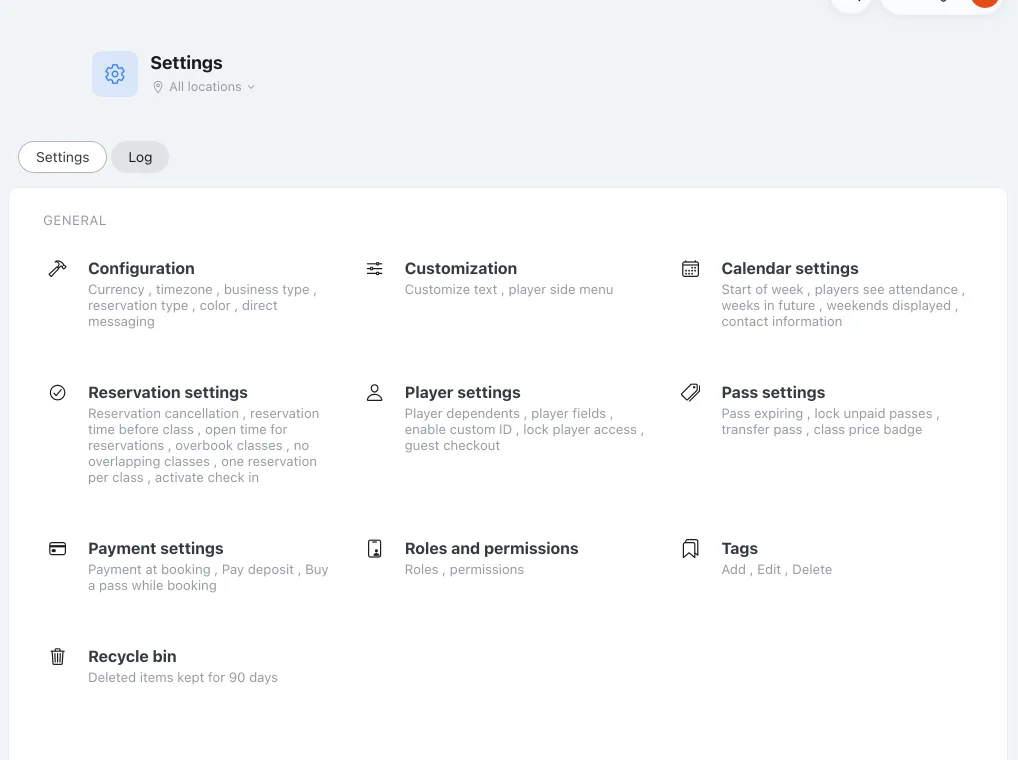
- Click Settings in the left menu.
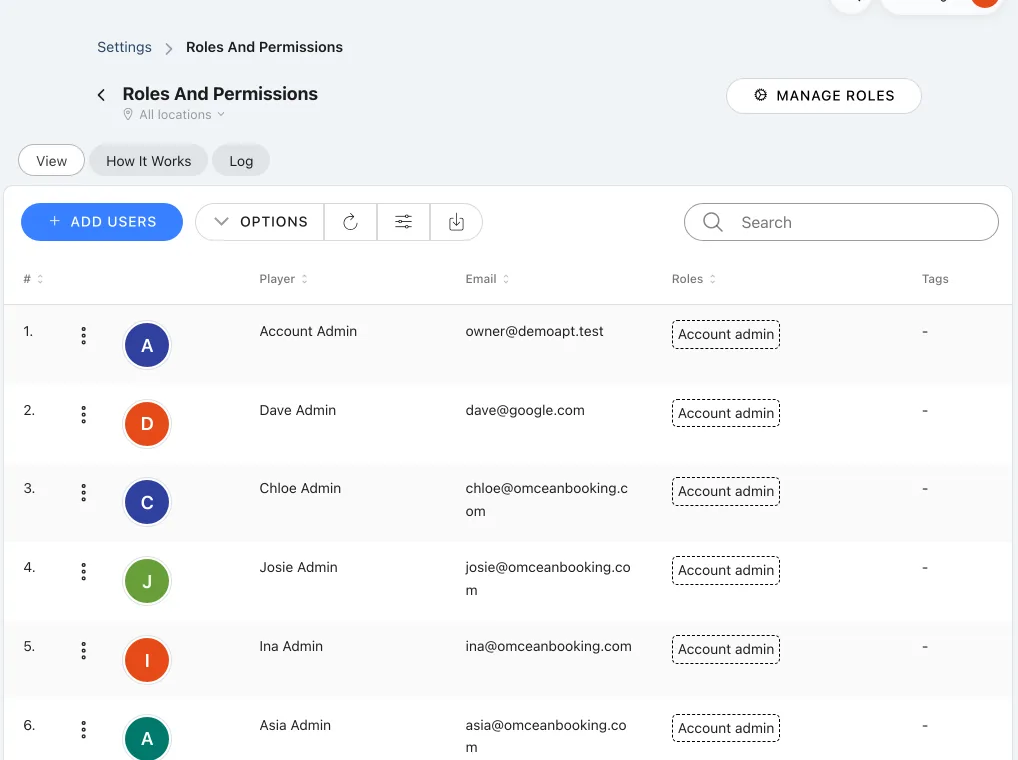
- Select Role & Permission Management.
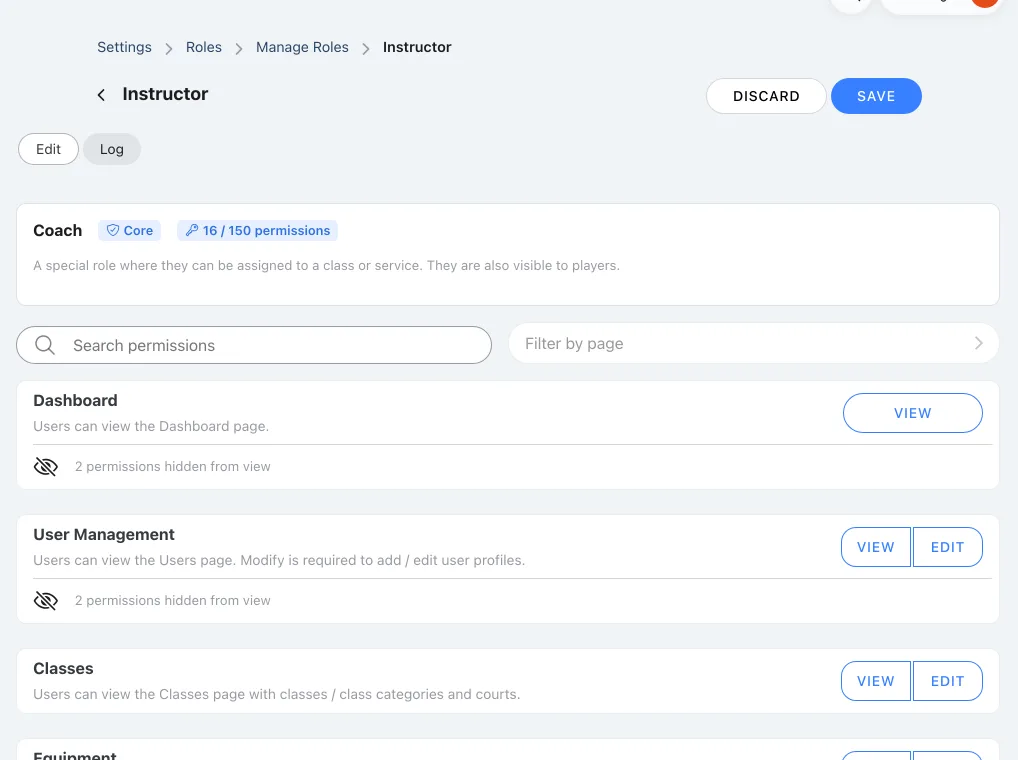
- Click Manage Roles.
- Click the Edit icon next to the role you want to modify (e.g., Instructor).
- Scroll down to find the Reports section.
- Toggle the View permission for each report tab as needed:
- Blue (enabled): The user can see and access this report tab.
- White (disabled): The report tab will be hidden from this role.
- Click Save to apply the changes.
Important Notes:
- The main \"Reports\" permission must be enabled for users to access the Reports page at all.
- Individual report tab permissions only work when the main Reports permission is enabled.
- Users cannot access disabled report tabs via direct URL—the system will block access.
Common Use Cases
Scenario 1: Allow instructors to view only their own performance
If you want instructors to see their teaching statistics without accessing revenue data:
- Enable: Reports (main), Report - Instructors, Report - Class Attendance
- Disable: Report - Overview, Report - Passes, Report - Shop, Report - Payment Methods
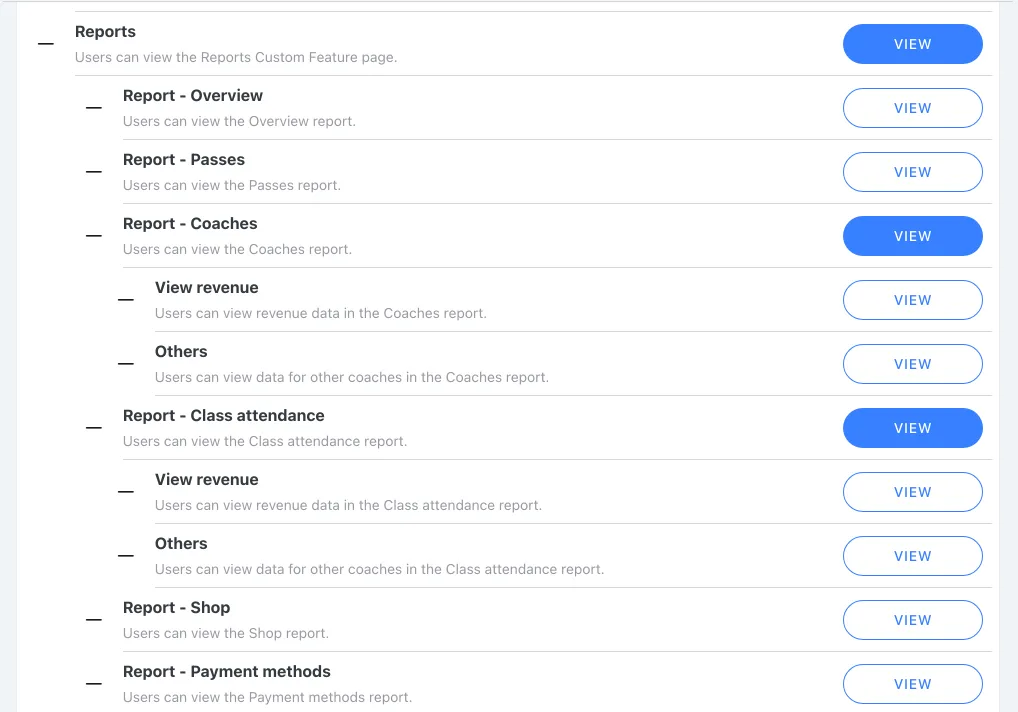
Scenario 2: Restrict all report access for instructors
If instructors should not access any reports:
- Disable: Reports (main permission)
- All sub-permissions will automatically become inaccessible
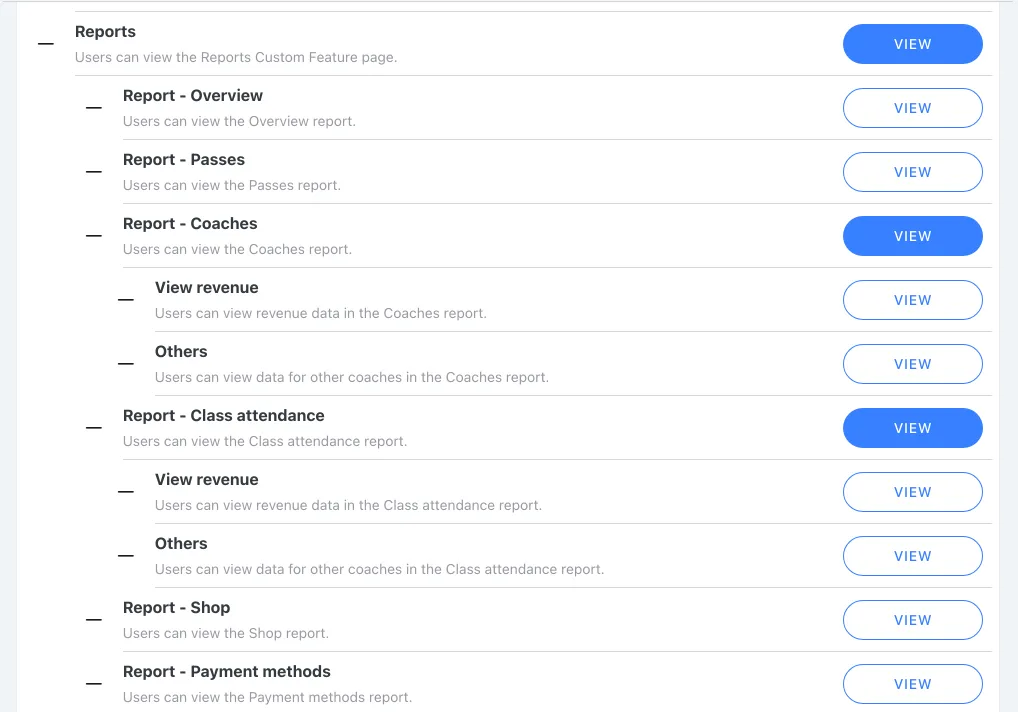
Scenario 3: Full report access for managers
For managers who need complete visibility:
- Enable: All report permissions
For own-performance-only access, also disable Others View and Revenue View for Instructors and Class attendance. Their Chart pages restrict the instructor scope and hide currency widgets when Revenue View is unavailable. Equipment shares Overview permission and Cancellations shares Class attendance permission; account for these additional tabs when choosing access.
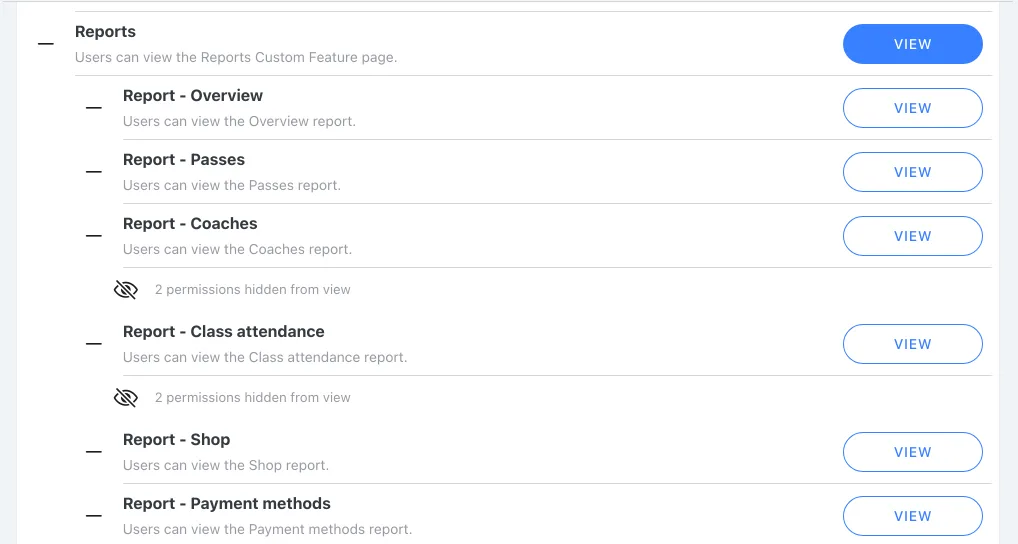
How Permission Changes Affect Users
When a report permission is enabled:
- The corresponding report tab appears in the navigation.
- Report data loads correctly when accessed.
- Users can view and interact with the report.
- On the Instructors and Class Attendance reports, users without permission to view other instructors only see their own data, and the Instructor filter in the Chart view is locked to them. Revenue charts only appear for users with the matching revenue view permission for that report.
When a report permission is disabled:
- The corresponding report tab disappears from the navigation.
- Users cannot access the report via direct URL.
- If a user tries to access a disabled report directly, they will see an \"Insufficient Permission\" message.
FAQ: Why can't I see some report tabs?
Check Custom Features → Reports in the role editor. Enable the Reports parent and the specific report's View permission. For Instructors and Class attendance, Others controls other instructors' data and View revenue controls financial figures; opening the report alone does not grant either.
Check every assigned role and the current location. A None setting in one role cannot remove View granted by another. If controls are missing, check the parent permission and whether the custom feature is enabled. Save and verify with the affected staff account after its permissions refresh.

