Manually restrict one customer
Use a manual lock when a customer is on leave or when you need to pause new reservations for a reason unrelated to the automatic attendance policy.
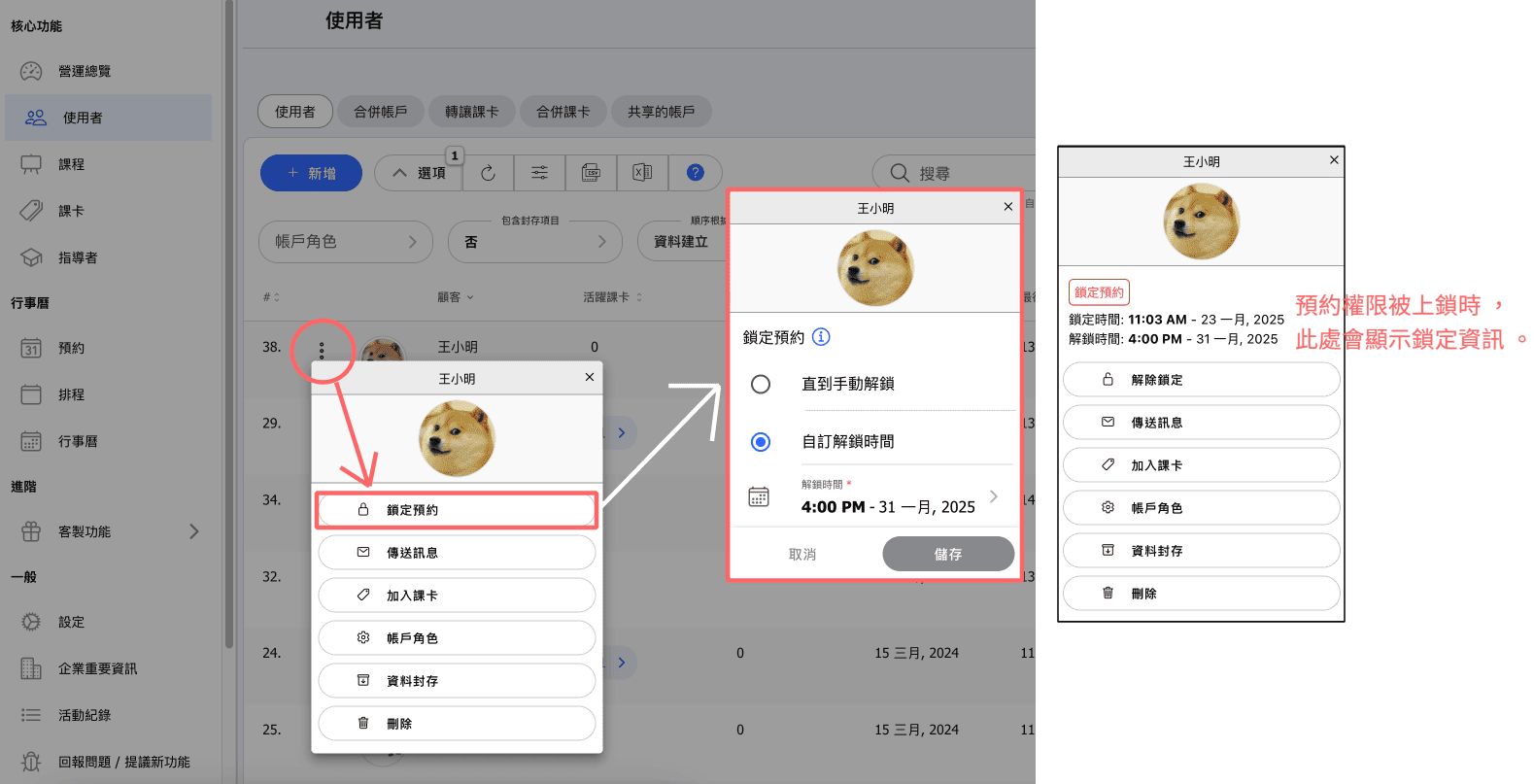
Go to Admin → Users, open the customer's actions, and choose Lock access. Select one duration:
- Manual unlock required — the lock stays until an administrator unlocks it.
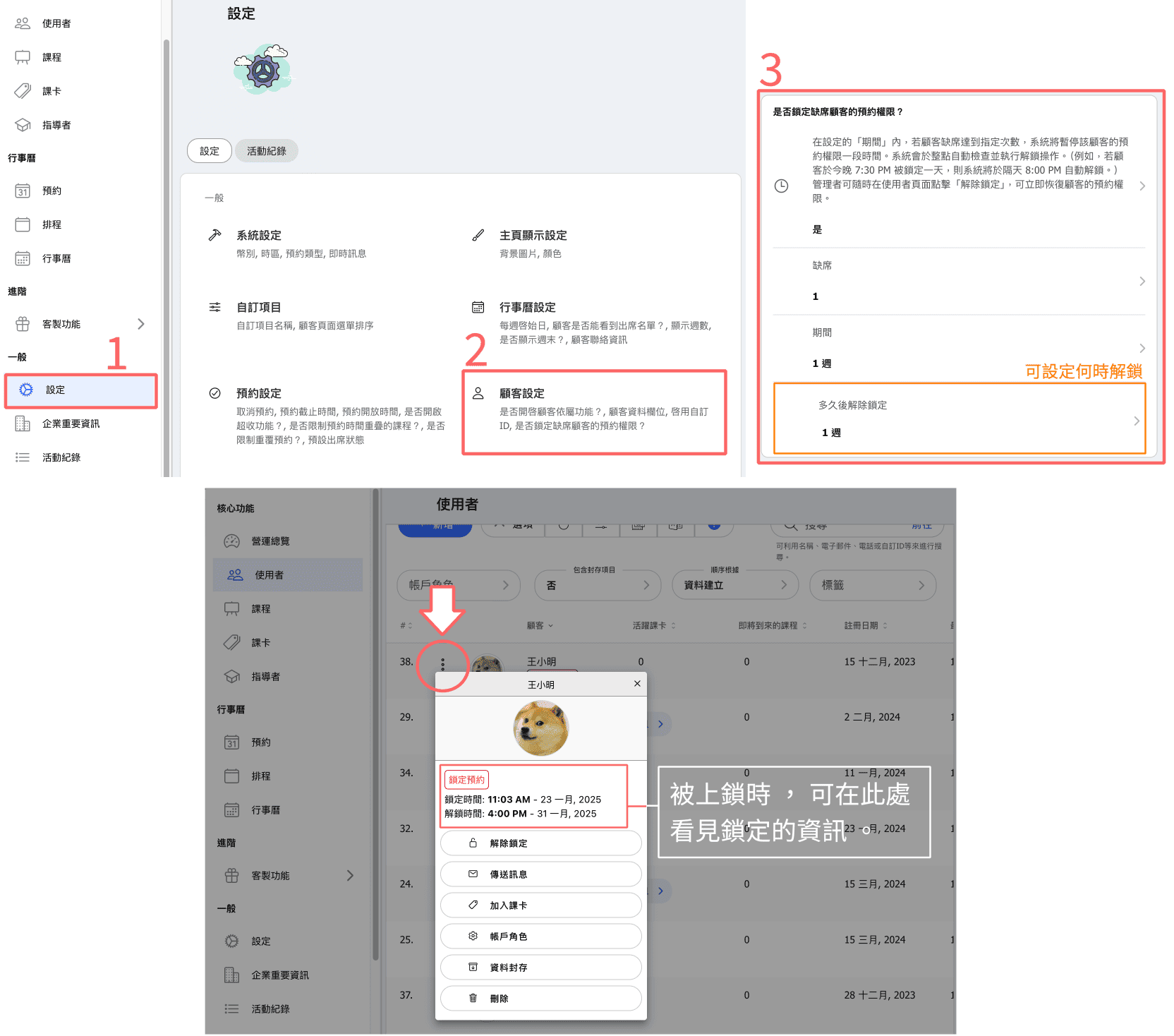
- Duration from settings — uses the automatic-unlock duration under Settings → Customer → Lock customer access. This option is available only when the setting is enabled with a non-zero duration.
- Custom unlock time — choose an exact future date and time.
The automatic unlock process runs hourly, so access is restored on the first check after the chosen time.
Automatically restrict repeated incidents
Under Settings → Customer → Lock customer access, choose whether no-shows, penalty cancellations, or both should count. Use a rolling day window or the current calendar month. When both types count, choose one combined limit or separate limits; penalty cancellations can also be limited to bookings made with selected passes.
No-shows become eligible after the class duration plus a 30-minute attendance grace period. The hourly job applies locks after a configured limit is reached. Incidents used for a lock are marked as consumed so they do not trigger the same lock twice.
Choose manual-only or a configured automatic-unlock duration. Existing bookings, passes, and waiting-list entries stay unchanged.
See Lock customer access for every setting and counting example.
What locking changes
- The customer cannot make new reservations.
- They can still log in, browse, view history, and purchase passes.
- Existing bookings, passes, payments, and waiting-list entries are not cancelled, refunded, or removed.
- The customer and administrators receive in-app notifications; email delivery depends on the relevant notification settings.
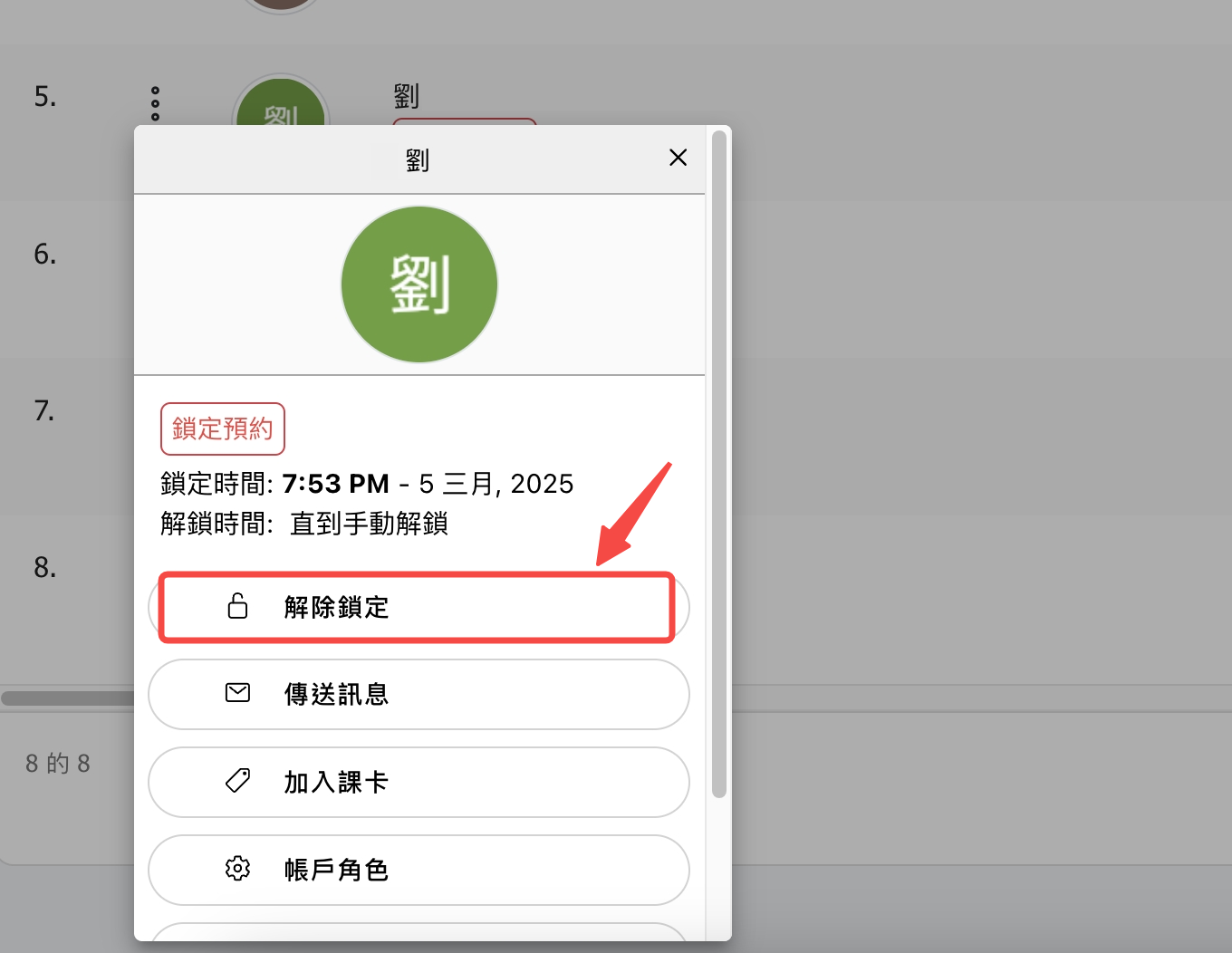
Unlock immediately
Go to Admin → Users, open the locked customer's actions, and choose Unlock access. New-reservation access is restored immediately. Unlocking does not recreate, cancel, refund, or otherwise change any booking or pass.