How to Upload Photos to the Class Photo Wall?
From the calendar, go to the "Edit" page of the class, where you can find the "Photos" section in the menu.
You can upload multiple photos to this class, and the photo information will automatically include the class name and date and time.
*Please note that if the class is canceled and removed from the calendar, the photos uploaded to this class will also be removed from the system.
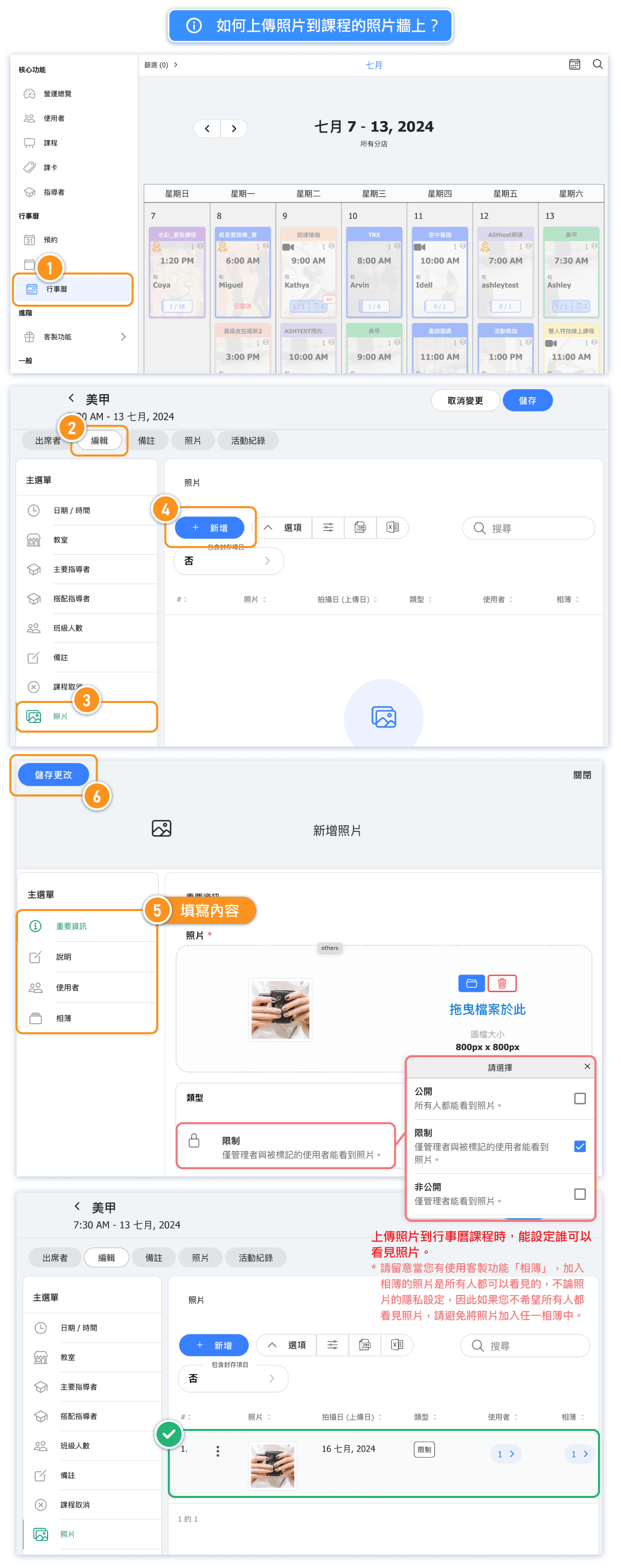
Additionally, please note that if you use the custom feature "Photo Album", photos added to the album will be visible to everyone, regardless of their privacy settings. If you do not wish to make certain photos public in the album, please avoid adding those photos to the album.
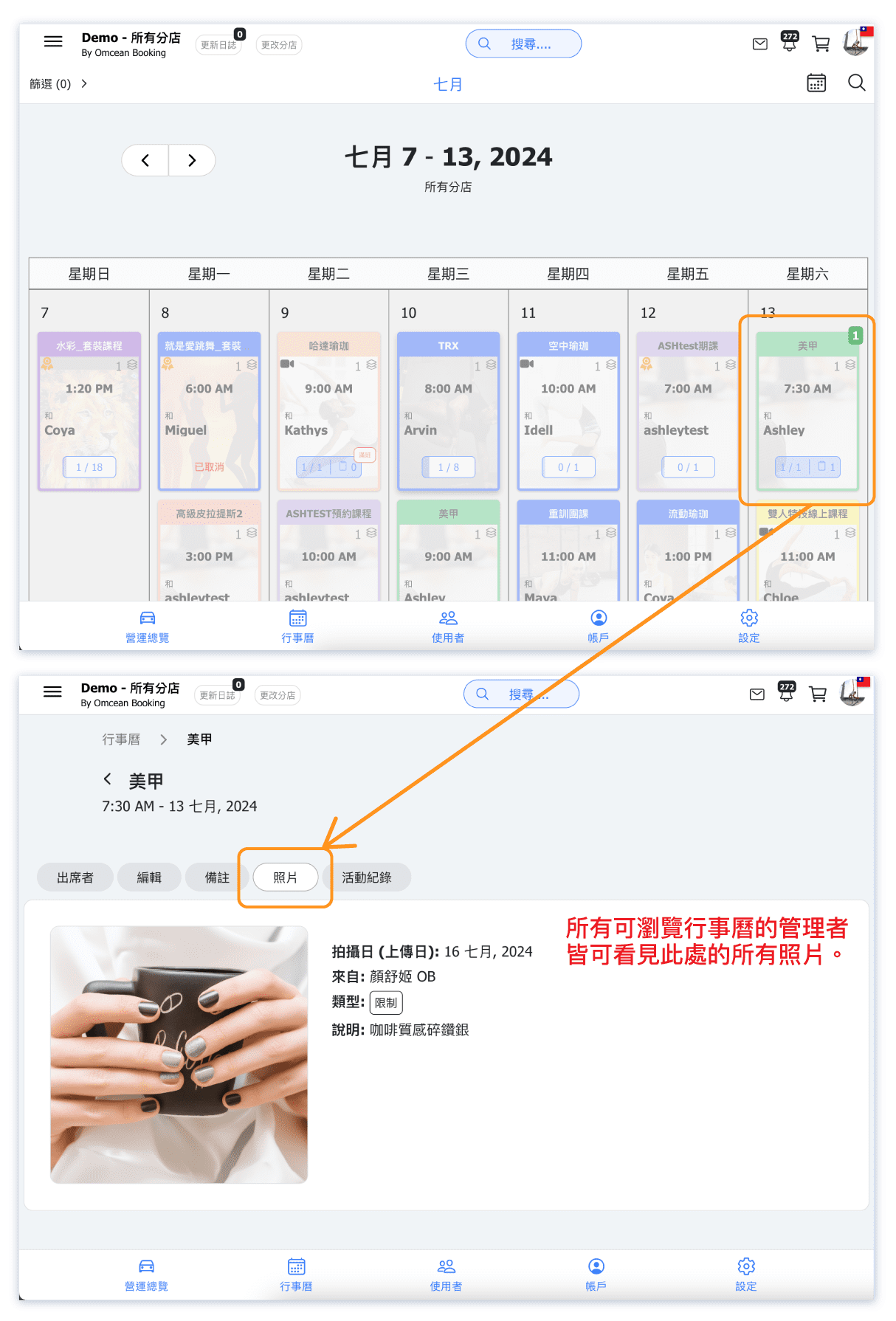
Where Admin Can View These Photos.
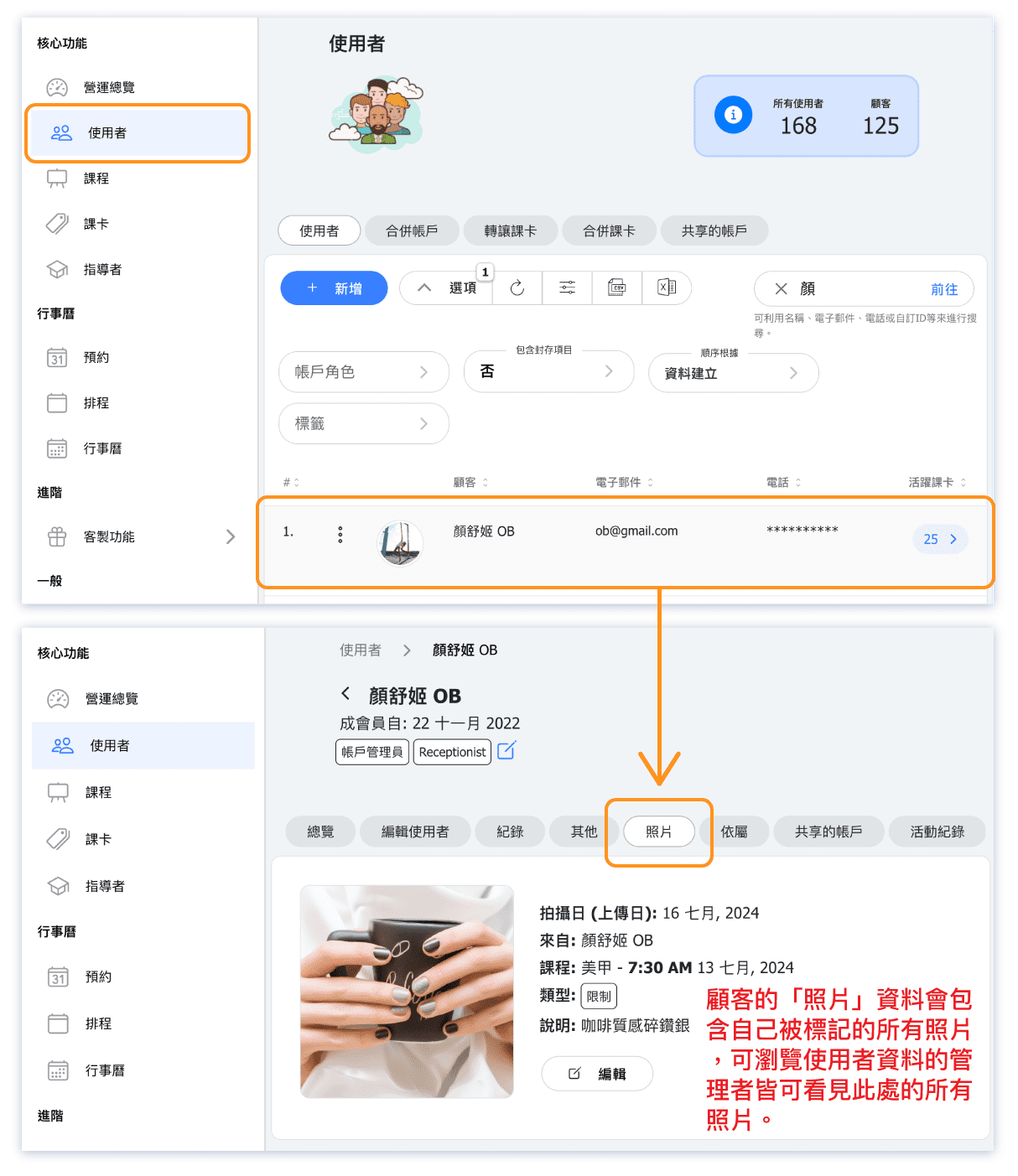
In addition to viewing photos in the course details on the "Calendar," administrators can also view photos tagged with a specific user in the "User" information.
* When admin has permission.
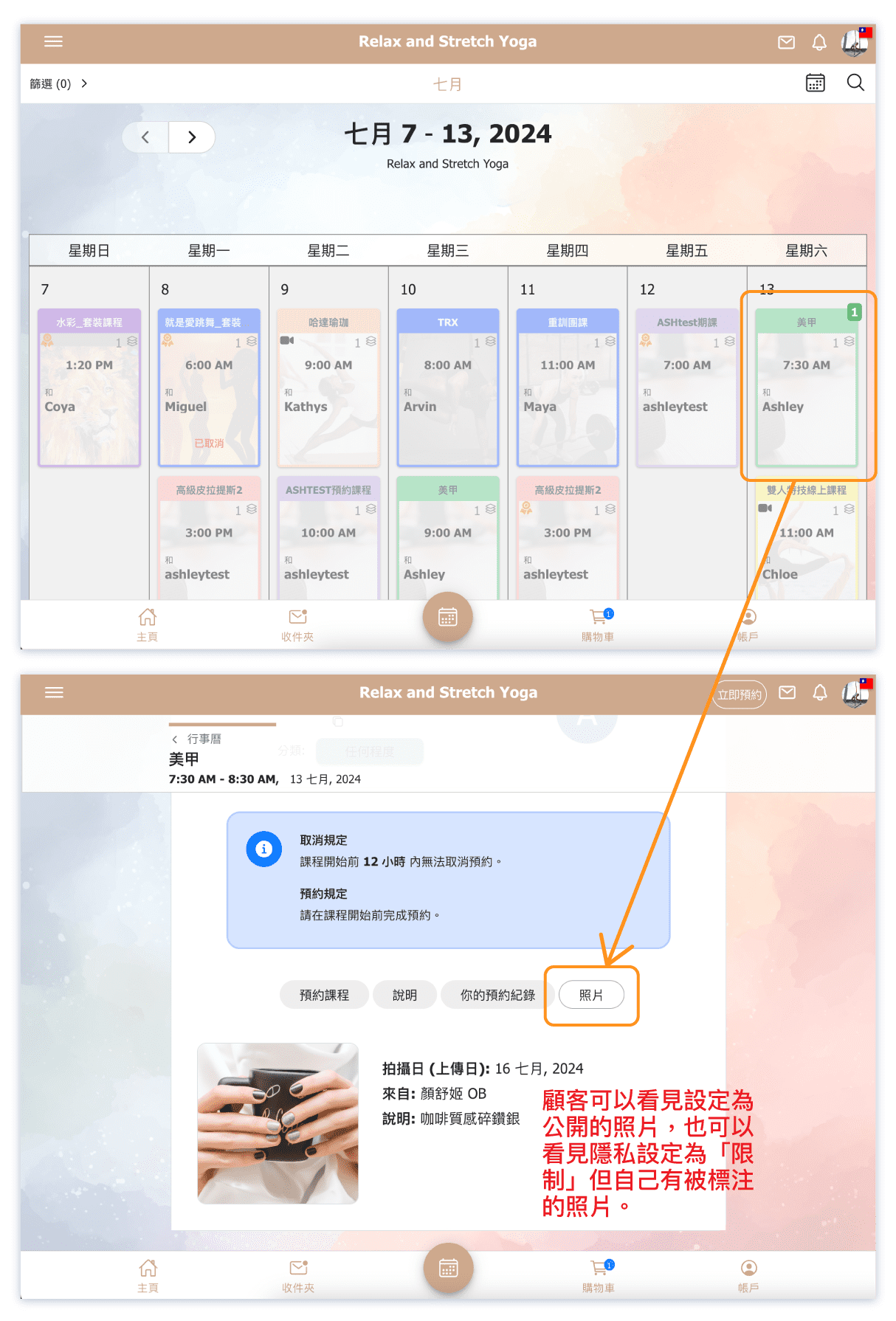
Where Customer Can View These Photos.
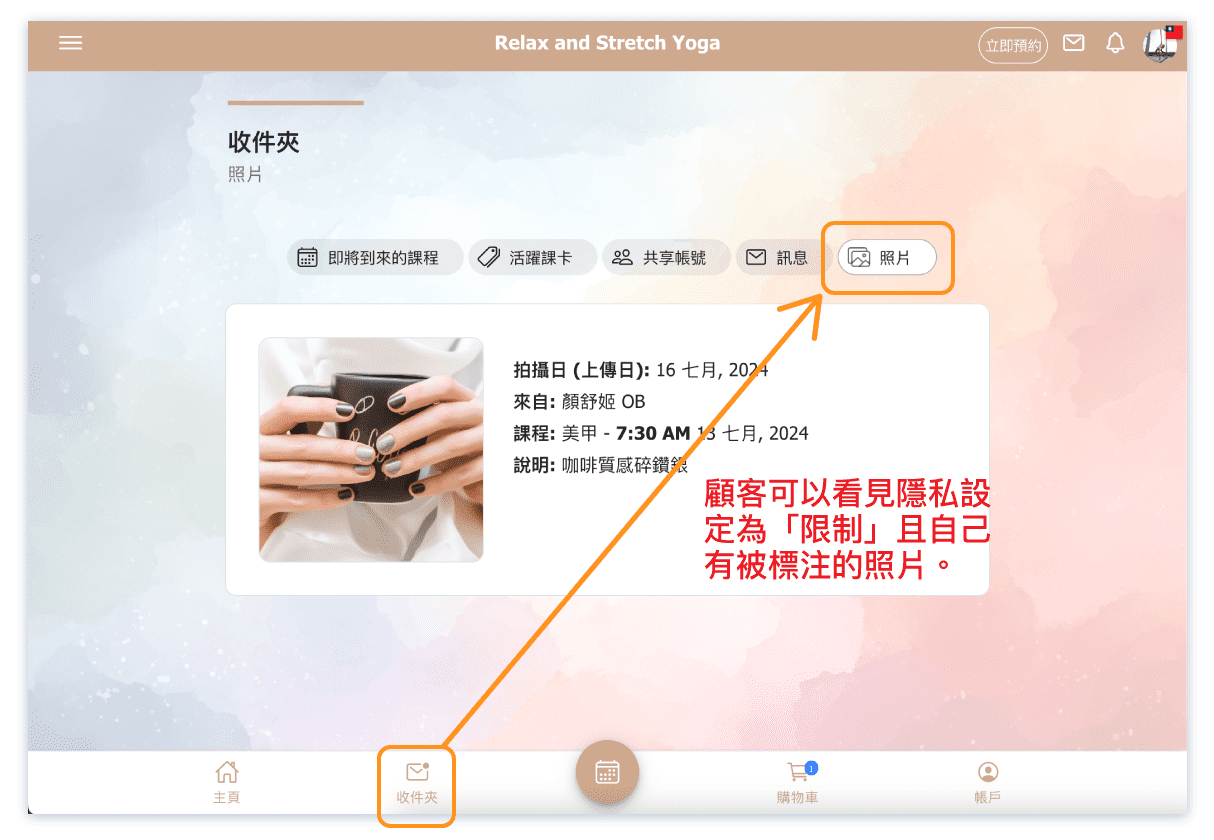
Customers can view photos set to "public" in the class details on the "Calendar." They can also see photos with a "restricted" privacy setting if they are tagged in them.
Customers can also see photos with a "restricted" privacy setting in their "Inbox" photo page if they are tagged in them.