What is the Schedule module?
The Schedule module is designed for businesses that offer structured, recurring classes or courses. It's ideal for yoga studios, fitness centers, dance schools, and similar businesses.
Types of classes you can create:
- Repeating classes: Classes that occur on a regular schedule (e.g., Yoga every Monday at 9am)
- One-off classes: Single classes or workshops that happen once
- Schedule courses: Multi-session courses where students enroll for the entire series
Key features:
- Set class capacity limits
- Assign instructors to classes
- Customers can browse the schedule and book available spots
- Manage waiting lists when classes are full
- Track attendance for each class
Best for: Yoga studios, fitness centers, dance schools, martial arts dojos, swimming lessons, group training sessions
What is the Appointment module?
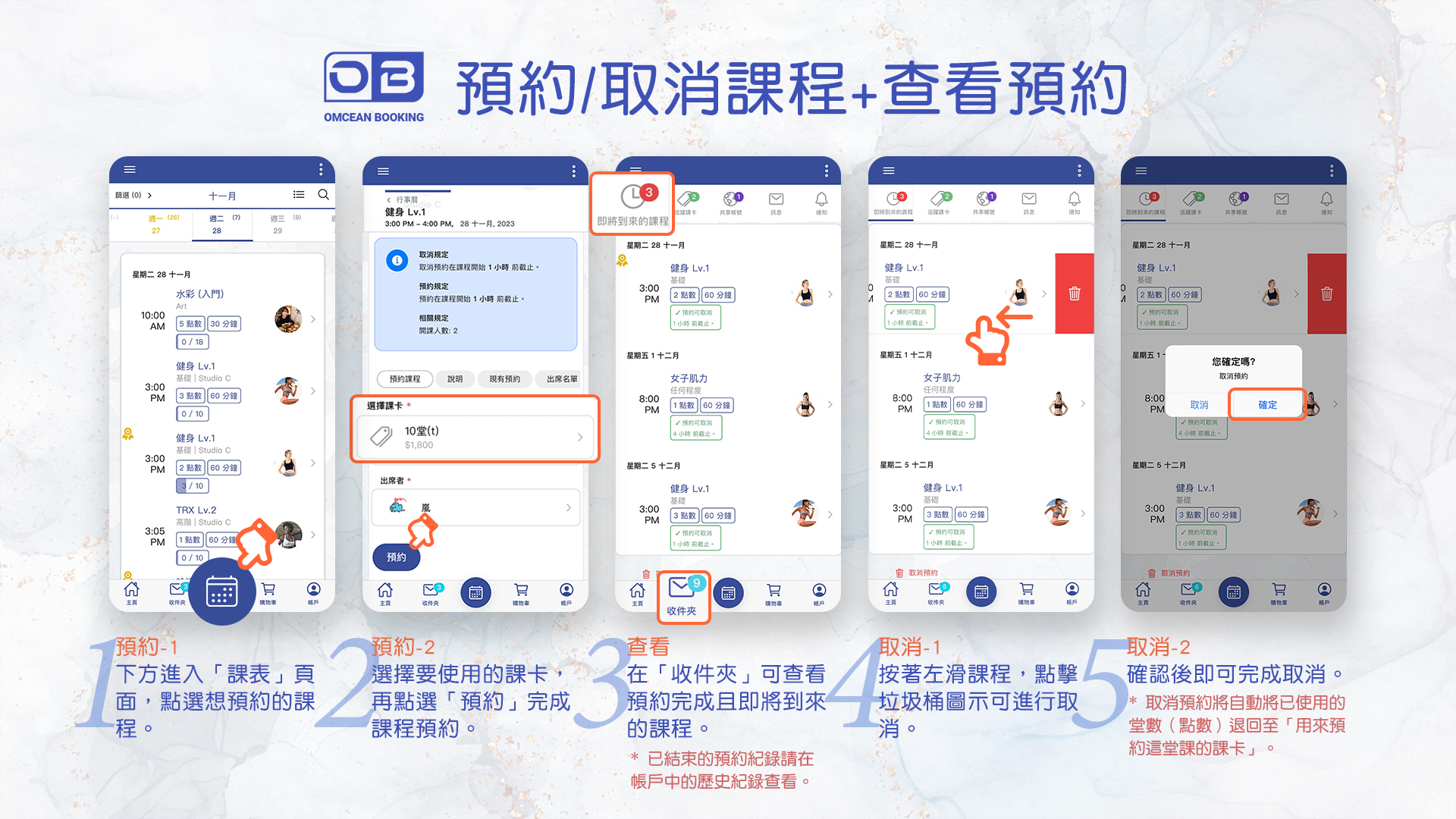
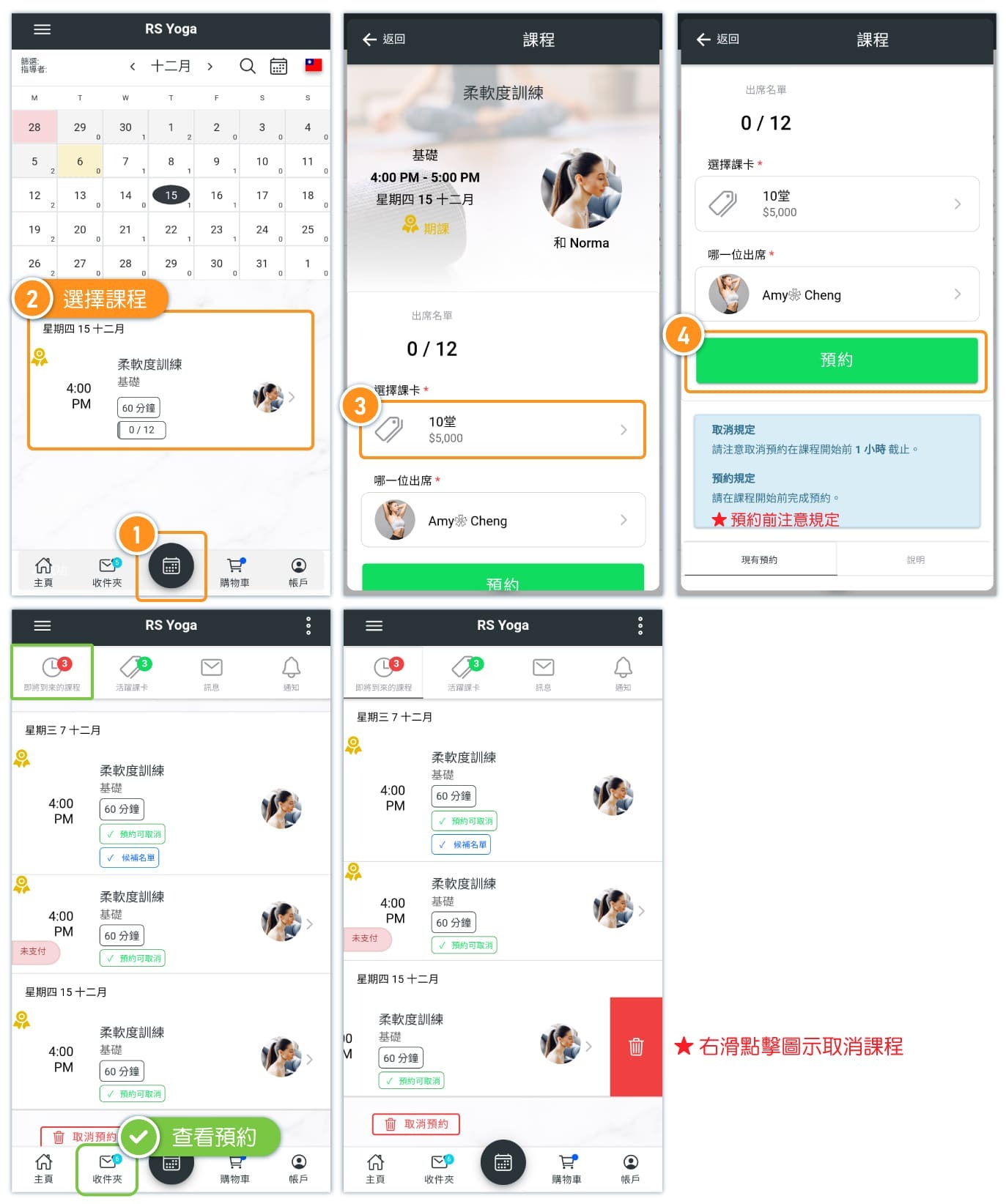
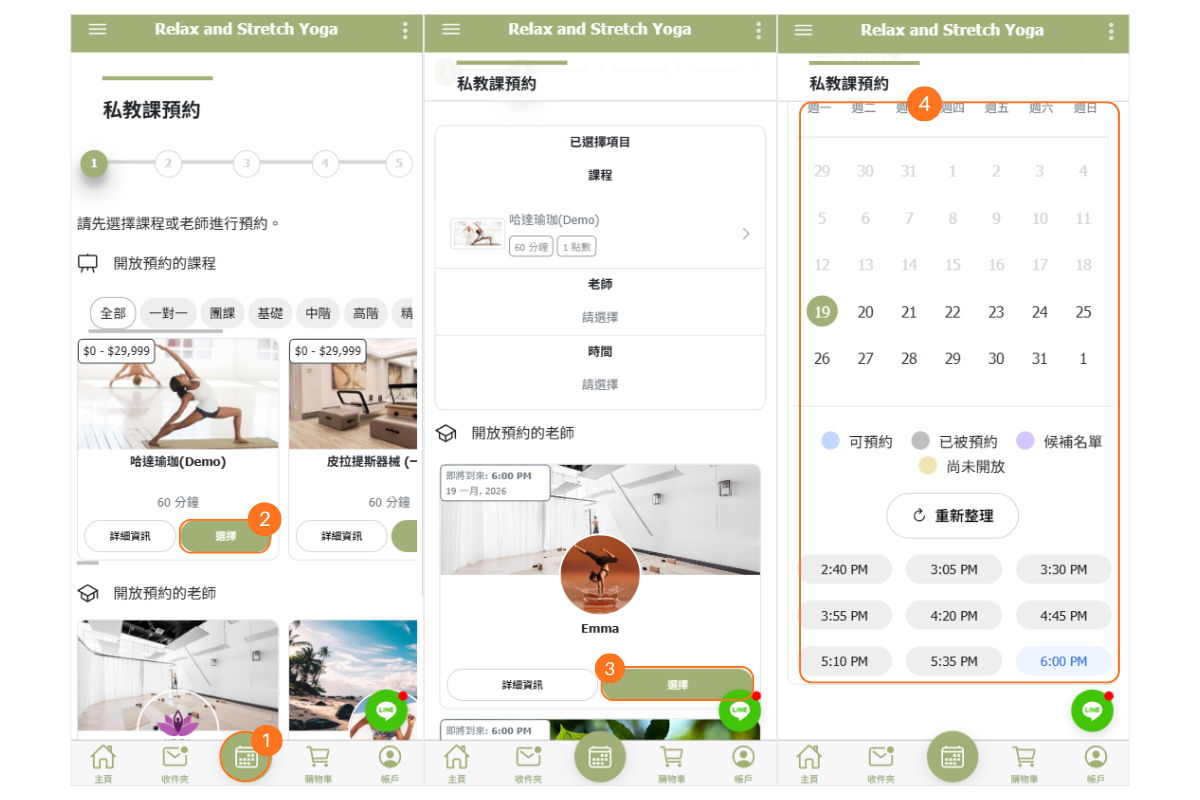
[Instructions]
-
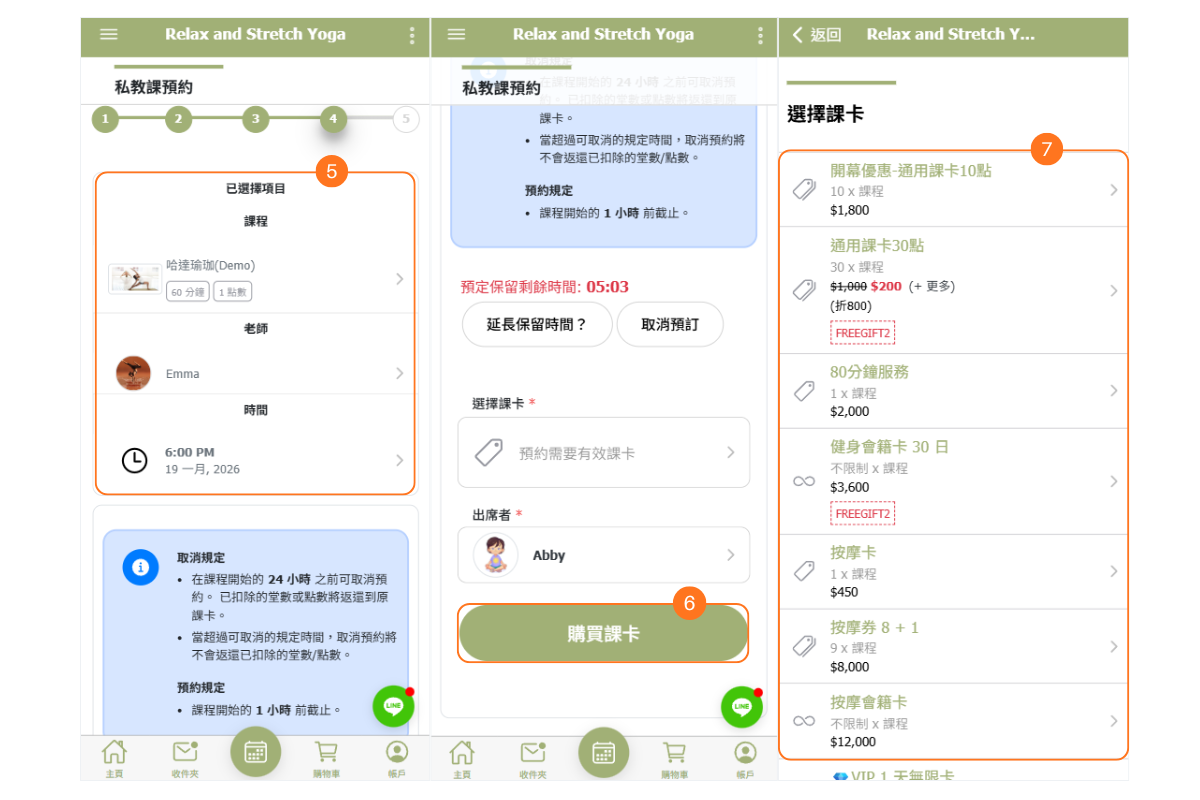
Click the calendar at the bottom.
-
Select a course.
-
Select a teacher.
-
Choose the date and time.
-
Confirm the reservation details.
-
If you don’t have a course card, select purchase course card.
(If you already have a course card, simply select the card you want to use to complete the reservation.) -
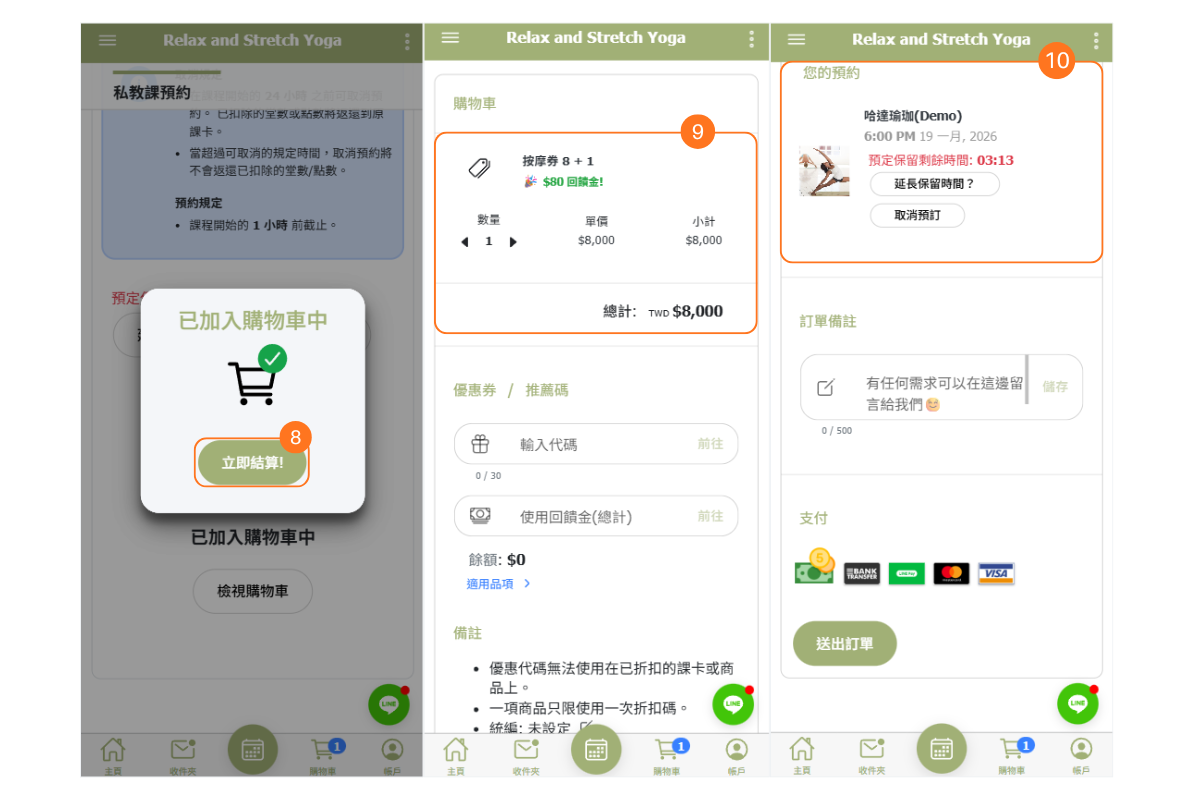
Select the course card you want to purchase.
-
Click “Checkout Now”.
-
The top of the checkout page shows the purchased course card information.
-
The bottom shows the course information for the course card reservation.
-
-
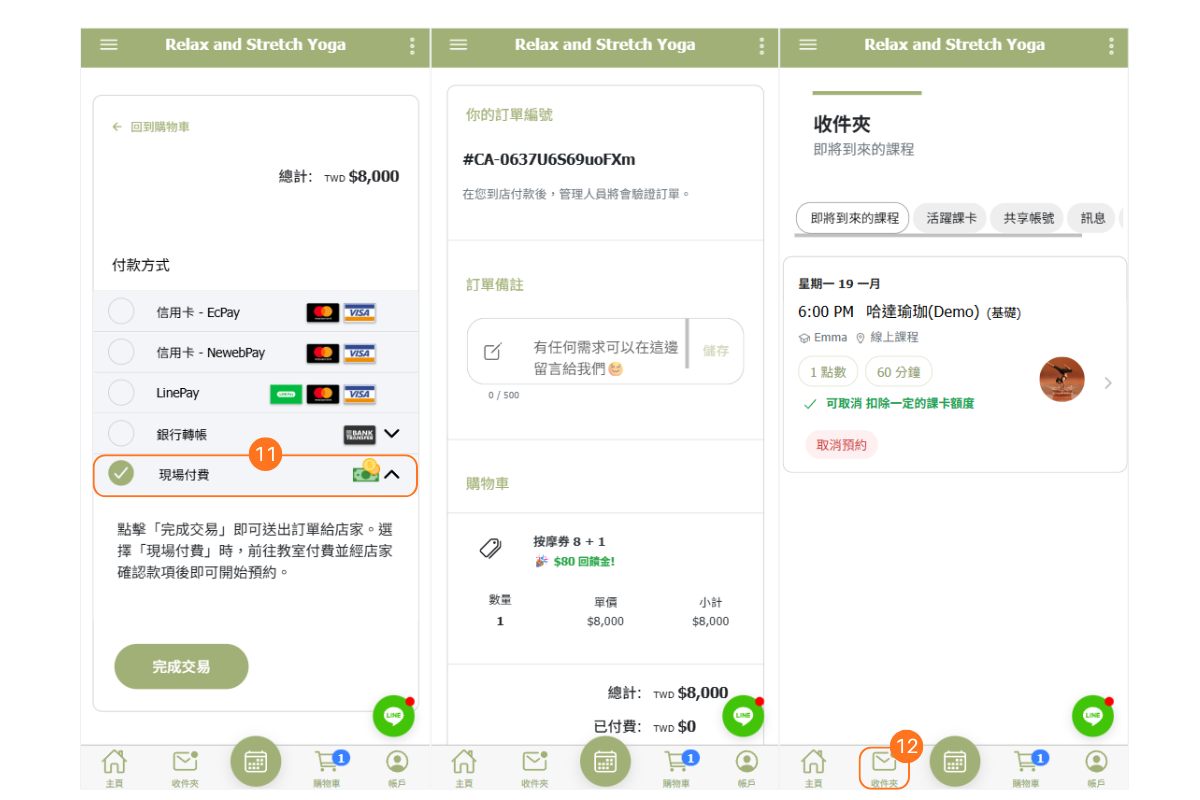
Select a payment method.
-
Click the “Inbox” at the bottom to view the “Upcoming Reservations” tab and check your reserved courses.
Which module should I use?
Choose based on how your business operates:
| Schedule Module | Appointment Module | |
|---|---|---|
| Best for | Group classes with fixed times | Individual appointments |
| Time slots | Pre-defined class schedule | Flexible based on availability |
| Capacity | Multiple students per class | Usually one customer per slot |
| Booking style | Browse schedule, pick a class | Choose service, then time |
| Examples | Yoga, fitness, dance, courses | Salon, spa, consulting, tutoring |
Can I use both?
Yes! Some businesses use both modules. For example, a yoga studio might use the Schedule module for group classes and the Appointment module for private one-on-one sessions. Both modules feed into the same Calendar view, so admins can see everything in one place.
How do customers make a booking?
Customers can book through your booking page, and the experience differs slightly depending on which module you use:
Schedule module booking:
- Customer views the class schedule
- They browse available classes by date/time
- They select a class with available spots
- They confirm the booking
Appointment module booking:
- Customer selects a service
- They choose a preferred instructor/provider (optional)
- They see available time slots
- They select a time and confirm
Admin-assisted booking:
Administrators can also make bookings on behalf of customers from either module - useful for walk-ins or phone bookings.
How does the Calendar view work?
The Calendar is the central hub where administrators can see all scheduled activities from both modules in one unified view.
What you'll see:
- Weekly or monthly view of all classes and appointments
- Class/appointment details: name, time, instructor
- Capacity status (e.g., "1/10" meaning 1 booked out of 10 spots)
- "FULL" indicator when capacity is reached
- Filter options to view by location, instructor, or class type
What you can do:
- Click on any class to view attendees and manage bookings
- Mark attendance directly from the calendar
- Cancel or modify classes
- Navigate between weeks/months easily
The Calendar combines data from both Schedule and Appointment modules, giving you a complete picture of your business operations.
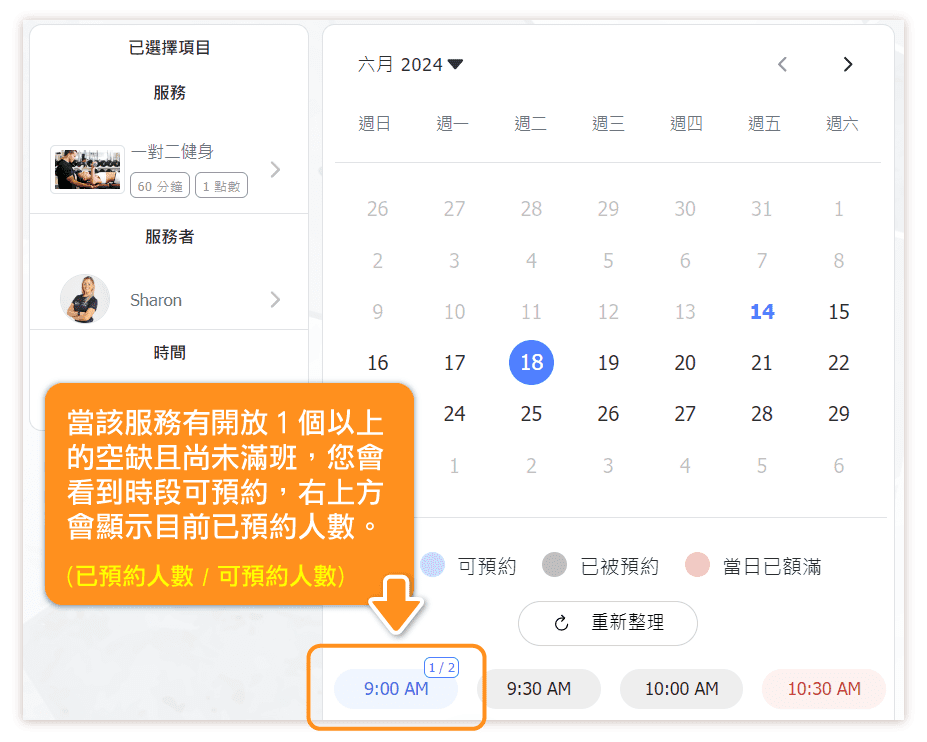
What do the numbers on time slots mean?
When viewing classes on the calendar or booking page, you'll see capacity numbers displayed on each time slot:
Format: (Booked / Maximum capacity)
Examples:
- 1/10: 1 person booked, 10 spots total (9 available)
- 5/5: Class is full
- 0/8: No bookings yet, 8 spots available
When a class reaches full capacity, it will show a "FULL" indicator. If you've enabled waiting lists, customers can still join the waiting list for full classes.