Log Out Account Security Mechanism
📌 Regarding the "System Security Mechanism" after the 8.00 update:
After the 8.00 update for the web version, users who have not operated the system for 7 days will be automatically logged out.
After the 8.00 update for the app, users who have not operated the system for 14 days will be automatically logged out.
The purpose of the regular automatic logout mechanism is to protect both the businesses and customers using the booking system. The longer users stay logged into any website or app, the higher the potential threat to their information security. Prolonged login sessions increase the risk of malicious individuals attempting to steal users' sensitive data through various means. The system automatically logs out users periodically and clears cache data to safeguard all users' information and reduce the risk to information security. To prevent account forgetfulness after logging out, it's advisable to recommend customers to consistently use a specific login method, such as registering and logging in with a Google account.
▶ User Unable to Locate Classroom
💬 Scenario 1: Forgetting the Classroom Name
➔ Solution: Enter the URL alias or classroom name for searching.
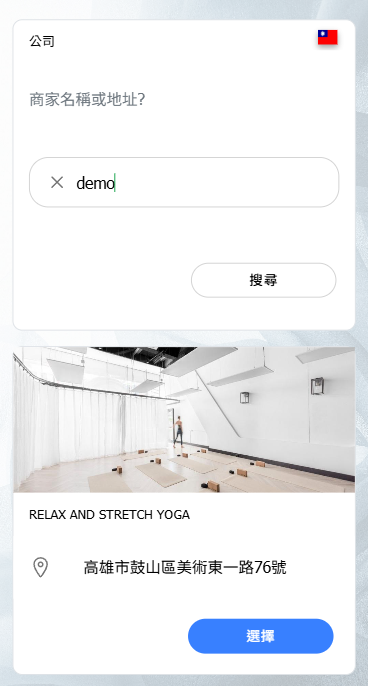
For example: If the classroom URL is https://www.omceanbooking.com/demo, then search for "demo".
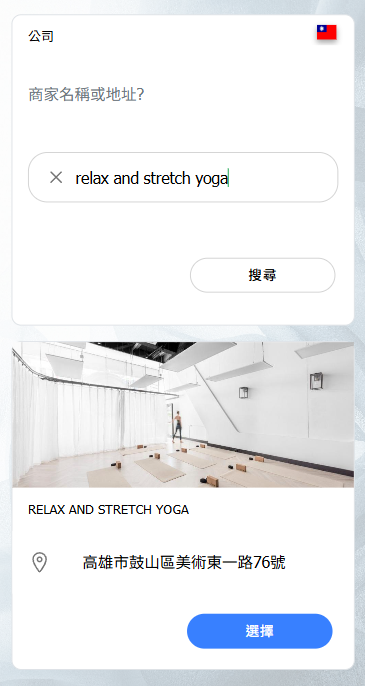
For example: If the classroom name is "Relax and Stretch Yoga," search by entering "Relax" or the complete name "Relax and Stretch Yoga".
💬 Scenario 2: Unable to Find the Classroom
➔ Solution: Please ensure the input content is correct. Pay attention to whether the spaces in the name match. Alternatively, try searching using the first three letters of the classroom name.
▶ User Forgot Which Email Was Used for Registration
▶ User Forgets Which Email Was Used for Registration.
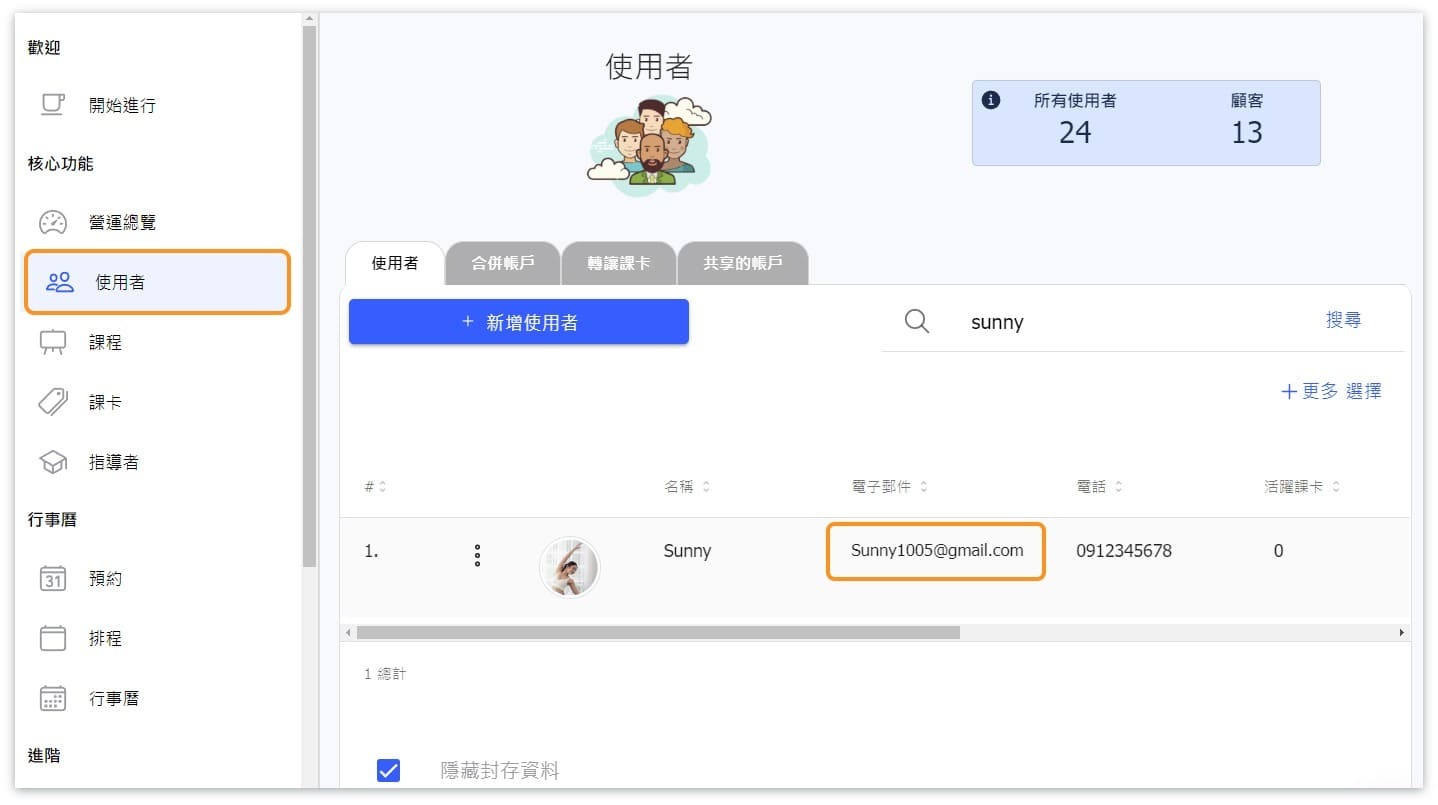
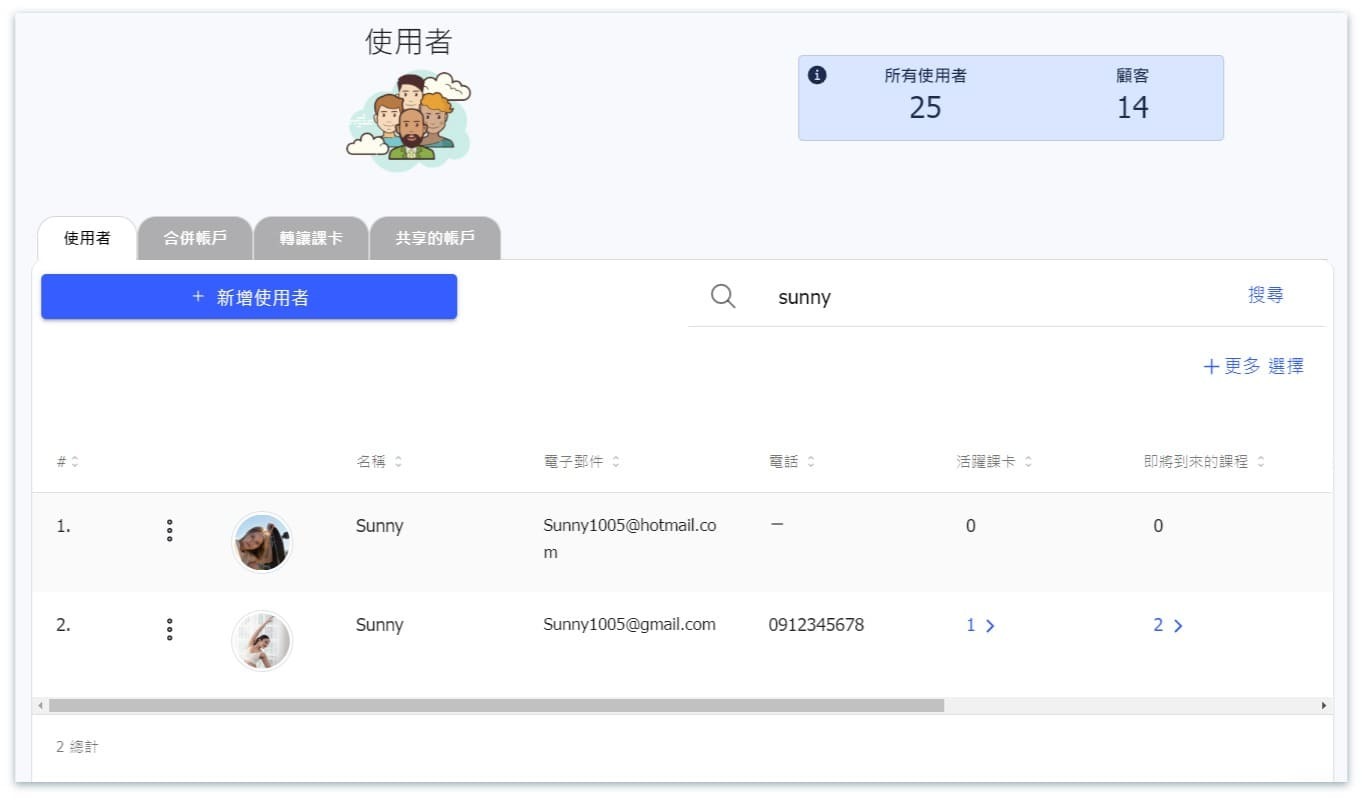
➔ Solution: Please ask the backend administrator to assist the customer in confirming their email address. They can utilize the search function in the user list by entering keywords such as name, phone number, email address, etc.
▶ "Sign In" Button Not Functional
▶ "Login" Button Not Functional.
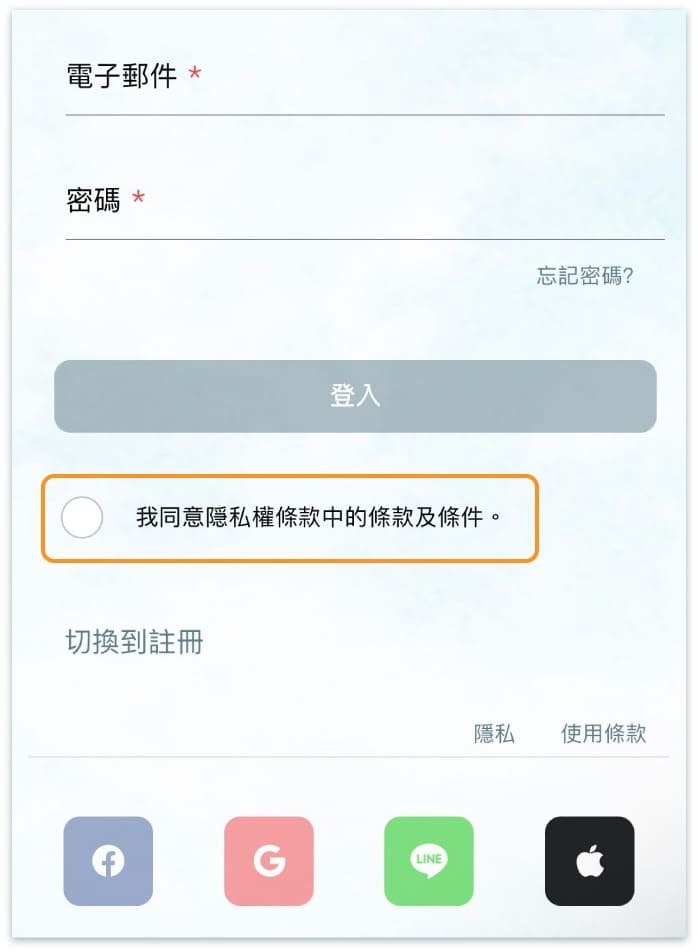
➔ Solution 1: Please ensure that the user has checked the box agreeing to the privacy policy. (Failure to confirm the privacy policy will prevent any login method from functioning.)
▶ User Forgot Login Method
▶ User Forgets Login Method.
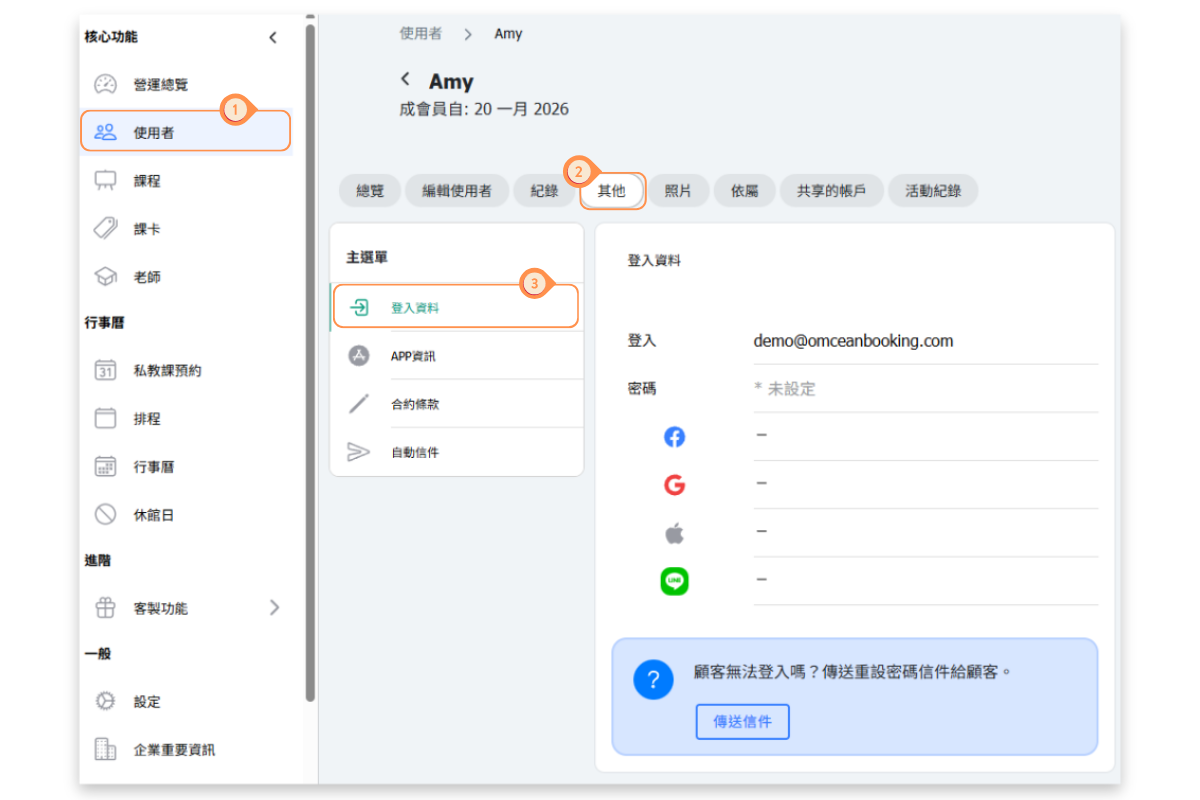
➔ Solution 1: Please instruct the user to click on "Forgot Password." If it's an account registered through a third-party platform, they will be prompted accordingly in the "Forgot Password" window. If it's an account registered by entering an email address and password, they can choose to send a password reset email. 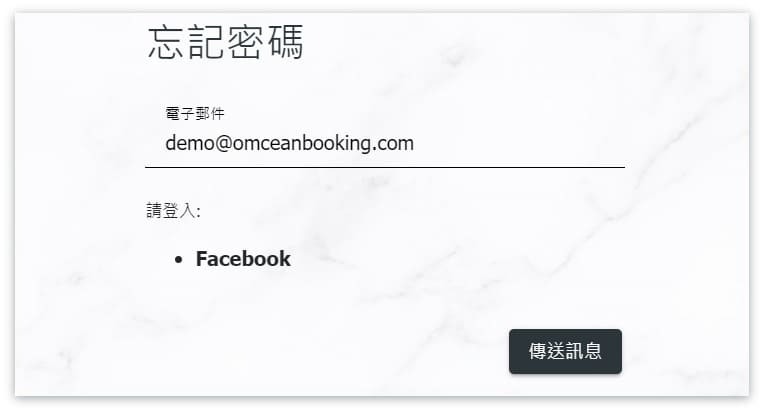 ➔Solution 2: Request the backend administrator to assist customers in verifying their login method in the user list, by navigating to "Others" → "Login Data" on the edit user page.
▶ User Not Receiving Password Reset Email
▶ User Doesn't Receive Password Reset Email.
If the user hasn't received the password reset email, it could be due to the following reasons:
💬 Situation 1: Delay in Sending Email
➔ Solution: Emails may experience delays during peak periods. Typically, emails are received within 5 minutes. (Also, check the spam/junk folder.)
💬 Situation 2: Email Address Mismatch
➔ Solution: Ensure that the email address used matches the one registered for the account.
💬 Situation 3: No Receipt of Password Reset Email Despite Addressing the Above Situations
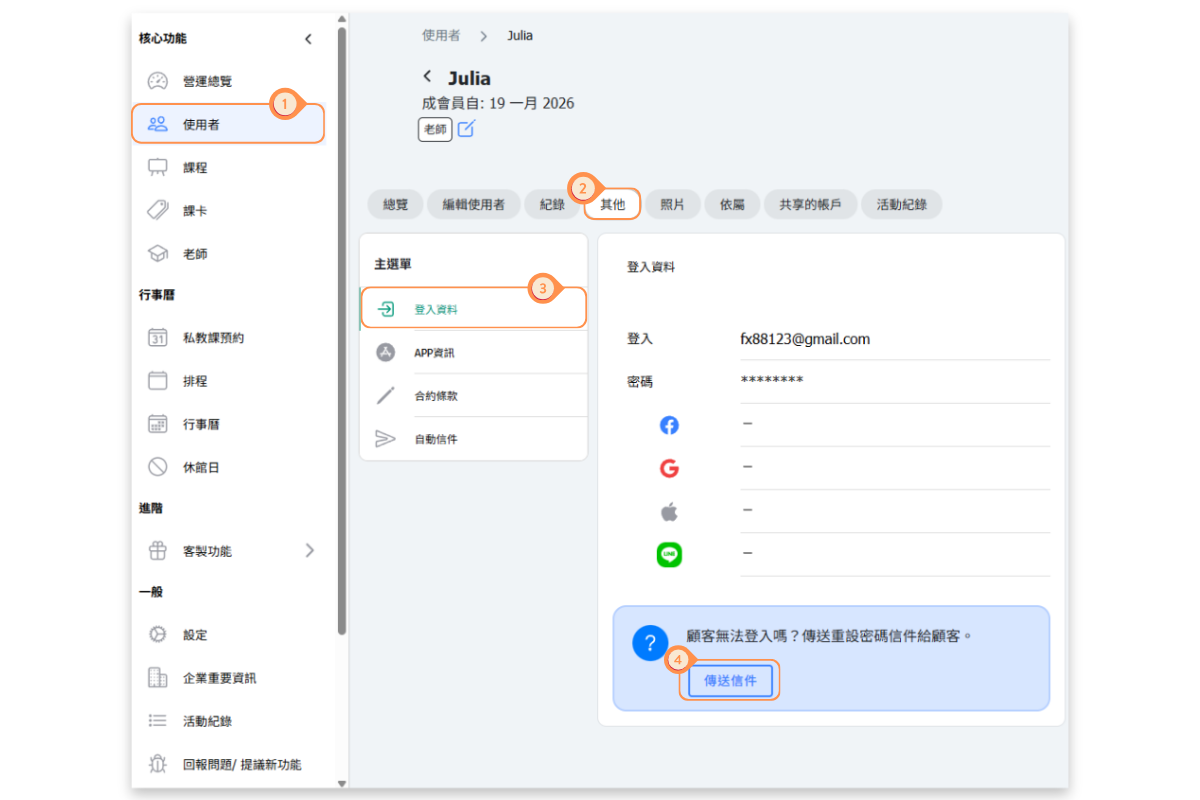
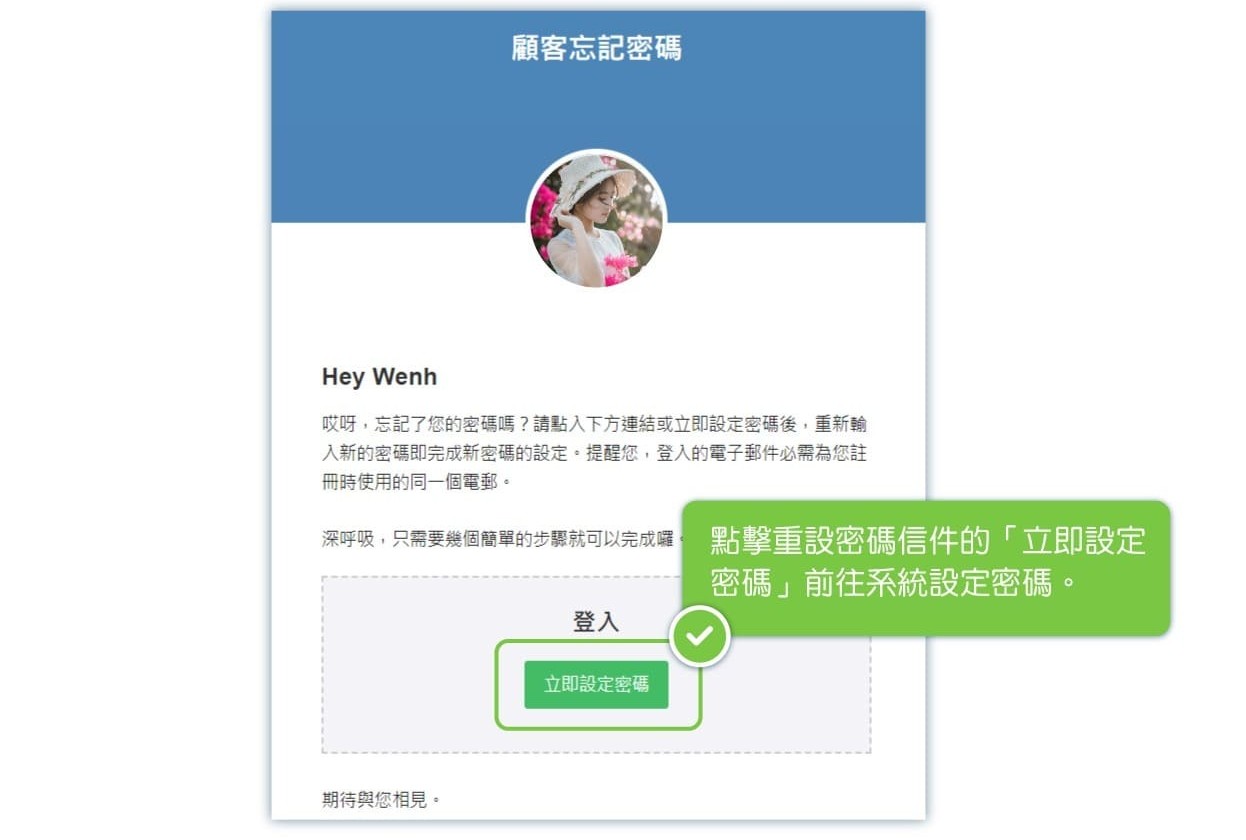
➔ Solution: If the email wasn't received due to a mistyped email address, the administrator can rectify this by navigating to the user's profile, accessing "Enhanced Features" → "Login Data," and clicking "Resend Email." This will trigger a password reset email to the user's inbox. They can then click on "Set Password Now" in the email to proceed with resetting their password.
▶ User Discovers Missing Records After Logging into Incorrect Account
▶ User Logs into Account and Finds Missing Records (Logged into the Wrong Account).
➔Solution:If a user logs in and discovers that their account is missing previous passes and appointment histories, the administrator should check the user list to determine if the user has inadvertently registered a new account. (→ See Method for Merging Accounts)
▶ Method for Merging Accounts When User Holds Two Accounts
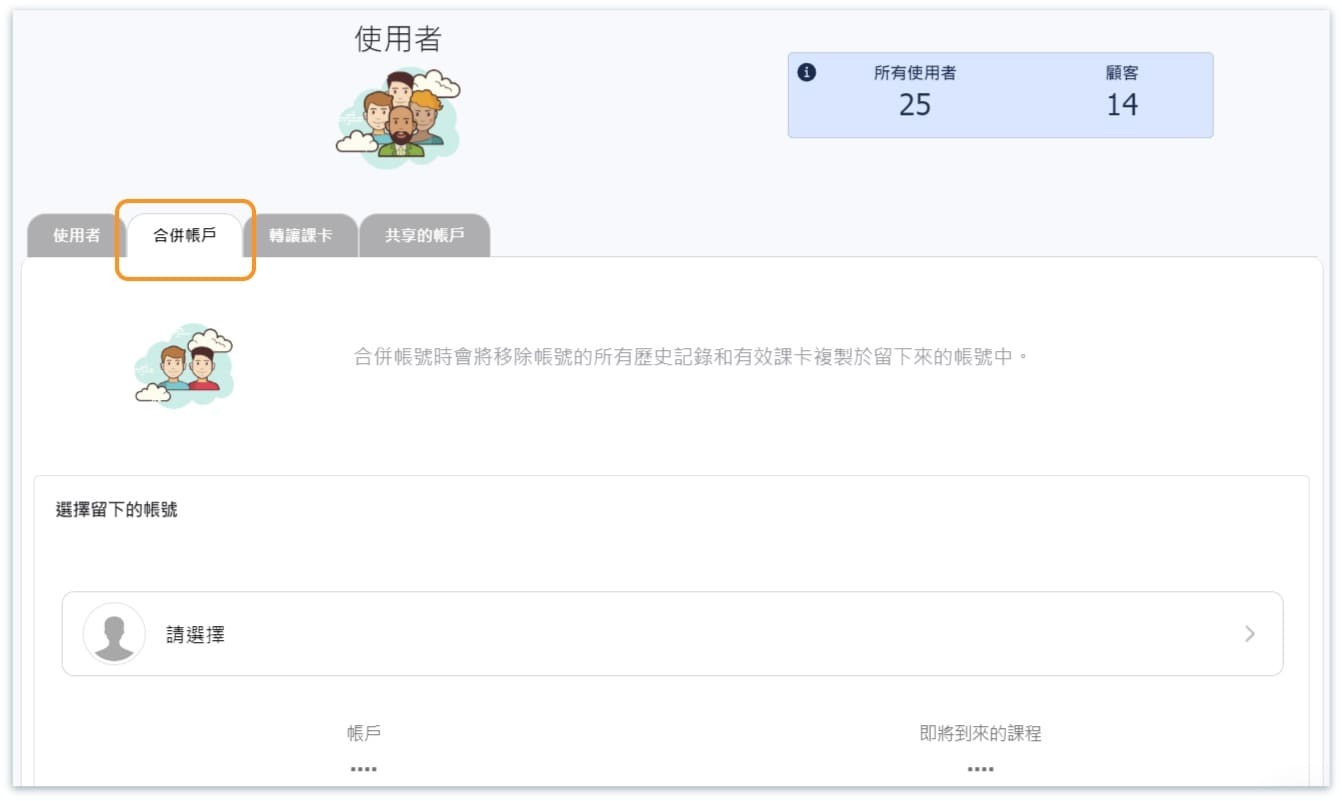
▶ When a User Holds Two Accounts and Needs to Merge Them.
➔Solution: Utilize the merge accounts feature to combine the two accounts.
→ Method and Considerations for Merging Accounts
▶ Steps to Take When the Above Methods Fail to Resolve the Issue
▶ What to Do When the Issue Cannot Be Resolved Using the Above Methods.
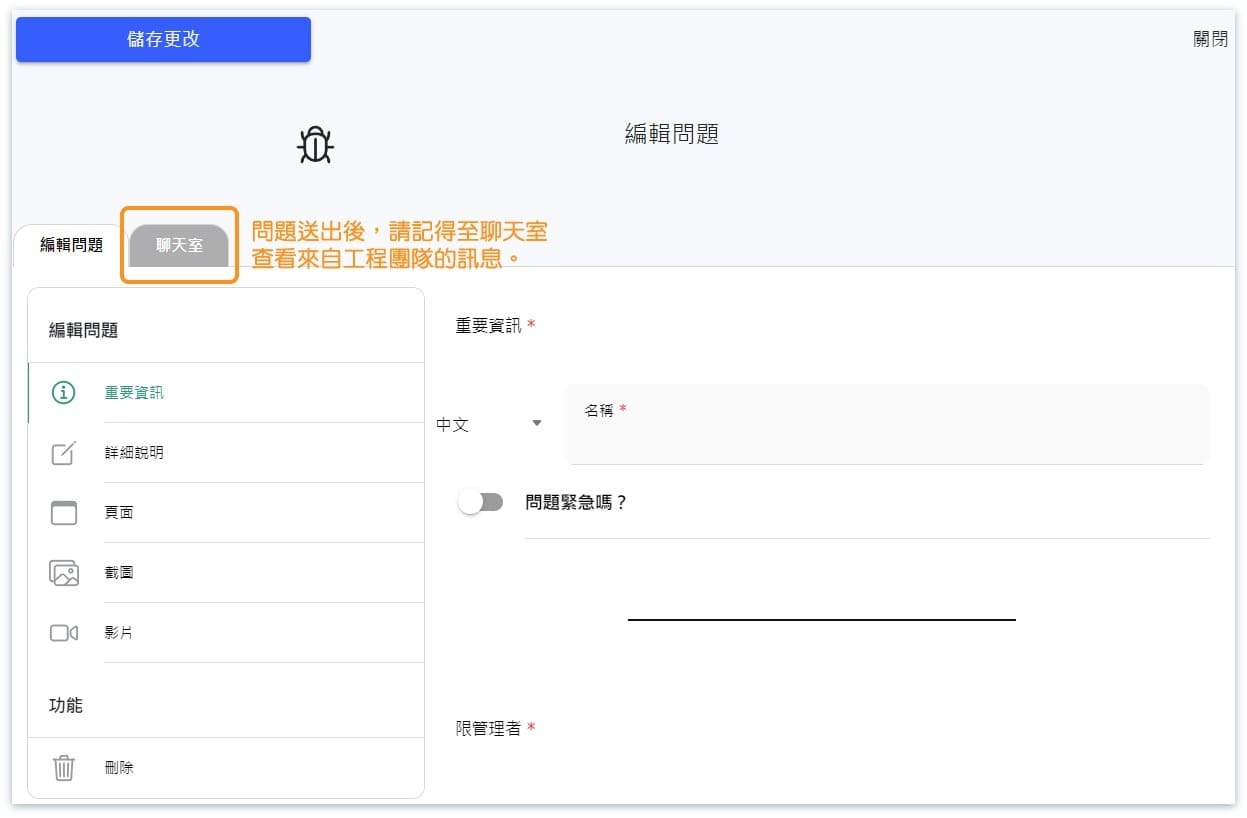
If the issue persists despite attempting the above methods, you can contact us using the system reporting feature.
When contacting us, please provide the following information:
1. Relevant video recordings or screenshots.
2. Account name.
3. Account email.
4. Passes held in the account.
5. At least one class name, date, and time for a class previously booked using the account.
After submitting your issue, please check the chat room periodically for messages from our engineering team.