
What is an "Unpaid Classes"?
Typically, "unpaid classes" is convenient for businesses to allow customers make reservations first and then make payments upon arrival.
⚠️ It is strongly recommended for managers to regularly track unpaid classes to ensure that the fees are settled.
When a customer hasn't purchased a pass yet but the business allows them to "book first, pay later," the appointment made by the business on behalf of the customer is considered an "unpaid classes."
Once a customer purchases a pass, they need to link the pass to their appointment for the class credits/points to be deducted.
Common Question: Why doesn't the system automatically bind passes?
The system does not automatically bind passes to unpaid classes after customers obtain pass. This prevents potential misselection, especially when customers hold multiple passes. Allowing customers or administrators to choose which pass to bind to the reservation ensures the accuracy of pass validity dates and avoids potential harm to customer rights.
💡 Although the system doesn't automatically bind passes, if a customer has a reservation without a bound pass, administrators can select to bind the pass to the unpaid class when adding it to the customer's account.
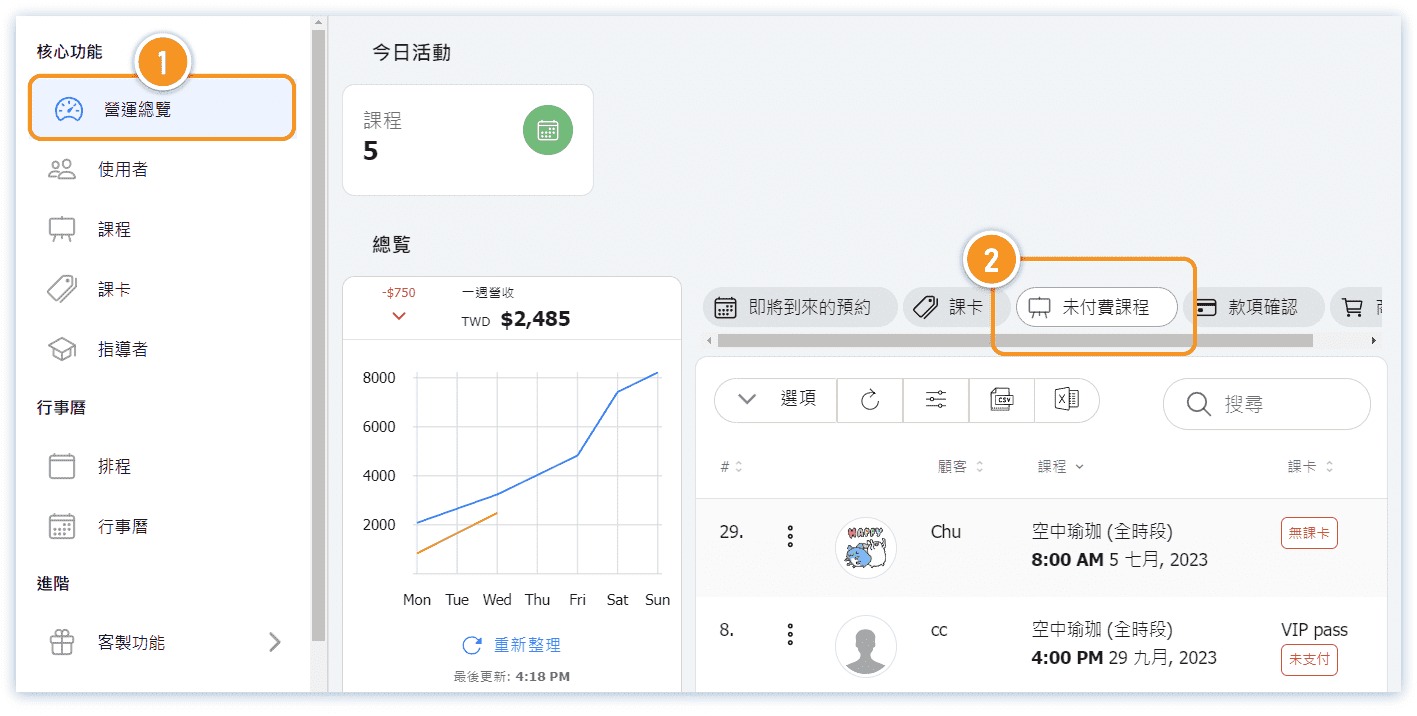
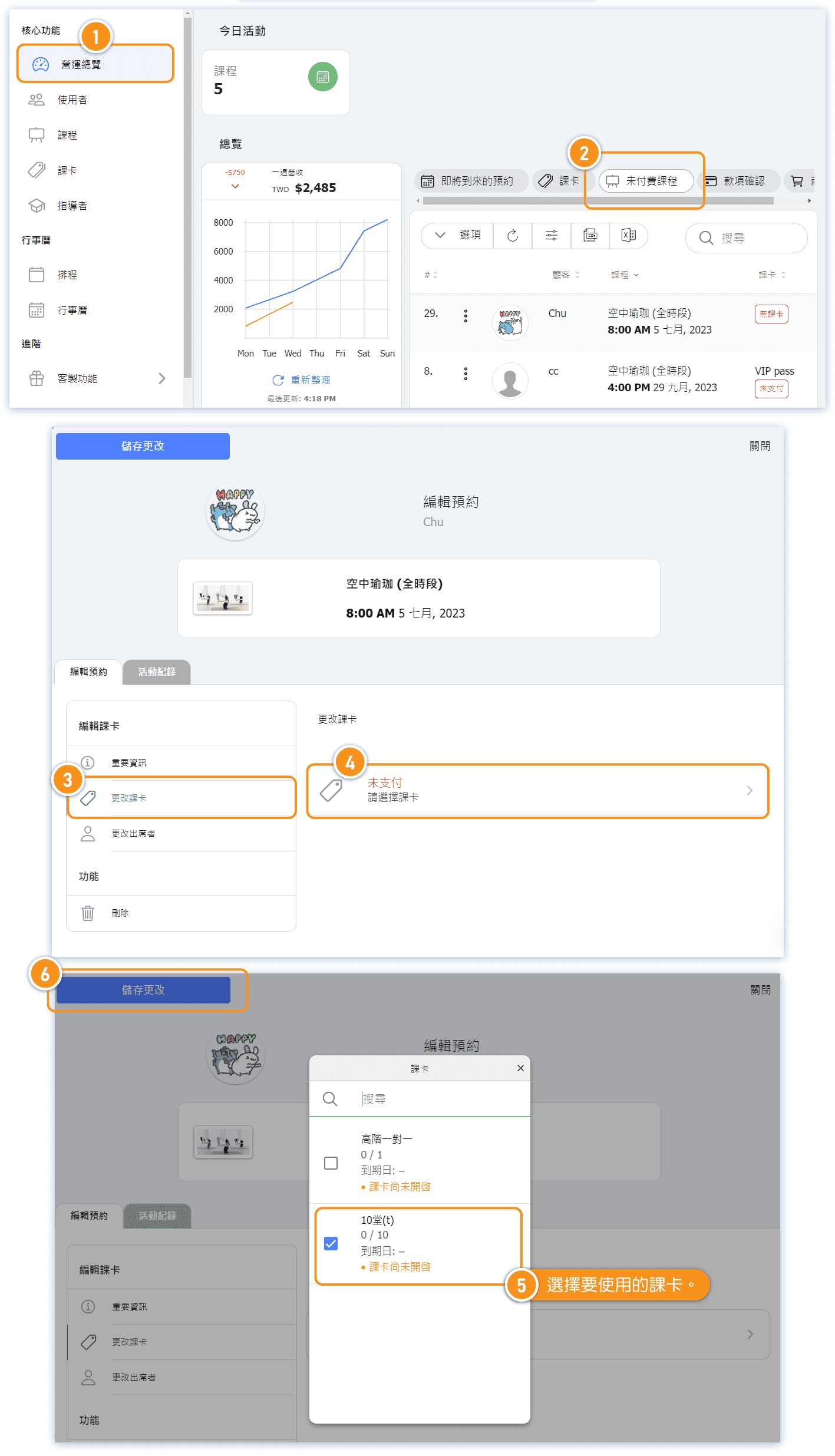
🔻 Location of Unpaid Classes Query: Operations Overview → Unpaid Classes 🔻
Similarly, in the attendance list of the calendar, there's a "Pass" column showing the status of the pass customers have reserved for this class, facilitating instructors in understanding if customers have purchased passes for attendance (highlighted in orange box).
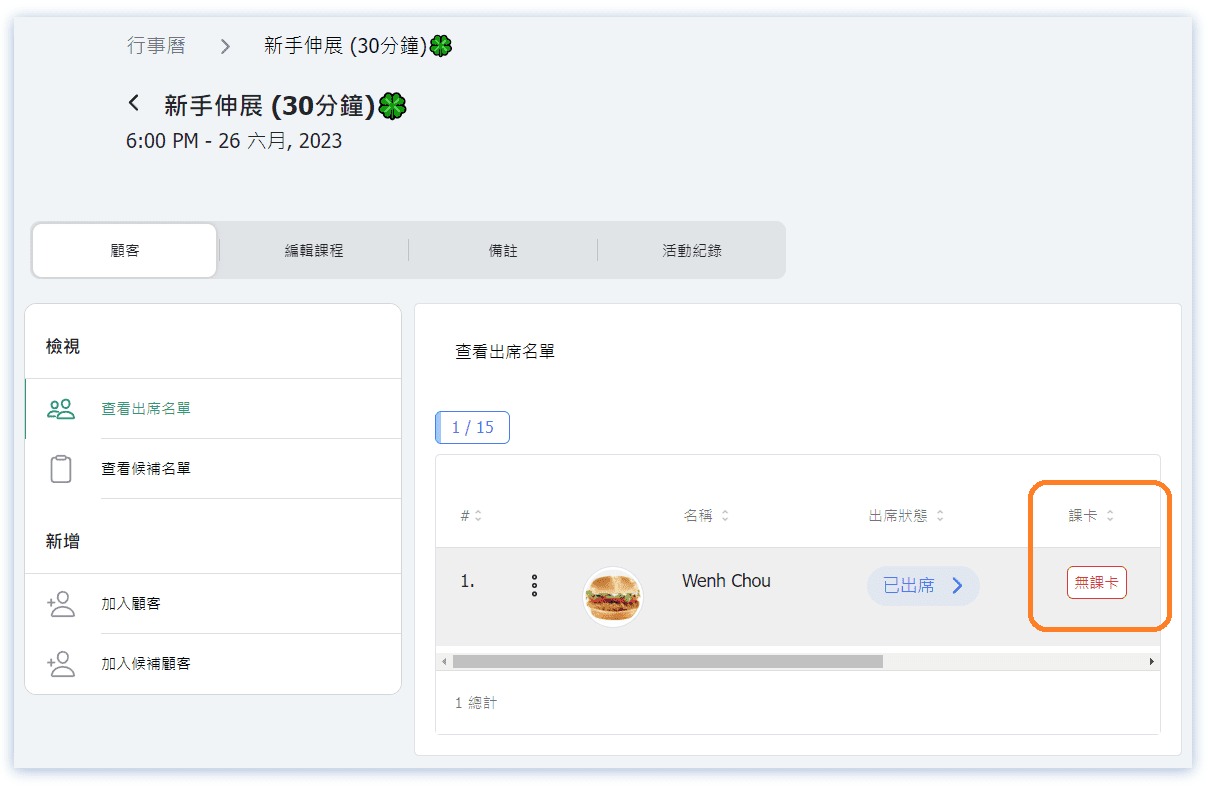
No Class Pass
【Reason 1】When customers haven't purchased a pass yet, but the business allows them to "reserve first and pay at the venue", the classes reserved by the administrator for the customers are considered "unpaid classes", and the pass column in the attendance list will display "No Pass".
【Reason 2】The business sets up classes that don't require a valid pass for reservation, and customers don't have a valid pass in their account at the time of reservation.
➞ Solutions: (Choose one of the following)
Solution 1: Administrator's Operation (For customers who haven't purchased a pass yet)
Solution 2: Administrator's Operation (For customers who have purchased a pass)
Solution 3: Customer's Operation to Bind Passes to Unpaid Classes
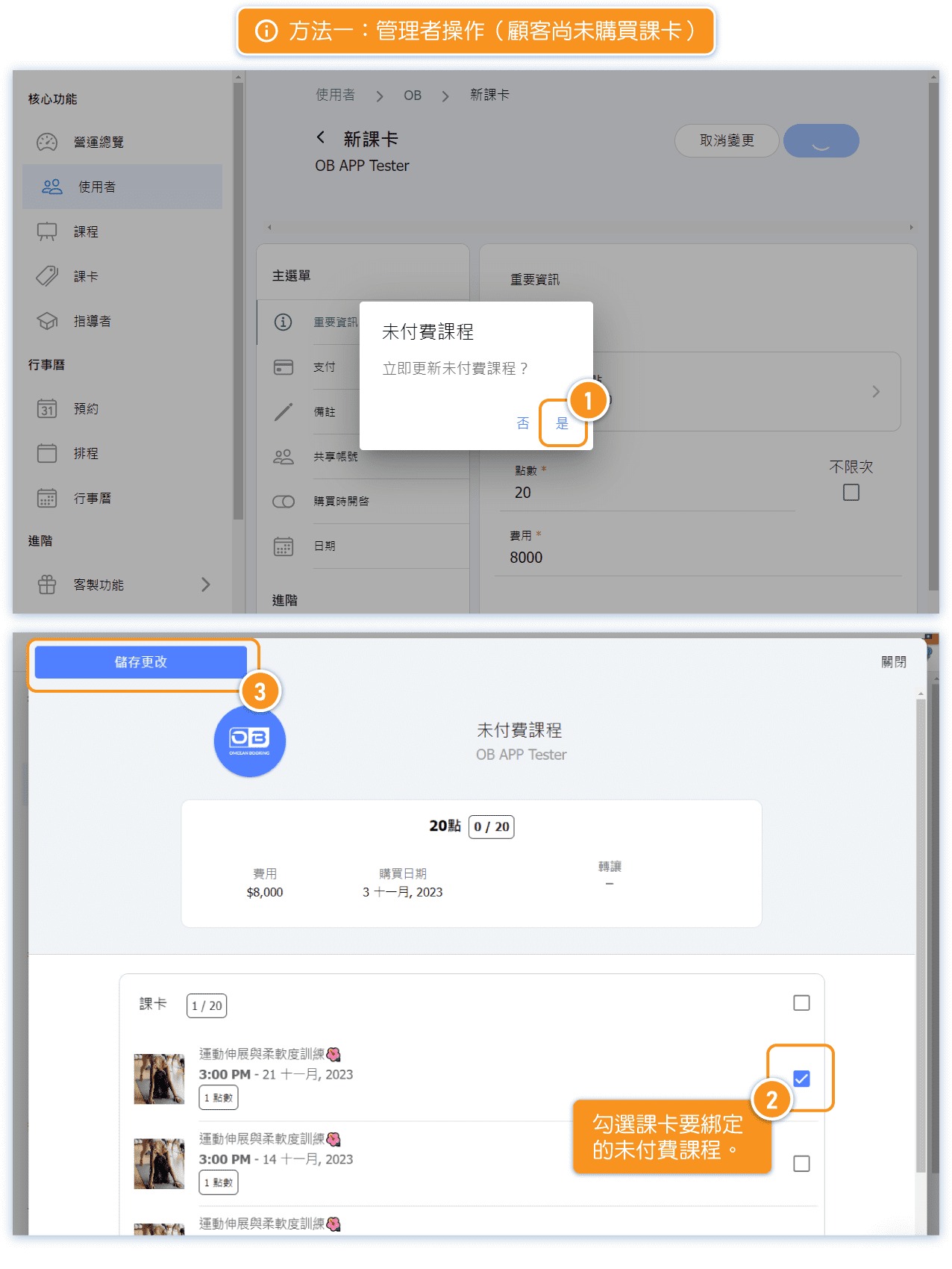
📕 Method 1: Administrator Operation (Customer Has Not Purchased a Class Pass Yet)
When a customer has made a reservation and pays on-site, and the administrator needs to add a pass to the customer from the backend, if this customer has reservations without a bound pass, choosing "Yes" in the prompt "Update unpaid classes immediately?" will bind the newly added pass to the unpaid classes.
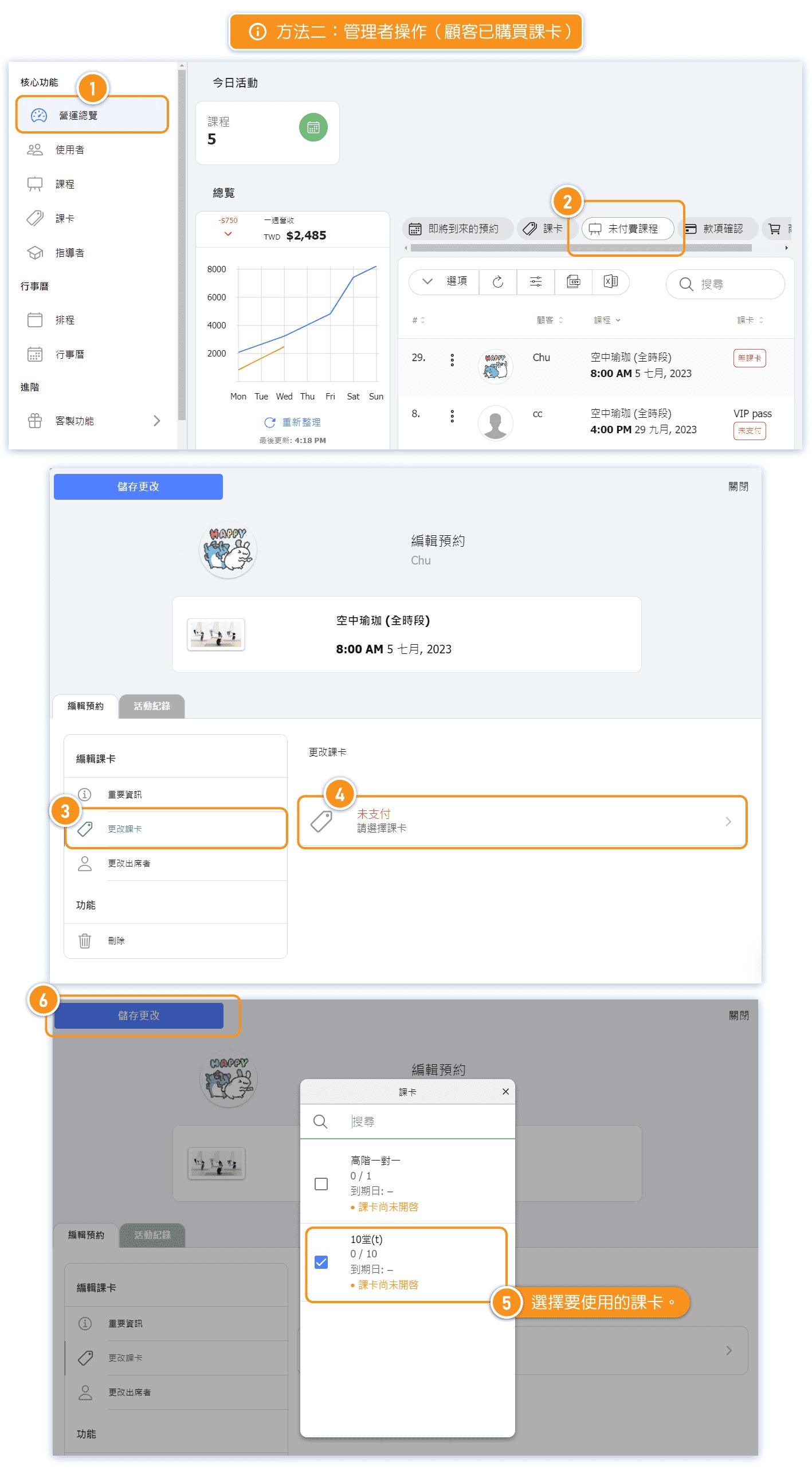
📕 Method 2: Administrator Operation (Customer Has Purchased a Class Pass)
Navigate to the "Unpaid Classes" section in the "Dashboard" to query reservations without bound passes, and proceed to bind them.
📕 Method 3: Customer Operation to Bind a Class Pass to an Unpaid Course
The administrator contacts the customer and instructs them to check for unbound reservations in the "Unpaid Classes" section under their "Account" tab. They should then proceed to bind any unbound reservations with the purchased passes.
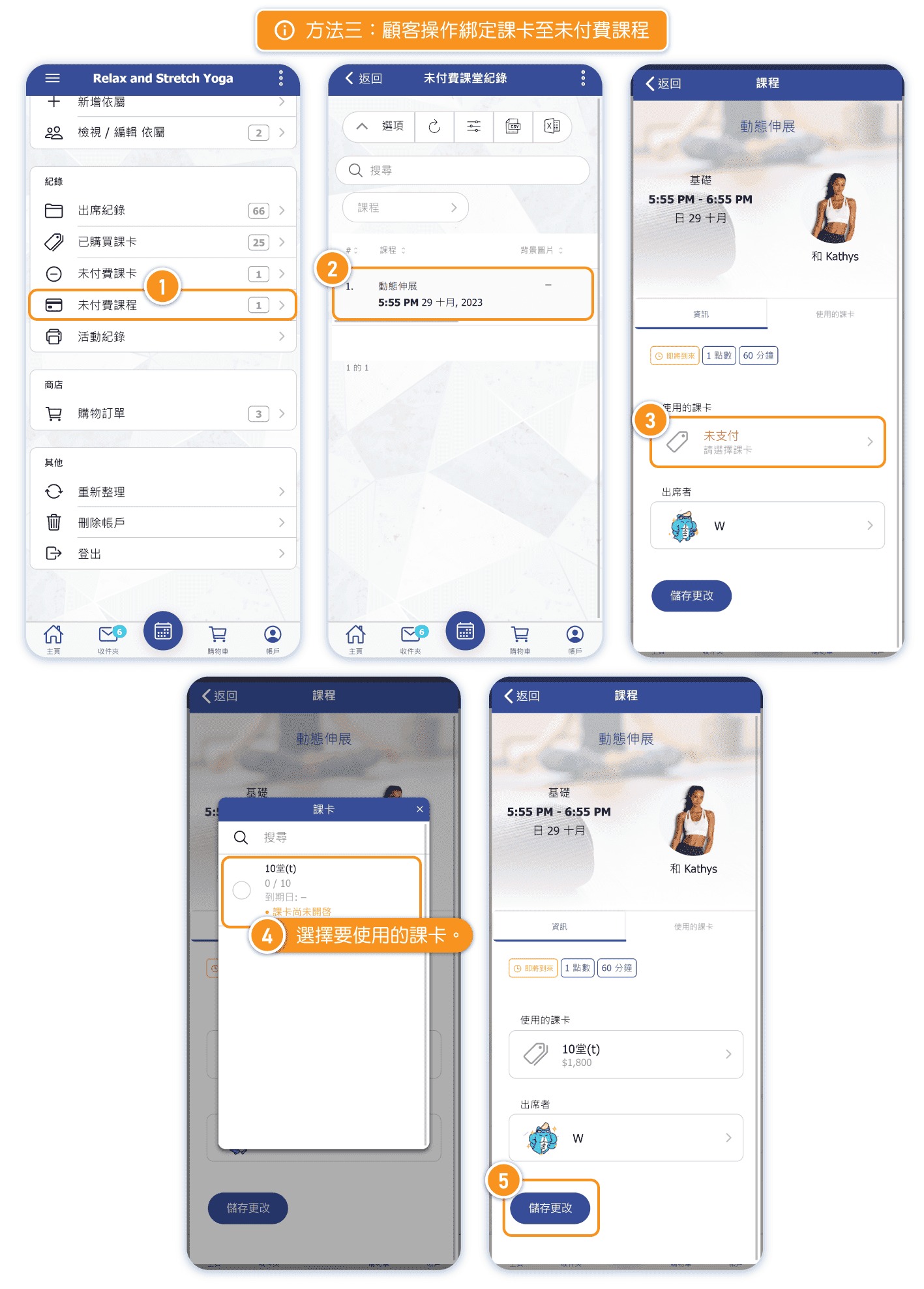
*They should then proceed to bind any unbound reservations with the purchased passes.
Reminder: To avoid this situation, administrators should ensure that students have valid passes before adding them to the attendance list. Do not add students who do not have passes.
Unverified
【Reason】: The business allows customers to order passes using "Cash" or "Bank Transfer" without waiting for "Verify Payment" before using the passes. Pass reservations made by customers with passes that have not undergone payment confirmation will show as "Unverified".
➞ 📕 Solution: Verify if the customer has made the payment. If payment has been made, the administrator can proceed to confirm the payment in the "Dashboard" section under "Verify Payment".
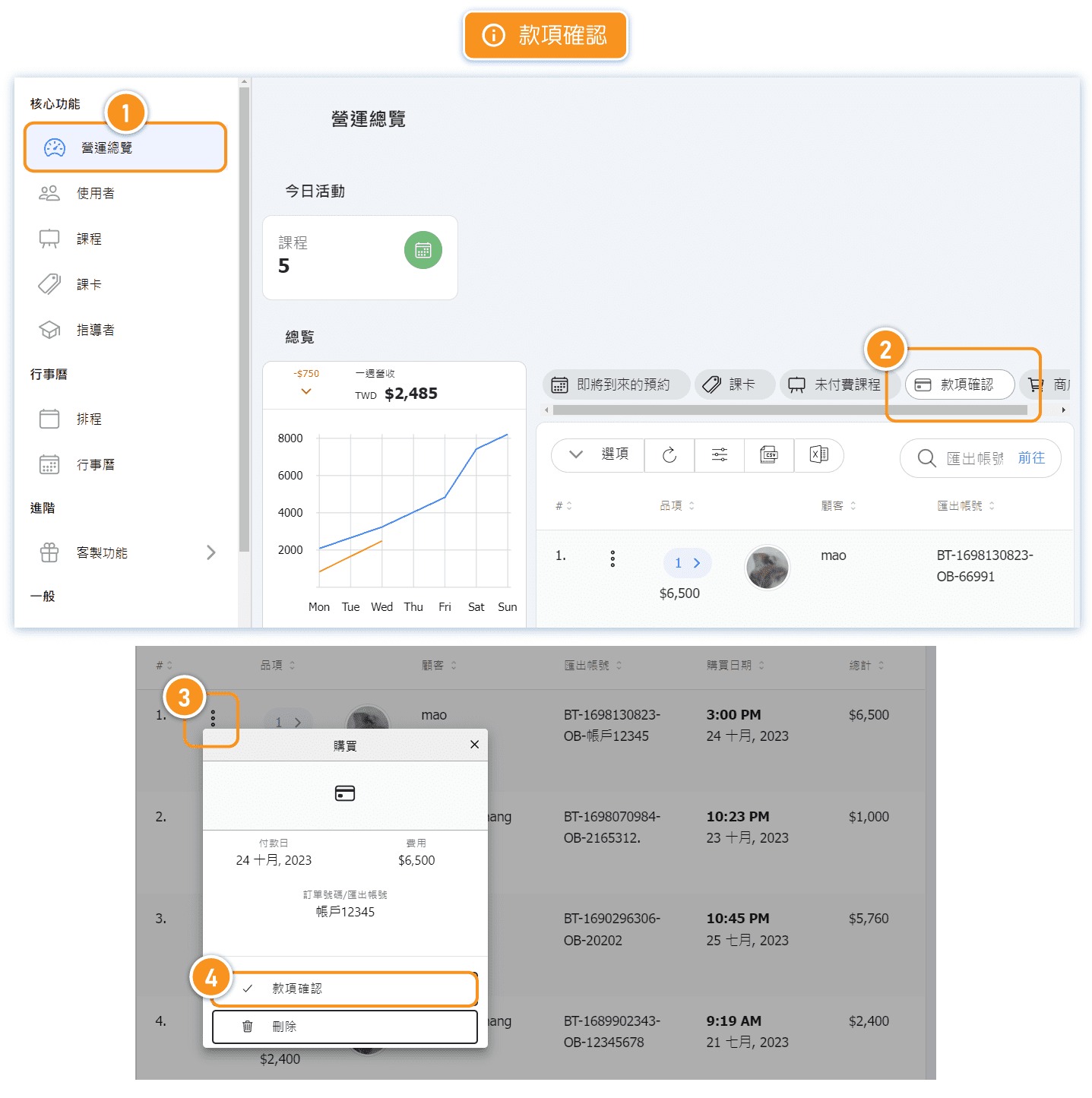
Reminder: If you wish to prevent students from making reservations using unverified passes, you need to enable "Verify Payment" for "Bank Transfer" and "Cash" in the "Payment Methods" section. This way, customers will need to wait for the business to complete the payment confirmation before they can use the passes for reservations.
Unpaid
【Reason】: The business allows customers to make reservations using "Unpaid Passes". Reservations made using unpaid passes will be displayed as "Unpaid".
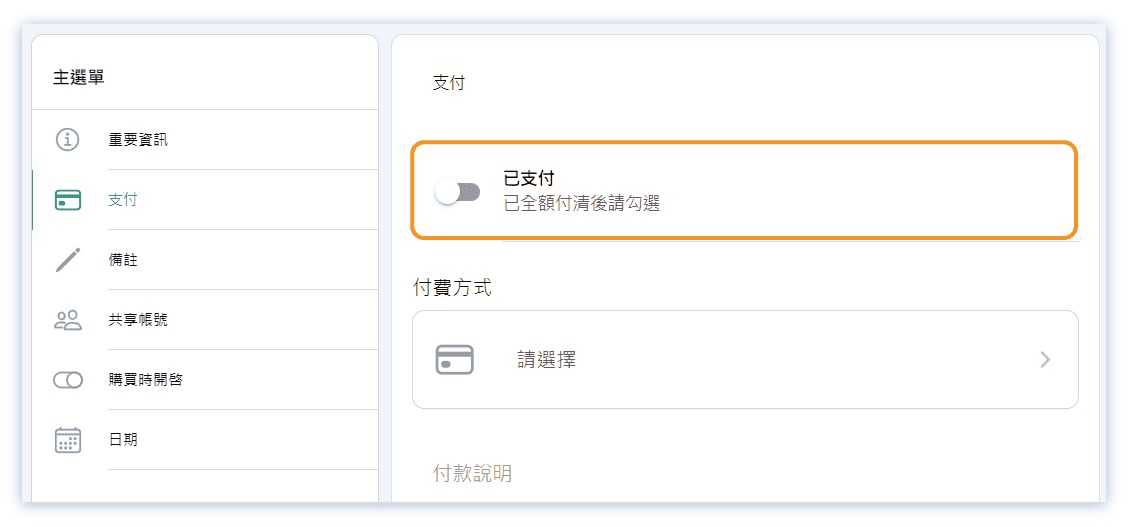
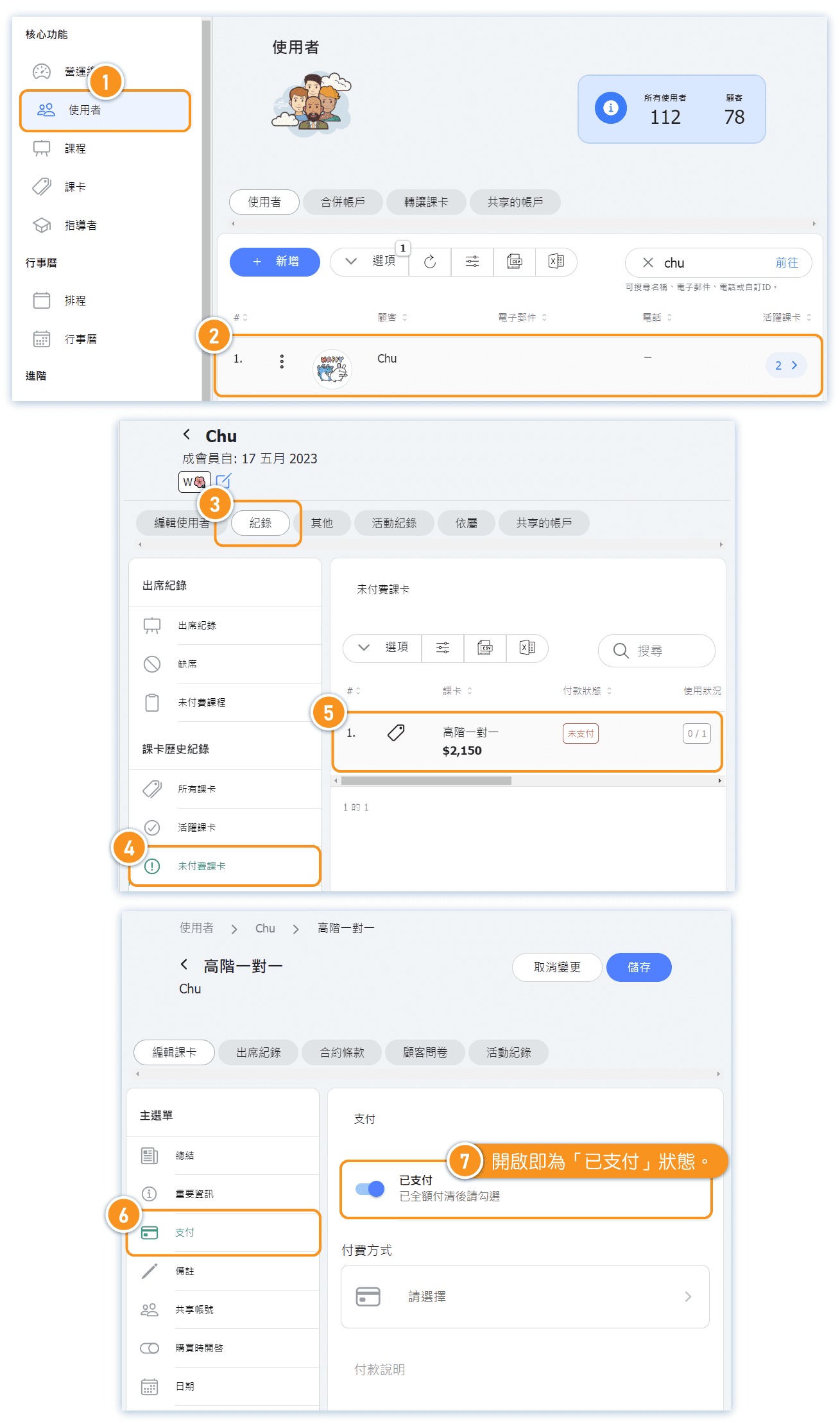
Definition: "Unpaid Passes" refer to passes that the administrator has added to the customer's account but have not been paid for by the customer. In this case, the "Paid" option is not selected, making it an "Unpaid Pass". (See image below)
➞ 📕 Solution: After confirming that the customer has made the payment:
👉 Scenario 1: If the customer has added unpaid passes to their cart and completed the checkout process, the administrator should proceed to the "Dashboard" section under "Verify Payment" to confirm the payment. Then, on the same page, navigate to "Unpaid Classes" and bind the reserved pass.
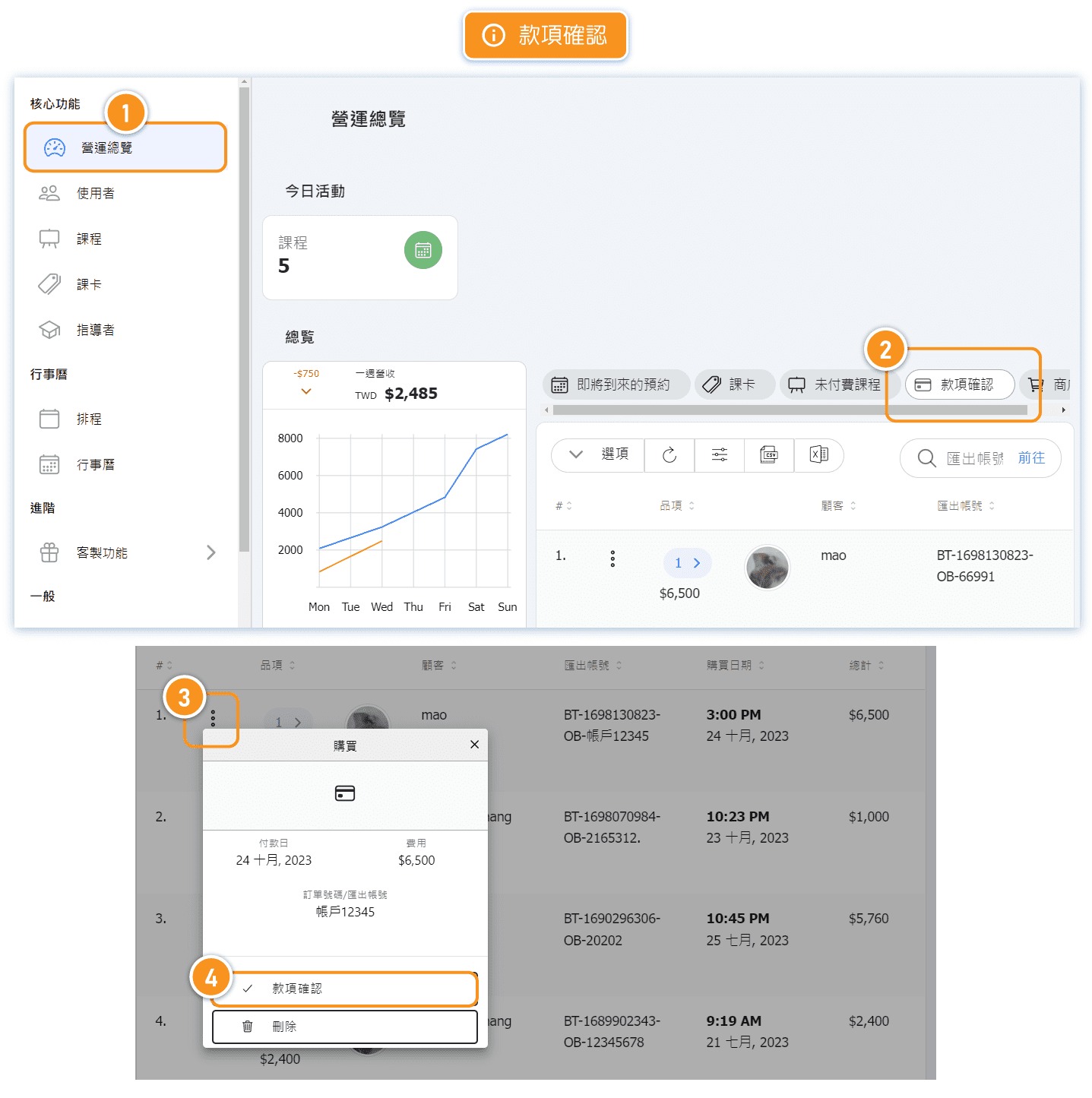
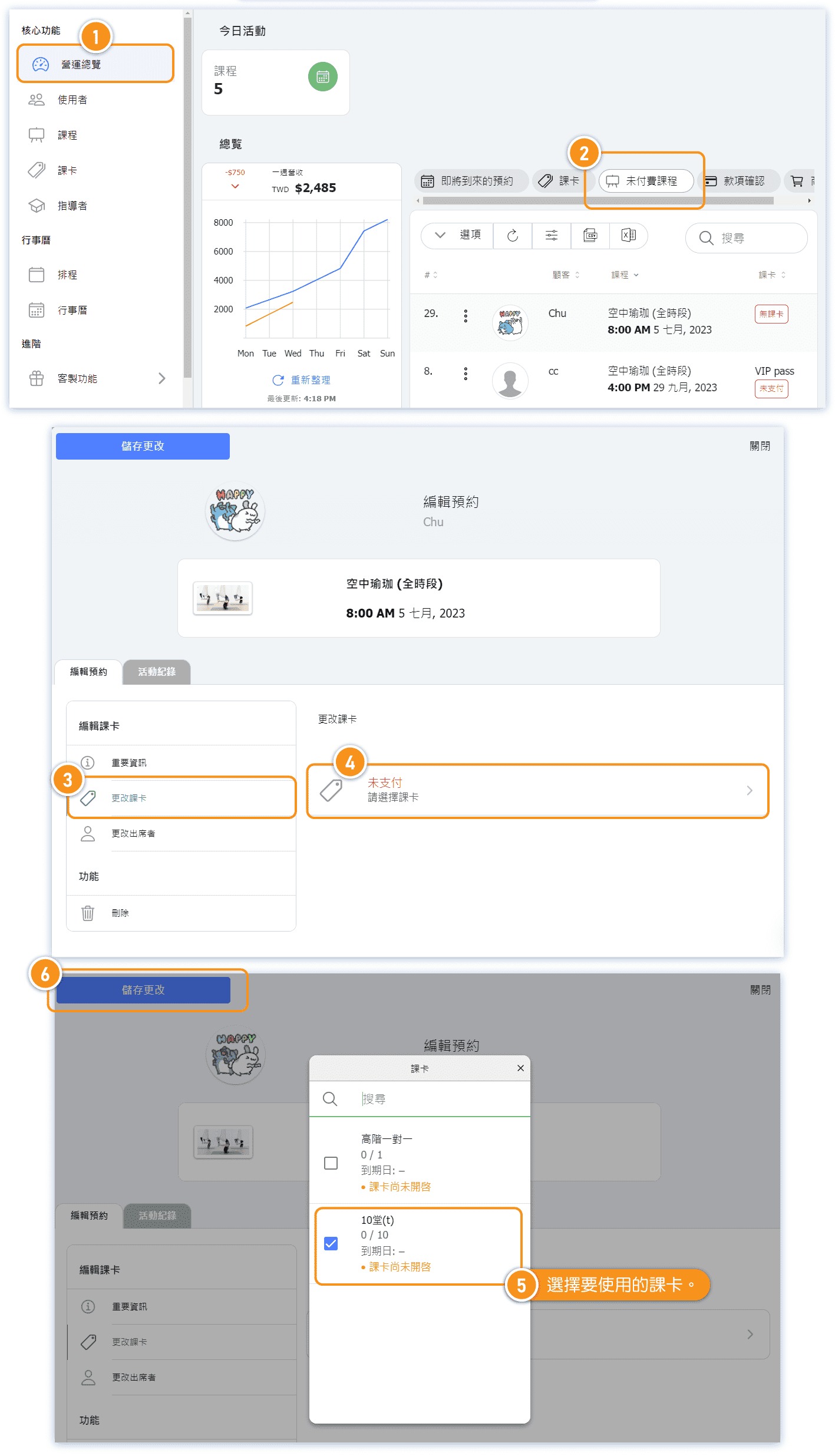
👉 Scenario 2: If the administrator has received payment but the customer has not proceeded with the checkout process, the administrator should navigate to the "Users" page, edit the passes held by the customer, and select "Paid" in the settings. Then, on the customer's "History" page, under "Unpaid Classes", bind the reserved pass. (Alternatively, navigate to "Unpaid Classes" under "Dashboard" to bind the reserved pass.)
Reminder: If you wish to prevent students from making reservations using unpaid passes, go to "Settings" > "Passes Settings" and set "LOCK UNPAID PASSES?" to [Yes]. This way, customers need to wait for the business to confirm receipt of payment before they can use the pass to make reservations.


