
What is Website Integration?
Website Integration allows you to embed your booking system pages directly into your existing business website. Using iframe technology, visitors can view your calendar, book classes, browse passes, and more without leaving your website.
The system uses responsive web design, ensuring seamless display across desktops, tablets, and mobile devices.
Key Benefits:
- Synchronized Updates - Changes in your booking system automatically appear on your website
- Time Savings - No need to manually update your website when class schedules or prices change
- Encourage Bookings - Visitors can view schedules and book instantly from your website
- Professional Appearance - Content blends seamlessly with your website design
- Cross-Platform Compatible - Works on any device with automatic layout adjustment
Integration Example
Here's an example of a booking calendar embedded into a business website. The calendar appears as a native part of the website while maintaining full booking functionality:
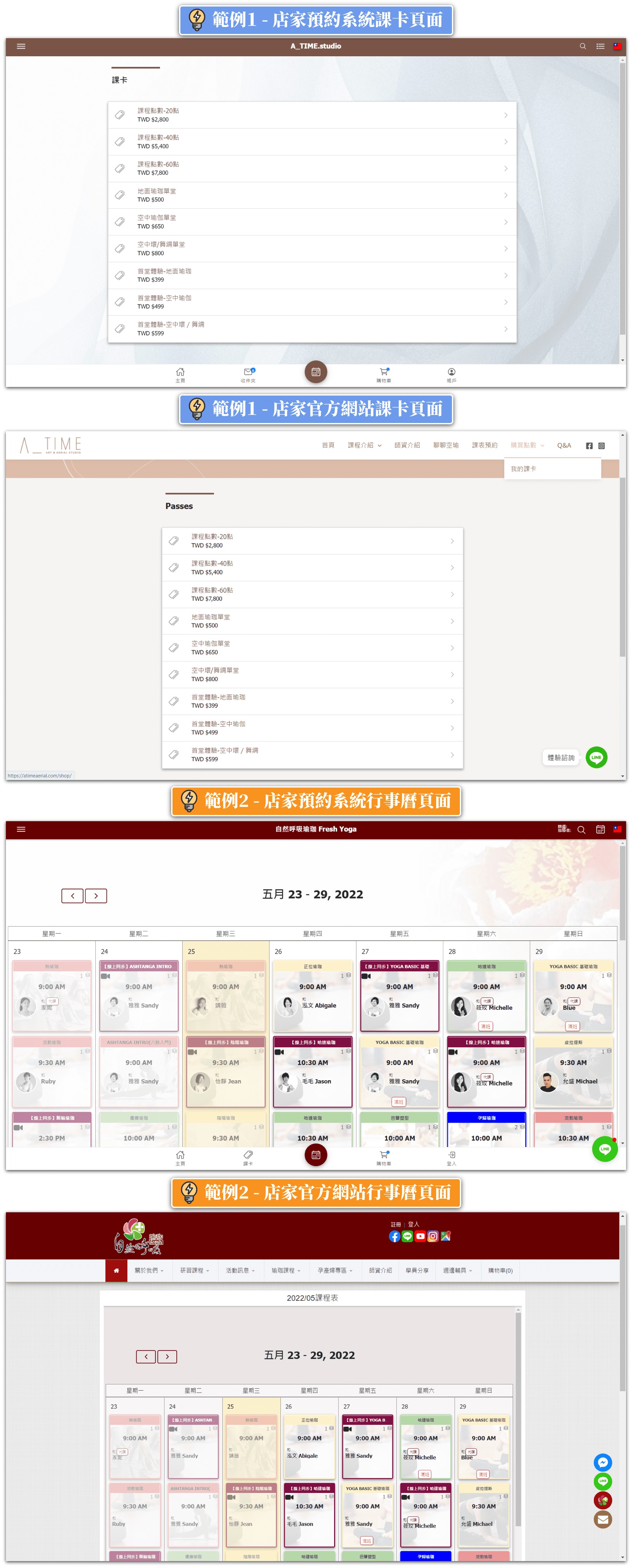
Notice how the embedded content matches the website's design and allows customers to browse and book directly.
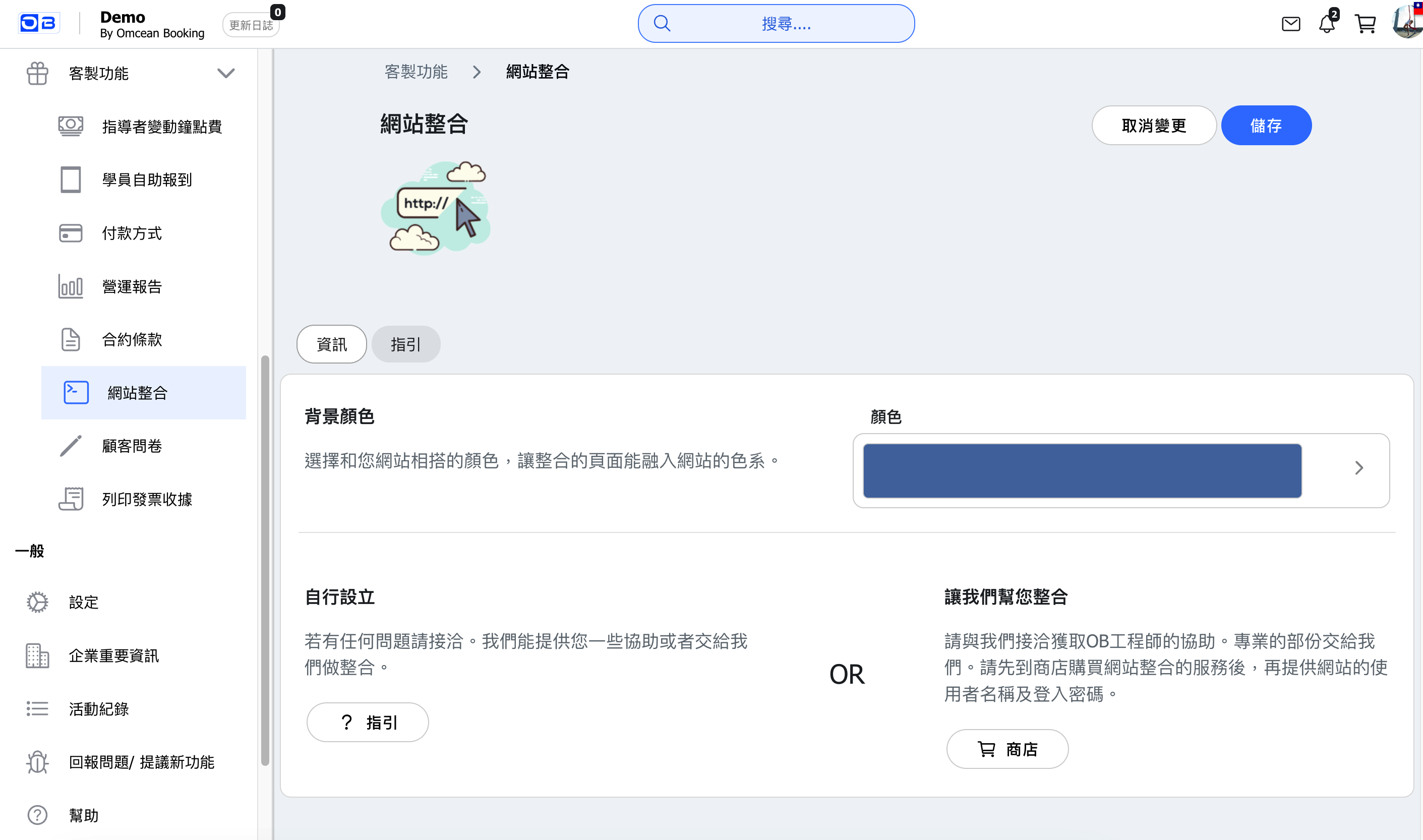
Setting Background Color
Before embedding, configure the background color to match your website:
- Go to Custom Features → Website Integration
- Click on the Color picker in the Background color section
- Select a color that matches your website's background
- Click SAVE to apply the changes
This ensures the embedded content blends seamlessly with your website design, creating a professional and cohesive appearance.
Basic Iframe Code
To embed content from your booking system, use the HTML iframe tag. Here's the basic structure:
<iframe
  width="100%"
  height="1200px"
  src="https://app.omceanbooking.com/YOUR_COMPANY/PAGE"
  frameborder="0"
></iframe>
Code Explanation:
- width="100%" - Makes the iframe fill the full width of its container
- height="1200px" - Sets the height in pixels (adjust based on content)
- src - The URL of the page you want to embed
- frameborder="0" - Removes the border around the iframe
Example - Embedding Your Calendar:
<iframe
  width="100%"
  height="1200px"
  src="https://app.omceanbooking.com/demo/calendar"
  frameborder="0"
></iframe>
Replace demo with your company's unique identifier.
Available Pages to Embed
You can embed various pages from your booking system. Simply change the page name in the URL:
| Page | URL Path | Description |
|---|---|---|
| Calendar | /calendar | Full booking calendar with all classes |
| Passes | /passes | Available passes and memberships |
| Classes | /classes | List of all class types offered |
| Instructors | /instructors | Instructor profiles and schedules |
| Your Instagram gallery feed | ||
| About Us | /about | Business information page |
| Shop | /shop | Product shop for merchandise |
Example - Embedding Instagram Gallery:
<iframe
  width="100%"
  height="800px"
  src="https://app.omceanbooking.com/demo/instagram"
  frameborder="0"
></iframe>
Step-by-Step Setup Guide
Follow these steps to add an iframe to your website:
Step 1: Access Your Website's Admin Panel
Log in to your website's content management system (CMS) or hosting control panel. Common access points include:
- WordPress: yourwebsite.com/wp-admin
- Wix/Squarespace: Through their dashboard
- Custom websites: Contact your web developer or hosting provider
Step 2: Navigate to the Page Editor
Find the page where you want to embed the booking content and open it for editing.
Step 3: Add HTML/Embed Block
Most website builders have an option to add custom HTML or embed code:
- WordPress: Add an "HTML" or "Custom HTML" block
- Wix: Add "Embed" → "HTML iframe"
- Squarespace: Add "Code" block
Step 4: Paste the Iframe Code
Copy and paste the iframe code, replacing the company name and page:
<iframe
  width="100%"
  height="1200px"
  src="https://app.omceanbooking.com/YOUR_COMPANY/calendar"
  frameborder="0"
></iframe>
Step 5: Save and Preview
Save your changes and preview the page to ensure the embedded content displays correctly.
Setup Options
There are two ways to set up website integration:
Option 1: Setup Yourself
Use the How to Guide in the admin panel for step-by-step instructions. This option is ideal if you:
- Have access to your website's admin panel
- Are comfortable editing HTML or using your CMS
- Want immediate implementation
If you encounter any issues, our support team can provide limited technical assistance.
Option 2: Let Us Set It Up For You
We offer a professional setup service where our team handles the integration for you. This option requires:
- Your website login credentials (username and password)
- Access to your website hosting or CMS
Visit our Shop to view pricing and purchase this service. This is recommended if:
- You're not comfortable with technical setup
- Your hosting provider has complex requirements
- You want guaranteed professional implementation
Troubleshooting Tips
If your embedded content isn't displaying correctly, try these solutions:
Content Not Showing:
- Verify the URL is correct and accessible in a browser
- Check that your company identifier is spelled correctly
- Ensure the page you're embedding exists and is enabled
Height Issues:
- Adjust the height value in the iframe code
- Different pages may need different heights (calendar: 1200px, passes: 800px)
- Test on both desktop and mobile to find optimal height
Styling Conflicts:
- Set the background color in Website Integration settings to match your site
- Use frameborder="0" to remove unwanted borders
- Add scrolling="no" if you don't want scrollbars
Mobile Display Issues:
- Ensure width="100%" is set for responsive behavior
- Test on actual mobile devices, not just browser resize
- Consider using different heights for mobile vs desktop


