
Subscription Usage Guide
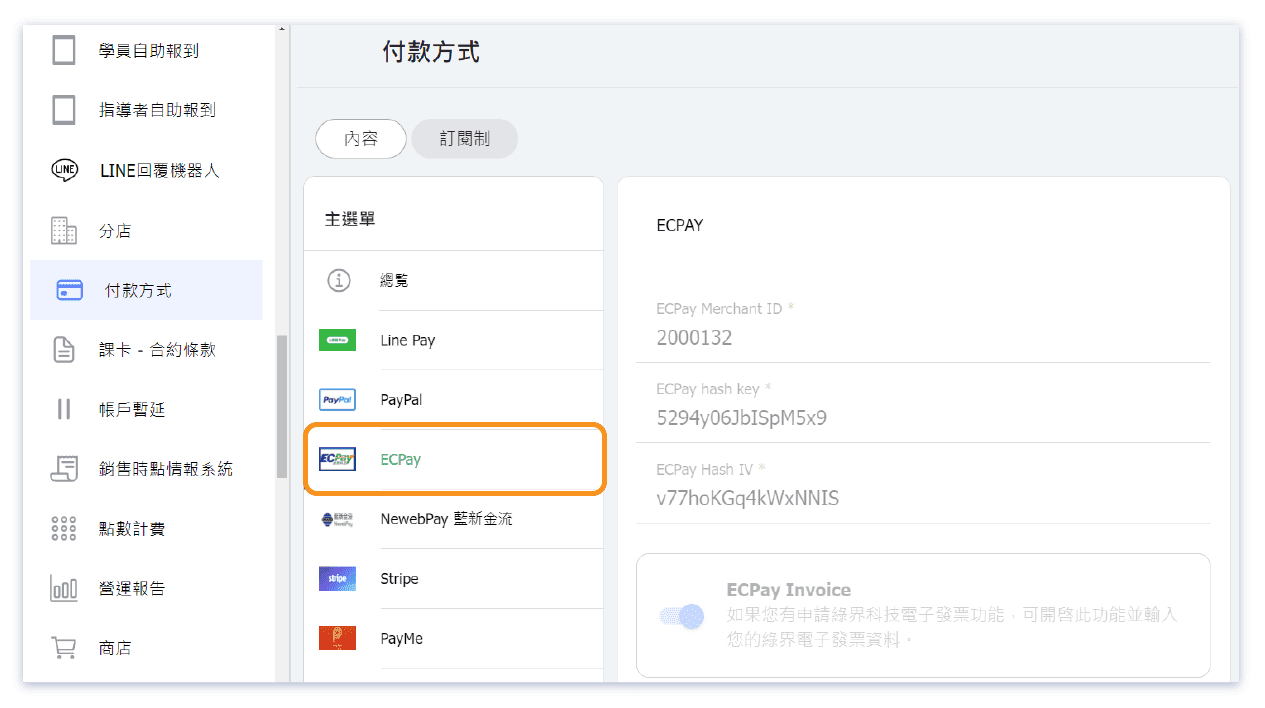
If you have applied for ECPay and entered your merchant information in the OB system, you can find the "Subscription" setting page in the customized feature "Payment Methods" and create various subscription options for customers to choose from.
When setting up, please note:
1. Subscriptions are available for merchants who have applied for ECPay. * TWD only
2. One subscription option can be linked to multiple passes, and one pass can also be linked to multiple subscription options.
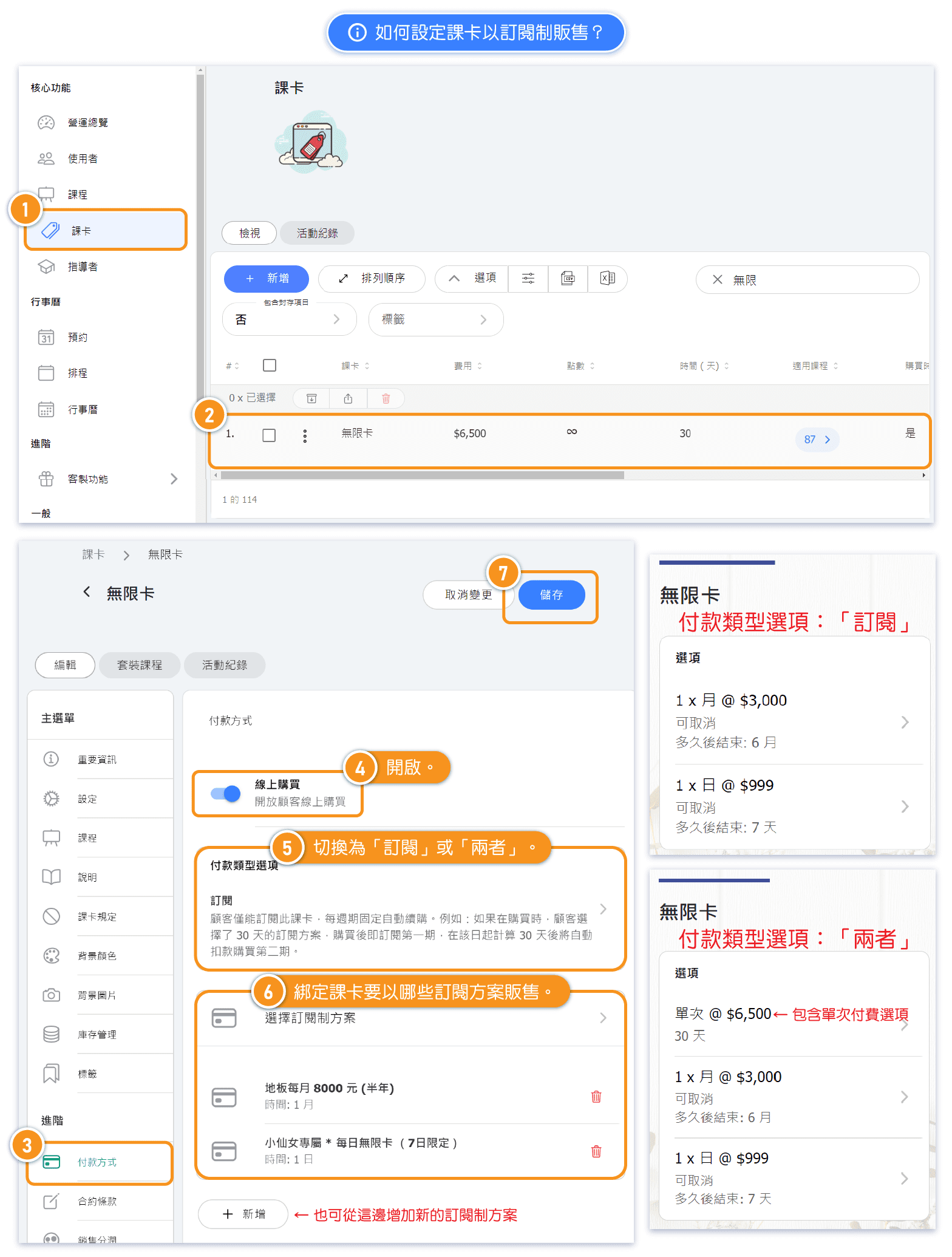
3. On pass editing page, each pass has three "Payment type options": "One-time, Subscription, Both". Set the payment method to "Subscription" or "Both", and link the subscription options. After saving, customers will see the linked subscription options when purchasing passes.
4. Before setting subscription options as non-cancelable, please be aware of current regulations, such as the requirement that merchants must allow buyers to cancel their subscriptions.
Where to Add Subscription Options?
After entering the Merchant ID, Hash Key, and Hash IV obtained from ECPay in the payment method settings and saving them, you can start setting up the subscription plan.
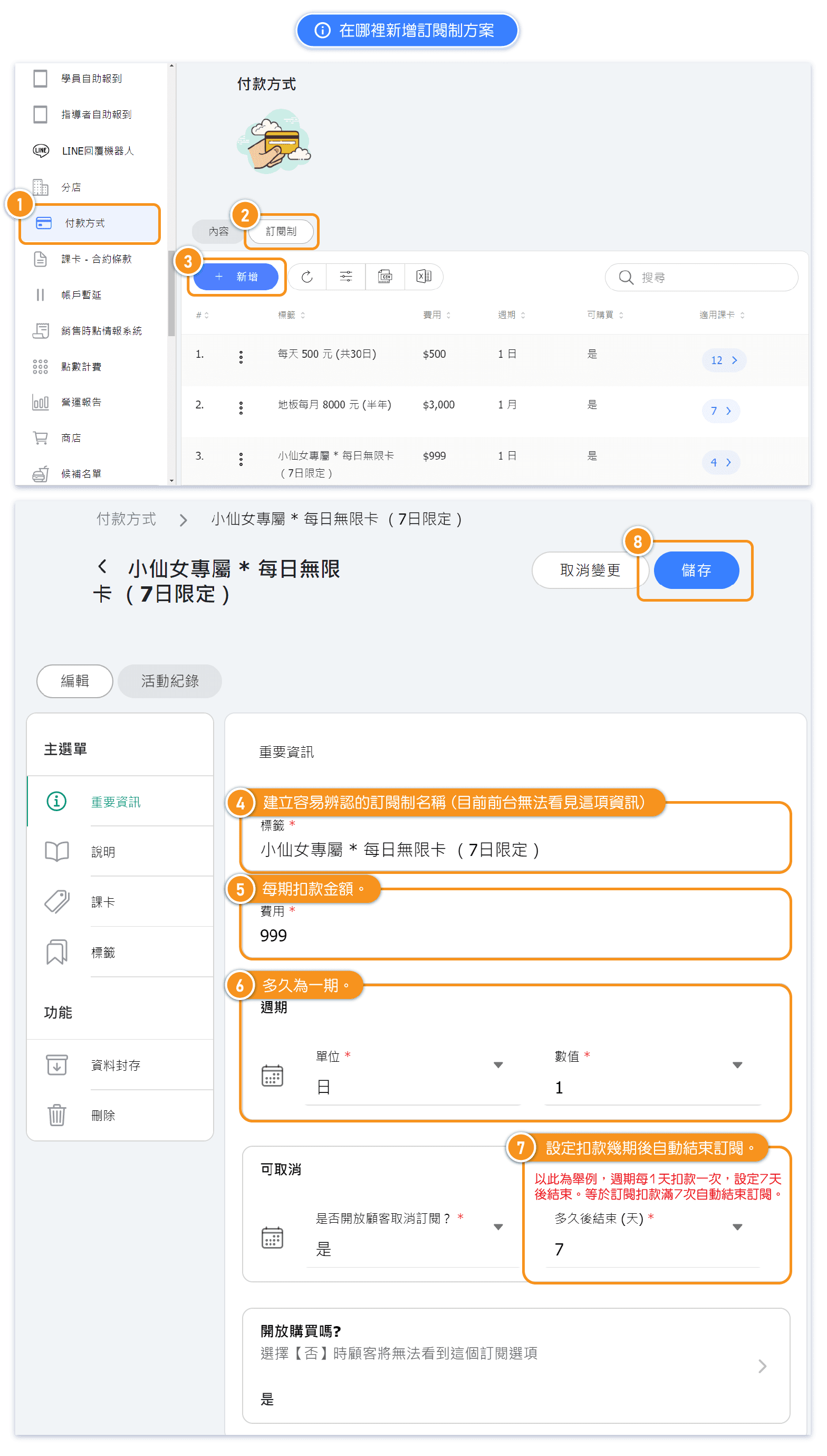
- Important Information: Set the subscription billing method and cycle.
- Description: Provide a subscription description that customers can view in their shopping cart.
- Passes: Specify which class passes are linked to this subscription plan. (Tip: After linking, go to the class pass edit page and set the payment method to "Subscription" or "Both" to make the subscription plan available for customers to purchase.)
- Tags: Create or assign easily recognizable tags to your subscription plans. These tags are visible only in the admin page.
How to set up passes for subscription-based purchase?
On the course card editing page, set the payment method to "Subscription" or "Both", and link the subscription options. After saving, customers will see the linked subscription options when purchasing course cards.
There are three payment type options for course cards: One-time, Subscription, Both.
【One-time】Purchase the course card once and pay in full, using the payment methods currently available at the store.
【Subscription】Purchase the course card on a regular basis, receiving the first course card immediately upon purchase. Thereafter, you will receive the same course card with each periodic payment.
Note: If a customer chooses a giveaway and a subscription pass in the same transaction, they will receive both subscription pass and giveaway only with the first payment. Subsequent payments will only provide the subscription pass without any additional giveaway.
【Both】Offer both one-time purchase and subscription options simultaneously.
How can customers purchase subscription-based passes?
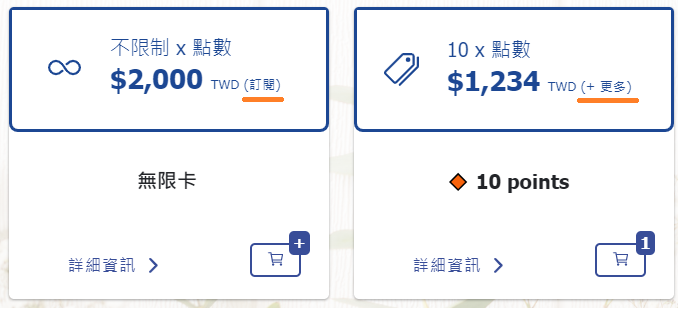
When studios offer subscription options for passes, customers will see (Subscription) or (+ More) next to the pass price when making a purchase.
Subscription: Displays the subscription price, and the corresponding pass is obtained with each payment cycle.
+ More: Displays single or multiple subscription payment options, with the shown price being the lowest among all options. Customers can choose the payment option that best suits them.
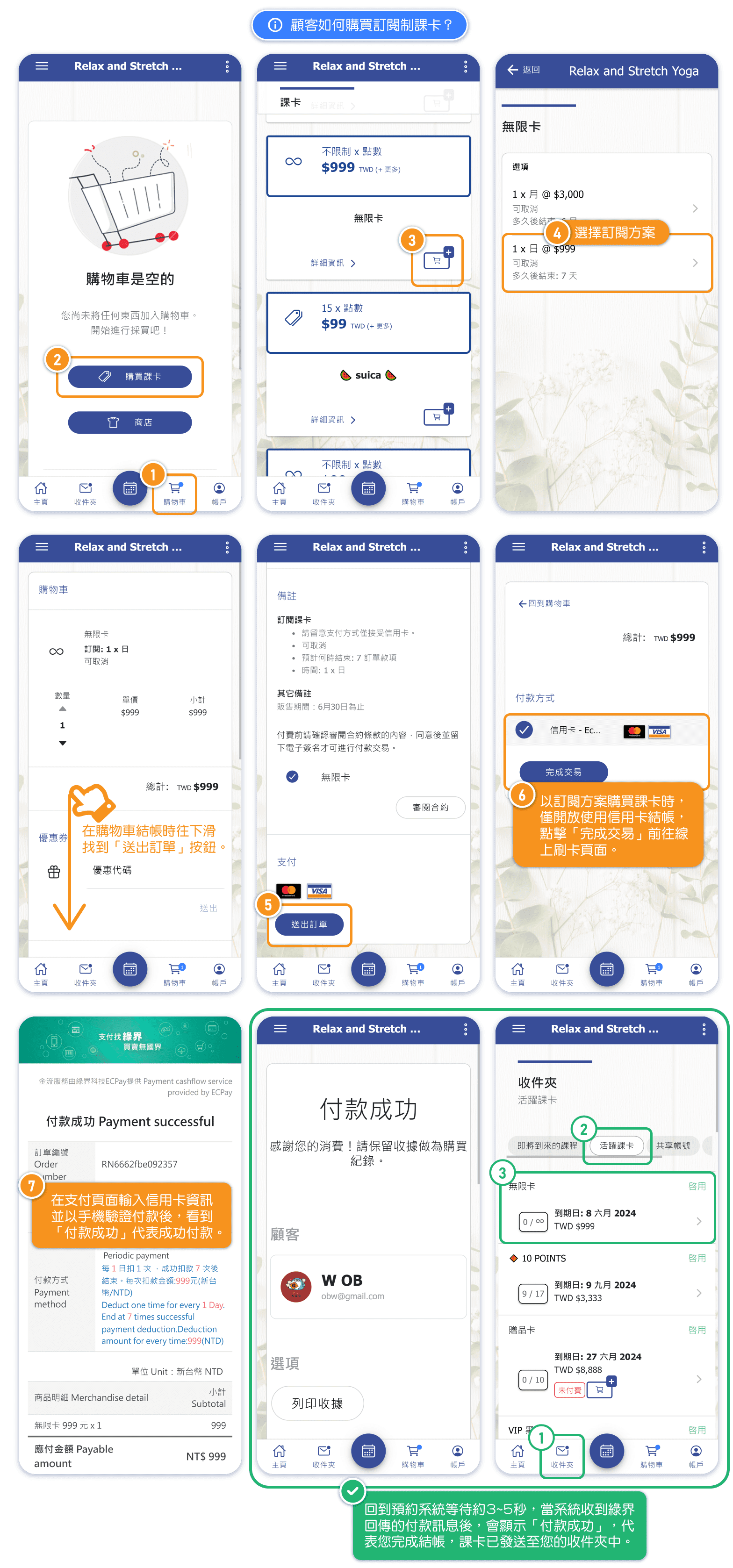
When purchasing subscription items, customers can only choose to pay with a credit card.
Note: Due to ECPay restrictions, subscription items must be checked out separately and cannot be combined with other one-time payment items.
Tip: Free gifts can be checked out together with subscription items. Upon the first payment, customers will receive both the subscription item and the free gift. For subsequent payments, customers will only receive the subscription item without the free gift.
After completing the payment through ECPay, please return to the booking system and wait for about 3 to 5 seconds. Once the system receives the payment confirmation from ECPay, it will display "Payment Successful," indicating that your transaction is complete and the pass has been sent to your inbox.
How can customers check their pass subscription status?
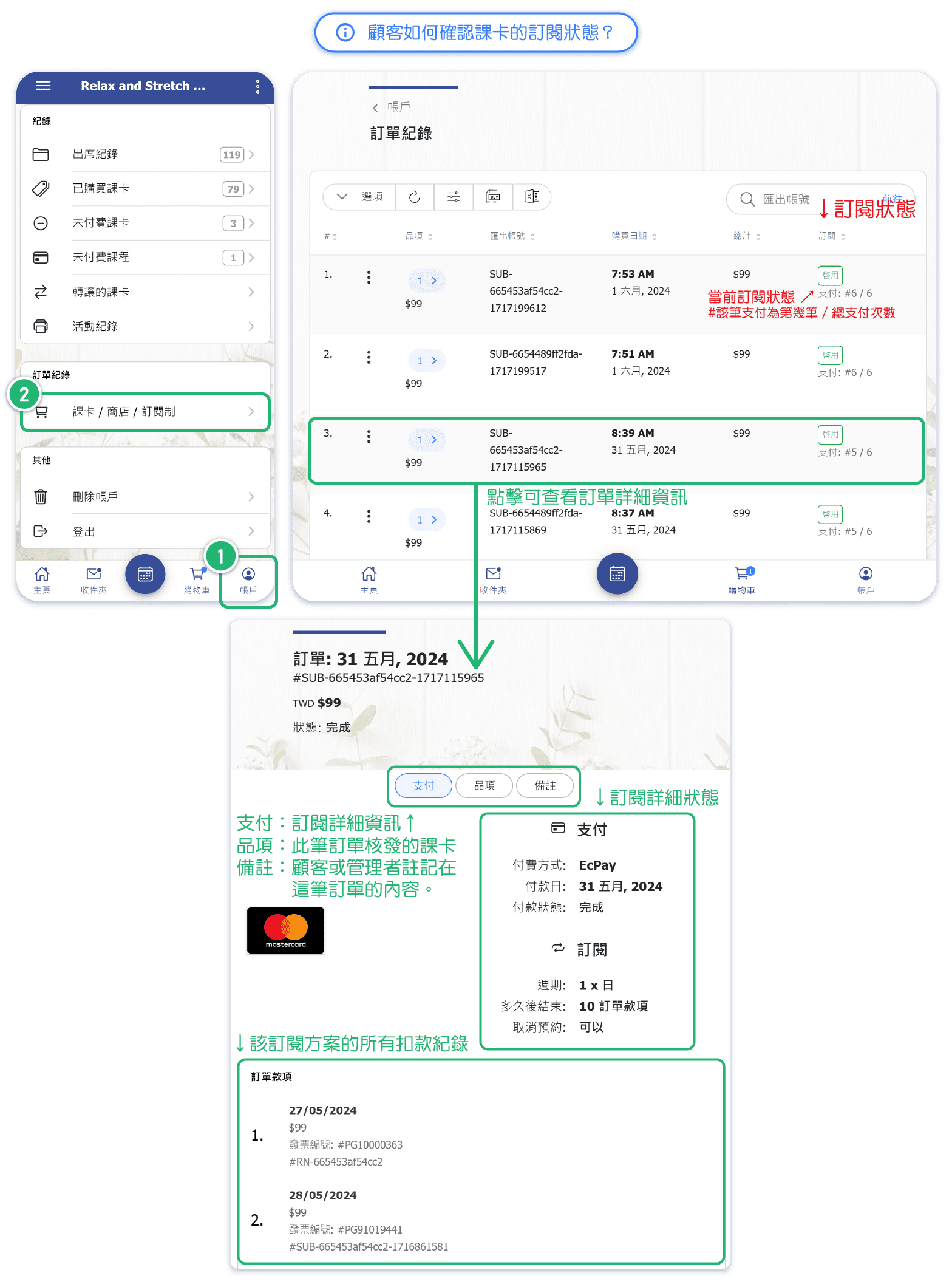
In the "Account" page located at the bottom right, under the "passes / Store / Subscriptions" section, you can view the status of each order.
For subscription orders, you can see the current subscription status and payment period information in the "Subscription" column on the right of table.
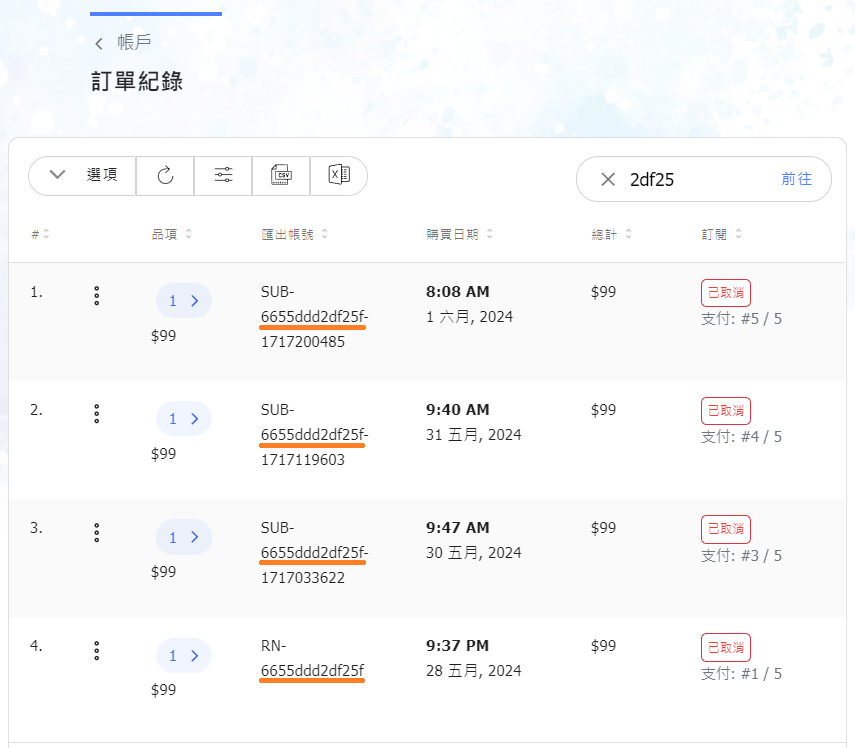
The first part of the reference number for the same subscription order will be the same. For example, the first order number for a subscription might be #RN-6655ddd2df25f, and the next payment's order number is SUB-6655ddd2df25f-1717033622. Both have the same first part of the order number: 6655ddd2df25f.
How can customers cancel their subscription?
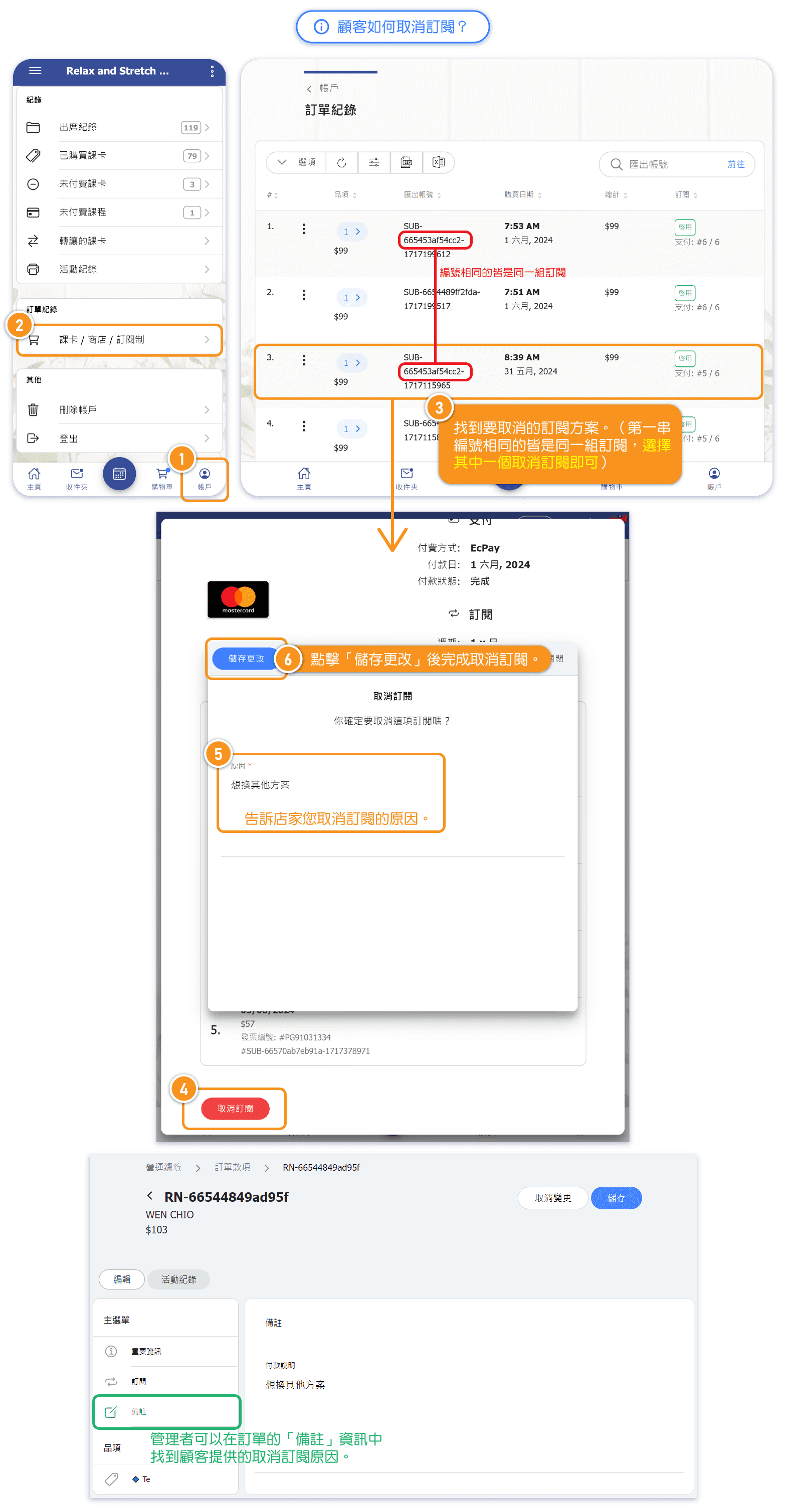
Users can check the status of their subscription orders in the "Account" page under "Passes / Shop / Subscriptions" at the bottom.
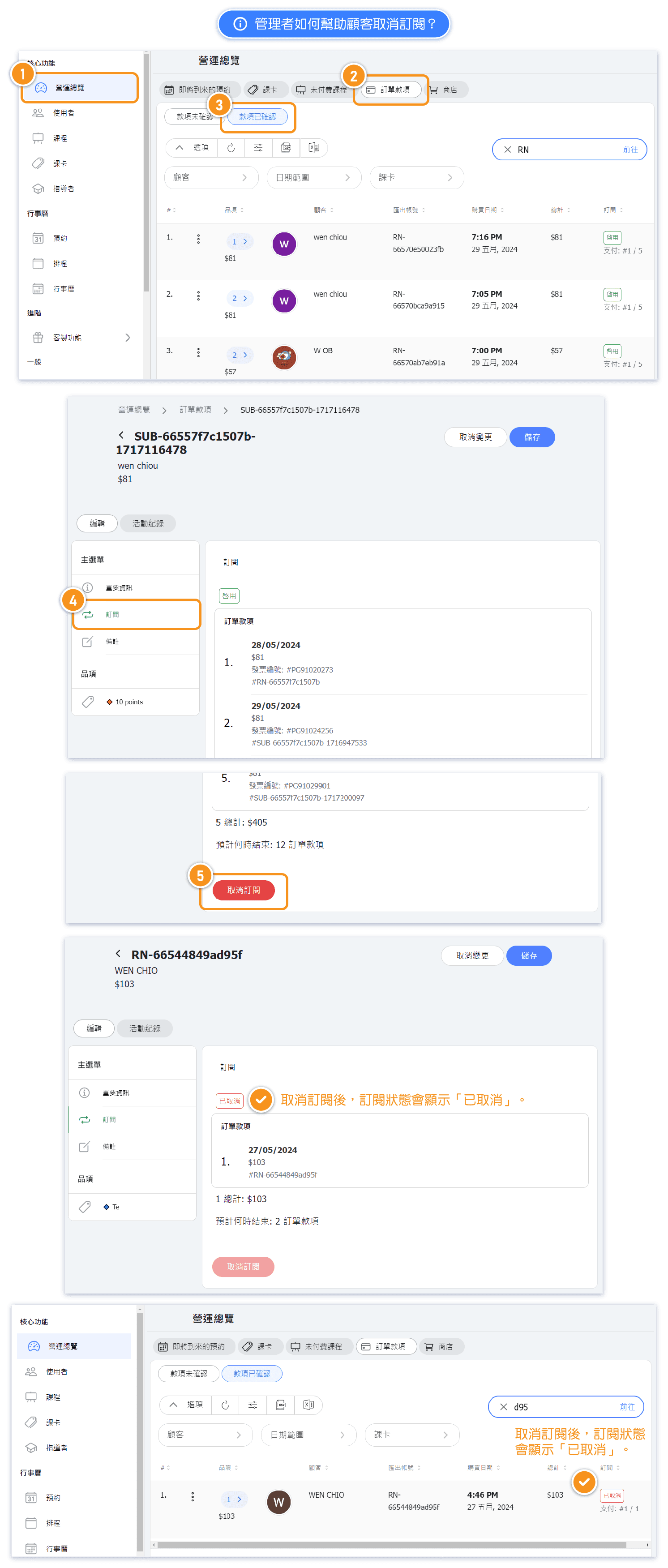
To cancel a subscription, go to the order details page and click "Cancel Subscription." This will stop the subscription, and the associated credit card will no longer be charged.
- If the subscription period is complete, already canceled, or the merchant has not enabled subscription cancellations, the button will be disabled.
- If the merchant does not allow customers to cancel subscriptions on their own, the admin will need to cancel it from the backend.
After successfully canceling your subscription, you will receive a confirmation SMS from ECPay within 1 to 3 minutes. (The ECPay SMS will be sent to the phone number provided at the time of payment)
How can admin check customers' subscription status?
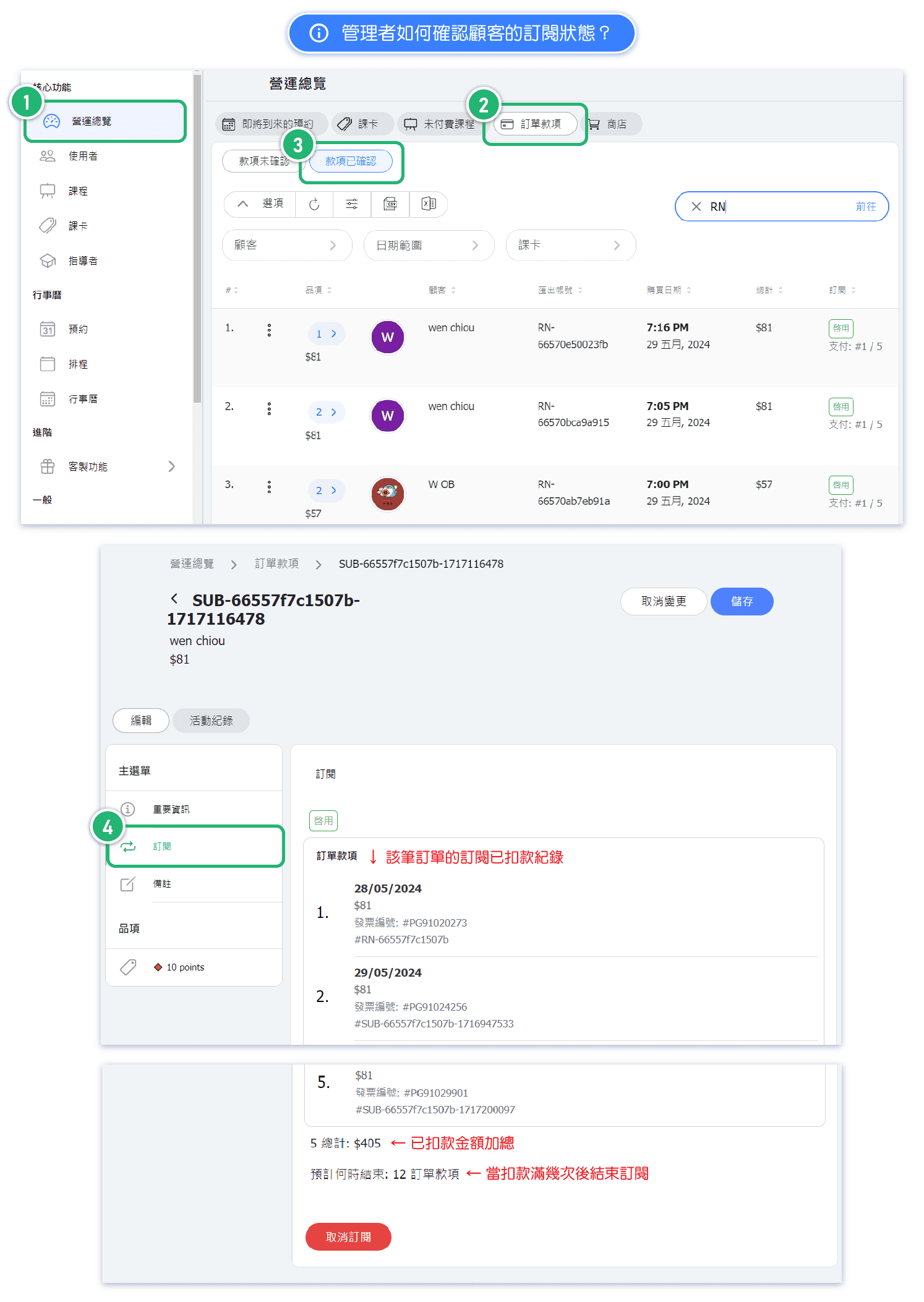
Orders paid through ECPay will have an reference number starting with RN.
For subscription order, each payment will generate a new reference number: the first payment will have an reference number starting with RN, and subsequent payments will have reference numbers starting with SUB.
How can admin assist customers in canceling their subscription?
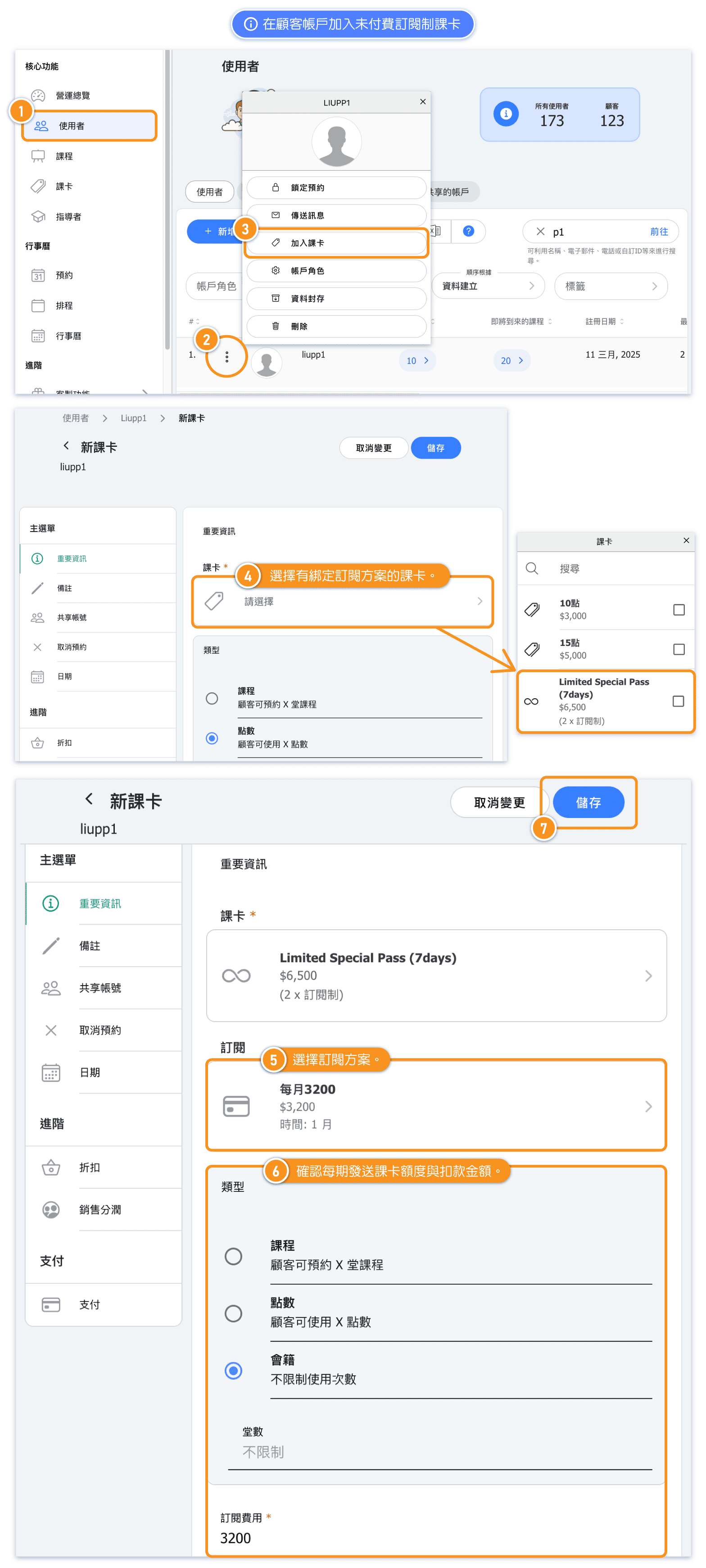
How to Add an Unpaid Subscription Pass to a Customer’s Account
Please note that:
- You can't edit payment method / payment status if it's an unpaid subscription pass.
- You can't edit activation / expiration date if adding an unpaid subscription (will only be activated on purchase).
- You still can use it if it's unpaid IF the setting is enabled (allow customer to use unpaid pass).
- When you add a subscription pass to a user, you won't get ability to add unpaid classes to the pass.
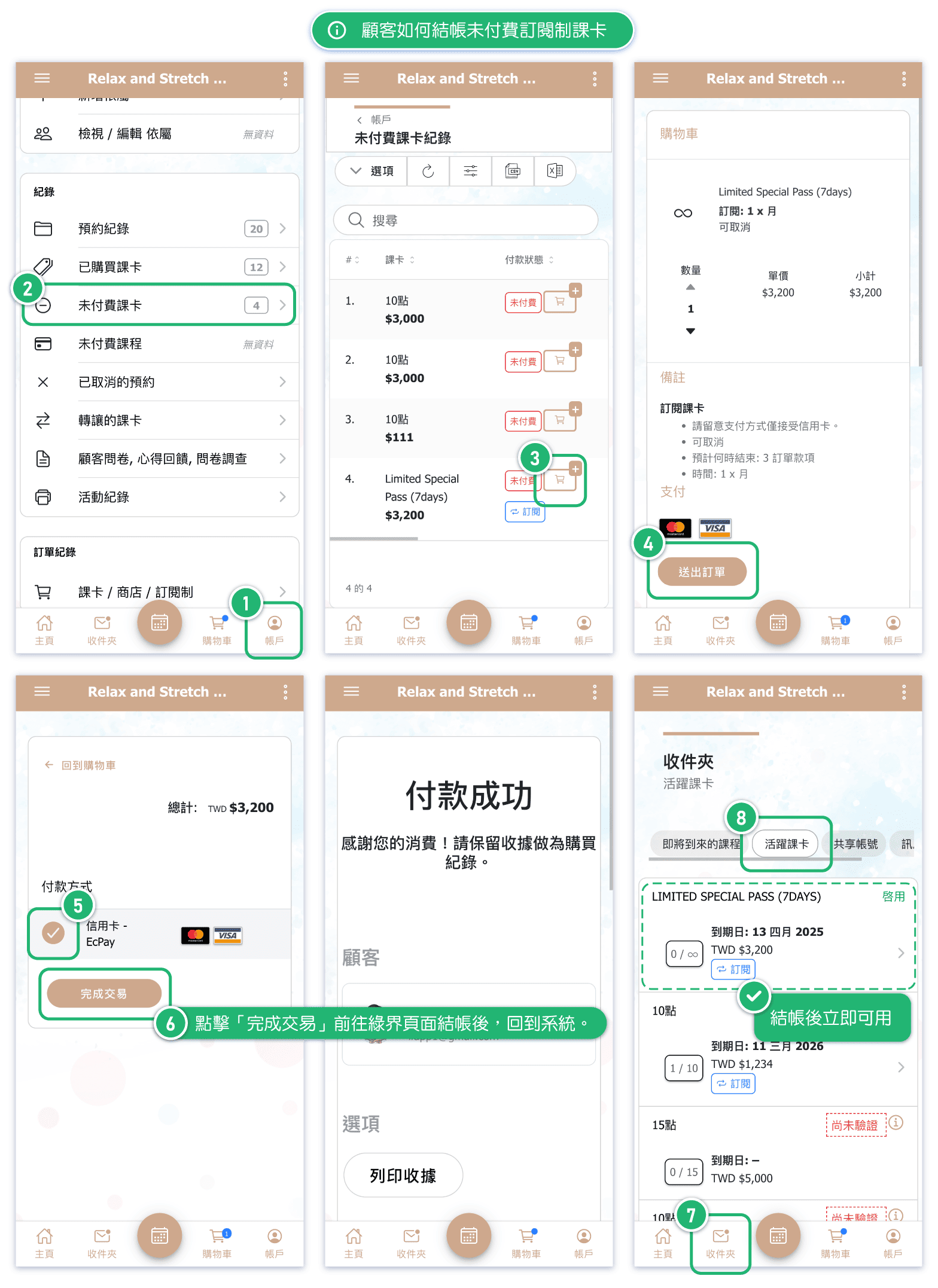
How Customers Can Pay for an Unpaid Subscription Pass
FAQ: What are the "total days available for use" for each subscription pass?
When customer purchases a subscription plan, each pass issued after payment will have its activation date as the payment date and its expiration date as the next payment date.
For example, if a subscription class card is billed once a month, the validity period for each class card is 30 days. The class card will be activated and the time will start counting immediately upon billing and issuance.
Example: If a customer purchases a pass on 4/5 and selects a monthly auto-renew subscription plan, the activation date of the first pass will be 4/5 and the expiration date will be next payment date 5/5. The customer will receive the second pass on the next billing date, with the activation date of the second pass being 5/5 and the expiration date being 6/5.
FAQ: How to check customers' subscription status in the ECPay website?
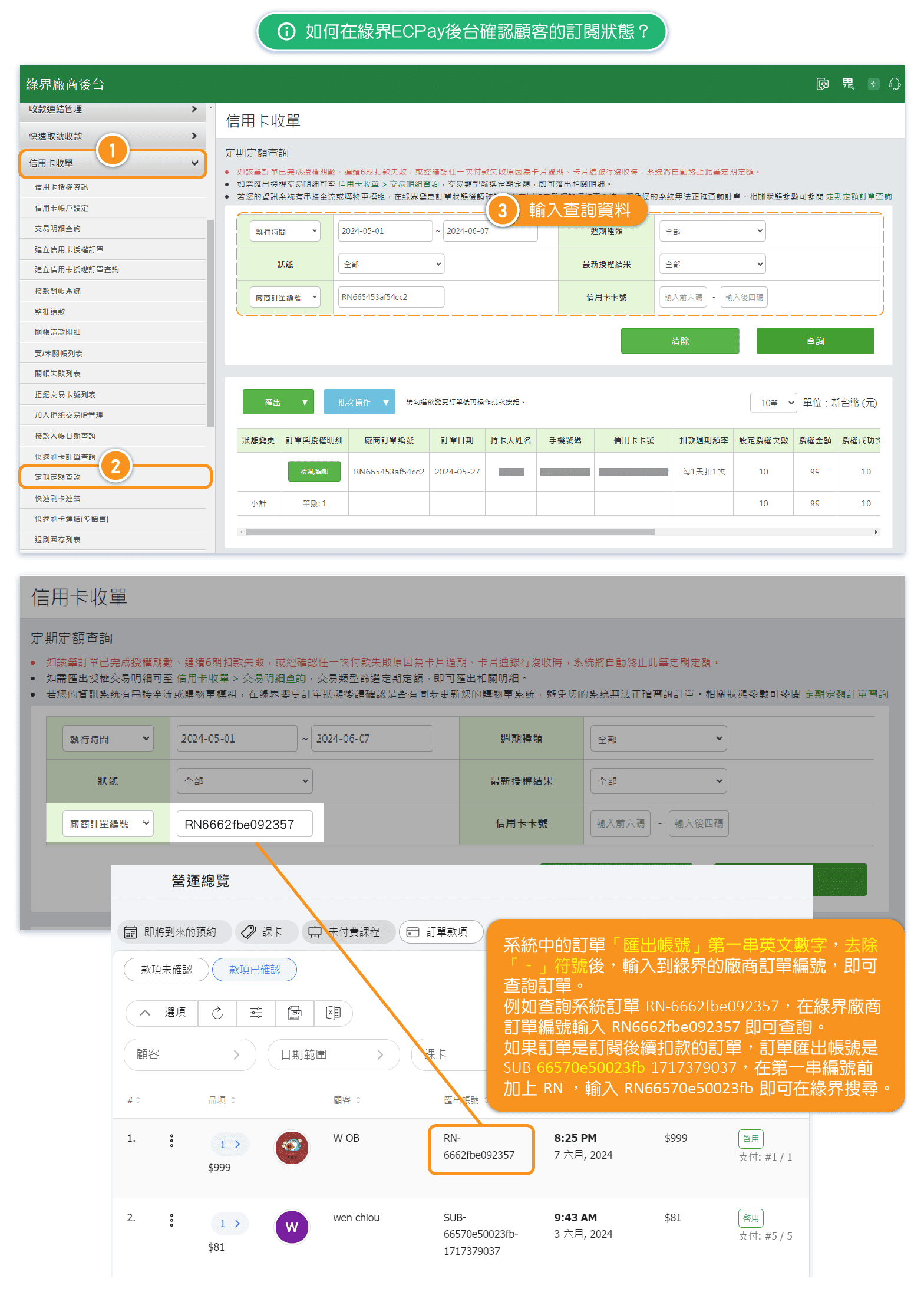
To search for an order in the ECPay system, copy the first part of numbers+characters of "reference number" from the order in OB system, remove the "-" symbol, and enter it as the Merchant Order Number (廠商訂單編號) in ECPay.
For example, to search for reference number RN-6662fbe092357, enter RN6662fbe092357 in the ECPay Merchant Order Number(廠商訂單編號) field.
If the order is a subsequent subscription payment, and the "reference number" is SUB-66570e50023fb-1717379037, prepend RN to the first part of the code and enter RN66570e50023fb in ECPay to search.
FAQ: Can I change the billing cycle of any subscriptions?
You cannot directly change the billing cycle.
Subscription orders will be processed based on the billing cycle and frequency set at the time of purchase. It is important to note that any changes made in the ECPay backend will "not" affect the status of existing subscription orders.
To modify the subscription details, please cancel the current subscription and subscribe again. The cancellation of a subscription must also be performed in the OB system.


