
Product Has Stock But Cannot Be Purchased
Problem: A product shows available stock but customers cannot add it to cart or purchase it.
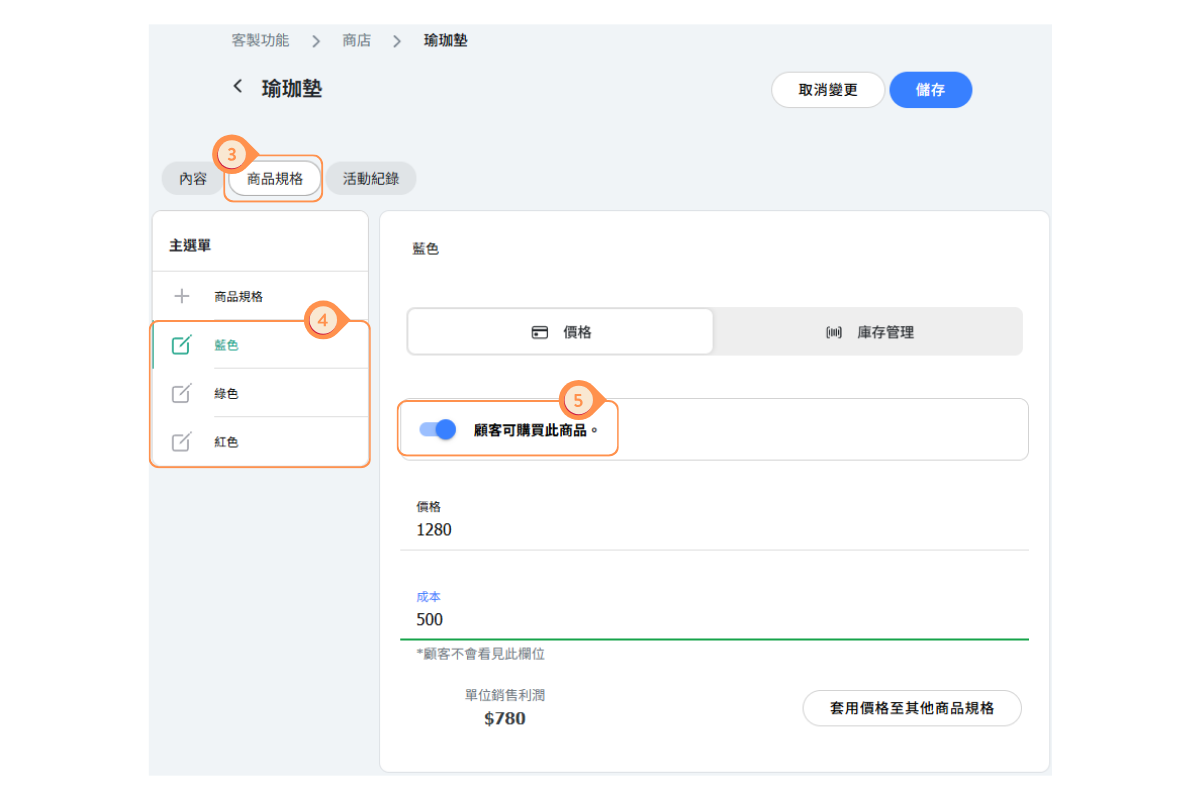
Cause: The "This item is available to purchase" toggle is disabled for the product variant.
Solution:
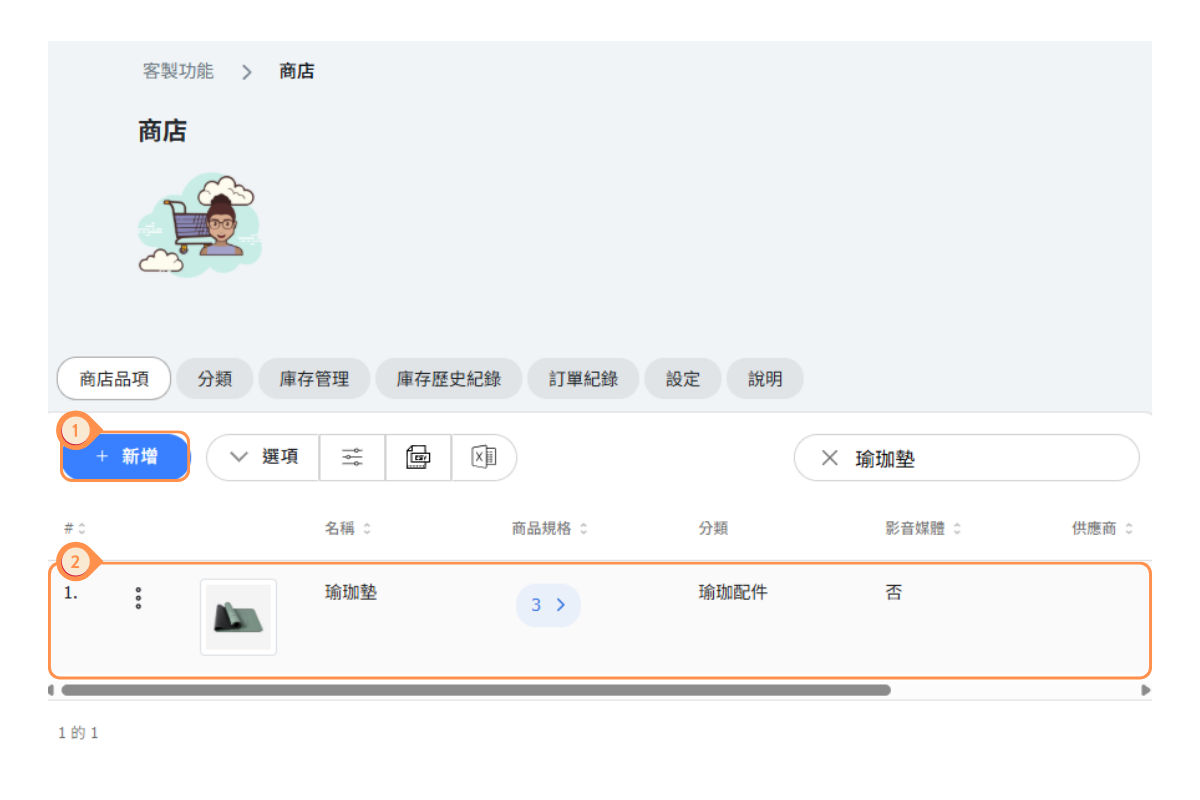
- Go to Shop → Shop Items
- Find and click on the affected product
- Go to the Variants tab
- Check that the toggle "This item is available to purchase" is enabled for each variant
- Click Save
Note: This setting allows you to show "Coming Soon" products - items that are visible but not yet purchasable.
Inventory Updated But Not Reflecting on Customer Side
Problem: You've adjusted inventory in the admin but customers still see old stock levels or out-of-stock messages.
Cause: Cached data on the customer's device or browser.
Solution for Customers:
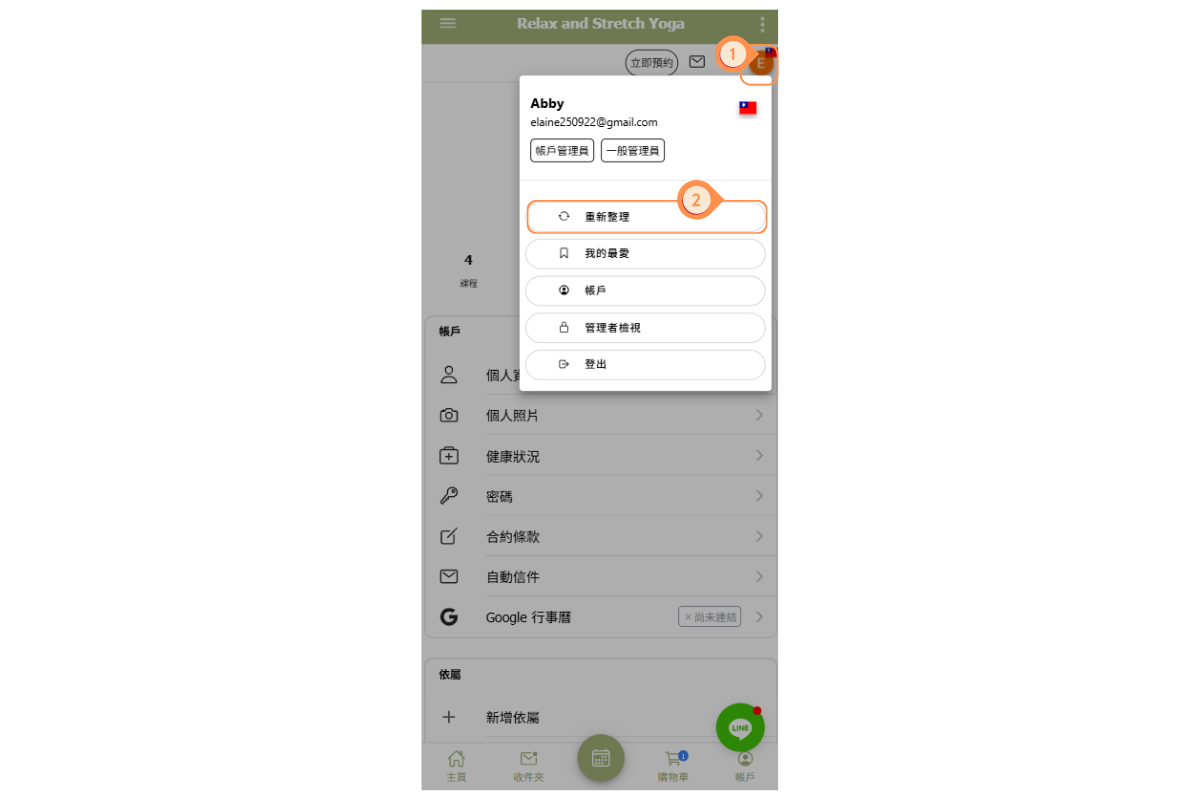
- Ask the customer to click the account icon at the top-right corner of the screen.
- Select “Refresh”.
Solution for Admin:
- Clear your browser cache
- Try accessing from an incognito/private window
- Verify the changes are saved in the Inventory tab
Prevention: Allow a few moments after saving inventory changes before checking the customer view.
Cannot Modify Inventory for a Product
Problem: A product doesn't appear in the Inventory tab or you cannot adjust its stock levels.
Cause: Inventory tracking is not enabled for the product.
Solution:
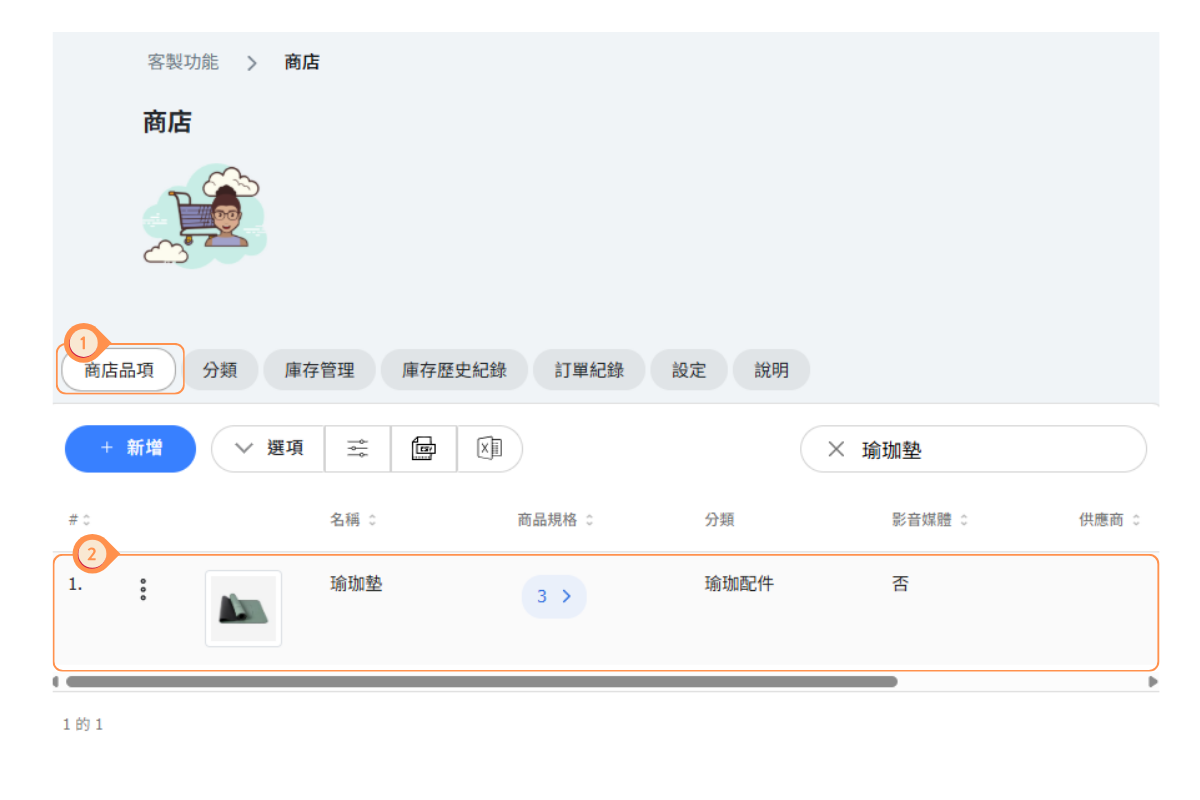
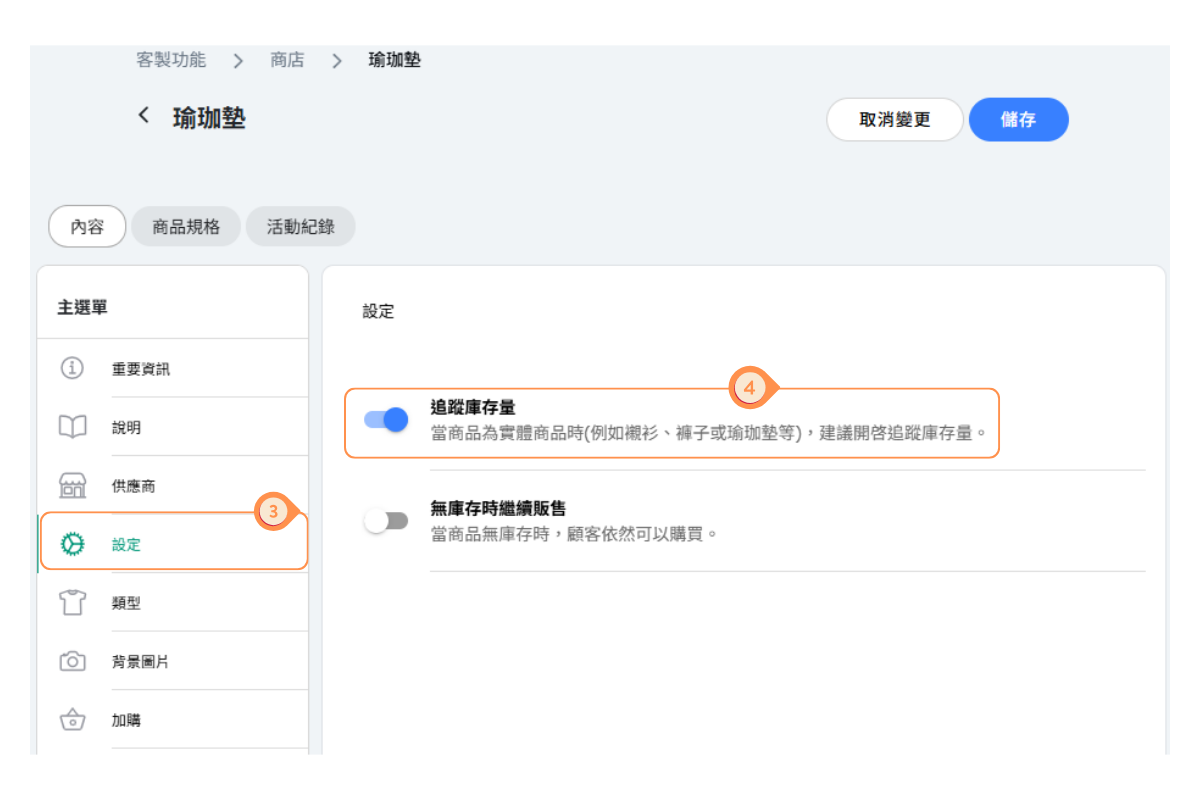
- Go to Store → Store Items.
- Locate and click the item.
- Click “Settings” on the left side.
- Enable the switch to turn on inventory tracking.
Note: Products without tracking enabled are treated as always in stock.
Product Price Shows "Not Set"
Problem: A product displays "Not Set" or shows no price to customers.
Cause: One or more product variants don't have a price configured.
Solution:
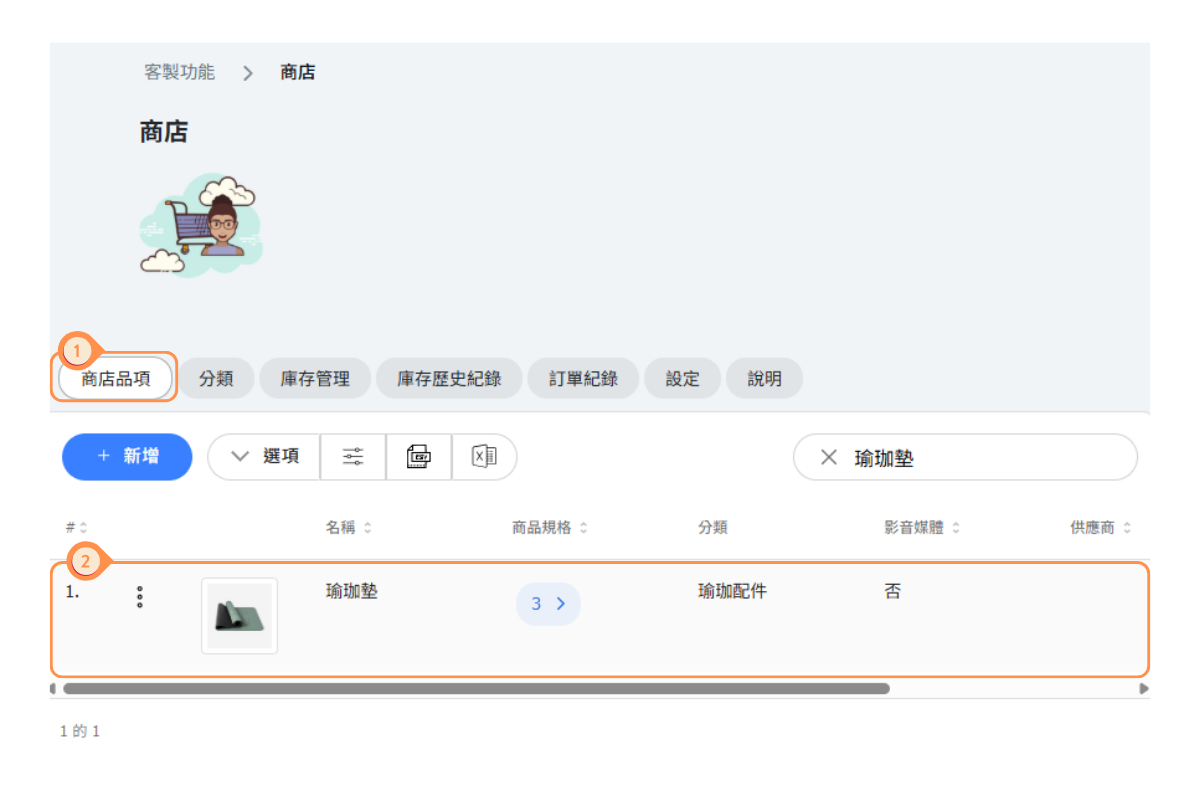
- Go to Shop → Shop Items
- Find and click on the affected product
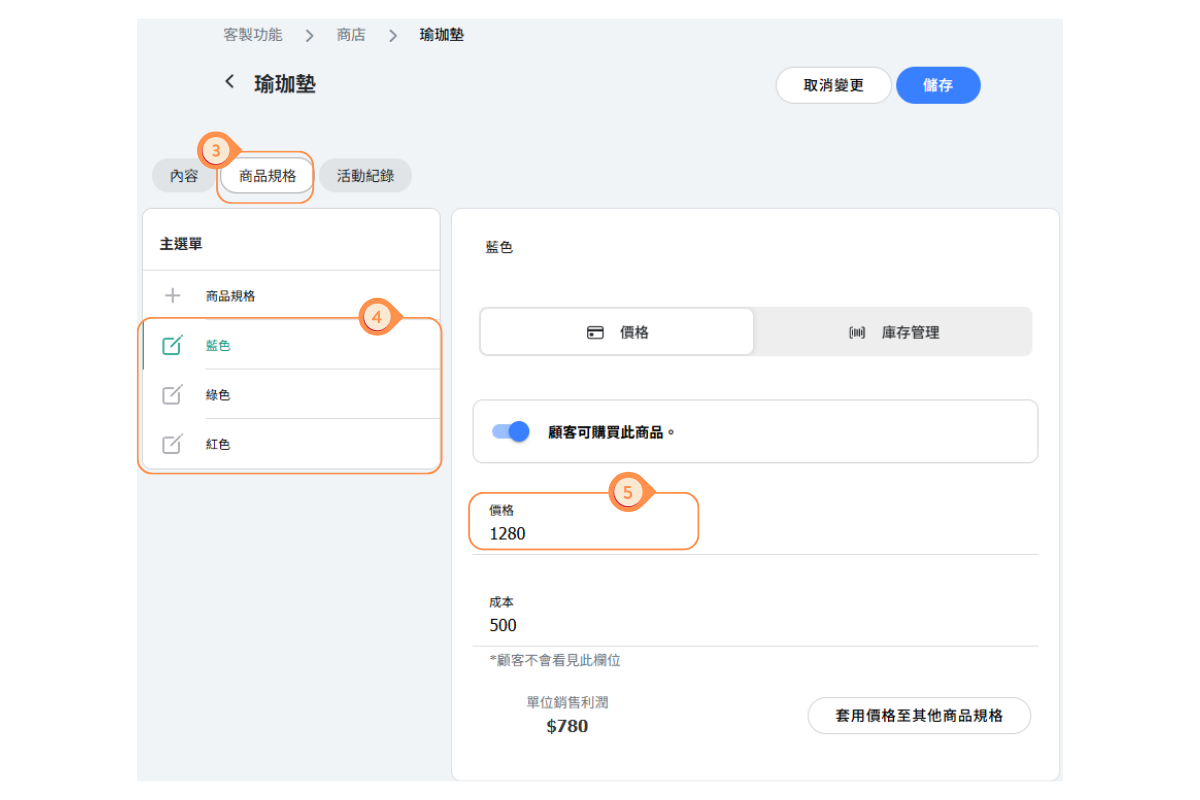
- Go to the Variants tab
- Check each variant individually
- Ensure every variant has a Selling Price entered
Common Mistakes:
- Setting price for some variants but not others
- Entering price in wrong currency field
- Forgetting to save after entering prices
Making a Product "Coming Soon" (Visible But Not Purchasable)
Goal: Show a product to generate interest but prevent purchases until launch.
Solution:
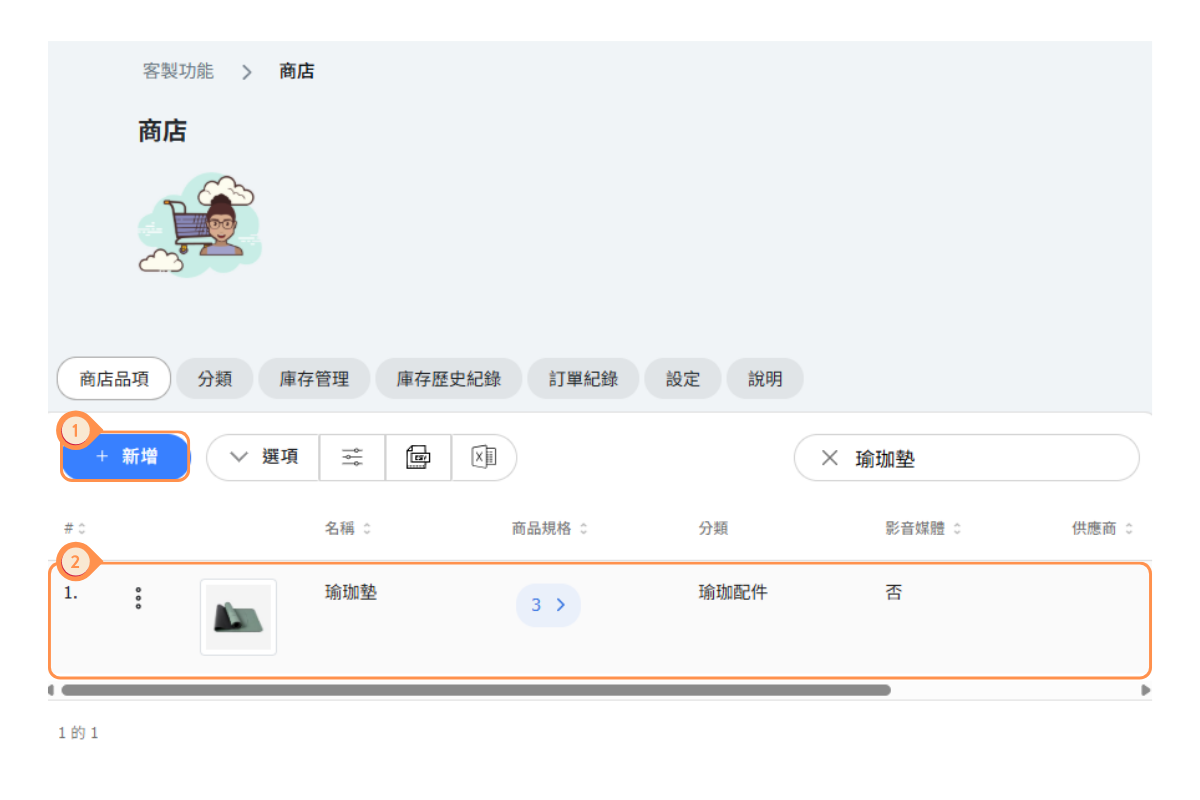
- Go to Shop → Shop Items
- Find and click on the product
- Go to the Variants tab
- Disable the "This item is available to purchase" toggle
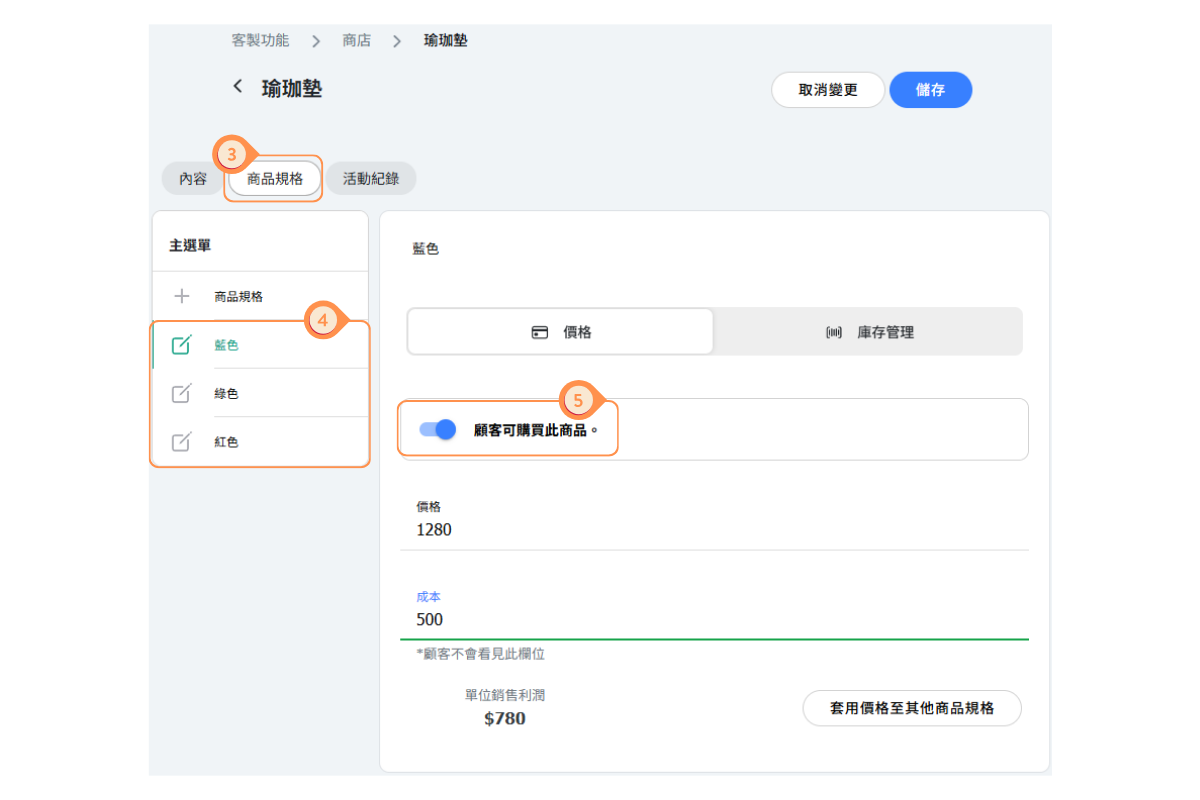
Result:
- Product is visible in the shop
- Customers can see details and price
- Add to cart/purchase buttons are disabled or show "Coming Soon"
To Launch: Simply enable the toggle when ready to start selling.
Hiding a Product Temporarily
Goal: Remove a product from the shop without deleting it (seasonal items, discontinued temporarily, etc.).
Solution - Archive the Product:
- Go to Shop → Shop Items
- Find the product you want to hide
- Click on the product options menu (three dots)
- Select Archive
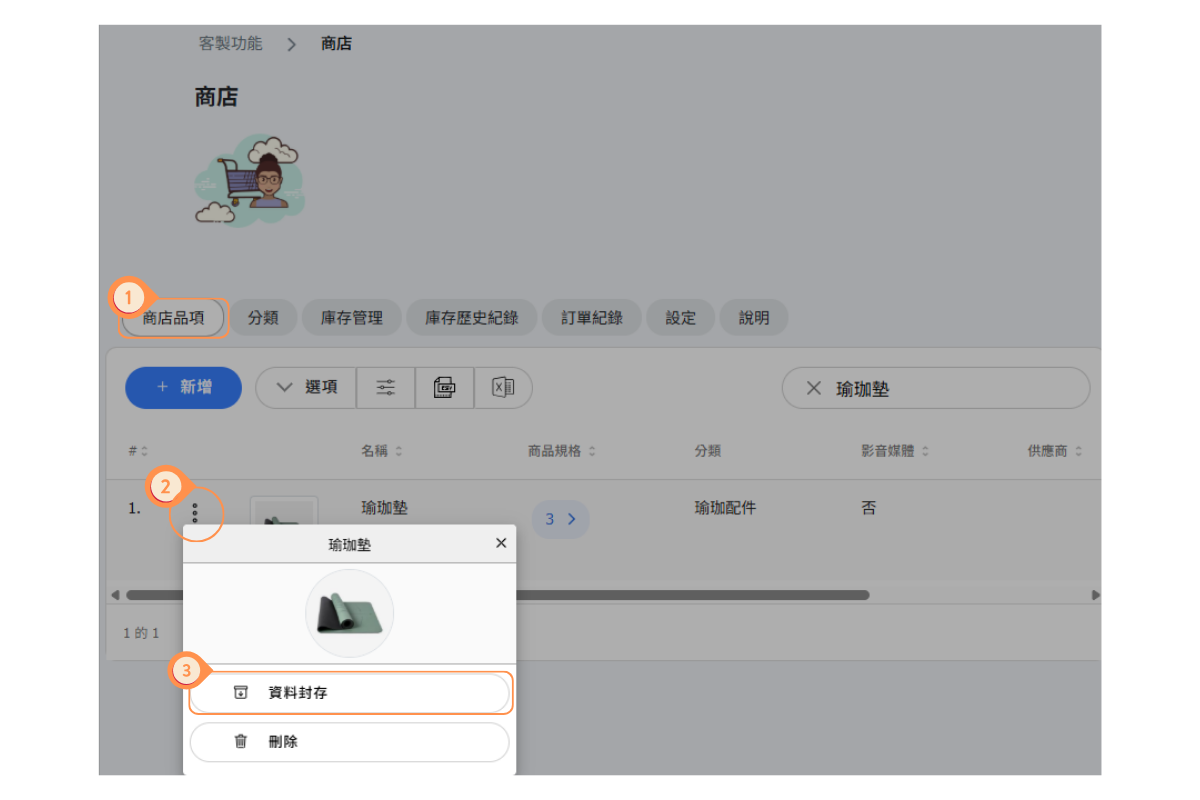
What Happens:
- Product is immediately hidden from the customer-facing shop
- Product data, images, and settings are preserved
- Inventory records are maintained
- You can view archived products in the "Archived" filter
To Restore: Find the archived product and click "Unarchive" to make it visible again.
Shop Not Visible to Customers
Problem: Customers don't see the Shop option in their menu or cannot access the shop.
Cause: The shop's "Ready to go" setting is disabled.
Solution:
- Go to Shop → Settings tab
- Find the Ready to go toggle
- Enable the toggle
- Click Save
Tip: Keep this disabled while setting up your shop, then enable when everything is ready.
Additional Checks:
- Ensure you have at least one product with "available to purchase" enabled
- Check that products have prices set
- Verify categories are properly configured
Getting Help with Shop Issues
If you're still experiencing issues with your shop after trying the solutions above:
Before Contacting Support:
- Note the specific error message or behavior
- Identify which products/variants are affected
- Check if the issue affects all customers or specific ones
- Try the action in a different browser or incognito window
Information to Provide:
- Product name(s) affected
- Screenshots of the issue
- Steps to reproduce the problem
- When the issue started occurring
- Any recent changes made to shop settings
Contact our support team through the help chat for personalized assistance with your shop configuration.


