
Creating Product Categories
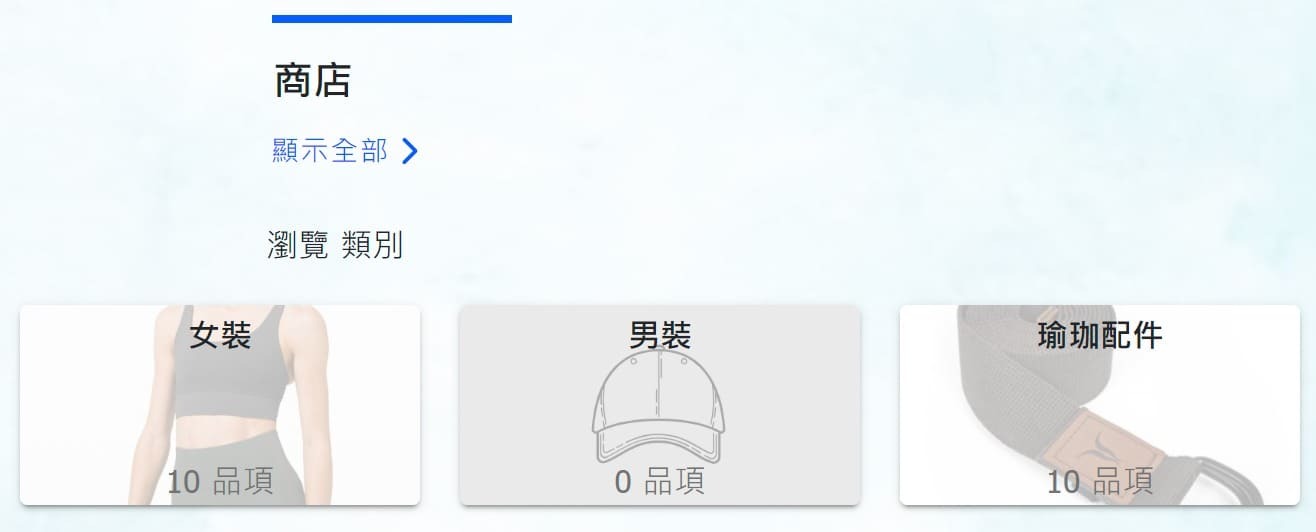
Before adding products, set up categories to organize your shop. Categories make it easier for customers to browse and find products.
To create categories:
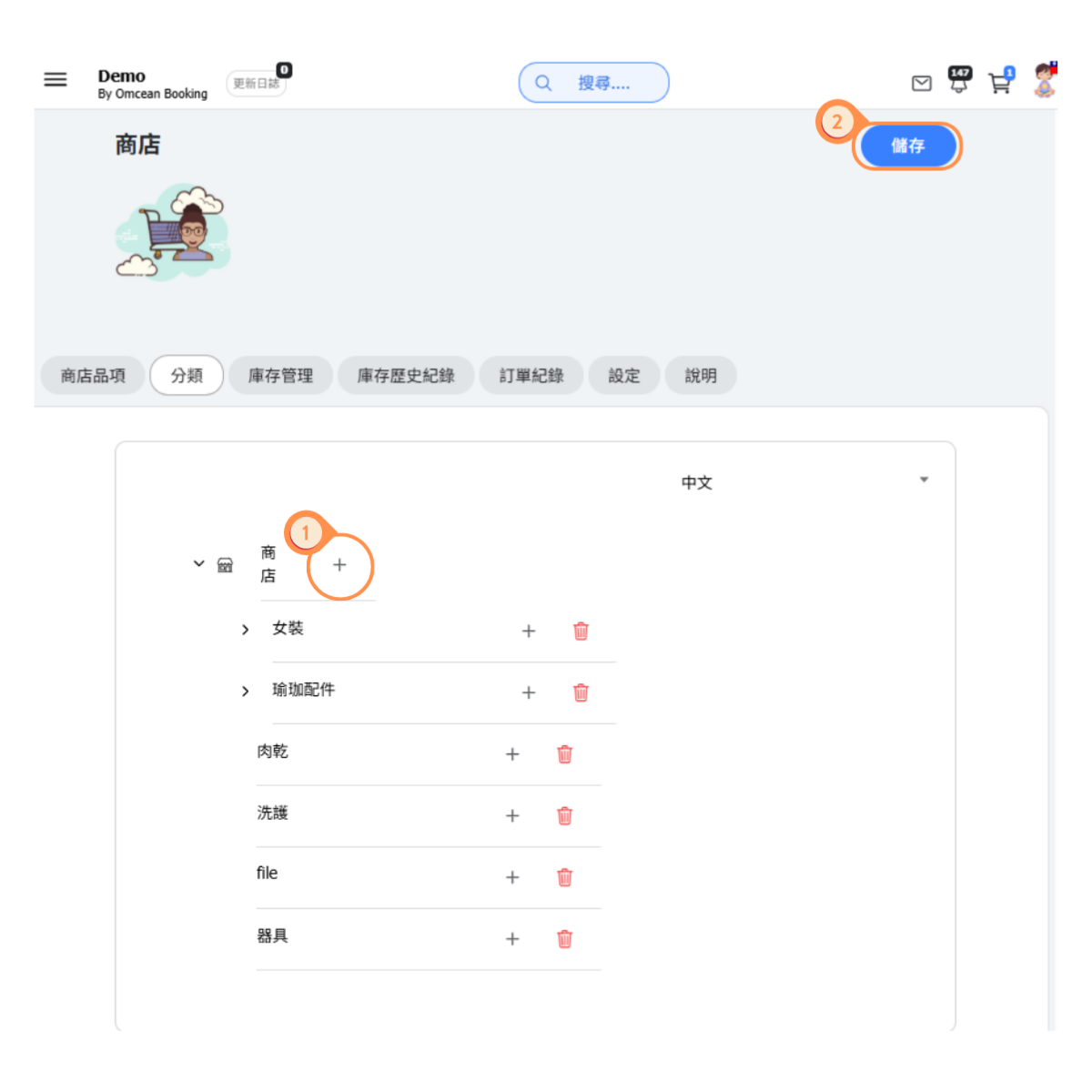
- On the Store page, go to the Categories tab, click + to add a new product category.
- Click Save.
Category Examples:
- Equipment → Yoga Mats, Blocks, Straps
- Apparel → T-Shirts, Leggings, Tops
- Accessories → Water Bottles, Bags, Towels
- Digital Content → Audio Classes, Video Tutorials
Adding a New Product
To add a new product to your shop:
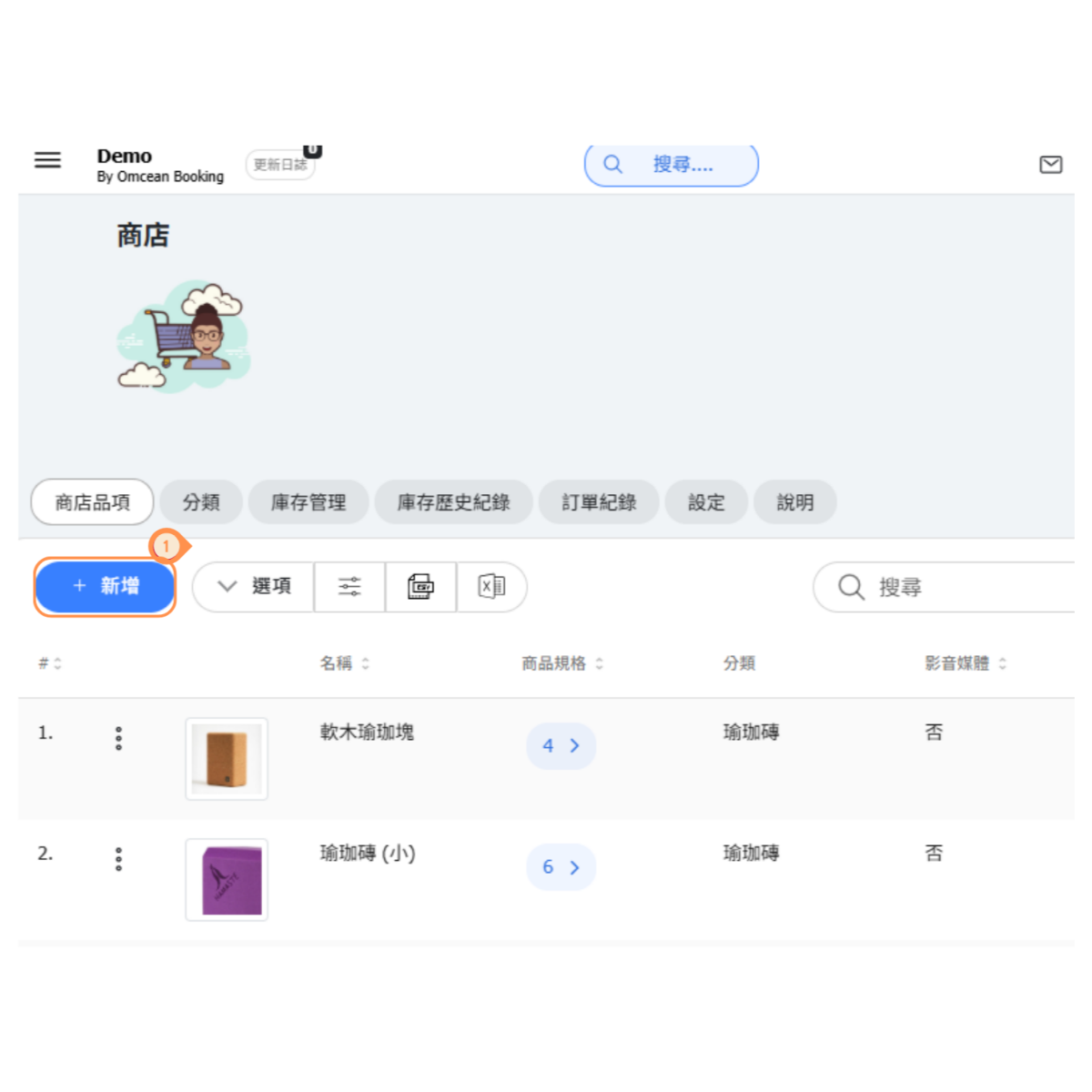
- Go to Shop → Shop Items tab
- Click the + NEW button
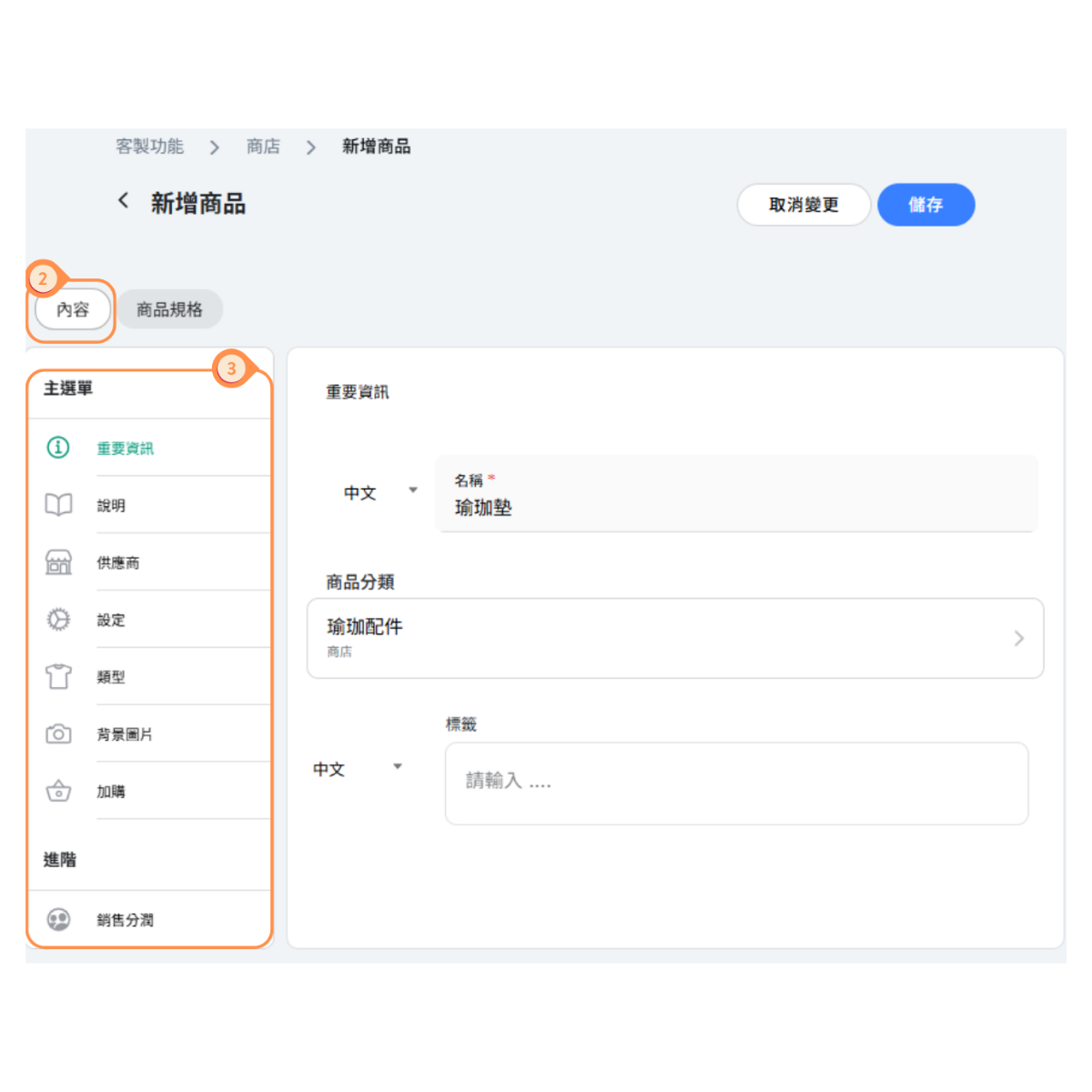
- Fill in the product details:
- Product Name - Clear, descriptive name customers will see
- Description - Detailed information about the product
- Category - Select from your created categories
- Product Image - Upload high-quality photos
- Vendor - Optional supplier/brand information
- Configure additional options as needed
- Click Save to create the product
[Instructions]
- In the Store Items tab, click Add and switch to the Content tab.
- Fill in each field in the main menu.
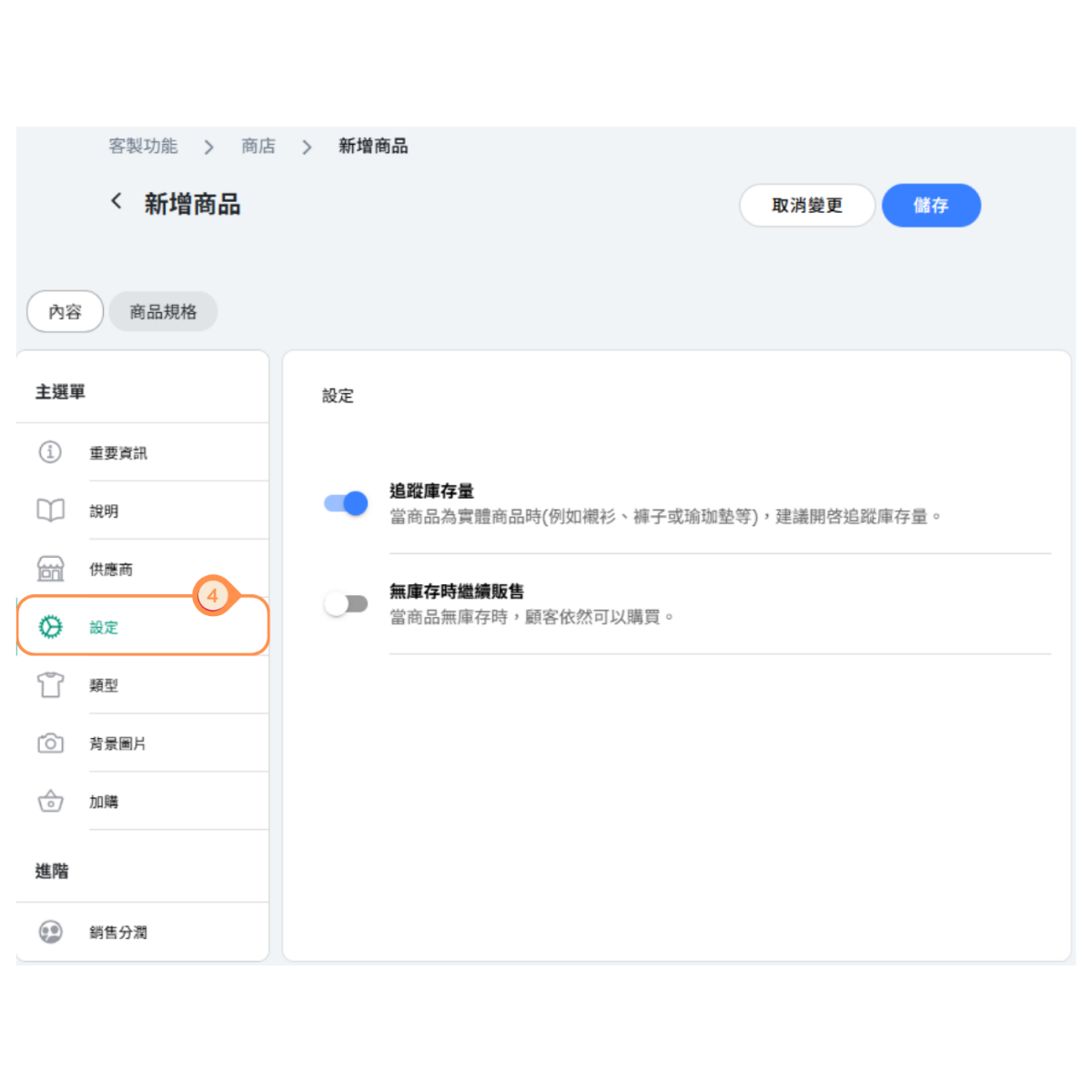
- Since this product is a physical item, enable Track Inventory under Settings to allow inventory editing.
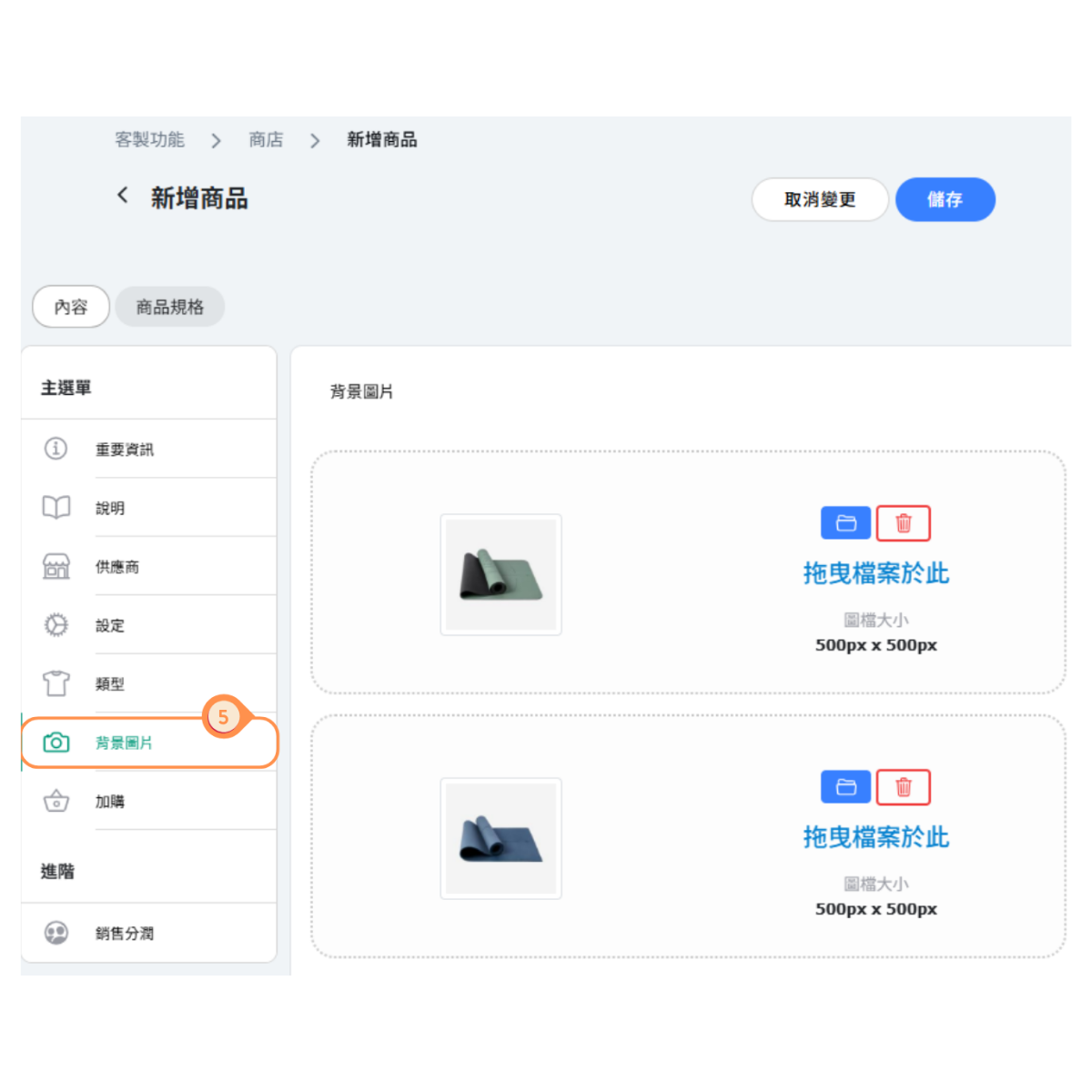
- Adding product photos will make the item more attractive to customers.
Tips for Product Setup:
- Use clear, searchable product names
- Include detailed descriptions with materials, dimensions, care instructions
- Upload multiple product images from different angles
- Set appropriate categories for easy browsing
Understanding Product Variants
 Variants allow you to offer the same product in different options like sizes, colors, or styles. Each variant can have its own price, cost, and inventory level.
When to Use Variants:
- Sizes - T-shirts in S, M, L, XL
- Colors - Yoga mats in Blue, Purple, Green
- Materials - Cork yoga block vs Foam yoga block
- Scents - Essential oils in Lavender, Eucalyptus, Peppermint
- Bundles - Single item, Pack of 3, Pack of 10
Variant Pricing:
Each variant has two prices:
- Selling Price - The price customers pay (visible to customers)
- Cost - Your cost/wholesale price (visible only in admin, used for profit tracking)
[Instructions]
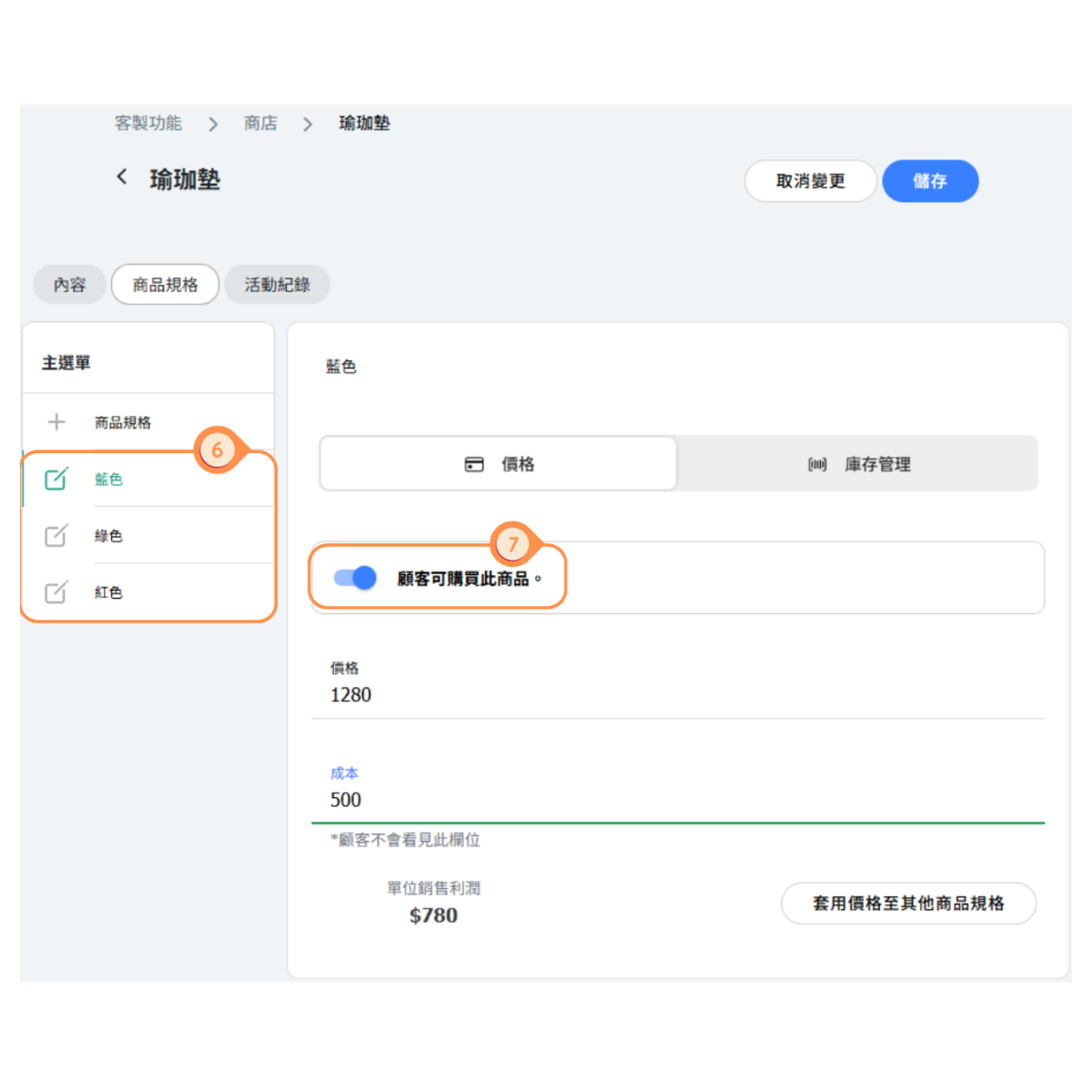
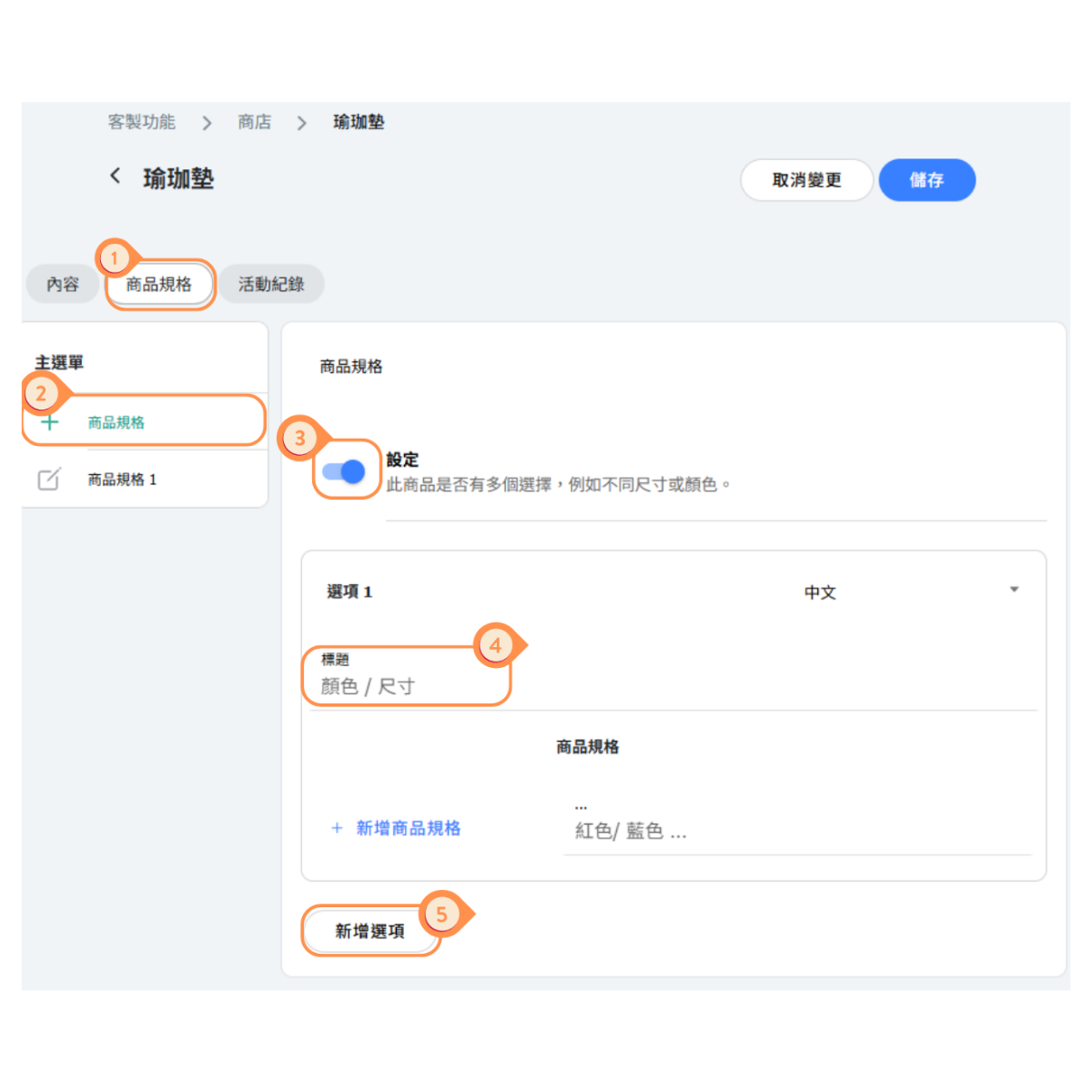
- Go to the Product Specifications tab.
- Click + Product Specification on the left.
- If the product comes in different colors, enable the Settings switch for product specifications.
- First, enter the title Color, then input the available colors under the specification.
- If there are other variations, such as sizes, click Add Option to include size options.
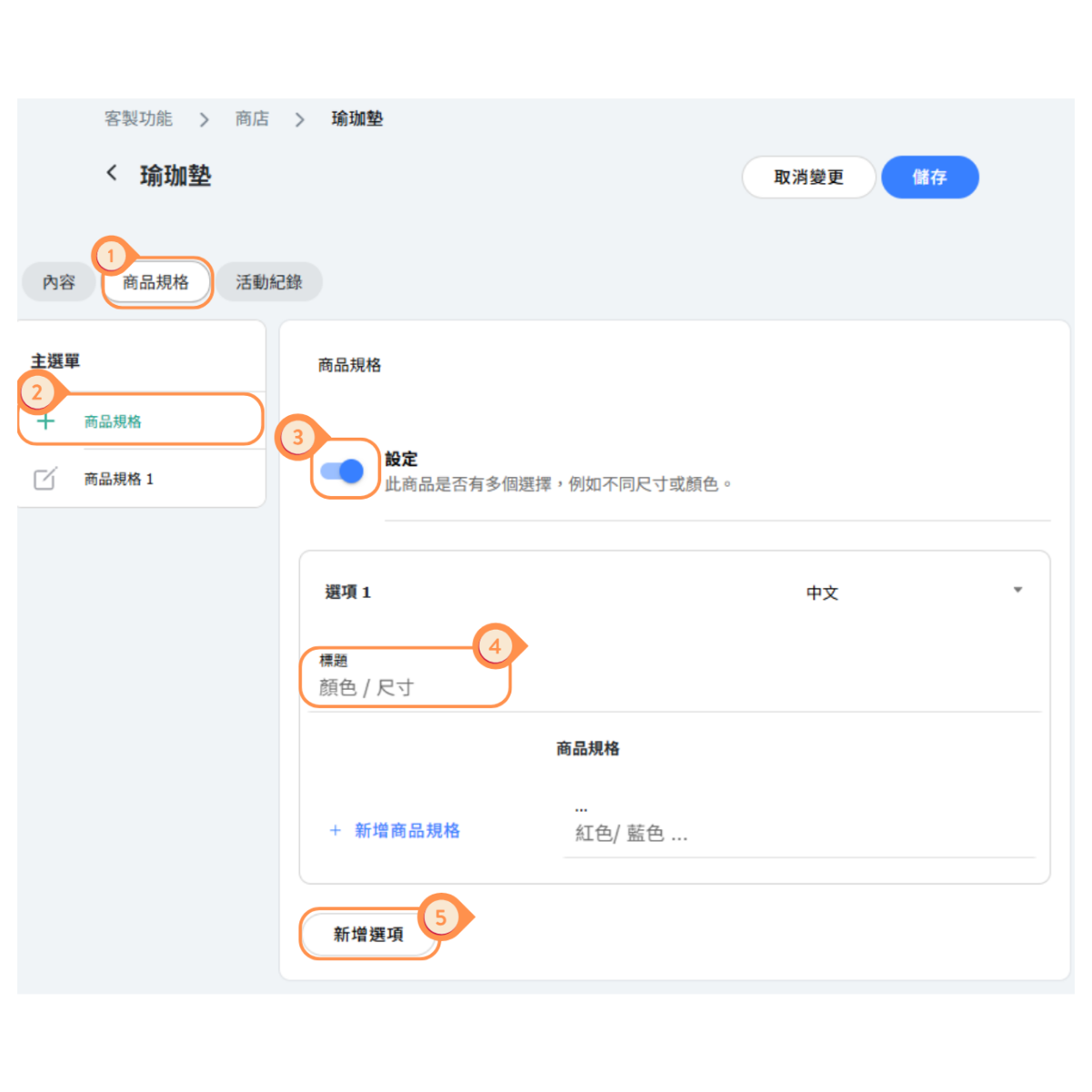
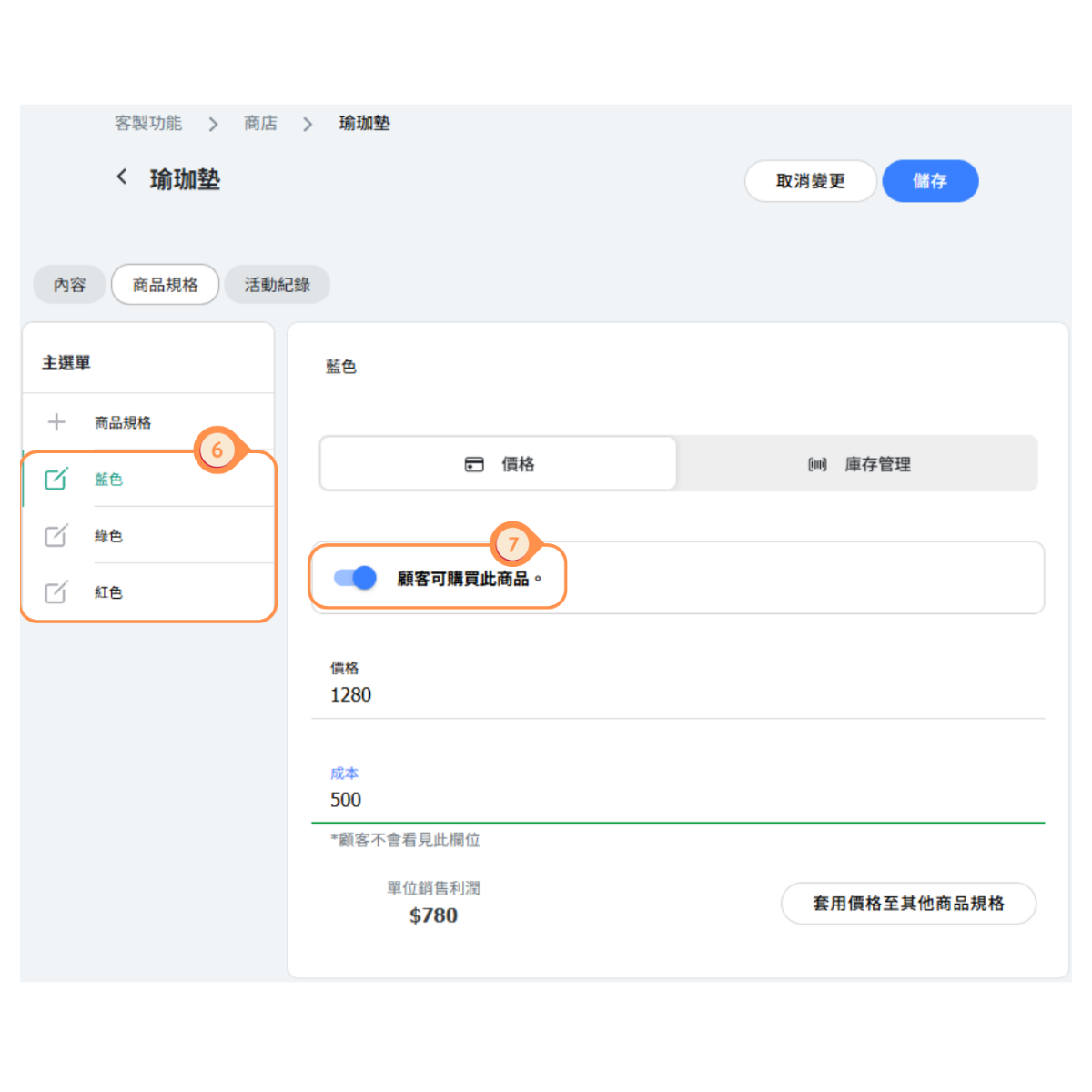
- Select a color from the left and set the price for each individual specification.
- Enable the Customer Can Purchase This Product switch so that customers can buy the item.
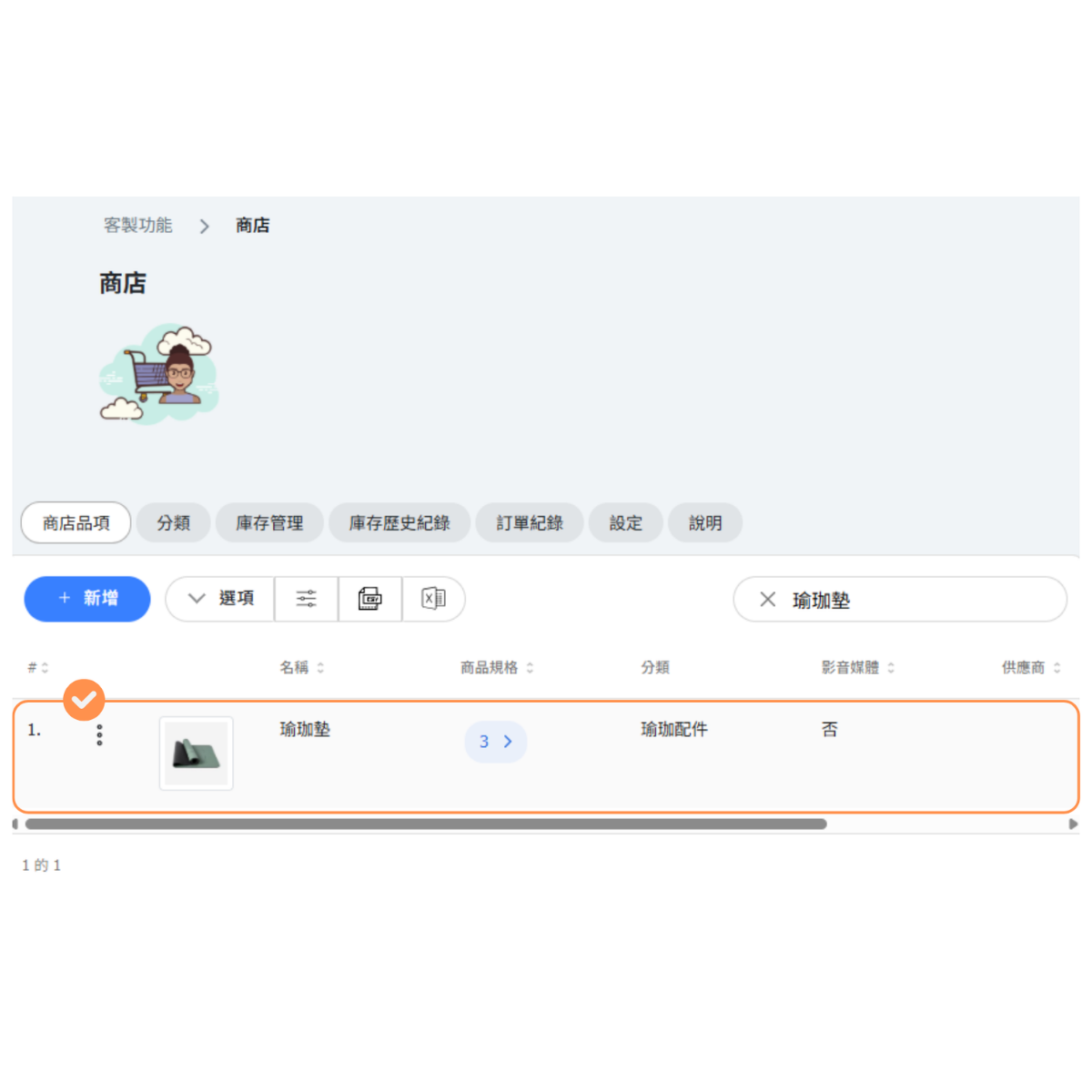
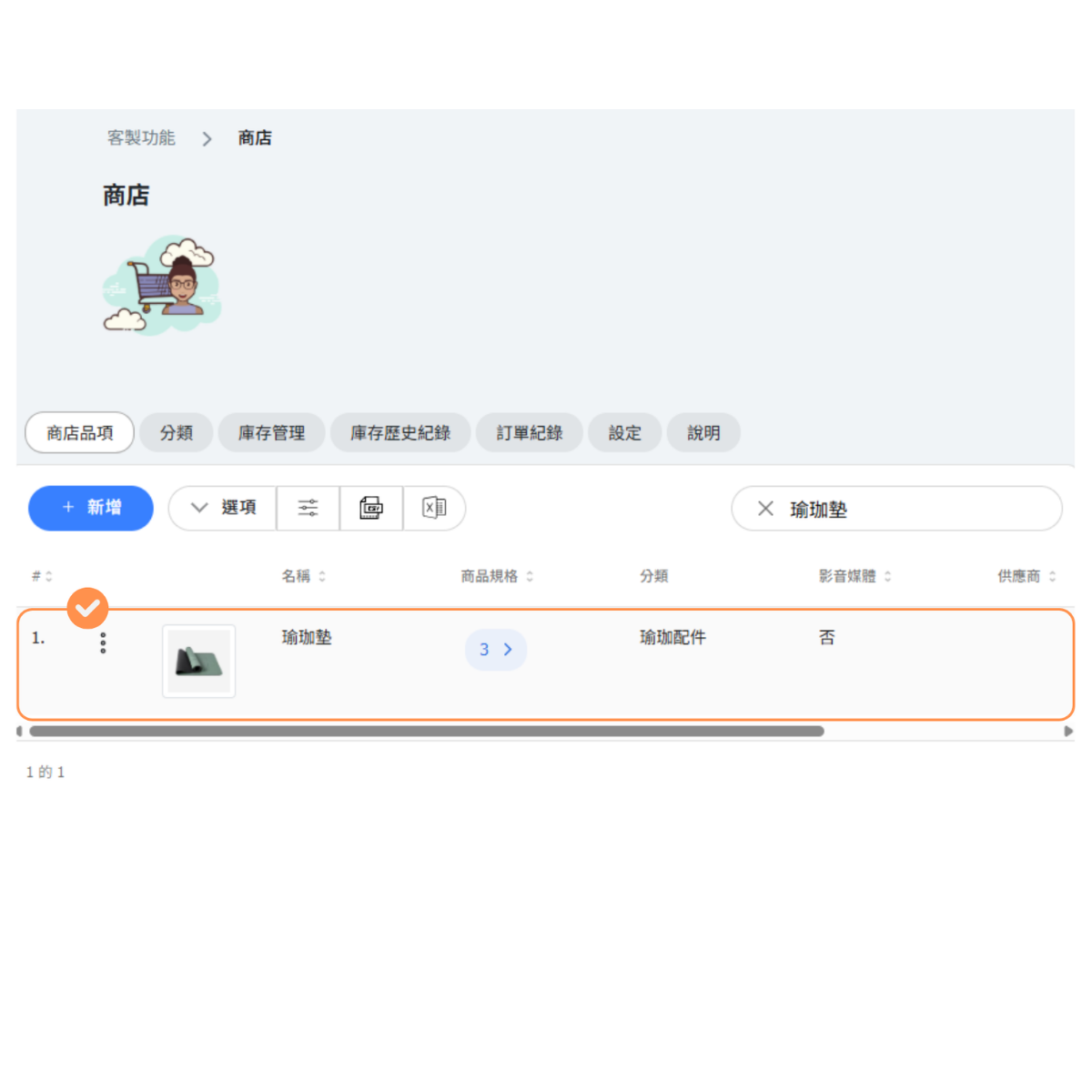
- After adding the product, you can open it from the list to edit its content again.
Creating Product Variants
To create variants for a product:
- Open the product you want to edit
- Go to the Variants tab
- Click Add Variant
- Configure the variant:
- Variant Name - e.g., "Small", "Blue", "Pack of 3"
- Selling Price - Customer-facing price
- Cost - Your cost (optional, for profit tracking)
- SKU - Stock keeping unit code (optional)
- This item is available to purchase - Toggle to enable/disable purchasing
- Repeat for each variant option
- Click Save
Example: Yoga Mat with Size Variants
| Variant | Price | Cost |
|---|---|---|
| Standard (68") | $45 | $20 |
| Long (72") | $55 | $25 |
| Extra Long (84") | $65 | $30 |
[Instructions]
- Go to the Product Specifications tab.
- Click + Product Specification on the left.
- If the product comes in different colors, enable the Settings switch for product specifications.
- First, enter the title Color, then input the available colors under the specification.
- If there are other variations, such as sizes, click Add Option to include size options.
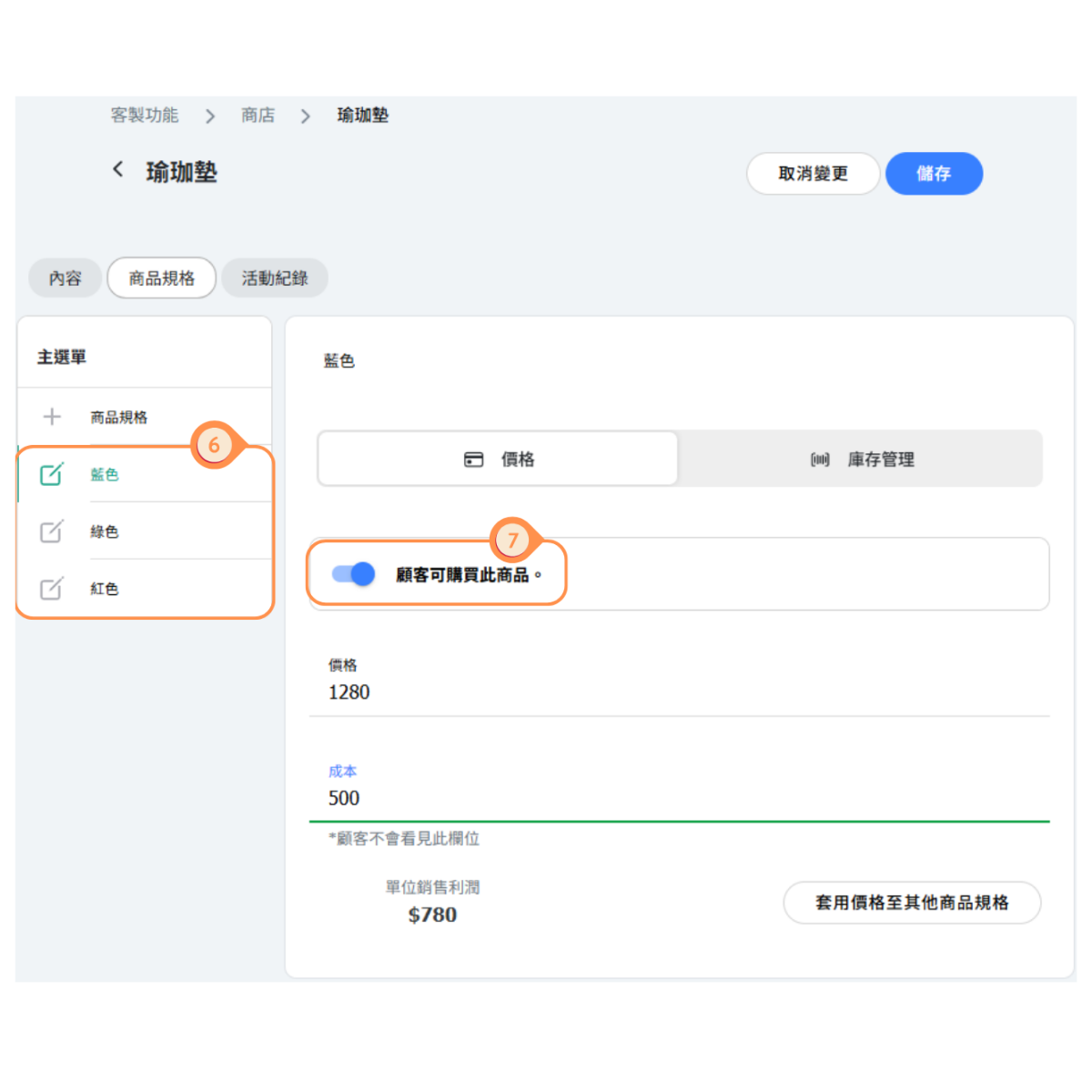
- Select a color from the left and set the price for each individual specification.
- Enable the Customer Can Purchase This Product switch so that customers can buy the item.
- After adding the product, you can open it from the list to edit its content again.
Selling Digital Media Products
You can sell digital content like audio files, videos, and downloadable materials. Customers can access their purchased media from their account after payment.
Setting Up Media Products:
- Create a new product or edit an existing one
- In the product details, look for the Media option
- Upload your digital files (MP3, video files, PDFs, etc.)
- Set pricing for the media product
- Enable the product for purchase
Popular Digital Product Ideas:
- Audio - Guided meditation MP3s, workout playlists, class recordings
- Video - Recorded classes, tutorial videos, training programs
- Documents - Workout plans, nutrition guides, ebooks
Customer Access:
After purchase, customers can access their digital content from their account page. They can stream or download the files depending on the format.
Managing Product Visibility
Control which products customers can see and purchase:
Product Availability Toggle:
In the Variants tab, use "This item is available to purchase" to control whether customers can buy the variant. Disabled variants are visible but show as "Coming Soon" or unavailable.
[Instructions]
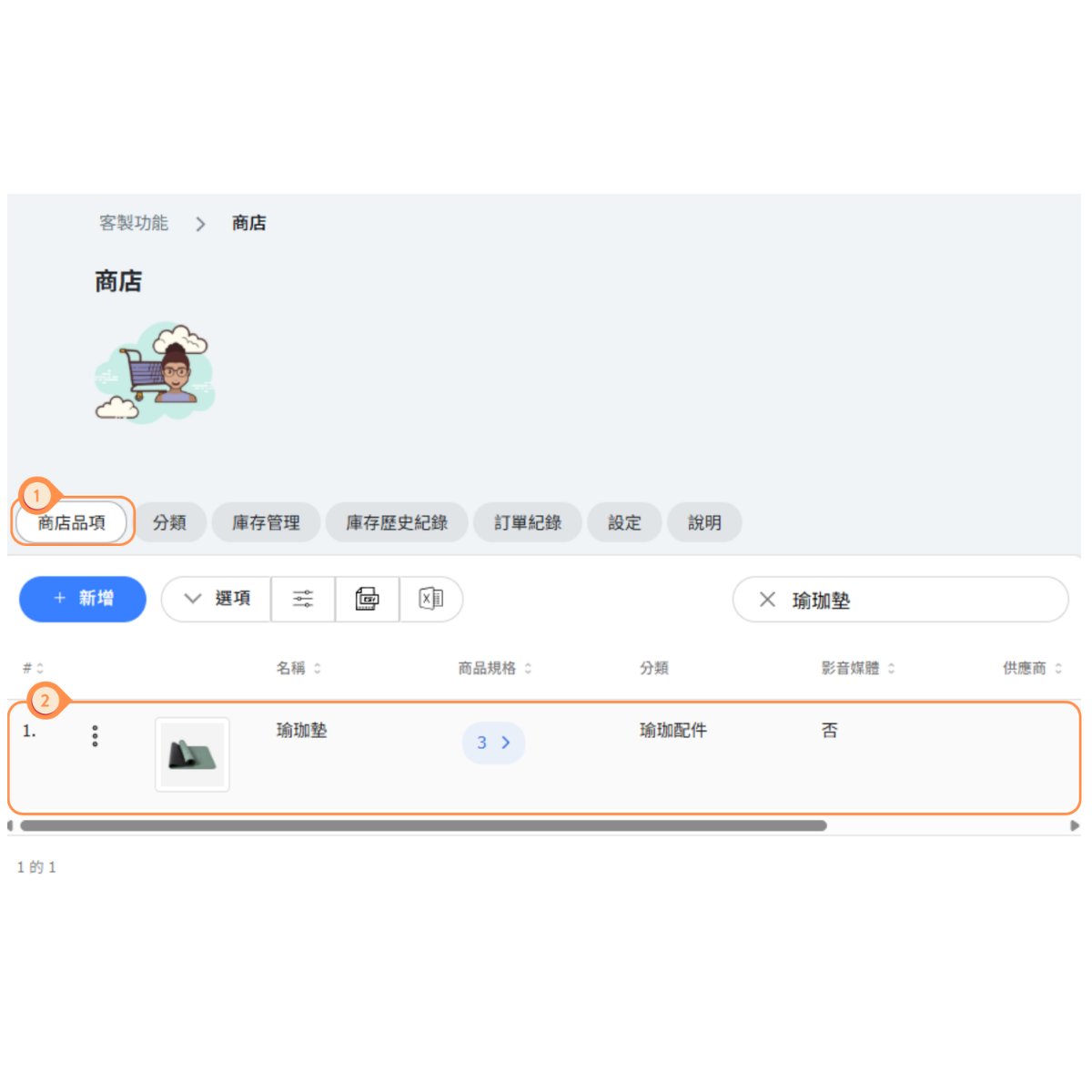
- Go to the Store Items tab.
- Click on a product.
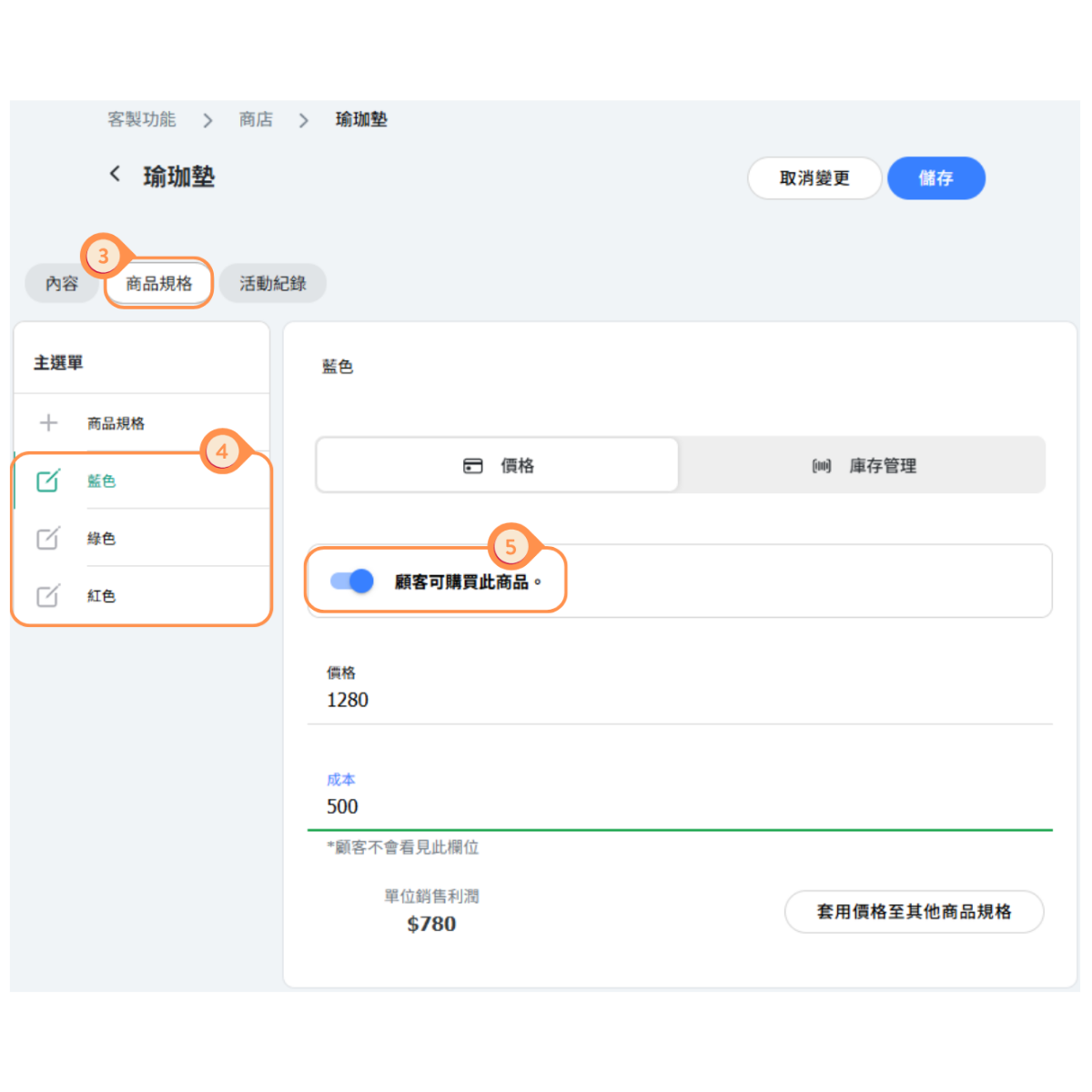
- Select the Product Specifications tab.
- Choose a specification from the left
- Enable the Purchasable switch for that specification.
Archiving Products:
To temporarily hide a product from customers without deleting it:
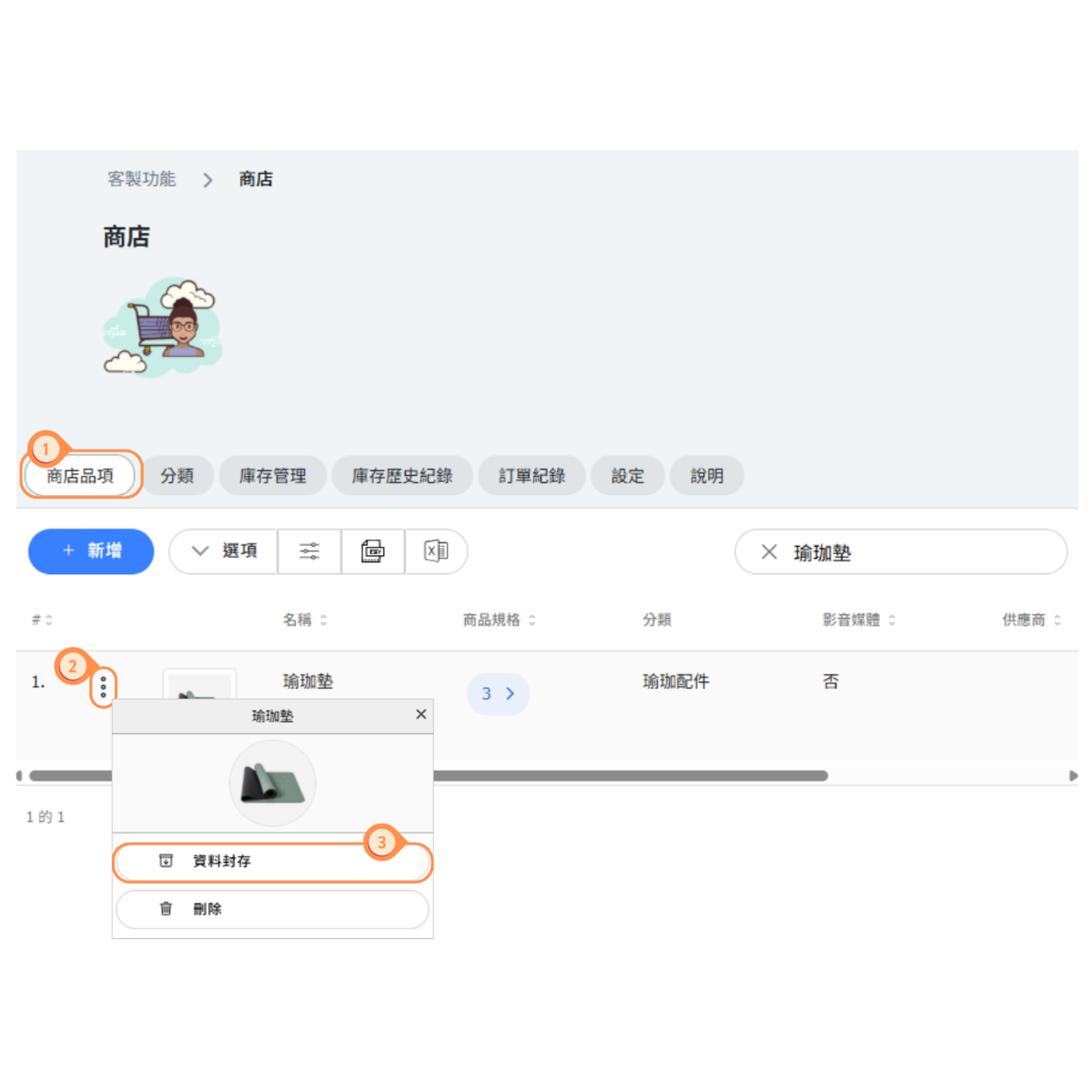
- Open the product in the Store Items tab.
- Click the product’s Actions menu.
- Select Archive.
To restore an archived product, find it in the archived items list and unarchive it.


