
Viewing All Purchases
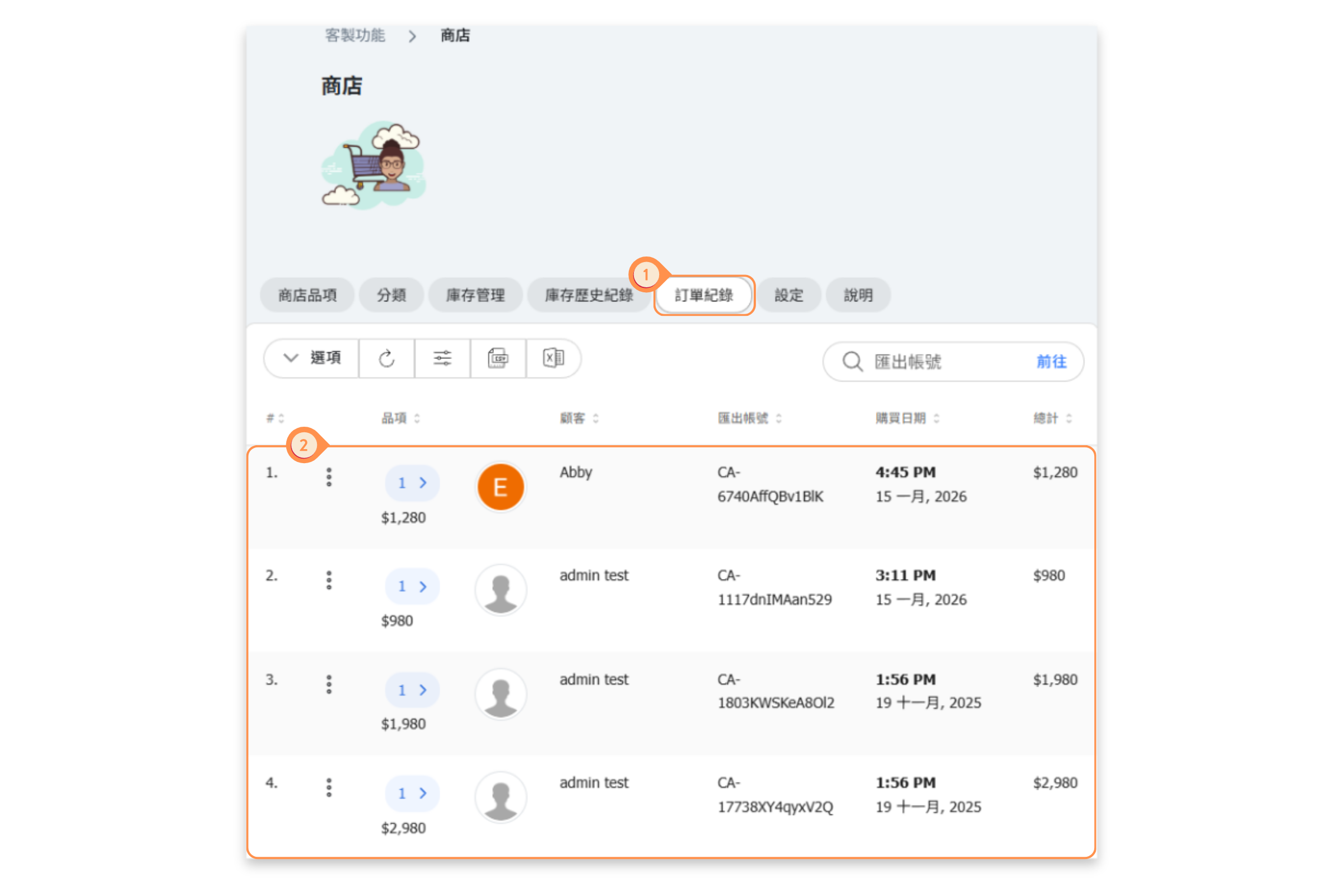
The Purchases tab gives you a complete view of all customer orders in your shop.
Accessing Purchases:
- Go to Shop → Purchases tab
- View the list of all orders with key information
Information Displayed:
- Items - Number of items in the order with item badge and total price
- Customer - Customer name with profile picture
- Reference Number - Unique order ID (e.g., BT-9545rATFAzSMFE-OB-123123)
- Purchase Date - Date and time of order
- Total - Order total amount
- Reward Used - Any loyalty points or rewards applied
Finding Specific Orders:
Use the search box to find orders by reference number. Enter the reference number and click GO to search.
Order Details
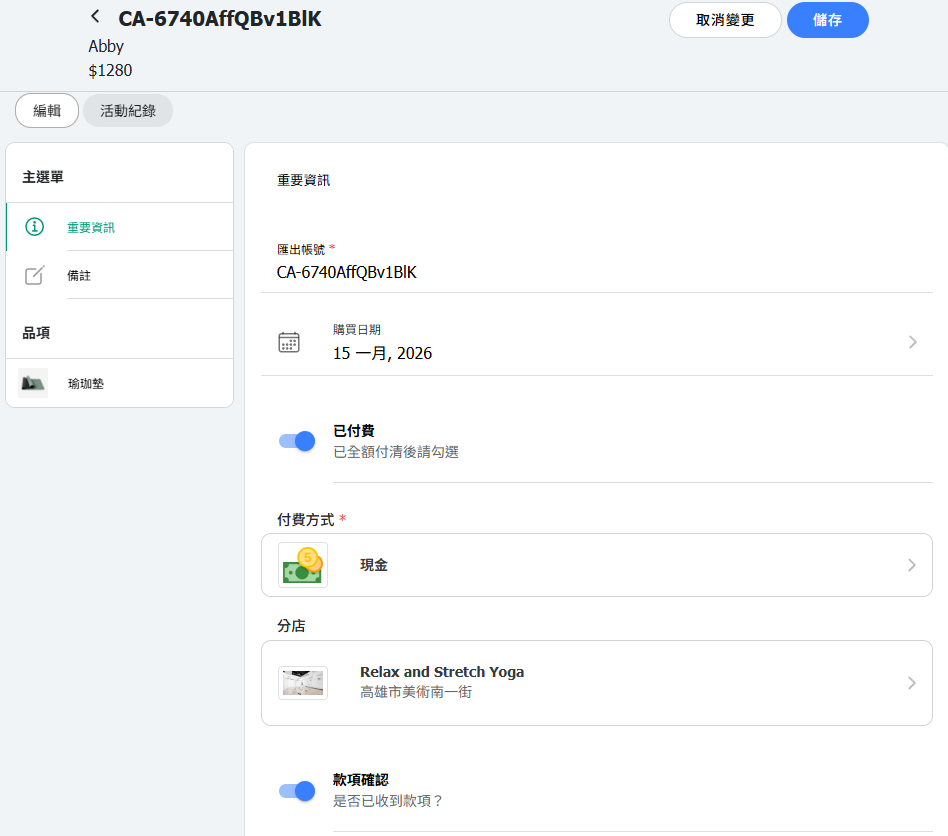
Click any order to view its full details:
Order Information:
-
Customer Details – Customer name
-
Order Items – List of purchased products, including specifications, quantity, and price
-
Payment Status – Unpaid, Pending Verification, or Paid
-
Delivery Status – Not Picked Up or Picked Up
-
Order History – Order placement time and status changes
Available Actions:
-
Verify Payment
-
Mark as Delivered/Picked Up
-
Add Notes to the Order
Verifying Payments
For orders paid via bank transfer or other manual payment methods, you need to verify the payment before processing.
Payment Verification Process:
- Check your bank account or payment records for the customer's payment
- Match the payment amount with the order total
- Match the reference number if provided by the customer
- In the order details, click Verify Payment or similar action
- The order status will update to "Payment Verified"
What Happens After Verification:
- Inventory is adjusted (if "Verify Bank Transfer" setting is enabled)
- Order moves to fulfillment/delivery stage
- Customer receives confirmation notification
[Instructions]
-
Click the “Order History” tab on the Store page.
-
Click the button on the left side of the order to view the order details.
If the customer has collected the items, click “Picked Up”.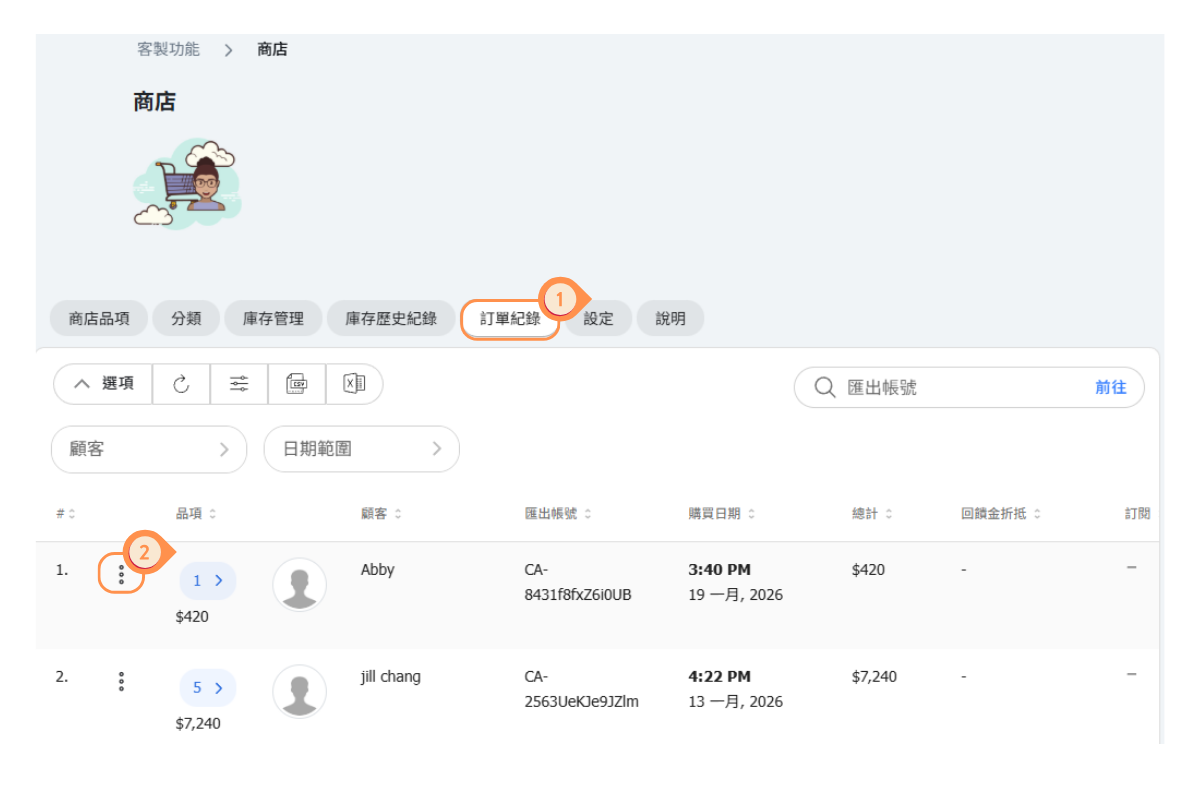
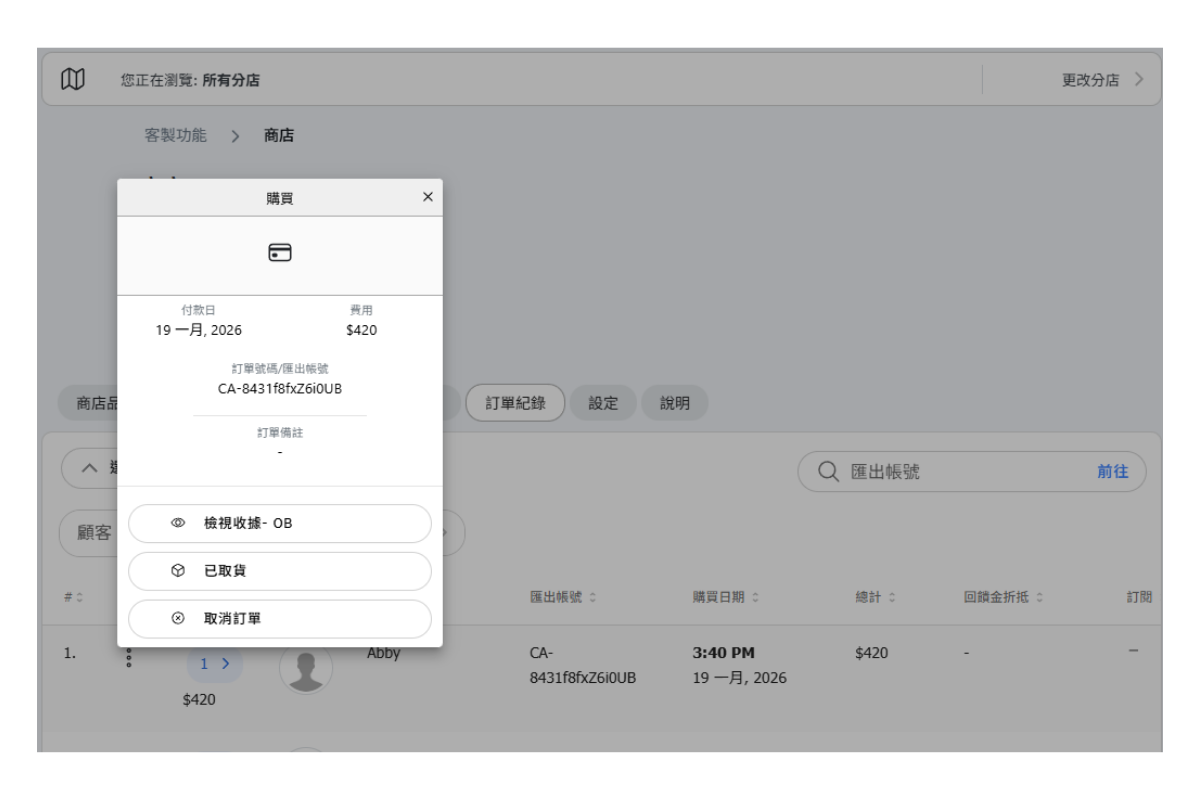
If the product has been picked up but payment has not been completed, you can check the order under Operations Overview > Order Payments > Unconfirmed Payments.
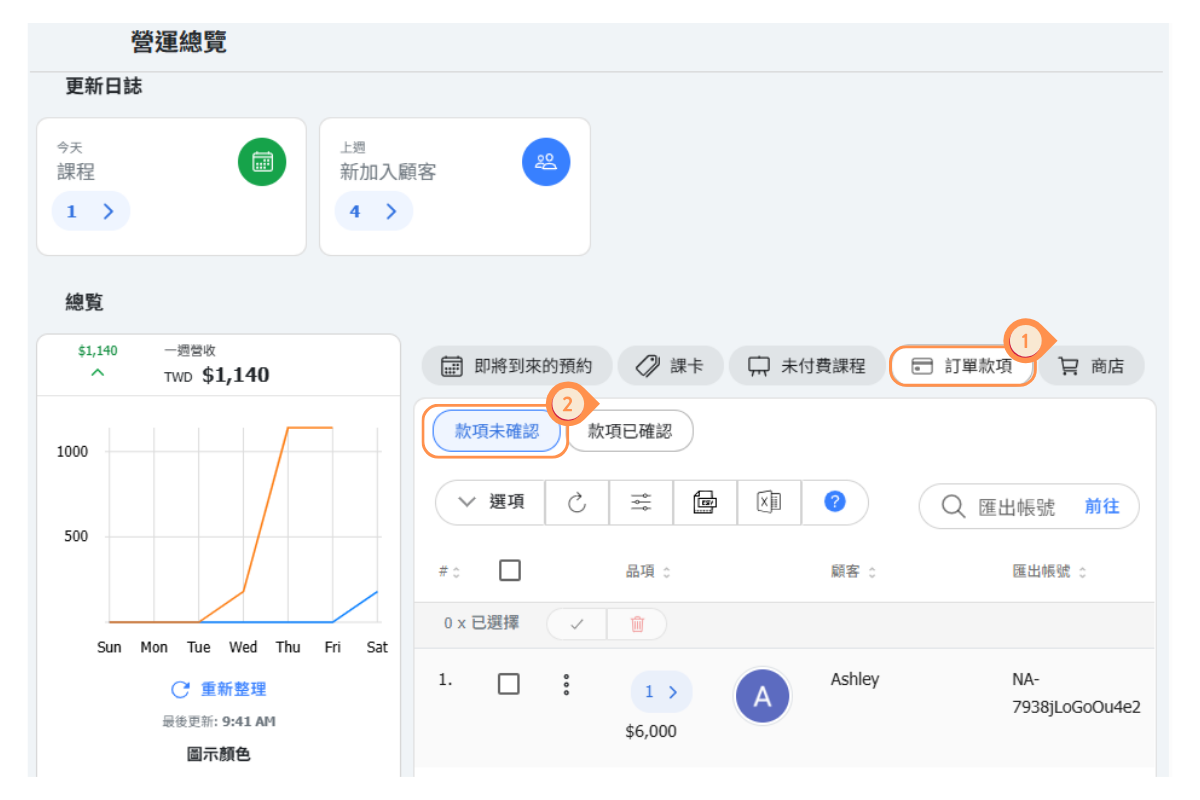
Confirming Delivery or Pickup
After payment is verified and the order has been fulfilled, confirm that the customer has received the product.
For delivery orders:
-
Deliver the product to the customer’s address.
-
After delivery, open the order history.
-
Click the three-dot button on the order and select “Picked Up.”
For self-pickup orders:
-
Prepare the product at your location.
-
When the customer picks up the product, open the order history.
-
Click the three-dot button on the order and select “Picked Up.”
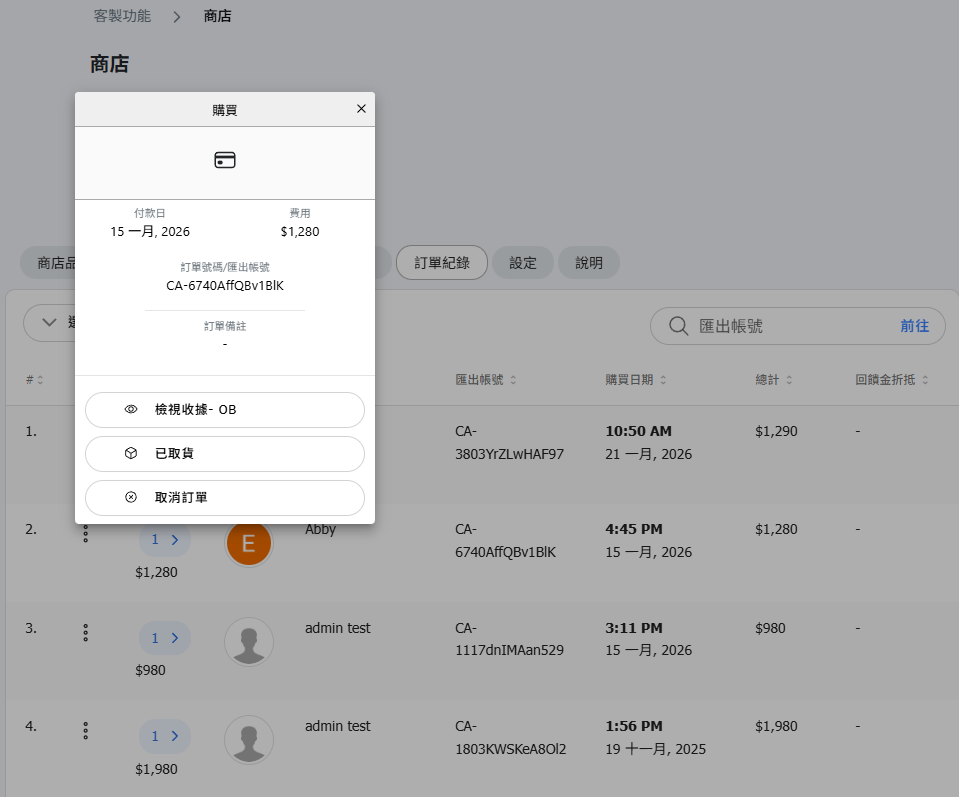
Purchase Filters and Options
Use filters and options to manage your purchase list efficiently:
Options Menu:
Click OPTIONS to access additional features:
- Filter by payment status (pending, verified, completed)
- Filter by delivery status
- Filter by date range
- Sort by different columns
- Export purchase data
Toolbar Actions:
- Refresh - Update the purchase list with latest orders
- Filters - Apply various filters
- Export - Download purchase data for reporting
Column Sorting:
Click on column headers (Items, Customer, Reference number, Purchase date, Total, Reward used) to sort the list by that column.


