
What is the Shop Feature?
The Shop feature transforms your booking system into a complete e-commerce platform. You can sell physical products like yoga mats, equipment, and merchandise alongside your services. The shop also supports digital media items such as MP3 audio files, videos, and downloadable content that customers can access from their account after purchase.
Key capabilities:
- Physical Products - Sell equipment, merchandise, apparel, and accessories
- Digital Media - Offer downloadable audio, video, and digital content
- Product Variants - Manage different sizes, colors, or options for a single product
- Inventory Tracking - Monitor stock levels automatically or manually
- Multi-Location Support - Manage separate inventory for each business location
- Course Add-ons - Allow customers to purchase products when booking classes
Shop Setup Sequence
Follow these steps in order to set up your shop successfully:
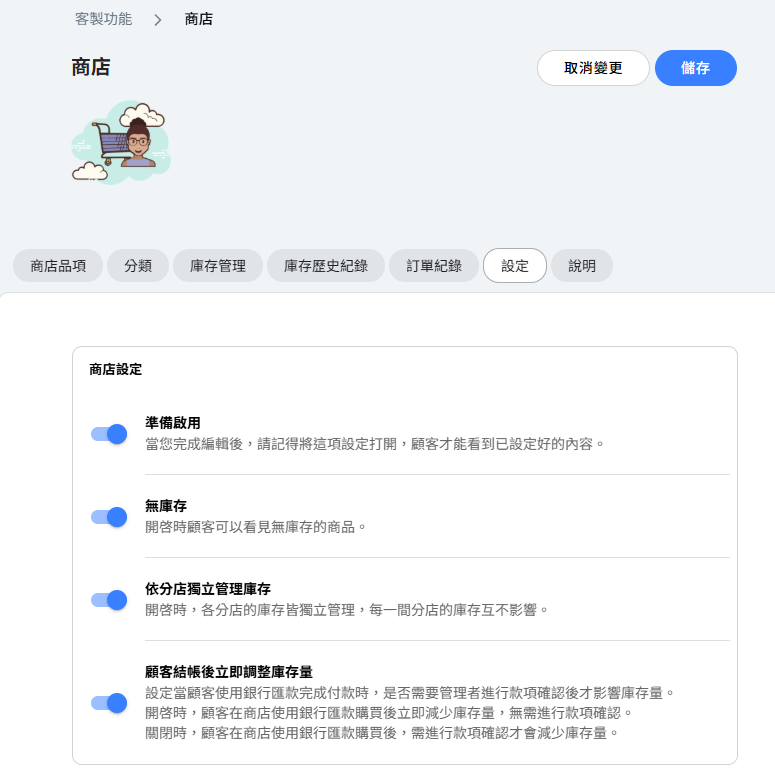
- Settings - Configure shop settings including visibility and inventory options
- Categories - Create product categories to organize your shop
- Shop Items - Add your products with images, descriptions, and pricing
- Inventory - Set initial stock quantities for each product variant
Once setup is complete, enable "Ready to go" in Settings to make your shop visible to customers.
Shop Tabs Overview
The Shop feature is organized into several tabs:
- Shop Items - View, add, and manage all your products. See product names, variants, categories, media attachments, and vendors at a glance.
- Categories - Create and organize product categories in a hierarchical tree structure. Categories help customers browse and find products.
- Inventory - View and adjust stock quantities for all products. Use ADD to increase stock or SET to specify exact quantities.
- Inventory Log - Track all inventory changes with timestamps, reasons, and notes for audit purposes.
- Purchases - View all customer orders with reference numbers, purchase dates, totals, and payment status.
- Settings - Configure shop behavior including visibility, out-of-stock display, multi-location inventory, and payment verification.
- How It Works - Built-in guide explaining the shop setup and operation process.
Customer Shopping Experience
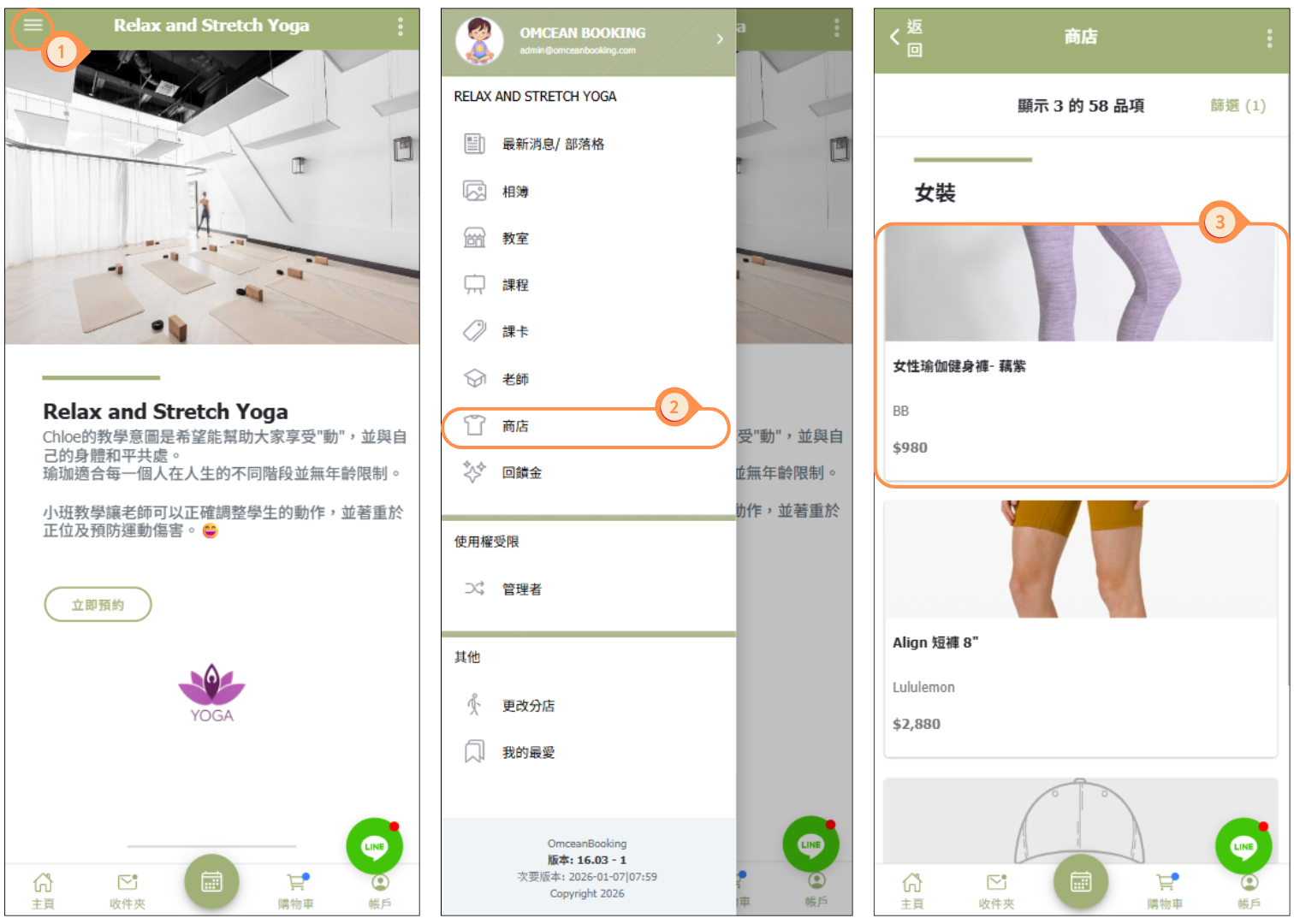
When your shop is enabled, customers can access it from the navigation menu in their account. The shopping experience includes:
- Location Selection - If multi-location inventory is enabled, customers first select their preferred store location
- Category Browsing - Products are organized by the categories you create
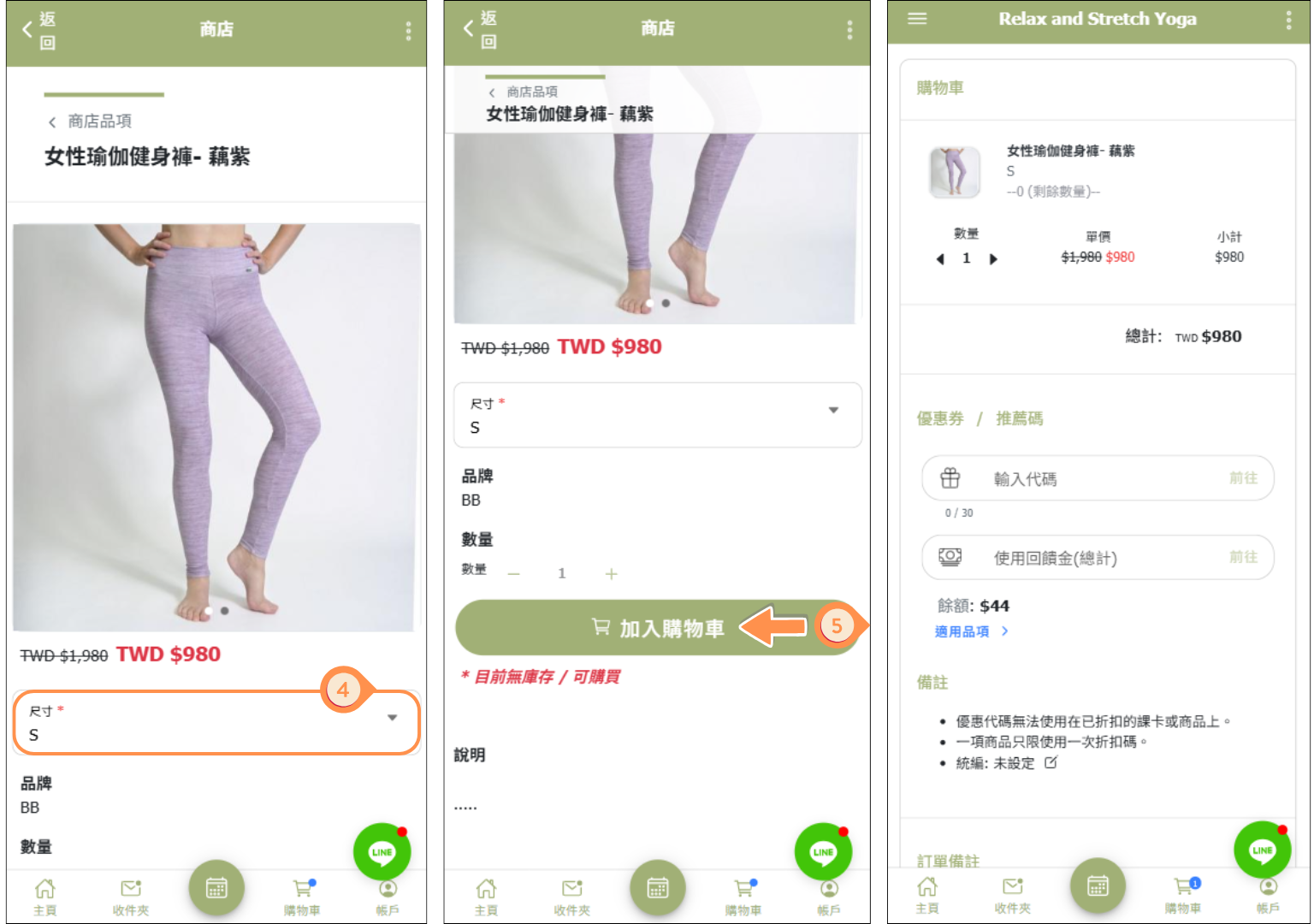
- Product Details - Customers can view product images, descriptions, prices, and available variants
- Variant Selection - Choose size, color, or other options before adding to cart
- Shopping Cart - Review items, quantities, and totals before checkout
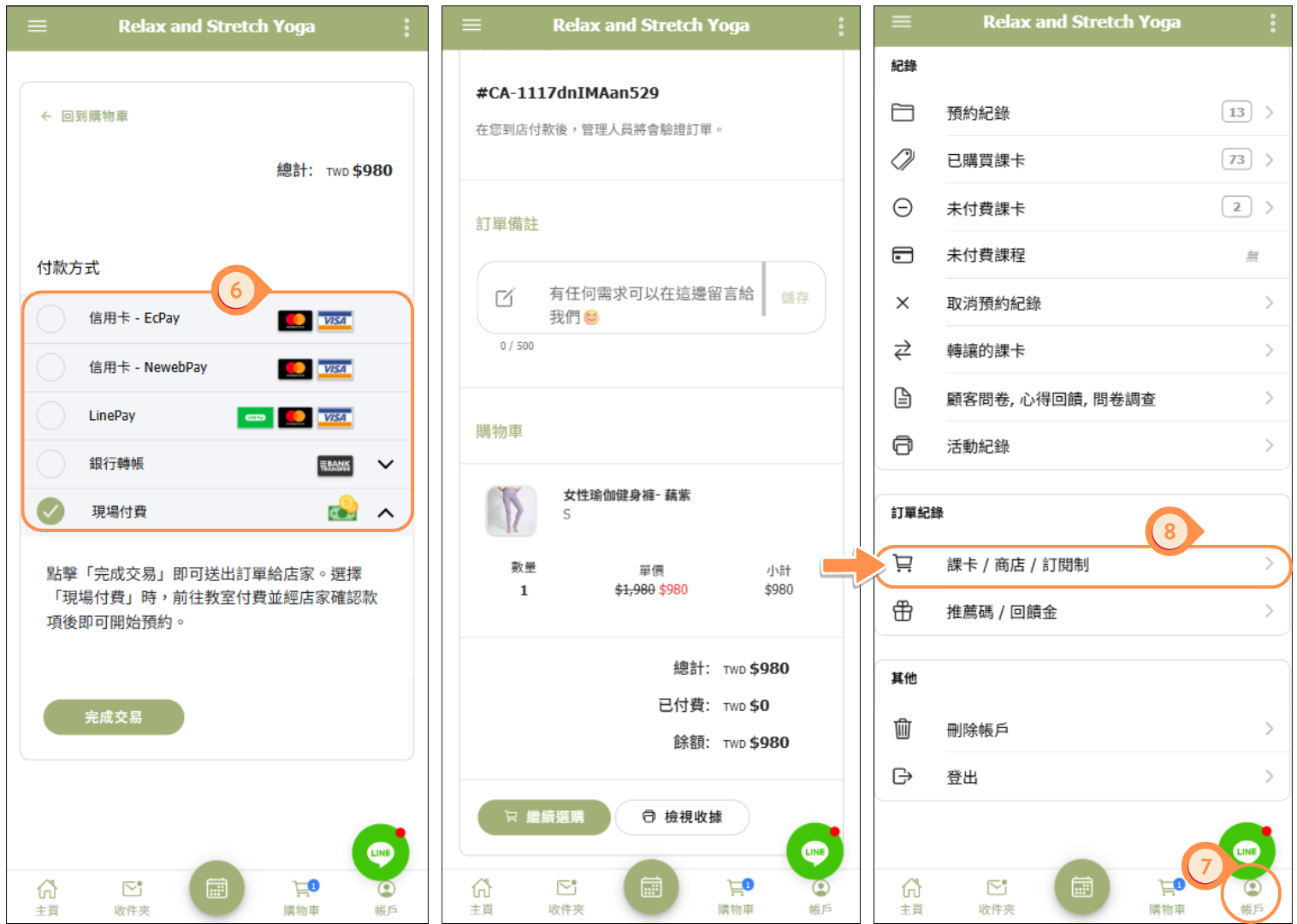
- Checkout - Complete purchase with available payment methods
[Instructions]
1. Click the menu on the left side.
2. Select Store from the menu.
3. Choose the product you want to purchase.
4. Select the desired size or specification.
5. Click Add to Cart.
6. Choose a payment method and complete your order.
7. After submitting the order, click Account at the bottom right of the screen.
8. Select Pass / Store / Subscription to view your order history.
Related Articles
Learn more about specific Shop features in these detailed guides:
- Shop Products & Variants - Complete guide to adding products, setting up variants (sizes, colors), pricing, and product media
- Shop Inventory Management - Managing stock levels, tracking inventory changes, and handling multi-location inventory
- Shop Orders & Purchases - Processing orders, verifying payments, and managing customer purchases
- Shop Troubleshooting - Solutions to common issues like products not appearing, inventory problems, and pricing errors



