Role Permissions Management
"Role and Permission" is a job permission management system that replaces the previous account permission settings. In addition to the default "core roles" of administrators and instructors, it also allows for "custom roles" to assign and manage permissions for each staff member based on their position and duties (e.g., assistants, part-time teachers, front desk staff, janitors, etc.).
Advantages: The user-friendly permission management approach will significantly enhance the privacy of enterprise operational data, making it more convenient to ensure that confidential information is not leaked. This provides businesses with additional security.
Tutorial Video
Where is Permissions Settings?
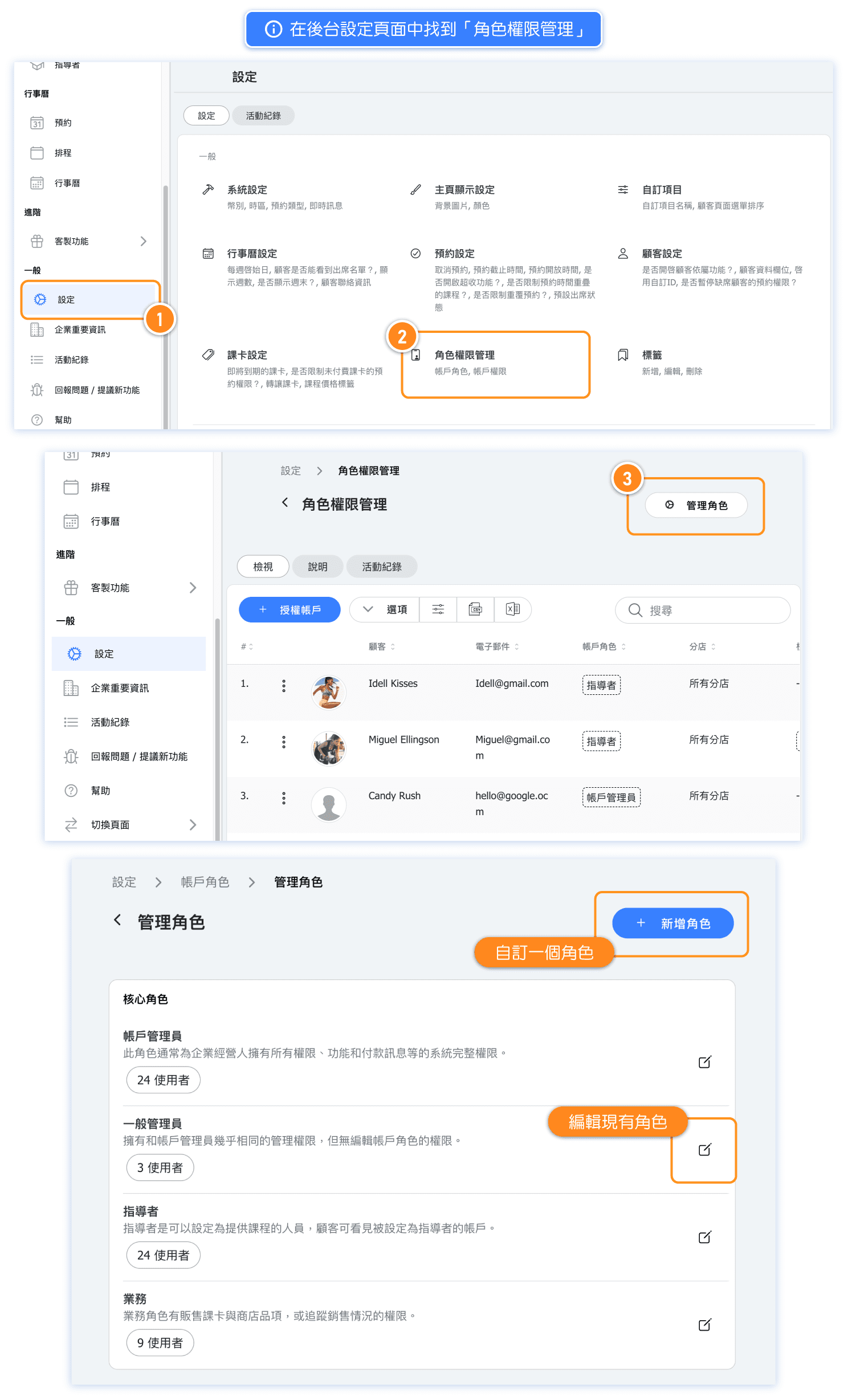
In the admin settings page, locate "Role and Permissions" as shown in the image below:
[Instructions]
-
Click Settings in the left menu.
-
Select Role & Permission Management.
-
Click Manage Roles.
-
You can choose to add a new role or edit an existing role.
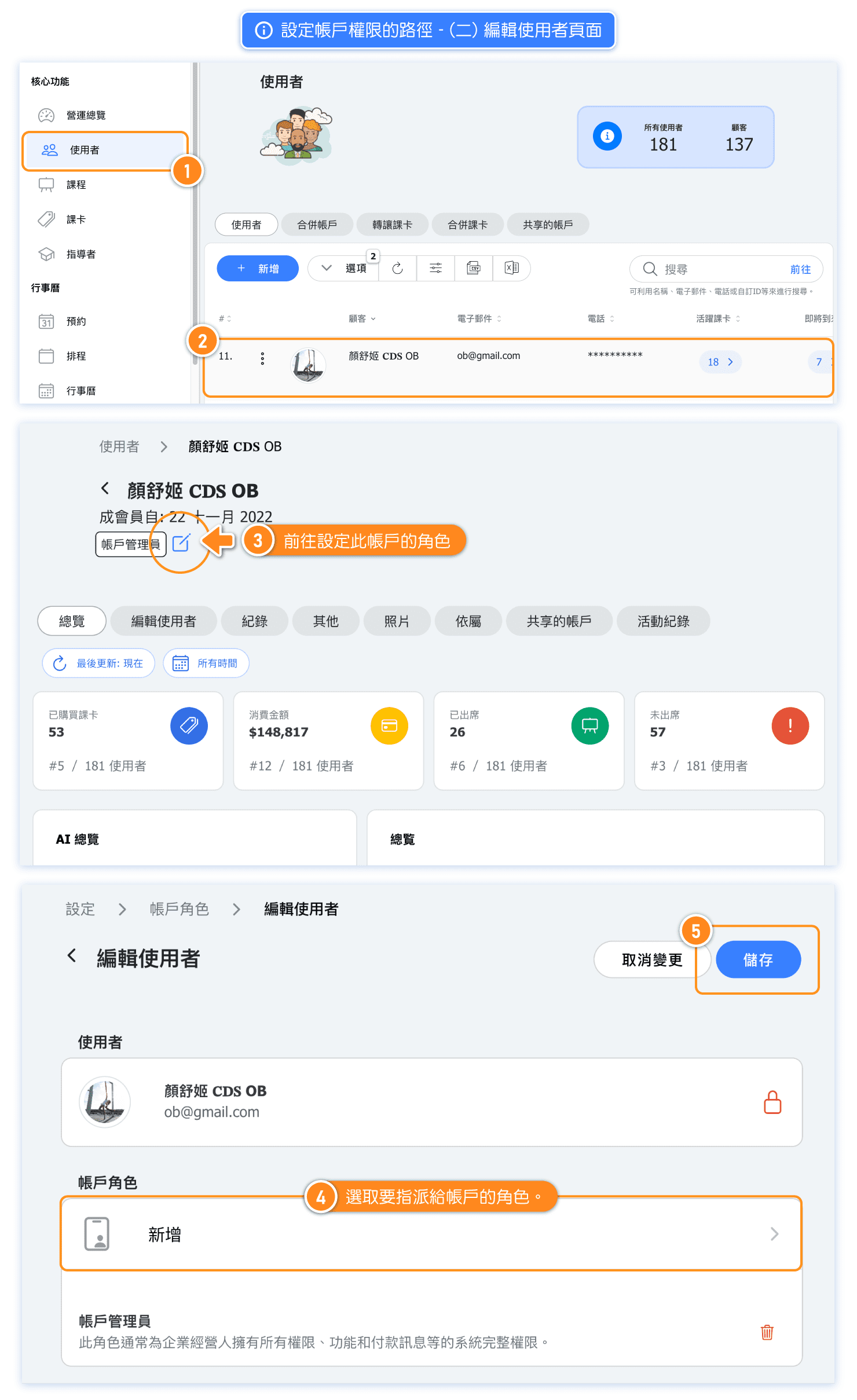
In the user interface, locate the "Account Role" settings.
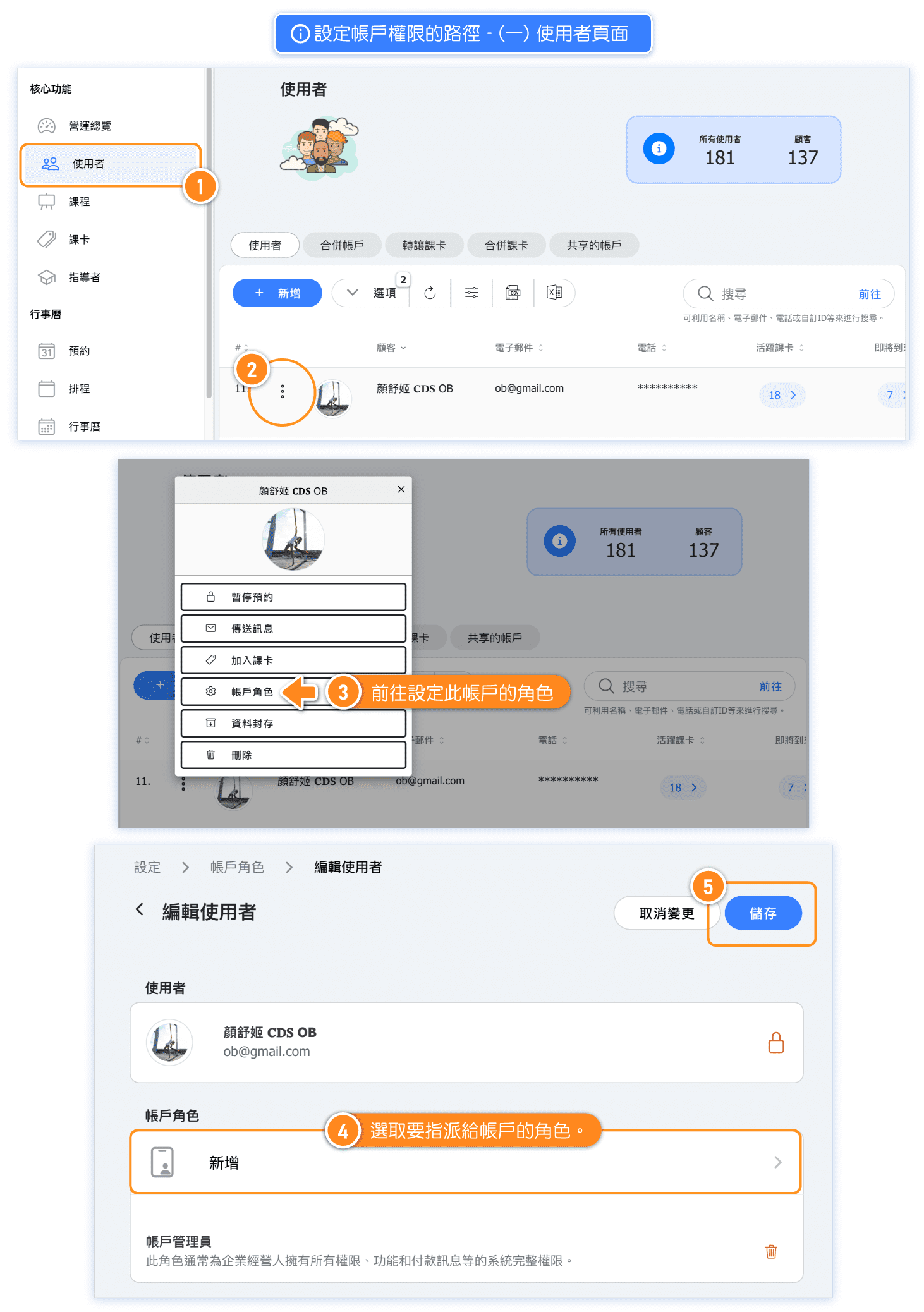
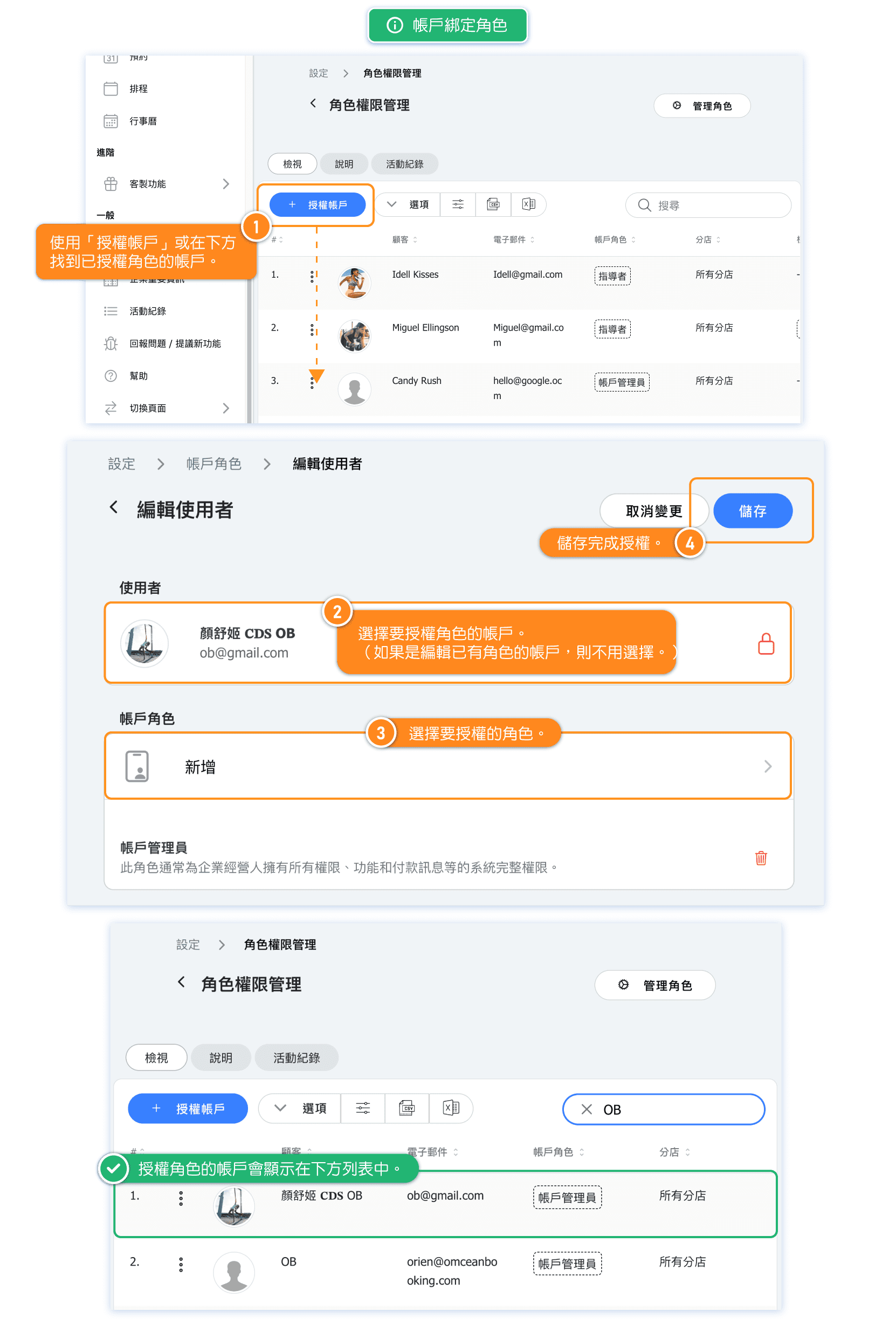
If you need to set the permissions for individual accounts, find the corresponding path for setting the permissions for that account on the user page. (As shown in the image below)
[Instructions]
- Click Users in the left menu.
- Click the button (three dots) to the left of a user.
- Select Account Roles.
- Click Add.
- Click Save.
[Instructions]
- Click Users in the left menu.
- Click on a user.
- Click the Edit icon.
- Click Add.
- Click Save.
What is "Core Roles"?
"Core roles" are the system's default roles, and there are four of them. To assign a teacher to classes, they must have the Instructor role. To include someone in sales commission settings, they must have the Sales role.
Account Admin: Usually assigned to the business owner, this role has full access to all system features. Permissions cannot be edited.
-
Manager: Has nearly the same access as the Account Admin, but can’t manage roles or view financial-related pages.
-
Instructor: Required for anyone teaching classes. Instructors will appear on the system’s instructor page, but they can’t view or edit other instructors’ info.
-
Salesperson: Can sell passes and store items, and track their own sales.
Note: While the Account Admin’s permissions are fixed, the other three core roles can be customized to suit your team’s needs.
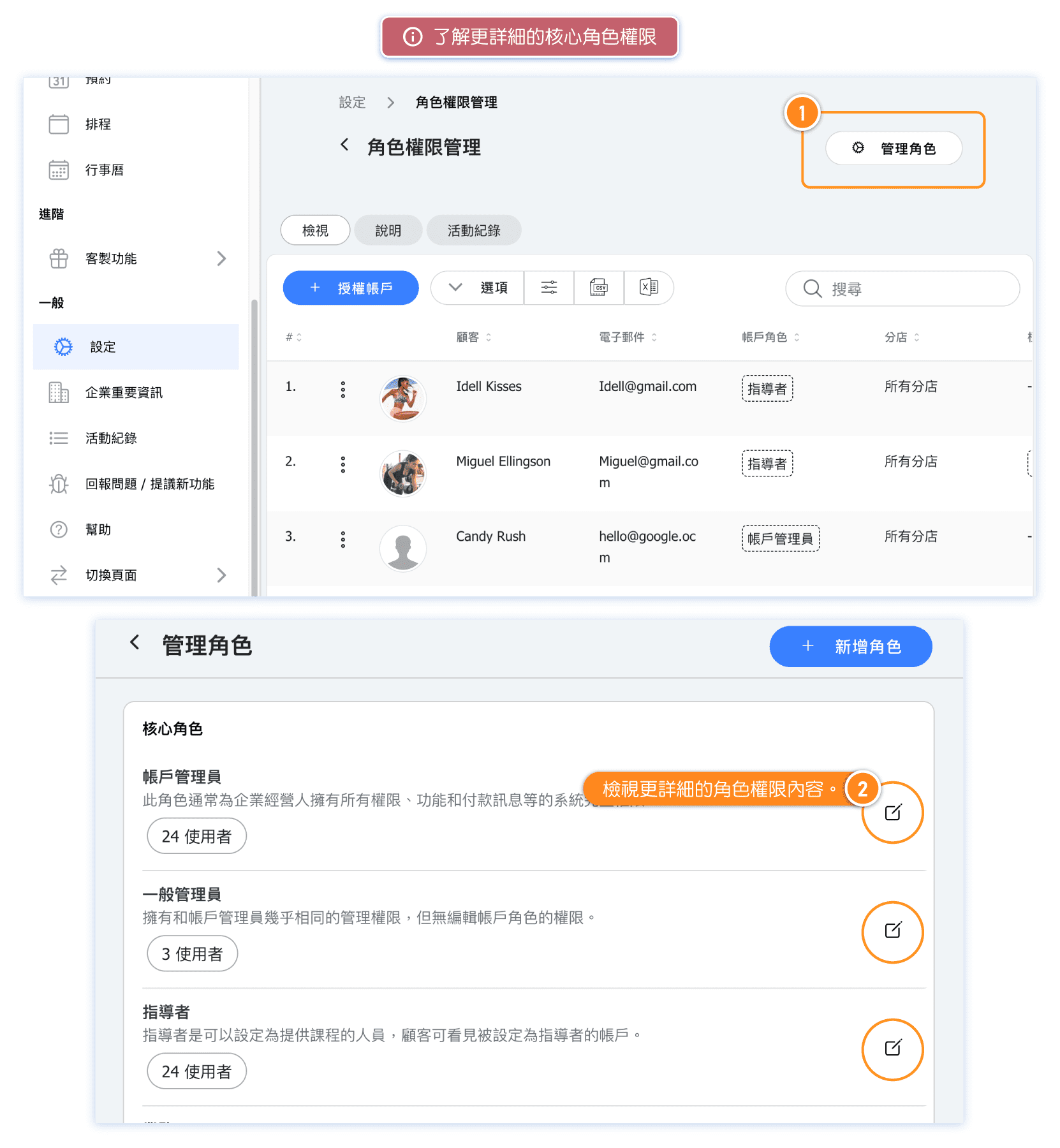
[Instructions]
-
Click Manage Roles.
-
Click the Edit icon on the far right of a role.
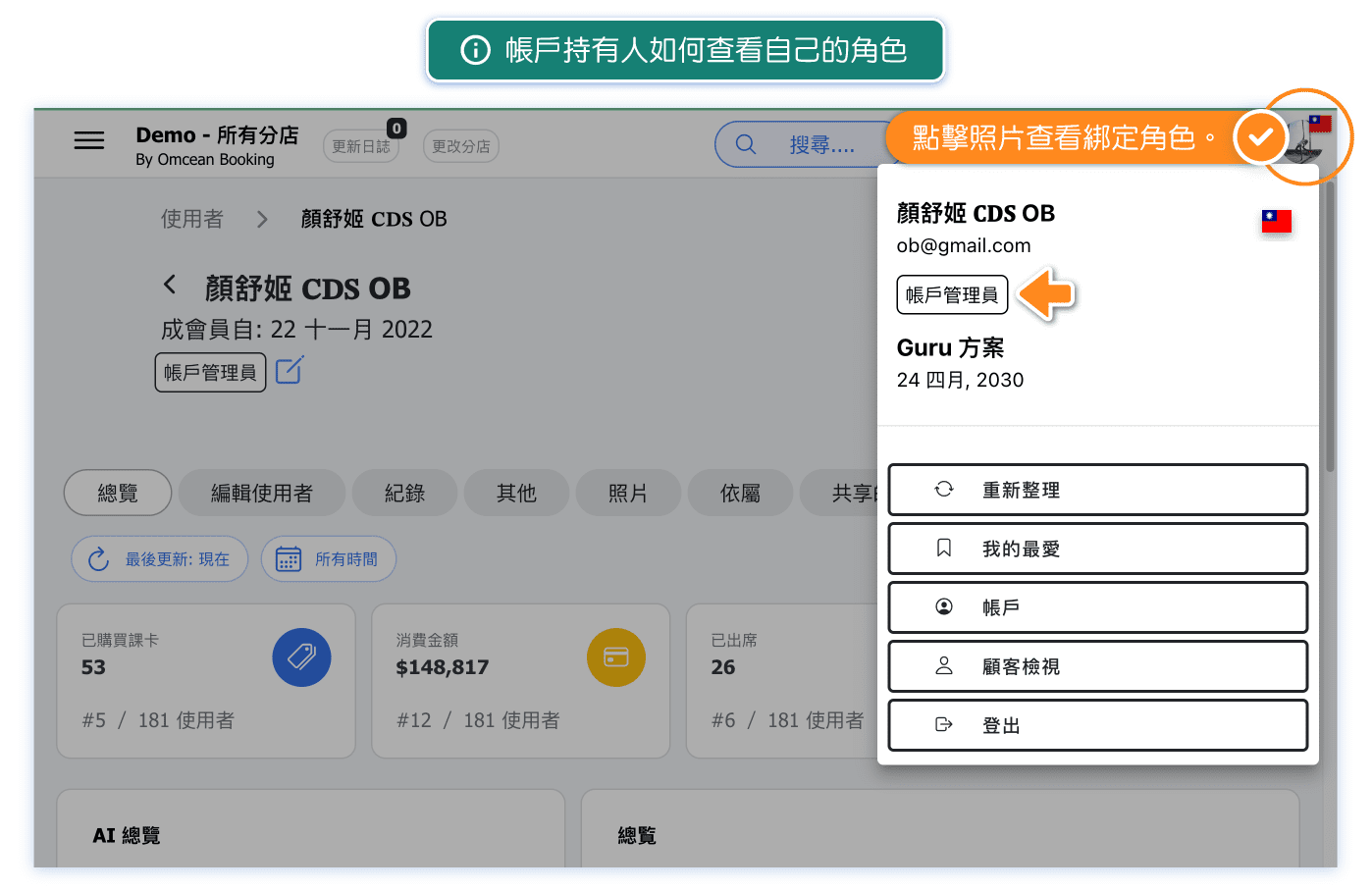
How the Account Holder Can View Their Own Role
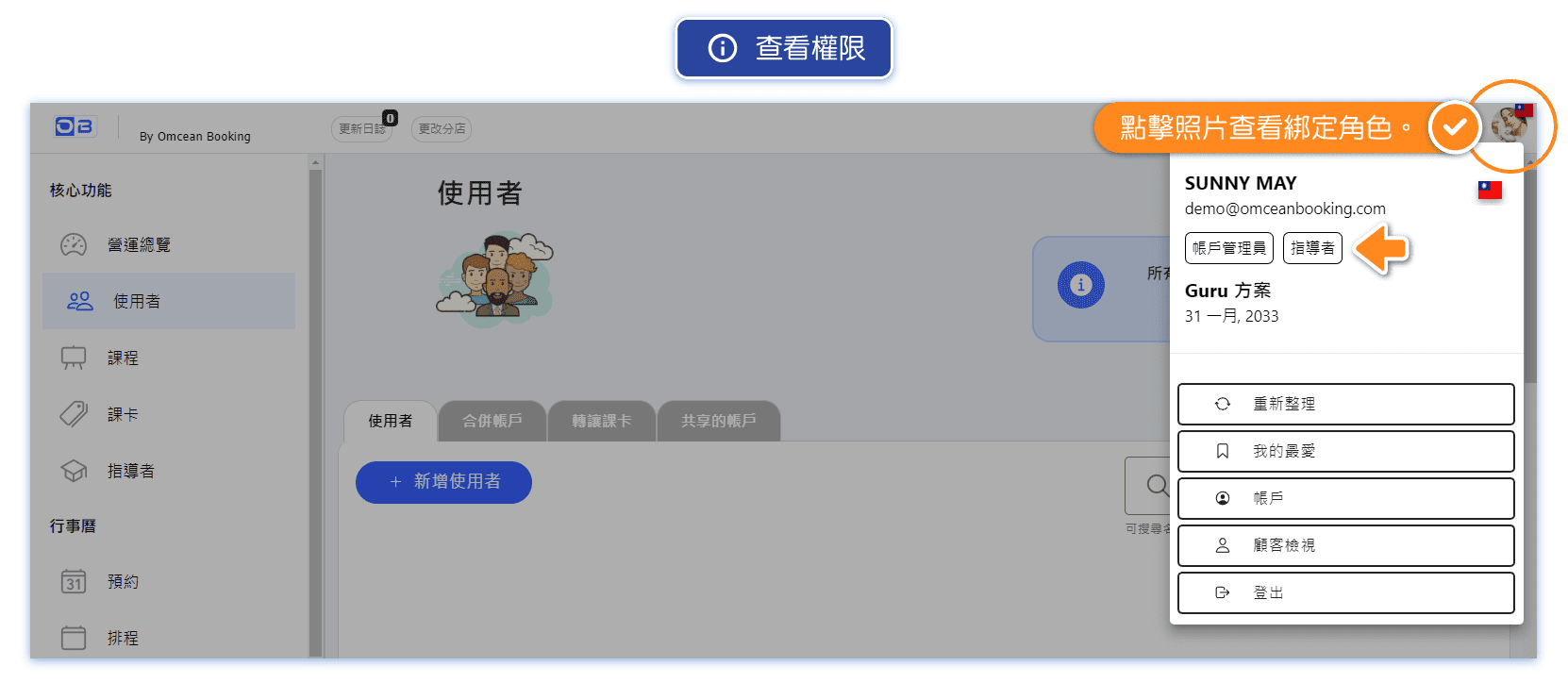
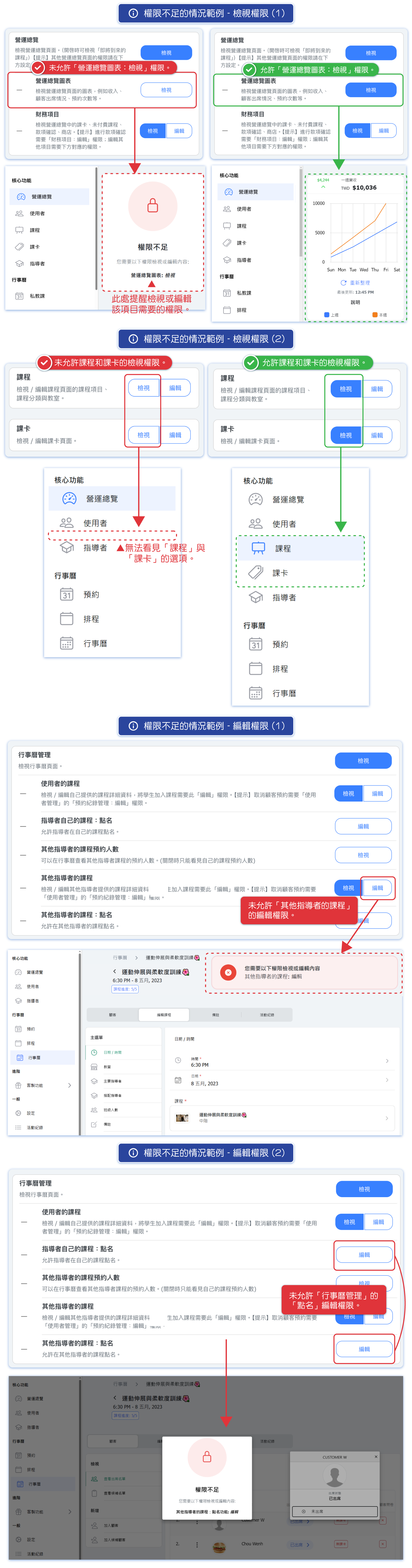
Examples of Insufficient Permissions
How to Edit
💡 Editing Tip: Set role permissions first, then grant roles to accounts.
Tip: An account can be associated with multiple roles, and a role can be associated with multiple accounts.
Tip: If an account is already on the authorization list, simply click on the account to edit when adding a new role.
A. How to Adjust Core Role Permissions
Navigate to the "Role and Permissions" page and click the "Manage Roles" button on the top right to access the role editing page. Adjust the permissions of existing core roles from there.
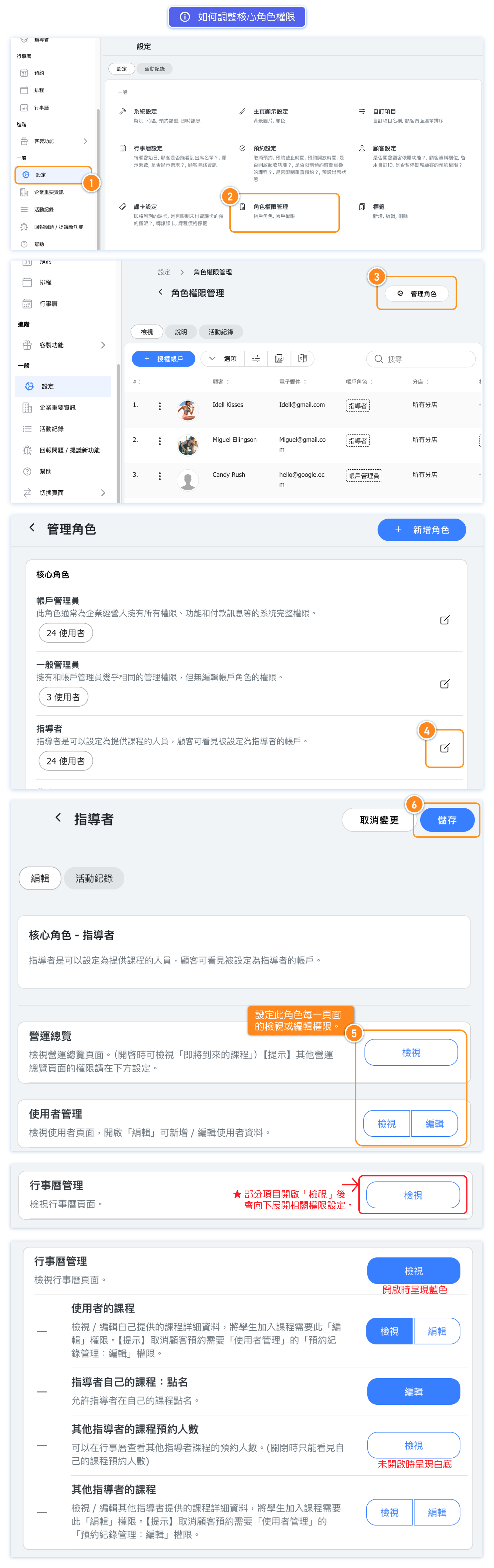
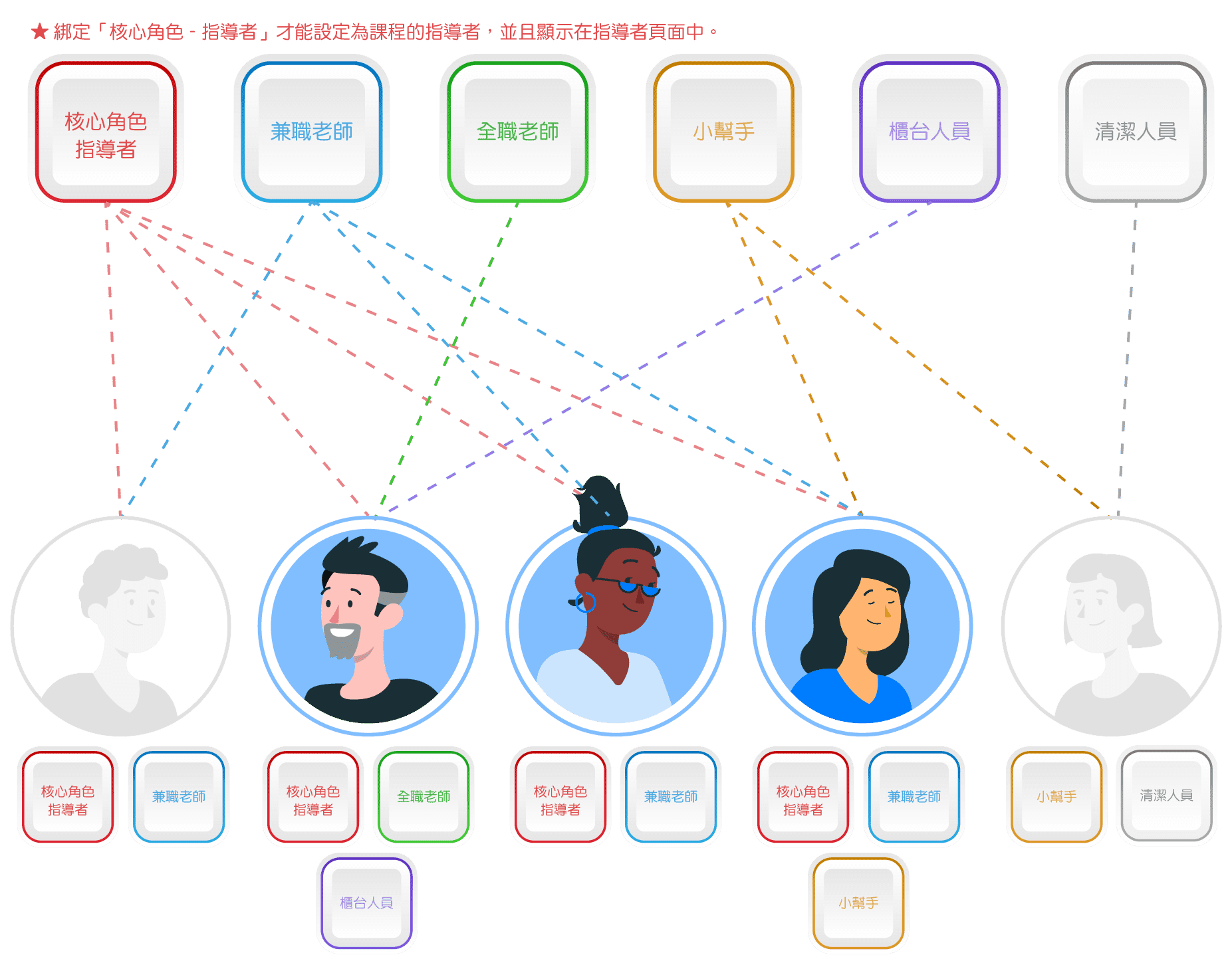
💡 Tip: If each instructor at the business has different permissions, you can set the core role "Instructor" with minimal permissions and then create multiple custom roles with different permissions. Authorize according to the instructor's permissions "Core Role - Instructor" + "Different Roles".
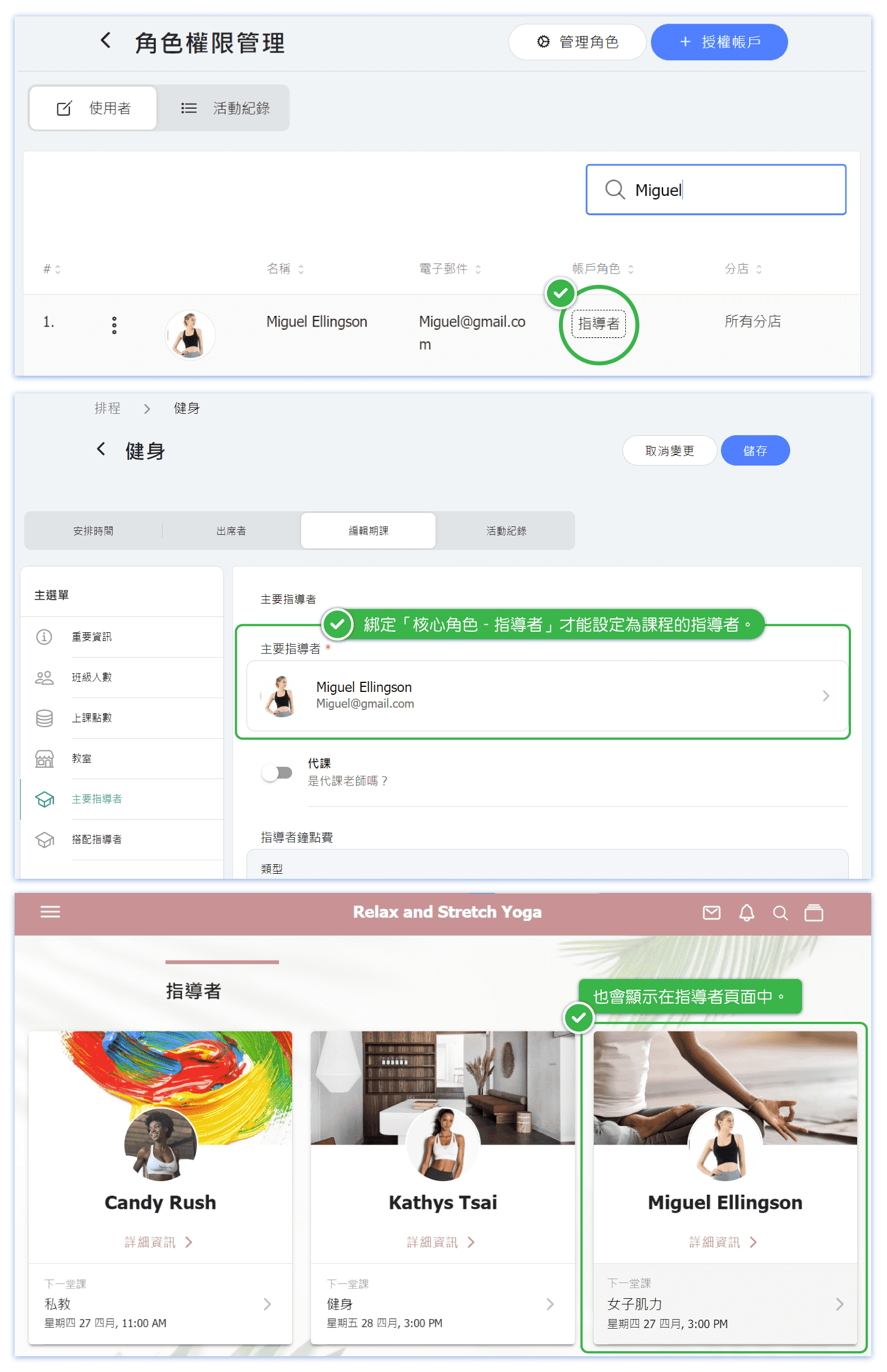
💡 Binding the "Core Role - Instructor" is necessary to be designated as a course instructor and to appear on the instructor page.
*This scenario applies to businesses that want to grant different permissions to different instructors.
*For example: Instructor A is only authorized for attendance, while Instructor B is authorized to edit their own courses.
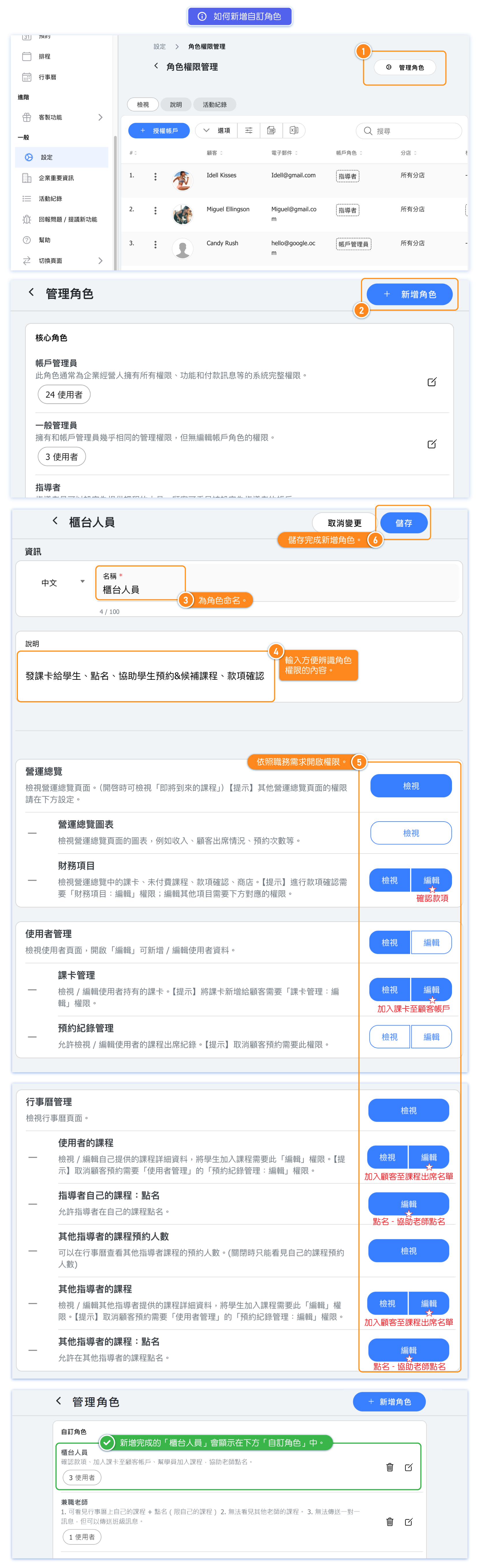
How to Add Custom Roles
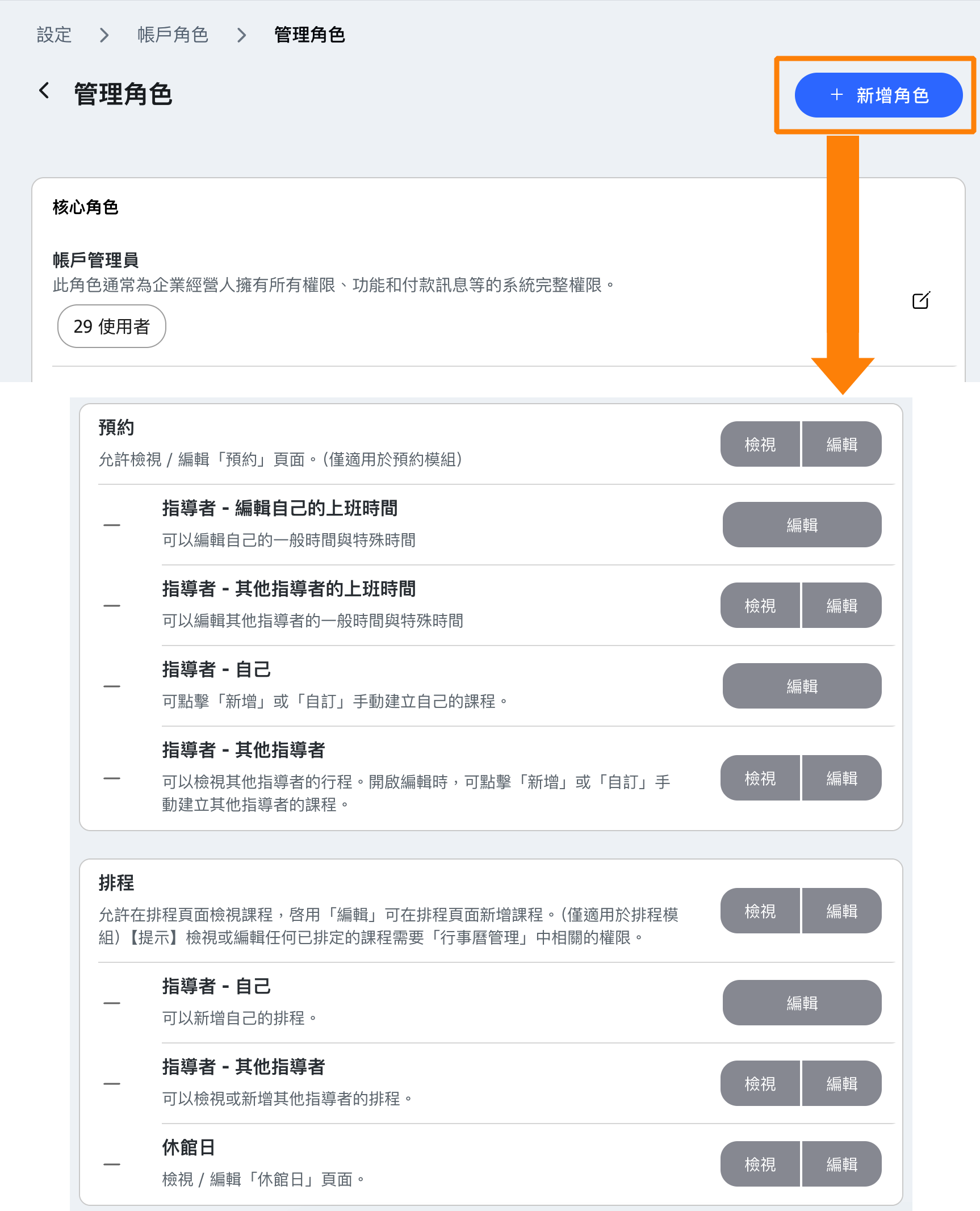
From the "Role and Permissions" page, click on the "Manage Roles" button in the upper right corner. Then, utilize the "Add Role" button located at the top right to create a custom role.
📌 FAQ: I have instructors with different permission needs. How should I set that up?
The core role "Instructor" is the basic role that must be assigned to every teacher.
Only with this role can someone be assigned to teach classes in the scheduling system. It acts as the foundation of an instructor’s identity in the system.
However, since instructors may have different responsibilities, their required system permissions can vary. Here are two common scenarios:
1. Part-Time Instructor
- Can manage their own classes,
- Take attendance for their own classes,
- Cannot view bookings for other instructors' classes.
2. Full-Time Instructor
- Can manage any instructor's classes,
- Take attendance for any instructor's classes,
- Can view numbers of attendees for all classes.
You might ask:
"Why not just include all permissions in the core 'Instructor' role?"🤔
>> If all permissions were bundled into one role, every instructor (regardless of being part-time or full-time) would have the same level of access. That would remove flexibility and limit your ability to protect sensitive information.😓
The solution
✅ Use the core role "Instructor" to grant the minimum shared permissions (suitable for part-time instructors).
✅ Then, create additional roles as needed (e.g., "Full-Time Instructor") and assign extra permissions accordingly.
---------- The example of how 2 permissions setup ----------
1. Core Role - Instructor (Part-time Instructors Permission)
*The basic role of Instructor.
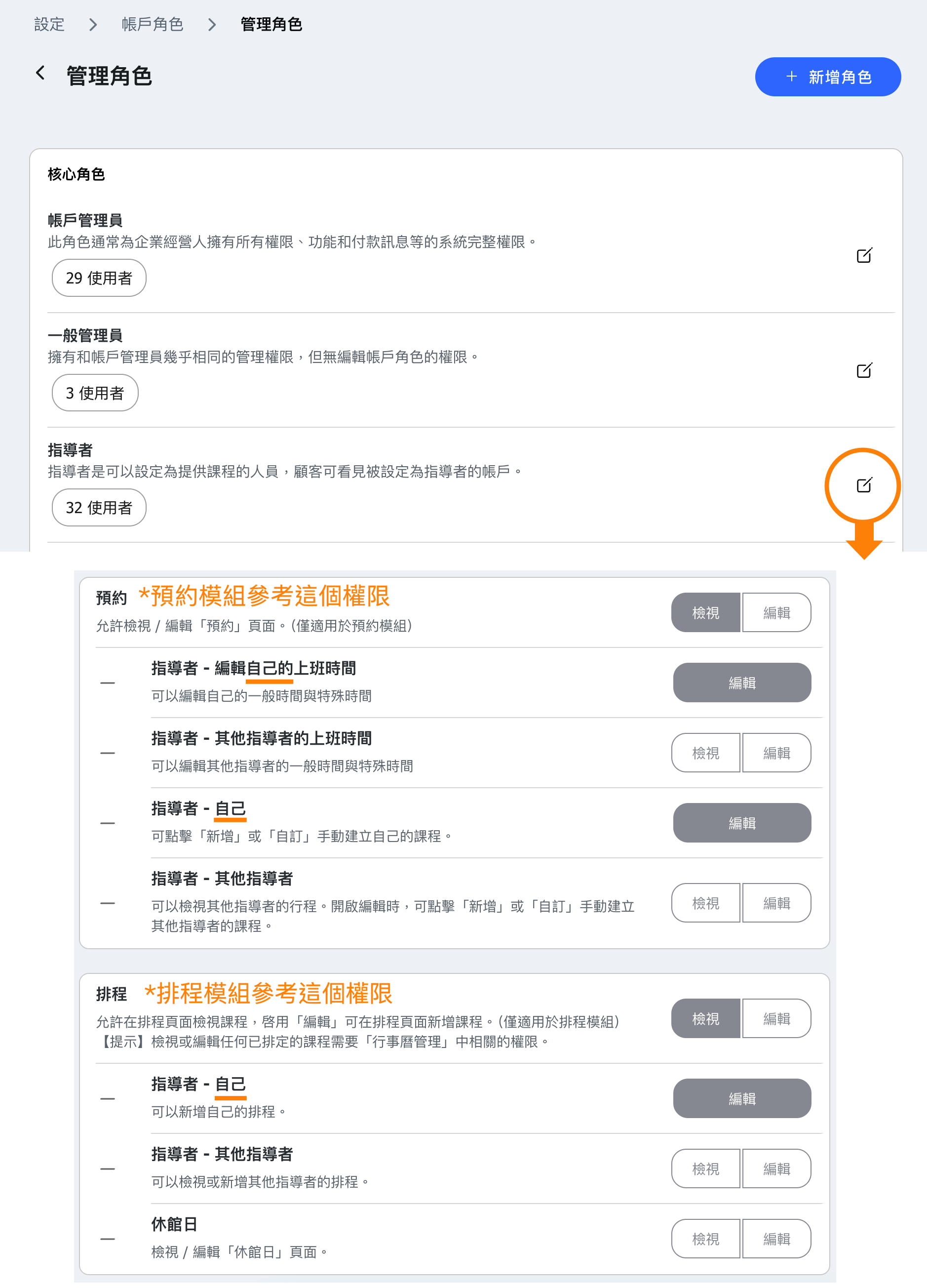
2. Customized Role(Full-Time Instructor Permission)
Account Role Binding
After editing the role permissions, return to the "Role and Permissions" page. Then, click on "Add Accounts" to bind accounts with roles. If an account is already bound to other roles, adjust it from the list below.
Demonstration of Common Role Permissions
Common Roles: Front Desk Staff, Part-time Teacher
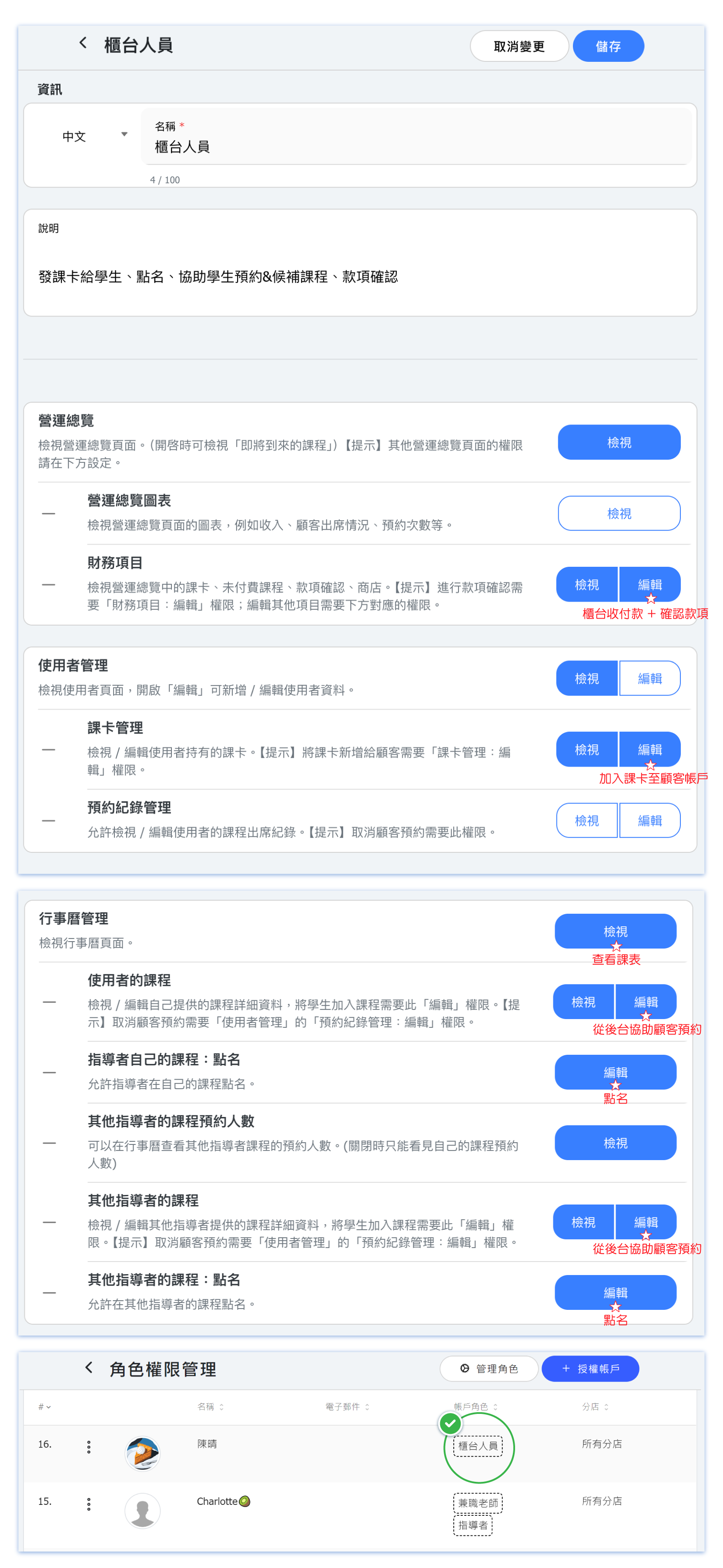
Front Desk Staff
- Authorized Role: Custom "Front Desk Staff" Role.
- Responsibilities:
- Add courses to customer accounts.
- Handle payments at the front desk and verify payments.
- Assist students with reservations from the backend.
- View schedules and take attendance.
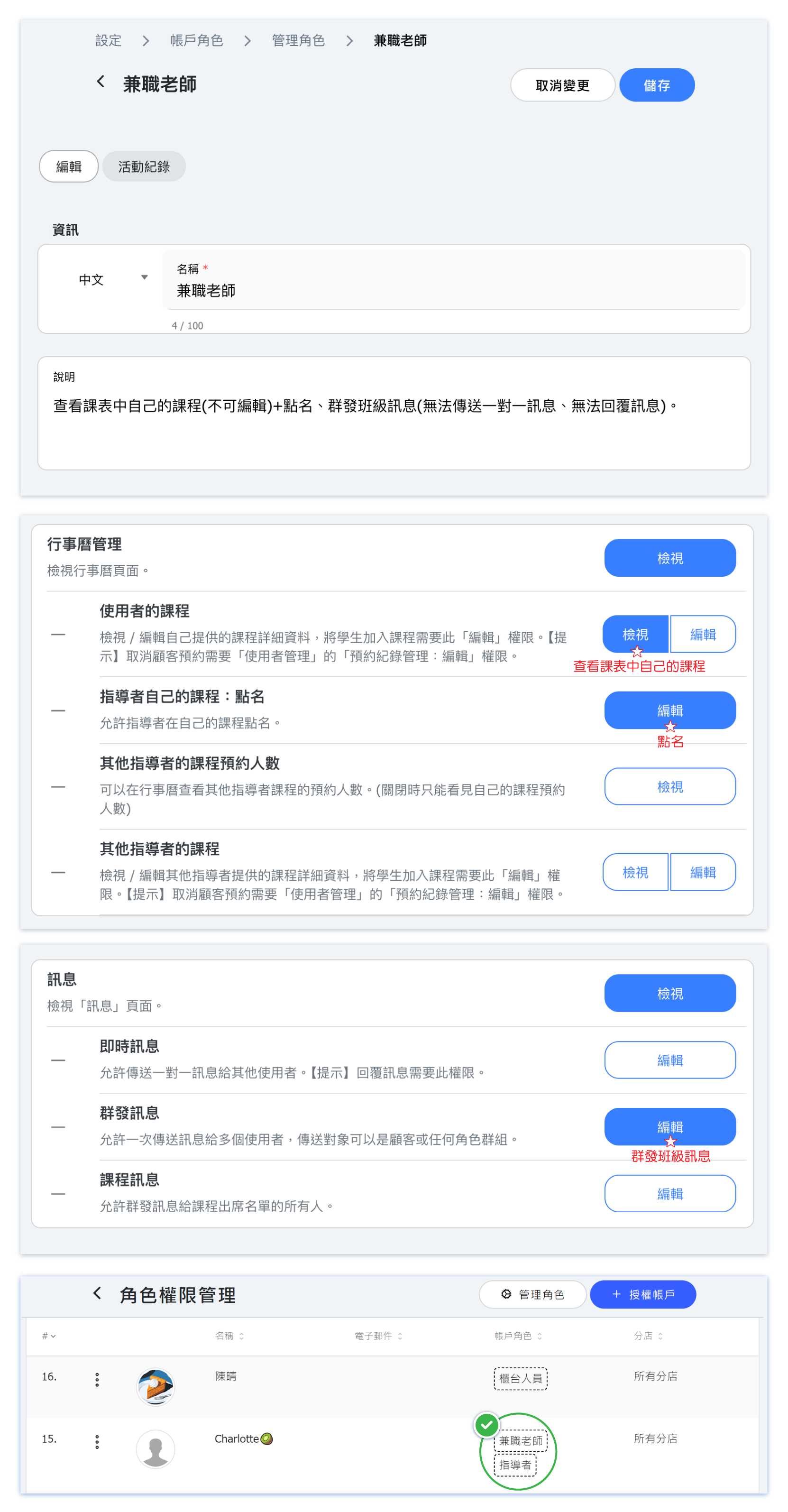
Part-time Teacher
- Authorized Roles: Core Role - Instructor (Remove all permissions) + Custom "Part-time Teacher" Role.*Binding to the "Core Role - Instructor" allows setting as a class instructor and display on the instructor page.
- Responsibilities:
- View own class on the schedule (No permission to edit classes) + Take attendance.
- Send group messages to classes (No permission to send one-to-one messages, No permission to reply to messages).
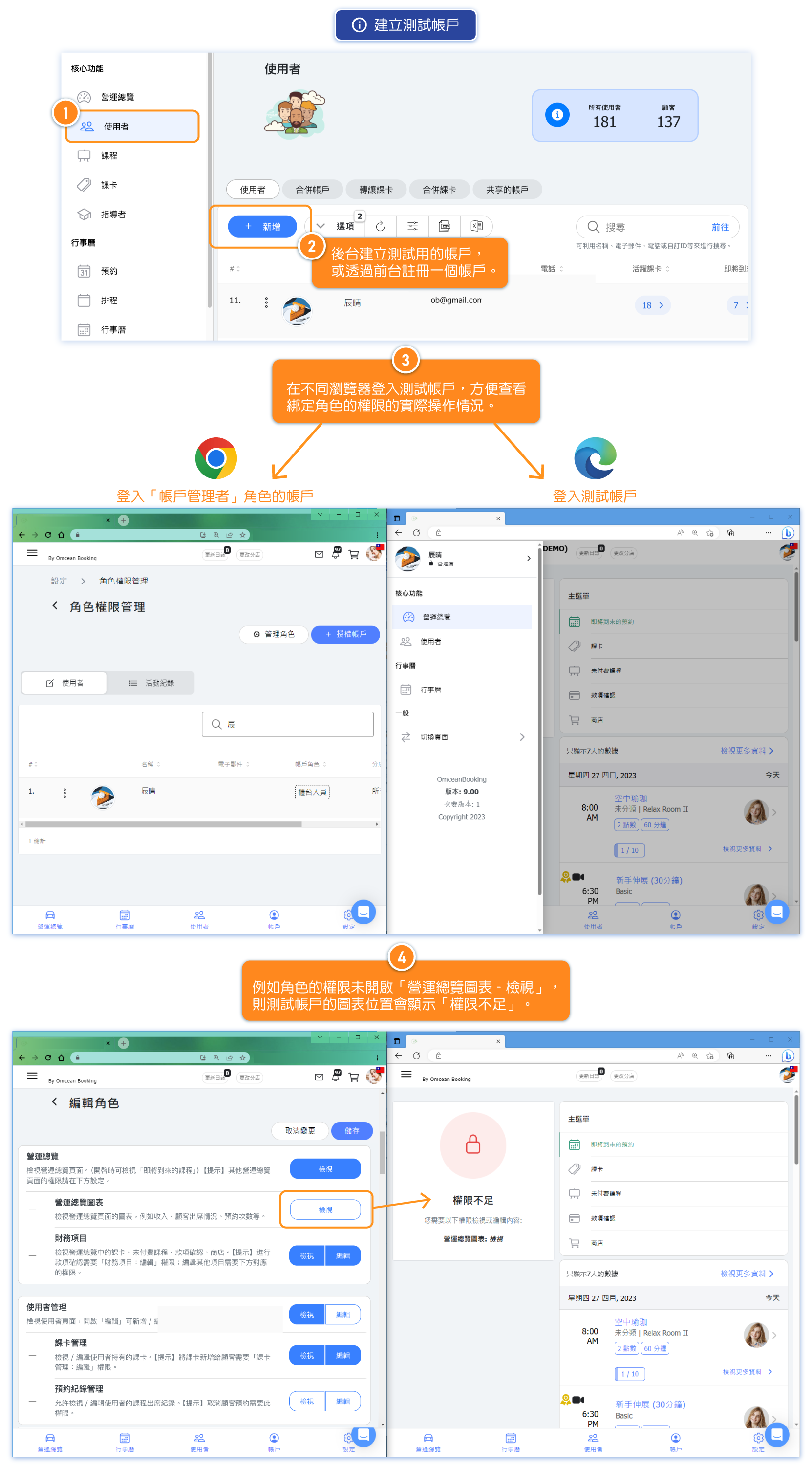
Creating Test Accounts
When a business is editing role permissions and wishes to see the actual changes in permissions, they can create a test account, bind the role to the test account, and log in with that account using another browser. This ensures that the permission settings meet their requirements.
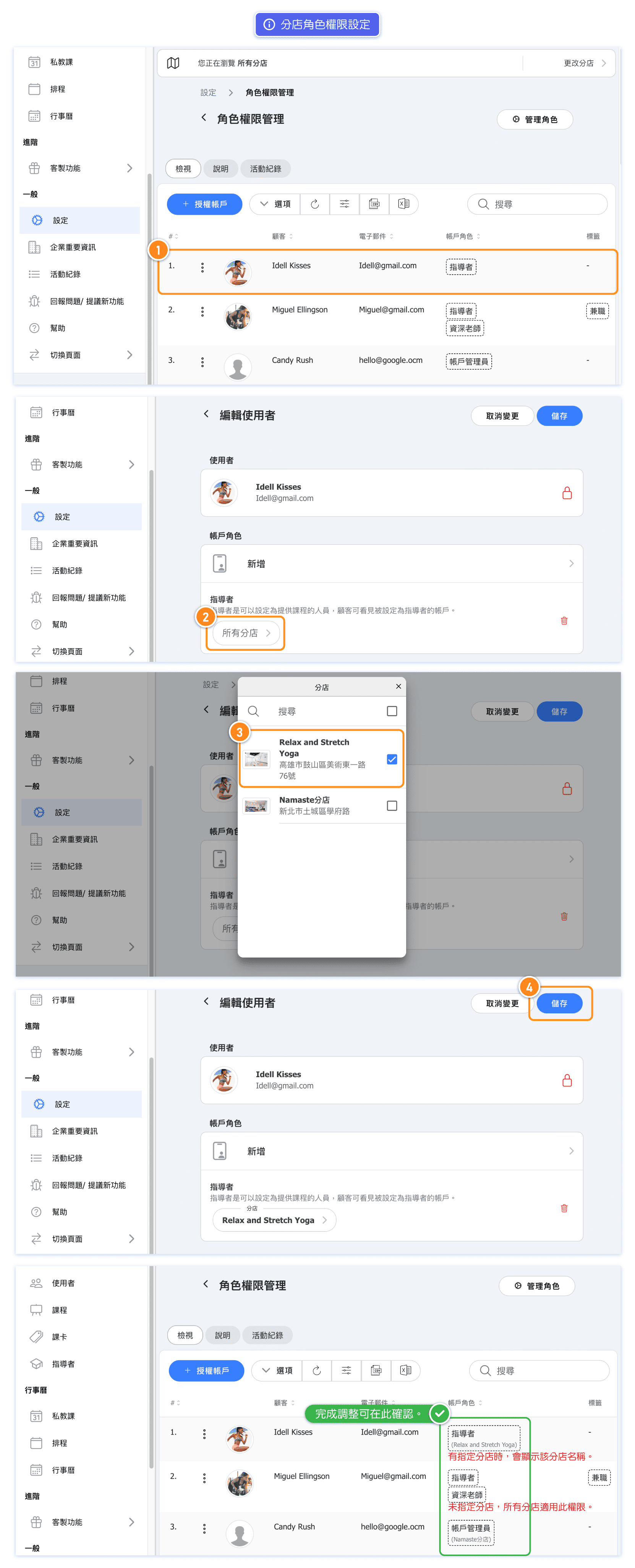
Location Based Role Permissions
Want to ensure a teacher can only schedule classes at one specific branch? No problem!
By assigning a branch to the user role via the path below, you can restrict their scheduling access to that branch only—preventing any cross-branch booking errors.