
How it works
- Connect your Xprinter to your computer with USB, and turn it on.
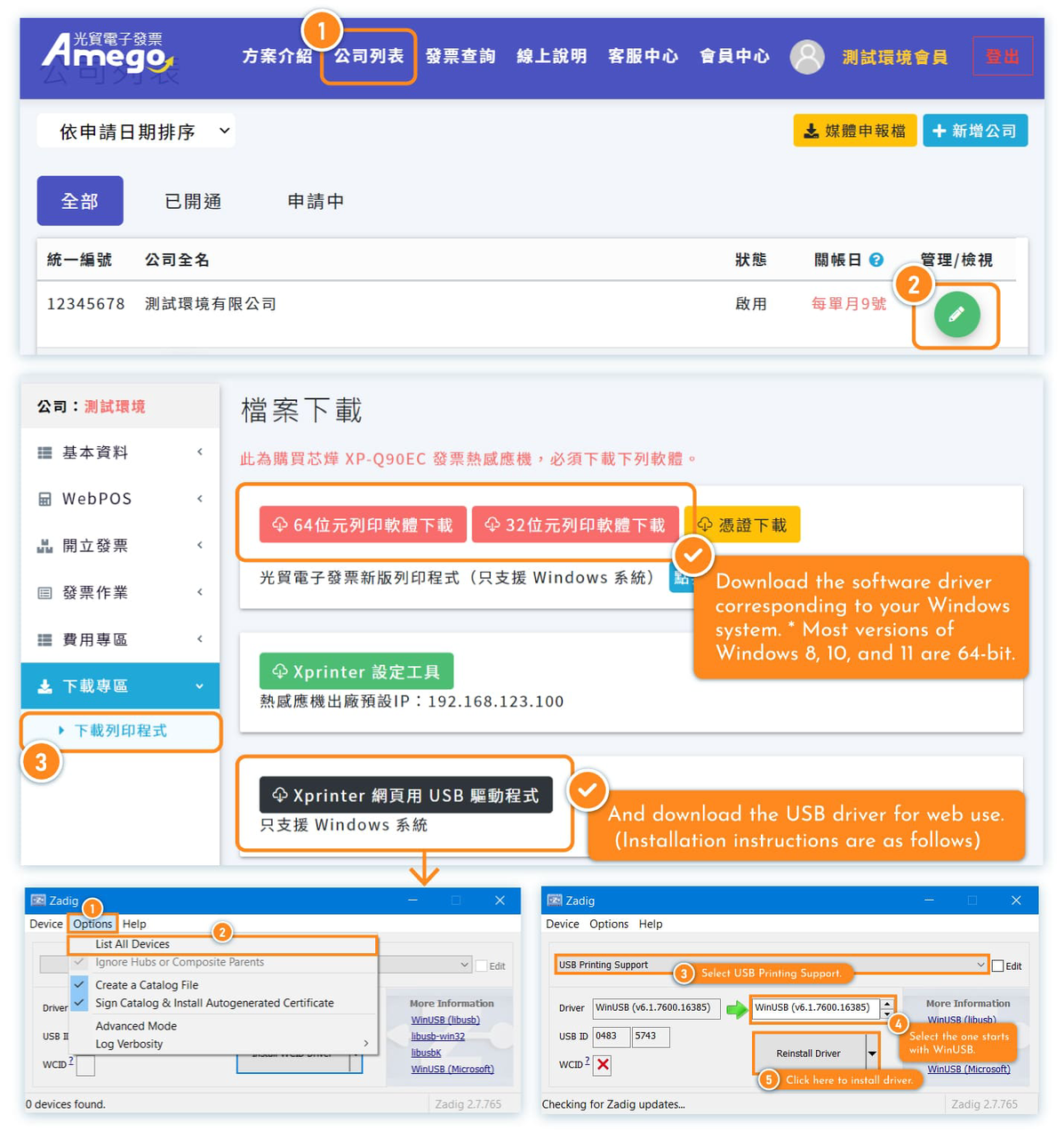
- If you are using a Windows system device, please log in to Amego website and download the required 2 drivers: printer driver and USB driver for the web. (Drivers are not required for mac.)
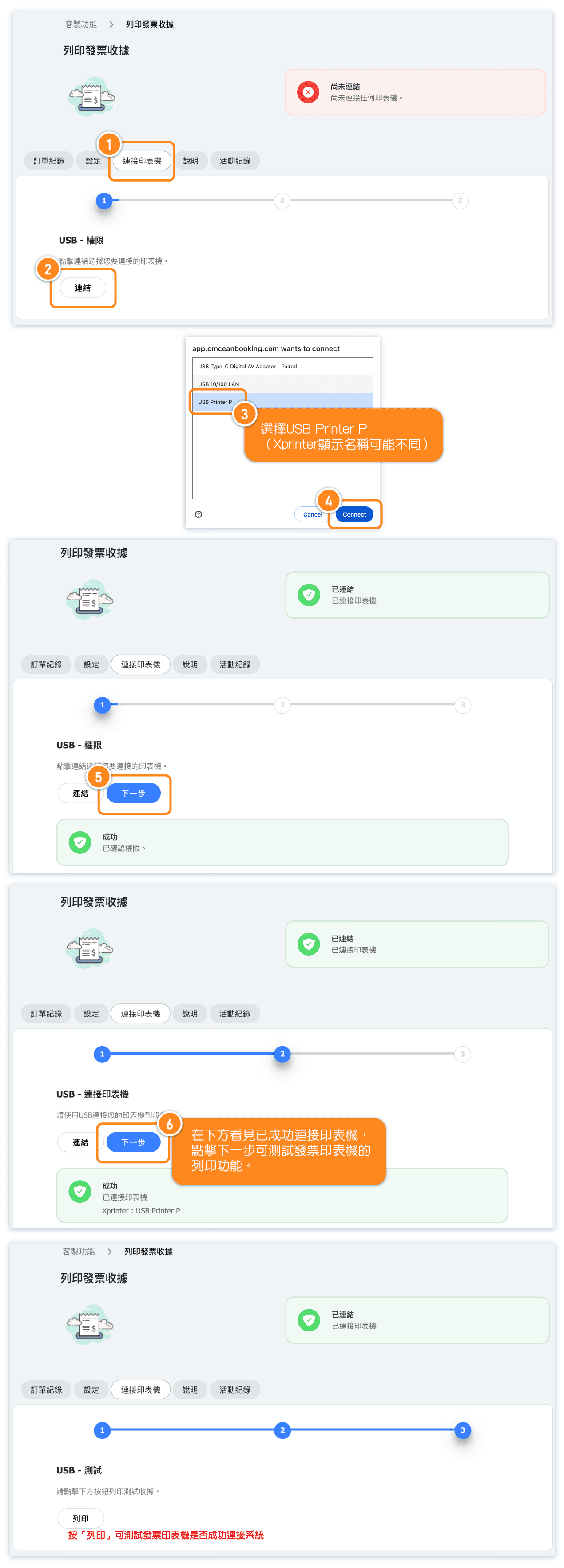
- Go to the "Printer Setup" page, click "Connect" to confirm that the OB system has detected your printer. You can click the test button in step 3 to print a test receipt, indicating that the connection is successful.
Troubleshooting
1. What is the "APP key"?
The APP Key is your company's dedicated code for using Amego e-invoices. Please register an account with Amego, enter your company information, and after successful registration, confirm your company's App Key. Return to the OB system and enter the App Key along with your Business ID number (tax ID number). Link: Electronic Invoice Registration Process + Adding Company Information: https://invoice.amego.tw/info_detail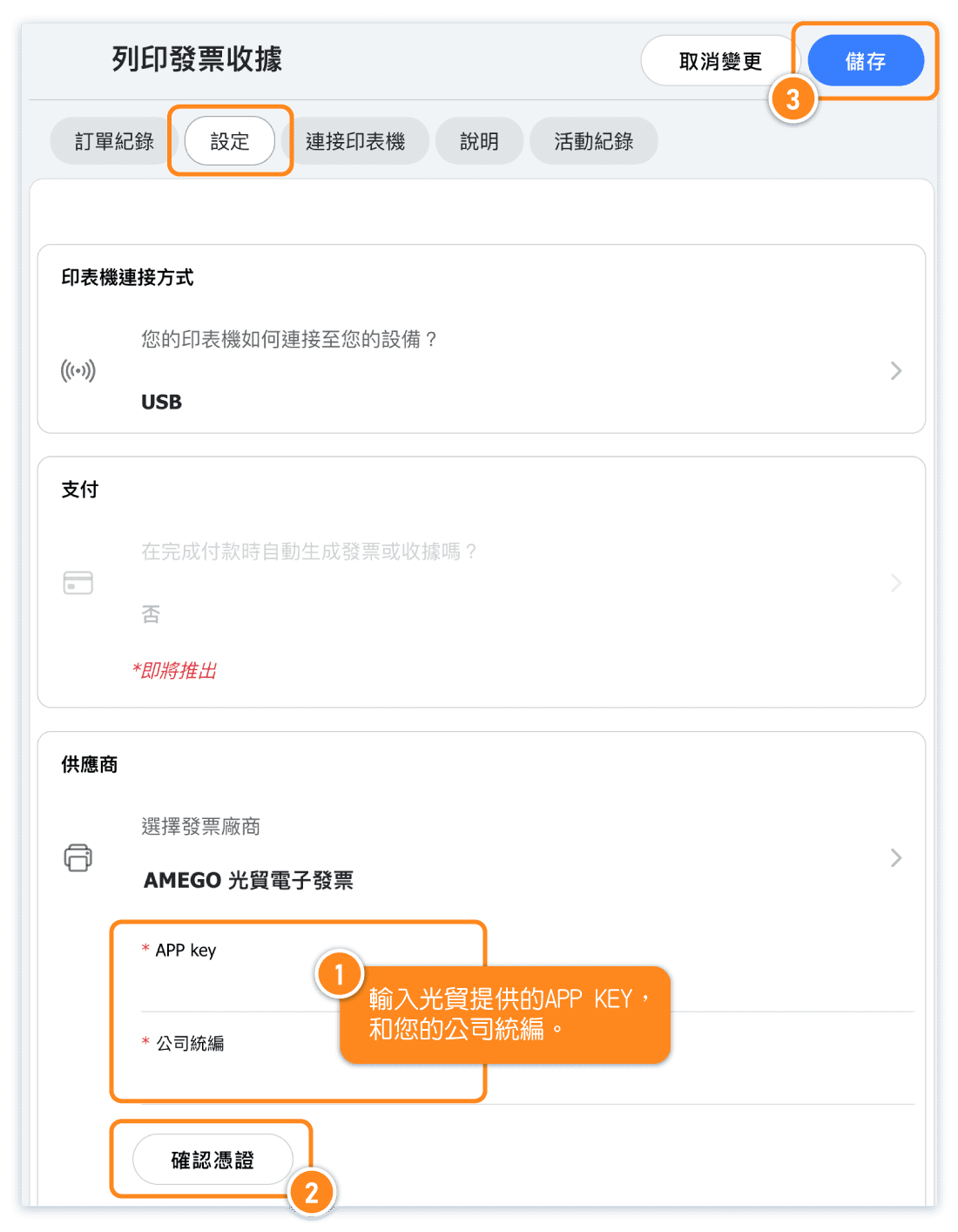
2. I printed receipts just recently, but today the system says the printer is not connected.
If your computer or Xprinter has been turned off, you will need to reconnect the printer to the system. Please go to "Printer setup" and reconnect. (Make sure you are using "Xprinter".)
3. When connecting to the Xprinter, I can't find the receipt printer in the options.
Solution 1: Make sure the Xprinter is turned on, and you have installed the printer's software driver.
Solution 2: The Xprinter name detected by the browser may differ from what you see in the Windows device settings (e.g., in the browser, we select Xprinter, and the printer name is USB Printer P).
4. When connecting to the Xprinter, it shows a successful connection, but I can't print a test receipt.
Make sure you have installed the web version USB driver. https://invoice.amego.tw/vendor/12345678/download
5. When clicking "Connect," I see the message "Permission denied."
Make sure you have installed the web version USB driver. https://invoice.amego.tw/vendor/12345678/download
Generating Receipt and Extended Features
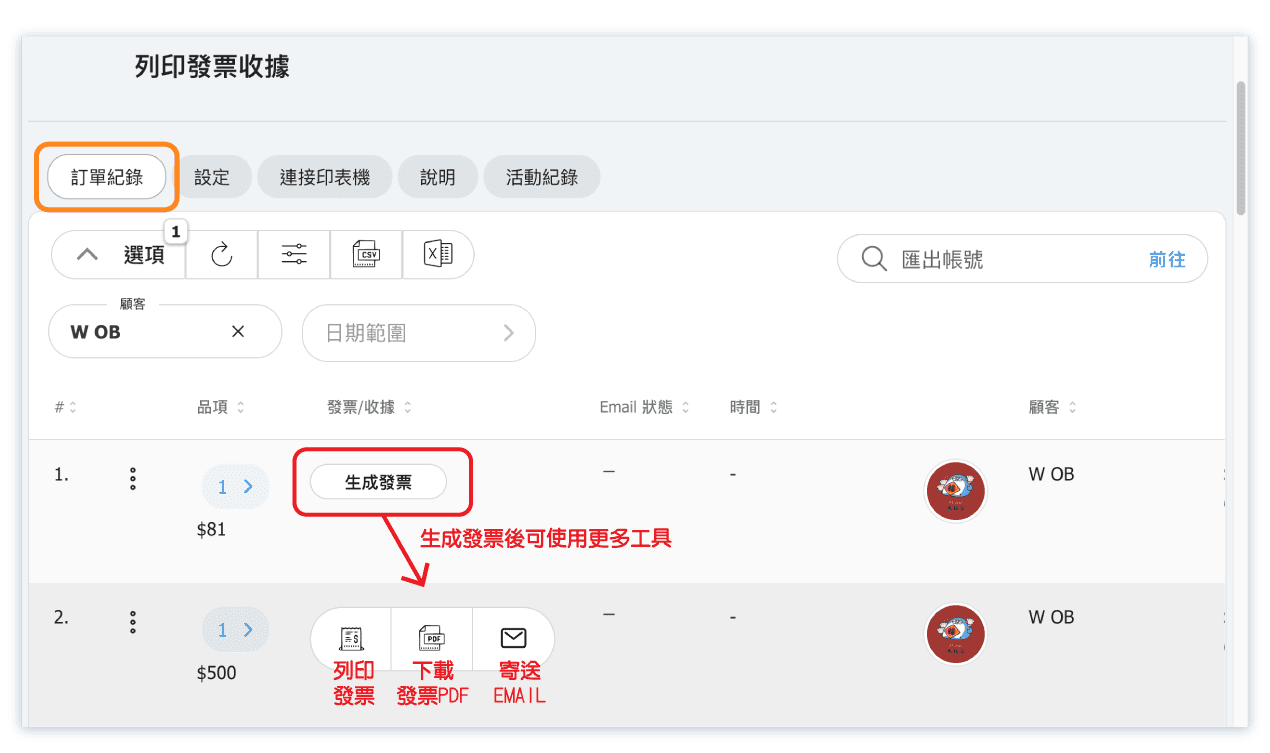
Clicking "Generate Receipt" under the "Purchases" tab, the system will send the purchase details to Amego (光貿電子發票). Once the receipt is generated, Amego will send the receipt data back to the system. The business can then choose to print the receipt, or download it as the PDF version, or send the receipt to the customer via email.
If the email has been sent but the customer reports not receiving the email, please confirm with the customer that the correct email address was used.
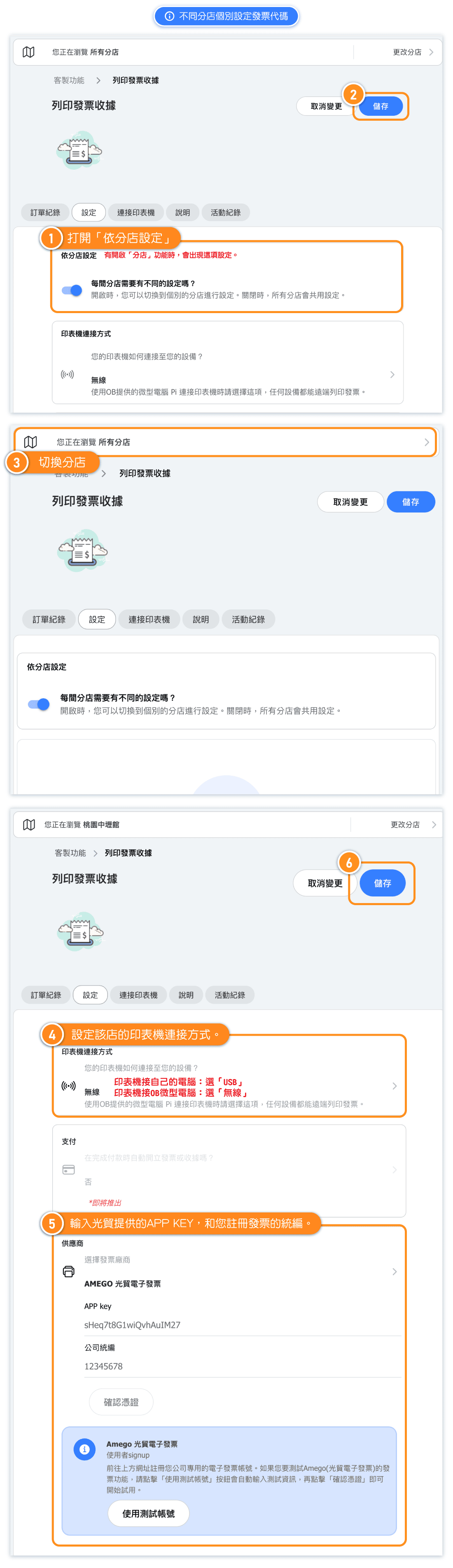
Set Different APP KEY for different locations
What is "Wirelessly" Print Receipt?
1. What is wireless receipt printing?
You can print receipts using just a smartphone or tablet—no computer required.
2. How do I set up wireless receipt printing?
Connect your receipt printer to the OB Smart Mini Computer. No driver installation needed. Once the network is set up, simply go to your system settings, choose [Wirelessly] under “Printer connection,” save it, and you're ready to print! The connected devices will be displayed in the list below.
3. What is the OB Smart Mini Computer?
It’s a compact device designed by the OB engineering team specifically for receipt printing.
Many studios don’t have a computer at the front desk, so we created a solution that lets you issue receipts using just a phone—no need to rely on traditional printer setups.
4. How can I get the mini computer?
Contact your OB representative to learn about rental options. We’ll ship the device straight to your location—just plug it in and start using it!
Wirelessly Print Receipt - OB Mini-computer Pi
OB’s smart mini computer lets you print receipts without relying on a traditional desktop!
Connect it to your receipt printer, just tap from your phone or tablet to print anywhere.☺️
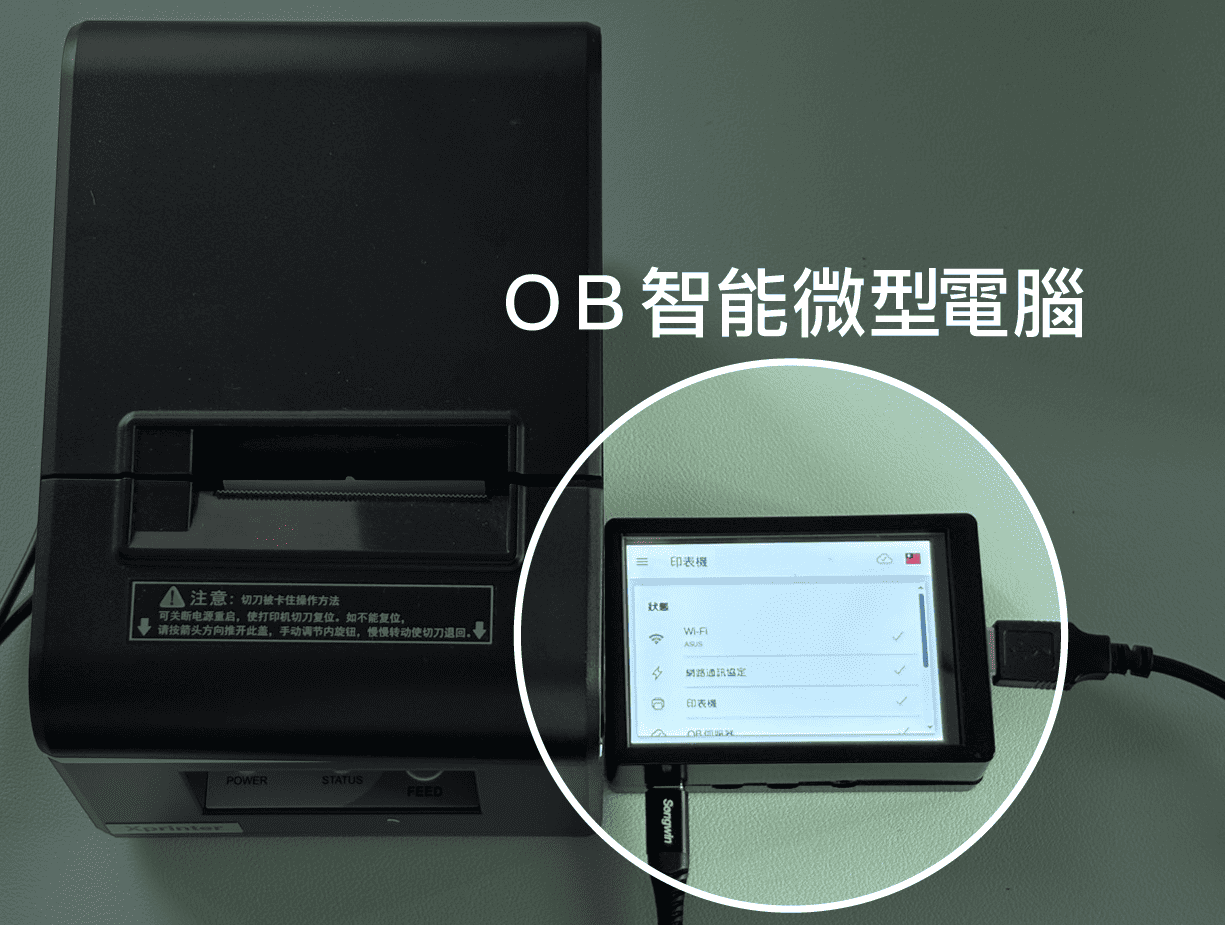
✅ Ultra-compact design – small footprint, big impact. Keeps your front desk tidy, stylish, and functional.
✅ Remote printing – no desktop needed. Print receipts from your phone or tablet in just one tap.
✅ Plug-and-play – simply connect to a printer and start using. No drivers, no hassle, zero learning curve.
One tiny device that solves all your printing headaches — and frees up valuable workspace at your studio!
📩 Want to know more? Contact our team to explore how the mini computer can work for you!


