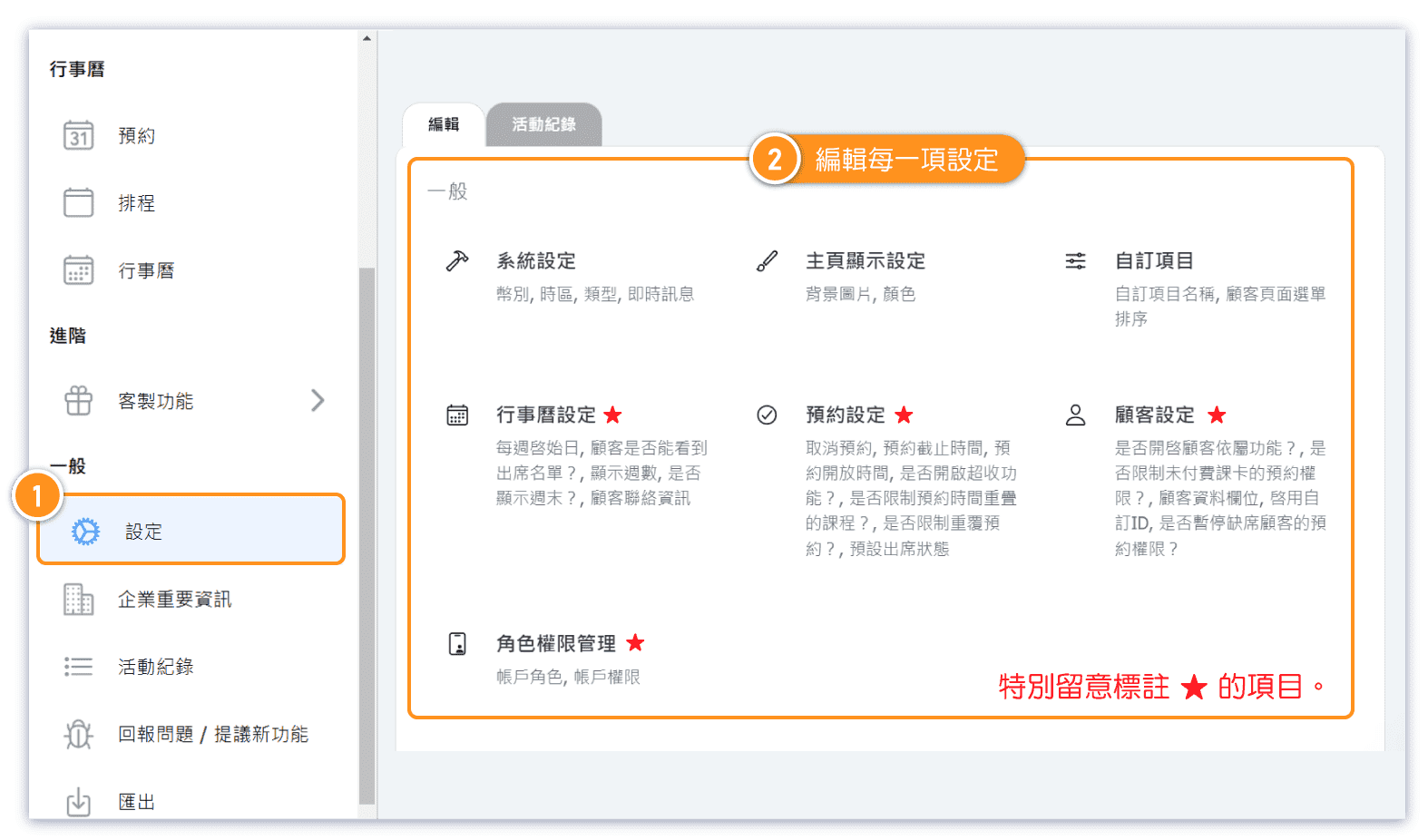
Quick Setup Tutorial - Configuration
Please complete setup the settings before enabling online booking.
Setting Tutorial Video *Part.1
This video covers Configuration, Appearance, customization, calendar, and Reservation settings.
Setting Tutorial Video *Part.2
This video covers Customer, Pass settings.
Also Tags, Notification history, Account information, Payment history, and Backup vault.
Setting Tutorial Video *Part.3
Learn how to manage roles: adjust permissions, create roles, and assign them to users.
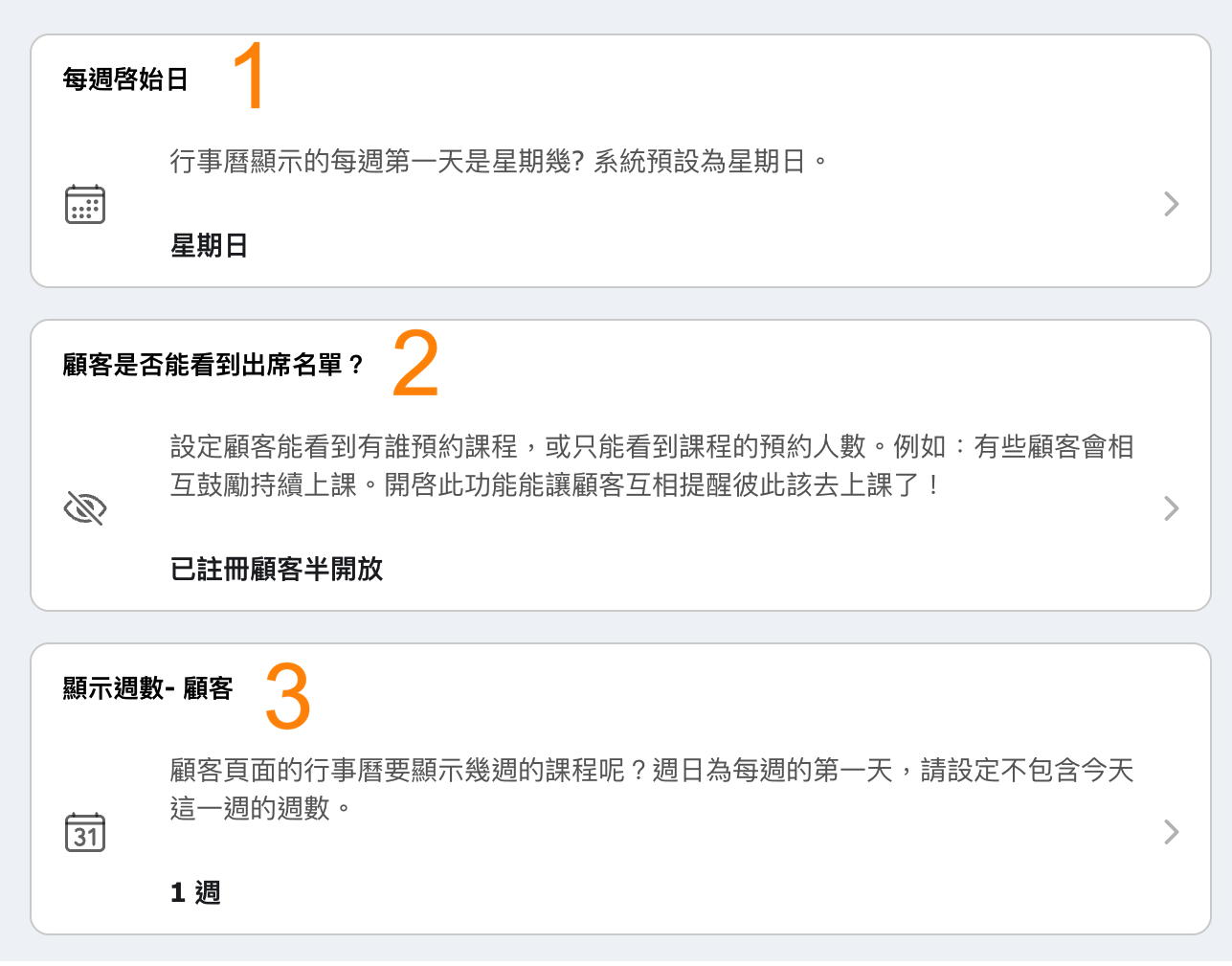
Common Settings: Calendar
- Set the first day of the calendar (Sunday or Monday).
- Decide whether customers can see the attendee list for each class.
- Define how far in advance customers can view upcoming classes.
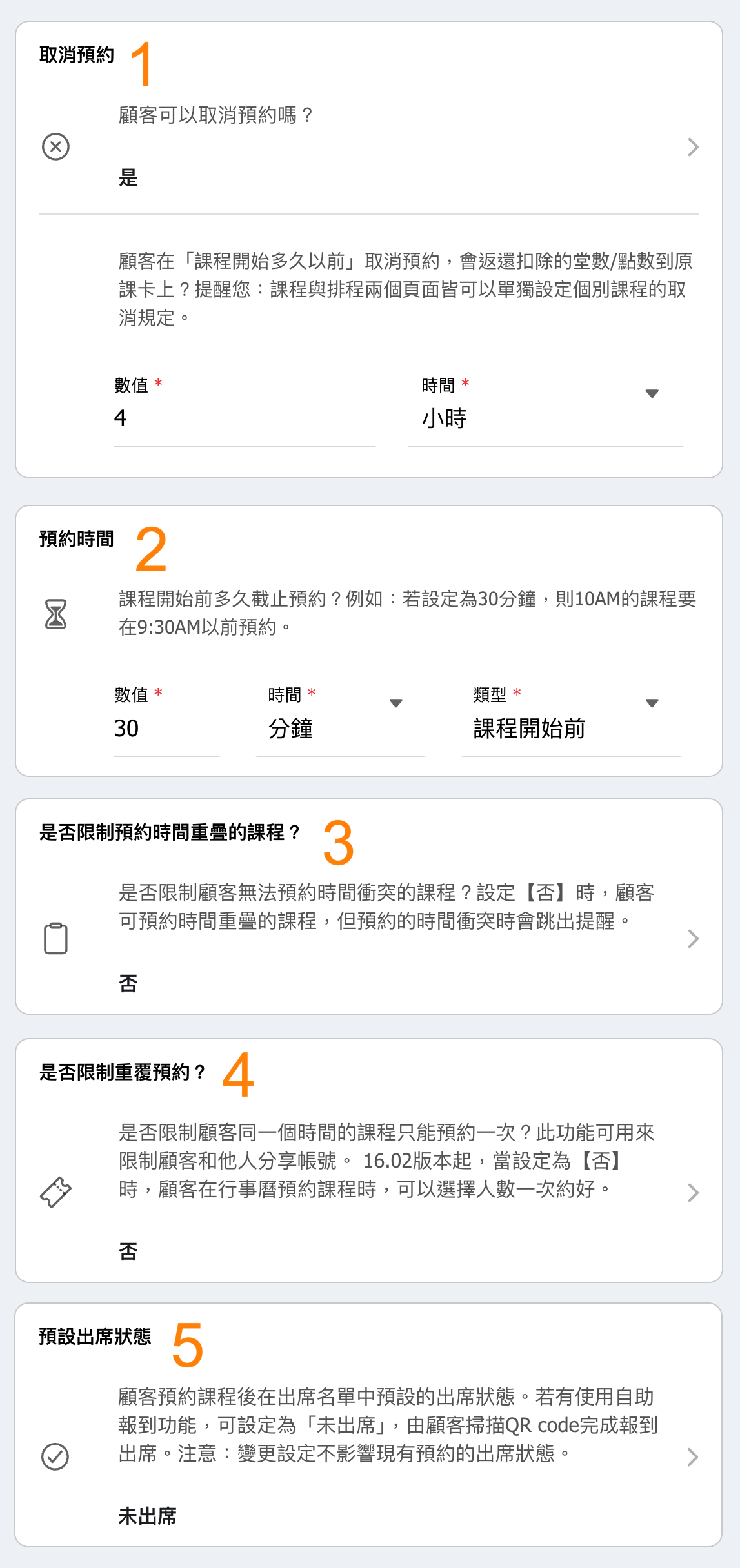
Common Settings: Reservations
- Default cancellation rules (each class can override this setting or adjust at the time of scheduling).
- Define how long before class customers can make a booking.
- Enable or disable system checks to prevent customers from booking overlapping classes.
- Restrict customers to booking only once per class.* If group booking is required, it is recommended to set this to "No."
- Default attendance status for customers:* If roll call is needed, set to "Not Attended" to make attendance marking easier.* Alternatively, set to "Attended" and only mark absentees as "Not Attended" during roll call.
Common Settings: Passes
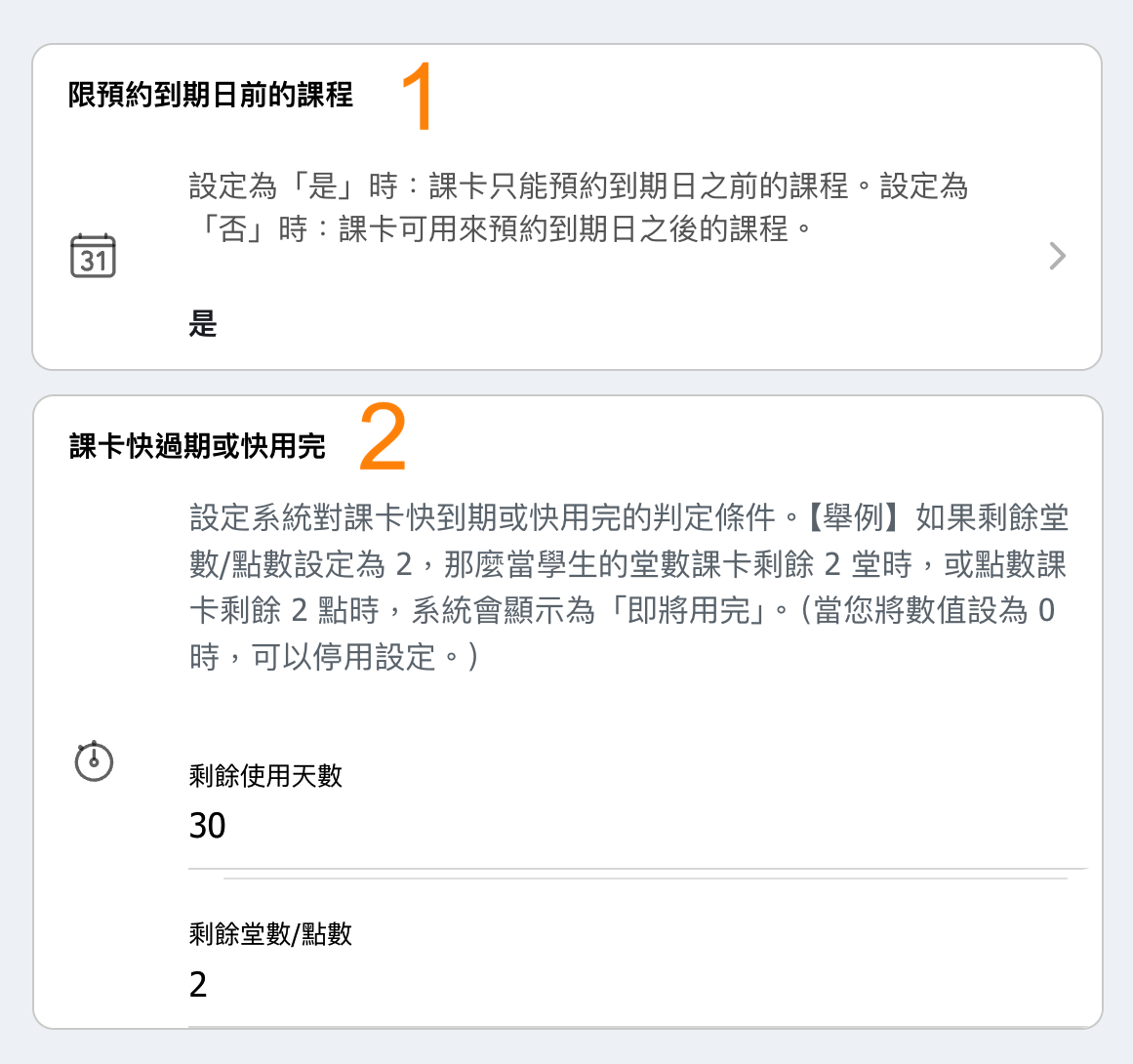
- Rules for using class passes: allow booking only within the validity period, or permit bookings outside the validity period.* Some studios allow customers to book classes even after the pass expiration date. In this case, this setting should be set to “No.”
- Configure how the system determines when a class pass is "about to expire."* For example, APP or LINE notifications can be sent to remind customers about their pass when the remaining points fall below a certain threshold.