
Schedule Module v.s. Appointment Module
Schedule Module v.s. Appointment Module
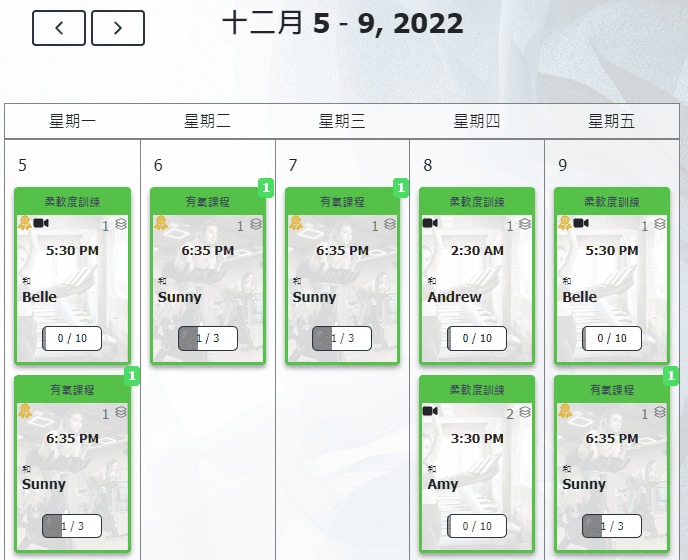
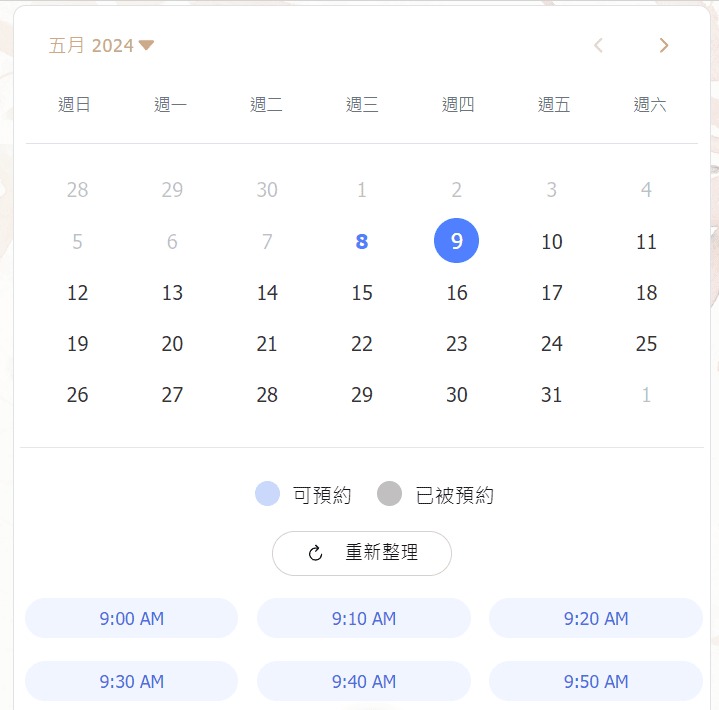
| Schedule Module | Appointment Module |
| Customers can choose those scheduled classes and make reservations. • Repeating Classes: Classes held at fixed times every week or every other week. • Schedule Course: A full term of classes scheduled at once. • One Off Class: Individual classes scheduled separately. | Set the reservation availability for each type of class and also define the working hours for each instructor. Reservation is allowed only when there is an overlap between the two schedules, allowing customers to choose the most suitable time for them. |
 |  |
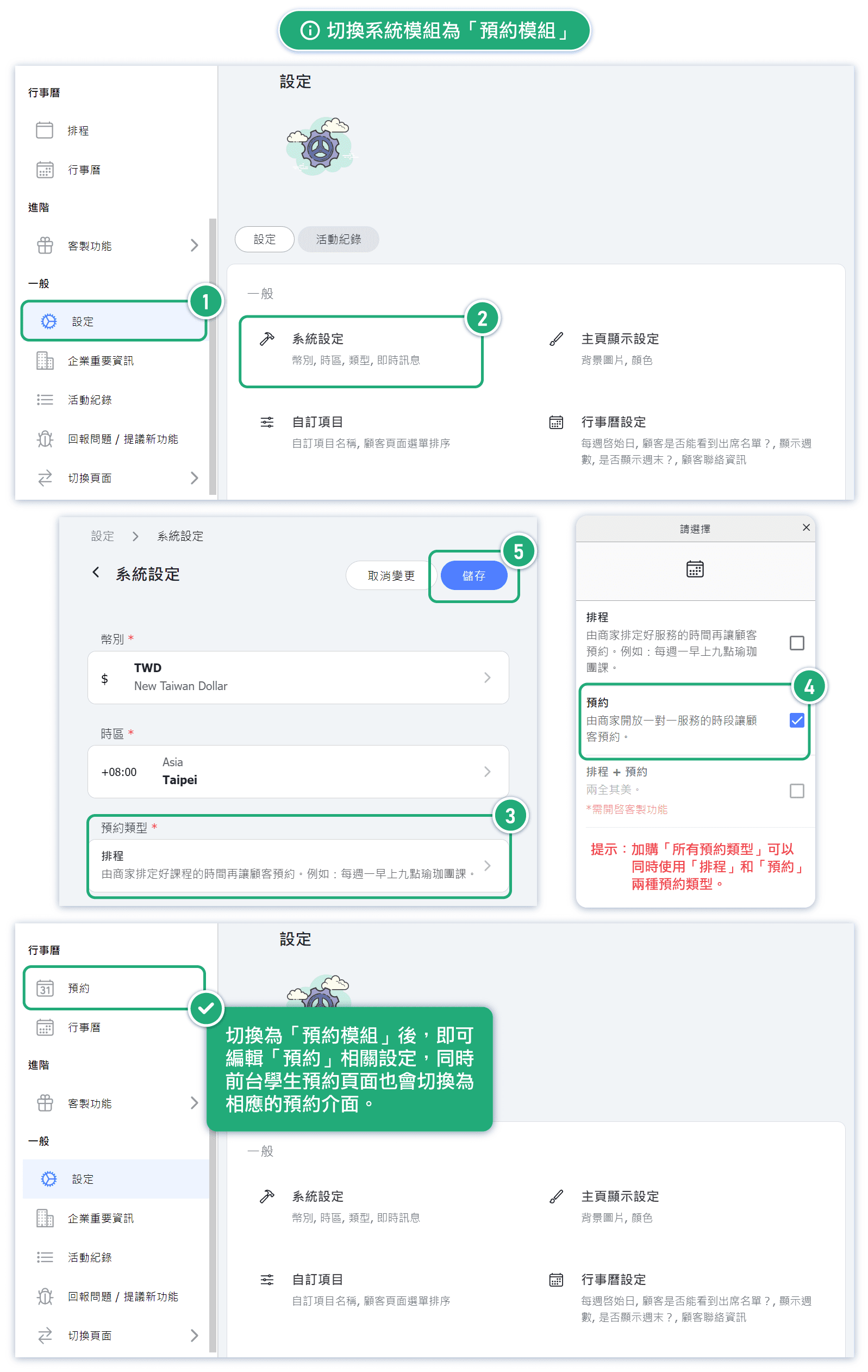
Switch Schedule Modules: In the admin page , go to【Settings】→【Configuration】→【Reservation Type】and choose the module type【Appointment】.
(1) Change the Display Name of System Items
⭐ Using 【SPA Massage Center】 as an example:
Firstly, according to your business type, you can customize the names of items such as classes and passes in the system to align with your business type.
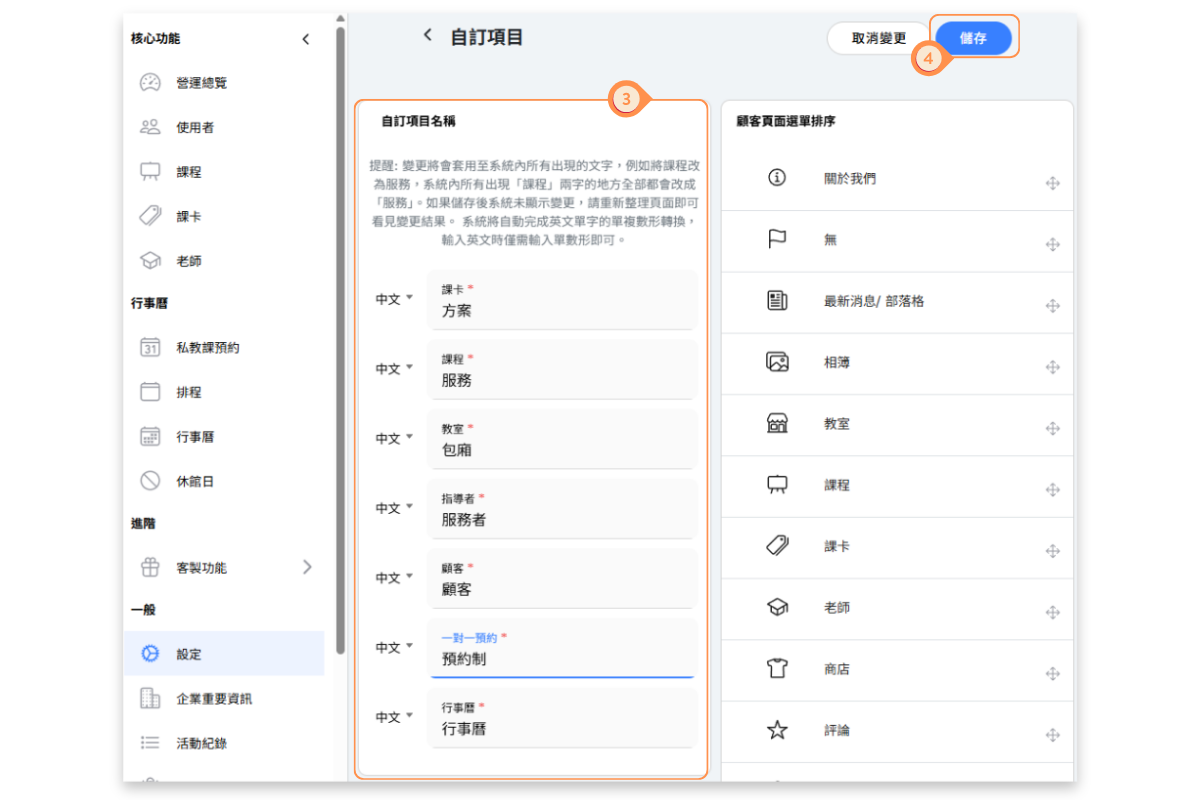
You can rename items such as class, pass, and Instructors in "Settings → Customization" based on the different service types you offer. For example, if you are a salon providing hairdressing services, you can change "class" to "service". This way, all instances of "class" displayed on your business site will be changed to "service".
Based on the example of the "SPA Massage Center" business type, we will adjust the system item names as follows:
課卡 Pass = 方案 Plan教室 Classroom = 包廂 Room課程 Class = 服務 Service指導者 Instructor = 服務者 Service Provider
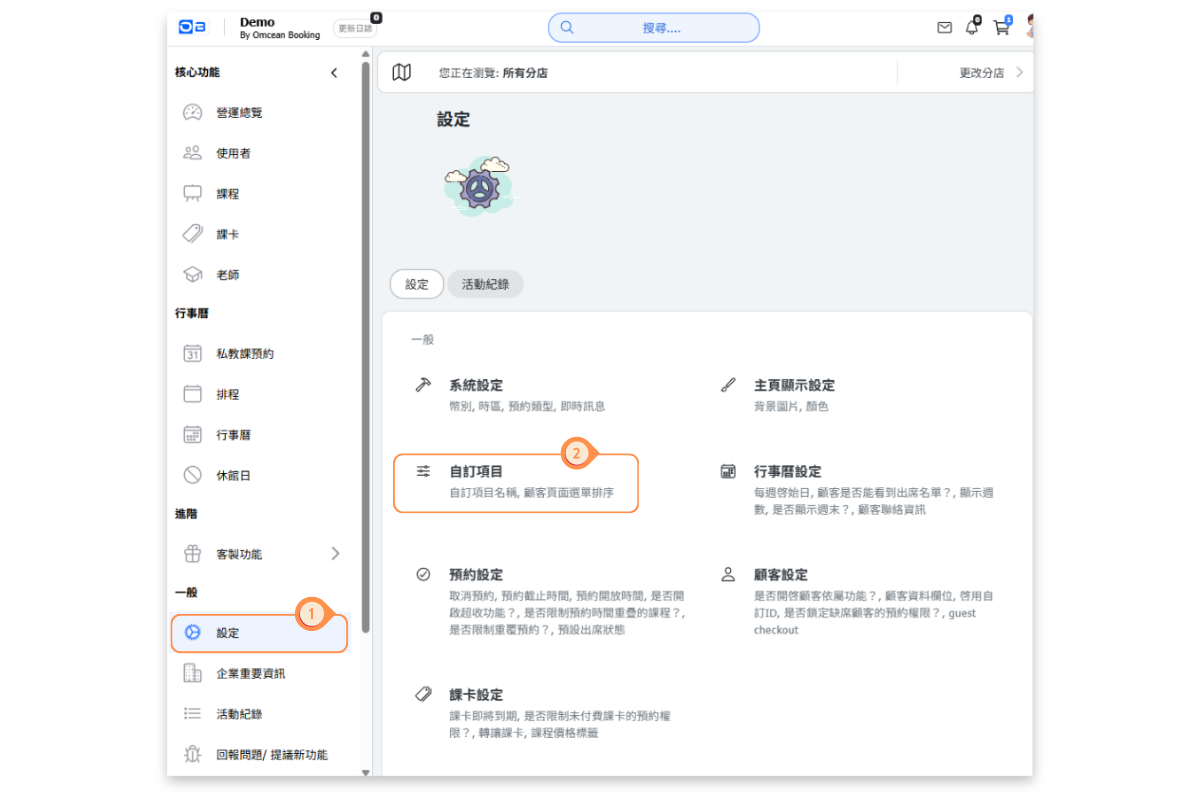
[Instructions]
-
Click Settings on the left.
-
Click Custom Items.
-
Enter the name of the custom item.
-
Click Save.
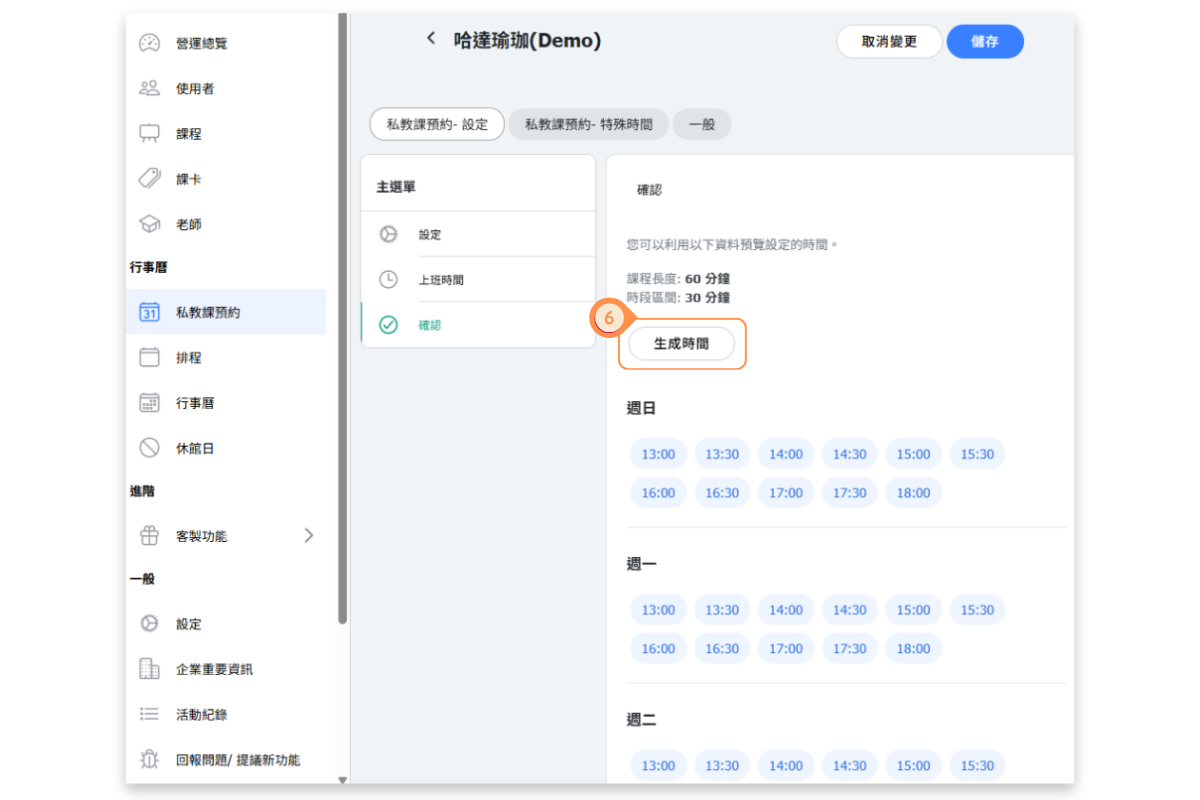
(2) Set weekly available hours for each service
[Instructions]
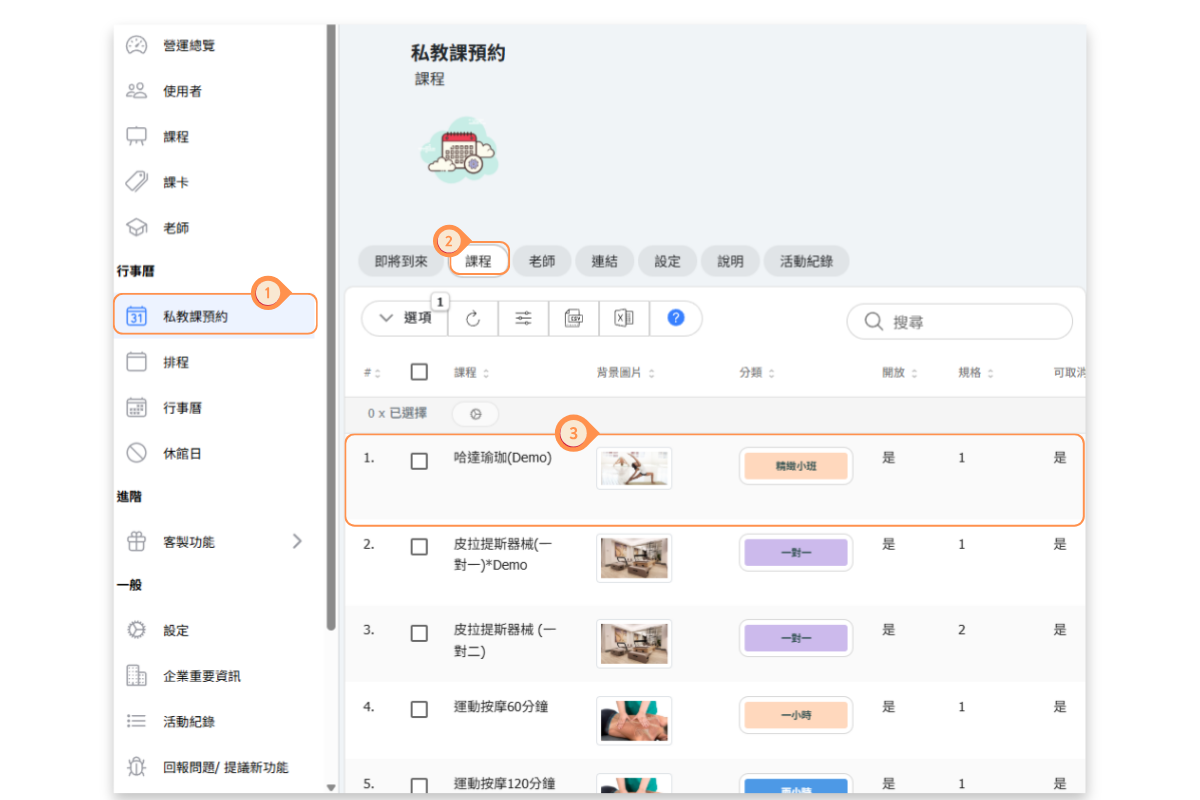
- Click Personal Training Booking (or the name of your custom one-on-one booking item) in the left menu.
- Click the Courses tab.
- Select a course.
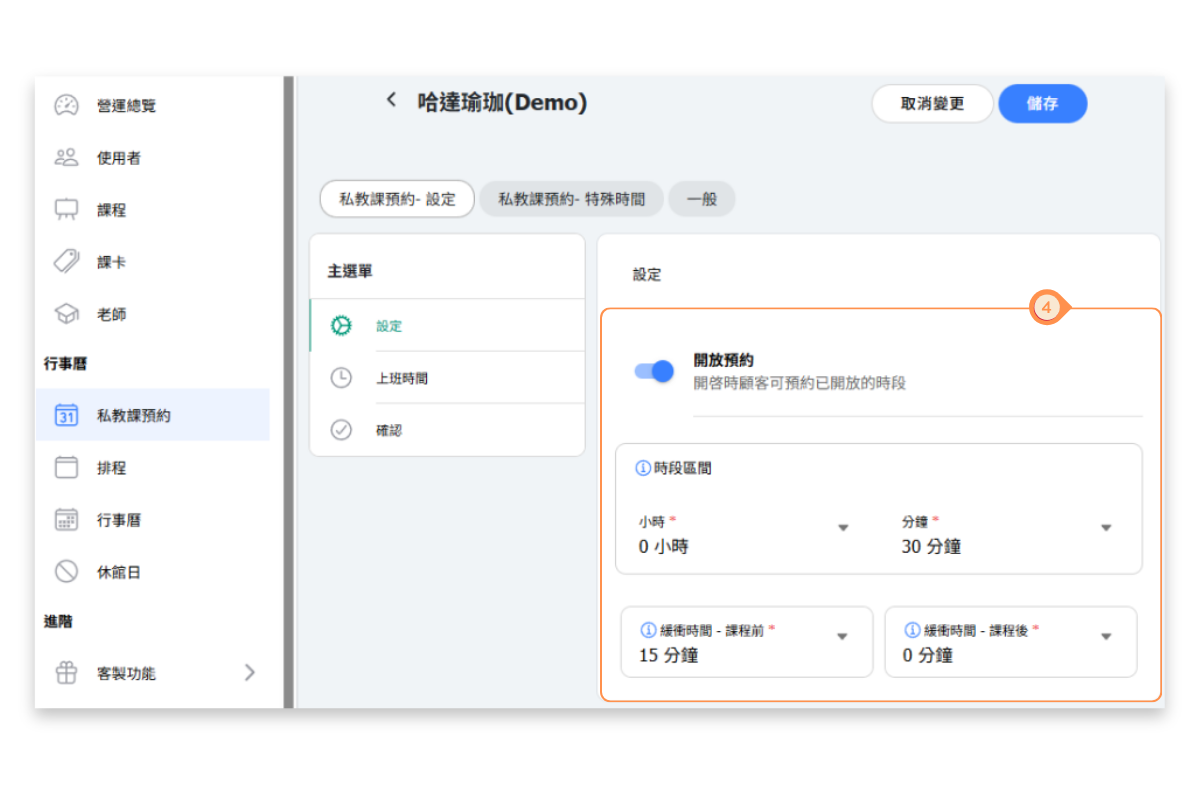
- Fill in the course settings, including: whether booking is open, time interval between available booking slots, buffer time before and after the course (preparation time before, cleanup time after)
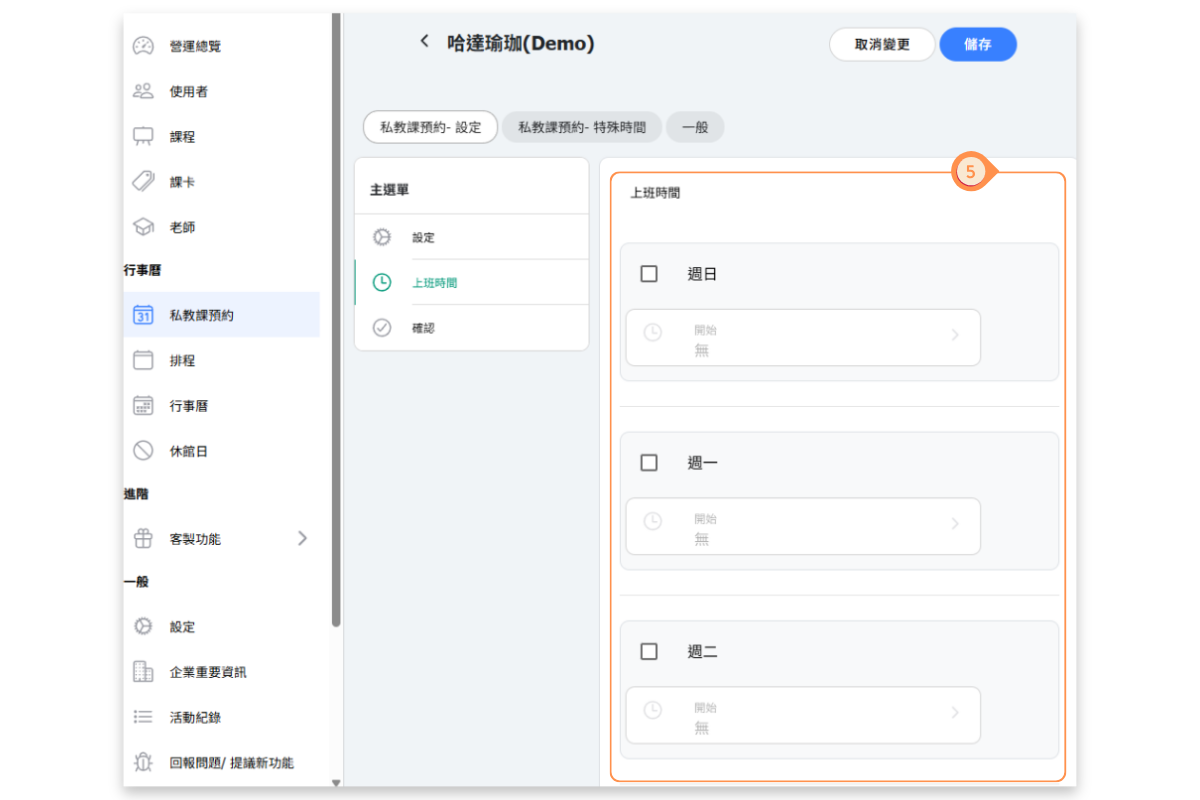
- Fill in your weekly working hours.
- Click the Generate Schedule button to preview the daily working hours below.
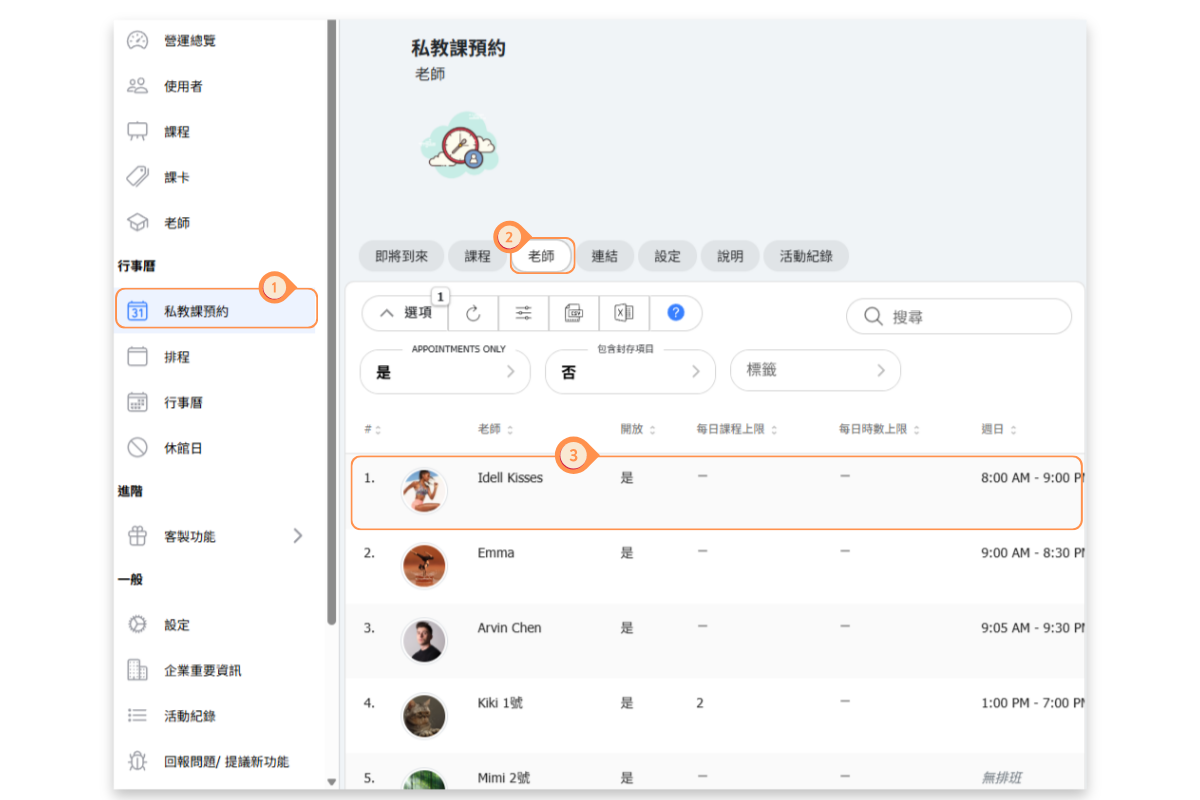
(3) Set Up Weekly Working Hours for Each Service Providers
[Instructions]
- Click Personal Training Booking in the left menu.
- Select the Teachers tab.
- Click on a teacher.
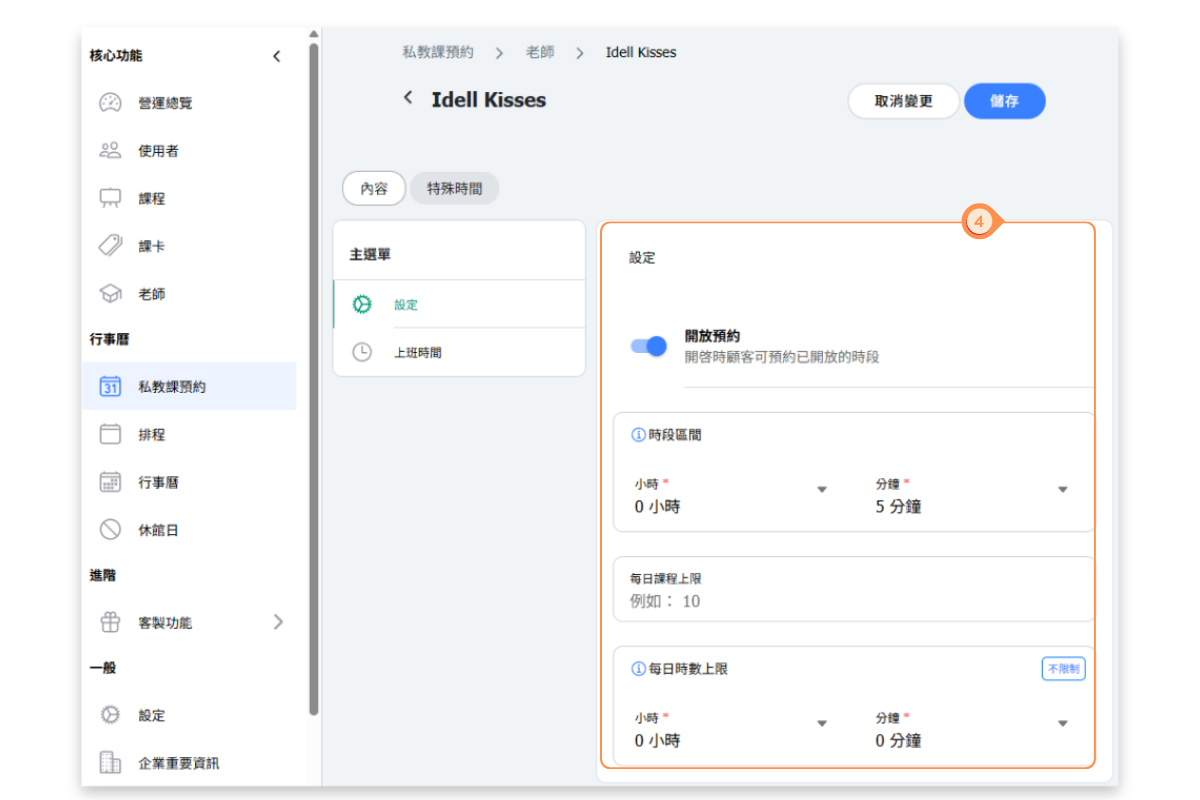
- Configure the teacher’s availability settings, including: whether the teacher is open for bookings, time interval of the teacher’s available class hours, maximum number of teaching hours per day
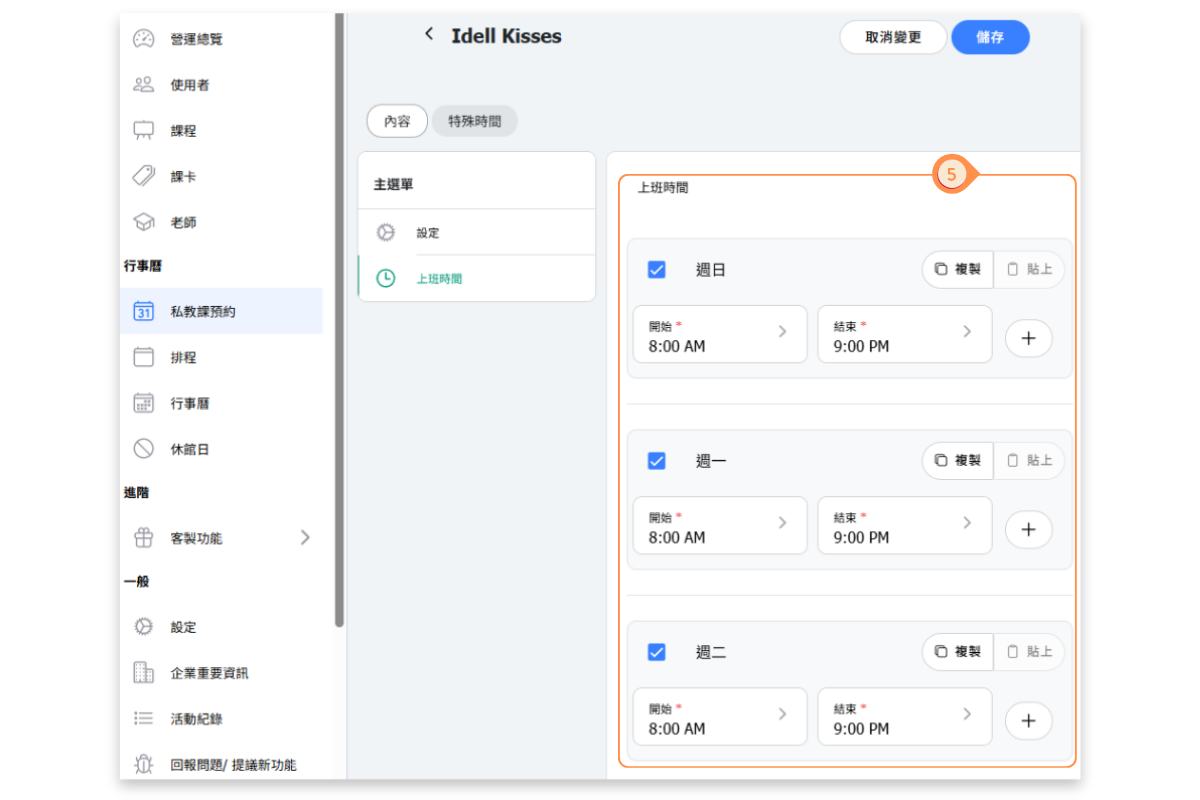
- Set the teacher’s daily teaching schedule.
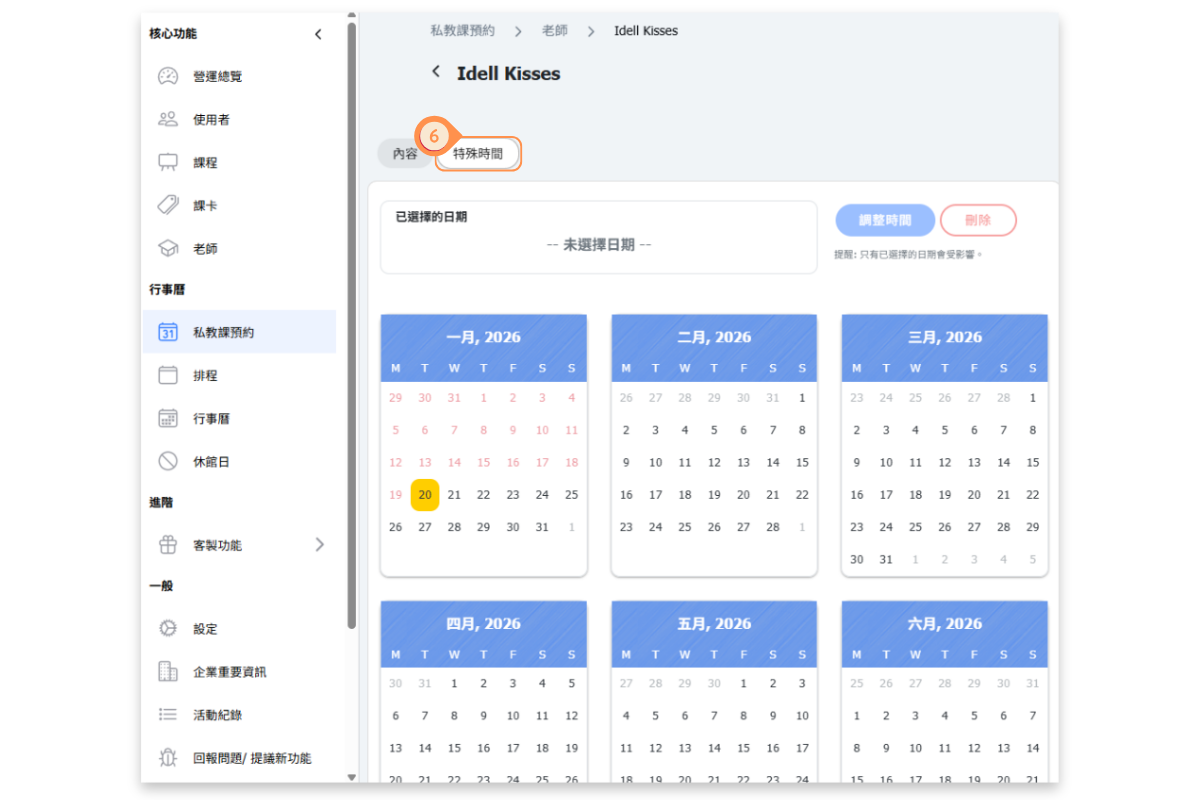
- Select the Special Time tab. Special times allow you to configure individual dates differently, such as holidays or alternative working hours.
(4) Connect which providers offer the services
[Instructions]
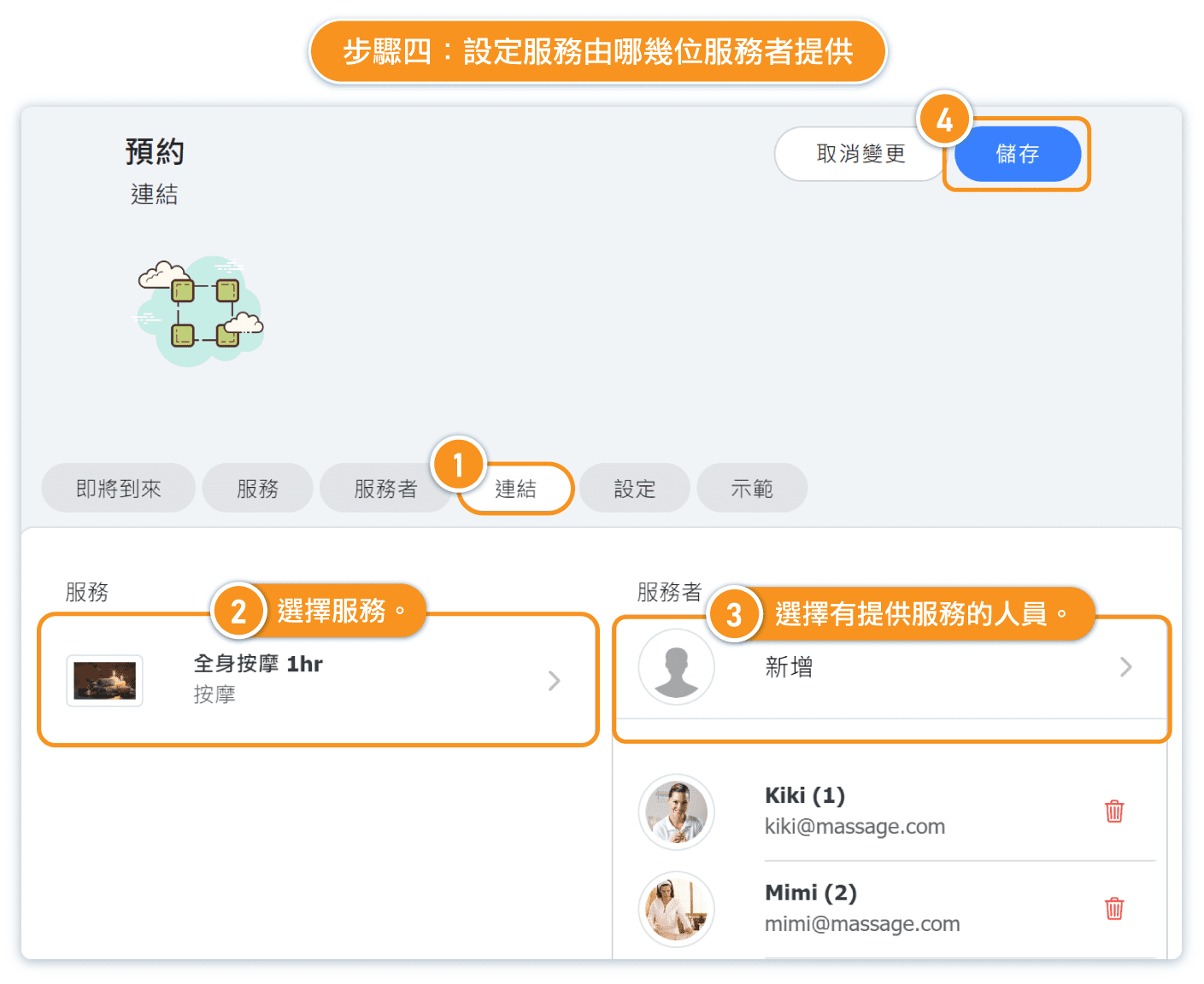
- Select the Links tab.
- Choose a course or service.
- Select the staff member who provides the course or service.
- Click Save.
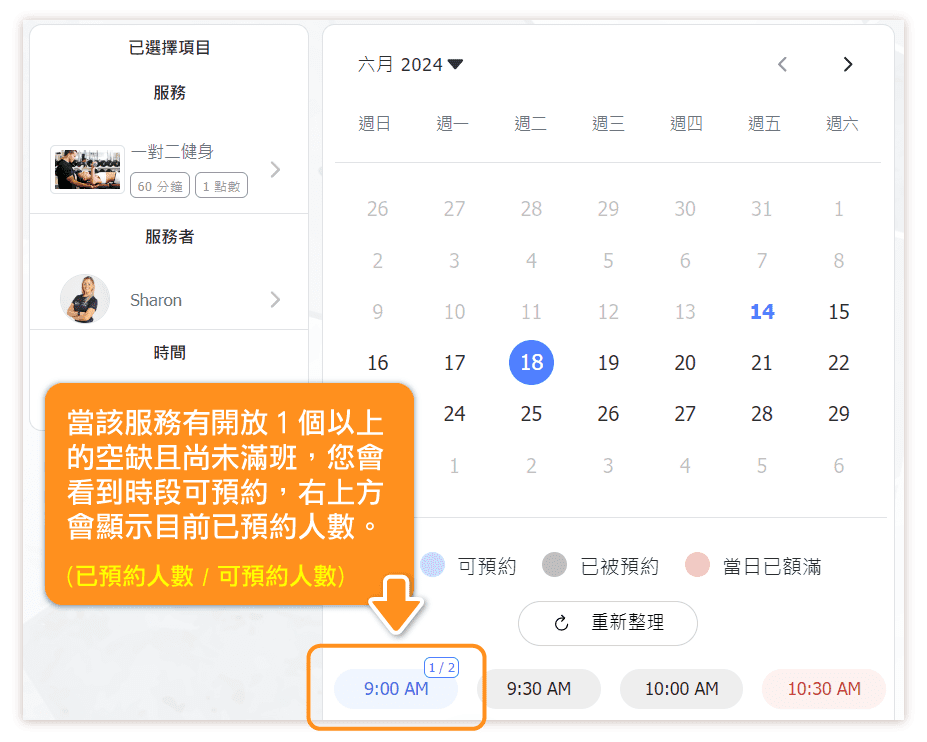
FAQ: What do the numbers in the top right corner of the time slot mean?
If the service has more than one available slot and is not yet full, you will see the number of currently booked participants in the top right corner of the time slot. The format is displayed as: (Number of booked participants / Maximum capacity).
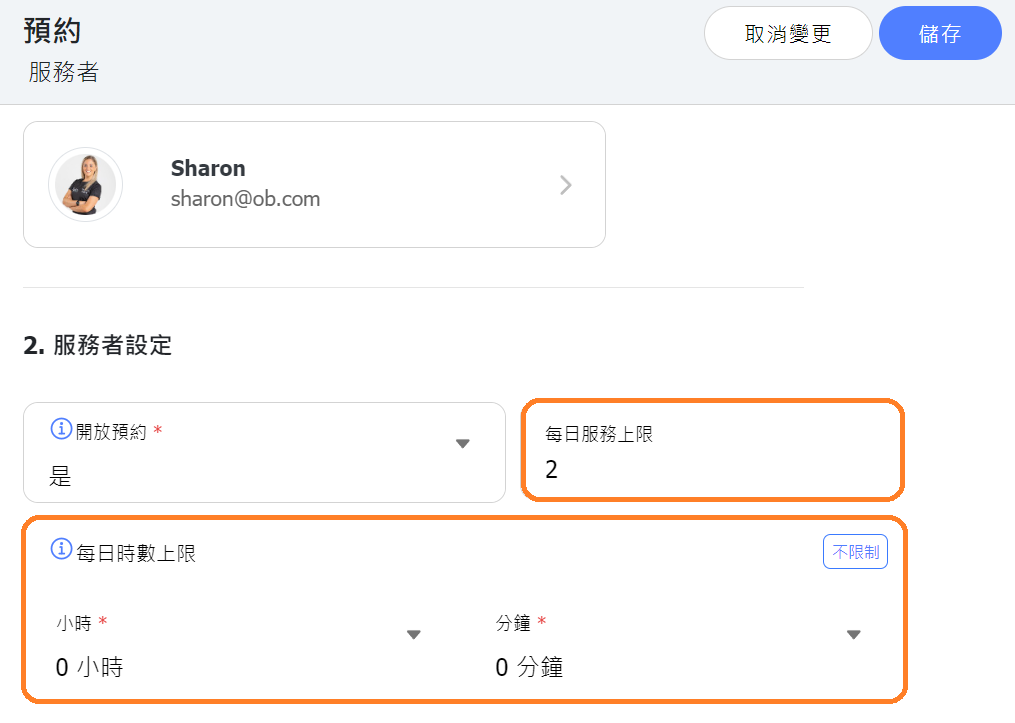
FAQ: What happens if I set a "Daily Class Limit" and "Daily Hour Limit"?
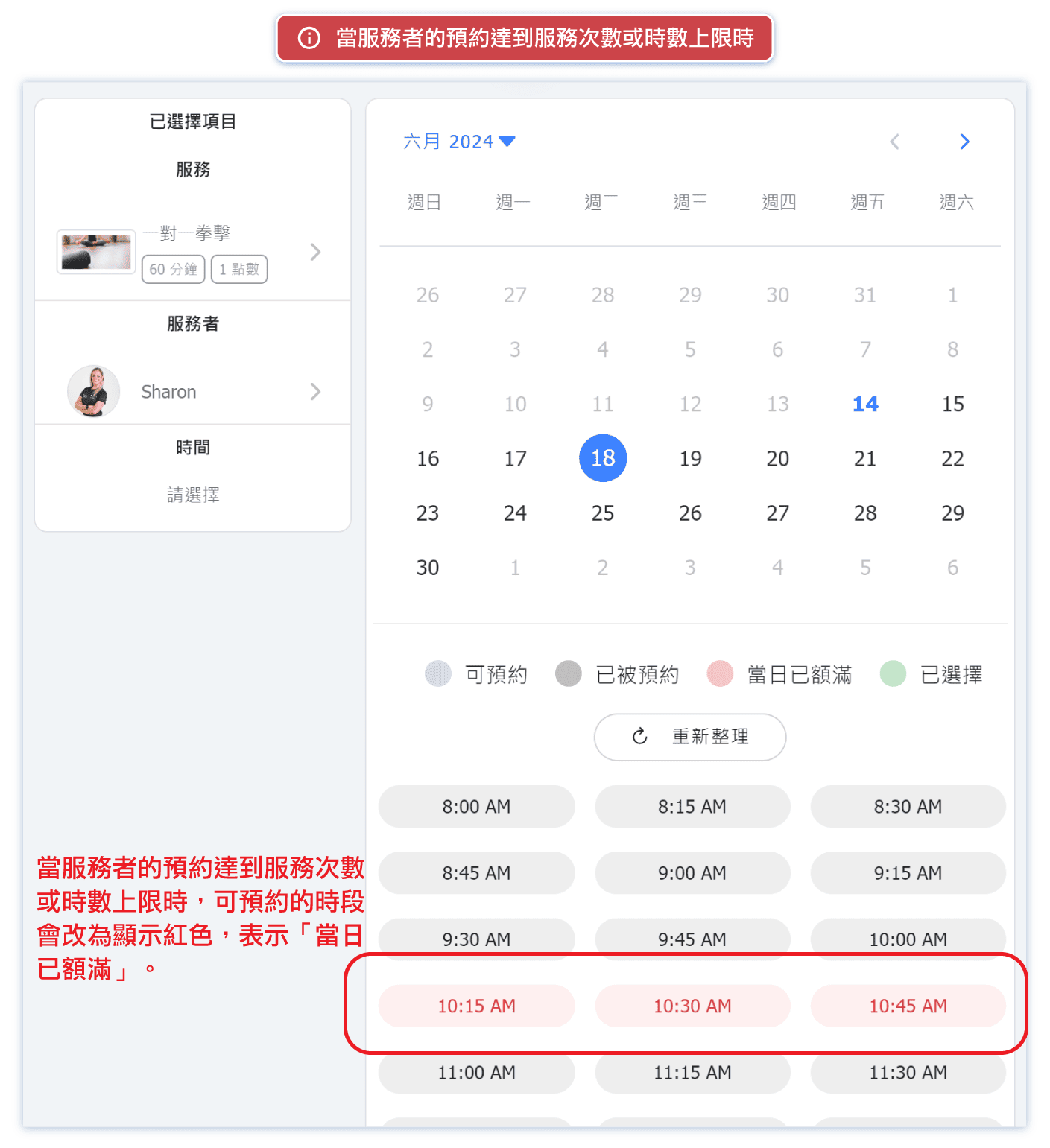
When you set a "Daily Class Limit (Daily Service Limit )," if the service provider reaches the maximum number of reservations allowed per day, customers will see the previously available time slots turn red, indicating they are "Limit for Day" for that day.
Similarly, if you set a "Daily Hour Limit," once the service provider's daily reservation hours reach the set limit, customers will also see the available time slots turn red, indicating they are "Limit for Day" for that day.
If you have both limits configured, regardless of which one is reached first, the time slots will turn red, showing "Limit for Day" for that day.
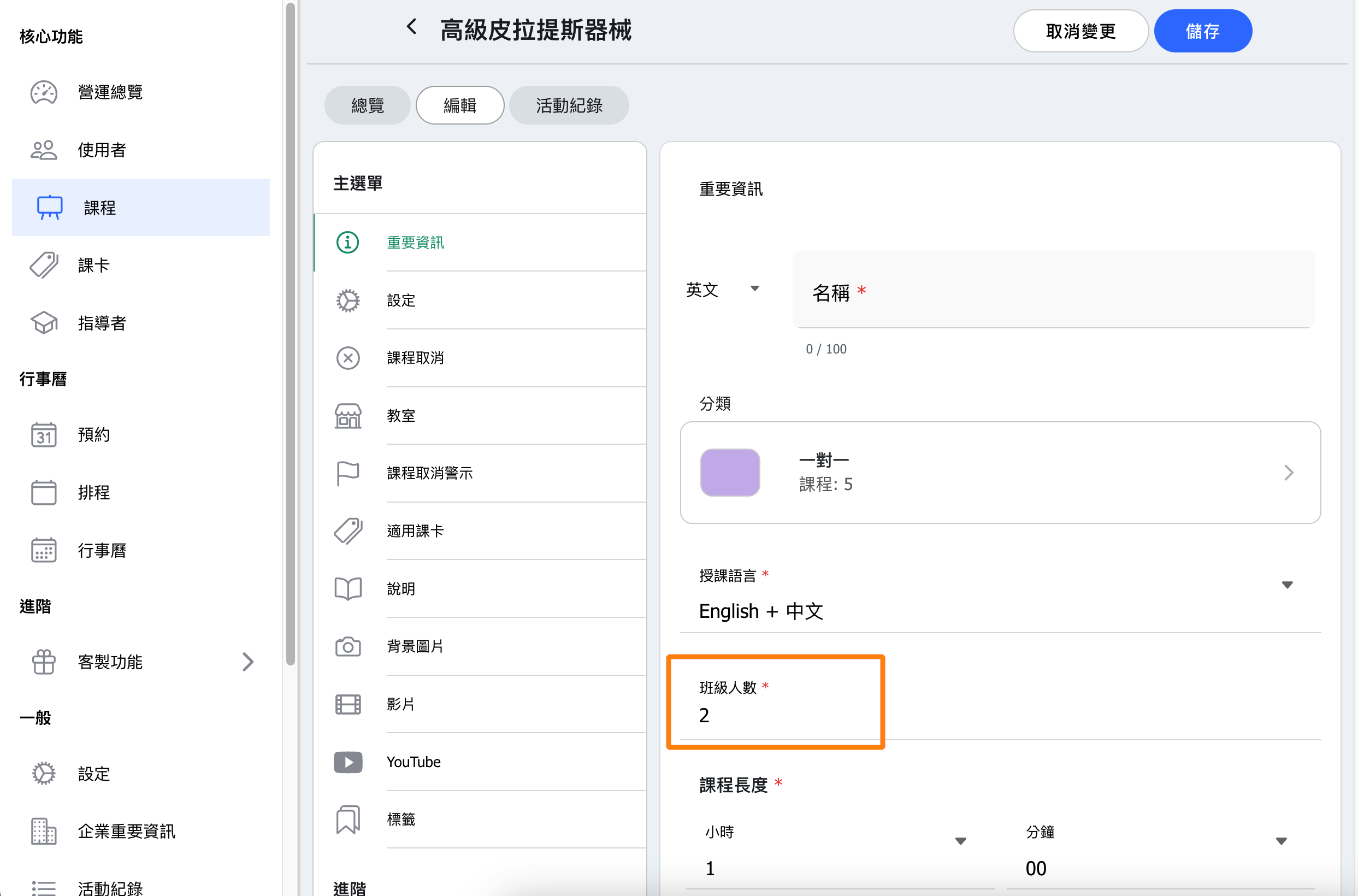
FAQ: How do I set up 1-on-2 or 1-on-3 classes?
You can edit the class you want to offer under the "Classes" page of the Essentials (on the left hand side of admin page). Set the number of "class size" to 2 or 3 as needed.
FAQ: How do I set up a service to occupy a specific room?
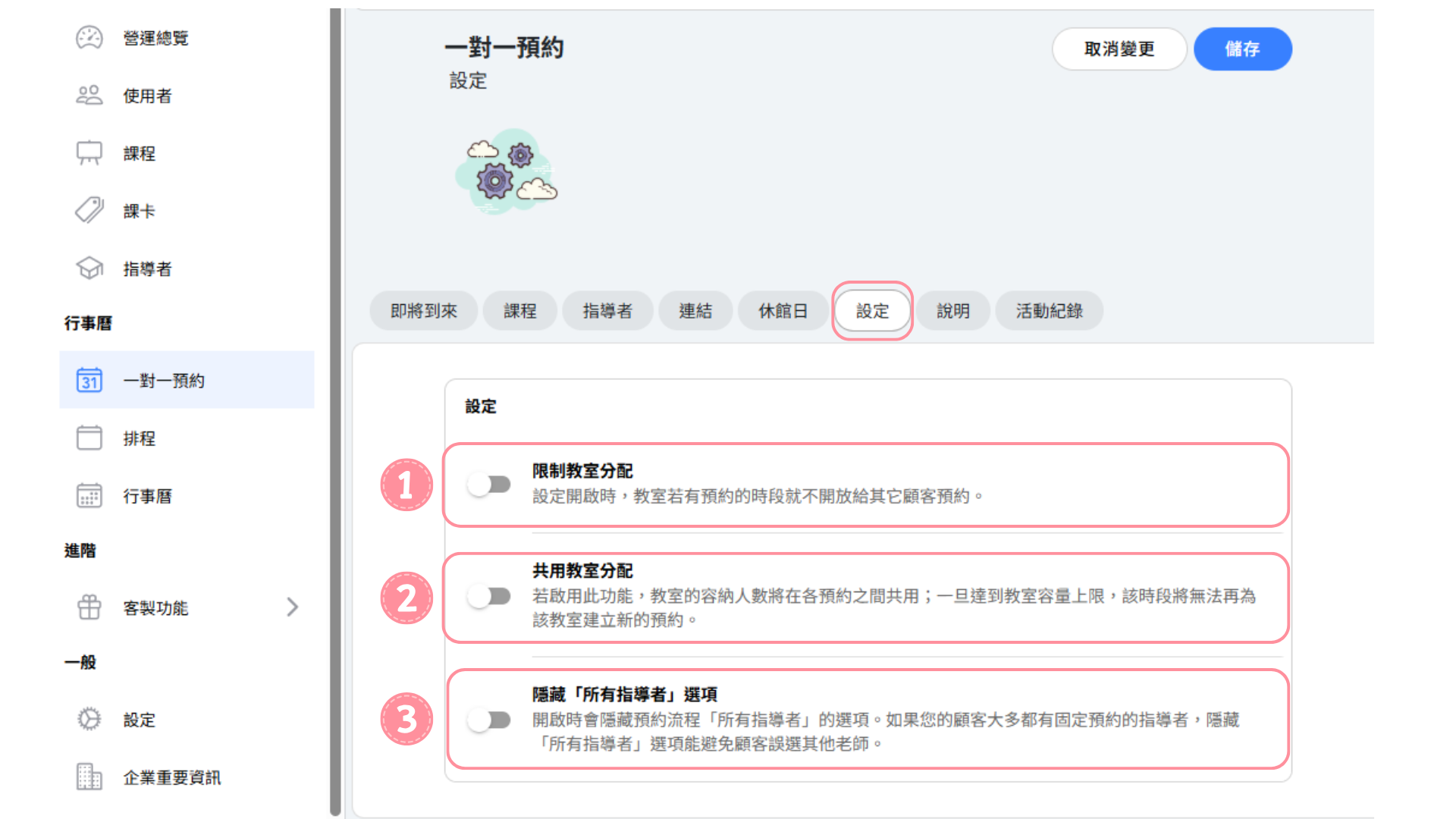
In the Appointment module, you can find Settings. Below is an explanation of each option:
Enable “Restrict Room Assignment”
When a service is restricted to a specific room, once that room already has an appointment, all services using the same room during that time slot will become unavailable for booking.When “Restrict Room Assignment” is disabled, you may choose to enable “Shared Room Assignment.”
After enabling this option, the system will calculate the number of services using the shared room within the same time slot. Once the room’s capacity limit is reached, no further bookings can be made.Enable “Hide ‘All Instructors’ Option”
When enabled, the “All Instructors” option will be hidden to prevent customers from mistakenly selecting other service providers.
Instructor Permission Boundaries in the Appointment Module
To ensure clear permission boundaries and protect shared configurations, instructors have restricted access within the Appointment module.
Restricted Areas
- Connect Tab: Not visible or accessible to instructors. This tab contains service-to-instructor mappings that affect all staff members and should only be managed by administrators.
- Settings Tab: Not visible or accessible to instructors. This tab contains shared configurations such as room assignment rules and display options that impact the entire booking system.
What Instructors CAN Access
- Their own working hours and availability settings
- Their own special time or holiday configurations
- View their assigned courses and services
Why These Restrictions Exist
This permission structure prevents instructors from accidentally viewing or modifying data related to other instructors. It also ensures that shared system configurations remain under administrative control.
If you are an instructor and need changes made to the Connect or Settings tabs, please contact your administrator.


