
What is LINE Bot?
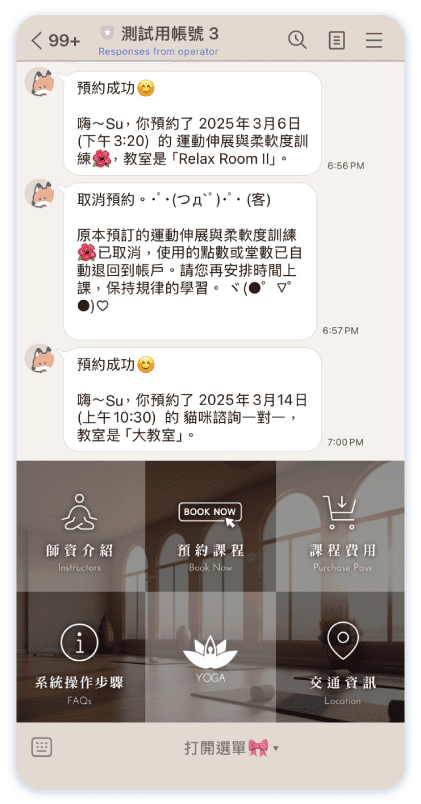
The Line Bot custom feature allows your clients to book your services via Line messenger and it also works in Line mobile app. The booking bot connects with your schedule at Omcean Booking and guides your client throughout the booking process.
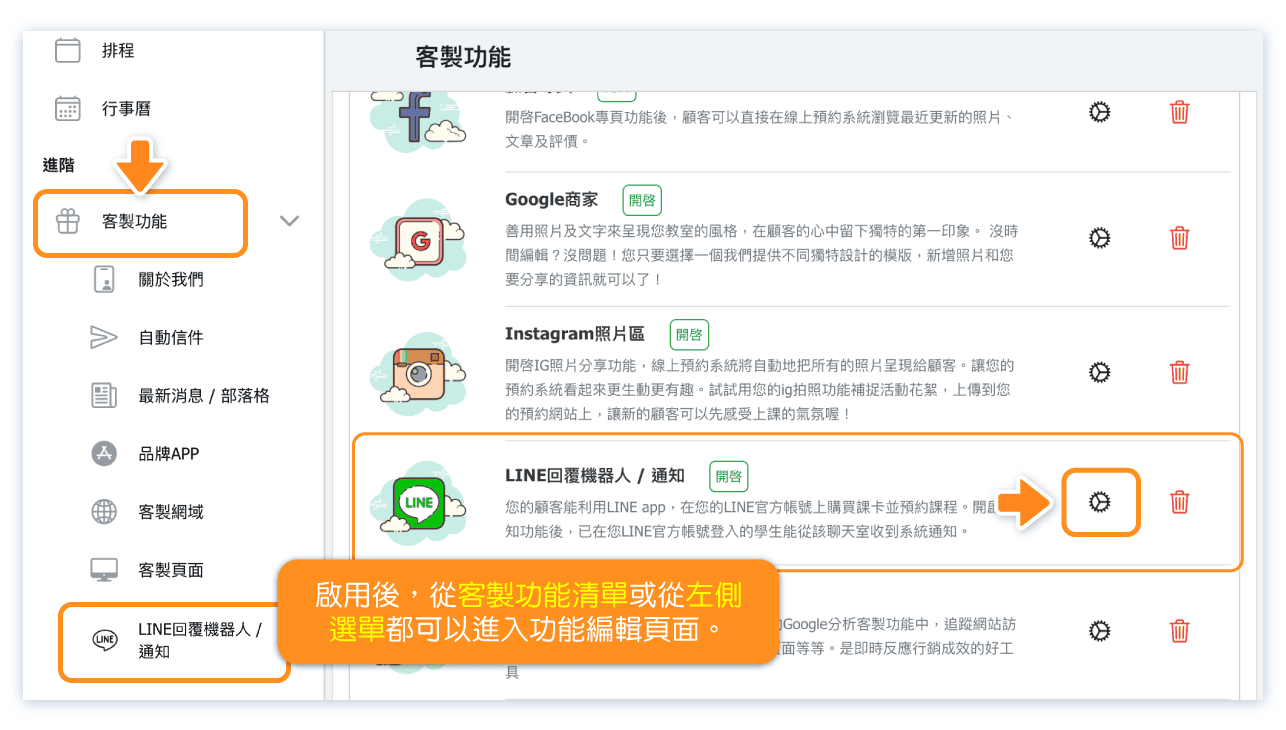
Turn on "LINE Bot/Notifications" Feature.
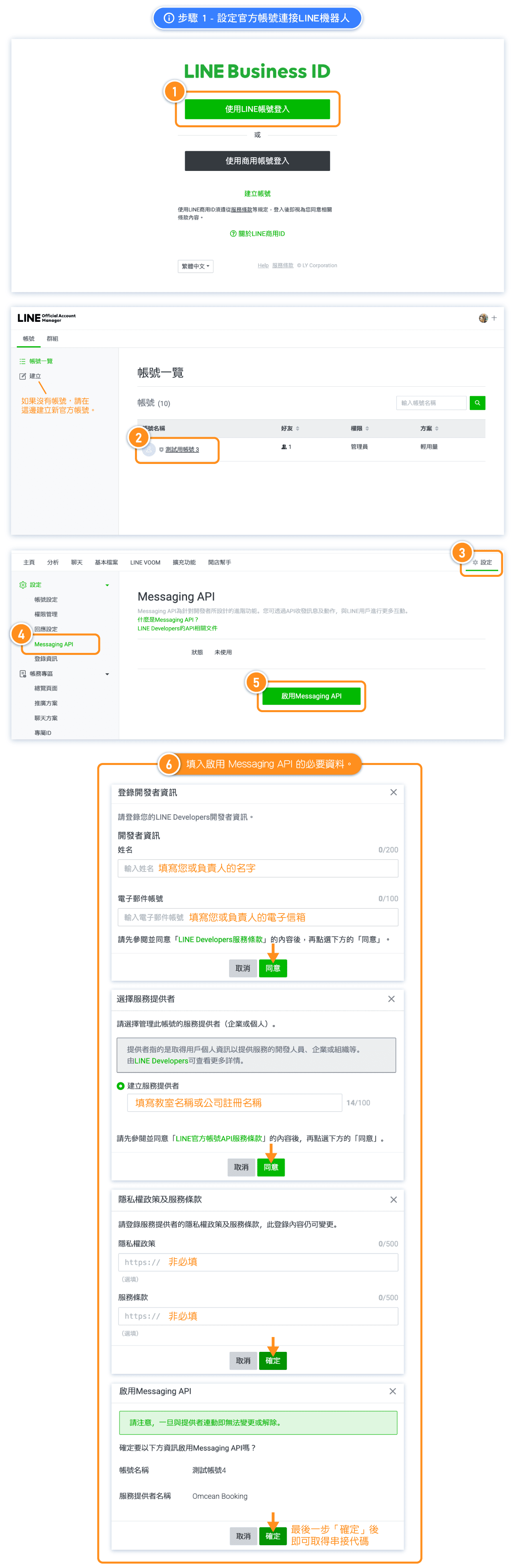
Step 1 - Set up LINE Official Account to Connect LINE Bot
First, change the LINE official account settings to allow integration with the system’s LINE bot and copy Channel ID and Channel secret and paste it in the booking system.
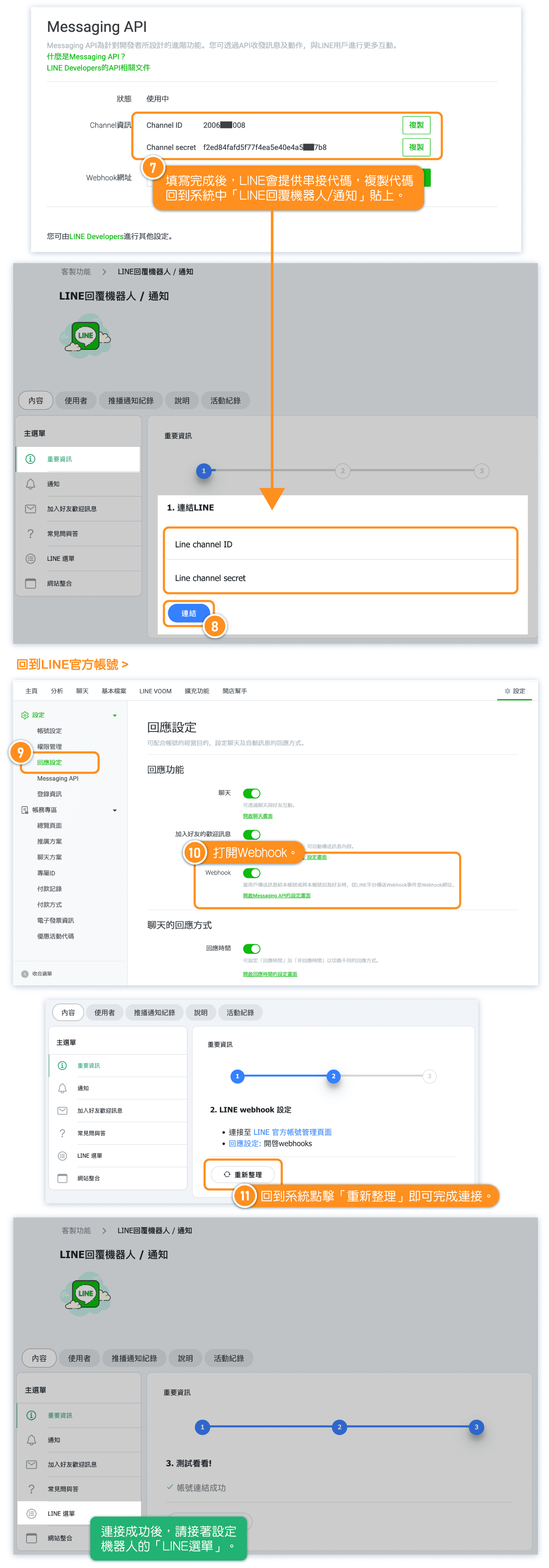
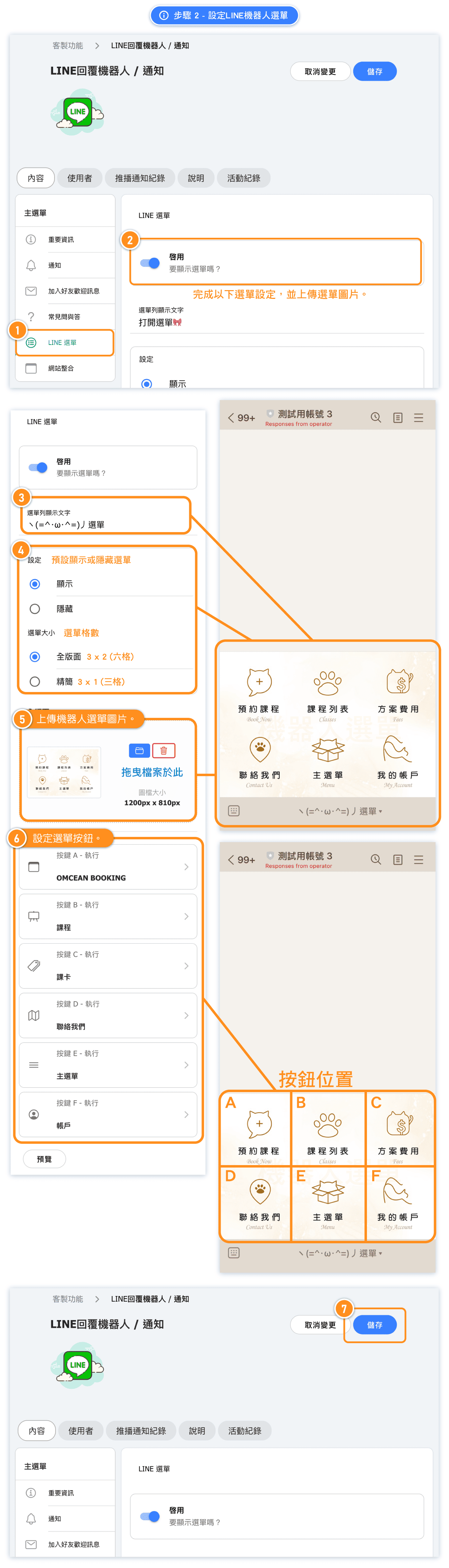
Step 2 - Set up LINE Richmenu.
Once the integration is complete, set up the bot menu by uploading the designed menu to the system, configuring the button functions, and saving the settings.
If you want to use the "LINE Notifications" feature, the menu must be set up in the system!
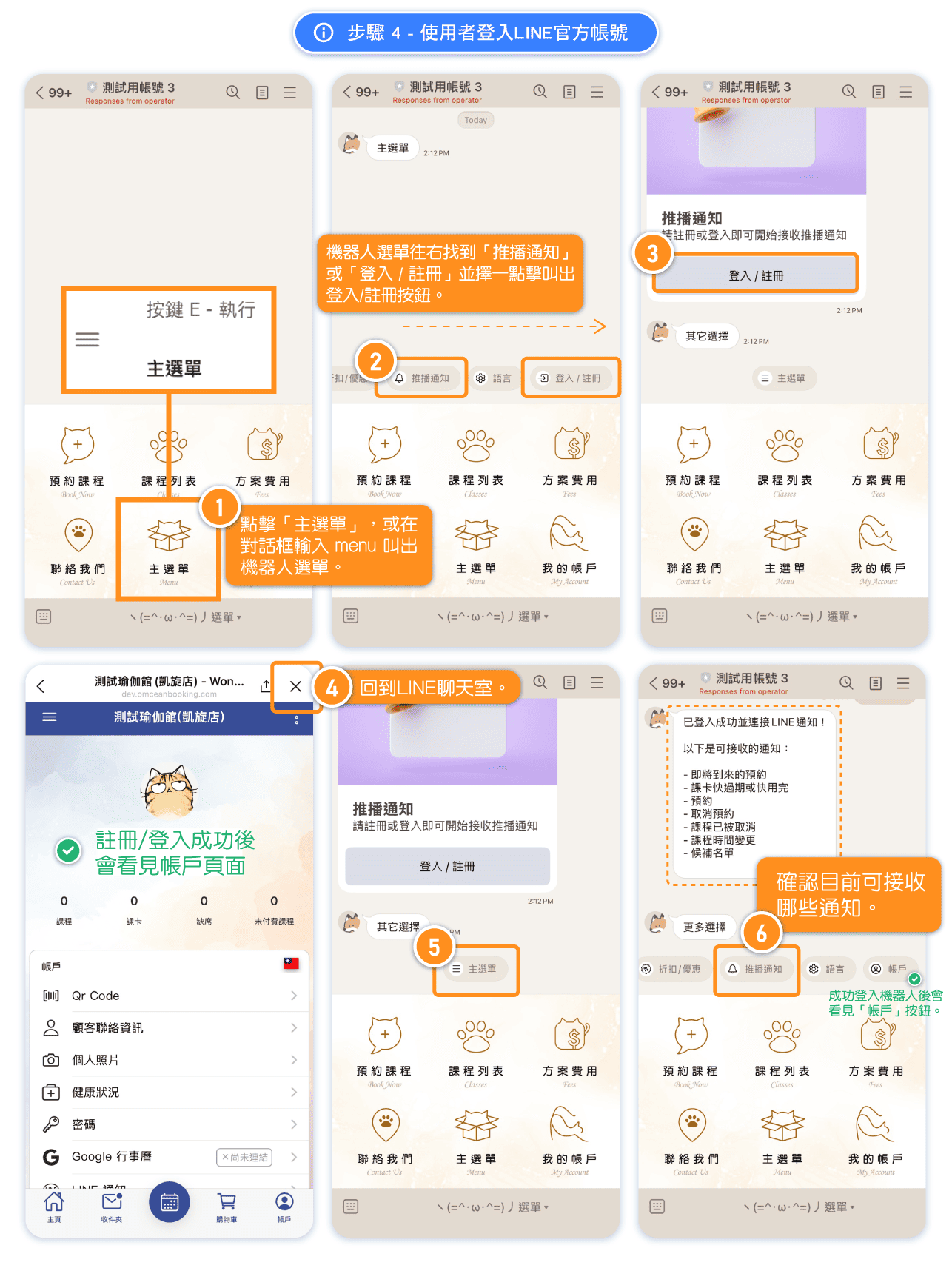
One of the buttons should be set as "Menu." This way, when users tap "Menu," they will see the login button. By logging in and connecting their personal LINE account to the LINE bot, they will start receiving notifications from the LINE bot.
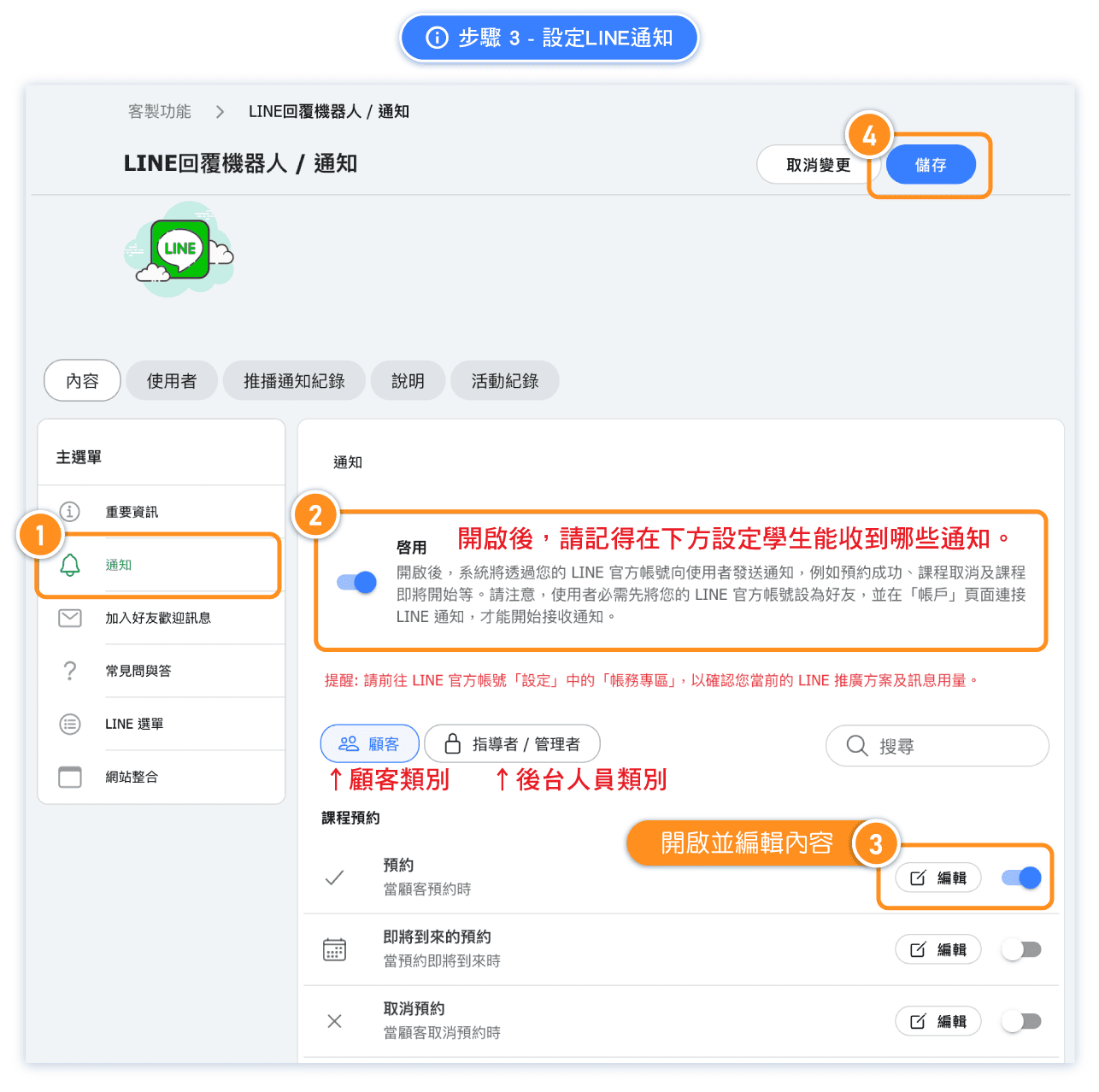
Step 3 - Turn on LINE Notifications (LINE Messaging API)
If you want to receive notifications from the LINE official account, enable notification settings, select the notifications you want to receive, and save.
Reminder: The total number of notifications you can send to customers each month is determined by your LINE plan. Please visit the "Activity and Billing" page in your LINE Official Account settings to check your current plan and message usage.
Step 4 - User Connects to LINE Notifications
Reminder: To receive notifications, admins, instructors, or customers simply need to log in to the LINE bot following the steps below. Once their personal LINE account is linked to the studio's LINE official account, they will start receiving LINE notifications!
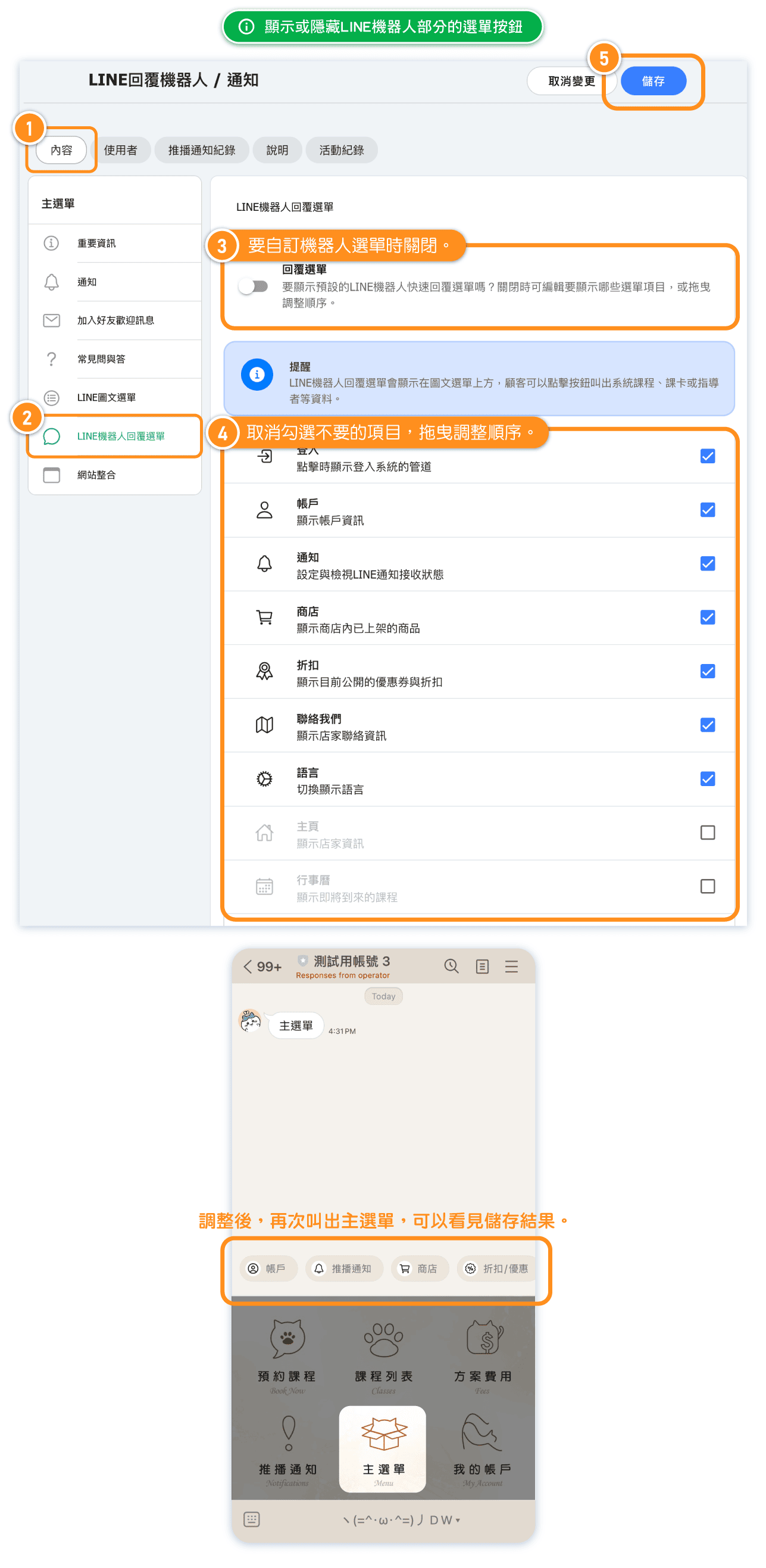
FAQ: How do I show/hide certain LINE Bot menu buttons?
You can go to "Line quick replies" to hide specific menu items in the LINE Bot. You can also drag and adjust the order of the items.
FAQ: How can I check if a customer is connected to the LINE Bot?
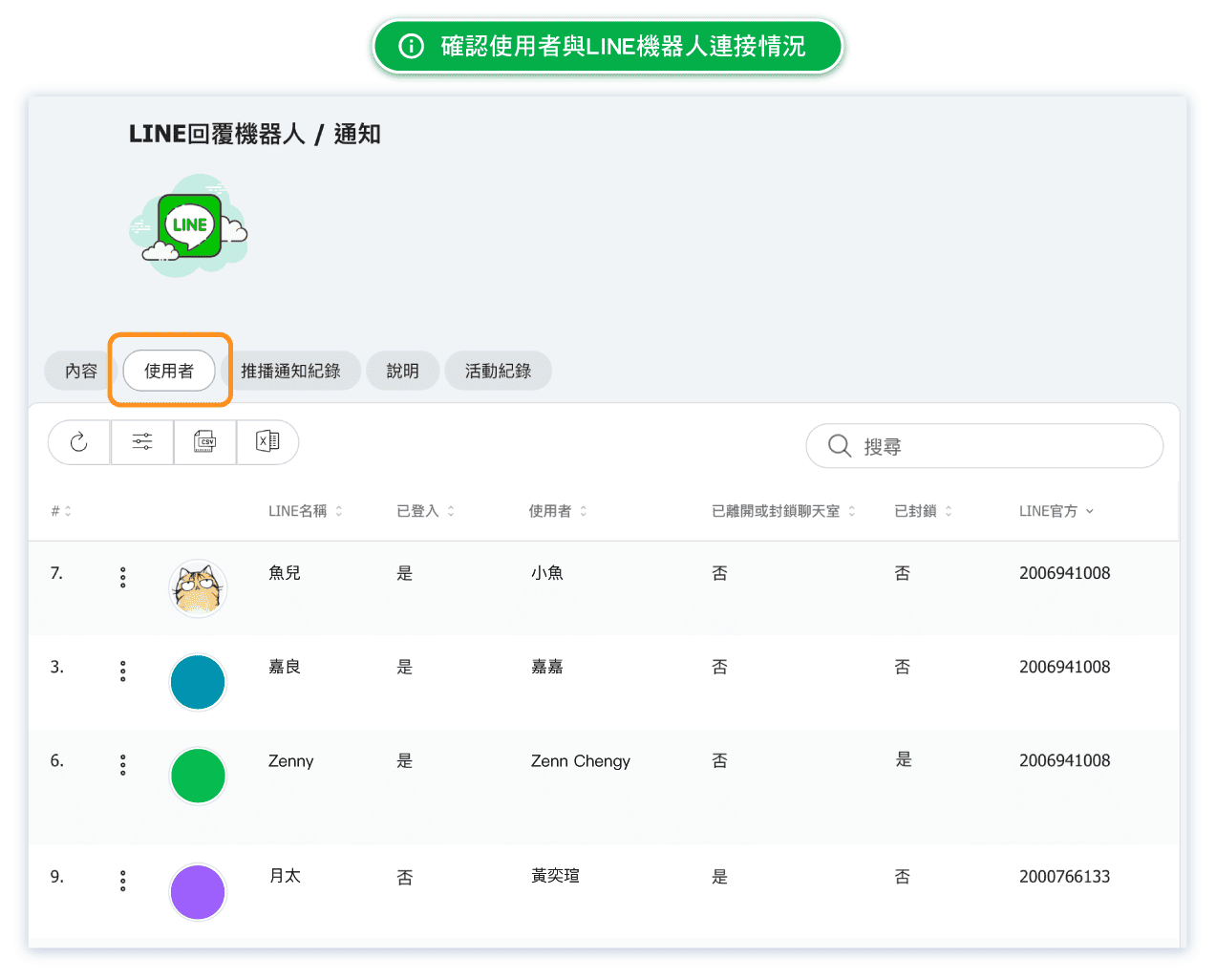
On the "User" tab in 'Line Bot / Notifications' page, you can see all registered users. If a user has successfully connected to the LINE Bot, the "Logged in" field will show "Yes", and the "LINE official" field will display the Channel ID of connected LINE Official Messaging API. This confirms the customer is successfully connected to the LINE Bot and notifications.
FAQ: Can I tell if a customer has blocked me?
Yes. On the "User" tab, find the user who you want to check and look at the "Left chat" field. If it shows "Yes", the user has blocked your LINE Official Account chat.

FAQ: Can I prevent the system from sending LINE notifications to certain customers?
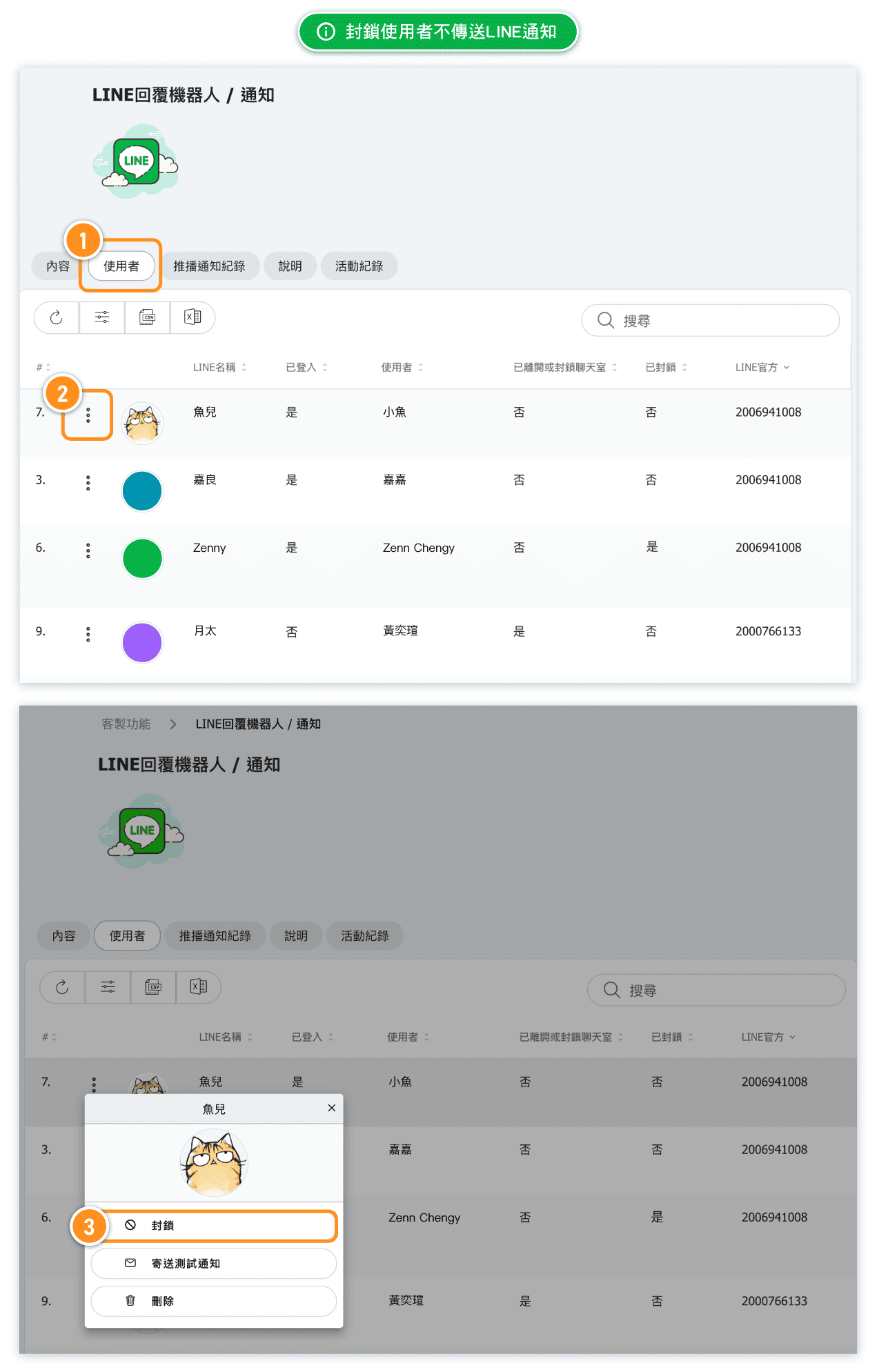
Yes. Find the user on the "User" tab, click the three-dot icon on the left, and select "Block". The system will no longer send LINE notifications to that customer.
FAQ: What happens if a customer blocks the chat or I block them in the system?
The customer will no longer receive system notifications via LINE, but actions like logging in and booking will remain unaffected.Need Help for LINE Richmenu?
The rich menu is a customizable menu that is displayed on the chat screen to help users interact with your LINE Official Account.
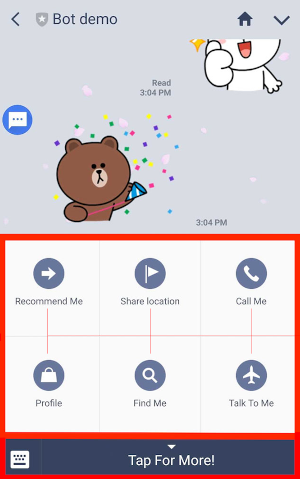
Large
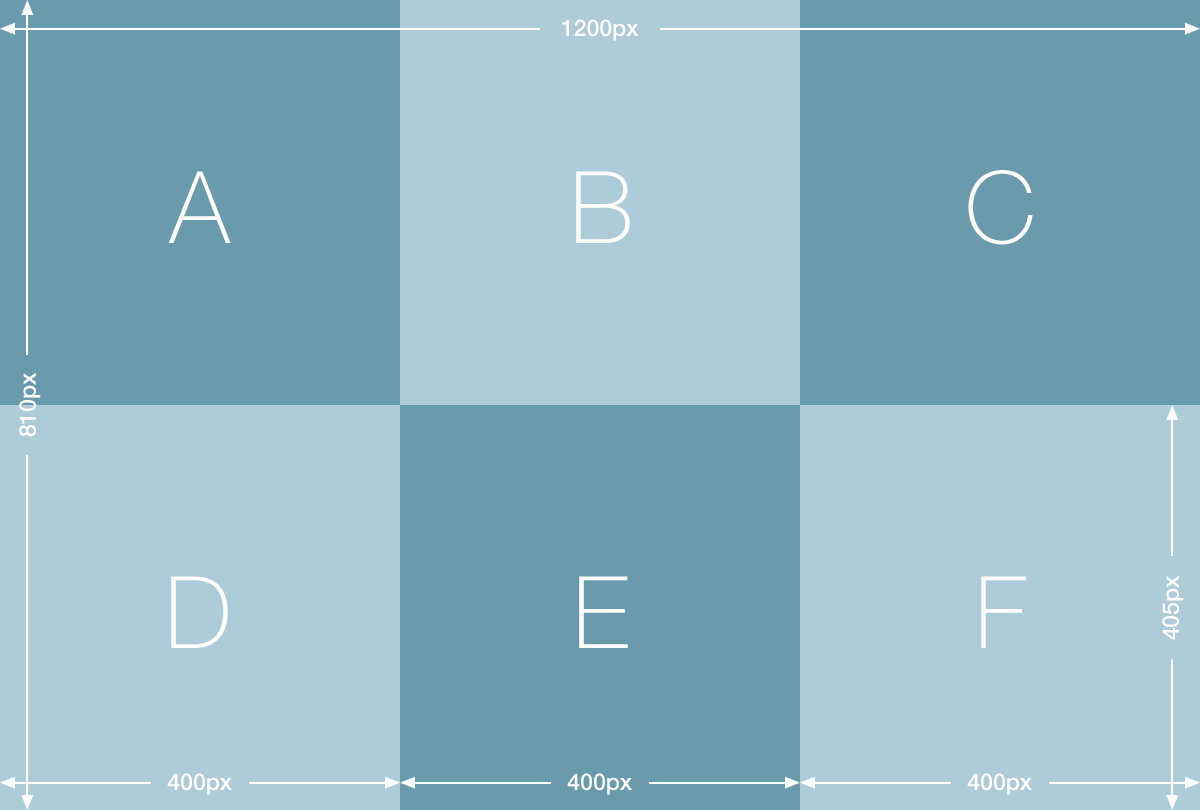
Compact

FAQ: How is LINE Bot Chat Quota Calculated?
The LINE message quota depends on your LINE Official Account subscription plan. Here are the current plans available in Taiwan:
- Light / Free / 200 messages/month / Additional purchase: Not available
- Standard / NT$800 (excl. tax) / 3,000 messages/month / Additional purchase: Not available
- Premium / NT$1,200 (excl. tax) / 6,000 messages/month / Additional purchase: From NT$0.2/message
What messages count toward quota?
- Broadcast messages
- Messaging API Push messages
- Narrowcast messages
What messages are FREE (not counted)?
- Reply messages (one-on-one chat responses)
- Welcome messages
- Keyword auto-reply messages
- Auto-response messages
Important: You can check your plan and message usage in the "Activity and Billing" section of your LINE Official Account settings.
This information is referenced from LINE official documentation as of March 31, 2026. LINE's plans and pricing may change at any time. Please refer to the latest official announcements from LINE for the most accurate information. For details, visit LINE Biz-Solutions or LINE Developers.


