What is LINE Official Account?
What is Line Official Account?
A LINE Official Account is an account established on the LINE platform for providing instant communication, message delivery, information sharing, customer service, and more between customers and brands or organizations. By using a LINE Official Account to push messages to customers, businesses can enhance interaction with customers, foster closer engagement between classrooms and customers, and improve reservation and communication efficiency.
What does LINE integration do, and how can it help you?
When integrated with the LINE Official Account, Omcean Booking can directly support payment functionality without any additional fees.
Customers can complete purchases (payments), book courses, and check schedules directly on LINE, eliminating the need for manual assistance.
Understanding the Difference Between "Integration" and "Connection" Modes?
Both integration and connection allow you to bring reservation system information into your LINE official account. Students can make class reservations and access class schedules, information about teachers, and more in both modes.
| Integration | Connection | |
| Time | Short: Ready for use upon integration completion. | Long: Requires input of more items. |
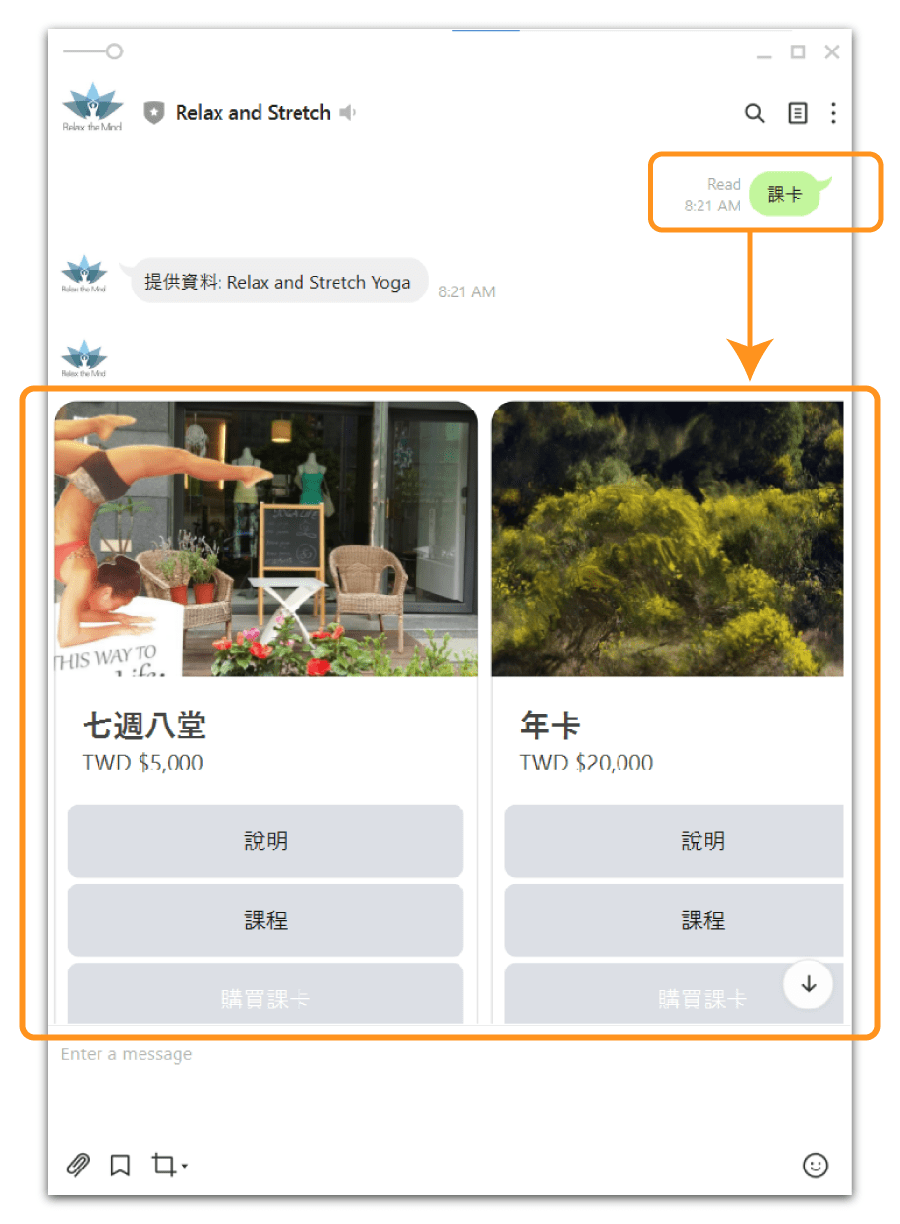
| Menu Items | The menu can sync with the established data in the system. Upon clicking, the LINE bot fetches the corresponding data from the system and responds in the chat window with "image cards and text." | The menu can integrate reservation system page URLs and also include links to features provided by the LINE official account, such as loyalty cards. |
| LINE Student Reservations | Yes | Yes |
| Additional Fees | No | No |
| Benefits | Saving time, the menu can contain fewer item selections, and once the integration steps are set up, it can be used immediately without needing to spend extra time creating content in the LINE official account. | The menu can accommodate a greater variety of items, such as LINE loyalty cards, custom schedules, promotional graphics, price lists, FAQs, and more. |
| Suitable for Businesses | For businesses that primarily use their LINE official account for student reservations, browsing classes, memberships, and instructor information, without heavily relying on it for marketing purposes, the menu integration option with fewer item selections would be suitable. | For businesses that frequently use their LINE official account to announce events, send promotional messages and images, provide students with LINE loyalty cards, and are more actively engaged in using their LINE official account for marketing purposes, the menu integration option with more item selections would be more suitable. |
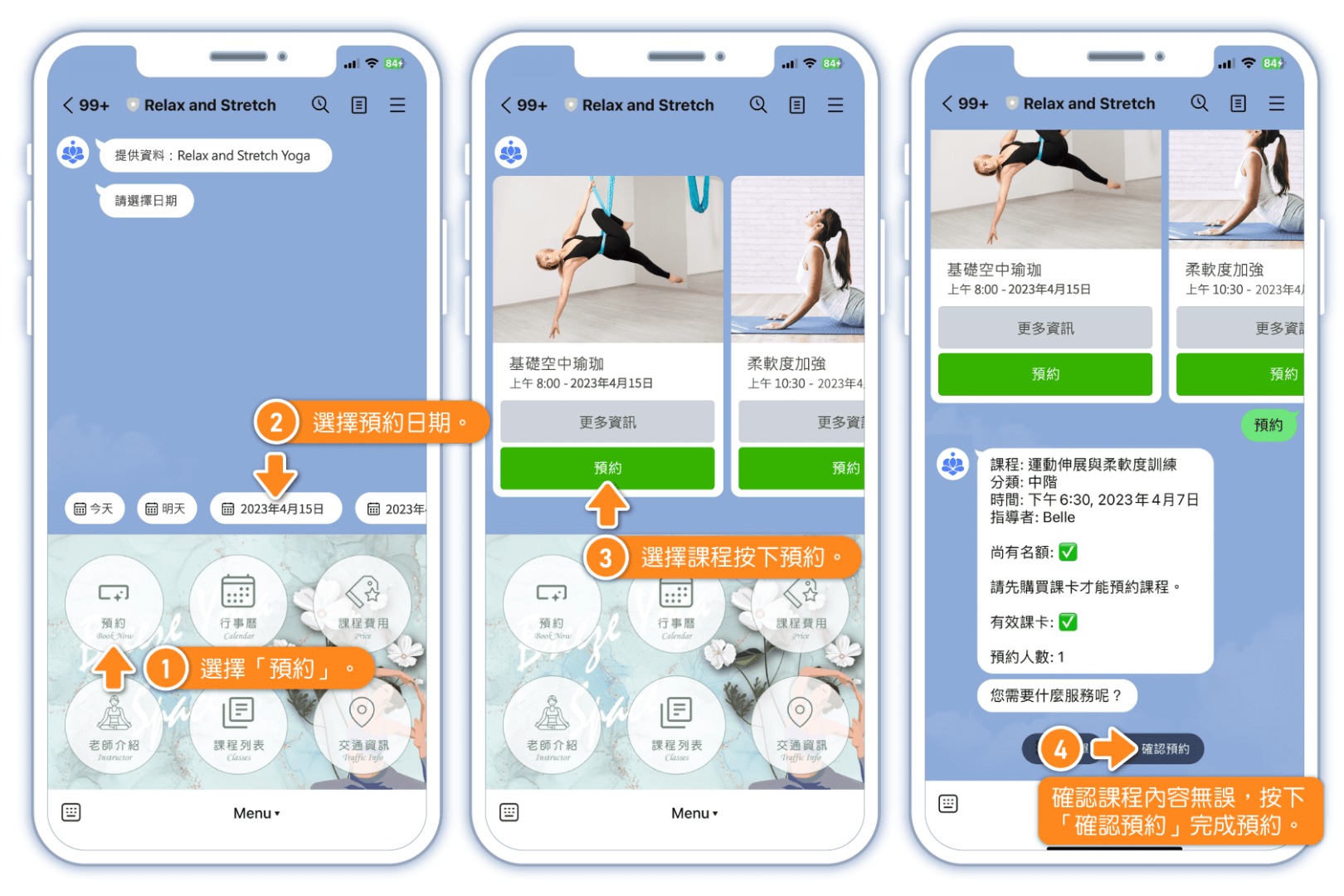
[Reservation Demonstration Image]
Customer Reservation Process During Integration:
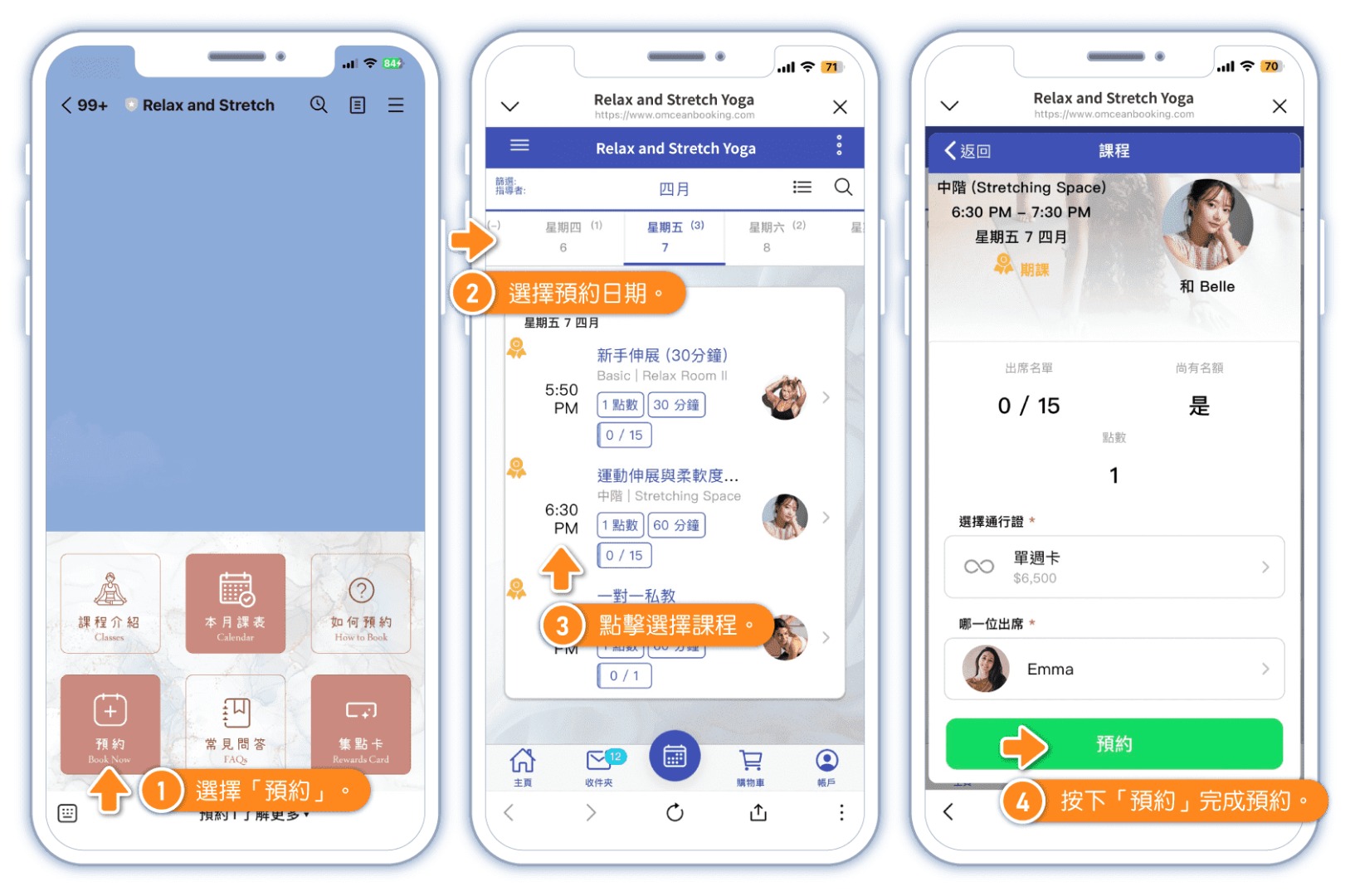
[Reservation Demonstration Image]
Customer Reservation Process During Connection:
※ Enable "LINE Notifications" to receive reservation system notifications in the LINE app, such as "Reservation Success," "Reservation Cancellation," "Class Cancellation," "Changes in Class Schedule or Teacher," and "Transaction Notifications." Both customers and managers can choose which types of notifications they want to receive in the system.
💡LINE Notifications can be used even without a LINE Official Account.
FAQ: How to Set Up LINE Notifications
[Integration] How to Set Up LINE Integration
Steps:
- Create a LINE Official Account.
- Complete basic account setup.
- Set up a welcome message.
- Create a rich menu.
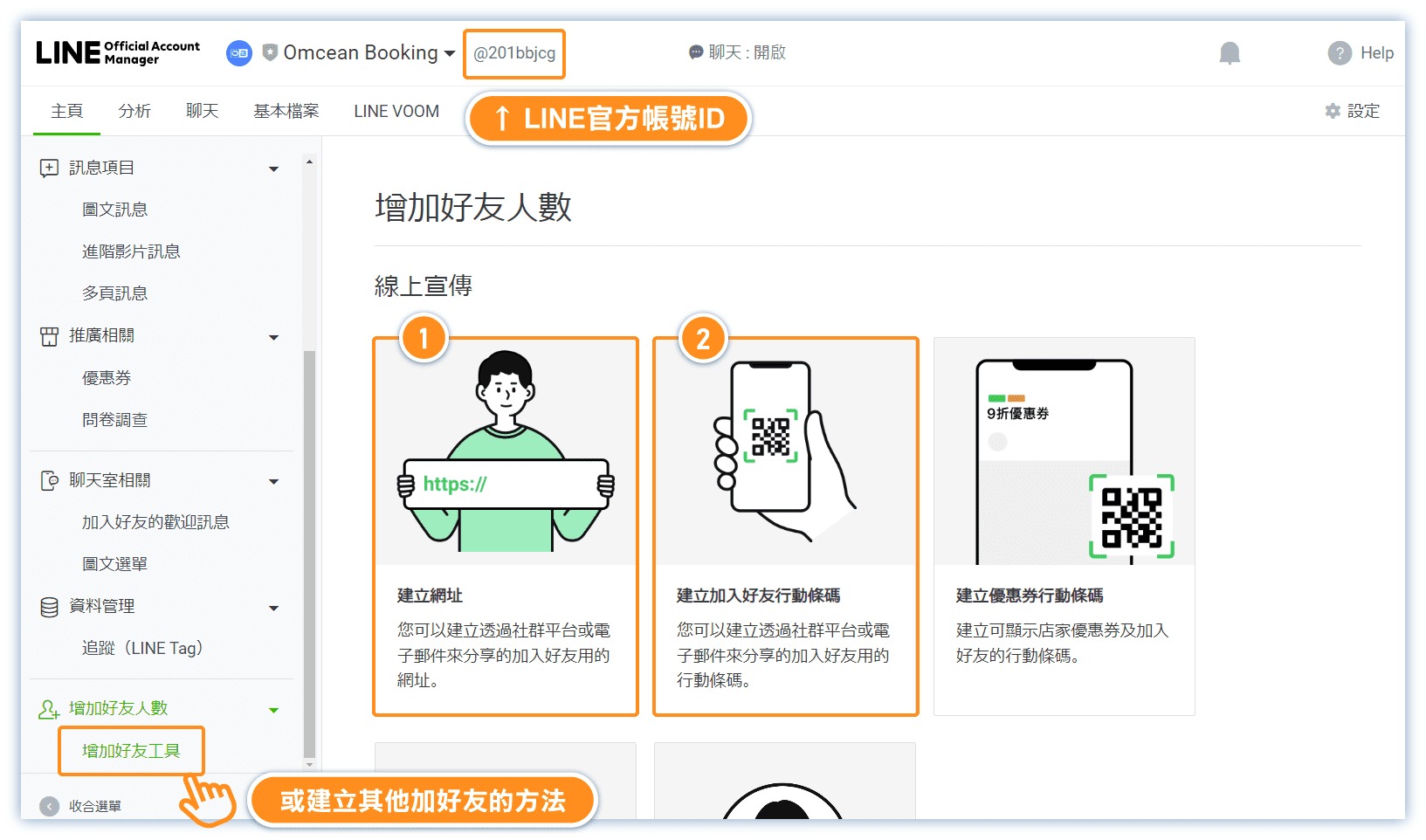
- You're all set! Provide the account ID for customers to add as friends.
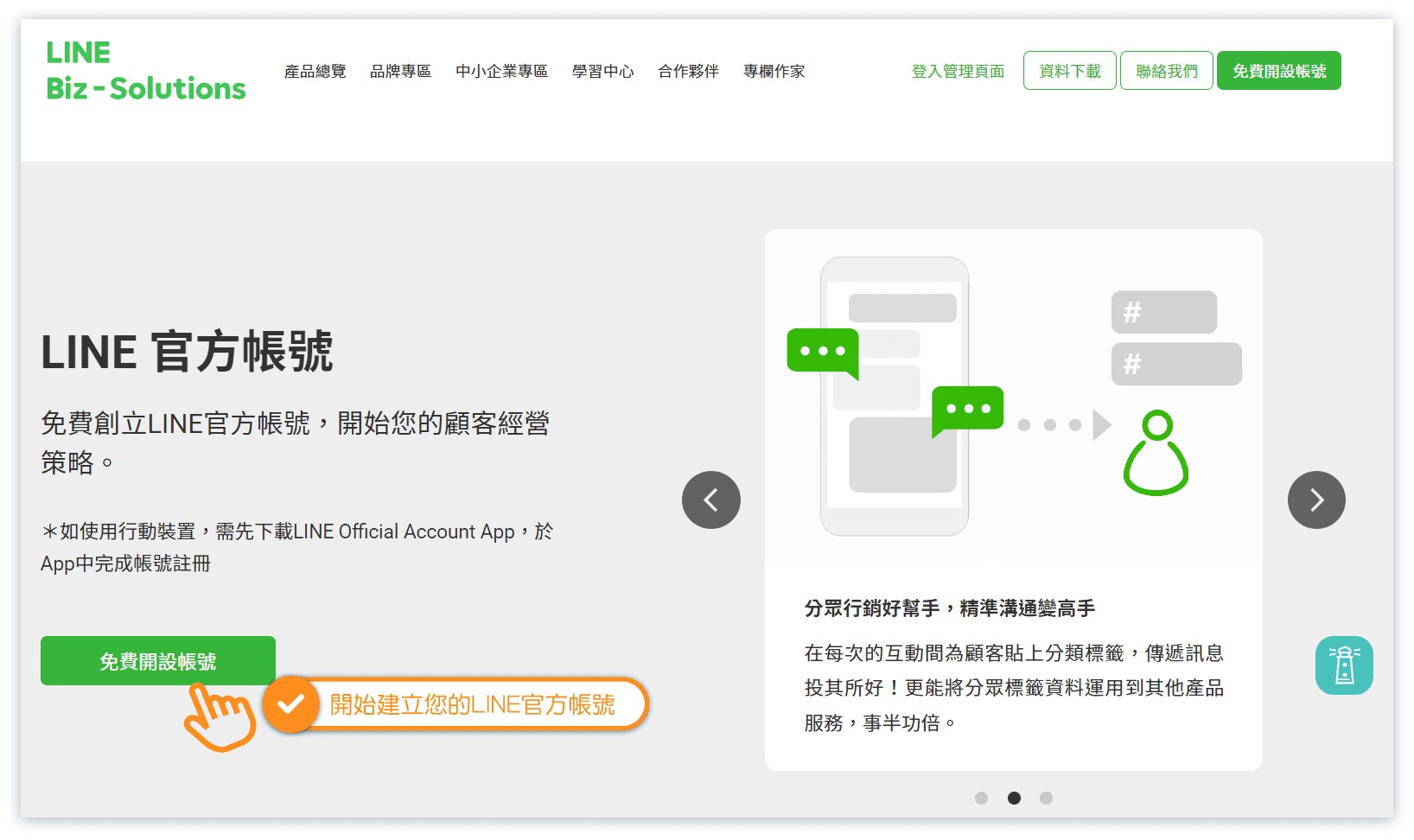
1. Create a LINE Official Account.
https://tw.linebiz.com/account/
2. Complete basic account setup.
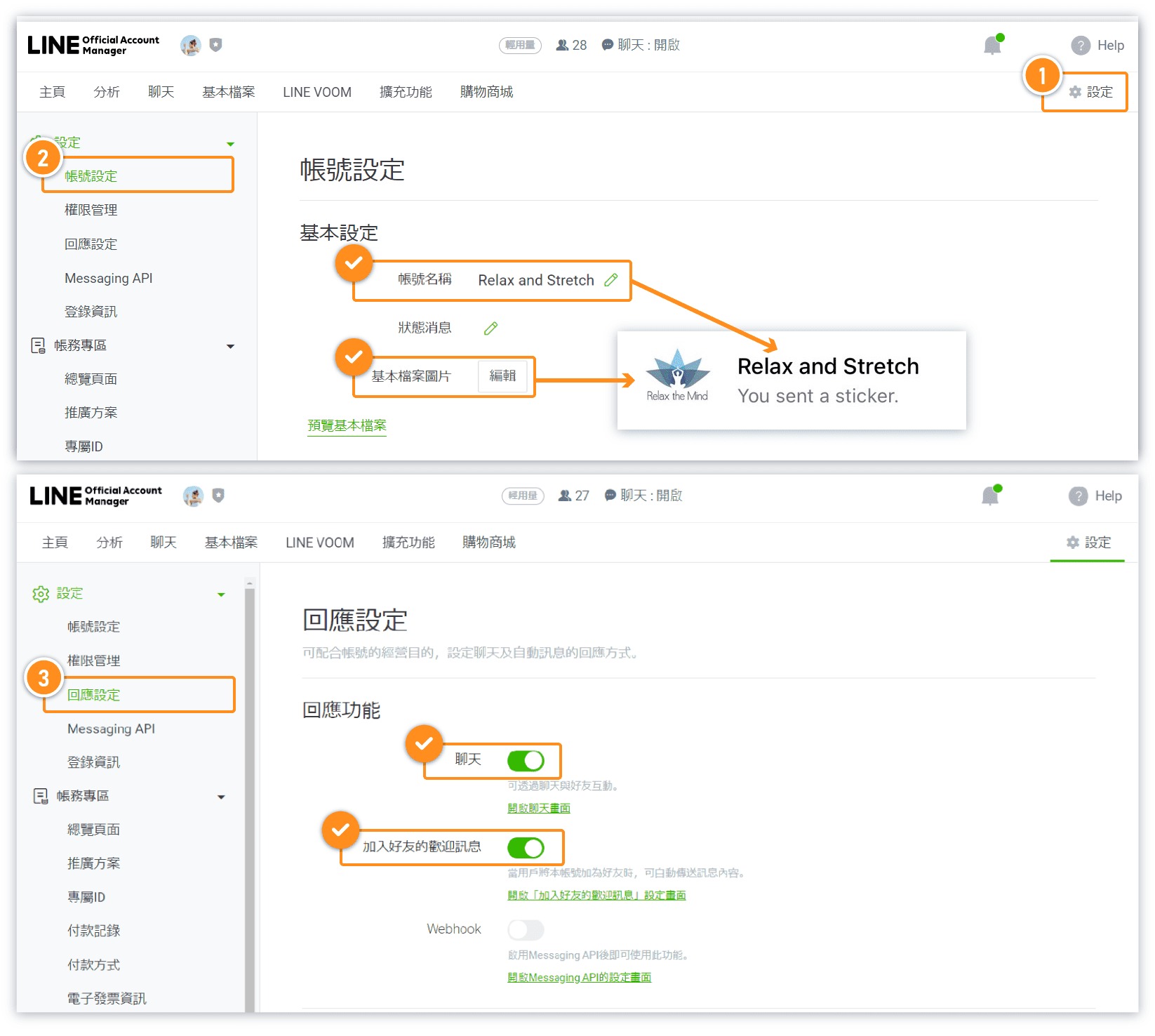
3. Set up a welcome message.
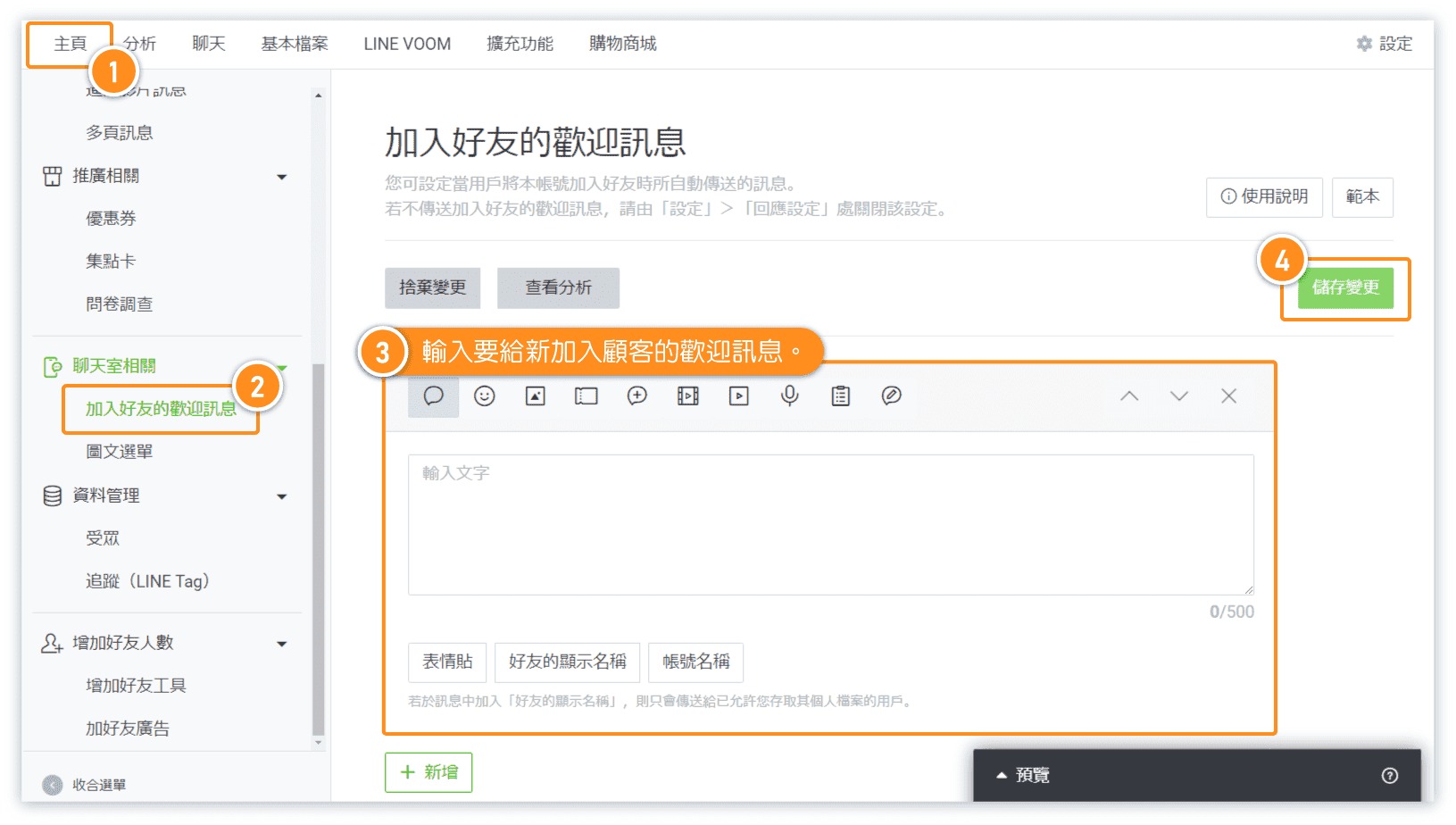
4. Create a rich menu.
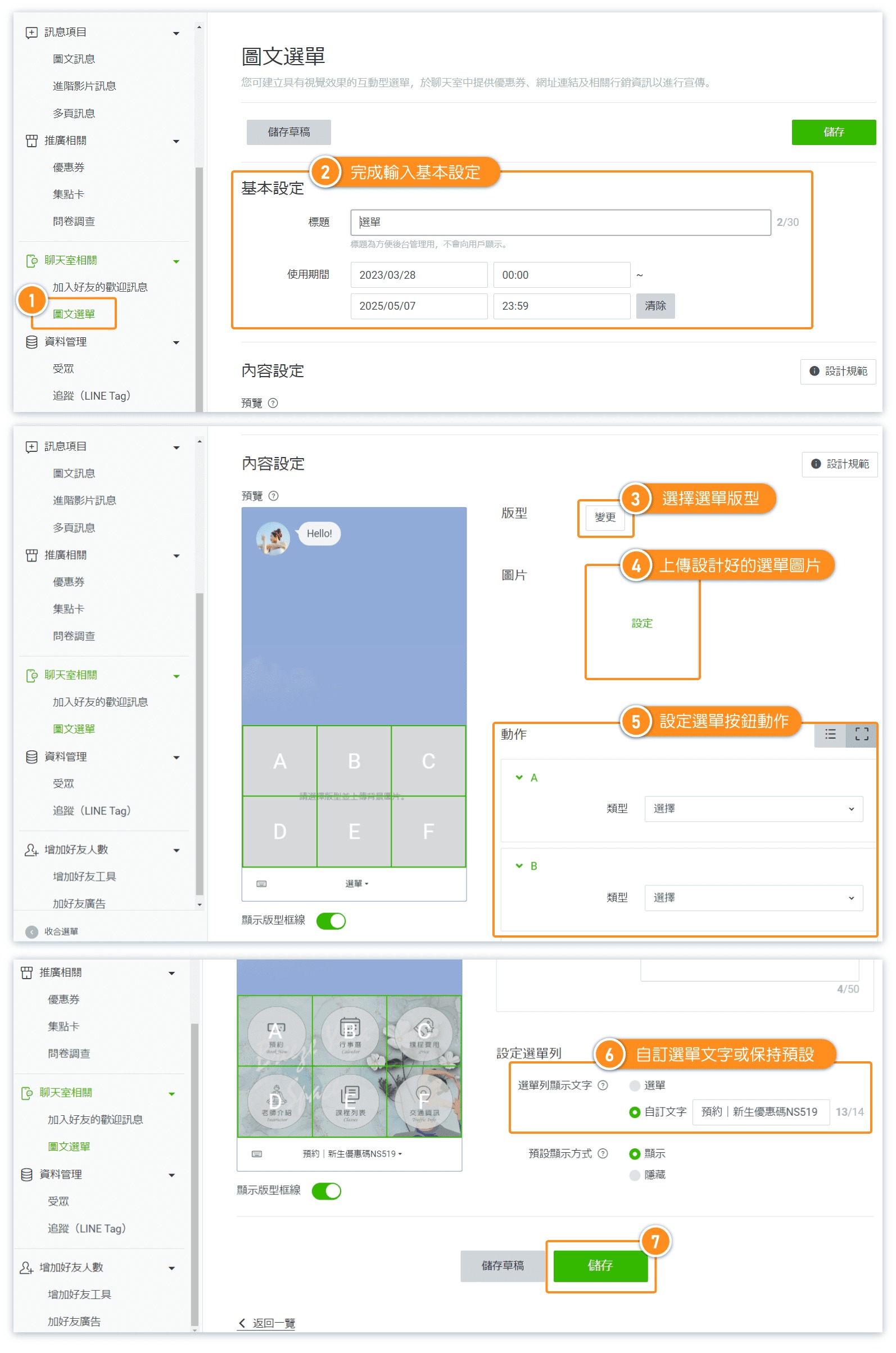
Once the rich menu is set up, changes to the LINE Official Account will be visible in the LINE app.
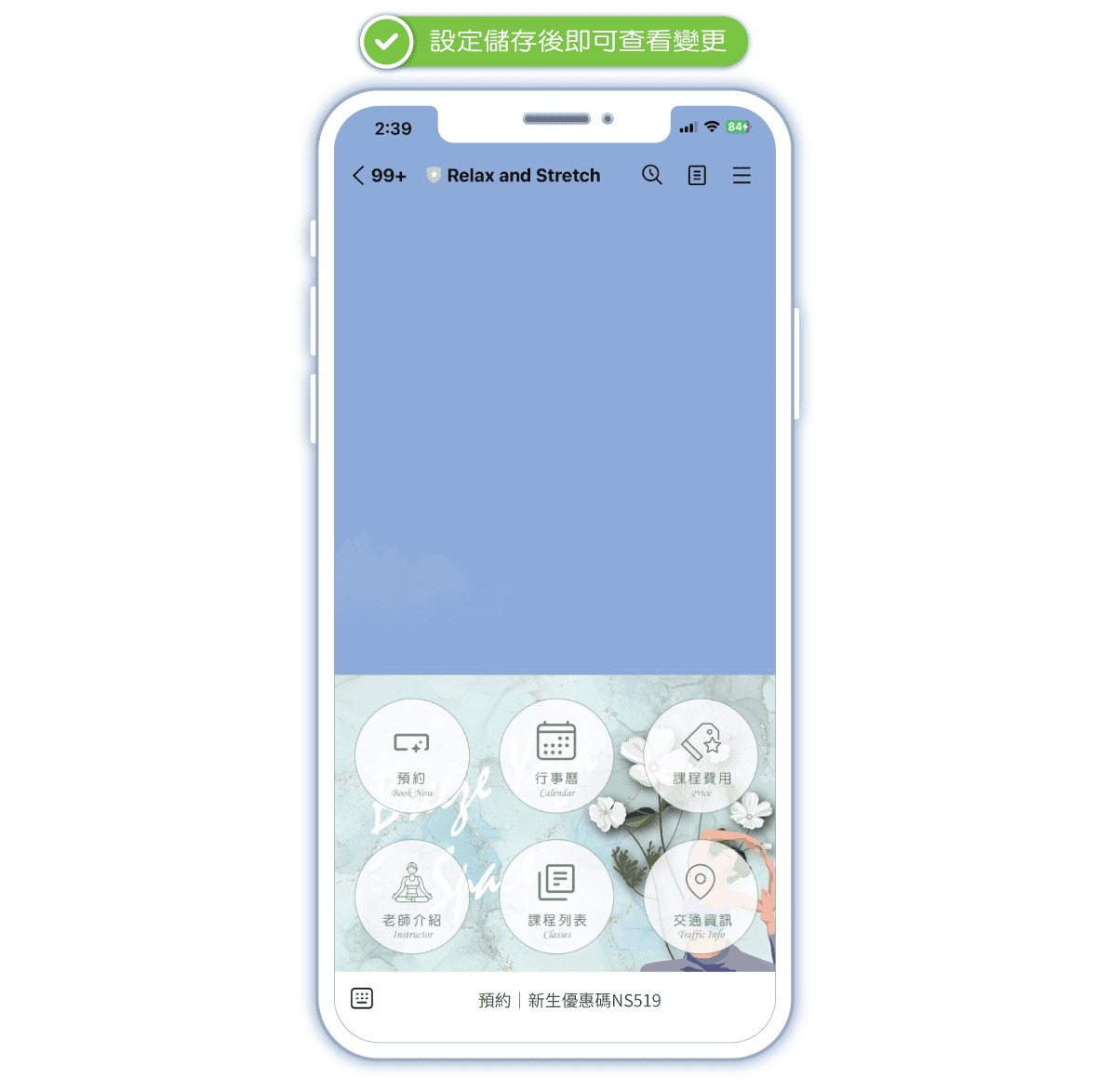
5. You're all set! Provide the account ID for customers to add as friends.
[Connection] Line Bot - How to Connect
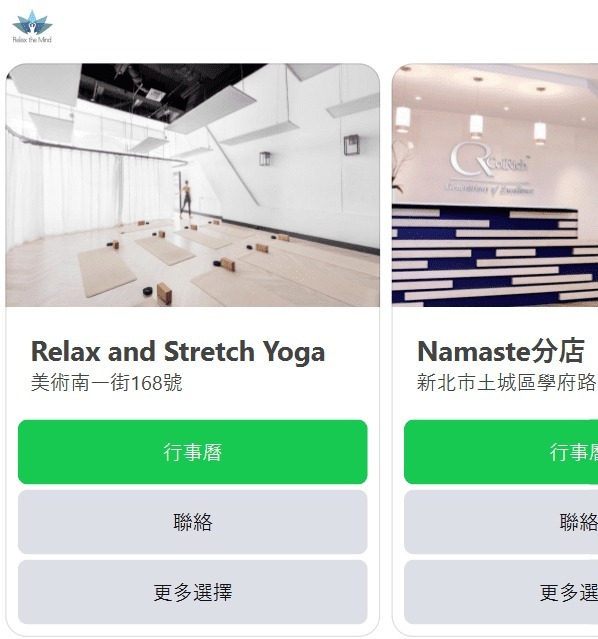
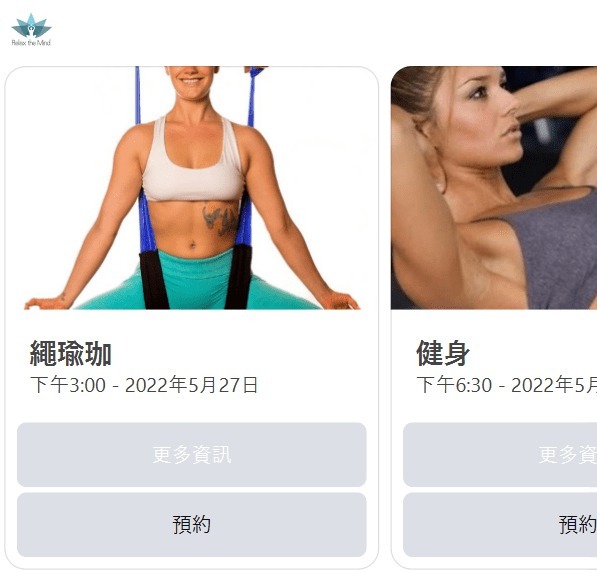
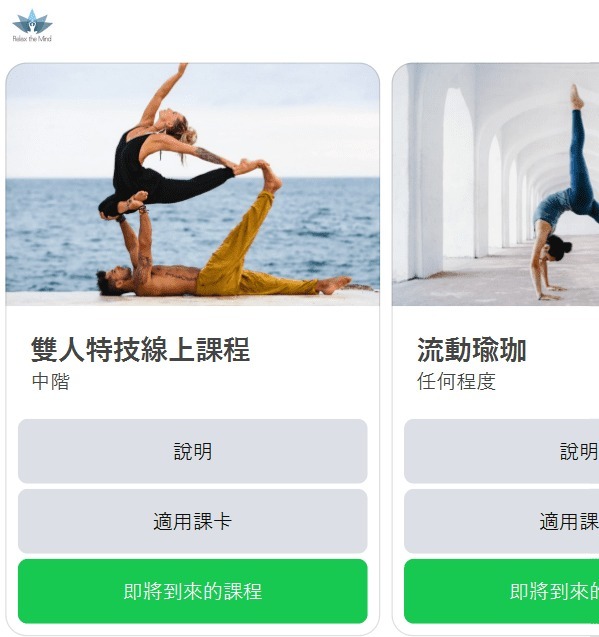
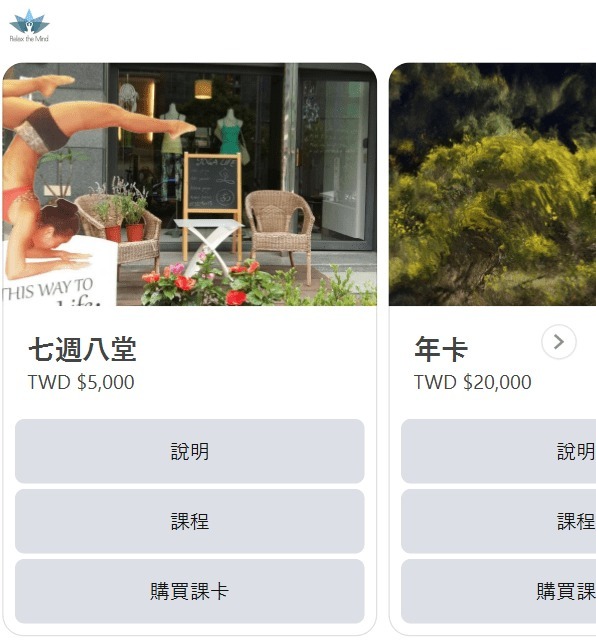
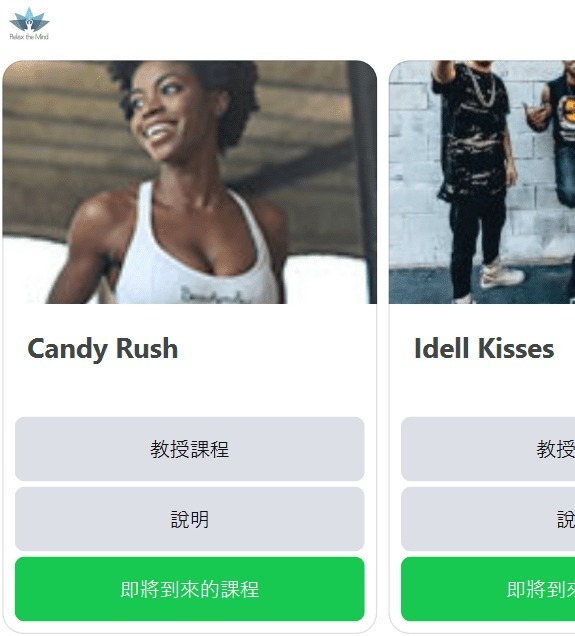
Using the custom feature "LINE Bot," you can integrate the data already established in the system, allowing customers to view information such as classes, passes, calendars, instructors, and shop items created in the reservation system directly on LINE. Customers can also book classes directly through LINE.
💡 The LINE Bot can link to the schedules you've arranged in the OB system, guiding customers through the reservation process.
🔖Please refer to the "How it Works" sections to learn how to set up the LINE Bot with your LINE official account.
https://app.omceanbooking.com/help/10/14/55
Frequently Asked Question 1: Can I Use LINE Bot Functionality on a Computer?
💡 Due to LINE's lack of support for rich menus on its desktop version, if the store wants to provide customers with the option to use LINE on their computers, they should include keywords in the "Bot Greeting Message." Below are the available keywords and their corresponding content:
|
Available Keywords |
Content Equivalent |
|
Home |
Store Information |
|
Upcoming Classes |
Classes Attended |
| Class |
Store Class Information |
| Pass |
Store Pass Information |
| Instructor |
Store Instructor Information
|
Example