
What is the Intake Form Feature?
The Intake Form feature allows you to create custom questionnaires and forms to collect information from your customers. This is a powerful tool for understanding your customers better and providing personalized services.
Key Benefits:
- Gather customer information - Collect health conditions, preferences, experience levels, or any data you need before appointments
- Automate feedback collection - Automatically send post-class surveys to attendees
- Conduct surveys - Run time-limited surveys to gather opinions and improve your services
- Link forms to classes - Assign specific forms to particular classes so customers fill them out when booking
- Track all responses - View and manage all form submissions from one dashboard
Three Form Types Available:
- Intake Form - Collect information when customers book specific classes
- Feedback - Automatically sent after class attendance for reviews and ratings
- Survey - General questionnaires with optional end dates for time-limited campaigns
Step 1: Create Form Items (Questions)
Before creating a form, you need to create the individual questions (called "Form Items") that will appear on your forms. Think of form items as building blocks - you create them once and can reuse them across multiple forms.
How to Create a Form Item:
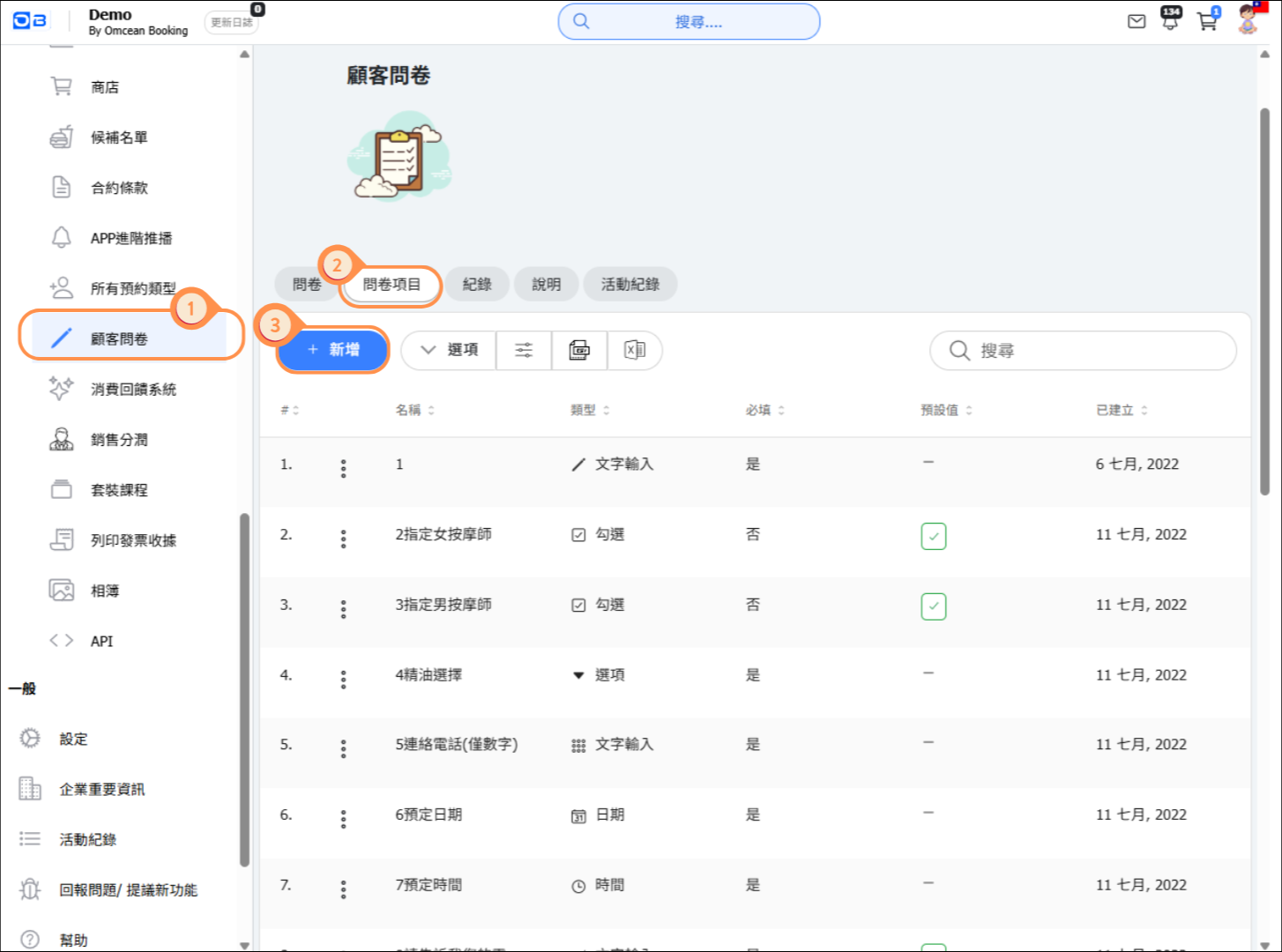
- Go to Custom Features > Intake Form
- Click on the Form Items tab
- Click + NEW to add a new question
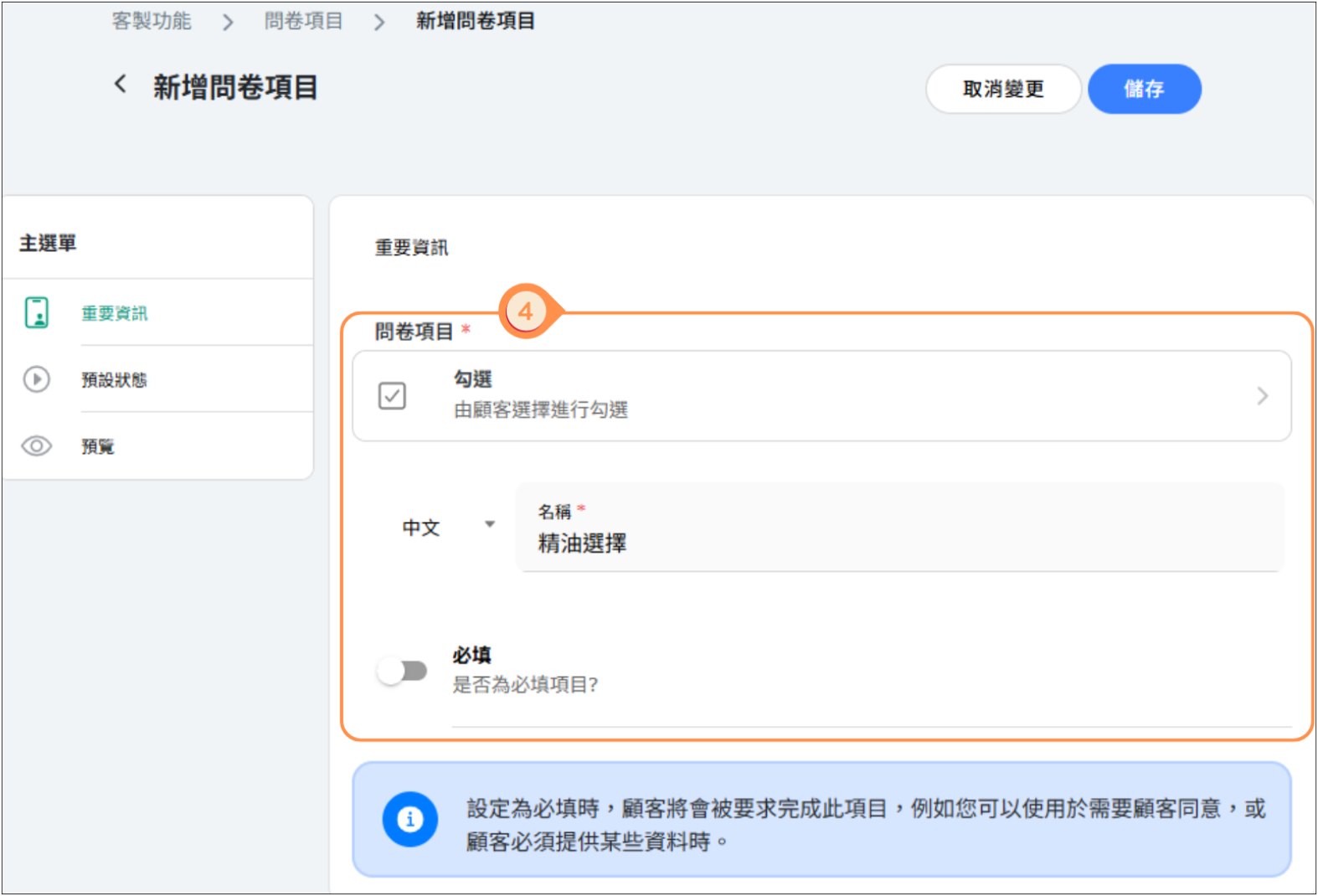
- Enter the question name (this is what customers will see)
- Select the question type
- Set whether it's required or optional
- Add a default value if needed
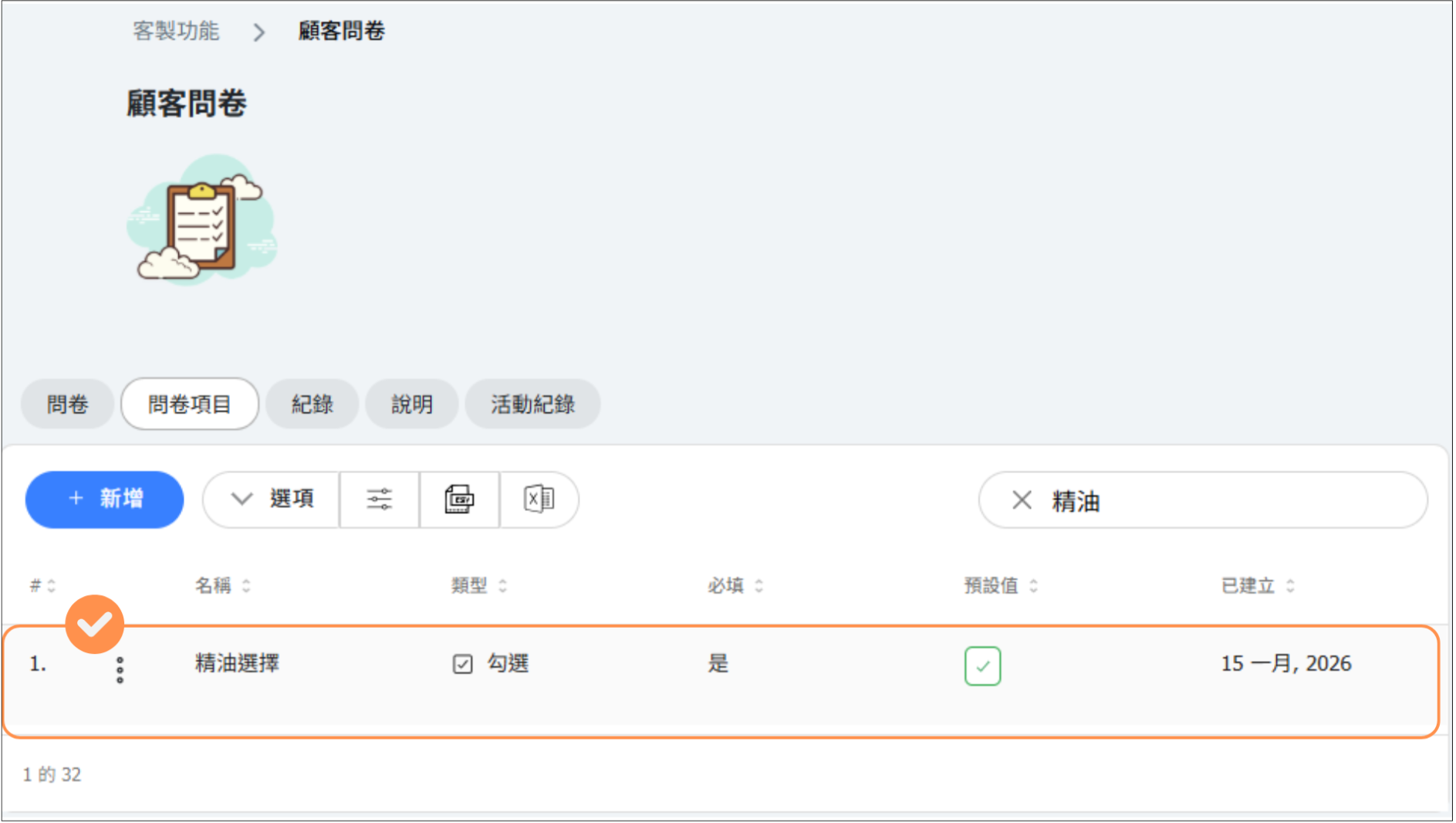
- Click Save
Available Question Types:
- Textbox - For short text answers (name, email, notes)
- Checkbox - For yes/no or multiple selection options
- Select Box - Dropdown menu for choosing one option from a list
- Date - Date picker for collecting dates (birthdays, preferred dates)
Tips:
- Mark questions as "Required" if the information is essential
- Use clear, simple language in your questions
- Set default values for common responses to save customers time
[Instructions]
- Select Customer Surveys from the left-side menu.
- Go to the Survey Items tab.
- Click + Add.
- Select the Survey Item and enter the Name.
- The survey item is successfully created.
Step 2: Create a Form
Once you have created your form items, you can combine them into a form and assign it to specific classes.
How to Create a Form:
- Go to Custom Features > Intake Form
- Stay on the Forms tab
- Click + NEW
- Enter the form name
- Select the form type (Intake Form, Feedback, or Survey)
- Add form items (questions) to your form
- Select which classes this form should be linked to
- Click Save
Form Settings:
- Form Name - Give your form a clear, descriptive name
- Form Type - Choose based on when you want to collect information
- Form Items - Select the questions to include
- Linked Classes - Choose which classes trigger this form
[Instructions]
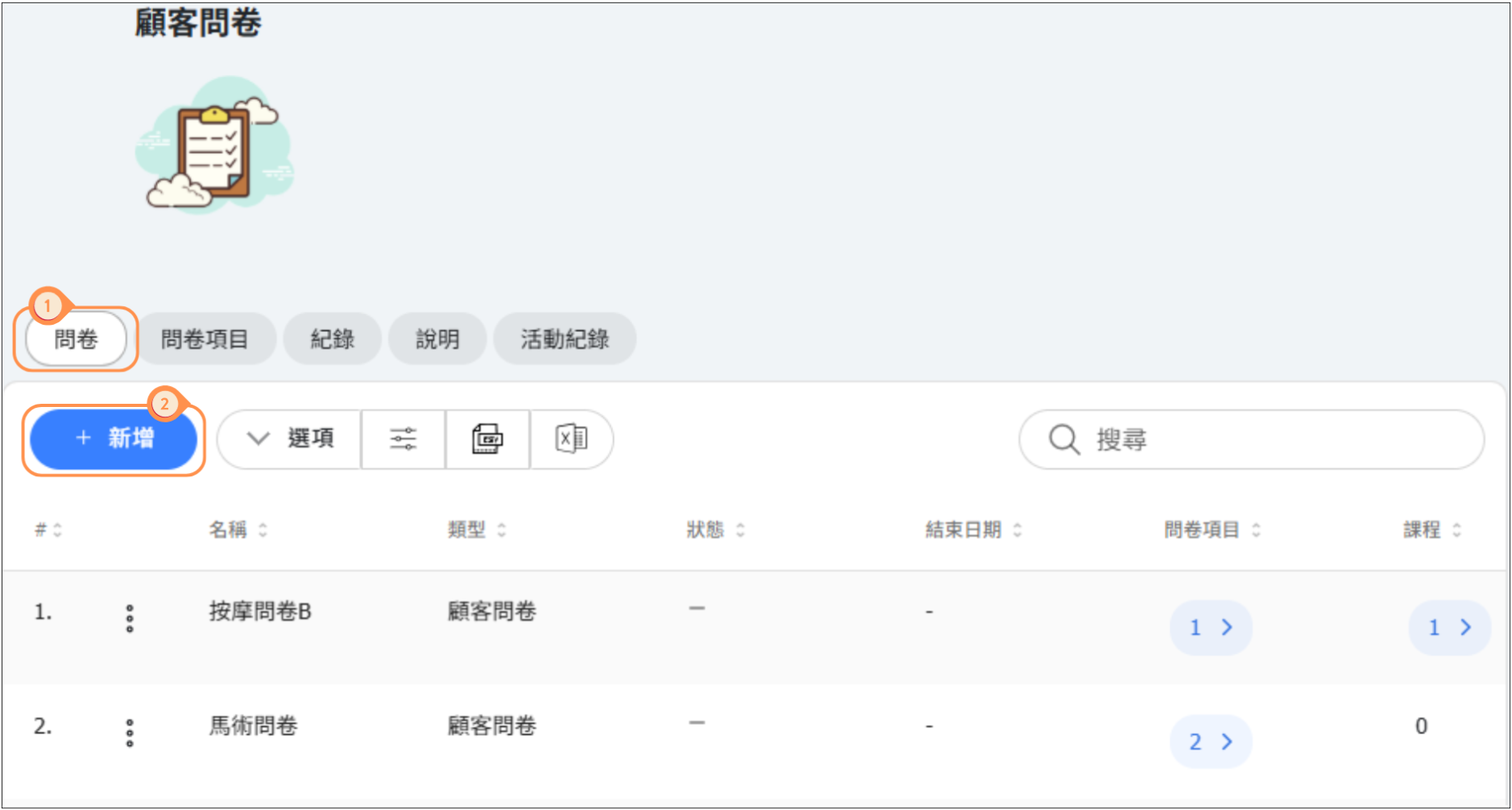
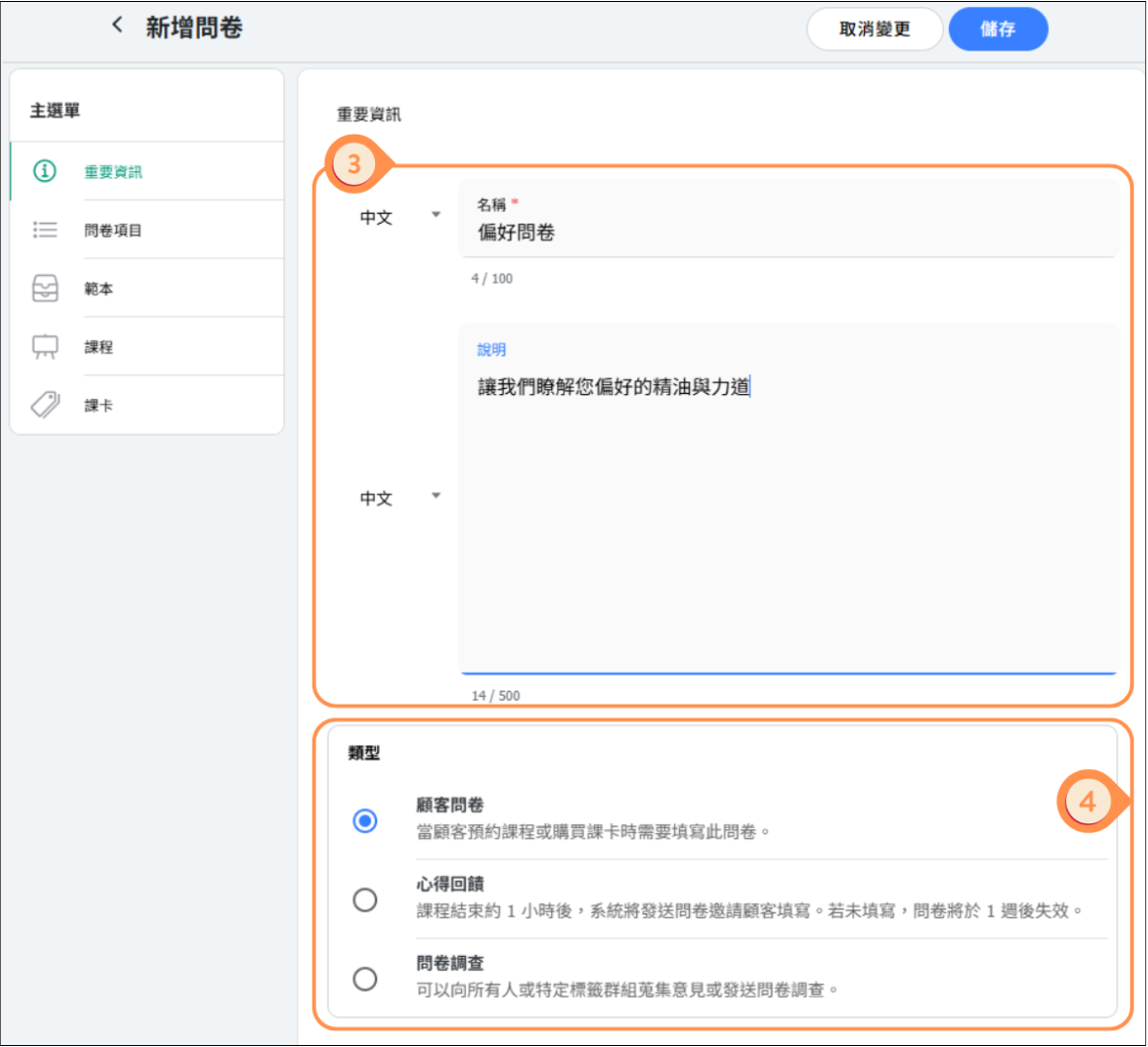
- Select the Survey tab.
- Click + Add.
- Enter the survey name and description.
- Select the survey type.
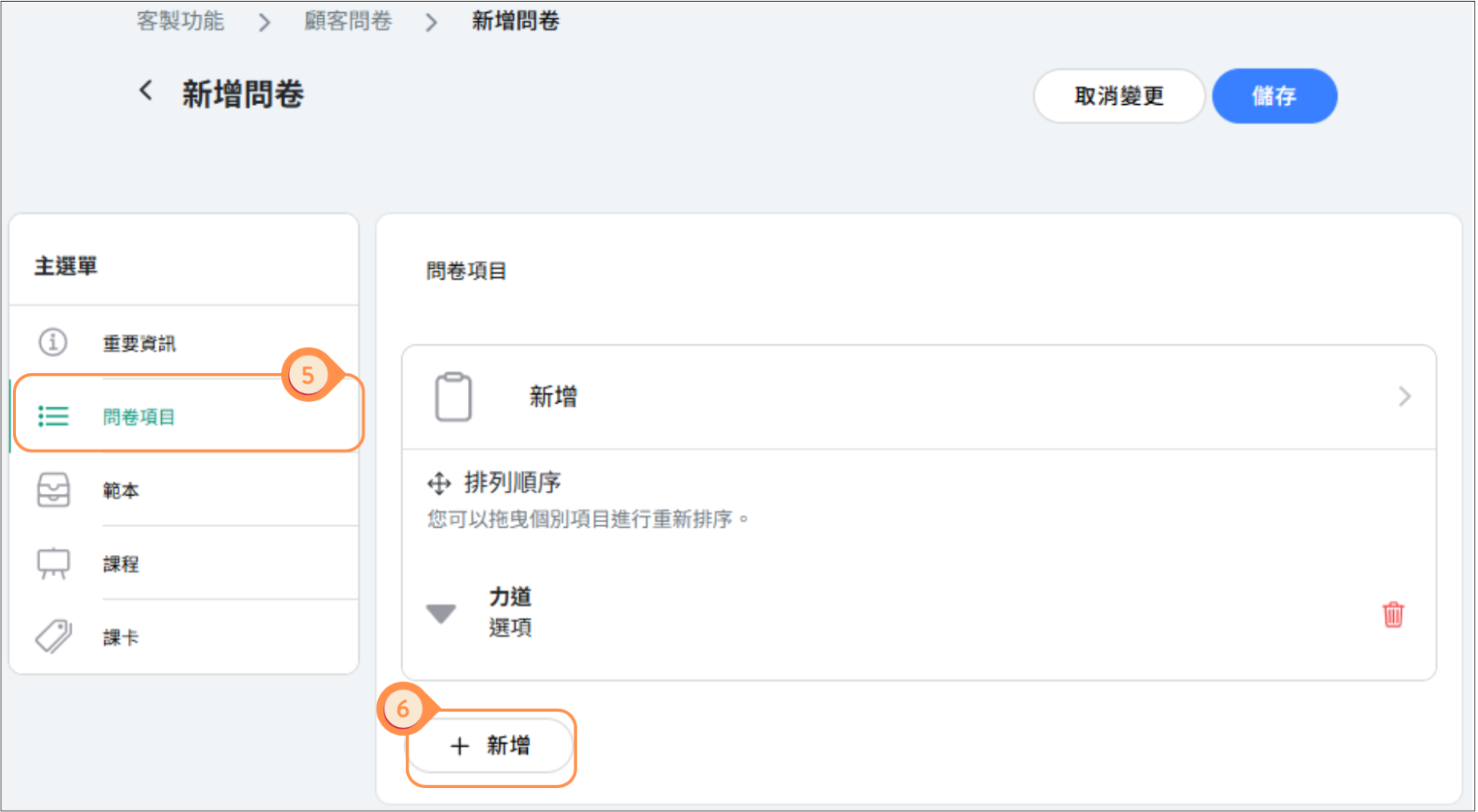
- From the left panel, choose Survey Items.
- Click + Add.
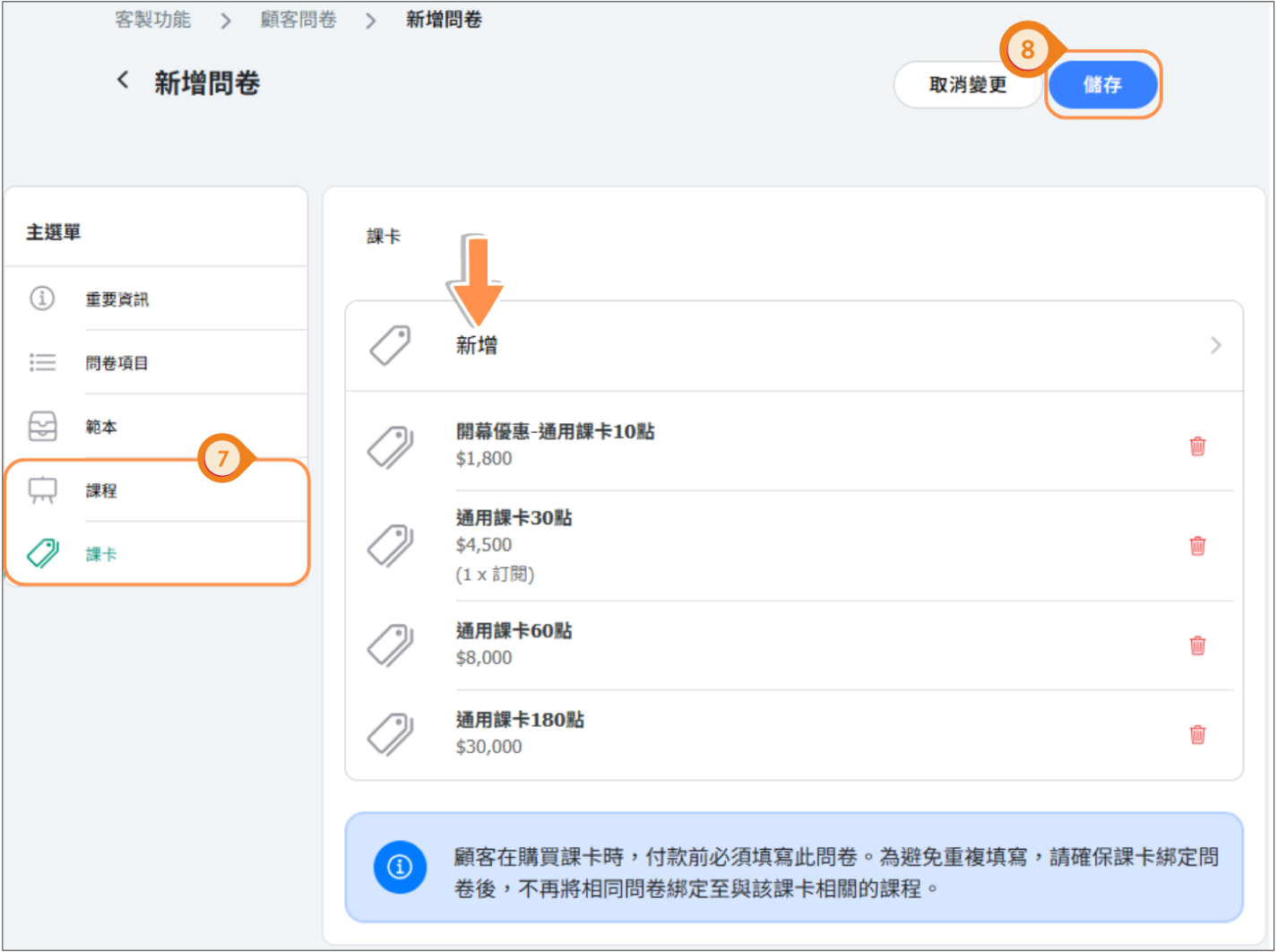
- Select which courses and passes the customer survey should be linked to.
- Click Save.
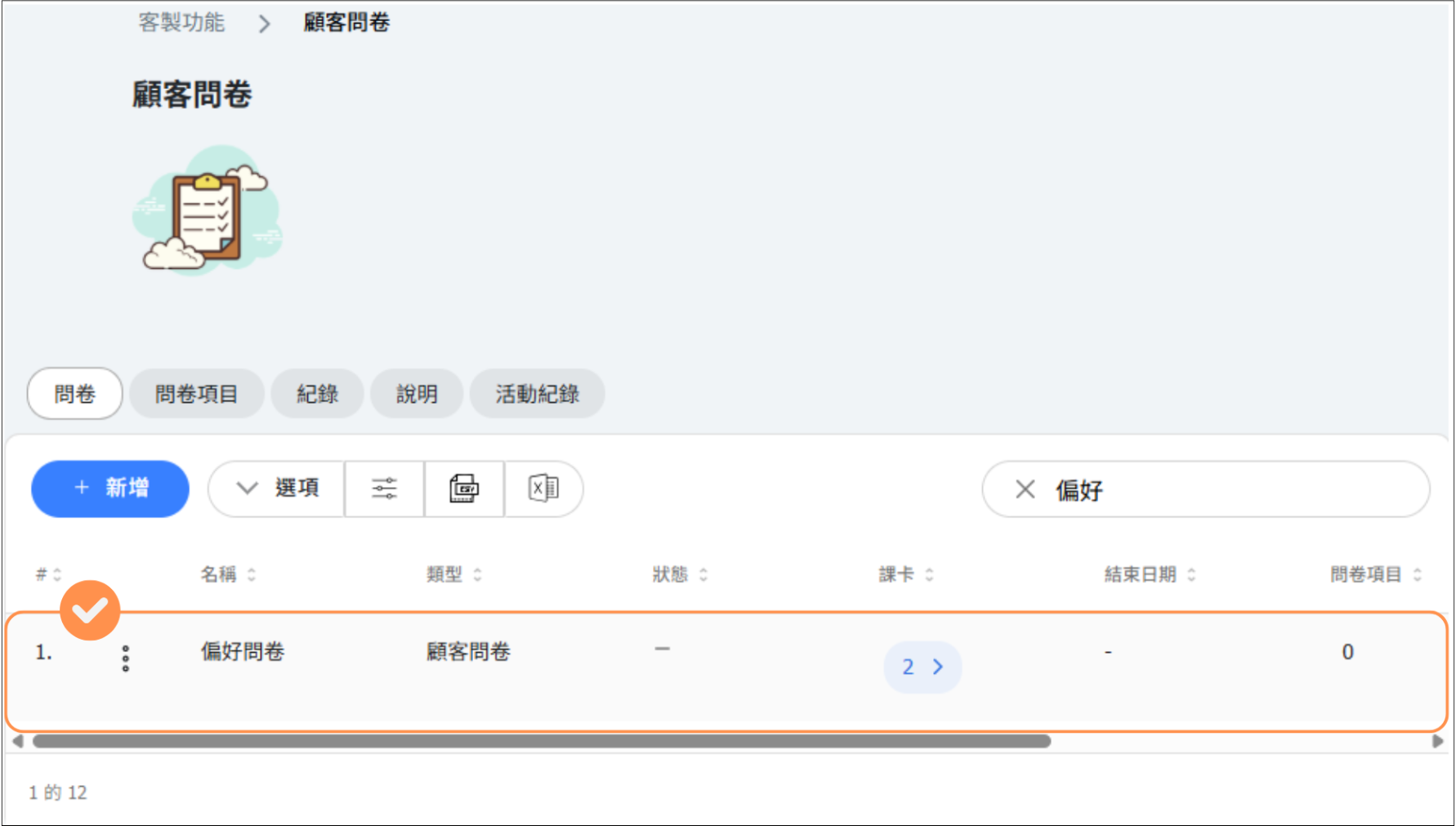
- The customer survey setup is complete.
Form Type: Intake Form
Intake Forms are designed to collect information from customers when they book specific classes. This is perfect for gathering important details before the appointment.
Common Use Cases:
- Health questionnaires - Ask about injuries, medical conditions, or physical limitations before fitness or yoga classes
- Experience level assessment - Determine if a customer is a beginner, intermediate, or advanced
- Preferences - Massage pressure preferences, aromatherapy scent choices, etc.
- Contact information - Emergency contact, preferred contact method
- Special requirements - Dietary restrictions, accessibility needs
How It Works:
- Customer books a class that has an Intake Form linked
- After confirming the booking, they are prompted to fill out the form
- Customer completes and submits the form
- You can view their responses in the History tab before the class
[Instructions – Customer Survey]
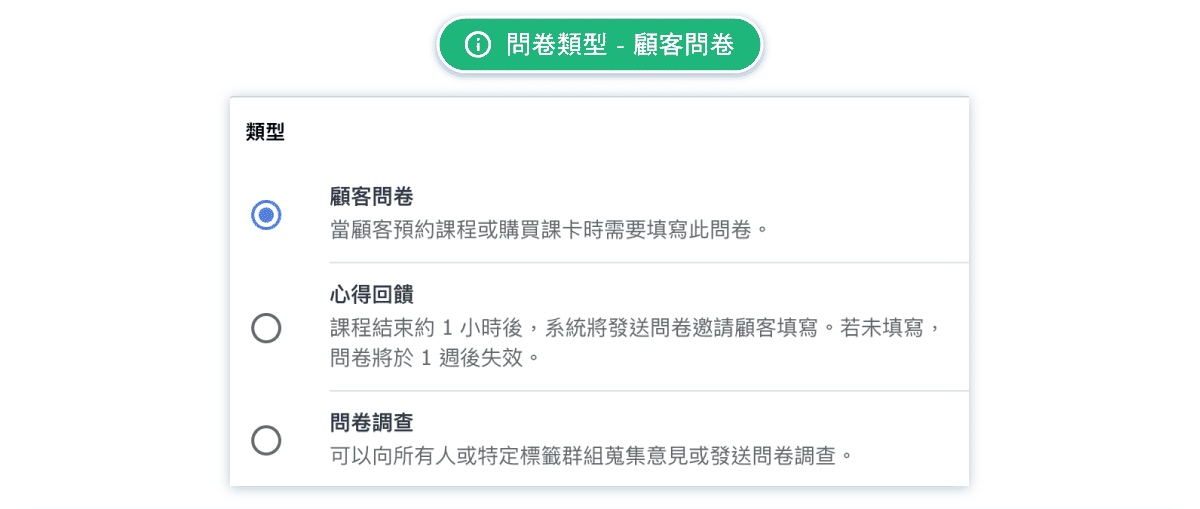
- Bind the survey to a Pass so that customers are required to fill it out at the time of purchase.
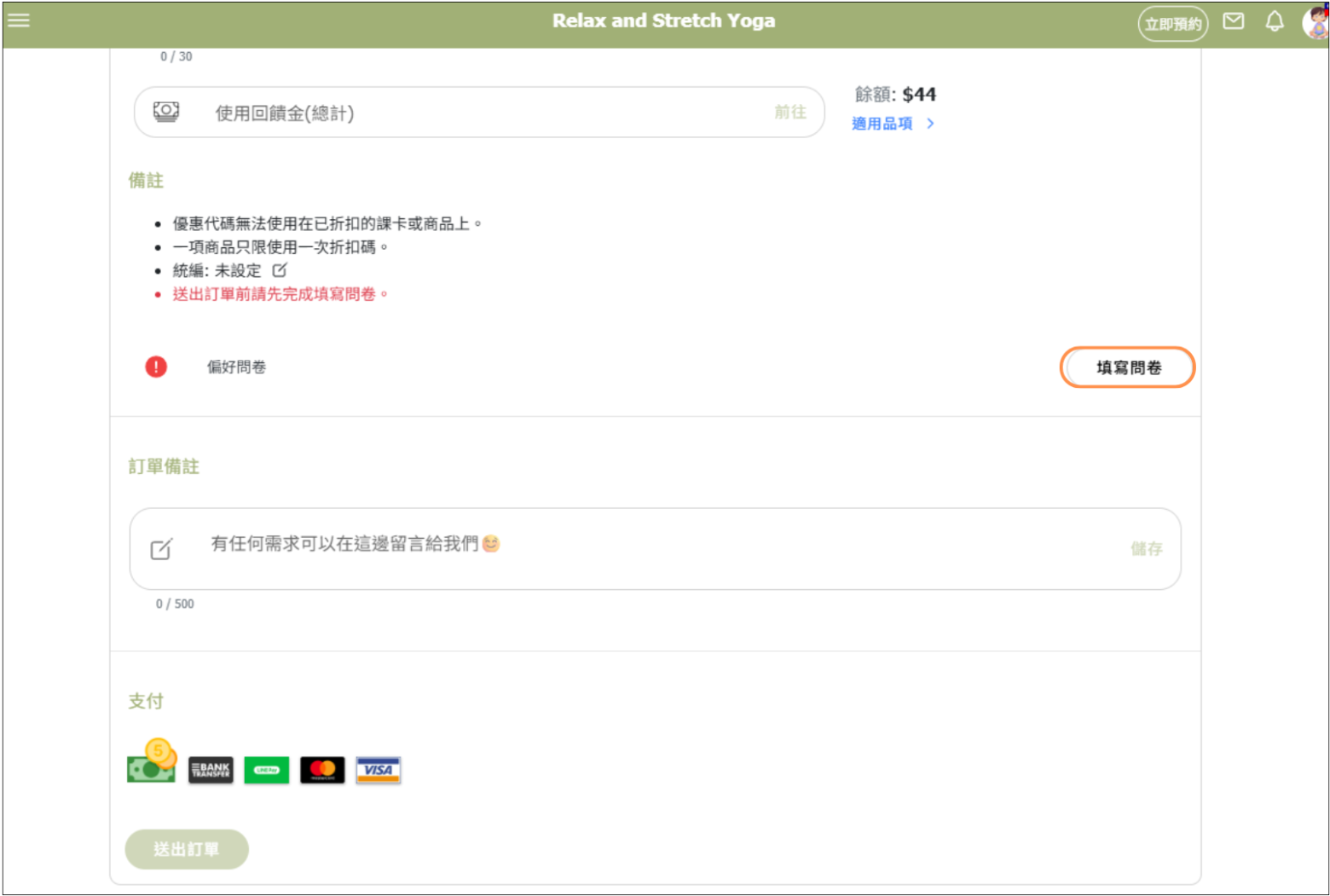
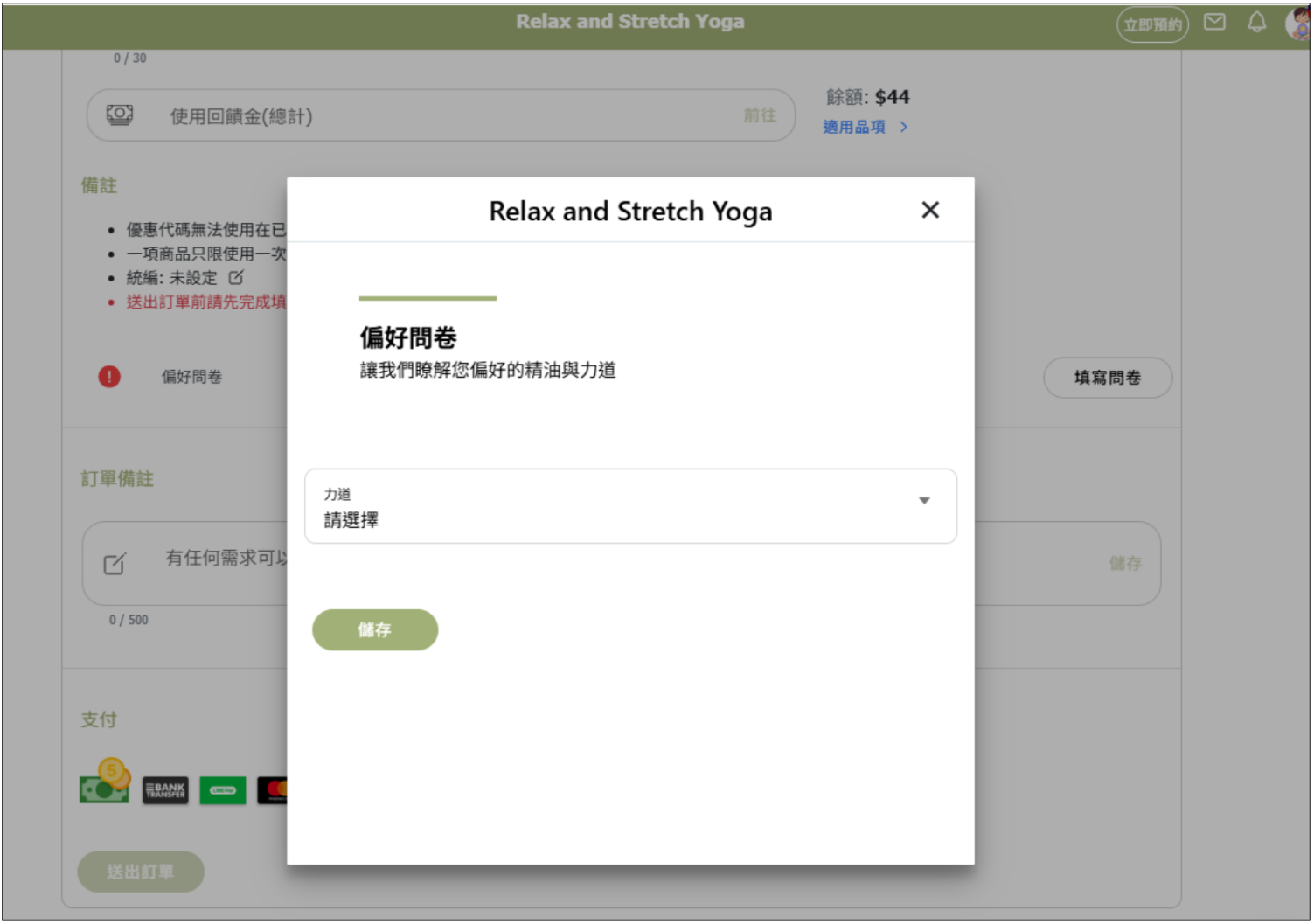
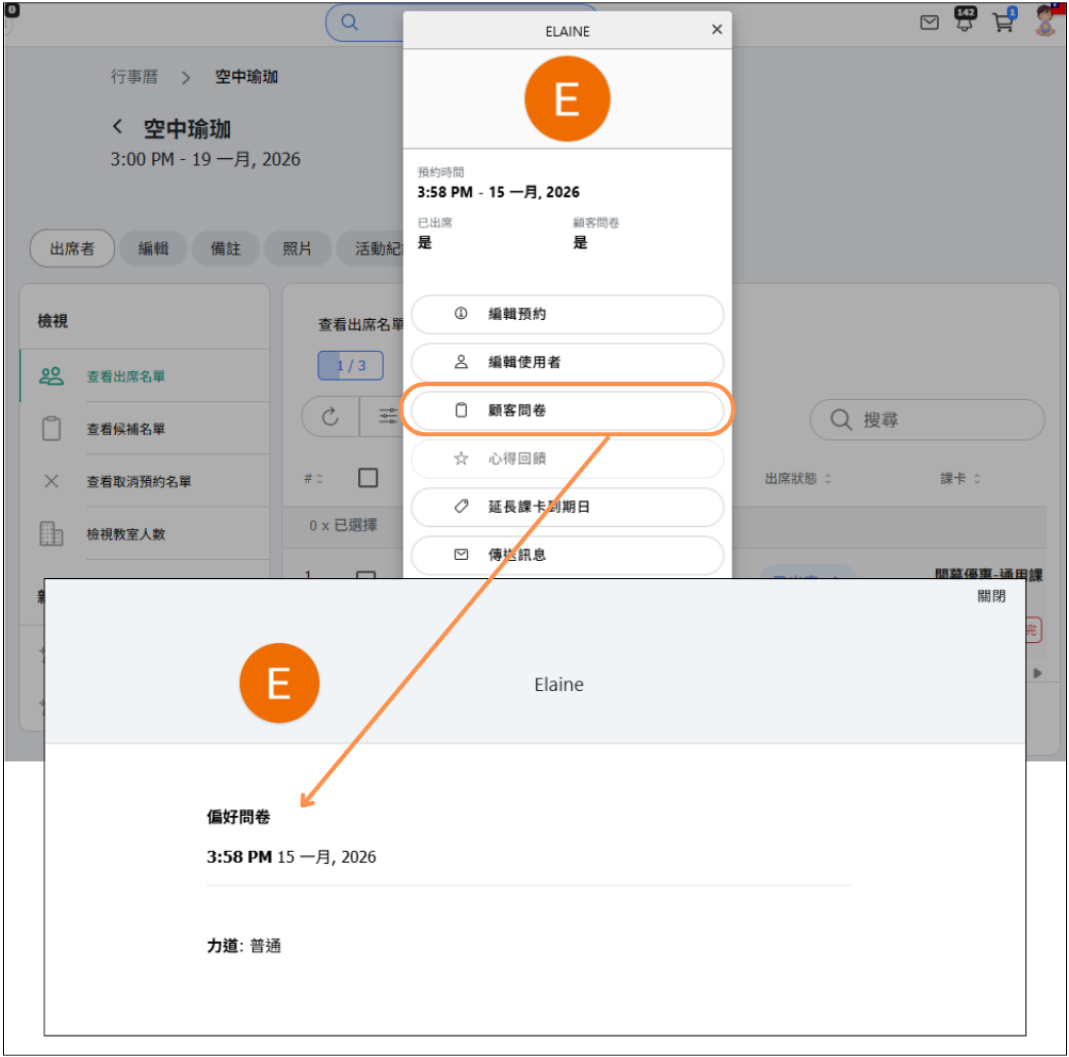
- When a customer makes a reservation using a pass that has a survey attached, or books a course that is linked to a survey, the customer’s survey responses can be viewed in the reservation records.
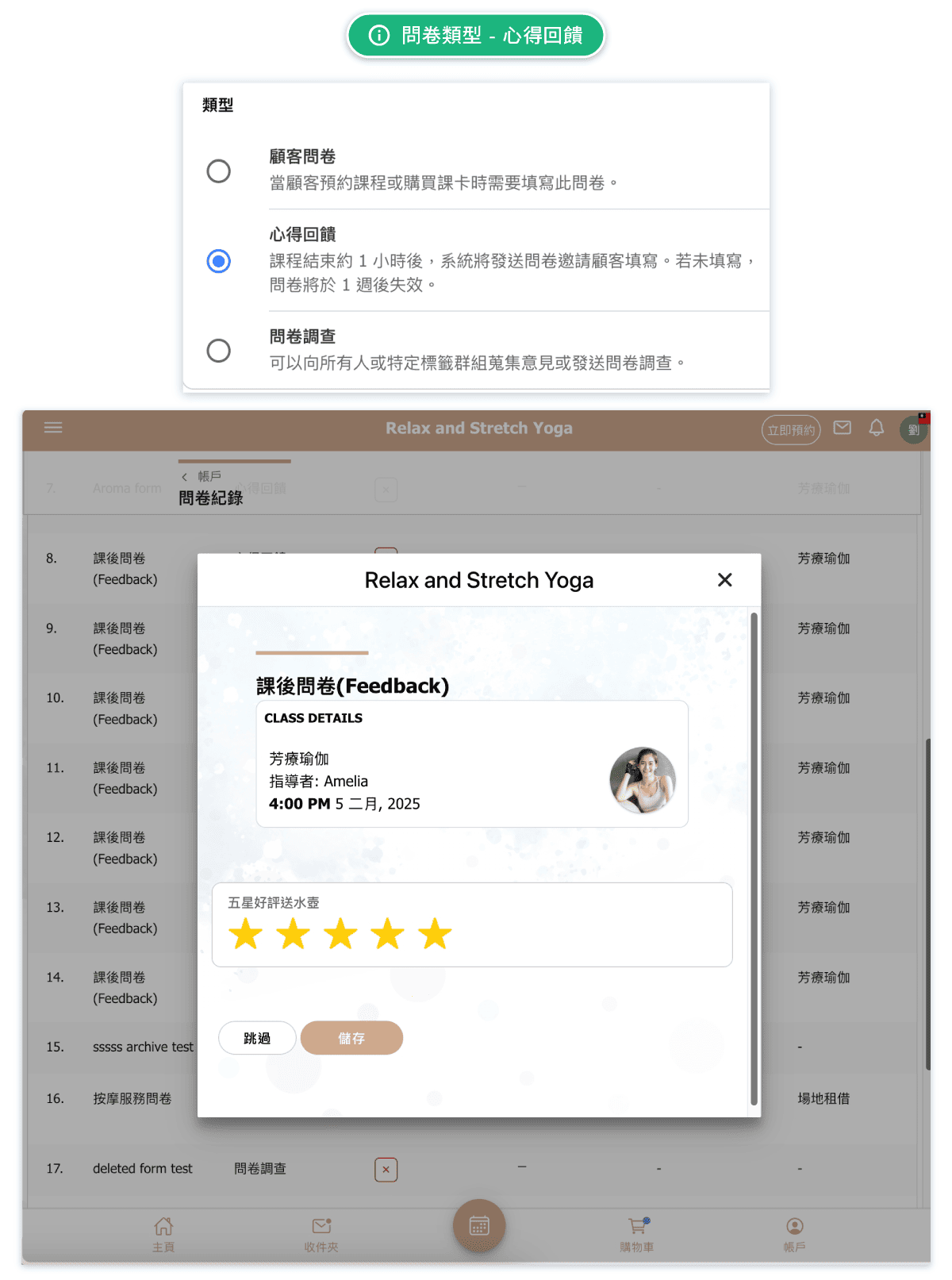
Form Type: Feedback
Feedback forms are automatically sent to customers after they attend a class. This helps you collect valuable reviews and improve your services.
How Feedback Forms Work:
- The system automatically sends the feedback form to each attendee 31 minutes past the hour after their class ends
- For example: If a class ends at 13:45, students will receive the feedback form after 14:31
- Only customers who actually attended (marked present) receive the form
- Customers can complete the form at their convenience
Common Feedback Questions:
- How would you rate this class? (1-5 stars)
- What did you enjoy most about the class?
- How can we improve?
- Would you recommend this class to others?
- Any additional comments?
Benefits:
- Automated collection - no manual work required
- Timely feedback while the experience is fresh
- Helps identify popular instructors and classes
- Provides insights for improvement
Form Type: Survey
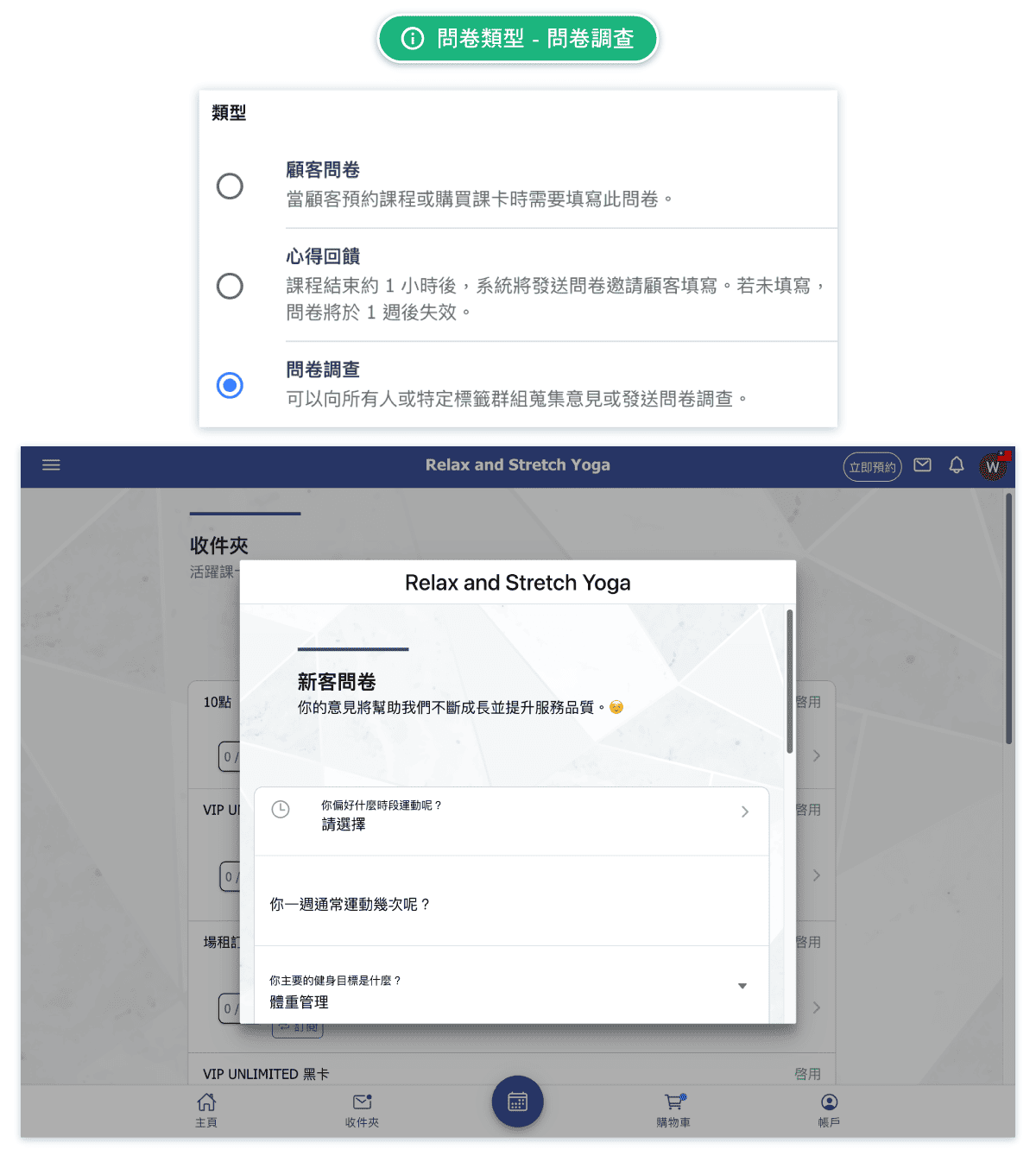
Surveys are general-purpose questionnaires that can be sent to customers at any time. Unlike Intake Forms and Feedback, surveys are not tied to specific classes or attendance.
Survey-Specific Features:
- Ready to Go toggle - Keep it off to save as a draft; turn on when ready to publish
- End Date - Set a deadline for responses; customers will see when the survey expires
- Status tracking - Monitor whether the survey is active or closed
Common Survey Uses:
- Customer satisfaction surveys
- New service interest polls
- Schedule preference surveys (best class times)
- Annual feedback collection
- Event planning questionnaires
- Marketing research
Tips for Surveys:
- Keep surveys short - 5-10 questions maximum for better completion rates
- Set reasonable end dates to create urgency
- Use the draft feature to prepare surveys in advance
- Review responses before the end date to take action
Viewing Form Responses (Admin)
All form responses are collected in the History tab, making it easy to review customer submissions.
How to View Responses:
- Go to Custom Features > Intake Form
- Click on the History tab
- Browse the list of all form submissions
- Click on any entry to view the full response
Information Displayed:
- Customer - Name and profile picture of the customer
- Form Name - Which form was submitted
- Type - Intake Form, Feedback, or Survey
- Viewed - Whether you've reviewed this response
- Completed - Whether the customer finished the form
Features:
- Search and filter responses
- Export data for analysis
- Mark responses as reviewed
- View individual customer responses in detail
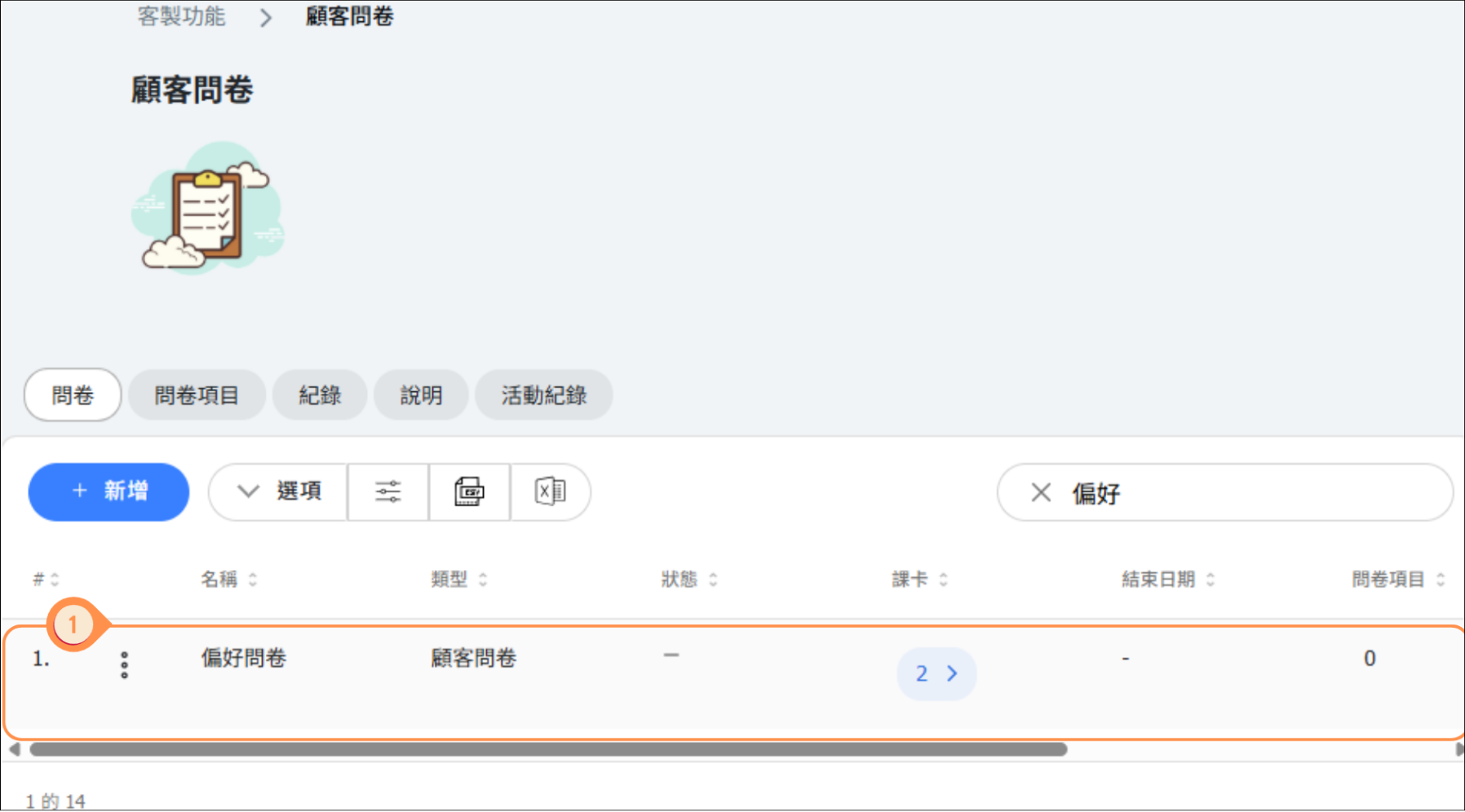
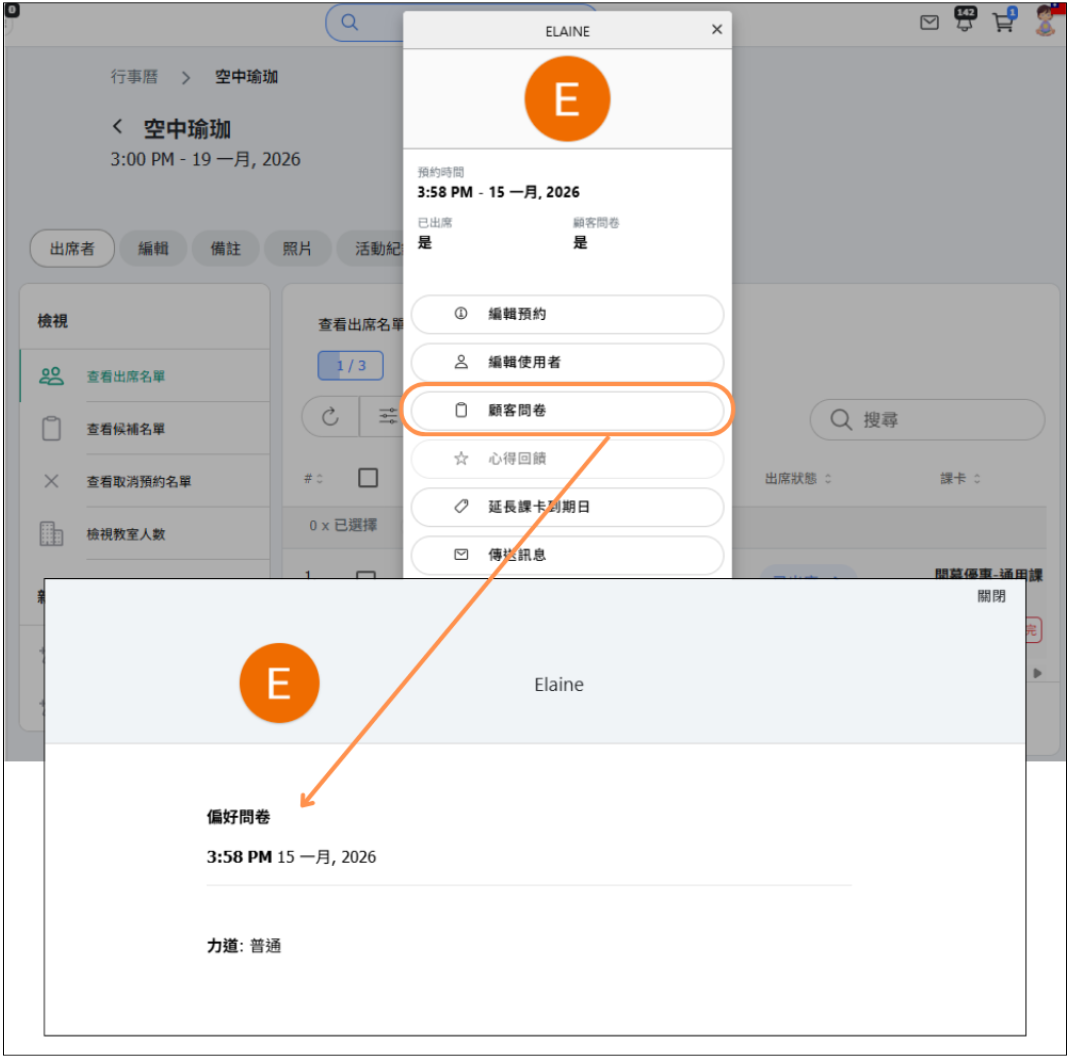
[Instructions]
- Click the Survey.
- Select the Records tab.
- Click an entry to view the submitted responses.
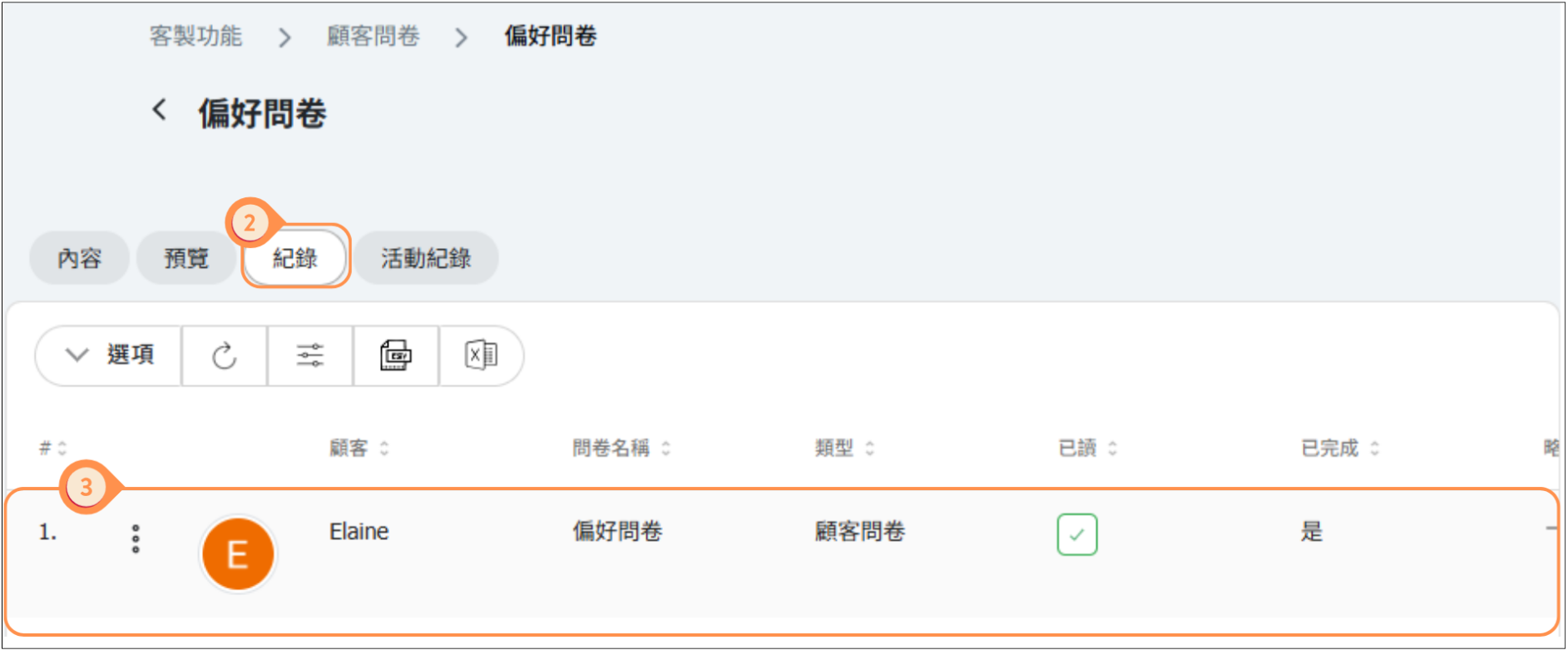
- When a customer makes a reservation using a pass that includes a survey, or books a course that is linked to a survey, the customer’s survey responses can also be viewed in the reservation records.
Customer Experience
Customers can view and manage their form submissions from their account.
What Customers See:
- Pending forms that need to be completed
- History of previously submitted forms
- Ability to update responses if allowed
How Customers Complete Forms:
- Intake Forms - Appear after booking a class that requires one
- Feedback Forms - Sent via notification after attending a class
- Surveys - Accessible from their account or via direct link
Customer Tips:
- Required questions must be answered before submission
- Forms can usually be completed on mobile or desktop
- Submitted forms are saved and can be referenced later
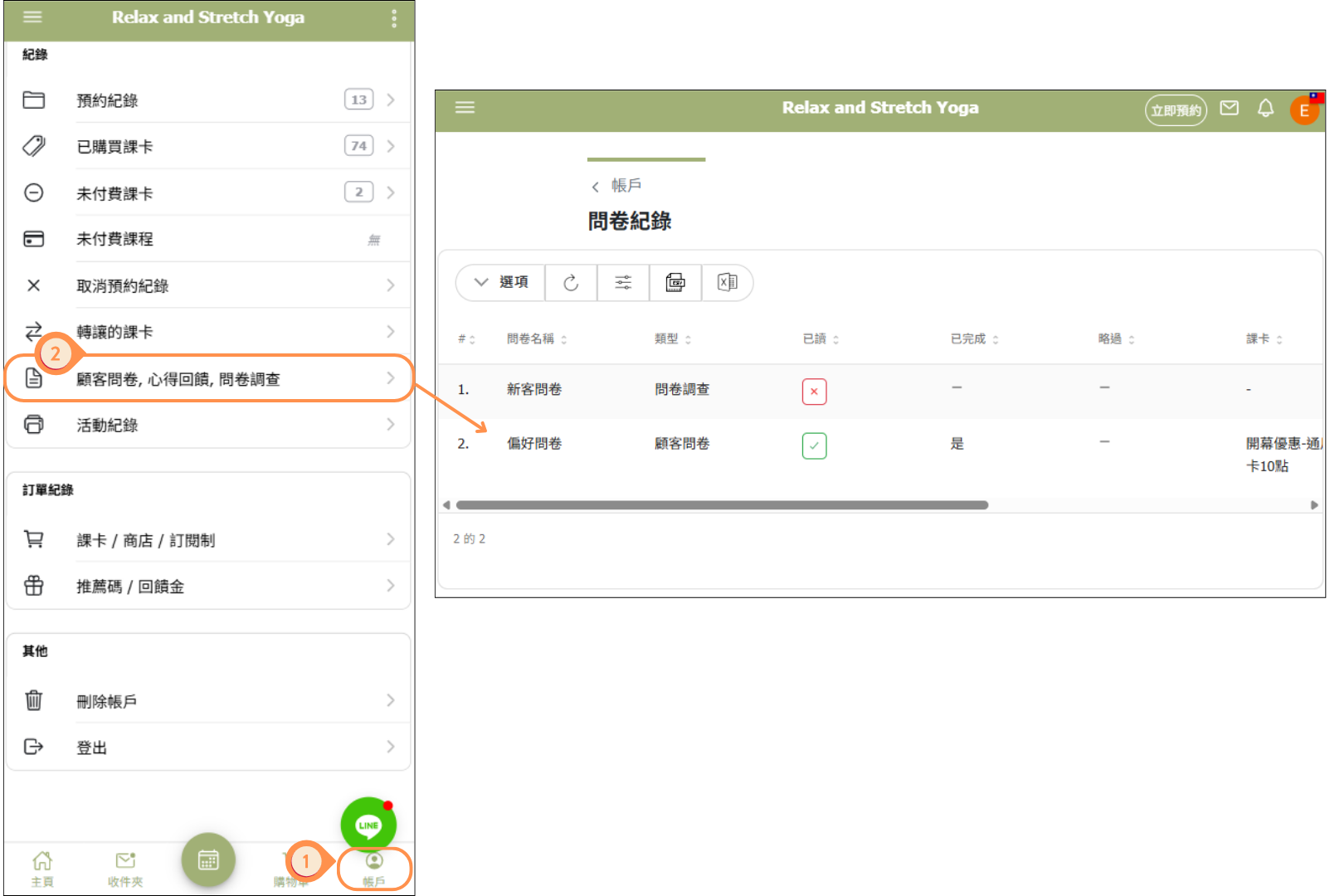
[Instructions]
- Click Account.
- Select Customer Surveys / Feedback / Questionnaires.
Activity Log
The Log tab provides a complete audit trail of all changes made to forms and form items.
What's Tracked:
- New form items created
- New forms created
- Edits to existing forms or items
- Who made each change
- When the change was made
How to Use the Log:
- Go to Custom Features > Intake Form
- Click on the Log tab
- Use the date range filter to find specific changes
- Review the activity timeline
Benefits:
- Track who made changes to forms
- Audit form modifications
- Troubleshoot issues by seeing recent changes
- Maintain accountability across team members
Best Practices
Follow these tips to get the most out of the Intake Form feature:
Creating Effective Forms:
- Keep it short - Only ask for essential information; long forms have lower completion rates
- Use clear language - Avoid jargon; write questions that any customer can understand
- Mark truly required fields - Only make questions required if you absolutely need that information
- Group related questions - Organize questions logically for better user experience
Using Different Form Types:
- Use Intake Forms for pre-class information you need to provide the service
- Use Feedback for post-class reviews and instructor ratings
- Use Surveys for general business research and customer opinions
Managing Responses:
- Review intake form responses before classes when possible
- Act on feedback to show customers you value their input
- Export survey data periodically for analysis
- Use the Log tab to audit changes when issues arise
Example Form Ideas by Business Type:
- Yoga/Pilates - Health conditions, injuries, experience level, pregnancy status
- Massage/Spa - Pressure preference, problem areas, allergies, aromatherapy preferences
- Fitness - Fitness goals, current fitness level, health restrictions
- Beauty - Skin type, allergies, style preferences


