
Frequently Used Features and Settings

How to Verify Payment and Activate Passes

David Kim

By David Kim

March 22, 2024 · Updated December 6, 2025 · 1 min read

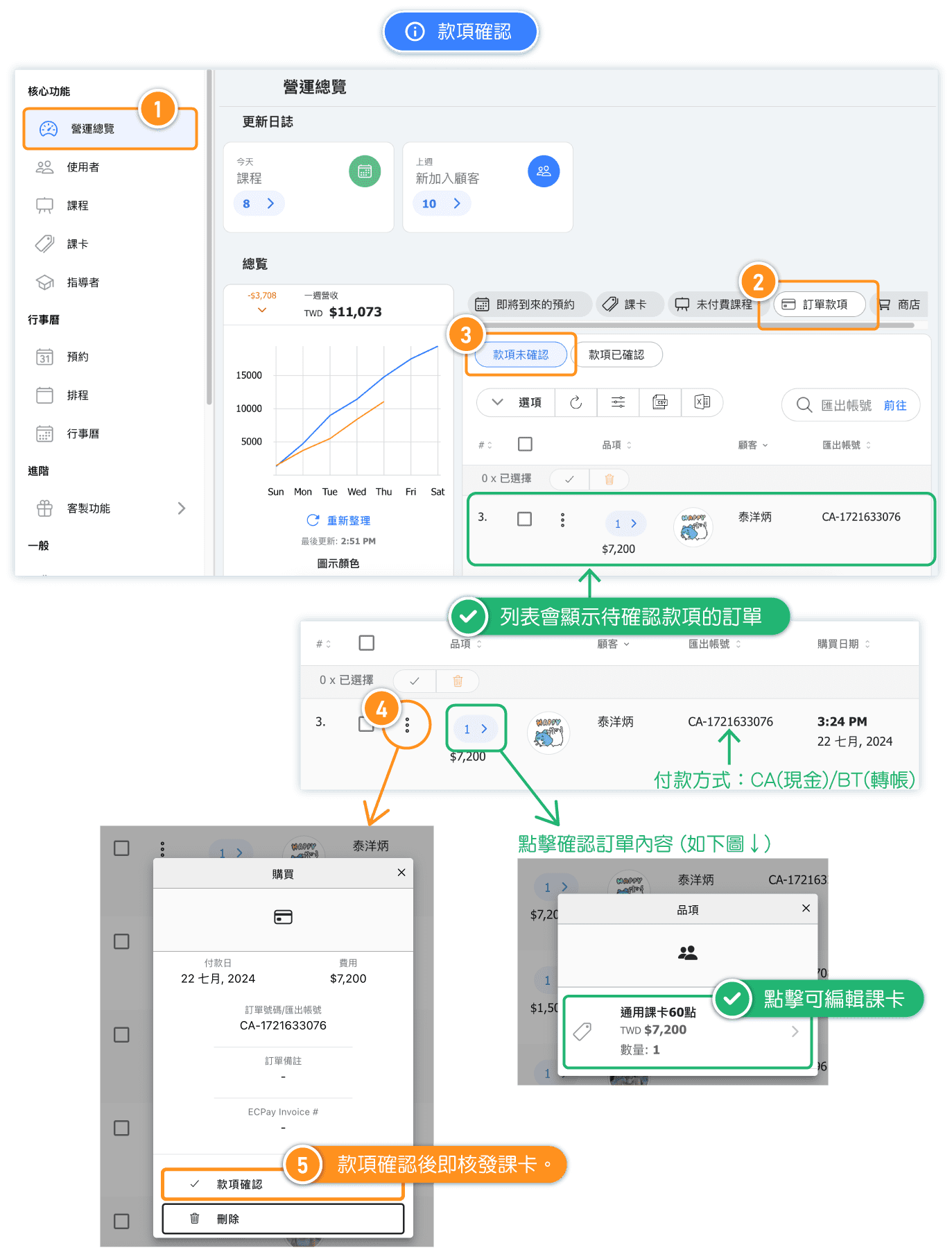
When customers purchase passes on the booking website and choose "cash" or "bank transfer" at checkout, the studio needs to verify the payment before customers can receive and use their purchased passes.

How to verify payment.

Sales Process: Customer places an order -> Wait for customer payment -> Admin verifies payment

  1. Customer places an order: Customers check out through the shopping cart to purchase passes, selecting "cash" or "bank transfer."
  2. Waiting for customer payment: Admin checks the bank account to confirm receipt of payment or waits for the customer to pay in the studio.
  3. Verify Payment: After confirming receipt of payment, Admin navigates to "Dashboard → Payments → Unverified Payments" and clicks "VERIFY PAYMENT" for the order. Once confirmed, the pass will be immediately issued to the customer for booking.

  1. Quick Setup Tutorial - Customers get a pass
  2. FAQ: Why Passes Cannot Be Used
  3. How to set the pass activation date?

Was this article helpful?

Try the Booking System for 7 days

All Features Included

7 DAYS FREE$
  • Unlimited bookings
  • All AI features included
  • 🌐Your own branded booking website

No credit card needed

Arrow


