Understanding Class Capacity Display
Before using filters, it's helpful to understand how class capacity is displayed in the system:
On the Calendar:
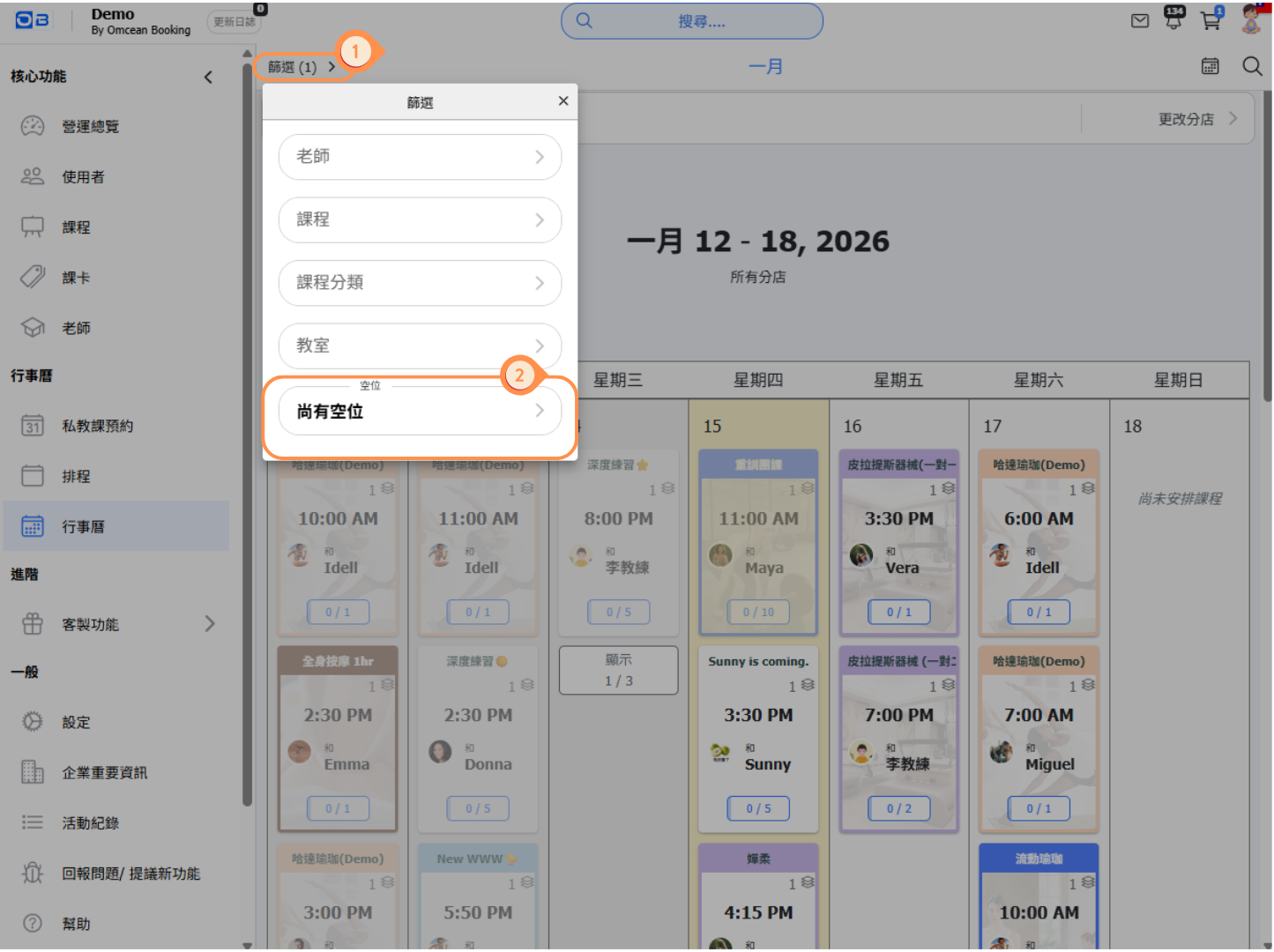
Each class card shows a capacity indicator like "0 / 10" at the bottom, meaning:
- First number = Current bookings
- Second number = Maximum capacity
For example, "3 / 10" means 3 people have booked out of 10 available spots.
On the Schedule Page:
The Attendance column shows the same format (e.g., "0 / 3"), making it easy to scan multiple classes at once.
Active reservations made using a hold or placeholder customer account occupy places just like other active reservations. Do not add those places back to available capacity unless those reservations are actually cancelled.
What does the yellow course label in the customer inbox mean?
On a customer reservation or waiting-list card, the yellow course label shows the course name followed by the session number / total sessions in that course. For example, 10/10 means lesson 10 of 10. It is not booked places / capacity, a course end date, a waiting-list position, or the customer's remaining pass visits. The course name identifies the scheduled course; it does not identify which pass that customer holds.
The separate waiting-list label shows the customer's queue position: #4 means fourth in line. Check the session's attendance list for booked places and capacity.
Checking availability including held places with the assistant
Give the assistant the date range, class name or age/color, weekdays or daily time range, and the exact holding-account names. Ask it to include those accounts' held bookings. It can show fully booked or overbooked sessions that still contain those bookings, alongside sessions with ordinary vacancies.
The answer separates booked places / capacity, ordinary vacancies, confirmed held bookings, overcapacity, and waiting-list entries. Confirmed dependent bookings under the named accounts count as holds; cancelled bookings and waiting-list entries do not. A held booking is already included in booked places. It does not become a publicly bookable place merely because it is listed. Check overcapacity and waiting-list rules before releasing or reassigning it.
Weekend means Saturday and Sunday; specify public holidays separately. No matching vacancies or holds does not mean there are no scheduled classes. If the assistant cannot verify the accounts or complete the lookup, it should say the result is unverified.
Using the Calendar Page Filter
The Calendar page provides a quick way to view courses with available slots:
- On the Calendar page, click Filter in the top-left corner.
- Select Available Slots to view courses that still have openings.
Filter Options:
- All classes - Show all classes regardless of availability
- Vacancy only - Show only classes that still have open spots
This is perfect for quickly identifying which upcoming classes can still accept bookings.
Using the Schedule Page for Detailed Filtering
The Schedule page provides more detailed filtering options for capacity management:
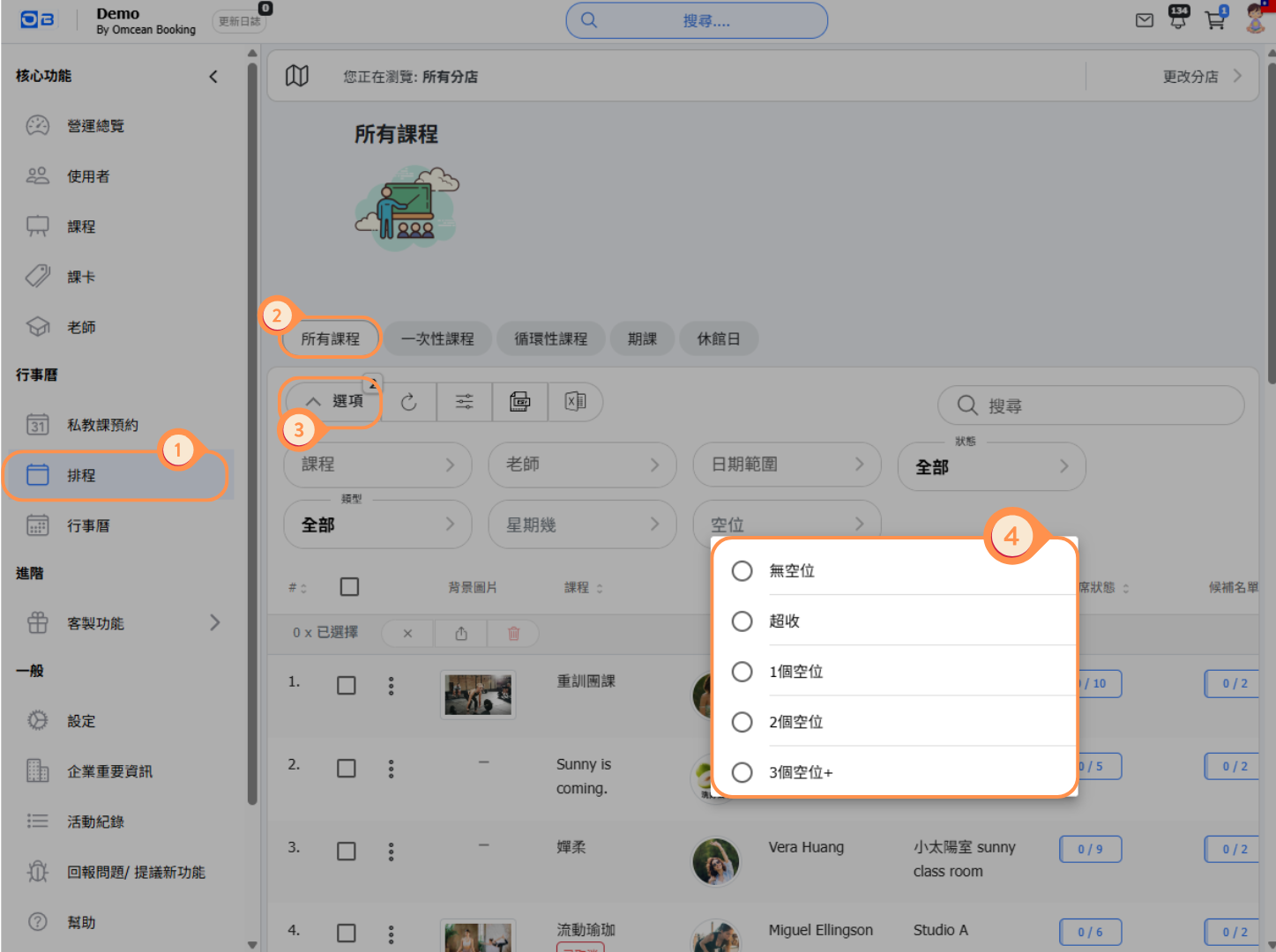
- Select Schedule from the left-side menu.
- Choose the All Courses tab.
- Click Options to expand the search filters.
- Under the availability condition, select Available Slots to view courses that still have openings.
Available Status Filters:
- Available - Classes that still have open spots for booking
- Fully Booked - Classes that have reached maximum capacity
- Overbooked - Classes that have more bookings than the set capacity (if overbooking is allowed)
Why Use the Schedule Page?
- See all classes in a sortable list format
- View the Attendance column to see exact numbers (e.g., "0 / 3")
- Track Waiting list numbers alongside availability
- Filter by class type: One off class, Repeating classes, Schedule courses
When to Use Each View
Choose the right view based on your needs:
Use the Calendar Page When:
- You want a visual overview of the week/month
- You need to quickly spot available classes at a glance
- A customer asks "What classes are available this week?"
- You prefer seeing classes in a calendar format
Use the Schedule Page When:
- You need to see detailed capacity numbers for multiple classes
- You want to sort classes by attendance or time
- You need to identify overbooked classes that may need attention
- You're managing capacity across many classes at once
- You want to export or batch-manage classes
Tips for Managing Class Availability
Here are some best practices for managing class capacity:
1. Check Availability Regularly
Before peak hours, use the filters to identify classes that are almost full. This helps you prepare for potential walk-ins or last-minute bookings.
2. Monitor Overbooked Classes
If you allow overbooking, regularly check for overbooked classes to ensure you can accommodate all attendees or manage cancellations.
3. Use Waiting Lists
For popular classes that fill up quickly, enable waiting lists. When a spot opens up, the system can automatically notify customers on the waiting list.
4. Adjust Capacity as Needed
If a class consistently fills up, consider increasing capacity or adding another session at a similar time.
5. Combine Filters
On the Schedule page, combine the vacancy filter with other filters (like instructor or class type) to find specific availability patterns.