
Understanding Class Capacity Display
Before using filters, it's helpful to understand how class capacity is displayed in the system:
On the Calendar:
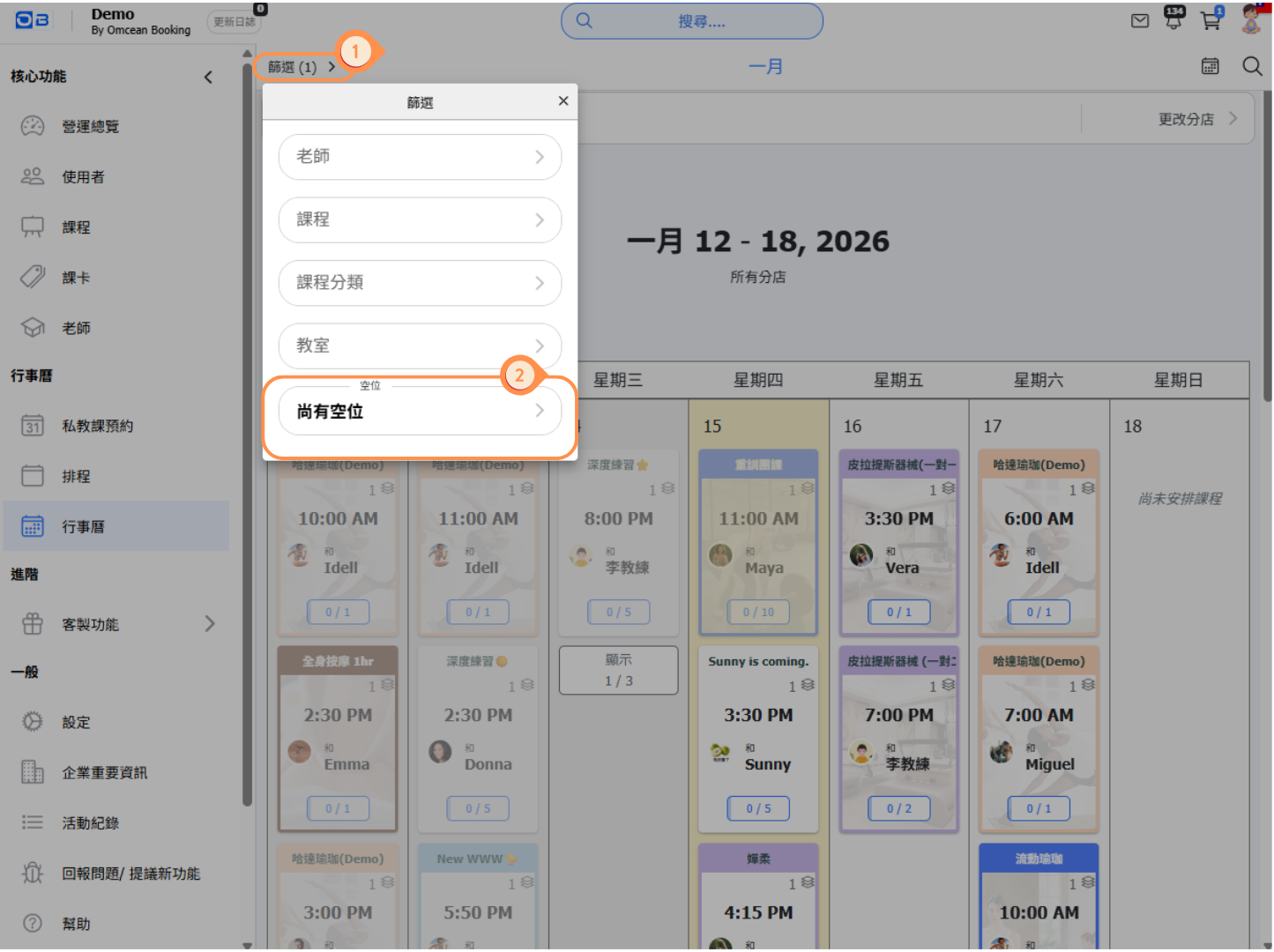
Each class card shows a capacity indicator like "0 / 10" at the bottom, meaning:
- First number = Current bookings
- Second number = Maximum capacity
For example, "3 / 10" means 3 people have booked out of 10 available spots.
On the Schedule Page:
The Attendance column shows the same format (e.g., "0 / 3"), making it easy to scan multiple classes at once.
Using the Calendar Page Filter
The Calendar page provides a quick way to view courses with available slots:
- On the Calendar page, click Filter in the top-left corner.
- Select Available Slots to view courses that still have openings.
Filter Options:
- All classes - Show all classes regardless of availability
- Vacancy only - Show only classes that still have open spots
This is perfect for quickly identifying which upcoming classes can still accept bookings.
Using the Schedule Page for Detailed Filtering
The Schedule page provides more detailed filtering options for capacity management:
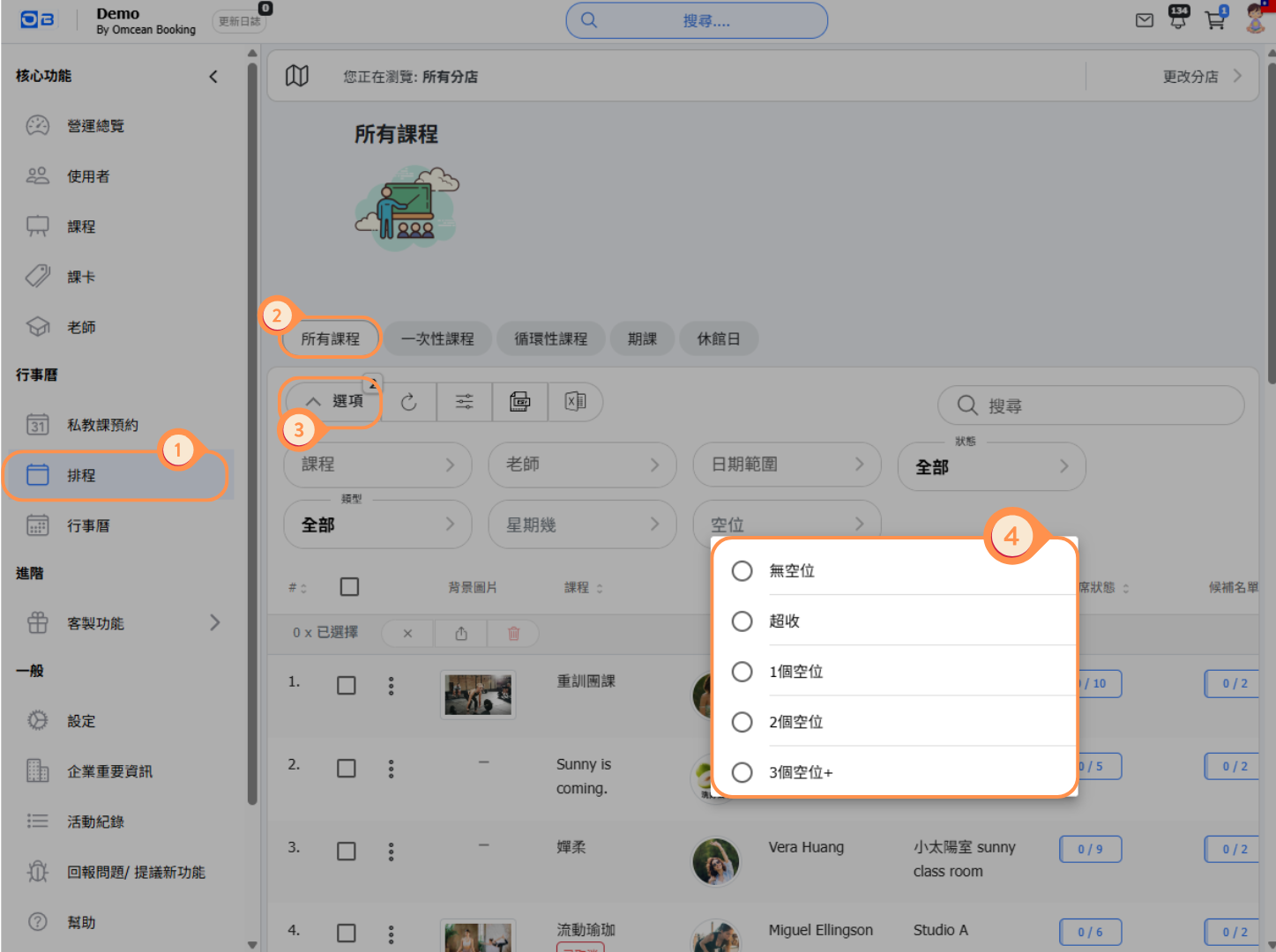
- Select Schedule from the left-side menu.
- Choose the All Courses tab.
- Click Options to expand the search filters.
- Under the availability condition, select Available Slots to view courses that still have openings.
Available Status Filters:
- Available - Classes that still have open spots for booking
- Fully Booked - Classes that have reached maximum capacity
- Overbooked - Classes that have more bookings than the set capacity (if overbooking is allowed)
Why Use the Schedule Page?
- See all classes in a sortable list format
- View the Attendance column to see exact numbers (e.g., "0 / 3")
- Track Waiting list numbers alongside availability
- Filter by class type: One off class, Repeating classes, Schedule courses
When to Use Each View
Choose the right view based on your needs:
Use the Calendar Page When:
- You want a visual overview of the week/month
- You need to quickly spot available classes at a glance
- A customer asks "What classes are available this week?"
- You prefer seeing classes in a calendar format
Use the Schedule Page When:
- You need to see detailed capacity numbers for multiple classes
- You want to sort classes by attendance or time
- You need to identify overbooked classes that may need attention
- You're managing capacity across many classes at once
- You want to export or batch-manage classes
Tips for Managing Class Availability
Here are some best practices for managing class capacity:
1. Check Availability Regularly
Before peak hours, use the filters to identify classes that are almost full. This helps you prepare for potential walk-ins or last-minute bookings.
2. Monitor Overbooked Classes
If you allow overbooking, regularly check for overbooked classes to ensure you can accommodate all attendees or manage cancellations.
3. Use Waiting Lists
For popular classes that fill up quickly, enable waiting lists. When a spot opens up, the system can automatically notify customers on the waiting list.
4. Adjust Capacity as Needed
If a class consistently fills up, consider increasing capacity or adding another session at a similar time.
5. Combine Filters
On the Schedule page, combine the vacancy filter with other filters (like instructor or class type) to find specific availability patterns.


