What is a Web Application (WebApp)?
Applications (Apps) are generally of 2 types.
Common apps are installed directly on the computer, such as Microsoft Word, PowerPoint, and Adobe Photoshop.
A WebApp, however, can be stored on your computer and run directly online, and it is not limited by computer hardware or operating systems.
The main advantages of using a WebApp are its fast access speed and minimal use of computer hardware resources.
Please note that the WebApp currently does not support push notifications. If you want to receive notifications, please log in to the booking system app from your mobile phone or tablet, or connect to LINE push notifications to receive system alerts.
Installing the OB booking system WebApp from the Chrome browser
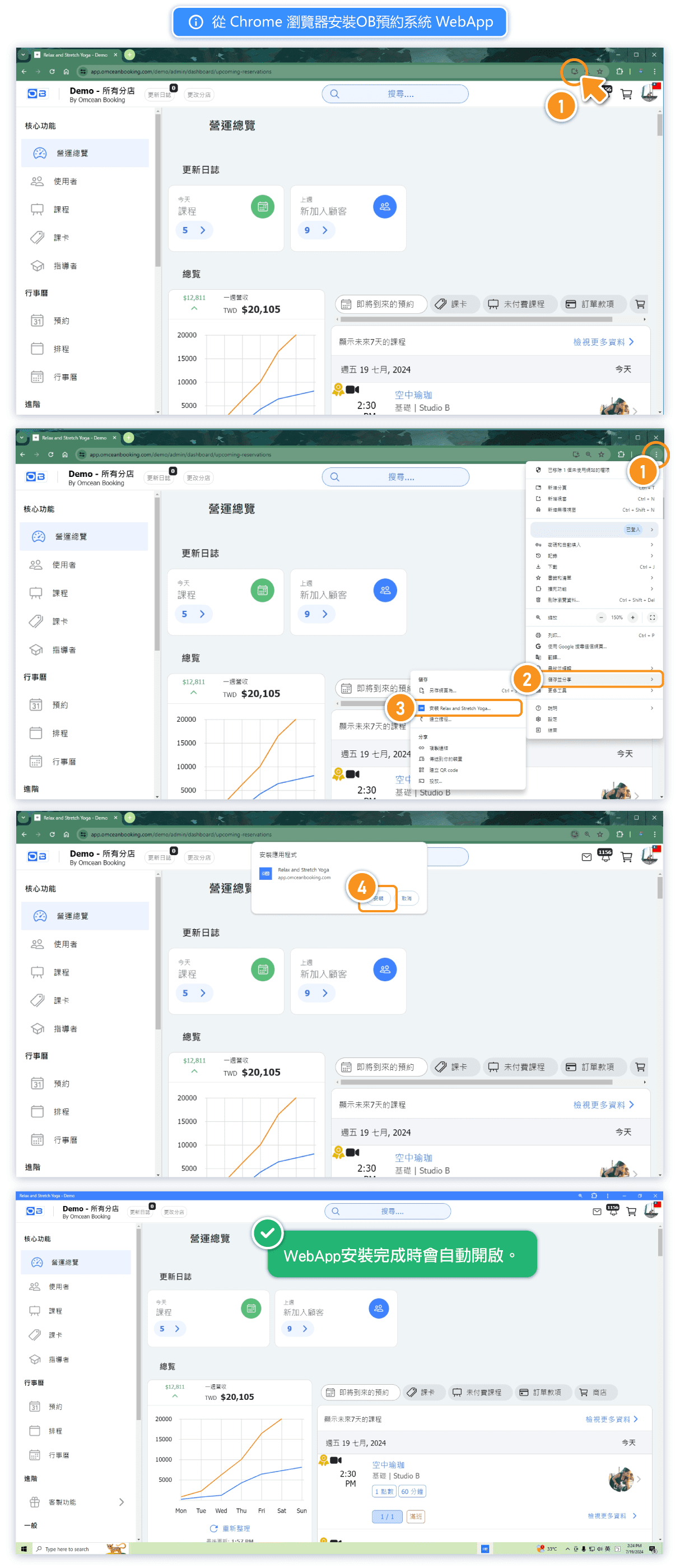
In the address bar of the booking system website you have opened, you will see a small icon on the right (as shown in the image below). Click on it to install it as a WebApp. If you don't see this icon, you can also click the three-dot menu in the upper right corner to open the Chrome menu, select "Save and Share" and then click "Install...".
After installing the OB WebApp, where can I open it from?
You can find and open the WebApp from the "Apps" page in the Chrome browser or by navigating to "chrome://apps."
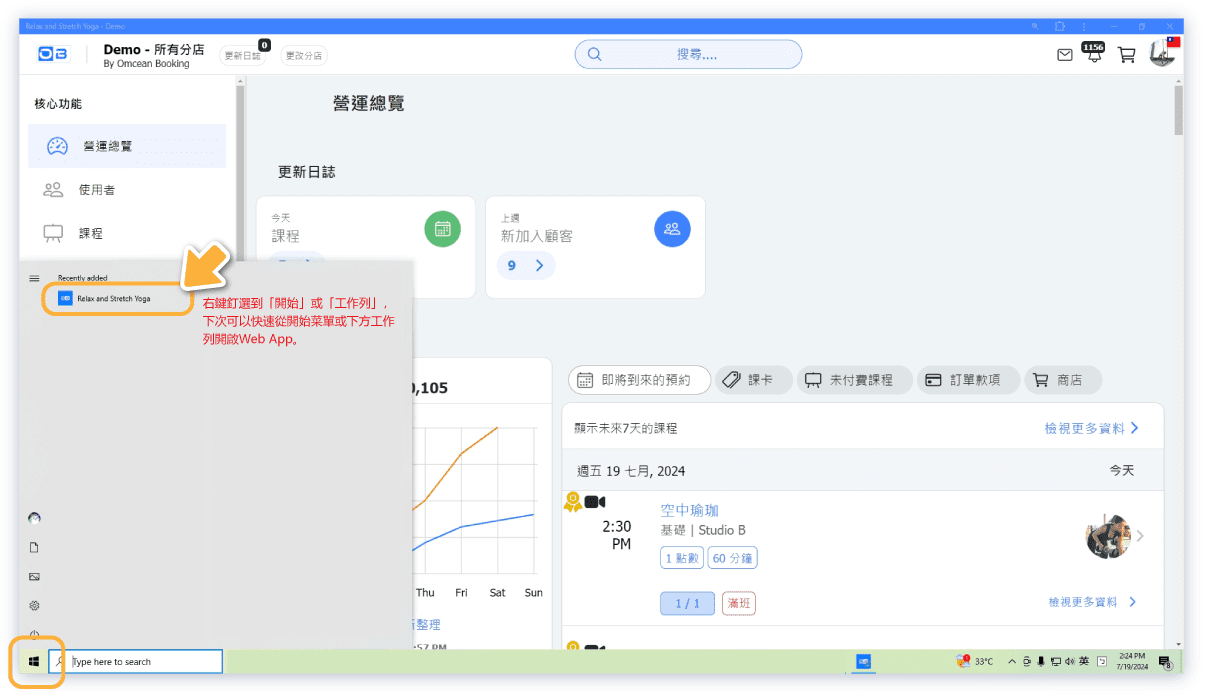
If you are using Windows, after installation, the WebApp will appear on your desktop. You can pin the WebApp to a preferred location for easy access next time.
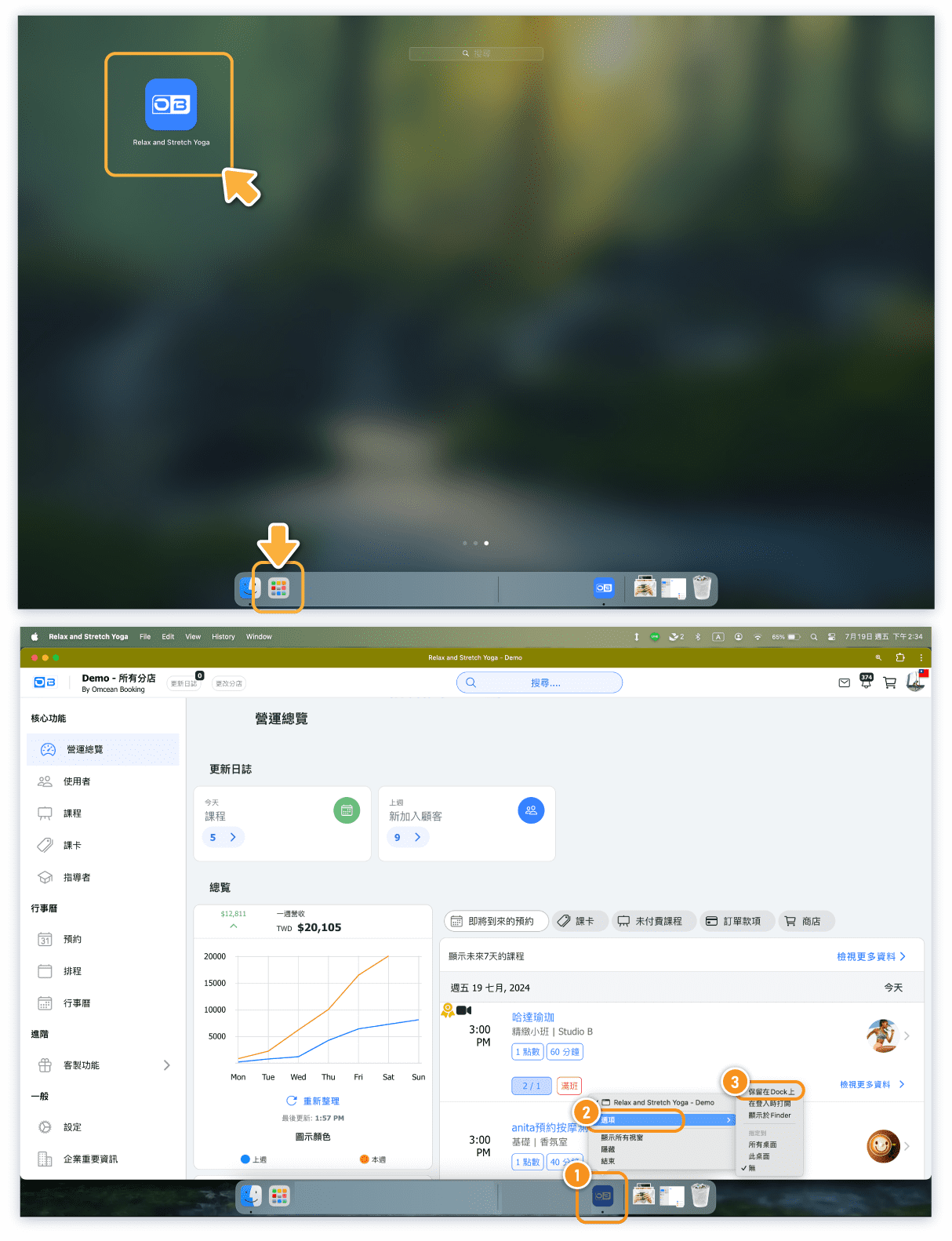
If you are using MacOS, after installation, you can find it in your Applications list and choose to keep it in the Dock for easy access to the booking system next time.
How to Remove the WebApp?
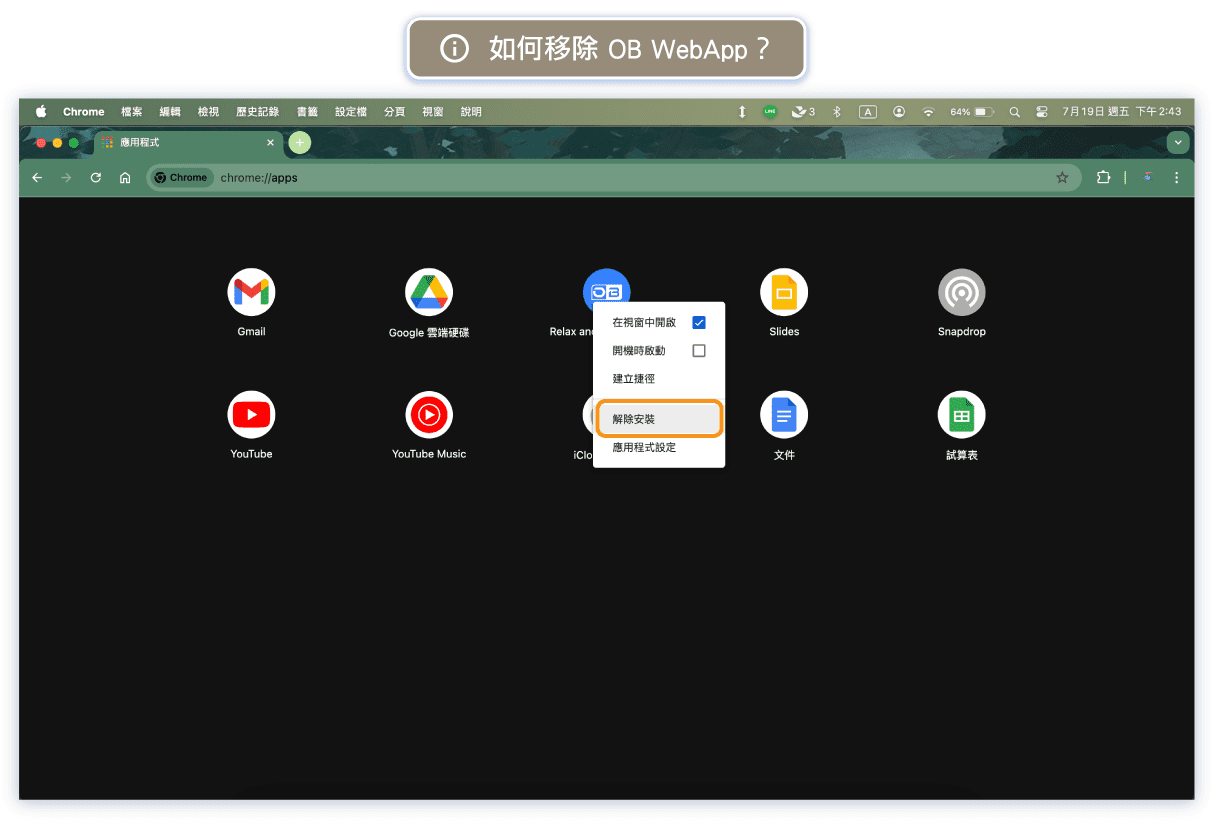
If you want to remove the booking system WebApp from Chrome, go to the URL "chrome://apps," right-click on the item you want to remove, and select "Remove from Chrome."