
What is the content editor?
The content editor is a visual page builder that lets you create professional-looking pages using drag-and-drop blocks. No coding or design experience is required.
Where it's used:
- About Us page (Custom Features → About Us)
Key features:
- Block-based design: Build pages by combining different content blocks
- Pre-designed templates: Choose from ready-made layouts and designs
- Full customization: Adjust colors, spacing, borders, and more
- Mobile responsive: Your content automatically adapts to different screen sizes
- Multilingual support: Create content in multiple languages
How do I add content blocks?
There are two ways to add new content blocks to your page:
Method 1: Using the template panel
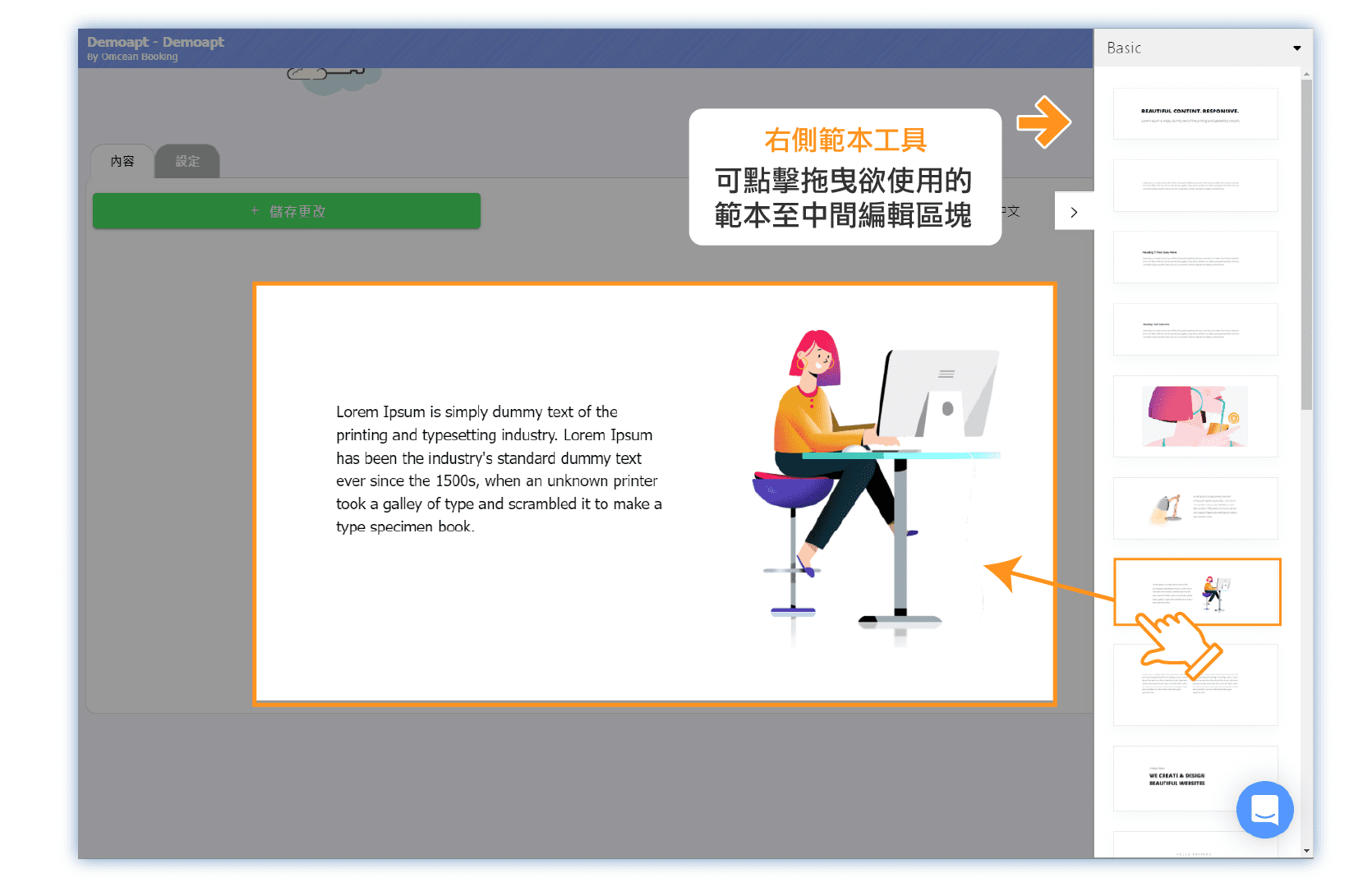
- Look at the right side panel showing template thumbnails
- Use the dropdown (Basic, Article, Headline, etc.) to browse categories
- Click on a template to add it to your page
Method 2: Using the + button
- Click on any existing block to select it
- Click the green + button that appears
- Browse the template gallery that opens
- Choose from categories: BASIC, ARTICLE, HEADLINE, BUTTONS, PHOTOS, PROFILE, MORE
- Click on a template to insert it
Tip: Click "MORE" to see additional templates and design options.
How do I edit text and content?
Click on any block to select it and start editing:
Editing text:
- Click on the text you want to edit
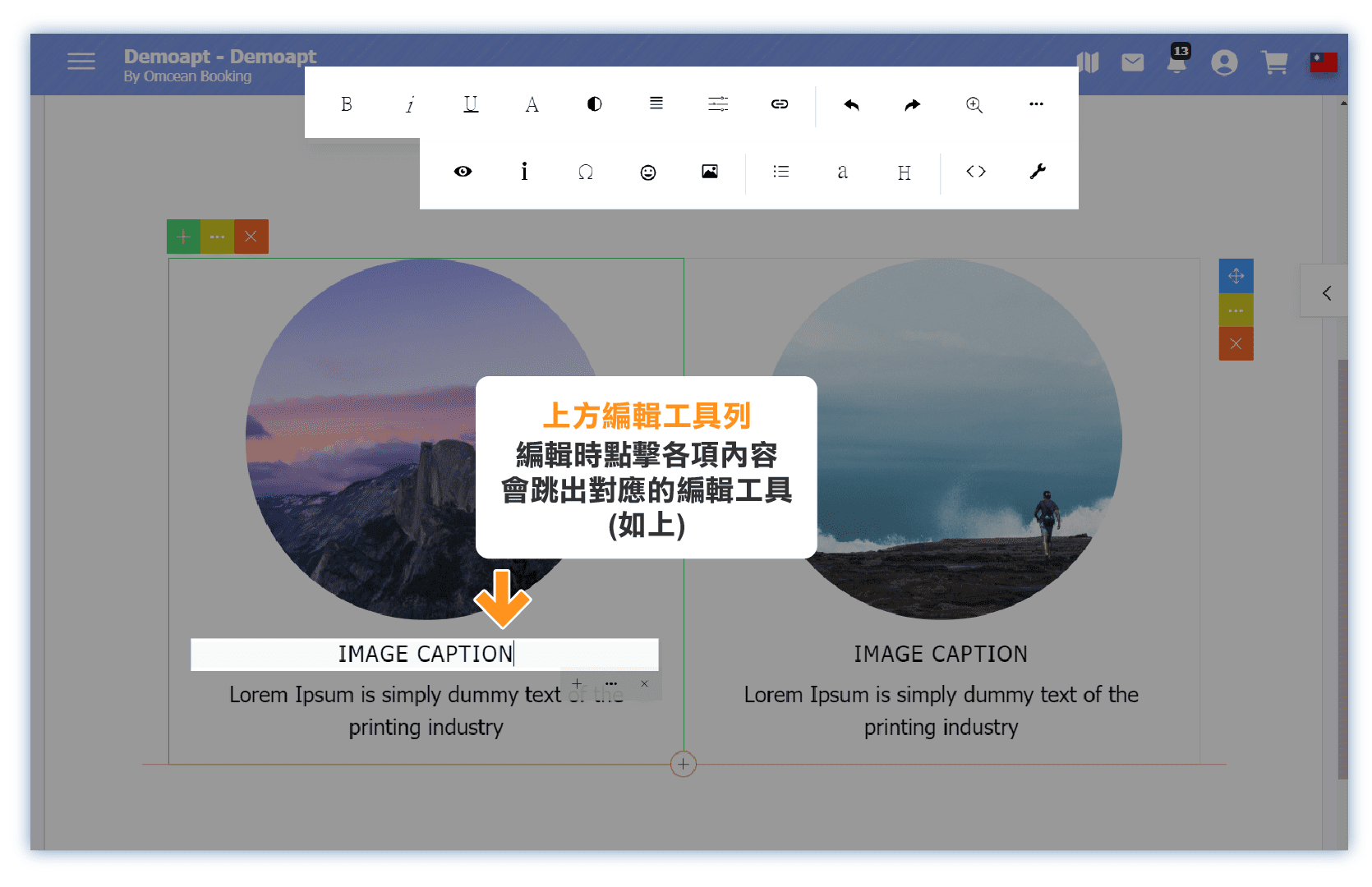
- A toolbar appears at the top with formatting options
- Use the toolbar to adjust:
- Text alignment (left, center, right, justify)
- Font size and style
- Text color
- Bold, italic, underline
- Click outside the block when done
Block controls:
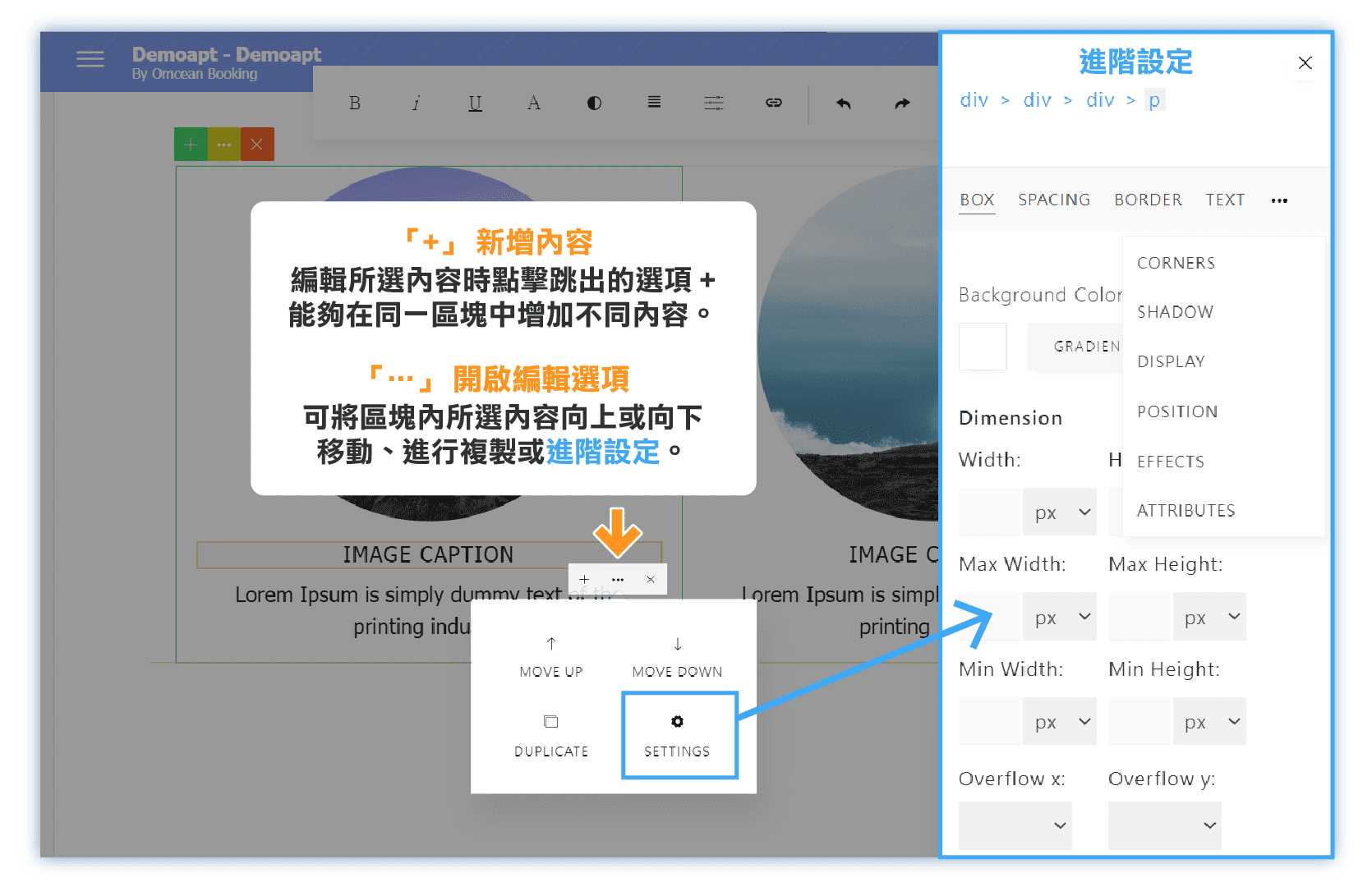
When you select a block, you'll see three buttons:
- Green + - Add a new block
- ... - Open settings menu
- Red × - Delete the block
How do I customize block appearance?
Each block has advanced settings for fine-tuning its appearance:
- Select a block by clicking on it
- Click the ... button to open settings
- Choose SETTINGS to access customization options
Available settings:
| BOX | Background color, width, and height of the block |
| SPACING | Padding (space inside) and margin (space outside) the block |
| BORDER | Border style, width, and color |
| TEXT | Font family, size, line height, and text effects |
| CORNERS | Rounded corner radius for a softer look |
| SHADOWS | Drop shadow position, blur, and color |
How do I add images and media?
The content editor supports various media types:
Adding images:
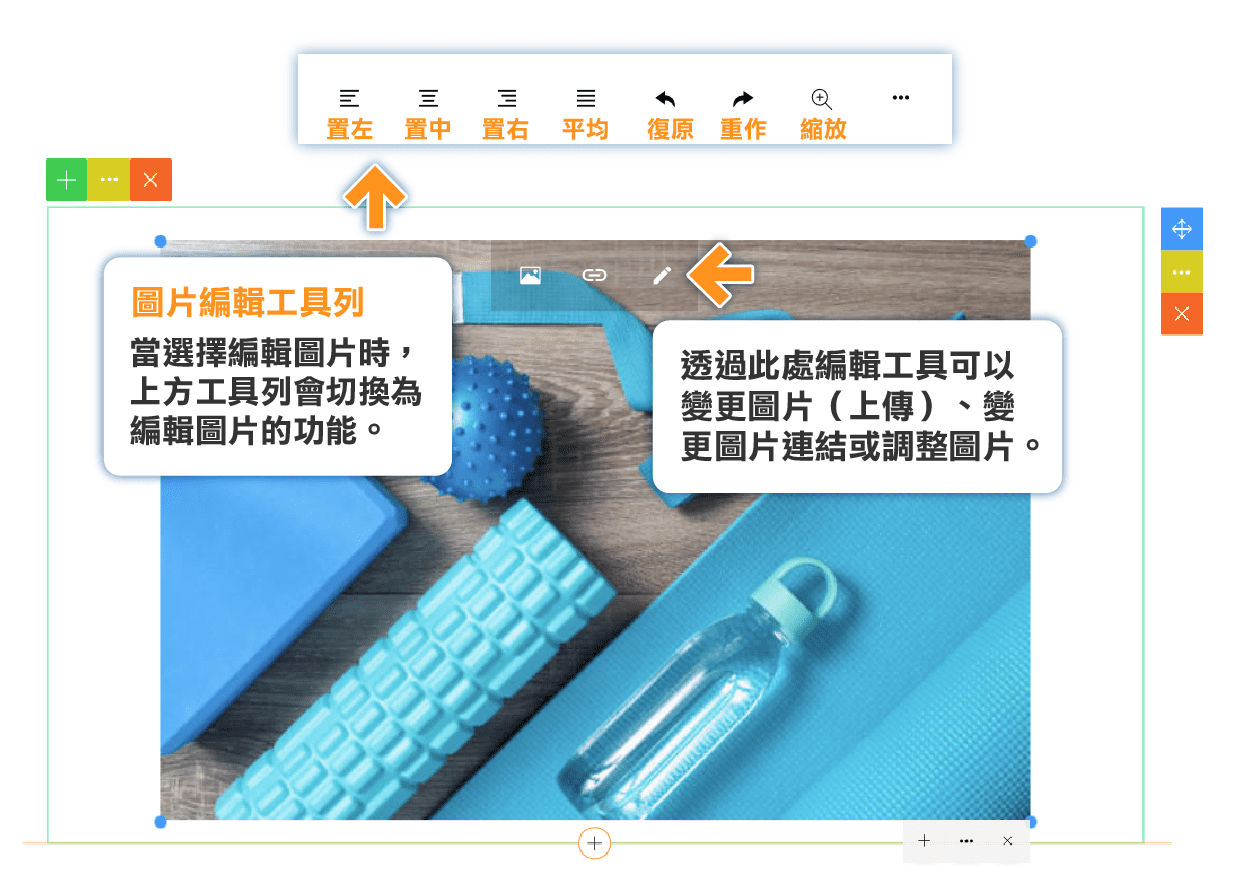
- Add a block that includes an image placeholder
- Click on the image area
- Upload your image or enter an image URL
- Adjust size and positioning as needed
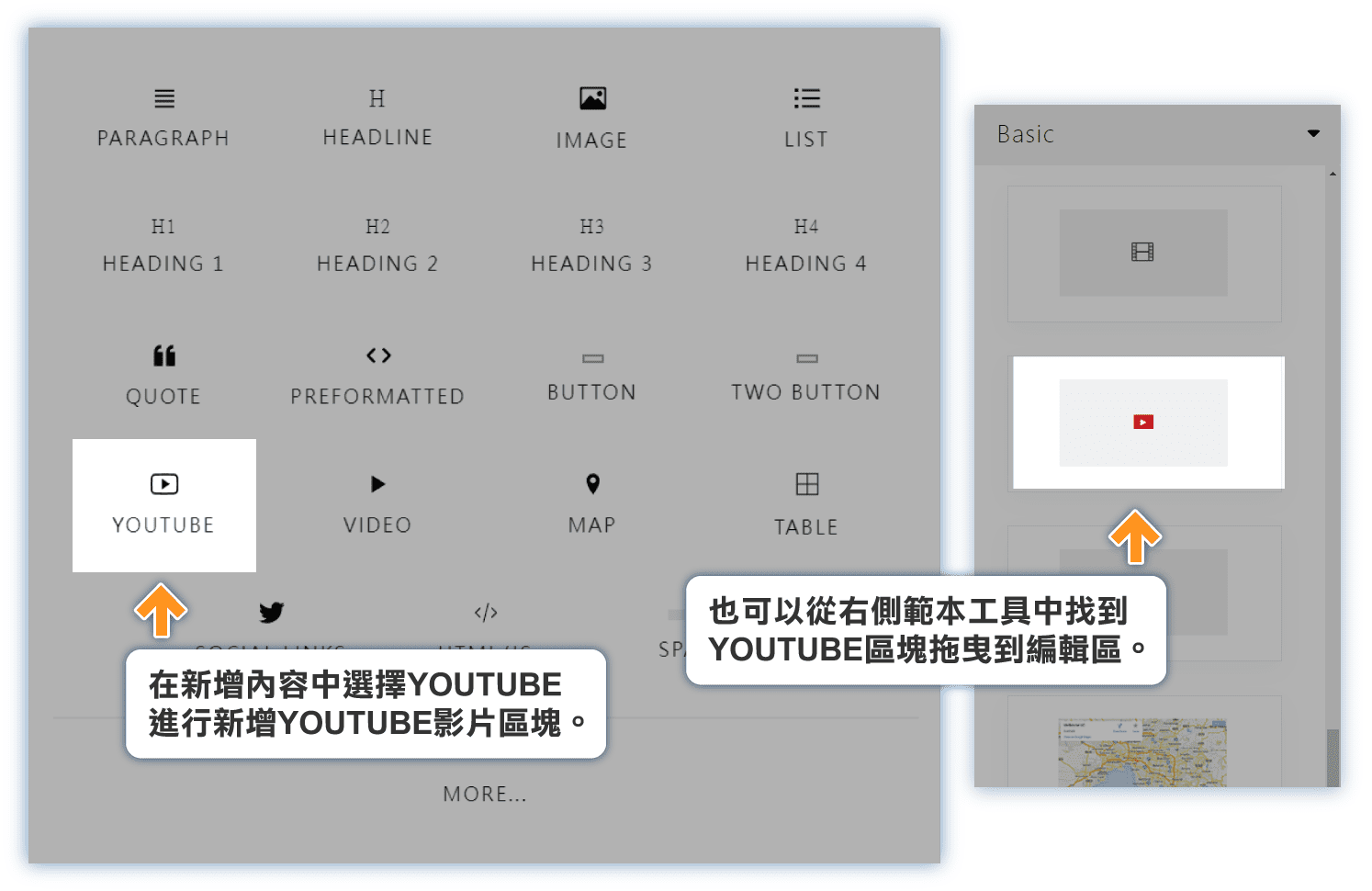
Embedding YouTube videos:
- Add a video block from the templates
- Paste the YouTube video URL
- The video will be embedded and playable on your page
Embedding other video URLs:
- Use the video embed block
- Paste the direct video URL
- The video player will appear on your page
How do I add buttons and tables?
The editor includes specialized blocks for buttons and tables:
Adding buttons:
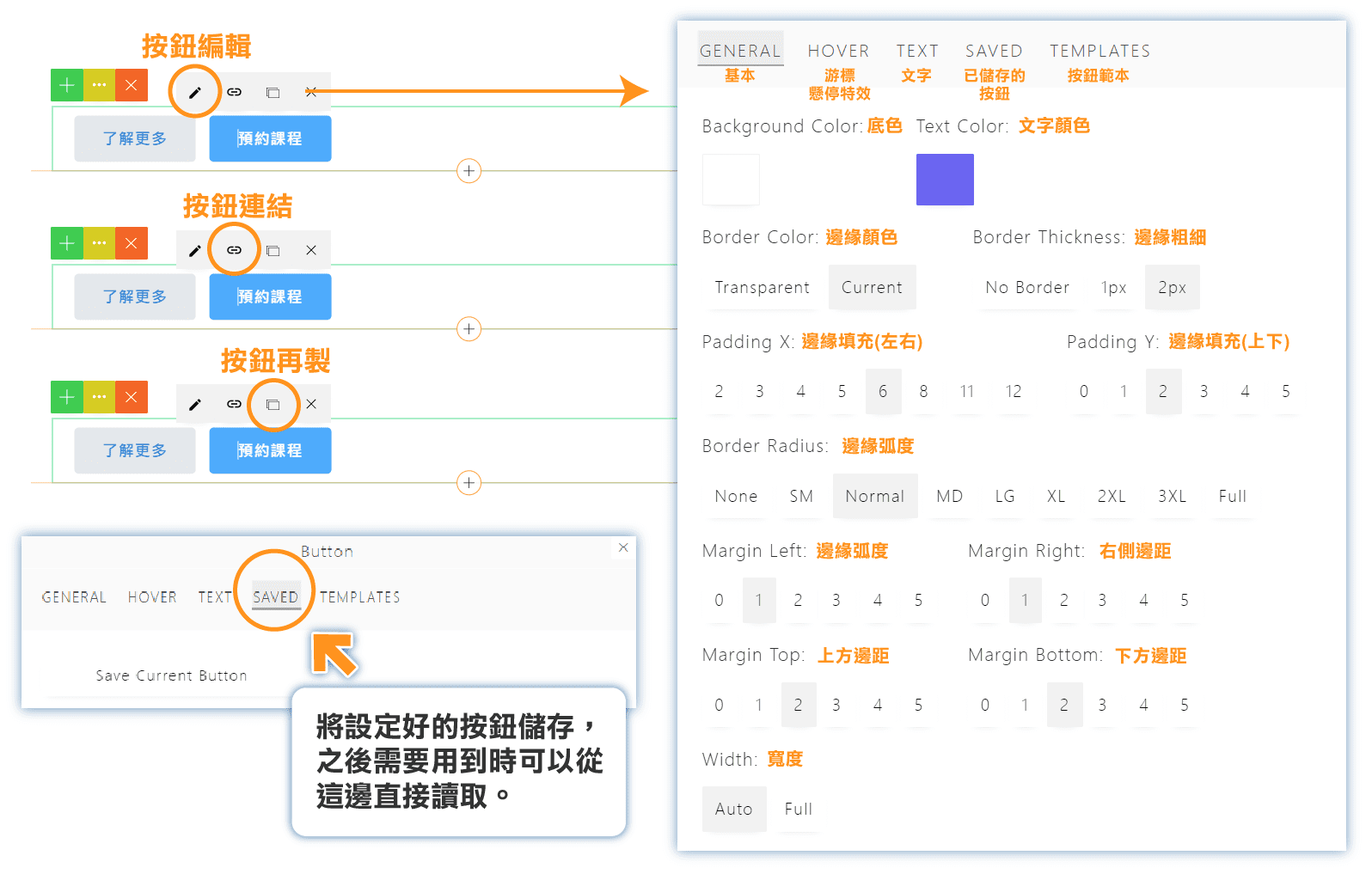
- Browse to the BUTTONS category in the template gallery
- Choose a button style you like
- Click to add it to your page
- Edit the button text and link destination
- Customize colors and size in the settings
Adding tables:
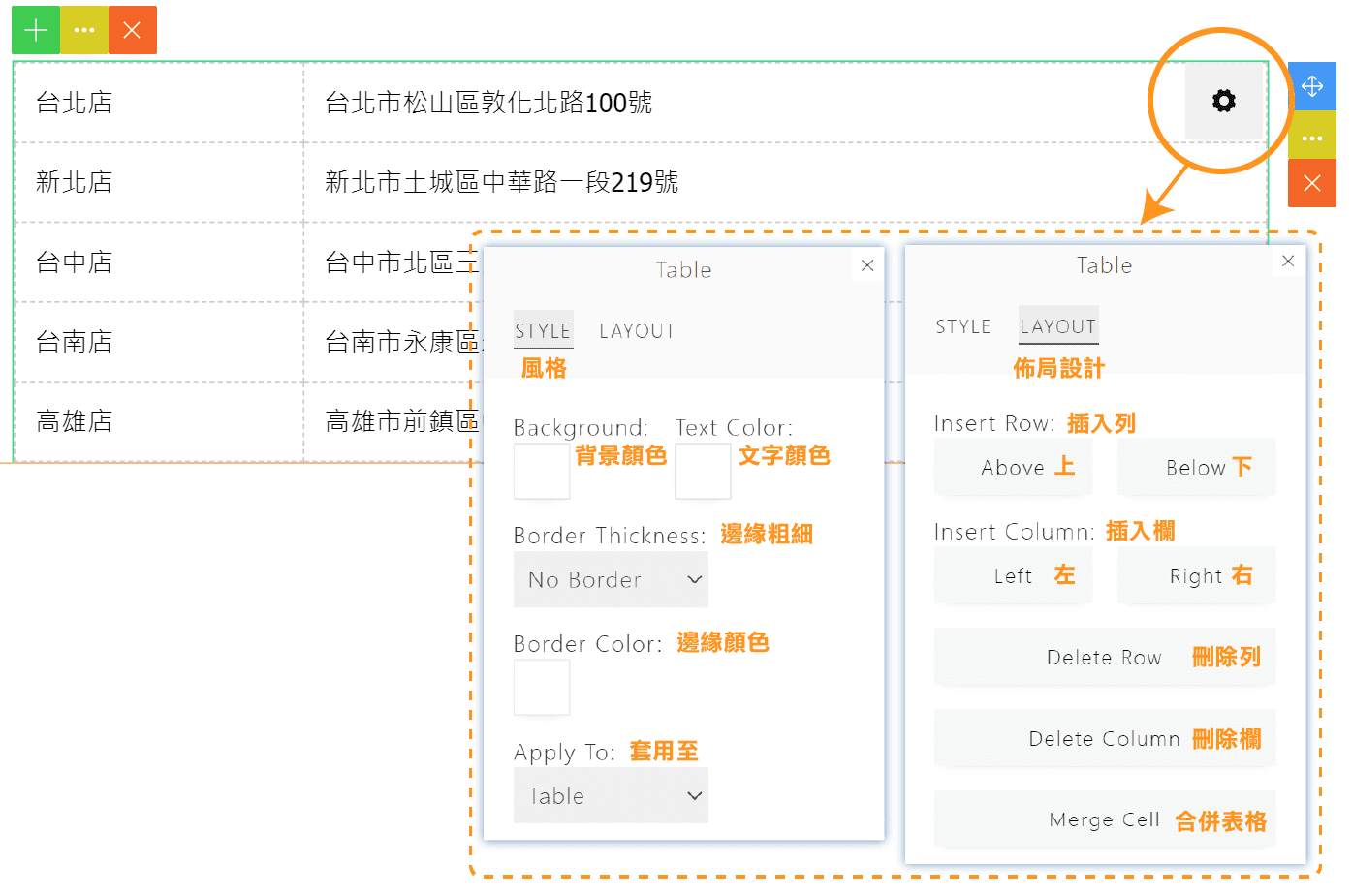
- Find table templates in the BASIC or MORE categories
- Add the table block to your page
- Click on cells to edit content
- Add or remove rows and columns as needed
Tip: Buttons are great for calls-to-action like "Book Now" or "Contact Us".
How do I save and preview my changes?
After making changes to your page:
Saving changes:
- Click the SAVE button in the top right corner
- Your changes are immediately published
- Customers will see the updated content
Discarding changes:
- If you want to undo all changes, click DISCARD
- This will revert to the last saved version
Language versions:
- Use the language dropdown to switch between English and Chinese versions
- Edit each language version separately
- Remember to save each language version
Tip: Open your booking page in a new tab to preview how customers will see your About Us page.


