
What is Google Calendar sync?
Google Calendar sync automatically adds your booked classes to your personal Google Calendar. This means:
- Your class schedule appears alongside your other appointments
- You get reminders from Google Calendar before each class
- Changes sync automatically - if a class is cancelled or rescheduled, your calendar updates
- Access your schedule from any device where you use Google Calendar
Who can use this feature:
- Customers: Sync classes you're attending
- Instructors: Sync classes you're attending AND classes you're teaching
- Administrators: Sync your personal class schedule
How do I connect my Google Calendar?
Follow these steps to connect your Google Calendar:
- Log in to your account on the booking website or app
- Go to Account settings
- Click on Google Calendar
- Click Connect to link your Google account
- Sign in with your Google credentials and grant permission
- Once connected, you'll see your account email and "Connected" status
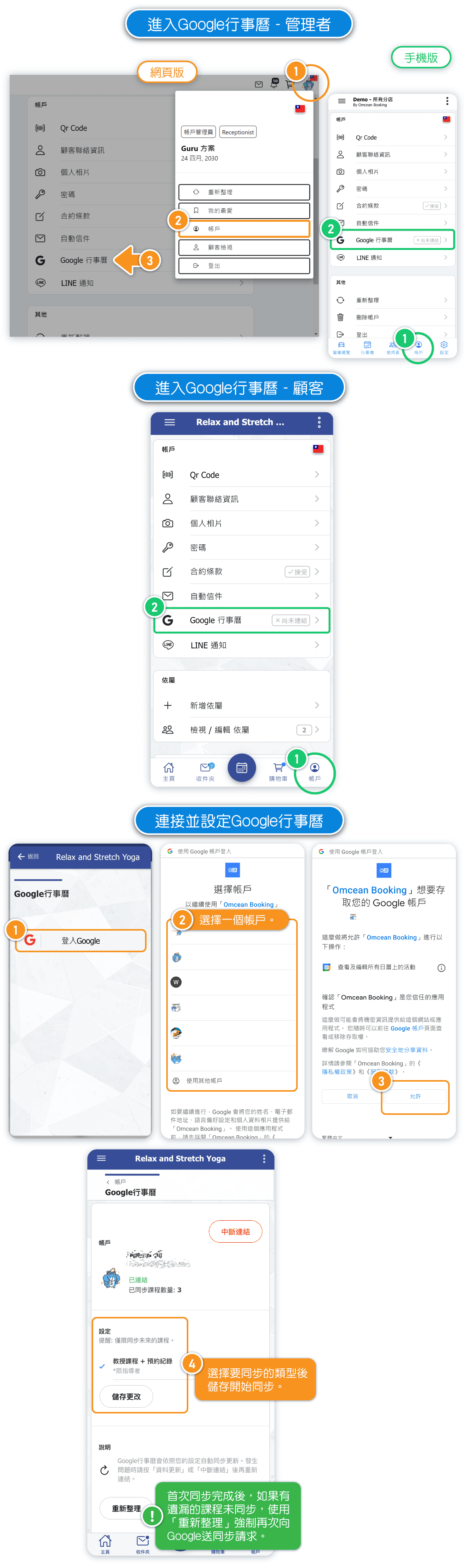
Note: Only classes in the future are synced to your calendar. Past classes will not appear.
What sync options are available?
Depending on your role, you'll see different sync options:
For Customers:
- Reservations only: Syncs all classes you've booked to attend
For Instructors:
- Reservations only: Syncs classes you're attending as a student
- Classes taught: Syncs all classes you're scheduled to teach
- Both: Syncs both your reservations and teaching schedule
After selecting your preferred option, click Save Changes to apply.
How does automatic syncing work?
Once connected, your Google Calendar syncs automatically:
- New bookings: When you book a class, it appears in your Google Calendar
- Cancellations: If you cancel a booking, it's removed from your calendar
- Schedule changes: If a class time changes, your calendar event updates
- Sync frequency: Changes typically sync within a few minutes
Troubleshooting: If your calendar isn't updating:
- Click the Refresh button to manually sync
- If problems persist, try disconnecting and reconnecting your account
How do I disconnect my Google Calendar?
To disconnect your Google Calendar:
- Go to Account → Google Calendar
- Click the Disconnect button
- Your calendar will no longer sync with the booking system
Note: Disconnecting removes future sync but does not delete events already added to your Google Calendar. You may need to manually remove those events if desired.
You can reconnect at any time by following the connection steps again.
Why can't I see the Google Calendar option?
If you don't see the Google Calendar option in your account:
- Feature not enabled: The studio may not have enabled Google Calendar sync. Contact the studio administrator to request this feature.
- Custom feature: Google Calendar is a custom feature that needs to be enabled by the studio in their settings.
For administrators: To enable Google Calendar sync for your customers and instructors, go to Custom Features and enable the Google Calendar integration.


