What is a repeating class?
A repeating class is a class that automatically recurs on the same day(s) and time each week. Once you create a repeating class, it will appear on your booking calendar every week without needing to manually add it each time.
Examples of repeating classes:
- Flow Yoga every Monday at 3:00 PM
- Aerial Yoga every Wednesday and Friday at 6:00 PM
- Pilates every Saturday at 10:00 AM
Benefits of repeating classes:
- Save time: Set up once and it automatically appears every week
- Consistent schedule: Customers know exactly when to expect their favorite classes
- Easier management: Edit the template to update all future occurrences
- Bulk booking: Customers can book multiple weeks at once
How do I create a repeating class?
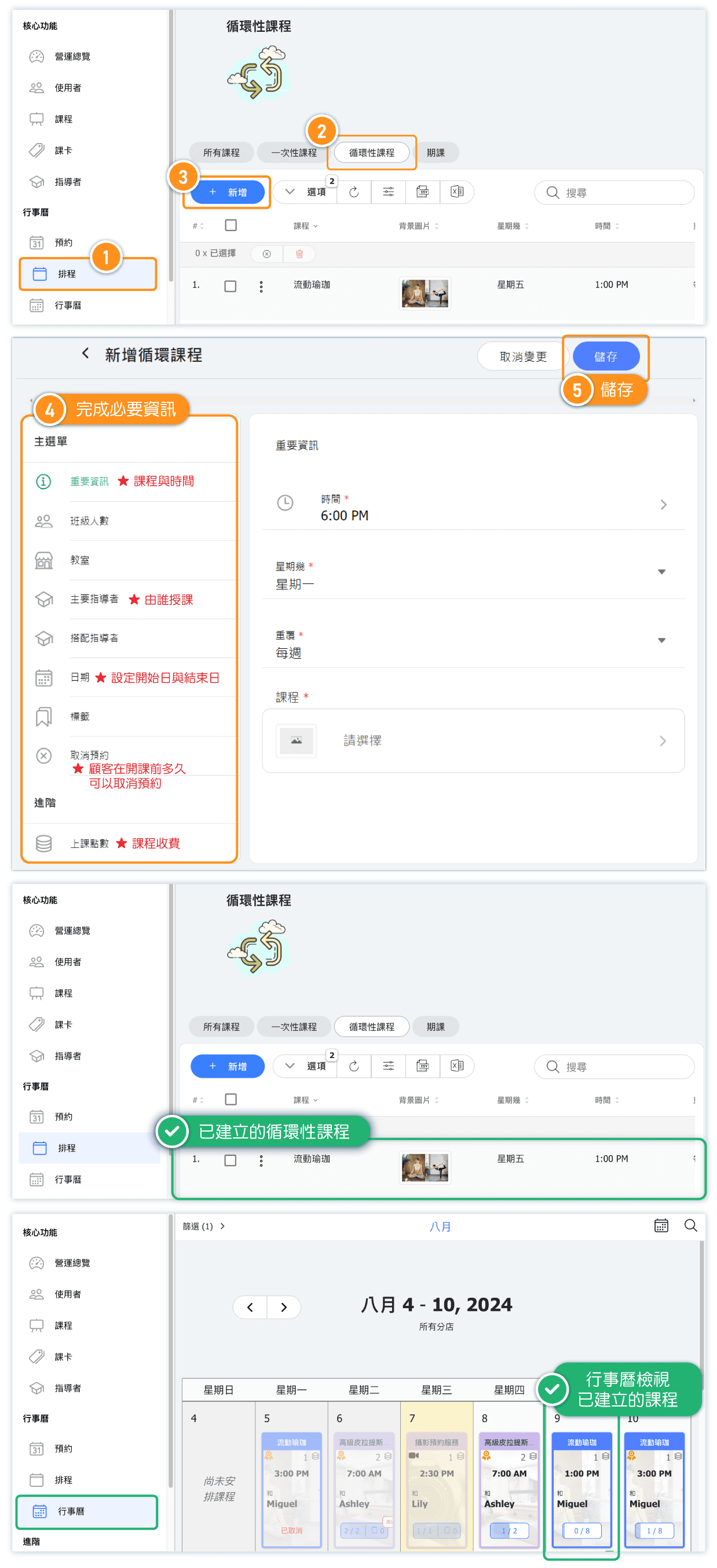
Follow these steps to create a repeating class:
- Go to Schedule in the admin menu
- Click the REPEATING CLASS tab
- Click the + NEW button
- Select the Class you want to schedule
- Choose the Day of Week (e.g., Monday, Wednesday)
- Set the Time for the class
- Select the Repetition frequency (Weekly or Bi-weekly)
- Configure additional options like instructor and class size
- Click SAVE to create the repeating class
What's the difference between weekly and bi-weekly repetition?
When setting up a repeating class, you can choose how often it repeats:
- Weekly: The class occurs every week on the selected day (e.g., every Monday)
- Bi-weekly: The class occurs every other week on the selected day (e.g., every other Monday)
When to use bi-weekly:
- Classes that alternate weeks due to instructor availability
- Special intensive sessions that need recovery time between
- Classes with limited resources or equipment
Can I schedule a class on multiple days per week?
Yes! If you want a class to run on multiple days (e.g., Monday and Wednesday), you'll need to create a separate repeating class entry for each day.
Example: To have Flow Yoga on Monday, Wednesday, and Friday:
- Create a repeating class for Flow Yoga on Monday at 6:00 PM
- Create another repeating class for Flow Yoga on Wednesday at 6:00 PM
- Create a third repeating class for Flow Yoga on Friday at 6:00 PM
Each entry will appear as a separate row in your Repeating Classes list, making it easy to manage the schedule for each day independently.
How do I edit or stop a repeating class?
To edit a repeating class:
- Go to Schedule → Repeating classes
- Find the class in the list and click on it
- Make your changes (time, instructor, booking cutoff, etc.)
- Click SAVE and choose the offered propagation scope for operational changes
Only eligible linked sessions are updated. Future-only scope excludes past sessions, and sessions with attendees may be excluded. Verify a specific occurrence after saving when its setting matters.
If a save does not go through — for example the details cannot be sent or the server rejects them — SAVE becomes available again straight away, so you can correct the problem and try again without reloading the page.
To stop a repeating class:
- Find the class in the Repeating classes list
- Select it using the checkbox
- Click the delete icon or use the options menu
Note: Deleting a repeating class removes it from future calendars but does not affect past classes or existing bookings.
What if I need to cancel just one occurrence?
If you need to cancel a single occurrence of a repeating class (e.g., instructor is sick one day, or there's a holiday), you don't need to delete the entire repeating class.
To cancel a single occurrence:
- Go to Calendar in the admin menu
- Find the specific date you want to cancel
- Click on the class occurrence
- Cancel or delete just that single occurrence
The repeating class will continue as normal on all other weeks. You can also use the Closures feature to automatically cancel all classes on specific dates like holidays.
How booking cutoffs work on repeating classes
Selecting a class copies its current booking-cutoff choice into the repeating template. The template may follow the business default from Settings → Reservation or keep a custom value before, at, or after class start. Newly generated calendar sessions receive the template setting.
Existing sessions store their own setting, so later class changes do not silently rewrite them. When editing the repeating template, use its propagation choice to update eligible linked sessions. To change only one date, edit that calendar occurrence instead.