
What is online teaching?
Online teaching allows you to offer virtual classes through integrated video conferencing. Instead of sharing meeting links manually, the system handles everything:
- Automatic integration: Video meetings are created and linked to your classes
- Easy access: Students and instructors join with one click from the booking system
- Seamless experience: No need to share or manage meeting links separately
Supported platforms:
- Google Meet: Free video conferencing integrated with Google Workspace
- Zoom: Popular platform for virtual meetings and webinars
- Learncube: Virtual classroom software designed for teaching
How do I enable online teaching?
Follow these steps to set up online teaching:
- Go to Custom Features in the admin menu
- Click on Online Teaching
- On the Connect tab, choose your video conferencing provider
- Click Enable to activate your chosen platform
- Follow any authentication steps required by the provider
Choosing a provider:
- Google Meet: Best if you already use Google Workspace. Seamless integration with Google Calendar.
- Zoom: Best for larger classes or advanced features like breakout rooms.
- Learncube: Best for interactive teaching with virtual whiteboard and classroom tools.
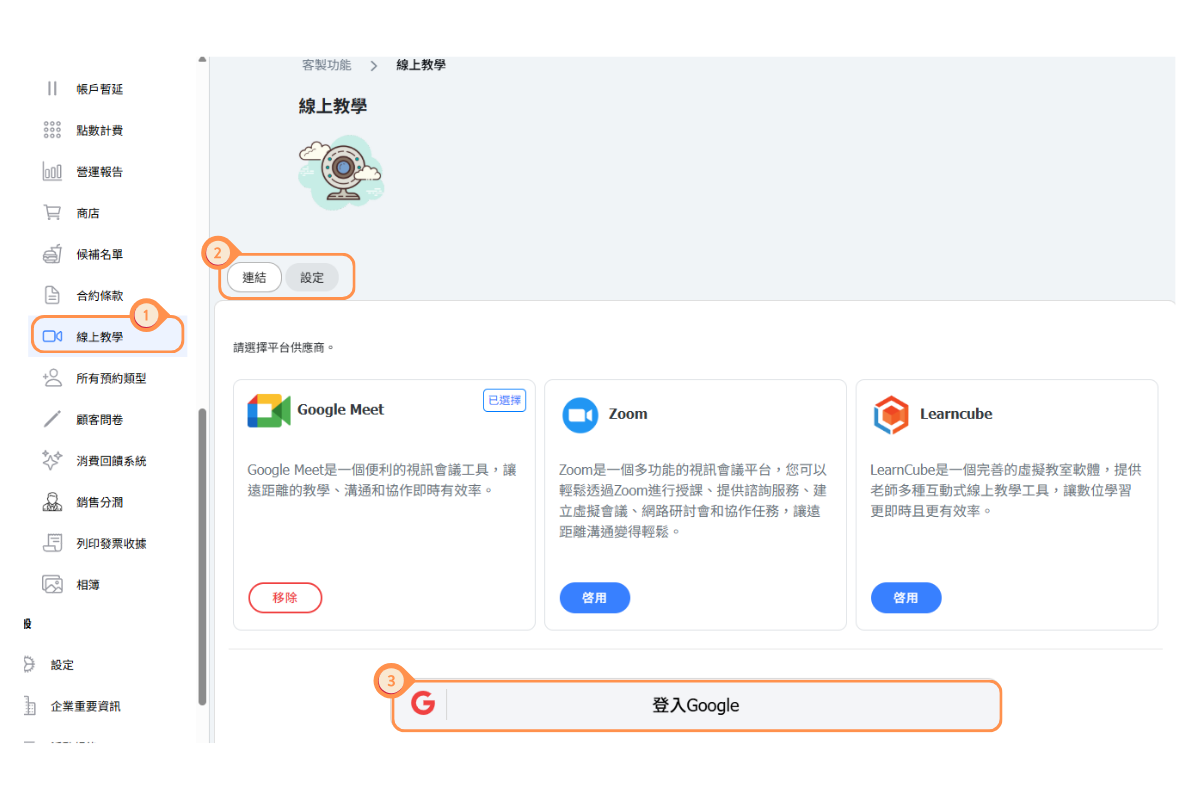
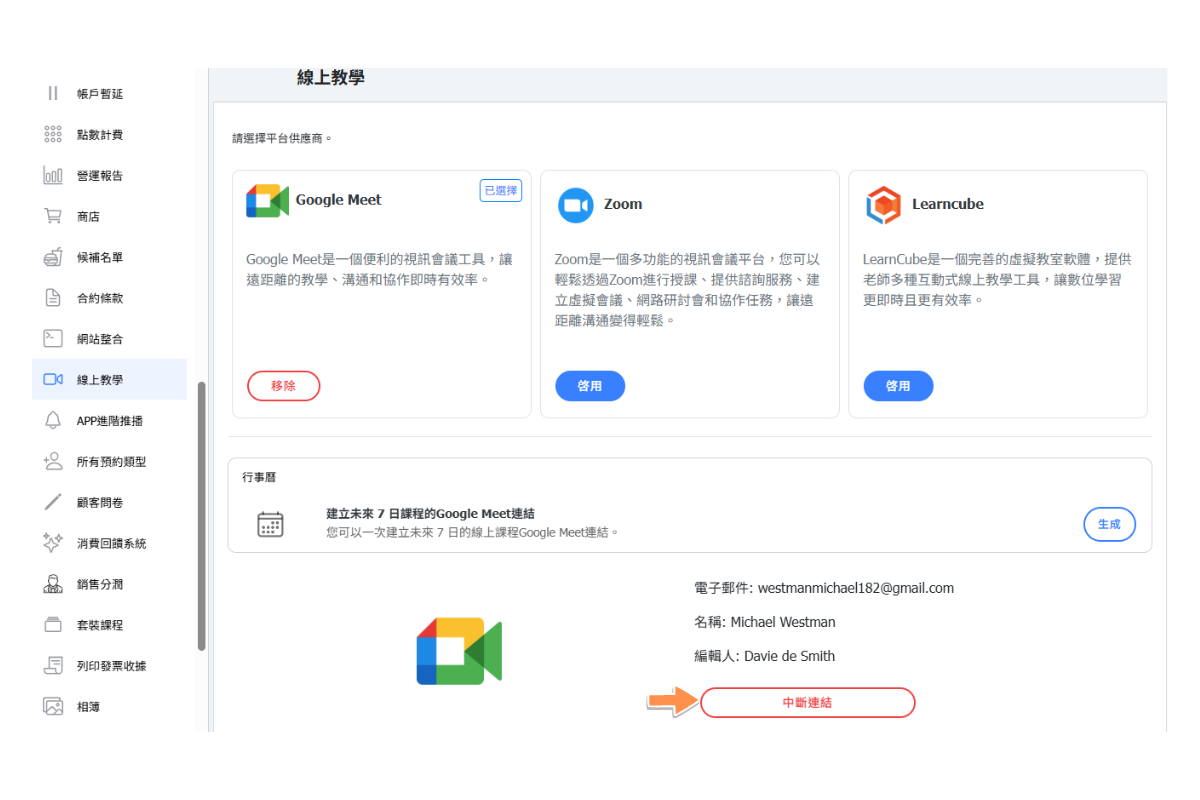
Click “Disconnect” to delete the linked account that has already been established.
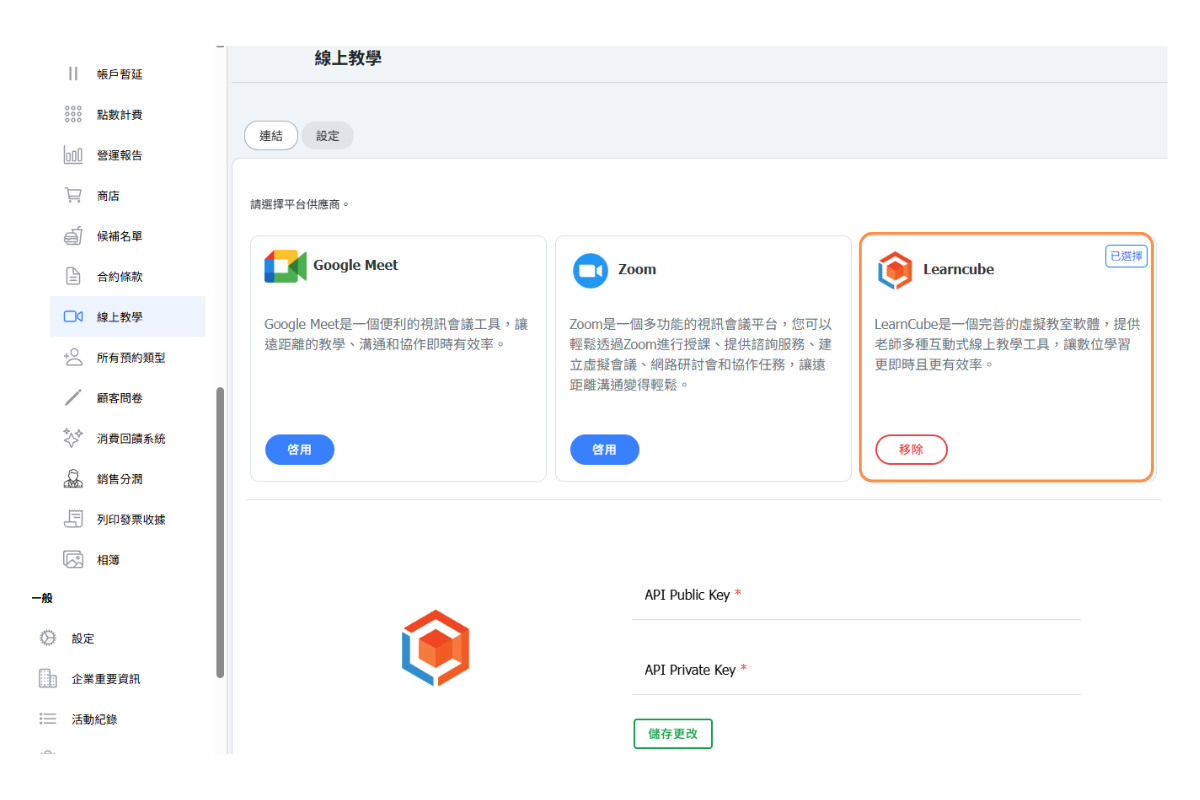
Please have the store apply for an API integration plan with Learncube directly, and obtain the API Public Key and API Private Key to enter below.
How do I mark a class as online?
After enabling online teaching, you need to mark individual classes as online:
- Go to Classes in the admin menu
- Click on the class you want to make online
- Go to the Edit tab
- Find the Online Class section in the menu
- Toggle Online teaching to ON
- Click Save
Once enabled, this class will have video conferencing available for all scheduled sessions. Students who book this class will see the option to join the online session.
Note: You can have a mix of in-person and online classes. Only classes with the online toggle enabled will have video conferencing.
How do students join an online class?
Students can easily join online classes directly from the booking system:
- The student books the online class as normal
- Before the class starts, they go to their bookings or the calendar
- They click on the class they've booked
- A Join Class button appears for online classes
- Clicking the button opens the video conferencing session
Important: The join option only appears for students who have a valid reservation for that class. Students without a booking cannot access the online session.
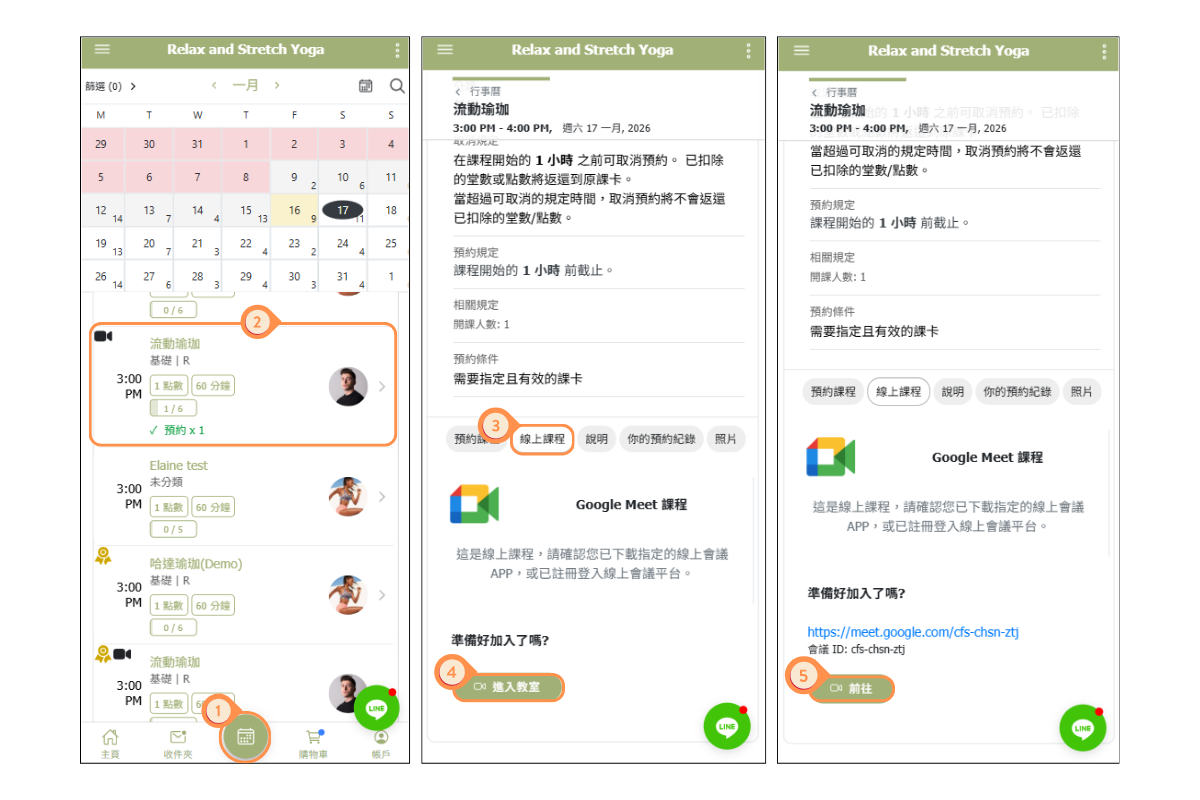
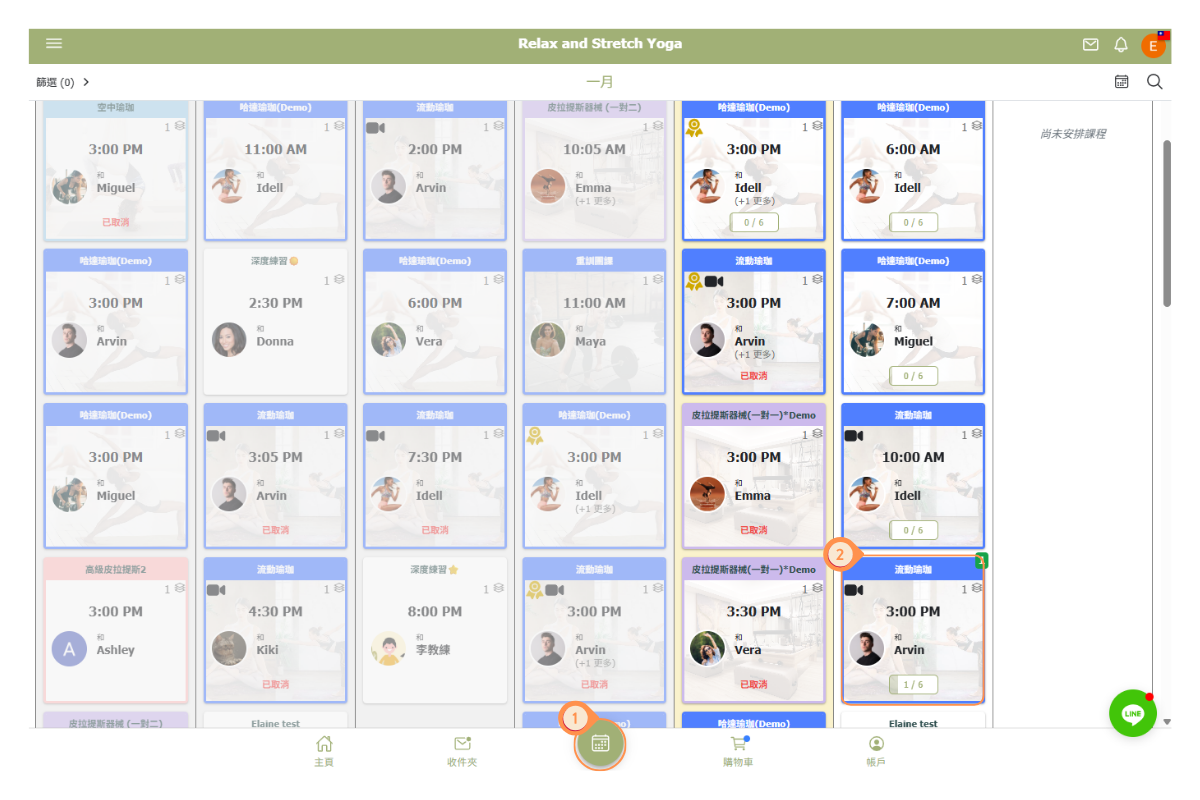
[Operating Instructions]
-
Click the calendar button at the bottom of the screen.
-
Select a course.
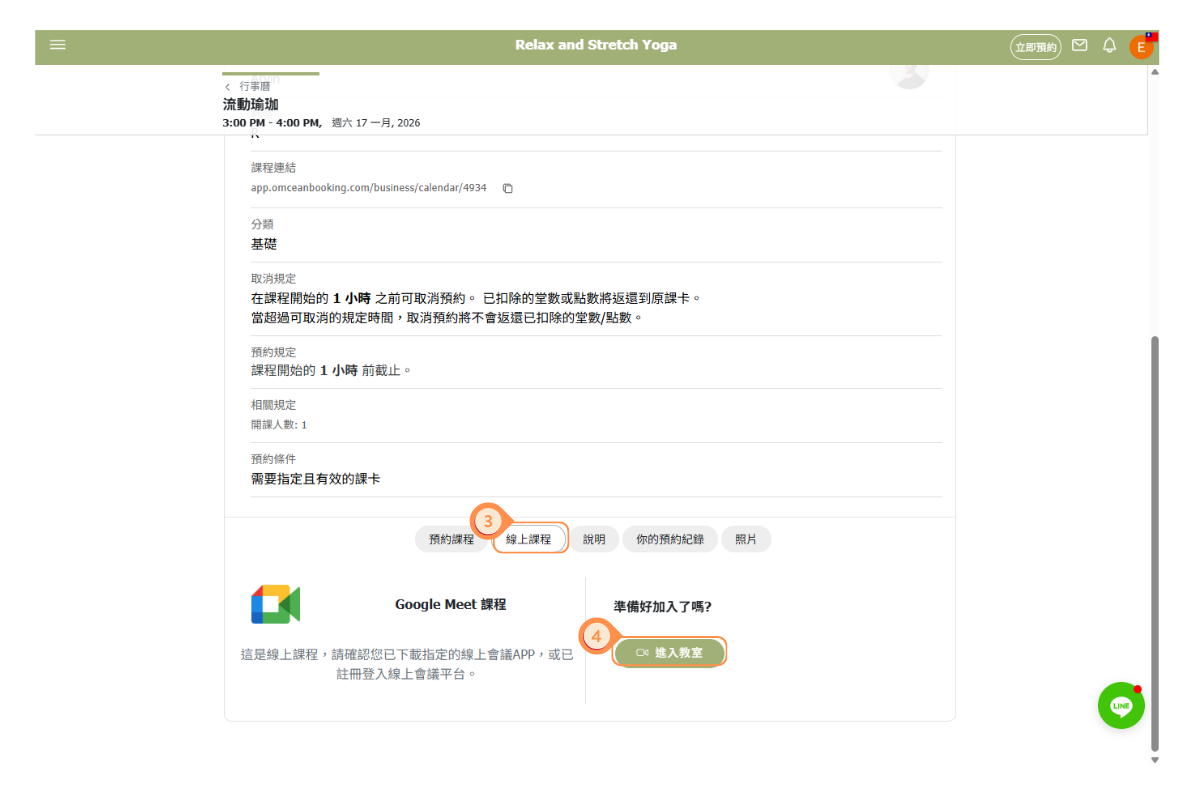
-
Click the “Online Course” tab.
-
If you have successfully registered, click “Enter Classroom”.
-
Click “Go” to open the meeting link in a new window.
How do instructors start an online class?
Instructors can start their online classes from the system:
- Go to the Calendar or your teaching schedule
- Find the online class you're teaching
- Click on the class to open details
- Click the Start Class or Join as Host button
- The video conferencing session opens with you as the host
As the host, the instructor has full control over the meeting, including admitting students, managing audio/video, and ending the session.
Can I switch video conferencing providers?
Yes, you can change your video conferencing provider at any time:
- Go to Custom Features → Online Teaching
- Click Remove on your current provider
- Click Enable on the new provider you want to use
- Complete any required authentication
Note: Changing providers affects all future online classes. Any existing meeting links from the old provider will no longer work, so it's best to switch between class sessions rather than during an active schedule.



