What is the Pause Accounts feature?
The Pause Accounts feature allows you to extend pass expiration dates when your business is temporarily closed. Instead of customers losing days on their passes during closures, this feature automatically pushes back their expiration dates.
Example: If a customer's pass expires next Wednesday and you pause accounts for 7 days during a holiday closure, their pass expiration date automatically moves to the following Wednesday.
Common use cases:
- Holiday closures: Chinese New Year, Christmas, national holidays
- Renovations: When your studio is being remodeled
- Staff vacations: When you need to close temporarily
- Emergencies: Unexpected closures due to weather or other factors
This ensures fairness to customers who paid for passes but couldn't use them during your closure.
How do I extend passes for all customers?
To extend pass expiration dates for all customers at once (such as during a holiday closure):
- Go to Custom Features in the admin menu
- Click on Pause Accounts
- Make sure you're on the Pause accounts tab
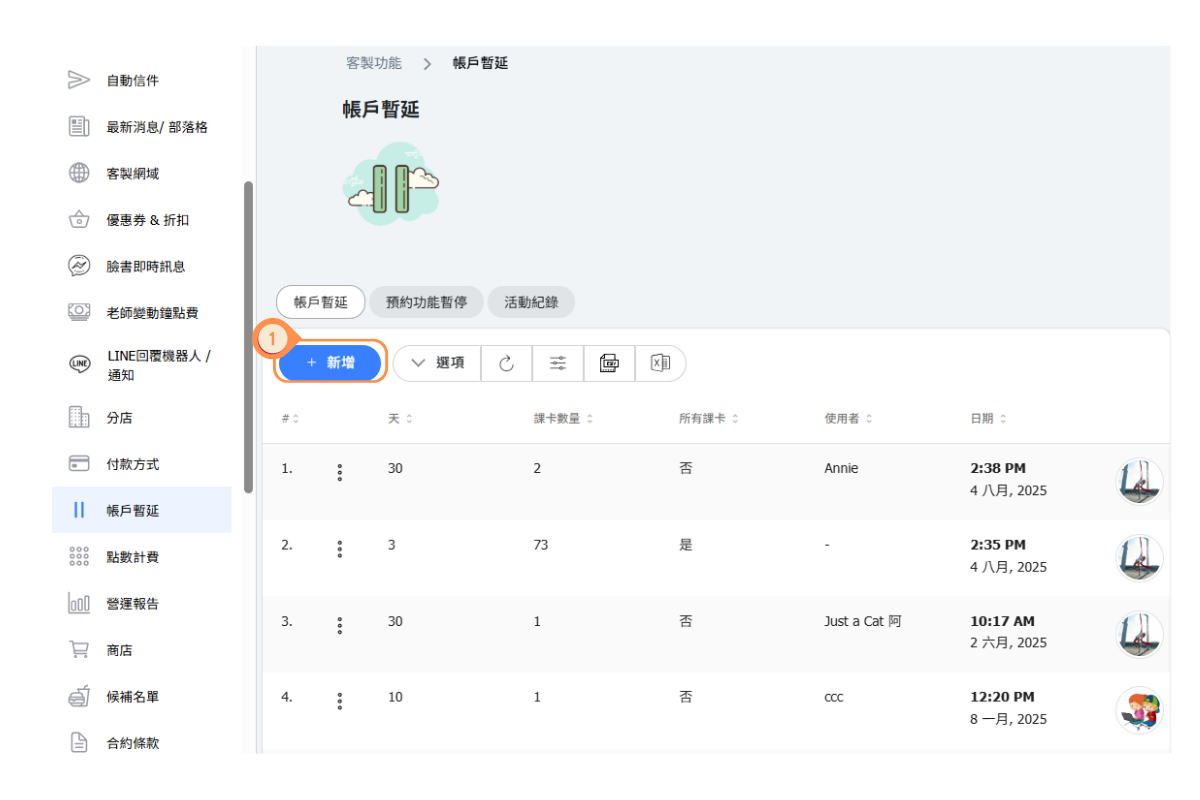
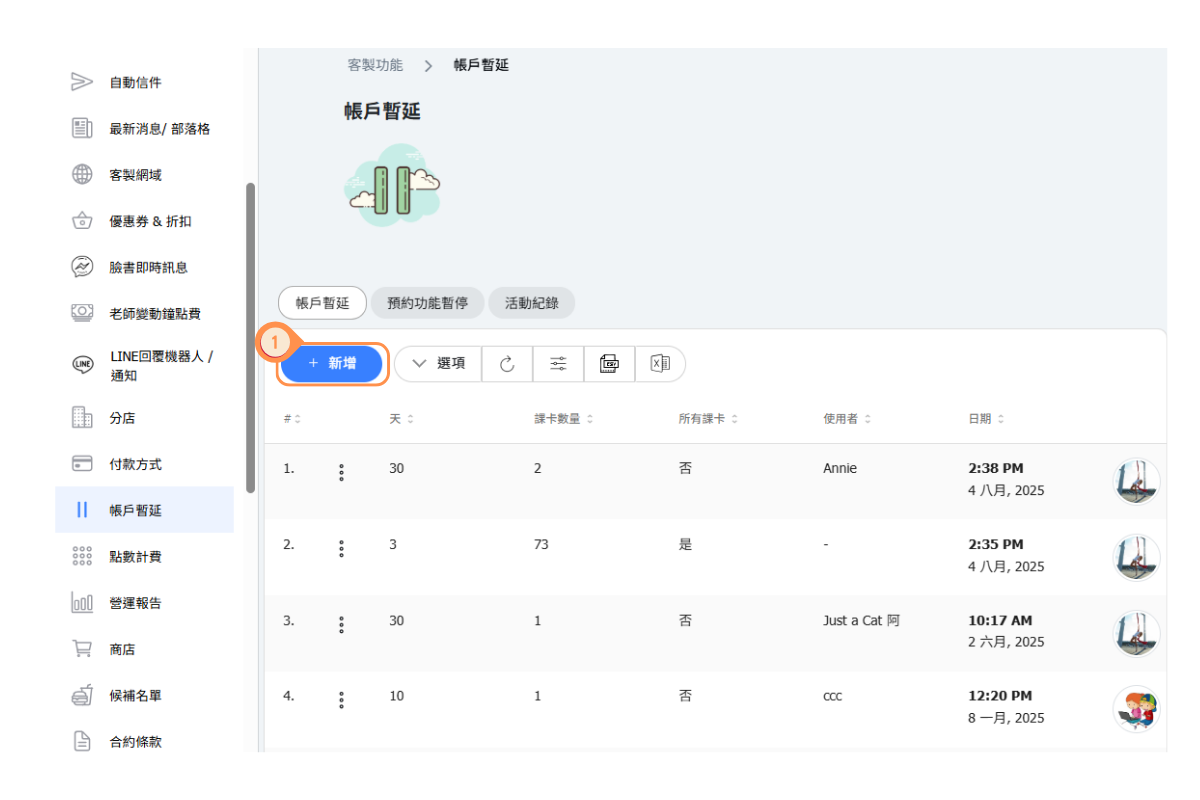
- Click the + ADD button
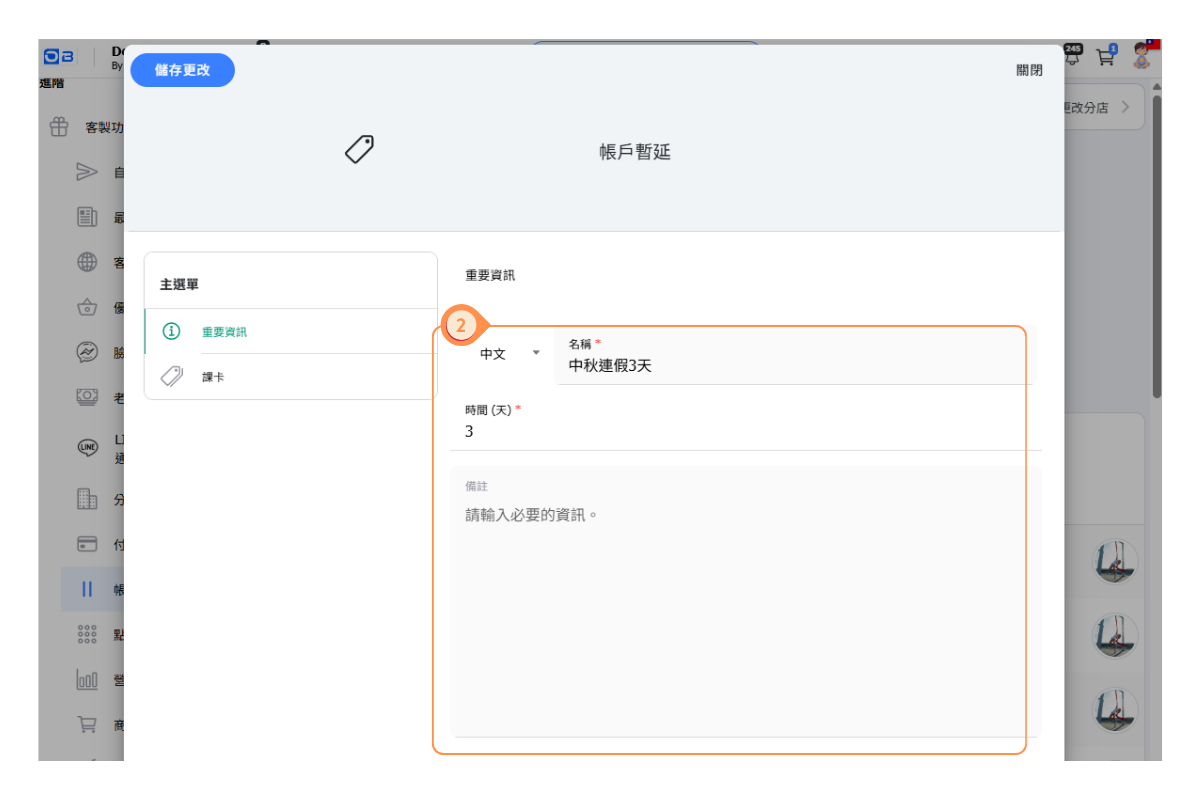
- Fill in the details:
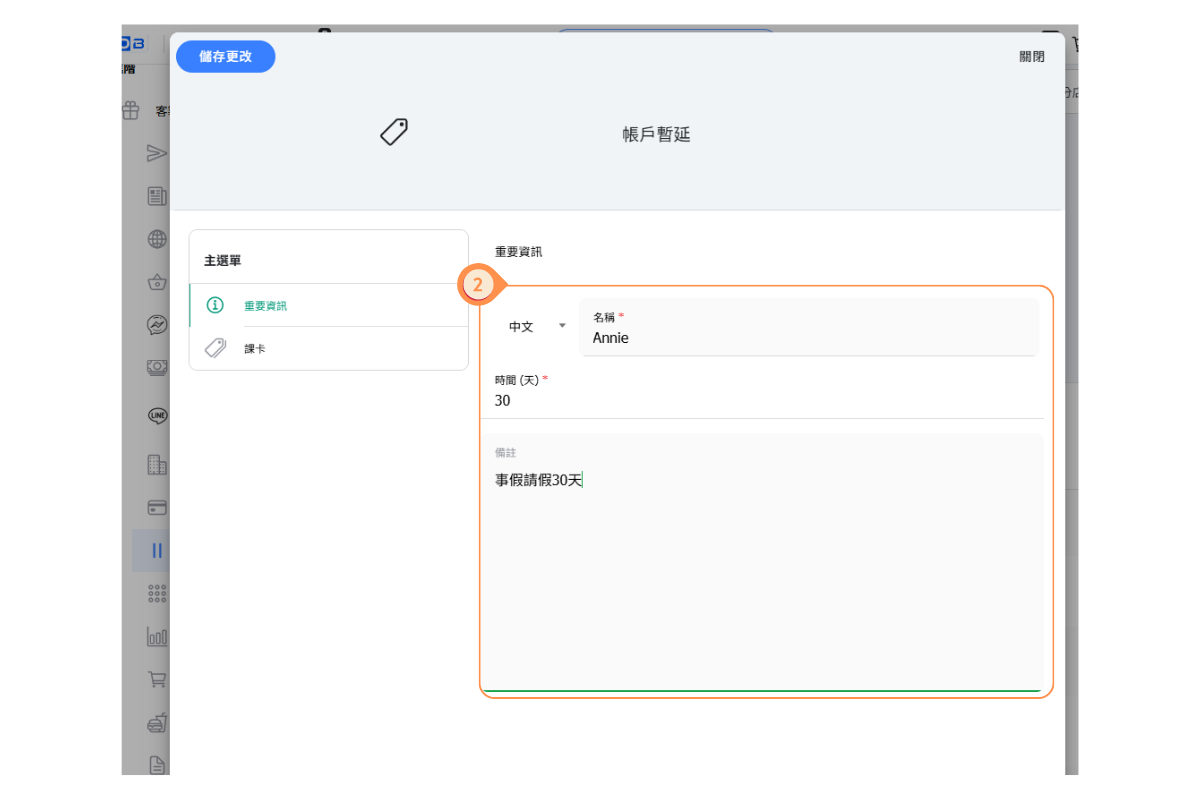
- Name: Give this pause a descriptive name (e.g., "Chinese New Year 2025")
- Duration (days): Enter the number of days to extend passes
- Notes: Add any relevant notes for your records
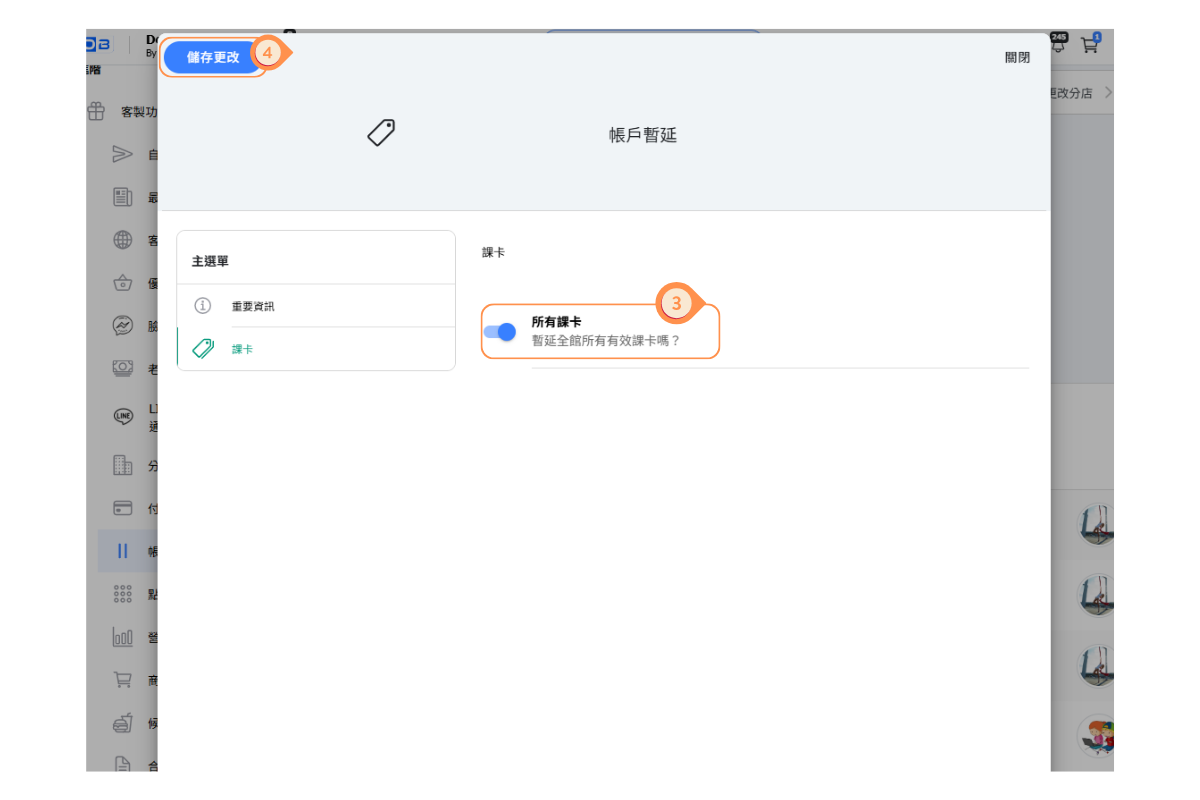
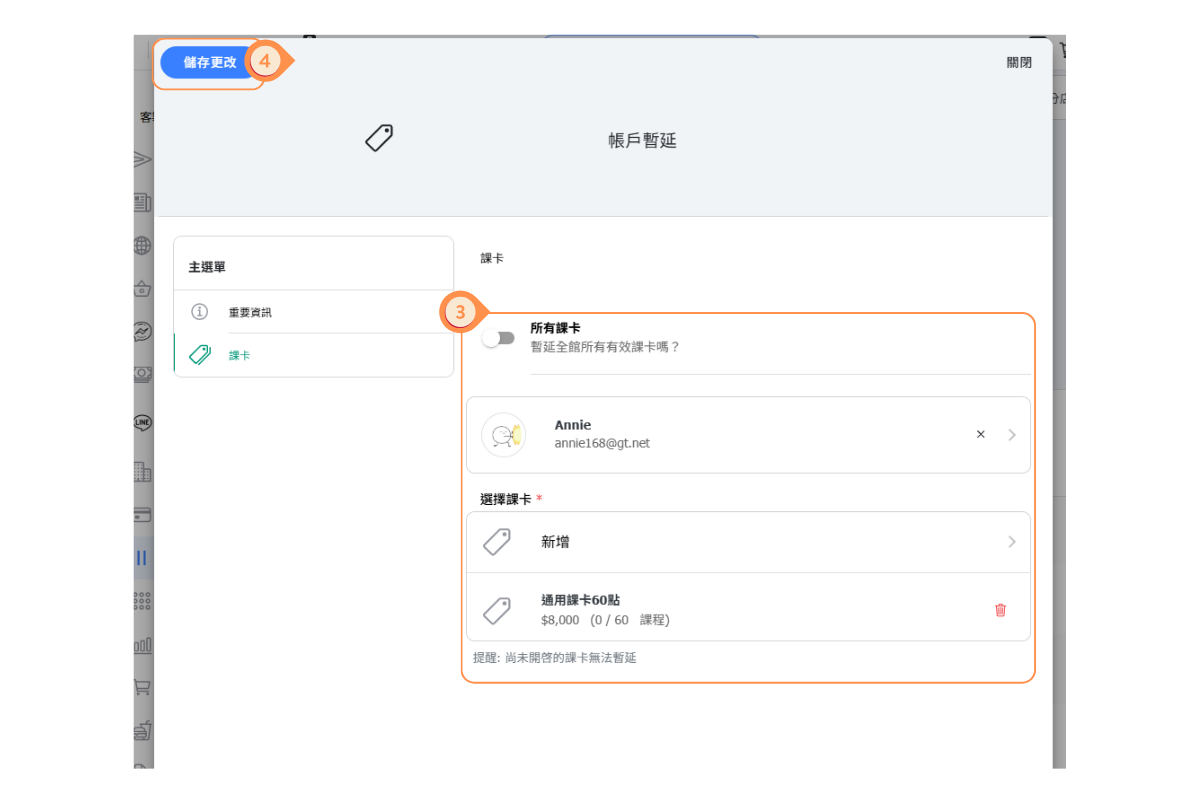
- In the Passes section, select which pass types to extend (or select all)
- Click Save Changes
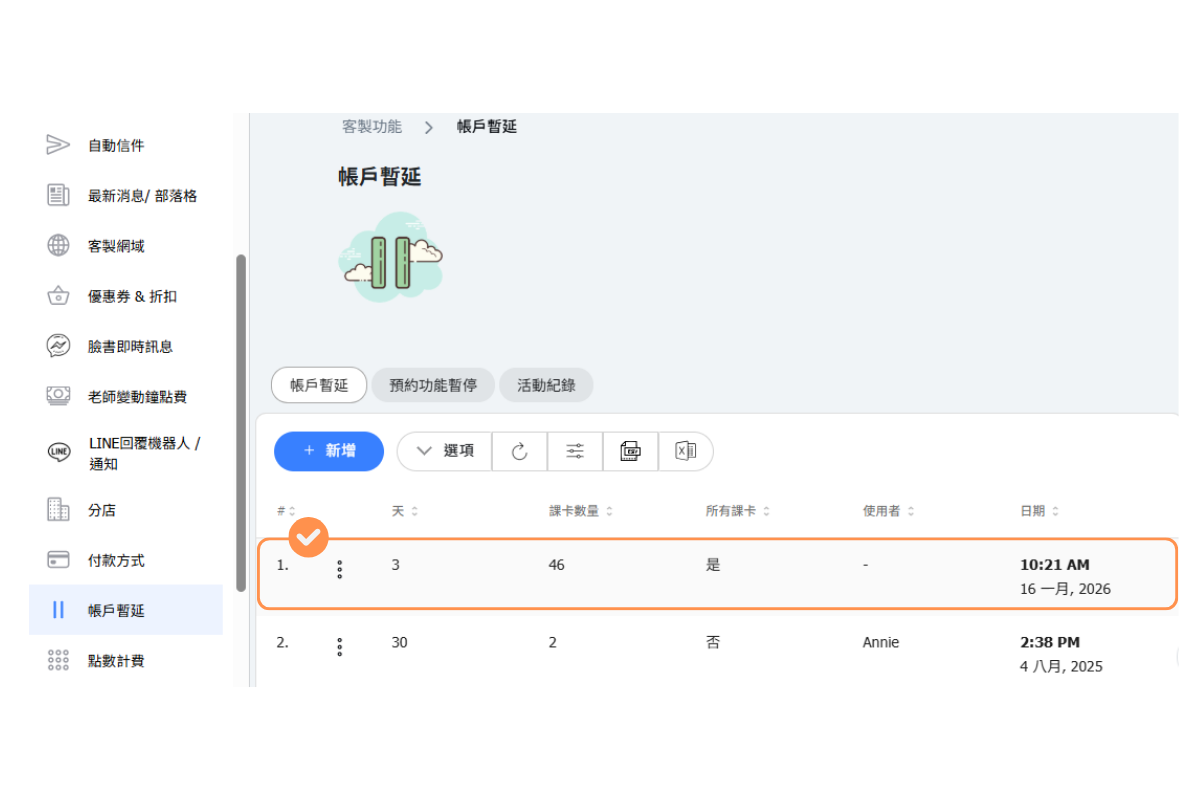
All active passes of the selected types will have their expiration dates extended by the specified number of days.
[Instructions]
-
Click the “+ Add” button on the Account Suspension page.
-
Enter a suspension name and remarks for future reference.
-
Choose whether to suspend all course cards.
-
Click “Save Changes”.
-
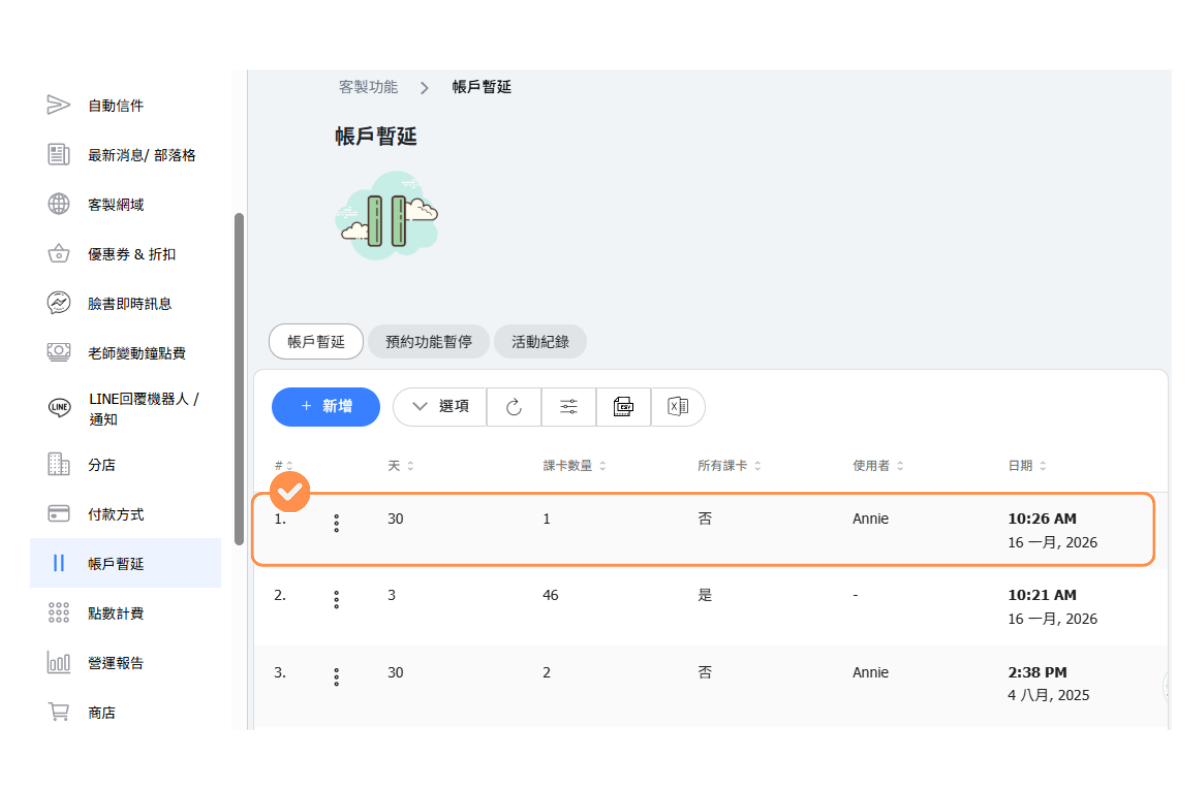
The suspension record is successfully created.
-
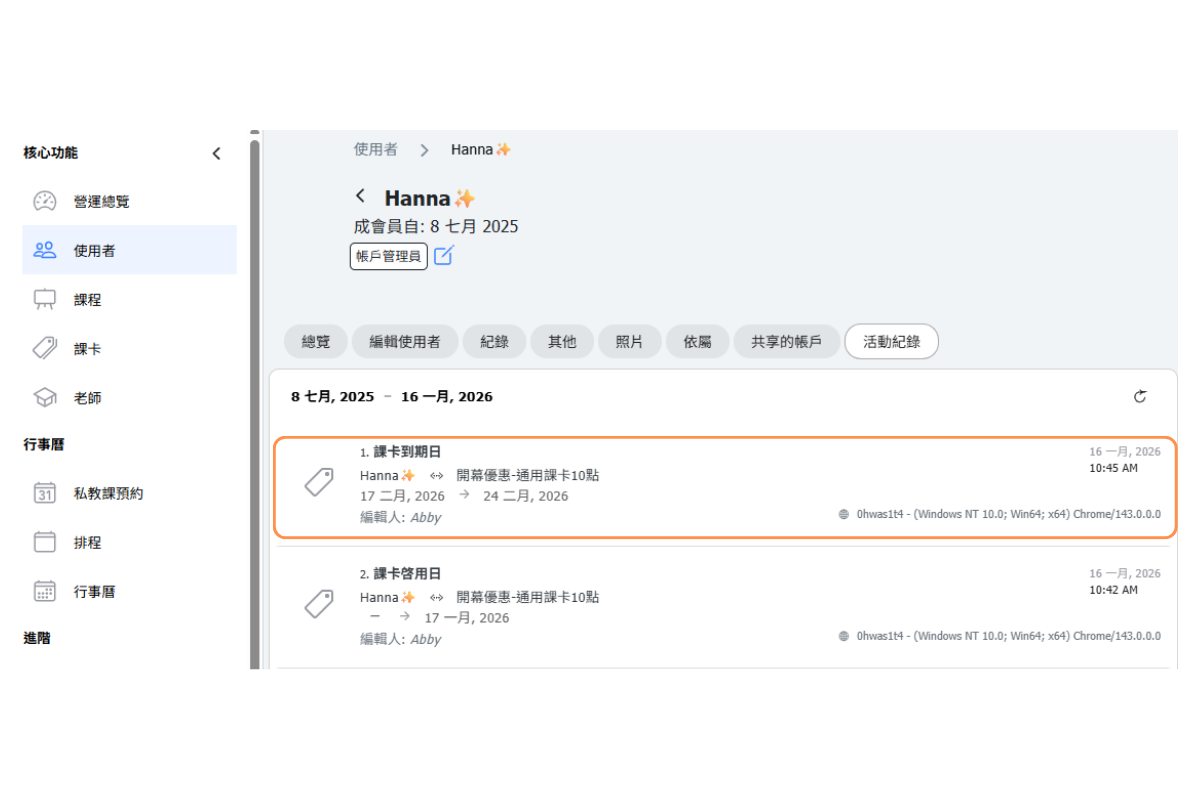
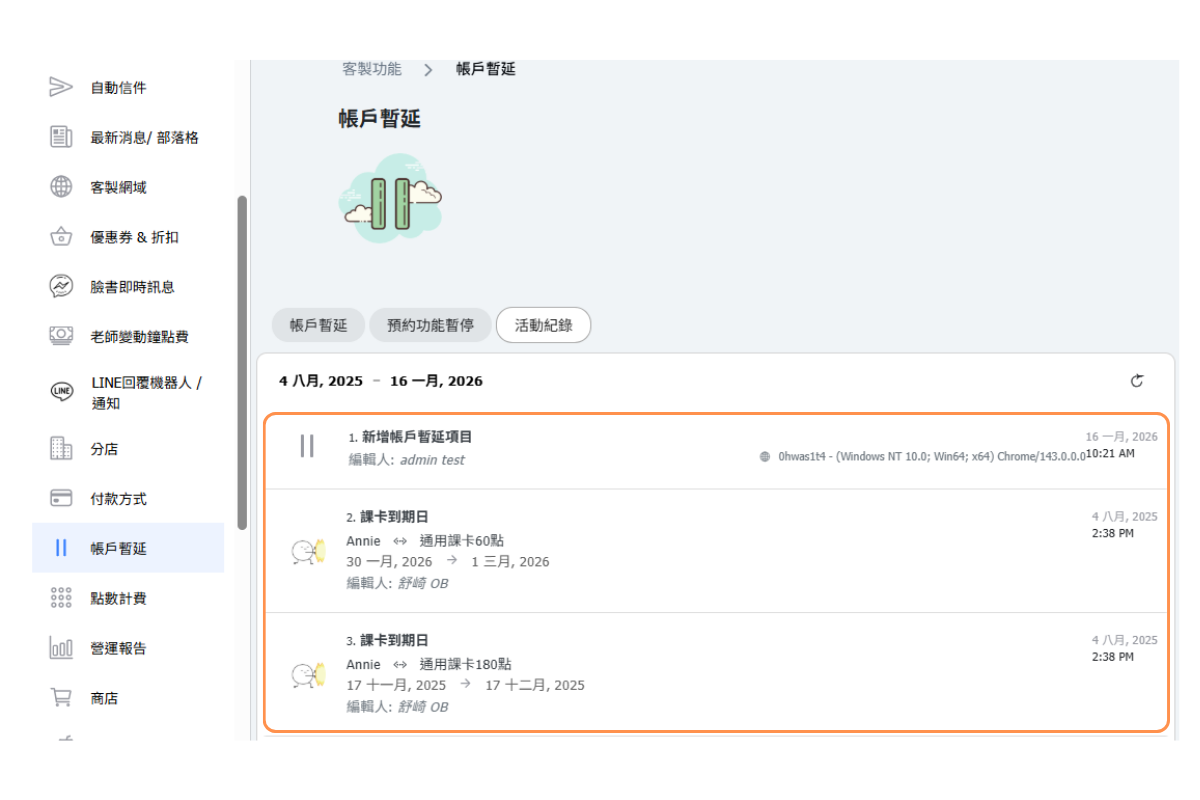
The course card extension record can be viewed in the customer’s activity history.
How do I extend passes for a single customer?
Sometimes you need to extend passes for just one customer, such as when they request leave for personal reasons (illness, travel, etc.). You can do this from their user profile:
- Go to Users in the admin menu
- Find and click on the customer's profile
- Look for the Pause account or Extend passes option
- Enter the number of days to extend
- Add a note explaining the reason (optional)
- Click Save
This only affects the selected customer's passes, not other customers.
Tip: Keep notes about why you extended a customer's passes for your records.
[Instructions]
-
Click the “+ Add” button on the Account Suspension page.
-
Enter the suspension reason and remarks for future reference.
-
Turn off “All Course Cards”, then select the customer and the course card(s) to be extended.
-
Click “Save Changes”.
-
The suspension is successfully completed.
How do I temporarily suspend all bookings?
If you need to stop customers from making new reservations (while keeping existing ones), use the Suspend Bookings feature:
- Go to Custom Features → Pause Accounts
- Click on the Suspend Bookings tab
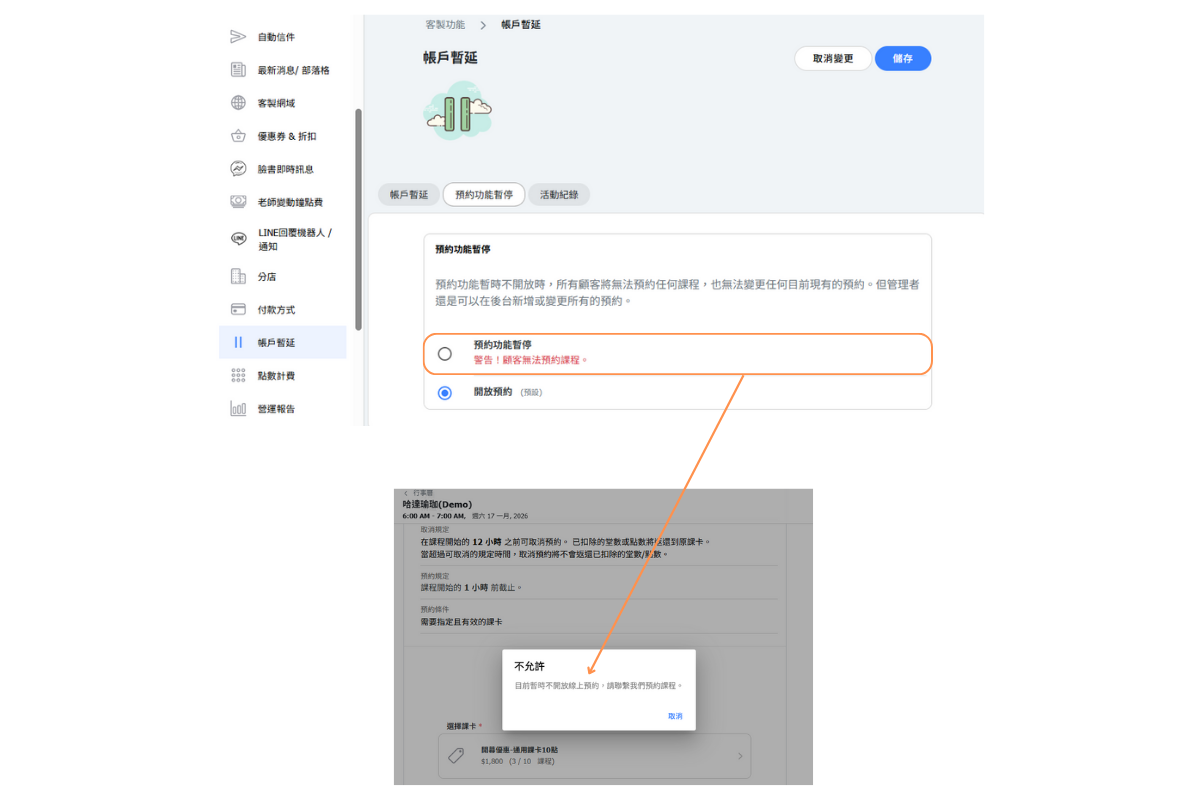
- Select Suspend Bookings (this will show a warning that customers cannot make new reservations)
- Click Save
What happens when bookings are suspended:
- Customers cannot make new reservations
- Existing reservations remain unchanged
- Admins can still add bookings manually if needed
To re-enable bookings: Return to this page and select "Bookings allowed" then save.
Note: This is different from extending passes. Suspending bookings prevents new reservations but doesn't automatically extend pass validity.
When “Reservation Function Pause” is selected, customers will not be able to make reservations and will see the message displayed at the bottom of the screen.
How do I disable booking for a specific customer?
You may need to temporarily disable booking for a specific customer (e.g., unpaid balance, policy violation, or at customer request). This can be done from their user profile:
- Go to Users in the admin menu
- Find and click on the customer's profile
- Look for the Disable booking or Suspend reservations option
- Toggle it ON to disable their ability to book
- Click Save
When to use this:
- Customer has an unpaid balance
- Customer violated studio policies
- Customer requested temporary suspension
- Administrative hold while resolving an issue
Remember to re-enable booking once the issue is resolved.
【Insturctions】
- On the Users page, locate the customer’s account and click the button on the left side.
- Select “Lock Reservations”.
- Configure the unlock permission settings.
- Click “Save”.
- The customer’s reservation lock is now complete.
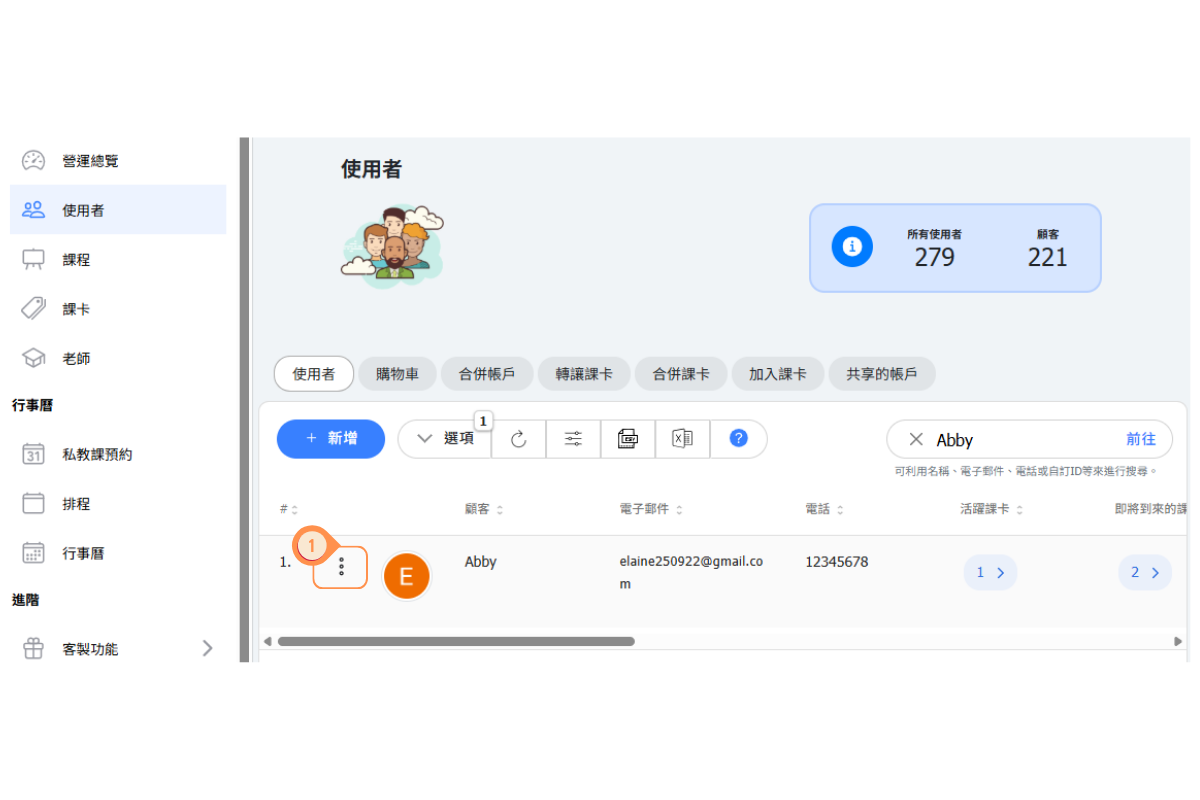
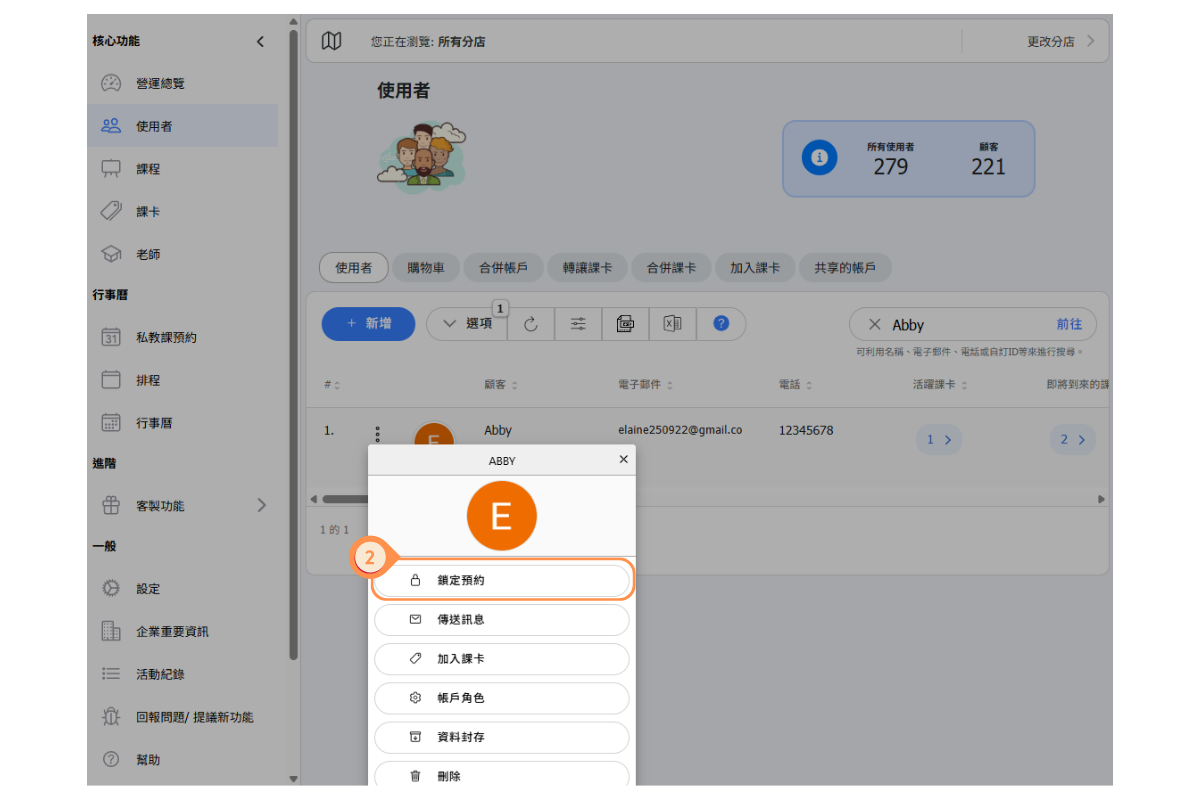
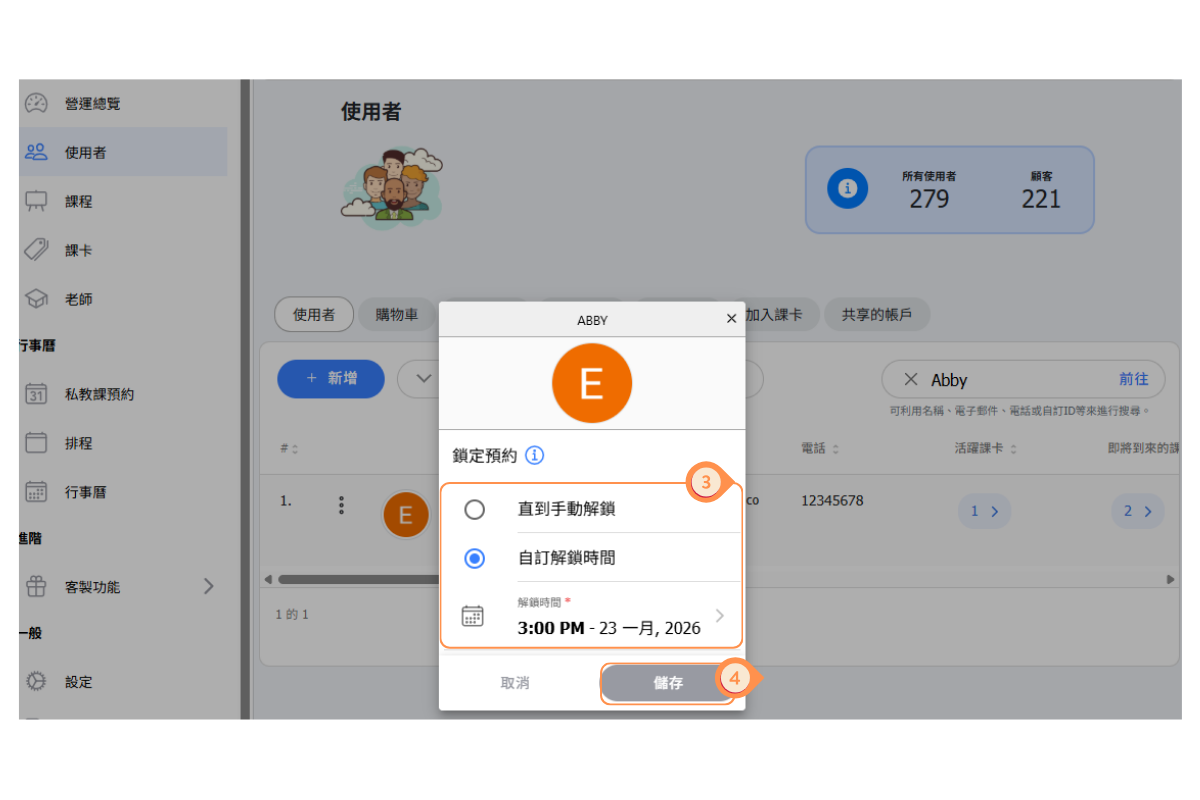
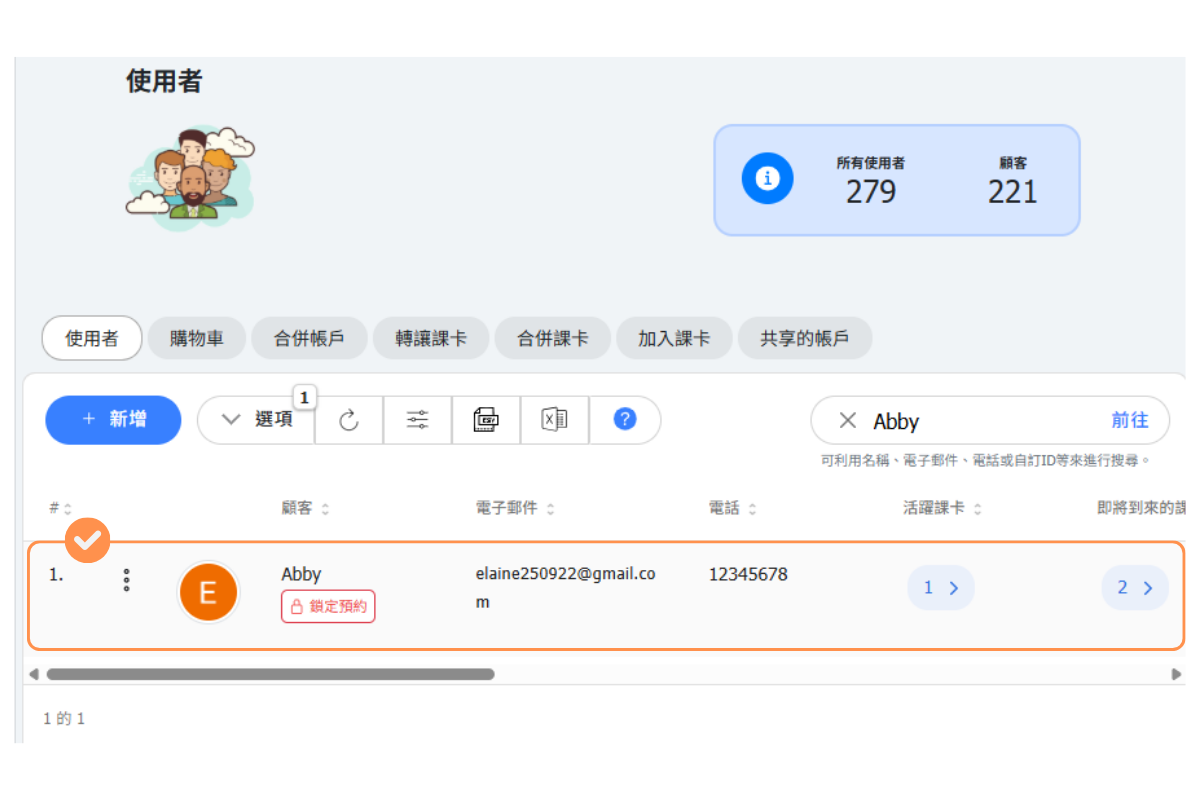
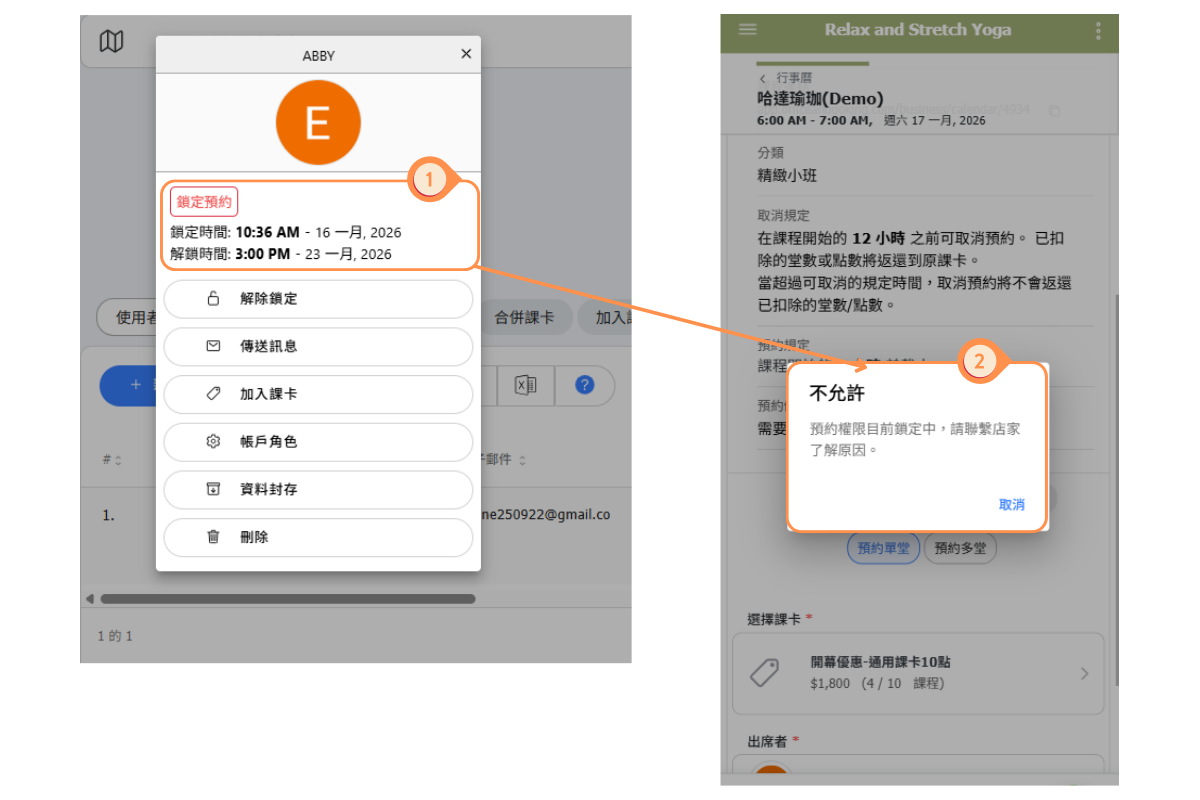
- After locking, you can click the button next to the customer’s account again to view the lock details.
- While in the locked state, the customer cannot make reservations, as shown in the bottom-right image.
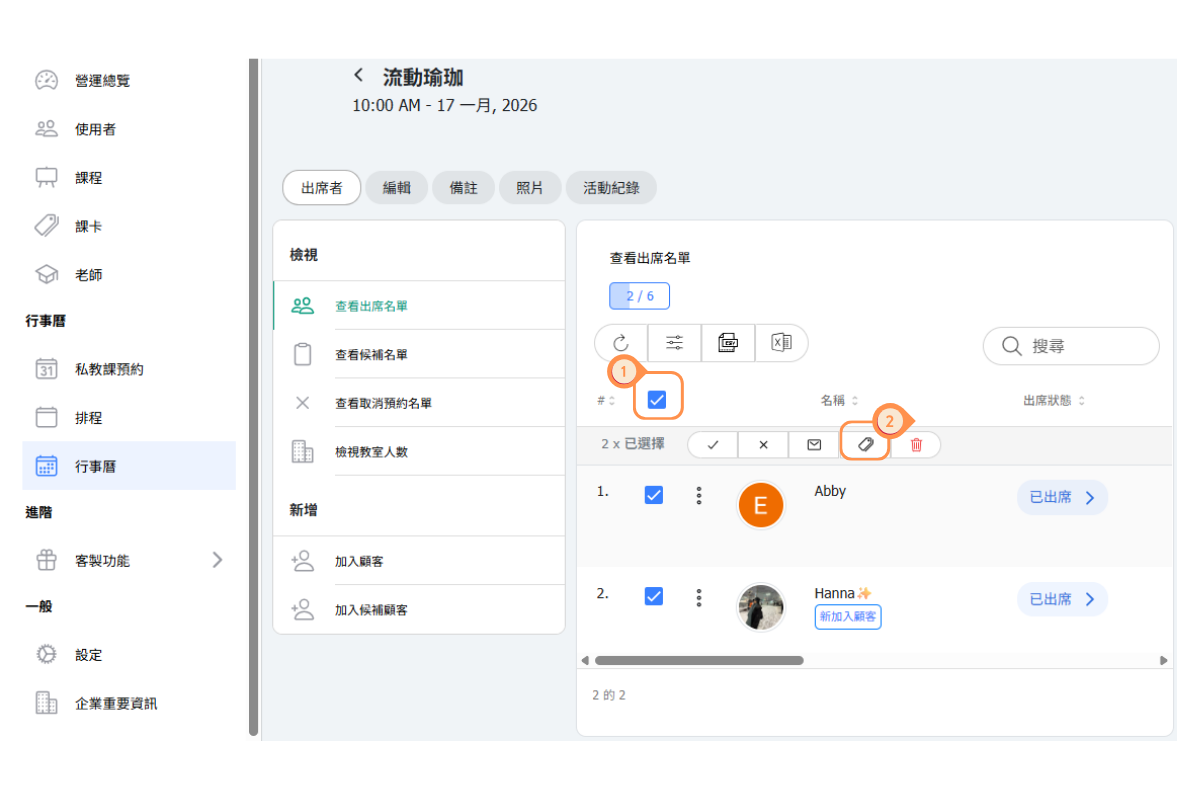
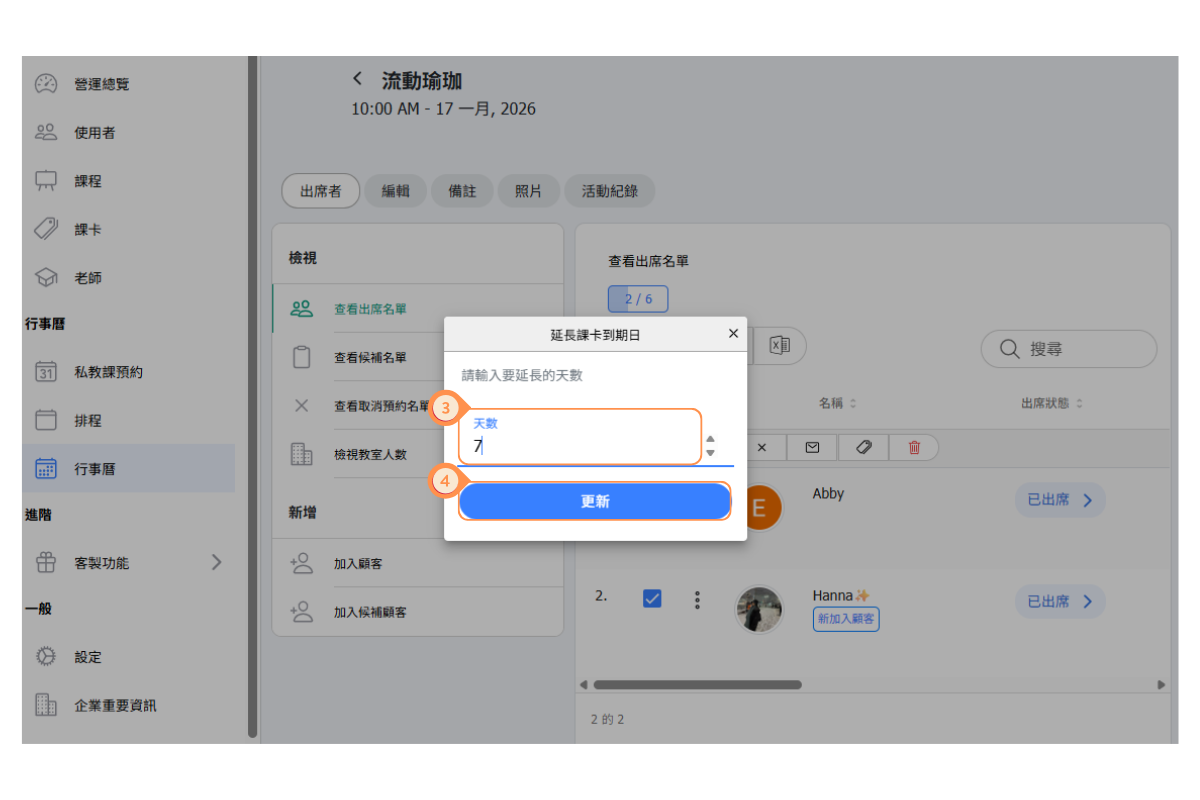
How do I extend passes for students in a cancelled class?
When you need to cancel a class (e.g., instructor sick, emergency), you can extend the passes of all students who were booked for that class:
- Go to the Calendar in the admin menu
- Find and click on the class you need to cancel
- Look for the Extend passes option for booked students
- Enter the number of days to extend (typically 1 day per cancelled class)
- Confirm the extension
This ensures students who were planning to attend don't lose a class from their pass due to a cancellation that wasn't their fault.
Tip: Consider sending a notification to affected students about the cancellation and their pass extension.
[Instructions]
-
Enter the course edit page and view the attendee list, then select all students for this class.
-
Click the Extend Course Card option.
-
Enter the number of days to extend.
-
Click “Update”.
-
Customers can view the course card extension record in their activity history.