What is a one-off class?
A one-off class is a single, non-repeating class that you manually schedule for a specific date and time. It's different from repeating classes (which occur on a regular schedule) and schedule courses (which are part of a structured program).
Common uses for one-off classes:
- Special workshops: Holiday events like Christmas or New Year workshops
- Guest instructor sessions: Classes taught by visiting teachers
- Trial classes: One-time introductory sessions for new students
- Makeup classes: Rescheduled sessions due to cancellations
- Pop-up events: Spontaneous or promotional classes
How do I create a one-off class?
Follow these steps to create a one-off class:
- Go to Schedule in the admin menu
- Click the ONE OFF CLASS tab
- Click the + ONE OFF CLASS button
- Fill in the required fields:
- Time: Select the start time for the class
- Date: Choose the specific date
- Class: Select which class type this will be
- Configure additional options as needed (see below)
- Click SAVE to create the class
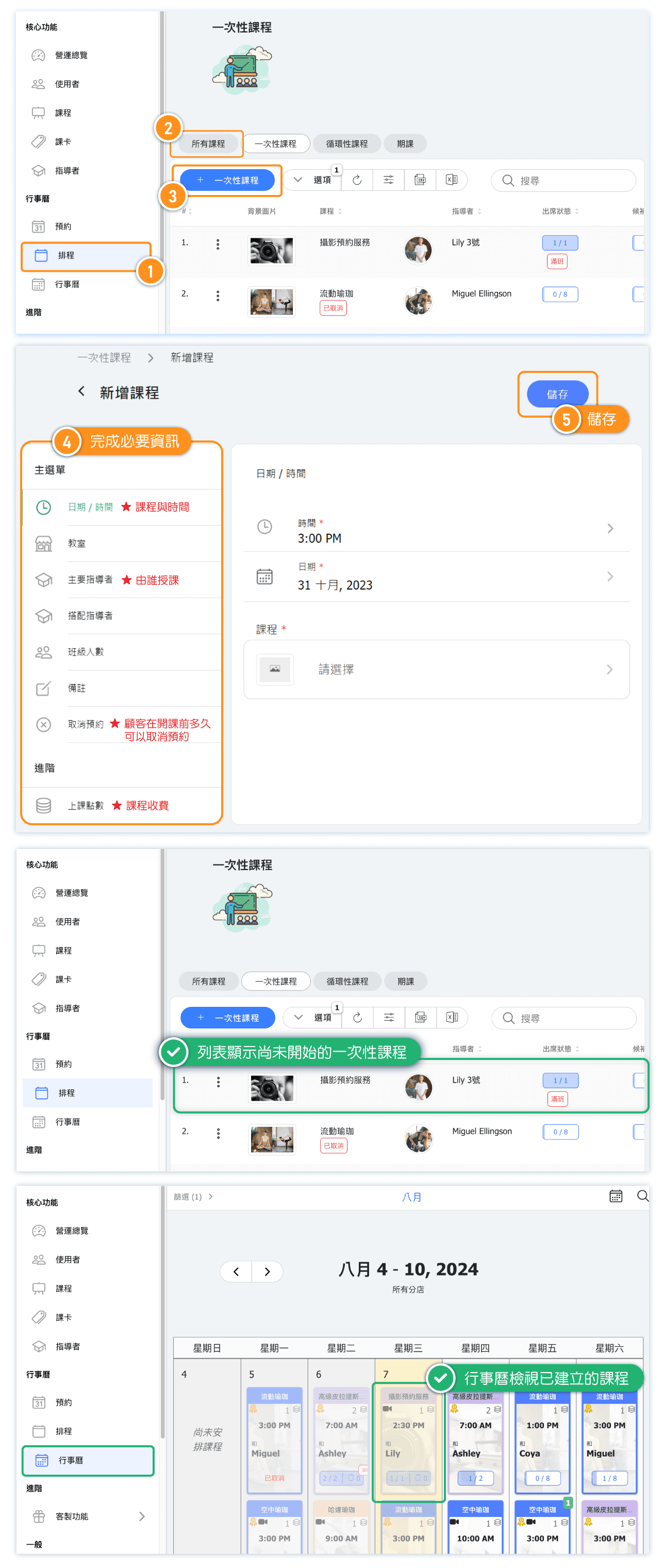
What settings can I configure for a one-off class?
When creating a one-off class, you can configure the following options:
Basic Settings:
- Date / Time: The specific date and start time for the class
- Class room: Assign a specific room or location
- Primary Instructor: The main teacher for this class
- Additional Instructors: Any assistant instructors
- Class Size: Maximum number of students allowed
- Notes: Public notes and private notes for this occurrence. Each field holds up to 800 characters, and a counter under the field shows how many characters you have left.
Reservation & Cancellation:
- Booking cutoff: Use the business reservation setting, or set a deadline specifically for this occurrence before, at, or after its start. Selecting a class initially copies that class's current choice.
- Cancellation: Review the separate standard-cancellation and penalty rules for this occurrence.
This one-off setting does not change the class template. Booking cutoff is also separate from appointment intervals and buffers.
Other advanced settings:
- Class points: Configure point values if using a point-based system
What's the difference between one-off classes and repeating classes?
Understanding the difference helps you choose the right option:
| Feature | One-off Class | Repeating Class |
|---|---|---|
| Schedule | Single occurrence on a specific date | Repeats weekly on set days |
| Best for | Special events, workshops, guest sessions | Regular weekly classes |
| Setup effort | Created individually each time | Set up once, automatically repeats |
| Calendar appearance | Shows only on the scheduled date | Shows on all recurring dates |
Tip: If you're running a class that happens regularly (e.g., every Monday at 6 PM), use a repeating class instead to save time.
How do I edit or delete a one-off class?
To edit or delete a one-off class:
- Go to Schedule → One off class tab
- Find the class in the list
- Click on the class to open its details
- Make your changes and click SAVE, or click DELETE to remove it
Important: If customers have already booked the class, deleting it will cancel their reservations. Consider notifying affected customers before making changes.
What you see on a saved class:
- Staff with permission to edit the class see the Edit tab; staff without it see the Notes tab instead, so they can still read and record notes without changing the booking details.
- Photos and Announcements only appear once the class session has been saved — they are not available on the create screen. Announcements also requires the News / Blog feature to be switched on; use it to publish a message to everyone booked on that session.