
What are the two methods for adding instructors?
There are two ways to add instructors to your booking system:
- Method 1: Admin creates instructor account - You create the account directly from the instructor management page. The account automatically receives instructor privileges.
- Method 2: Convert existing account - An instructor registers their own account first (or already has a customer account), then you grant them instructor permissions.
Both methods result in a fully functional instructor account. Choose Method 1 for new staff, or Method 2 if the person already has an account in your system.
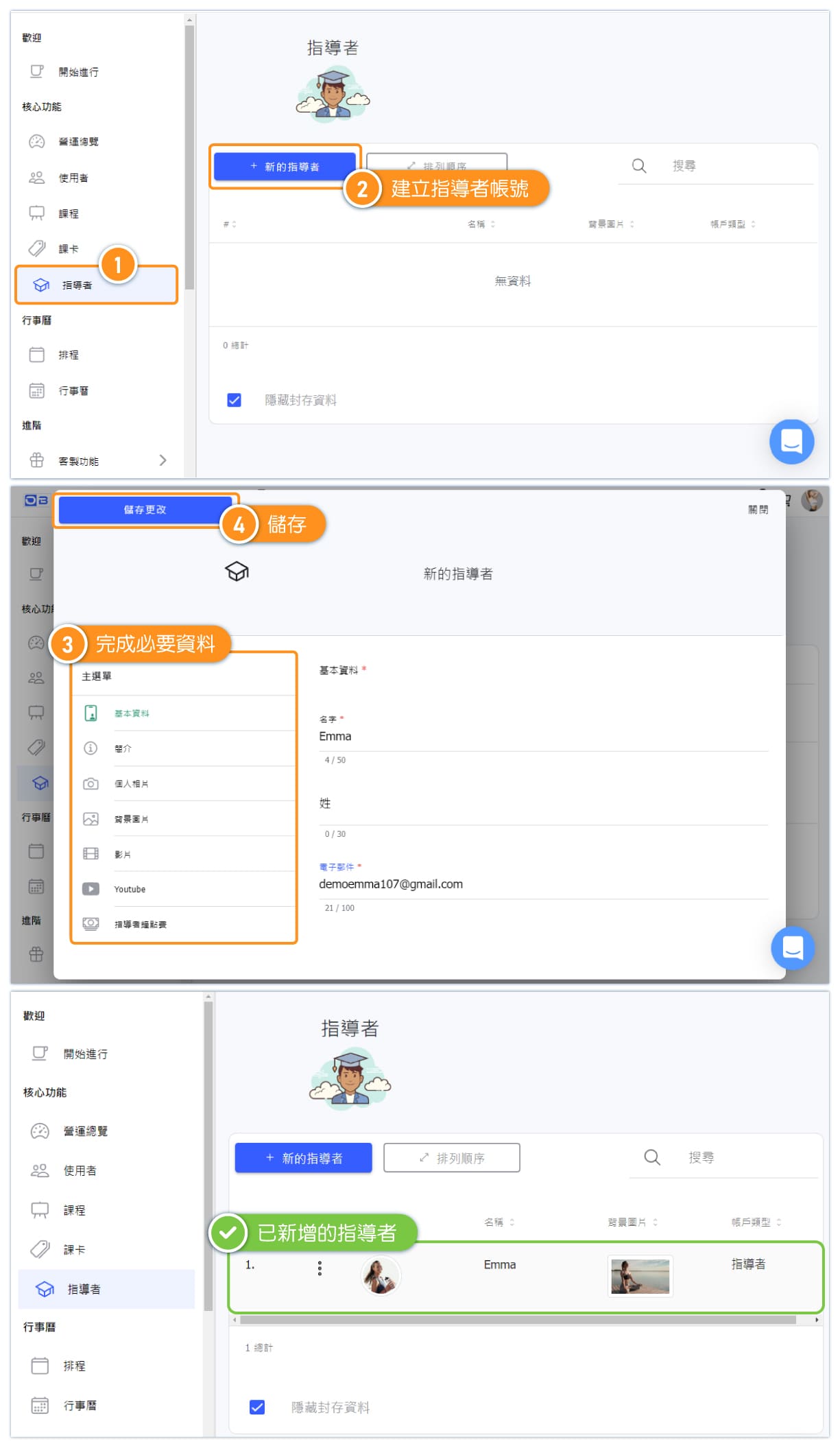
Method 1: How do I create an instructor account directly?
When you create an account from the Instructors page, the system automatically grants the "Core Role: Instructor" privilege. This is the quickest way to add new instructors.
Steps:
- Go to the Instructors page in your admin panel
- Click Add New or Create Instructor
- Fill in the instructor's details (name, email, etc.)
- Save the account
The new instructor can now be assigned to classes and will appear on your public instructor page.
Method 2: How do I convert an existing account to an instructor?
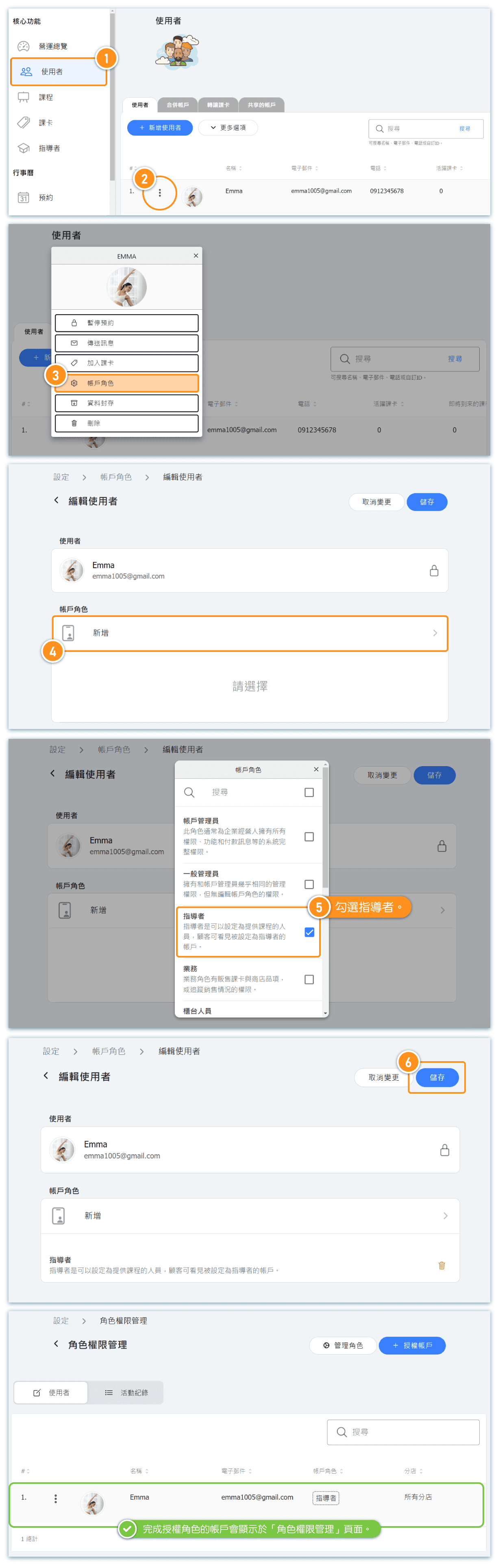
If someone already has an account in your system (perhaps as a customer), you can grant them instructor privileges without creating a new account.
Steps:
- Find the user's account in your system
- Edit their account settings or roles
- Assign the "Core Role: Instructor" to their account
- Save the changes
The user will now have instructor capabilities while keeping their existing account history.
What is the "Core Role: Instructor" and why is it required?
The "Core Role: Instructor" is a special permission level that enables instructor-specific features:
- Class assignment: Only accounts with this role can be assigned as the instructor for classes
- Public visibility: Only instructors appear on your public instructor listing page
- Schedule management: Instructors can view and manage their own class schedules
- Student interaction: Access to view students enrolled in their classes
Important: Without the "Core Role: Instructor" assigned, a user cannot be set as a class instructor or appear on the instructor page, even if they have other admin permissions.
How can I customize permissions for different instructors?
If your instructors need different levels of access, you can combine the Core Role with custom roles:
Recommended approach:
- Set the "Core Role: Instructor" to have minimal permissions (just the basics needed to teach)
- Create custom roles with additional permissions (e.g., "Senior Instructor", "Studio Manager")
- Assign each instructor: Core Role: Instructor + their appropriate custom role
This gives you flexibility to grant senior instructors more access while keeping new instructors limited to essential functions.
For detailed instructions on setting up role permissions, see our Role and Permission Management guide.
Frequently asked questions about instructor accounts
Q: Can an instructor also be a customer?
A: Yes, an instructor can book classes as a customer using the same account. Their instructor role doesn't prevent them from being a student in other classes.
Q: Can I remove instructor privileges without deleting the account?
A: Yes, simply remove the "Core Role: Instructor" from their account. They'll retain their account but won't appear as an instructor or be assignable to classes.
Q: How many instructors can I add?
A: There's no limit to the number of instructor accounts you can create. Add as many as your business needs.
Q: Can instructors see each other's schedules?
A: This depends on your permission settings. By default, instructors can only see their own schedules, but you can grant broader access through custom roles.

