
What is Facebook Pixel?
Facebook Pixel (now called Meta Pixel) is a piece of tracking code that helps you measure the effectiveness of your Facebook and Instagram advertising. When you add your Pixel ID to OmceanBooking, the system automatically tracks when customers visit your booking pages.
What Can You Do With Facebook Pixel?
- Track page views - See how many people visit your booking website
- Create retargeting ads - Show ads to people who visited your booking page but didn't complete a booking
- Build custom audiences - Target people similar to your existing customers
- Measure ad performance - See which ads are driving traffic to your booking page
Important: The pixel only tracks activity on your customer-facing booking pages. It does NOT track when you or your staff access the admin portal - only when customers browse your public booking website.
How Do I Find My Facebook Pixel ID?
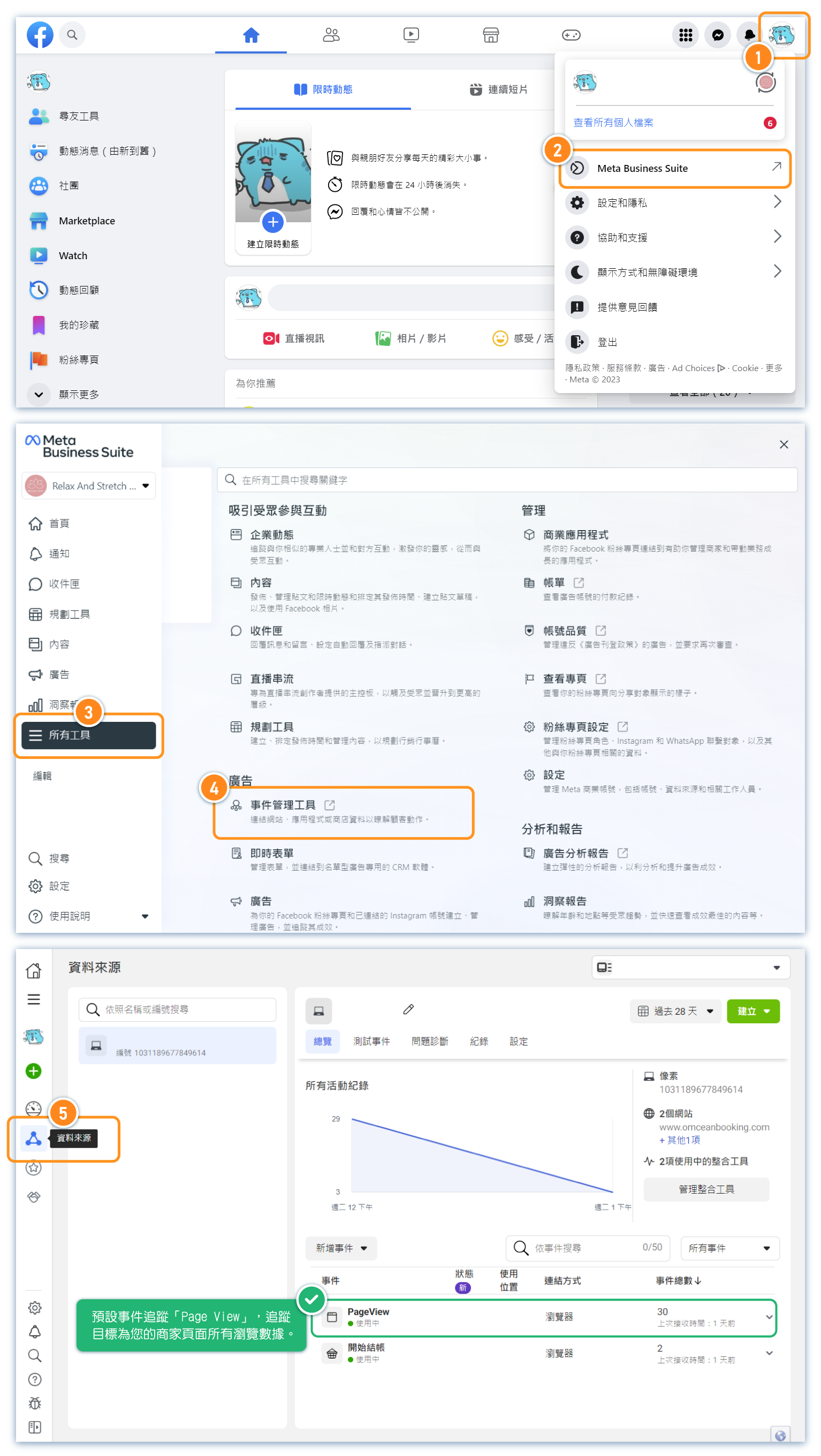
Before you can connect your pixel, you need to create one in Meta Business Suite (formerly Facebook Business Manager):
- Go to Meta Business Suite
- Click on All Tools in the left menu
- Under Advertise, click on Events Manager
- Click Connect Data Sources and select Web
- Select Meta Pixel and click Connect
- Enter a name for your pixel (e.g., "My Studio Booking Page")
- Your Pixel ID is a 15-16 digit number shown at the top of your pixel page
Already have a pixel?
If you already have a pixel set up, find your Pixel ID by going to Events Manager and selecting your pixel. The ID is displayed at the top of the page.
Helpful Links:
- About Meta Pixel - Official Meta documentation
- Use the Facebook event setup tool - For advanced tracking
How Do I Add My Pixel ID to OmceanBooking?
Adding your Facebook Pixel is simple:
- Go to Custom Features > Facebook Pixel in the left sidebar
- In the Pixel ID field, enter your 15-16 digit Pixel ID
- Click SAVE
What Happens Next:
- After saving, it takes approximately 24 hours for Facebook to complete the connection
- Once connected, the system automatically tracks "Page View" events when customers visit your booking pages
- You can view this data in Meta Business Suite > Events Manager
Remember: The pixel only tracks customer page visits, not admin or instructor activity in the backend.
How Can I Use This Data for Marketing?
Once your pixel is tracking visitors, you can use this data to improve your marketing:
1. Retargeting Ads
Show ads to people who visited your booking page but didn't complete a reservation. These "warm" leads are more likely to convert because they've already shown interest.
2. Lookalike Audiences
Facebook can find people similar to your website visitors. This helps you reach new potential customers who are likely interested in your services.
3. Conversion Tracking
If you're running Facebook or Instagram ads, see exactly how many people clicked your ad and then visited your booking page.
4. Custom Events (Advanced)
You can set up custom events in Meta Events Manager to track specific actions. Note: If you create custom events, you may need to update them if our customer page interface changes.
Getting Started with Ads:
- Go to Meta Business Suite > Audiences
- Create a Custom Audience based on your pixel data
- Use this audience when creating your ad campaigns
Frequently Asked Questions
How long does it take for tracking to start?
After saving your Pixel ID, it takes approximately 24 hours for Facebook to establish the connection and begin tracking.
Does it track my admin activity?
No. The pixel only tracks activity on customer-facing booking pages. It does not track when admins, instructors, or staff access the admin portal.
What events are tracked automatically?
OmceanBooking automatically tracks "Page View" events when customers visit your booking pages. For additional events, you can use Meta's Event Setup Tool.
Can I use multiple pixels?
No, you can only add one Pixel ID. If you need to track for multiple Facebook ad accounts, consider using a single pixel and sharing it across accounts in Meta Business Suite.
How do I verify it's working?
Use the Meta Pixel Helper Chrome extension. Visit your customer booking page and the extension will show if the pixel is firing correctly.
What is Meta Business Suite?
Meta Business Suite is the new name for Facebook Business Manager. It's where you manage your Facebook and Instagram business presence, including ads and analytics.


