
What is Email History?
Email History allows you to view the delivery status of all system-generated emails sent to your customers.
This includes emails such as:
- Booking confirmations
- Class reminders
- Password reset emails
- Automated marketing emails (if enabled)
- Other system notifications
Previously, this feature was only accessible within the paid Automated Emails module. It has now been moved to Settings and is free for all businesses, so you can track email delivery regardless of whether you use the Automated Emails feature.
How to View Email History?
[Instructions]
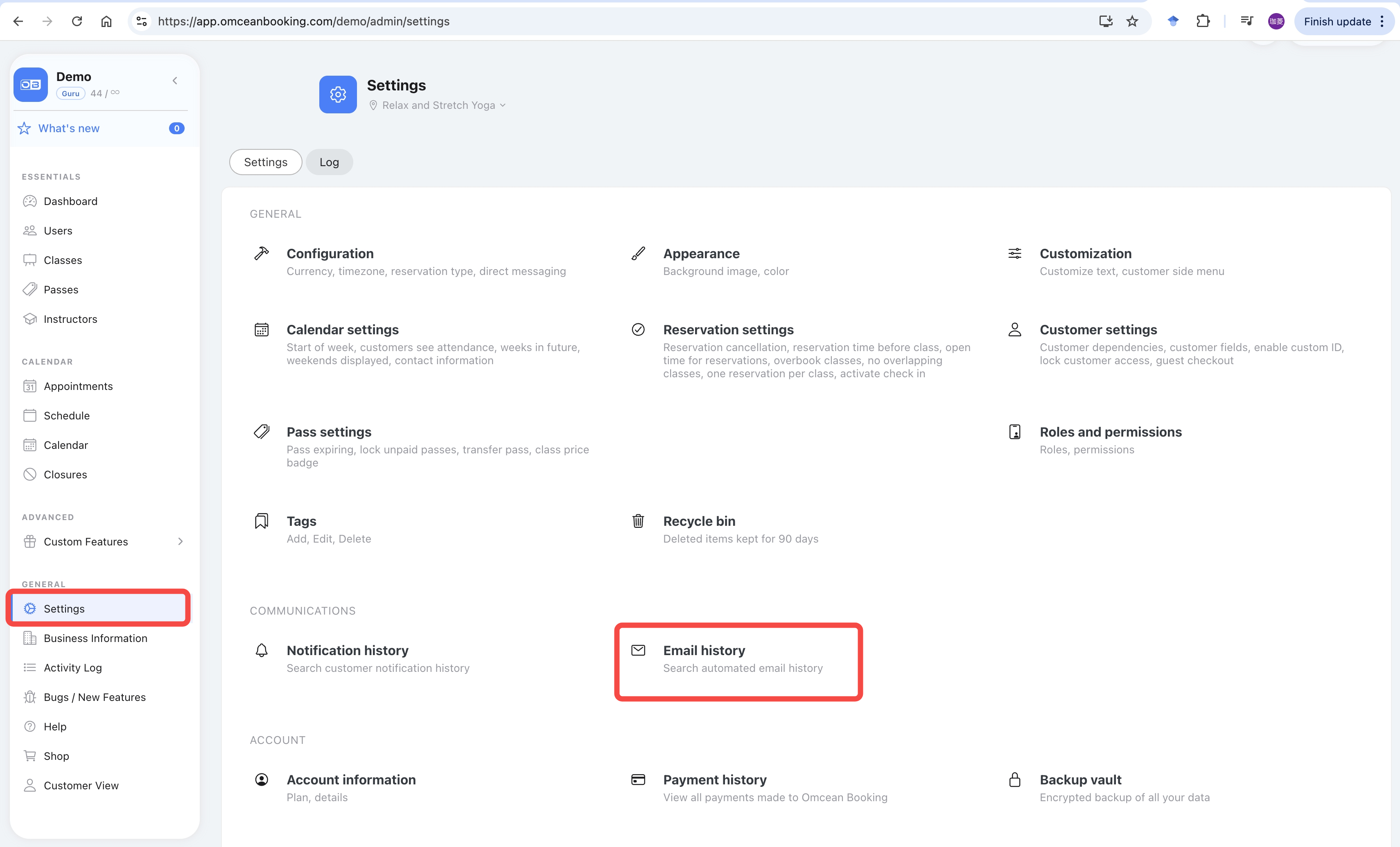
Log in to the Admin panel.
Click Settings in the left sidebar.
Select Email History.
You can now browse all sent emails, including the recipient, subject, send time, and delivery status.
FAQ: What is the difference between Email History and Automated Emails?
Email History (free) is a read-only log that shows the delivery status of all emails the system has sent, including booking confirmations, reminders, and password resets. All businesses can use this feature.
Automated Emails (paid feature) allows you to create and customize automated email campaigns, such as welcome emails for new customers, follow-up emails after class attendance, or promotional emails. This feature requires enabling the Automated Emails module in Custom Features.
In summary:
- Email History = View what was sent (free)
- Automated Emails = Create custom automated email campaigns (paid)


