What are Automated Emails?
Automated Emails allow your system to automatically send email notifications to customers and administrators when specific events occur. These emails keep everyone informed about reservations, pass status, and other important updates.
Key Features:
- Customer Notifications - Automatic emails for reservations, cancellations, pass expiration, and more
- Admin Notifications - Get notified when customers make reservations or when action is needed
- Customizable Content - Edit email subject lines and messages with dynamic placeholders
- Spam Filter Optimized - Default text is carefully crafted to avoid spam filters
- Individual Preferences - Users can manage which emails they receive
- Email History - Track all sent emails with delivery status
Accessing Automated Emails:
Go to Custom Features → Automated Emails in the admin menu.
Email History
The History tab shows all automated emails that have been sent from your system.
Information Displayed:
- Customer - Name and profile of the recipient
- Email - The recipient's email address
- Status - Delivery status (READY, SENT, FAILED)
- Subject - The email subject line
- Time - When the email was sent
Filtering and Search:
- View emails sent in the last 24 hours at a glance
- Use OPTIONS to filter by date range or status
- Search for specific recipients or subjects
- Export email history for reporting

Customer Email Types
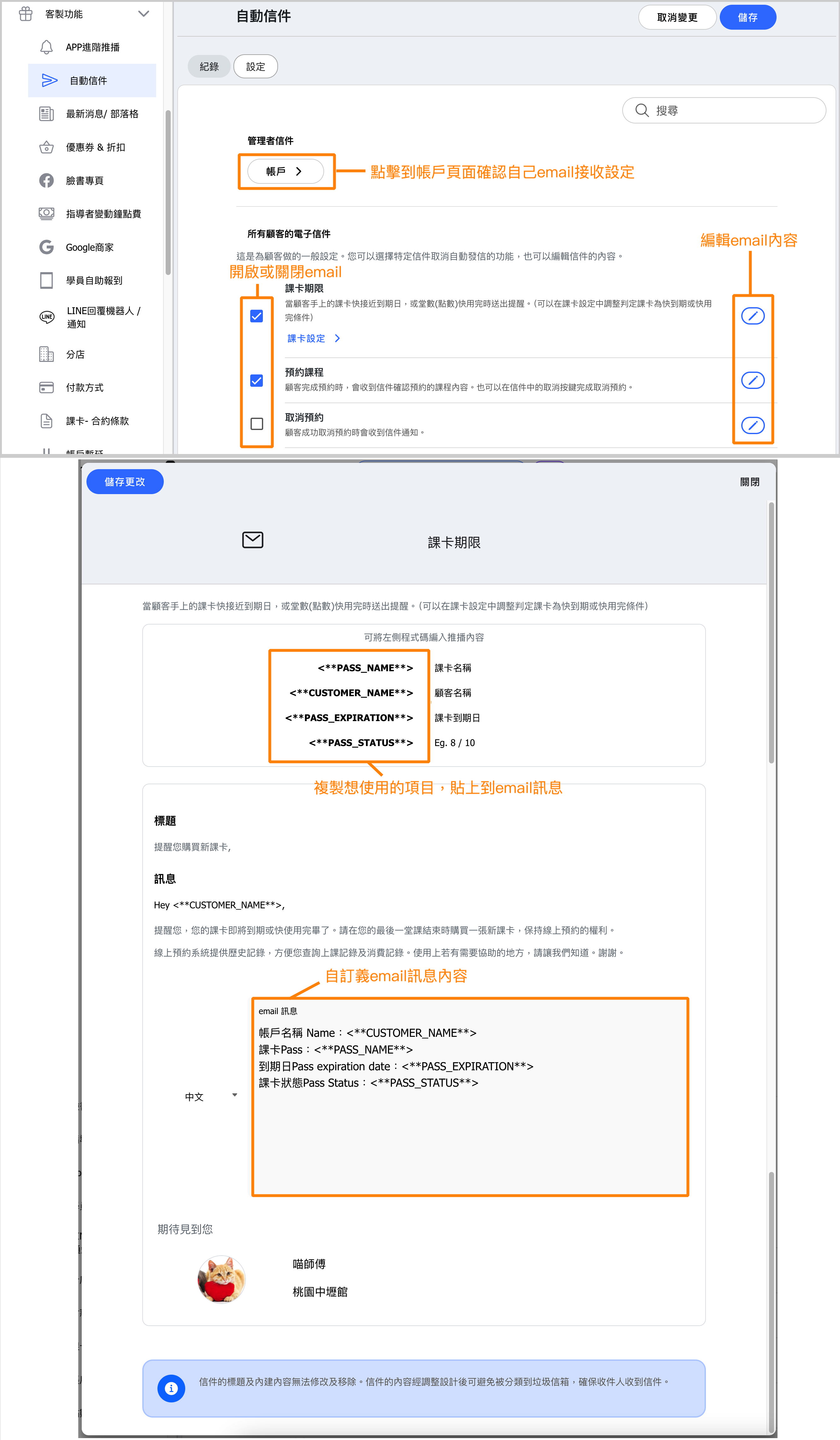
Configure which automated emails are sent to customers in the Settings tab under All Customer Emails.
Available Email Types:
- Pass Expiration - Notify customers when their pass is expiring soon or running low on uses
- Class Reservation - Confirmation email with class details and a link to cancel if needed
- Reservation Cancellation - Confirmation that a reservation was successfully cancelled
- Welcome Email - Sent when a customer registers or is registered by an admin, includes your business web address
- New Pass - Confirmation when a customer purchases or is assigned a new pass
- No Attendance - Sent when a customer had a reservation but didn't attend the class
- Class Cancellation - Notify customers when a class they reserved is cancelled by admin/instructor
- Waiting List - Alert customers on the waiting list when a spot opens up
Each email type has a checkbox to enable/disable it and an edit button to customize the content.
Admin Email Types
Administrators can receive email notifications about customer activities and system events. Configure these in Settings → Admin Emails → Account.
Available Admin Email Types:
- Pass Expiration - Get notified when a customer's pass is about to expire
- Class Reservation - Receive alerts when customers make new reservations
- Reservation Cancellation - Get notified when customers cancel their reservations
- Class Cancel Flag - Alert when a class has low attendance before start time, suggesting it should be cancelled
- Waiting List - Notification when a spot opens up for a class with customers on the waiting list
Managing Admin Notifications:
Each admin can individually enable or disable email types from their account settings at Account → Automated Emails → Admin - Settings.
Customizing Email Content
Click the edit button next to any email type to customize its content.
Customizable Elements:
- Subject - The email subject line
- Message - Your custom message that appears at the top of the email
Using Placeholders (Keywords):
Use special keywords that automatically insert dynamic content:
<**CUSTOMER_NAME**>- Full name of the customer<**PASS_NAME**>- Name of the pass<**PASS_EXPIRATION**>- Pass expiration date<**PASS_STATUS**>- Current pass usage (e.g., 8/10)<**CLASS_NAME**>- Name of the class<**CLASS_DATE**>- Date and time of the class
Default Text:
Below your custom message, the system includes default text that has been optimized to avoid spam filters. This default content ensures your emails reach customers' inboxes reliably.
Individual Email Preferences
Both administrators and customers can manage their individual email preferences.
For Customers:
Customers can access their email preferences at Account → Automated Emails → Customer - Settings. They can:
- Enable or disable specific email types
- Use "Disable all" to turn off all automated emails
Important: If an administrator has disabled an email type globally, it will appear grayed out with "* Disabled by admin" and customers cannot enable it.
For Administrators:
Admins can manage their notifications at Account → Automated Emails → Admin - Settings. Each admin can customize which notifications they personally receive.
Email Hierarchy:
- Admin global settings (in Custom Features) take priority
- If admin enables an email type, individual users can then choose to disable it for themselves
- If admin disables an email type globally, no users can receive that email
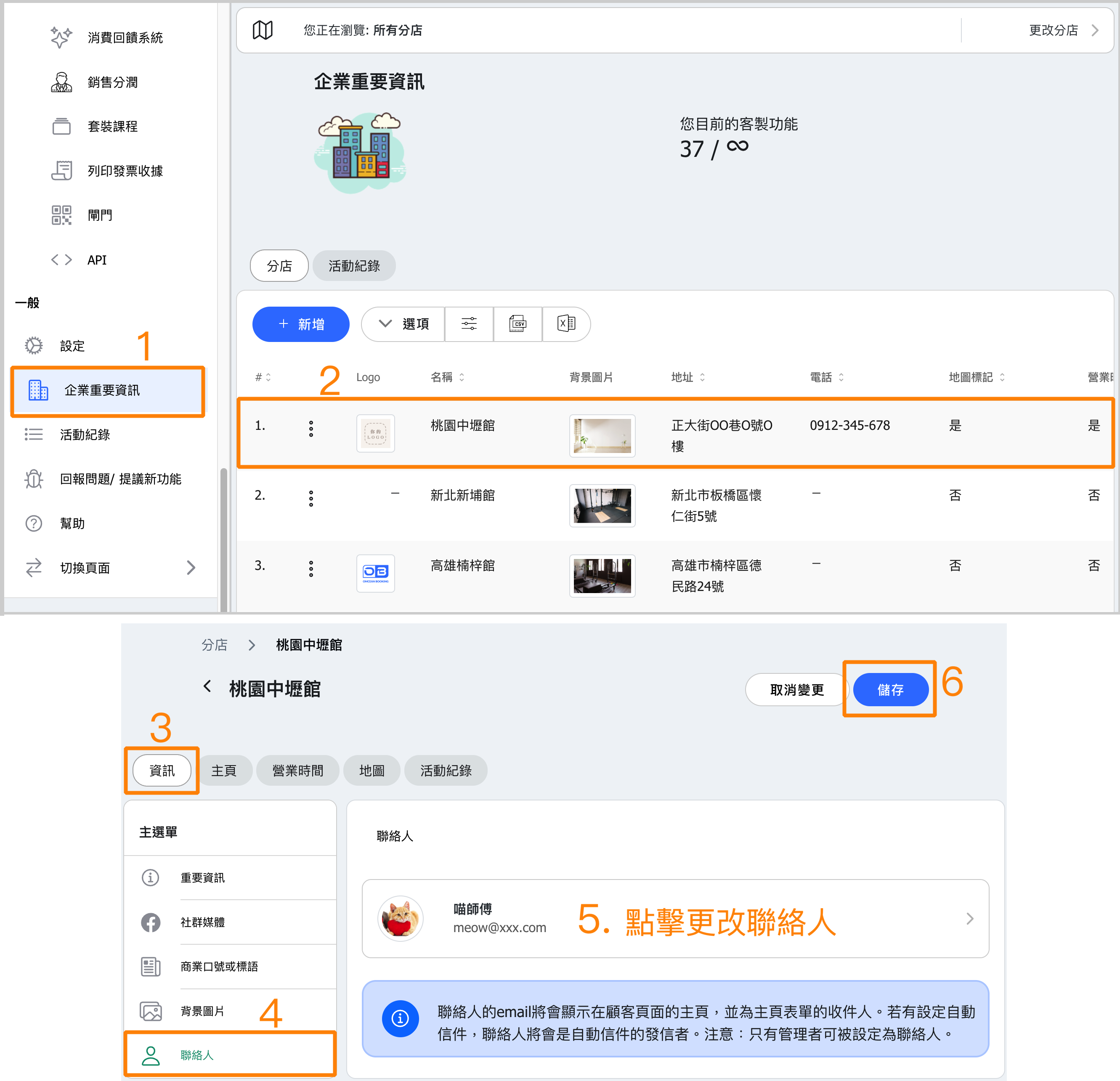
Setting the Email Sender (Contact Person)
The contact person's email is used as the sender address for all automated emails.
How to Set the Contact Person:
- Go to Business Information in the admin menu
- Find the Contact Person setting
- Select an administrator account to be the contact person
- Save your changes
What the Contact Person Affects:
- Sender address on all automated emails
- Email displayed on the customer-facing homepage
- Recipient for the homepage contact form
⚠️ Note: Only administrator accounts can be designated as the contact person.