OmceanBooking LINE Chatbot: Features & Setup Guide

by Sarah Chen
· 11 min read
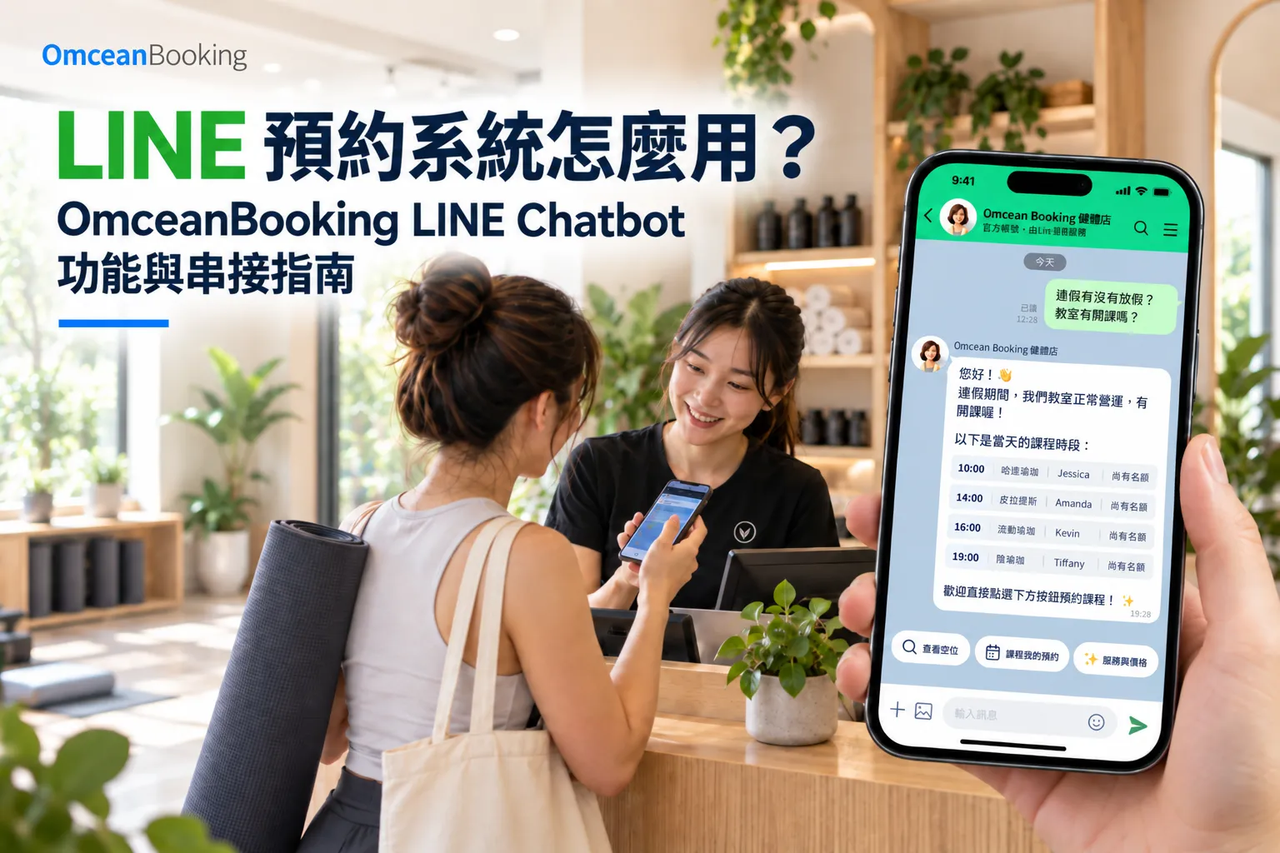
"Teacher, do you have any openings next Wednesday evening?"
"Teacher, can I cancel my Thursday class?"
Do you frequently find yourself overwhelmed by the constant pinging of LINE messages while you're trying to teach?
You try to reply to messages during the short breaks between classes, but by the time you put your phone away to resume teaching, the student finally replies. This endless back-and-forth means sometimes it takes hours just to finalize a single booking.
When running your own studio, teaching isn't your only responsibility. Checking availability, verifying remaining class passes, and logging appointments might seem like quick, effortless tasks, but they easily eat up all the fragmented moments of your day.
OmceanBooking's LINE Booking System can integrate seamlessly with your studio's Official Account. It allows students to enter the booking flow and check their records directly within LINE, while you can enable automated replies and notifications based on your needs.
Why is LINE Integration Essential? Start booking where your students already are.
They use it every day; there's no need to hunt for another booking portal.
As of March 31, 2026, LINE has approximately 22 million monthly active users in Taiwan. It's safe to say that for most Taiwanese people, daily life and communication revolve around LINE.
If your studio already uses LINE to communicate with students, putting your booking portal in the exact same place is far more convenient than sending them a web link every single time. Through OmceanBooking's LINE integration, students can open the class schedule and make reservations right from your Official Account—no extra App downloads required.
"Have you ever introduced a new system, only to have students still text or call you directly?
When trying a new system for the first time, some students might just say, "Teacher, it's faster if I just ask you."
Don't jump to the conclusion that they refuse to use the system. Often, it's simply because they can't easily find the booking link, or they aren't used to the new interface yet. Leveraging the familiar LINE chat page drastically reduces the friction of trying something new. By setting up a LINE Rich Menu, you provide a fixed portal and quick access to frequently used functions."
Students can book whenever they want—without waiting for you to be free.
Imagine a student wants to book a class during their lunch break, but you are currently teaching a private session. By the time you reply in the afternoon, they are back in a meeting. Both of you are trying to reply promptly, but your free times simply don't align.
With integration, students can access basic information and complete their bookings based on your open slots and rules. Paired with automated replies or an AI chatbot, they don't have to wait for a human response for every step. LINE's immediacy not only reassures customers but empowers them to handle minor tasks on their own. You can save your personal replies for complex, customized arrangements.
Class reminders delivered through the same familiar channel.
If students ask about classes on LINE, they should receive their booking reminders on LINE too. There's no need for them to log into a separate system just to check notifications. For students already accustomed to this communication method, keeping everything in one app makes the booking experience simple, instant, and frictionless.
How to Use the Rich Menu: Your Direct Booking Portal!
The Rich Menu is the clickable image area at the bottom of a LINE Official Account chat screen. Beyond showcasing your branding, its most practical use is allowing students to find essential functions without scrolling through chat history.
OmceanBooking also provides Rich Menu design services. Studios can review our design templates and consult with our specialists regarding content and custom design scopes. You don't need to spend all night figuring out design software just to add a booking button.
Your studio's menu should prioritize: Book a Class, View Schedule, My Class Pass, Location/Transport, and Contact Us, linking each to its respective function.
💡 Quick Menu Tip:
Just name it exactly what it is: "Book a Class." Keep your most frequently used buttons in obvious, easy-to-reach spots. Want to know how to design a menu that truly fits your needs? Just ask your students what functions or links they use the most!
I already have a LINE Official Account, why do I need a booking system?
An Official Account provides a communication channel, but receiving a message saying "Teacher, book me for Thursday" doesn't mean your schedule automatically updates or that your database records the booking. If you can automate replies but still have to manually check availability, verify passes, and write it in your calendar, the burden hasn't actually been lifted.
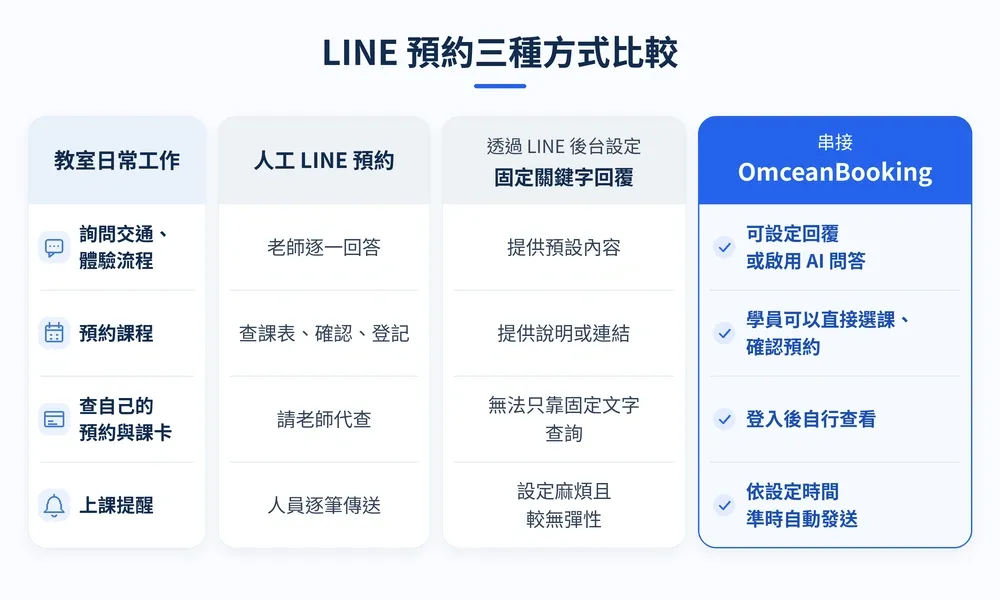
The LINE Chatbot is responsible for replying and guiding the user; the Booking System processes the classes, time slots, and records. OmceanBooking's integration makes the two work in perfect harmony. It's like having a receptionist at the front desk talking to customers, while an admin secretly works under the desk simultaneously logging all the data into the database. Front-end and back-end perfectly synced, missing absolutely nothing.
What can the OmceanBooking LINE Chatbot do? 3 Common Studio Scenarios
1. Answering questions from first-timers
What to wear, whether they need a yoga mat, and where the entrance is—these are all details you can prepare in advance. Once the OmceanBooking AI Chatbot is enabled, it uses your studio's Q&A knowledge base, combined with real-time system data like schedules and pricing, to answer questions.
"Having AI replies in LINE truly saves teachers from answering the same questions endlessly! One yoga instructor shared that every first-timer has different questions—some ask about mats, some about water, and some even ask if they need to shower before class 🤣. The AI can instantly answer standard queries about prices and schedules, allowing you to seamlessly take over the chat only when a personalized human response is actually needed."
2. Checking remaining passes and bookings without bothering the teacher
Right before class starts, one student asks how many passes they have left, while another asks when their next session is. Should the teacher grab their phone to check the database, or prepare the studio for the imminent class?
OmceanBooking allows logged-in students to view their own bookings and pass balances. The first time you walk a student through the process, show them where this record lives. Next time they forget a date, they'll know exactly where to look.
3. Sending customized automated reminders instead of manual texts
Beyond basic class reminders, OmceanBooking can automatically push notifications for schedule changes, waitlist updates, and expiring class passes based on your settings.
If an instructor suddenly falls ill and can't teach, one-click notification becomes a lifesaver. You don't need to scramble to pull up today's roster, call everyone individually, and pray they get the message. Within 5 seconds, you can notify the entire class and seamlessly follow up with rescheduling options. It takes care of the crisis from start to finish!
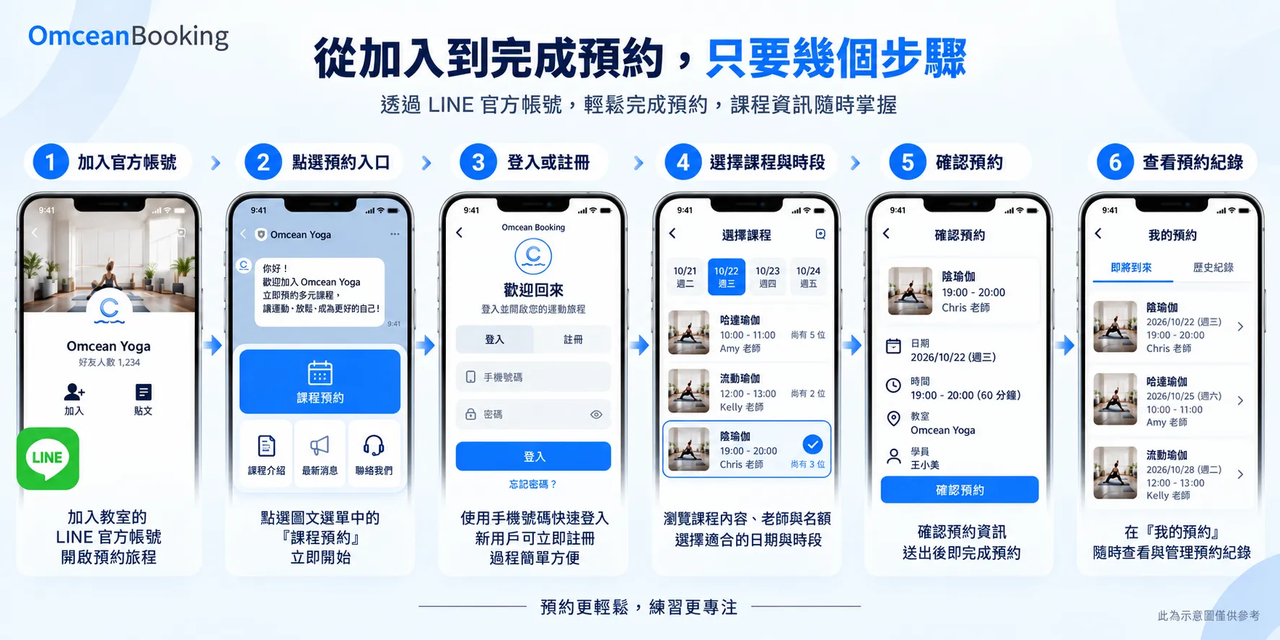
How does LINE Official Account booking work? The Complete Student Workflow
Add Official Account -> Click Booking Portal -> Login/Register -> Select Class & Time -> Confirm Booking -> View Booking Record.
When rolling this out, be sure to remind students: seeing an available time slot doesn't mean the spot is saved for them. They must complete the process until they see the confirmation screen.
For regulars who are used to texting you directly, walk them through the Official LINE booking flow once. In the future, they can confirm classes or reschedule directly through the LINE chat!
3 Things to Prepare Before You Integrate
1. Finalize your schedule and rules.
Open hours, class capacities, and booking/cancellation deadlines must be crystal clear. If you accept a booking over the phone or in person, log it into the same system. Otherwise, you'll have one version online and another in your head, leaving students utterly confused.
2. Prepare your most frequently asked questions.
Look through your recent chats and compile standard answers regarding trial processes, transportation, equipment, and cancellation policies. Feed these to the Chatbot to handle automatically, leaving a human contact option for special arrangements.
3. Test it out as a student after setup.
Follow the LINE integration setup guide, then ask someone who didn't set it up to try booking, querying, and receiving notifications. Test the AI's answers to ensure they align with your studio's actual practices.
Observe for the first week after launch: What are teachers still manually looking up? Where are students getting stuck? What data are you still copying down by hand? These observations will help you fine-tune the system.
LINE Booking System FAQ
Can I continue using my original LINE Official Account?
Yes. OmceanBooking's LINE integration works with your existing business Official Account. You don't need to start a new one from scratch, but you will need to complete the integration, set up the menu, and configure the relevant features.
I'm a solo teacher in a small studio. Do I really need a LINE Chatbot?
Look at your workload, not just your student count. If you spend time after every class cross-checking schedules, verifying remaining passes, and logging data, it's worth testing. Start by automating the tasks that eat up the most time—you don't have to change your entire workflow at once.
If a student adds the account as a friend, will they get class reminders?
Not necessarily. Adding the account as a friend and linking the booking account are two separate steps. Students must complete the account linkage, and the studio must enable the corresponding LINE notifications. We highly recommend testing this before officially launching.
What costs should I check before implementing the OmceanBooking LINE Chatbot?
You should review three separate things: the booking system subscription plan, the AI feature add-on, and the LINE Official Account message quota. LINE's messaging fees are billed separately from the booking system's service fees. Always refer to your current plan and actual usage.
Book a Consultation & Try OmceanBooking for Free!
Bring your current booking workflow and your biggest pain points, and let Omcean Booking help you find the perfect solution!
No credit card required. Start your 7-day free trial now 🔗 https://lihi1.me/gjgDQ
Was this article helpful?

